# 2.Client
#### Overview
The **Clients** section is used to manage client and counterparty-related information within the CTRM system. It supports the handling of contacts, companies, onboarding, compliance, leads, pipeline activities, and overall client relationship management.
---
#### 2.1 Contacts
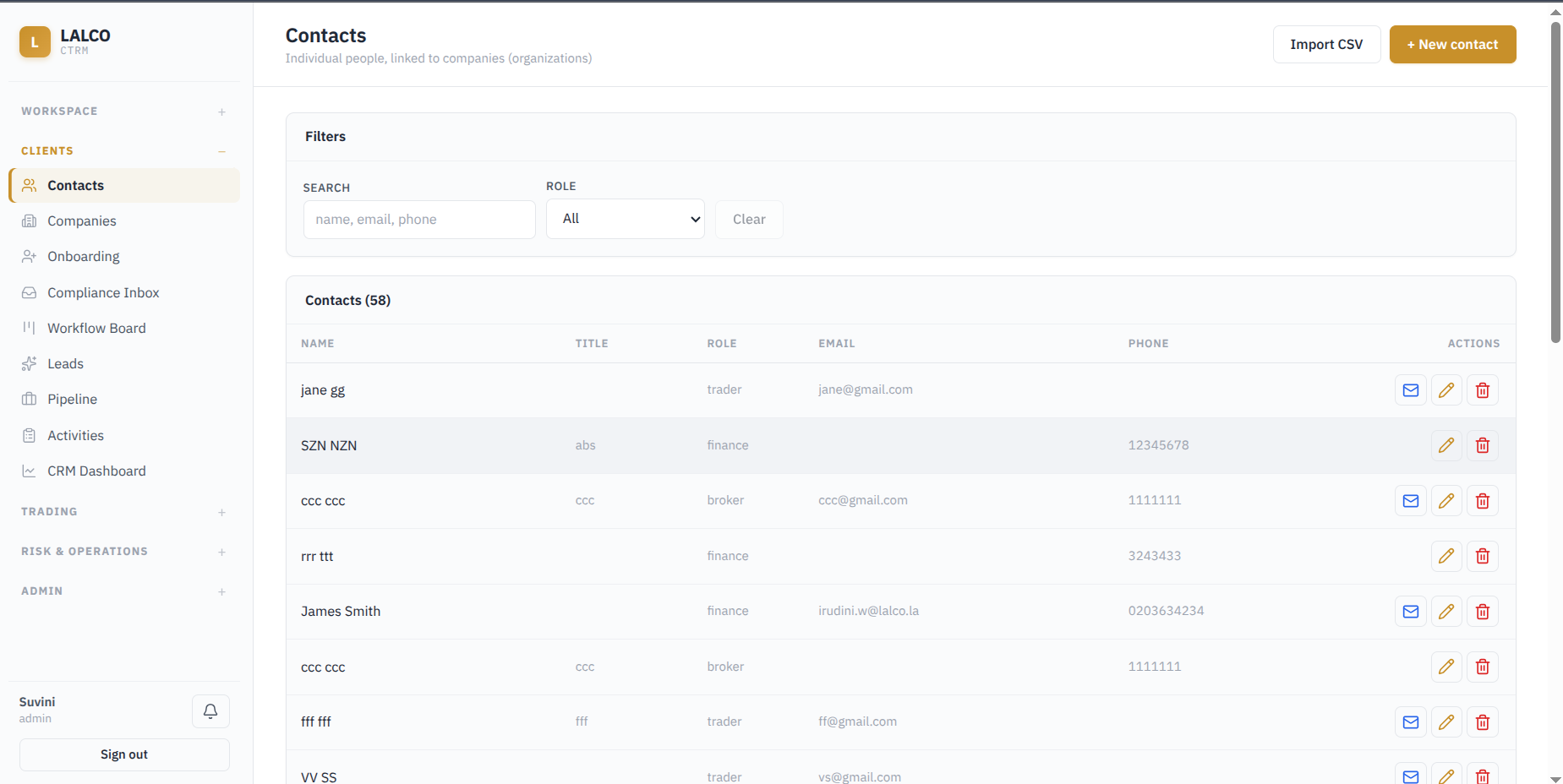
Used to store and manage individual people associated with counterparty organizations. Maintains key information : ***Name, Email, Phone number***
[](http://wiki.lalco.la/uploads/images/gallery/2026-08/6Yaimage.png)
**Filters**
- Search: Find contacts using name, email, or phone number
- Role: Filters contacts according to their assigned roles
**Main Functions**
- Add a new contact
- Import contacts using a CSV file
- Edit or delete existing contacts
- Send an email directly when a email address is available
##### Methods to add a contact
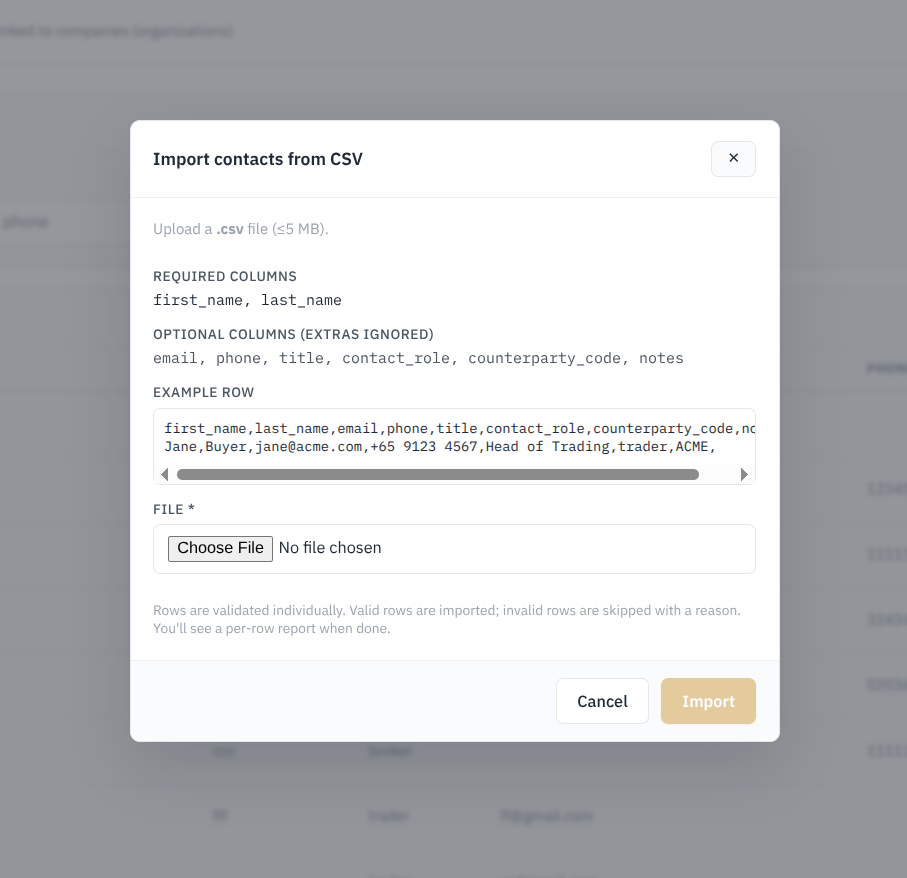
**1. Import Contacts from CSV** Allows multiple contacts to be added at once by uploading a CSV file up to 5 MB.
[](http://wiki.lalco.la/uploads/images/gallery/2026-08/WYrimage.png)
- Required Columns: first\_name , last\_name
- Optional columns: email, phone, title, contact\_role, counterparty\_code, notes
- Additional columns that are not required are ignored by the system
- Each row is validated indivually before being imported
- Valid rows are imported, while invalid rows are skipped with the reason provided
- A row-by-row import report is displayed after the process is completed.
**Key Characterisitc** Counterparty Code – Identifies the counterparty organization that the contact belongs to. When contacts are imported through a CSV file, this code helps the system link each contact to the correct counterparty automatically.
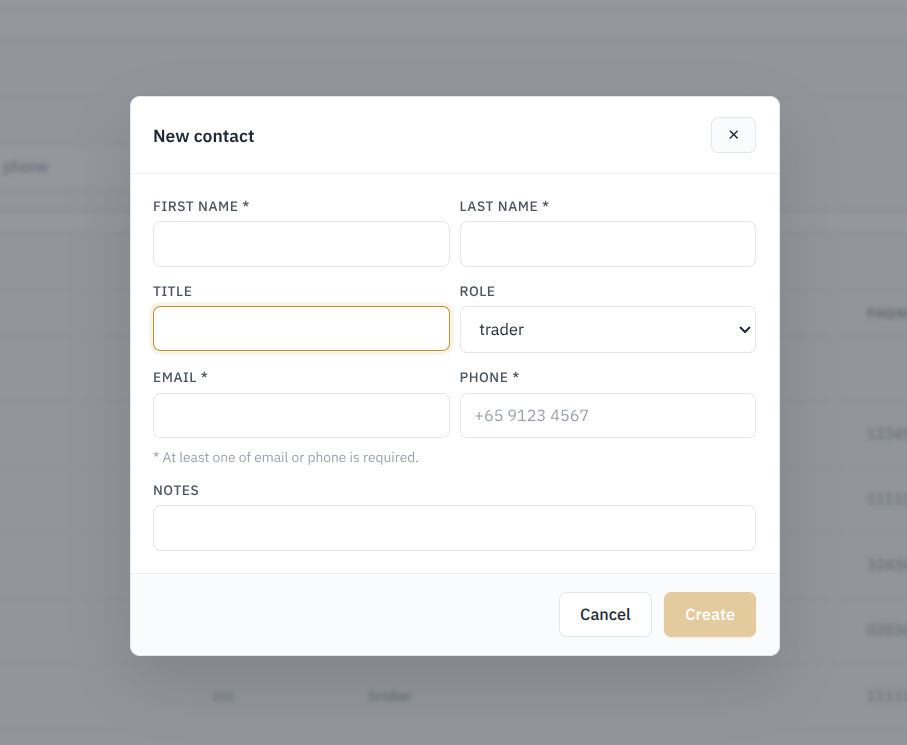
**2. Manual Entry of a company** Allows users to manually create an individual contact record within the system.
[](http://wiki.lalco.la/uploads/images/gallery/2026-08/D4Vimage.png)
**Fields:**
- First name
- Last Name
- Title (Job title/position)
- Role (Business role)
- Email
- Phone
- Notes
**Validations :**
- First name and Last name are mandatory
- At least one contact method, either Email or Phone must be provided.
---
#### 2.2 Companies
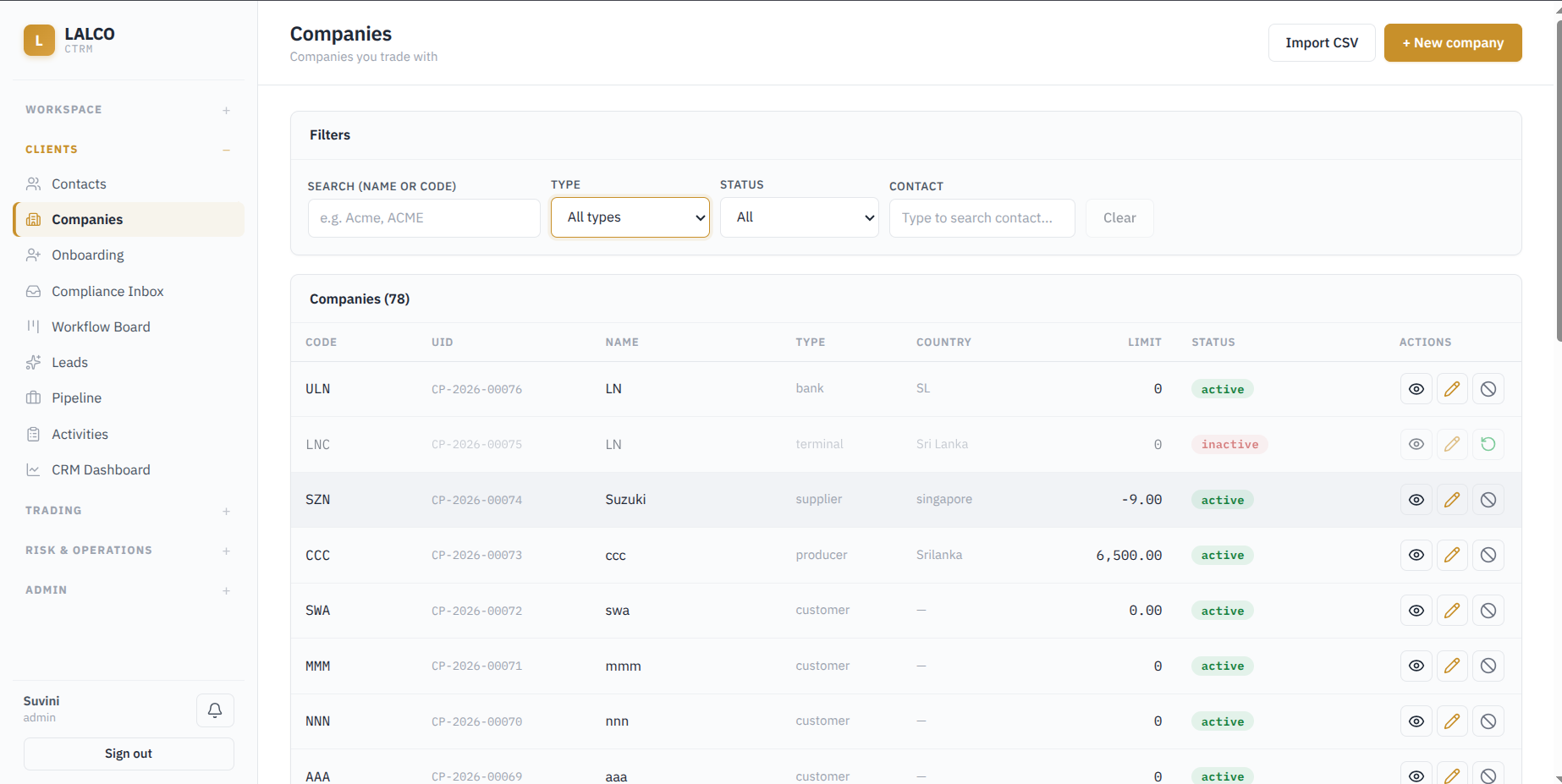
Used to manage the organizations that the business trades or works with. Each company is maintained as a counterparty record with its identifying details, type, country, limit, and current status.
[](http://wiki.lalco.la/uploads/images/gallery/2026-08/AIfimage.png)
**Filters**
- Search by name or code - Find a company by company by it's name or company code.
- Type - Filter according to the company type (customer, supplier, producer etc)
- Status - Inactive or active
- Contact - Finds companies associated with a particular contact
**Main Functions**
- Add a new company.
- Import company records through CSV.
- View company details.
- Edit an existing company.
- Deactivate an active company or reactivate an inactive company.
##### Methods to add a companies
**1. Import companies from csv**
[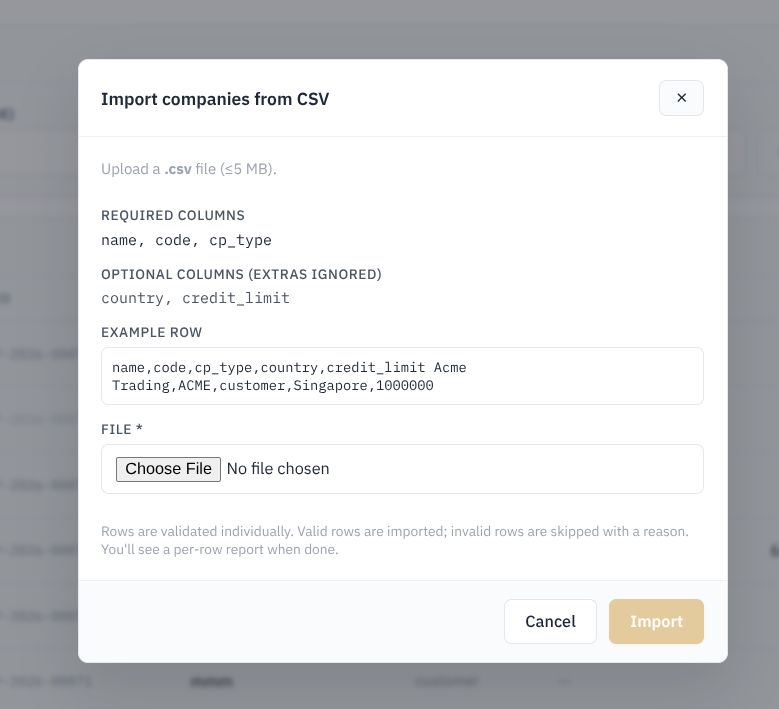](http://wiki.lalco.la/uploads/images/gallery/2026-08/jqUimage.png)
Required columns **:** Name , Code , CP Type (Counterparty type)
Optional columns: Country, Credit Limit
**Validations** Each row in the CSV file is checked separately before import.
- Valid rows are imported successfully.
- Invalid rows are skipped.
- The system provides a reason for any rejected row.
- A row-by-row import report is shown after the import is completed.
**2. Manual Entry of a company
**
[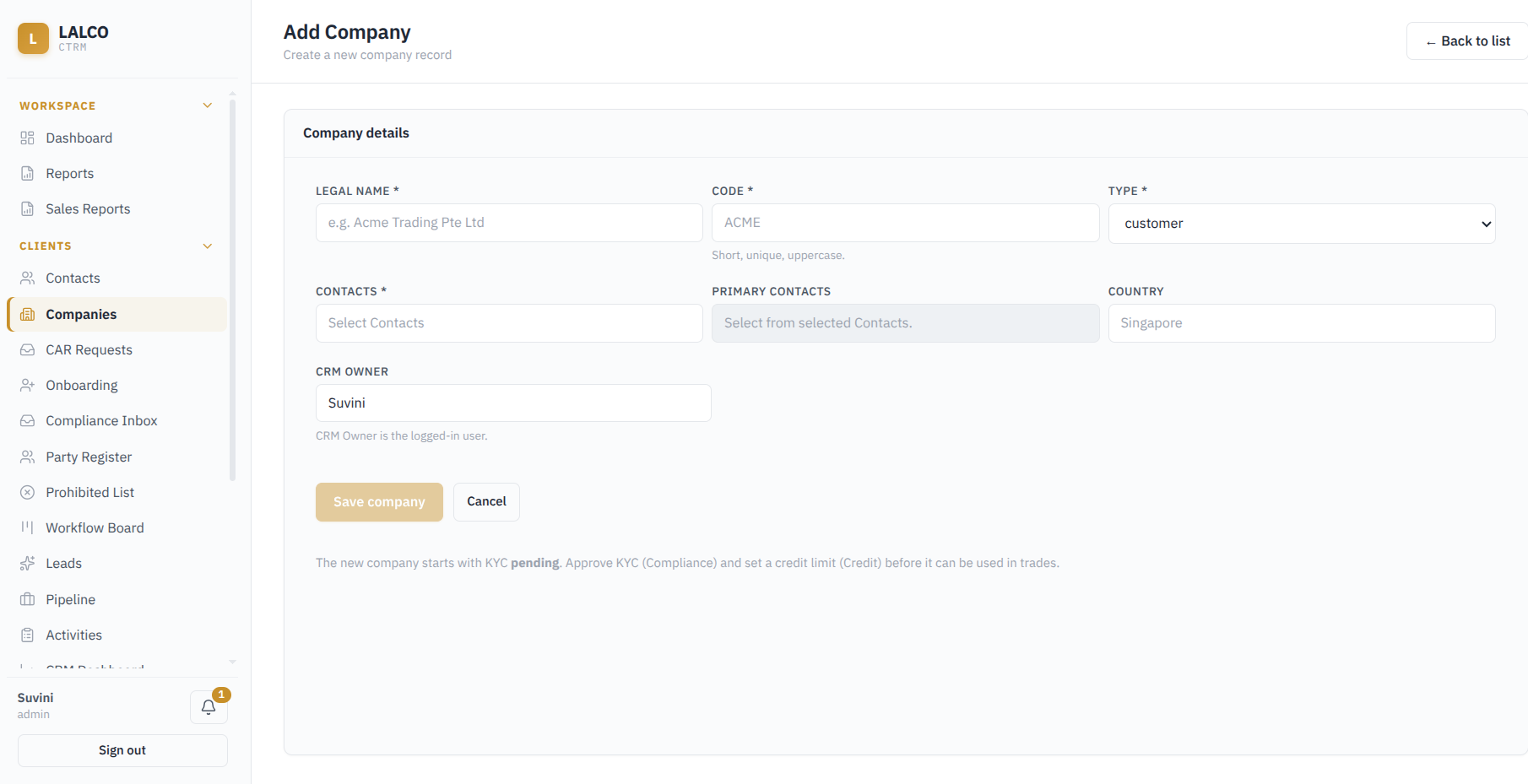](http://wiki.lalco.la/uploads/images/gallery/2026-09/oTUimage.png)
**Fields to create a new company**
- **Legal Name** – Official name of the company. *Required.*
- **Code** – Short, unique uppercase code used to identify the company. *Required.*
- **Type** – Defines the counterparty type, such as customer. *Required.*
- **Contacts** – Links existing contacts to the company. *(contact assigned already cannot be assigned again)* *Required.*
- **Primary Contacts** – Identifies the main contact person from the selected contacts.
- **Country** – Country associated with the company.
- **CRM Owner -** The logged in user. *Read-Only*
**Key Requirement** A newly created company starts with **KYC (Know Your Cusomter) Pending** status. Before the company can be used in trades:
- KYC must be approved through the Compliance process.
- A credit limit must be assigned through the Credit process.
**Displayed details**
- **Code** – Short code assigned to the company.
- **UID** – Unique system identifier for the company.
- **Name** – Company name.
- **Type** – Classification of the company.
- **Country** – Country in which the company is associated or registered.
- **Limit** – Limit value configured for the company.
- **Status** – Indicates whether the company is currently active or inactive.
**View Company** The View Company page provides a complete profile of the selected company and brings together its related information in one place.
[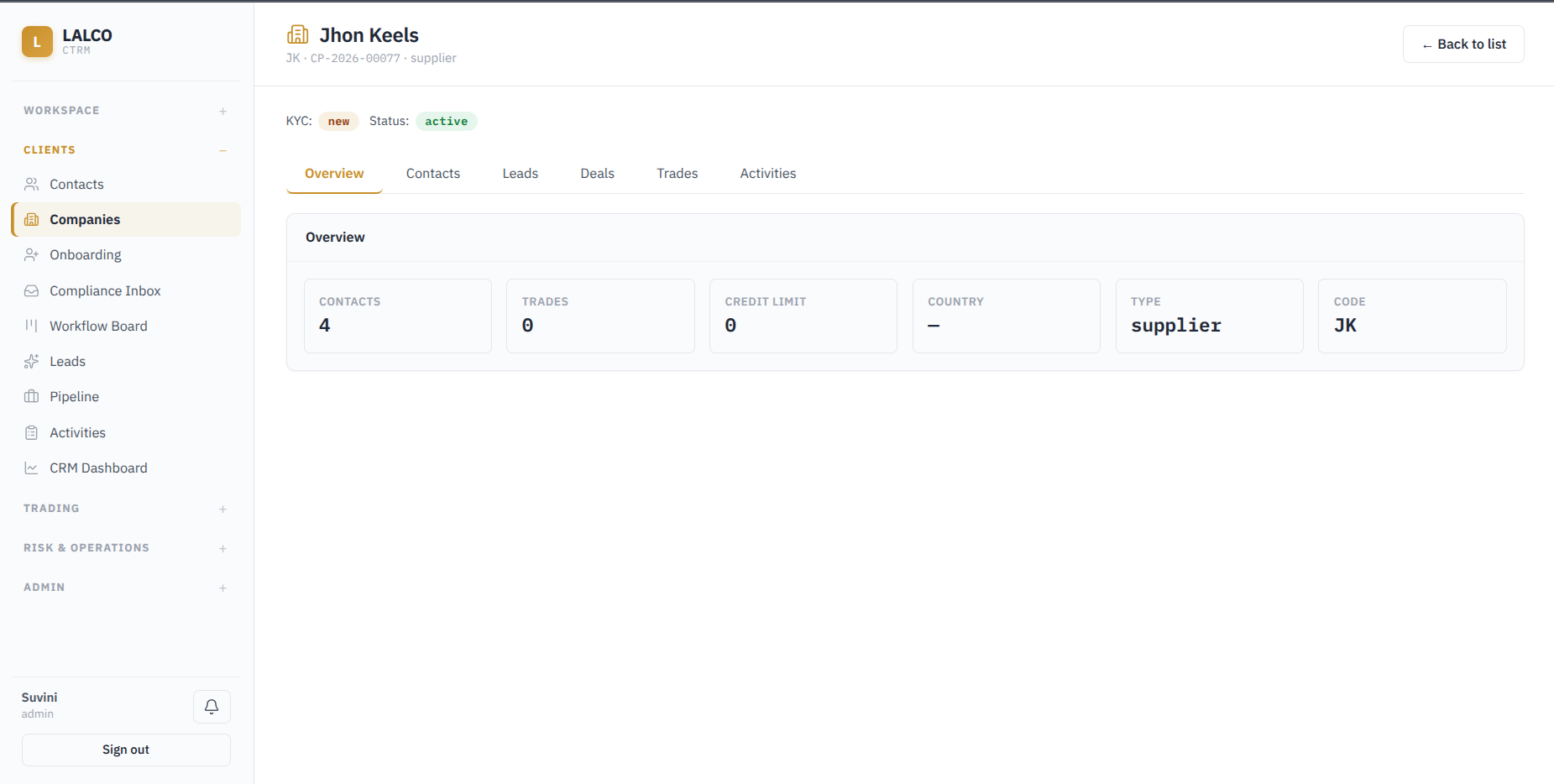](http://wiki.lalco.la/uploads/images/gallery/2026-08/m4Oimage.png)
Provides a summary of :
- **Contacts** – Number of contacts linked to the company.
- **Trades** – Number of trades associated with the company.
- **Credit Limit** – Current credit limit assigned to the company.
- **Country** – Country associated with the company.
- **Type** – Counterparty type, such as supplier or customer.
- **Code** – Short code used to identify the company.
**Edit Company details**
- **Legal Name** – Updates the official company name.
- **Type** – Changes the counterparty type, such as supplier or customer.
- **Country** – Updates the country associated with the company.
- **Status** – Changes whether the company is active or inactive.
[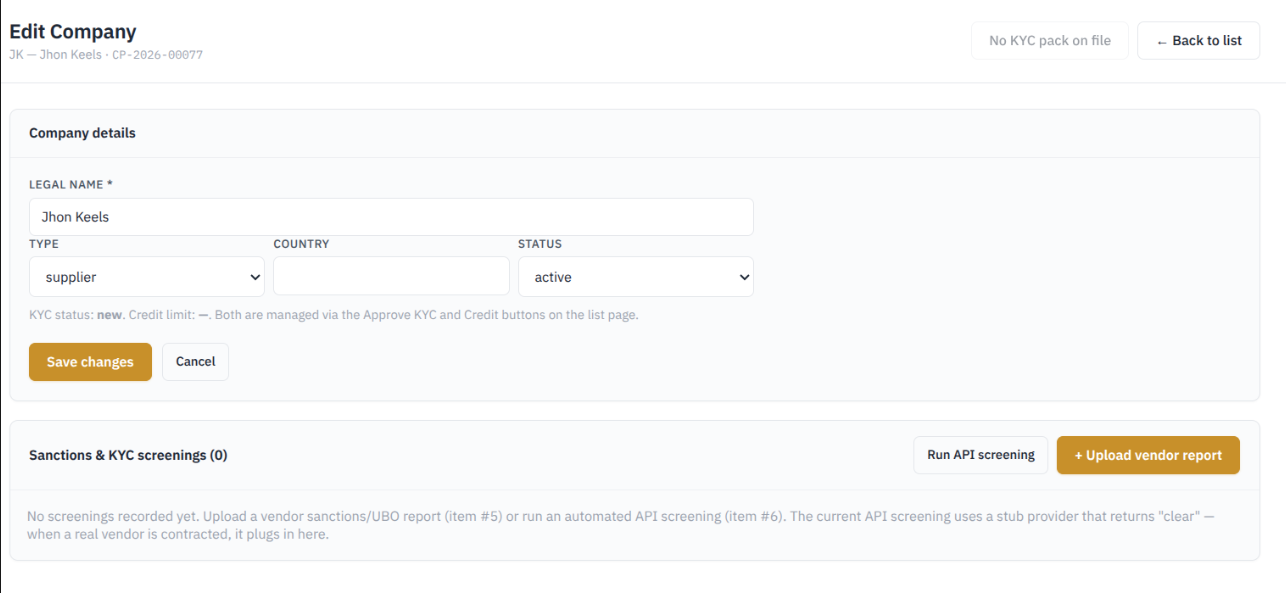](http://wiki.lalco.la/uploads/images/gallery/2026-08/xEtimage.png)
*The KYC status and Credit Limit cannot be changed directly from this page. These are managed separately through the relevant KYC approval and credit functions.*
**Sanctions & KYC Screening** Used to record checks performed on the company as part of the KYC and compliance process.
- **Run API Screening** – Performs an automated screening of the company. Currently, the system uses a test/stub screening provider (To be edited)
- **Upload Vendor Report** – Allows a sanctions or **UBO (Ultimate Beneficial Owner)** screening report obtained from an external provider to be uploaded.
- Previous screening results are recorded in this section when available
---
#### 2.3 CAR Request
Used to raise and manage **Compliance Application Required (CAR)** requests initiated by Trade Finance or Logistics. It allows users to track requests submitted for companies and monitor their progress through the compliance/KYC process.
[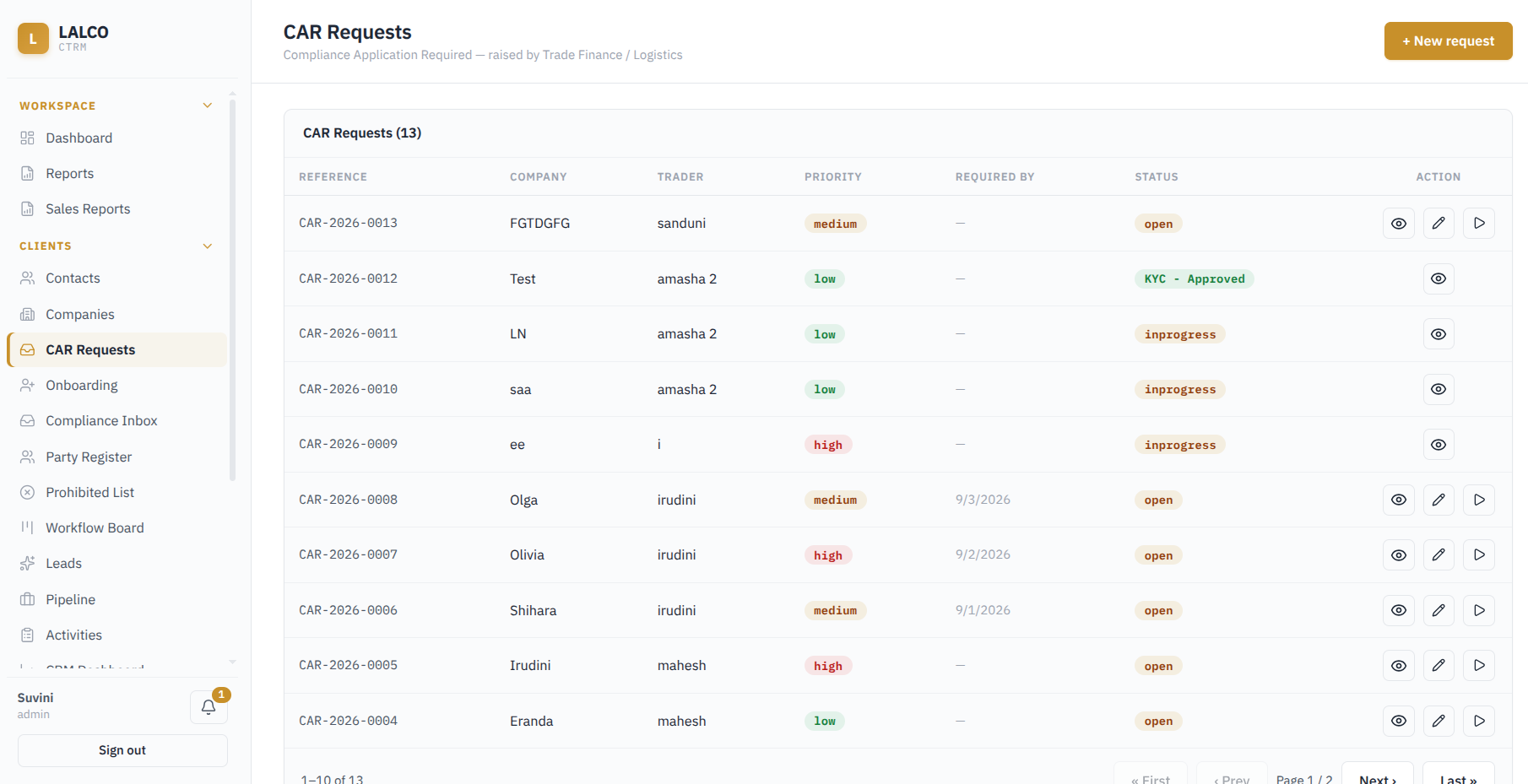](http://wiki.lalco.la/uploads/images/gallery/2026-09/VHDimage.png)
- **Reference** – System-generated CAR request reference.
- **Company** – Company for which the compliance request is raised.
- **Trader** – Trader associated with the request.
- **Priority** – Request priority (Low, Medium, High).
- **Required By** – Target date for completion.
- **Status** – Current request status, such as **Open**, **In Progress**, or **KYC – Approved**.
- **Actions** – Allows the user to view the request and, depending on its status, edit CAR request and start CAR request.
**New CAR requests** Allows a CAR request to be raised for a company and assigned to the responsible trader. The request captures the business requirement, priority, and required completion date before being submitted for further processing.
[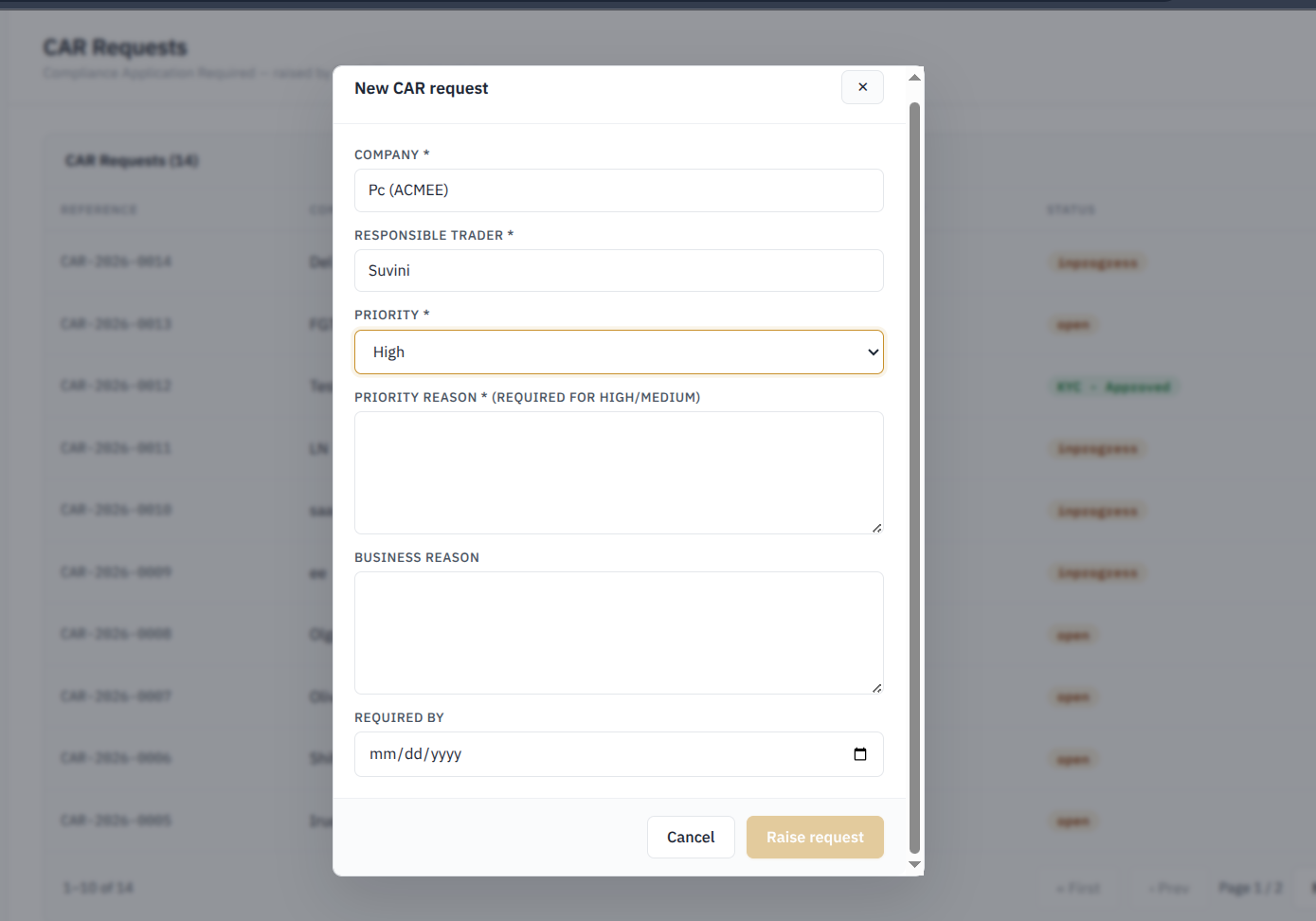](http://wiki.lalco.la/uploads/images/gallery/2026-09/NUcimage.png)
- **Company** - Search and select the company for which the CAR request is being raised. *Required*
- **Responsible Trade** - Select the trader responsible for the request
- **Priority** - Urgency of the request. *Required*
- **Priority Reason -** Required when priority is set to Medium or High. A reason must be entered why the requests . *Required*
- **Business Reason** - Provides the business justification or reason for raising the CAR request.
- **Required By -** Specifies the date by which the request is required to be completed.
**Edit a CAR request**
Users can edit an existing CAR request while it is still open
[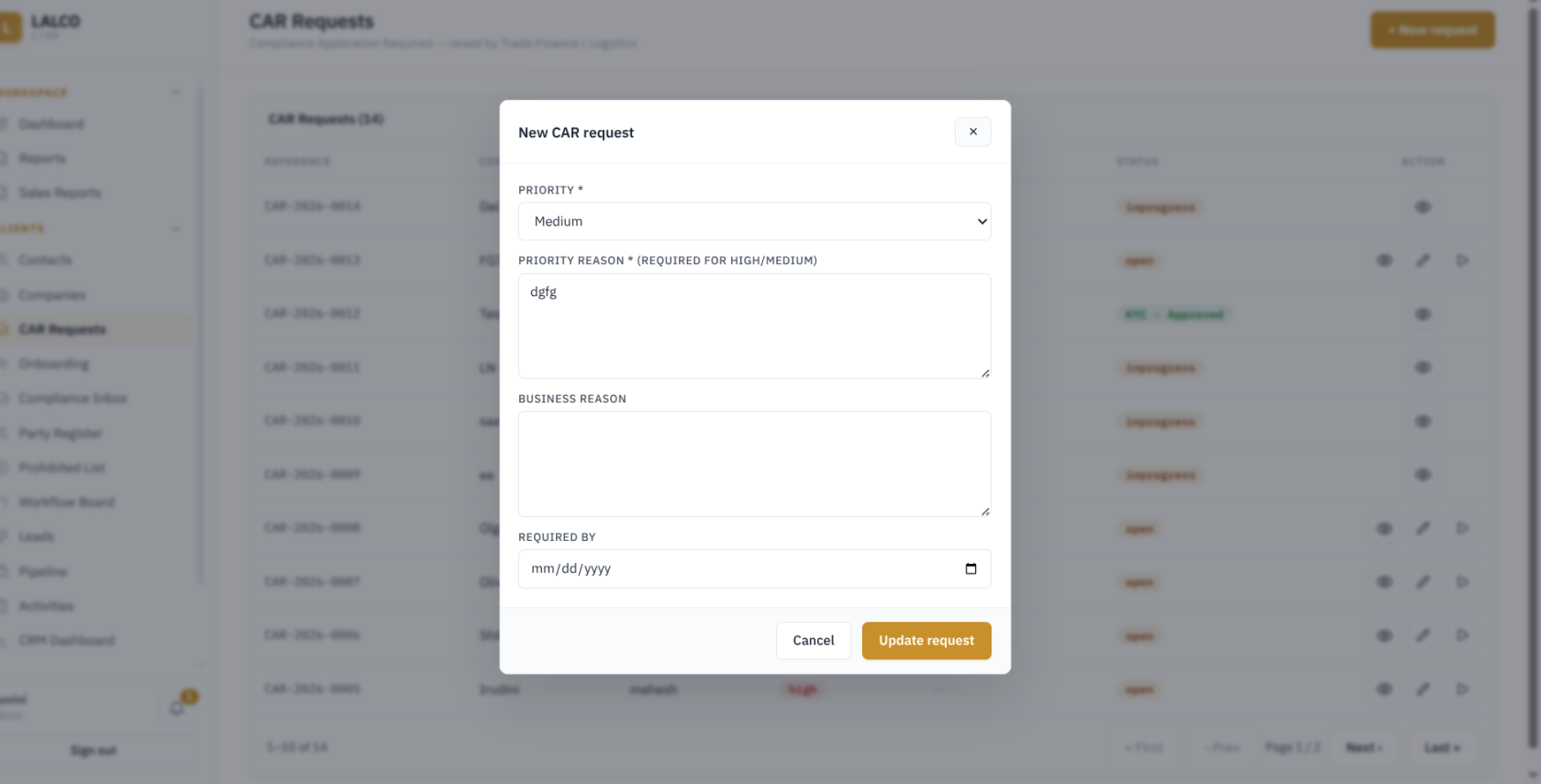](http://wiki.lalco.la/uploads/images/gallery/2026-09/hSzimage.png)
Fields that can be edited
- **Priority** – Low, Medium, or High.
- **Priority Reason** – Mandatory when **Medium** or **High** priority is selected.
- **Business Reason** – Business justification for the CAR request.
- **Required By** – Target date by which the compliance review is required.
**Start CAR Request - New Onboarding Lead**
[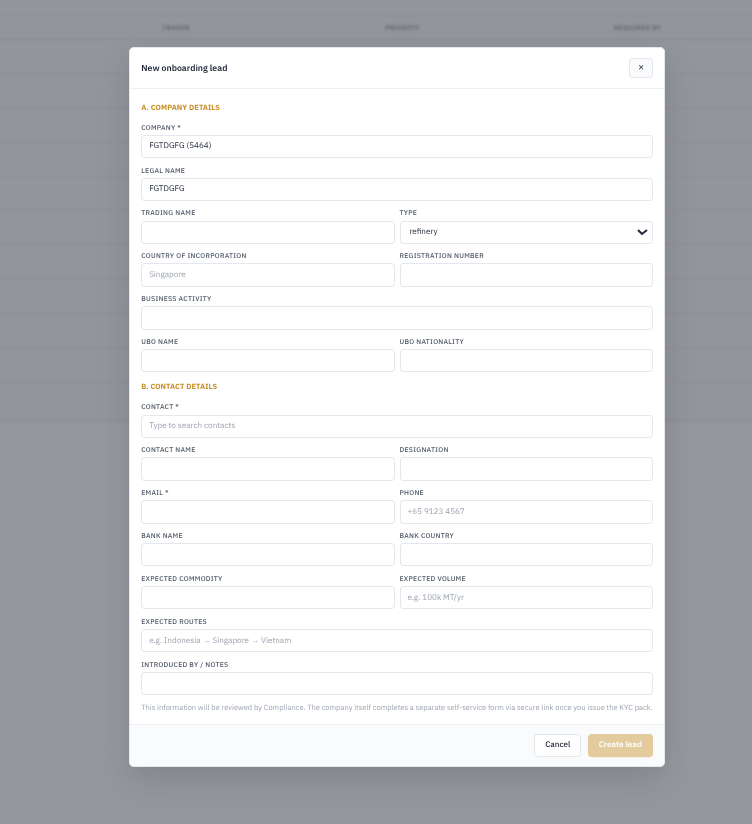](http://wiki.lalco.la/uploads/images/gallery/2026-09/iUzimage.png)
**A. Company Details**
- **Company** – Selects the company. *Required.*
- **Legal Name** – Company’s registered legal name.
- **Trading Name** – Company’s trading/business name.
- **Type** – Company type, such as refinery, supplier, customer, etc.
- **Country of Incorporation** – Country where the company is incorporated.
- **Registration Number** – Company registration number.
- **Business Activity** – Main business activity of the company.
- **UBO Name** – Name of the Ultimate Beneficial Owner.
- **UBO Nationality** – Nationality of the Ultimate Beneficial Owner.
**B. Contact Details**
- **Contact** – Selects the contact associated with the company. *Required*
- **Contact Name** – Name of the selected contact.
- **Designation** – Contact’s job title/role.
- **Email** – Contact’s email address. *Required*
- **Phone** – Contact’s phone number.
- **Bank Name** – Company/contact bank information.
- **Bank Country** – Country of the bank.
- **Expected Commodity** – Commodity the company is expected to trade.
- **Expected Volume** – Estimated trading volume.
- **Expected Routes** – Expected trading/shipping routes.
- **Introduced By / Notes** – Details of who introduced the company or any additional notes.
*The lead information is first checked by the Compliance team. After that, the company receives a secure link to complete the required KYC form and submit its details for review.*
---
#### 2.4 Onboarding
The **Onboarding** module is used to manage potential companies before they become approved counterparties. It helps track leads through the early sales, onboarding, and KYC stages.
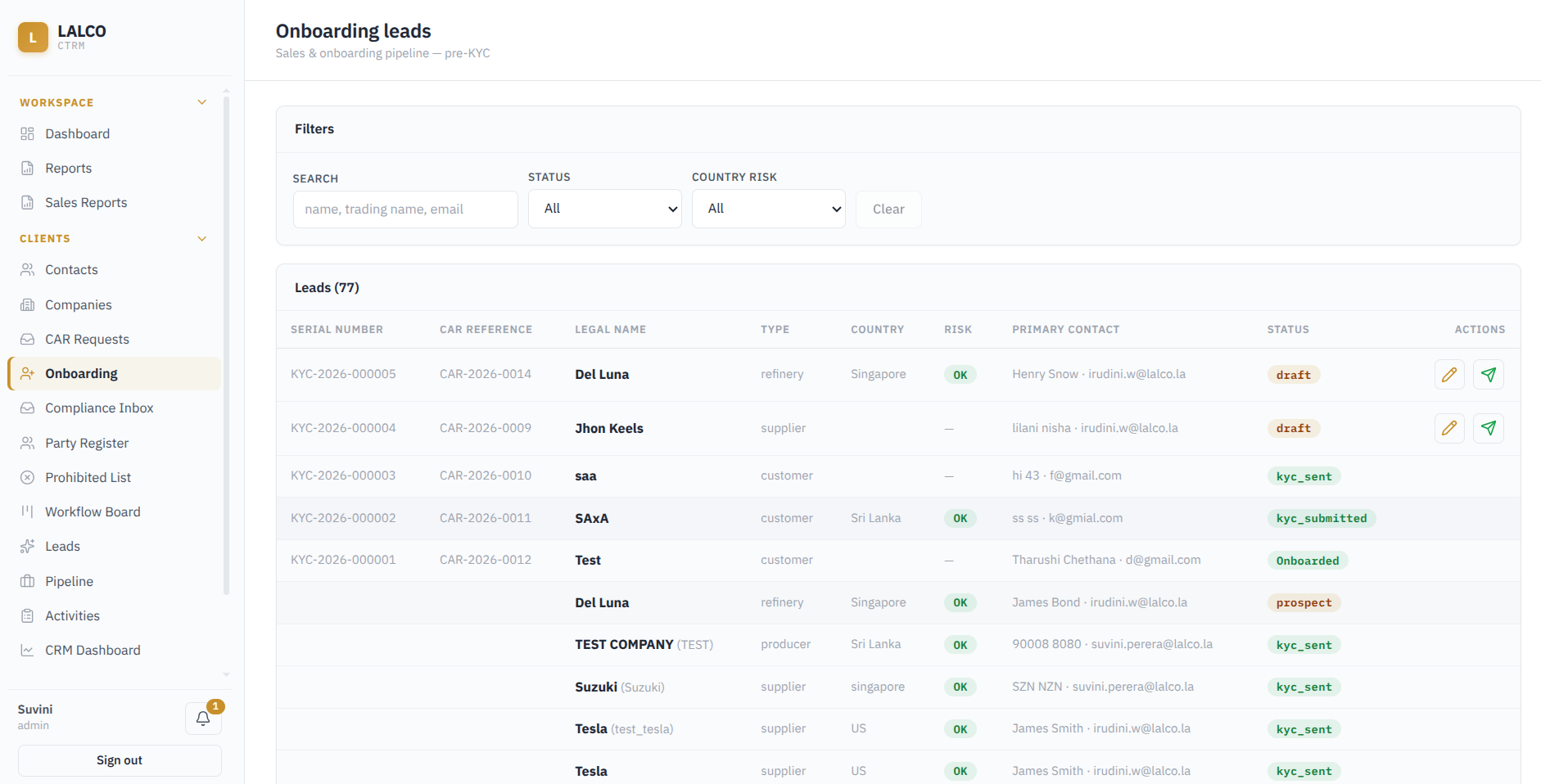
**Filters**
- **Search** – Finds leads using the legal name, trading name, or email.
- **Status** – Filters leads according to their current onboarding status.
- **Country Risk** – Filters leads based on the risk level associated with their country.
**Leads information displayed**
- **Legal Name** – Official name of the potential company.
- **Type** – Counterparty type, *(eg: - customer, supplier, or terminal.)*
- **Country** – Country associated with the lead.
- **Risk** – Indicates the country risk result.
- **Primary Contact** – Main contact person associated with the lead.
- **Status** – Shows the current stage of the onboarding process.
**Status of onboarding leads**
- **Draft**– The company is still a potential counterparty and has not yet moved through the KYC process.
- **KYC Sent** – The KYC request has been sent and the lead is progressing through onboarding. *(documents are expected for review)*
- **KYC Submitted** *–* The requested KYC information or documents have been submitted and are ready for review.
- **Returned** – The submitted KYC information has been sent back because corrections, missing information, or additional documents are required.
**Onboarded** – The company has successfully completed the onboarding process and has been accepted as a counterparty.
- **Rejected** – The lead has been rejected during the onboarding process.
General flow of a lead:
Prospect → KYC Sent → KYC Submitted → Onboarded
If there is an issue with the submitted information:
KYC Submitted → Returned → Corrected/Resubmitted
If the lead is not approved:
KYC Submitted → Rejected
**Country Risk**
- OK
- High Risk
- Banned
- Unknown
---
#### 2.5 Compliance Inbox
[](http://wiki.lalco.la/uploads/images/gallery/2026-08/xgZimage.png)
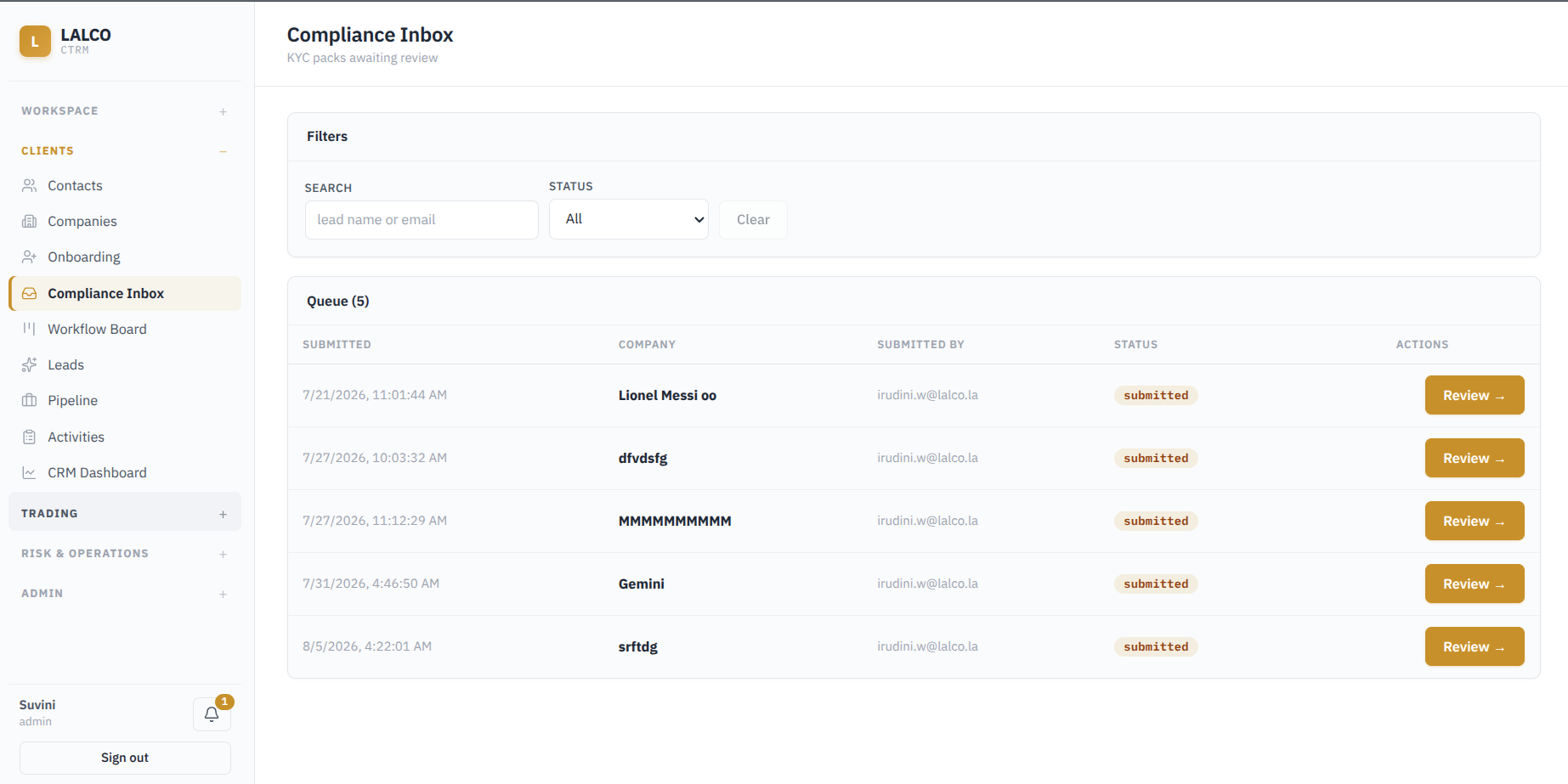
Used to review KYC submissions that haved been submitted and sent for compliance checking.
**Filters**
- Search based on Lead name and email
- Status based on current review status (submitted, Under review)
**Statuses **
- Submitted
- Under review
**Details displayed**
- Submitted
- Company
- Submitted by
- Status
- Actions (Review)
**Review KYC Pack** The review page shows the KYC submission details, uploaded documents, company information, risk indicators, and the available compliance actions.
**KYC Invitation and Submission Details**
[](http://wiki.lalco.la/uploads/images/gallery/2026-09/f3Jimage.png)
- **Invitation Status** – Shows whether the KYC invitation email was sent.
- **Sent To** – Email address to which the KYC pack was sent.
- **Expiry Date** – Date and time when the KYC link expires.
- **Signed** – Shows who signed the KYC submission and when.
- **Submitted** – Date and time the KYC pack was submitted.
- **Reviewed** – Shows when and by whom the submission was reviewed.
- **Resend Email** – Allows the KYC invitation to be sent again when required.
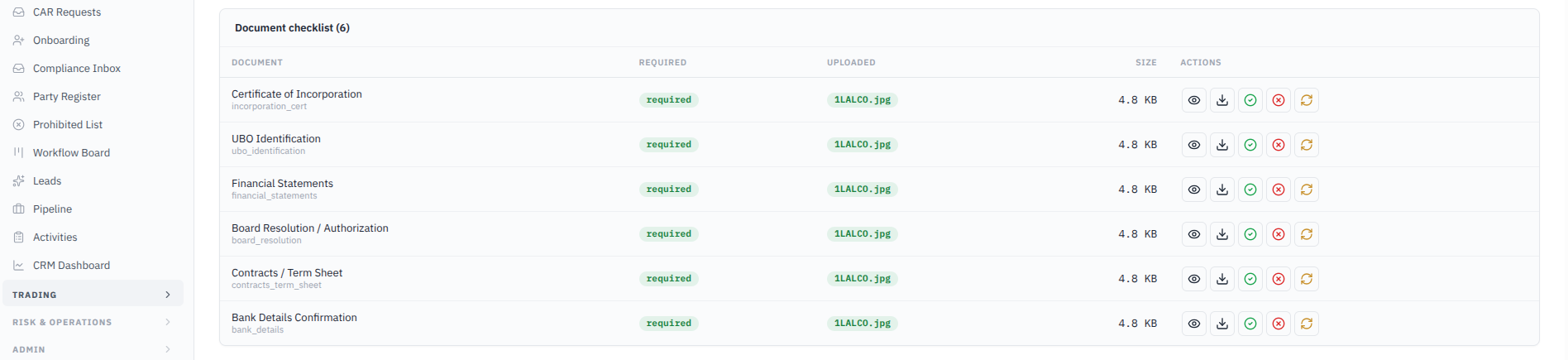
**Document Checklist**
[](http://wiki.lalco.la/uploads/images/gallery/2026-09/MRDimage.png)
*The **Document Checklist** shows the documents required for the KYC review and the files uploaded by the company and allows Compliance to view, download, accept, reject, or request the re-submission of each uploaded KYC document.*
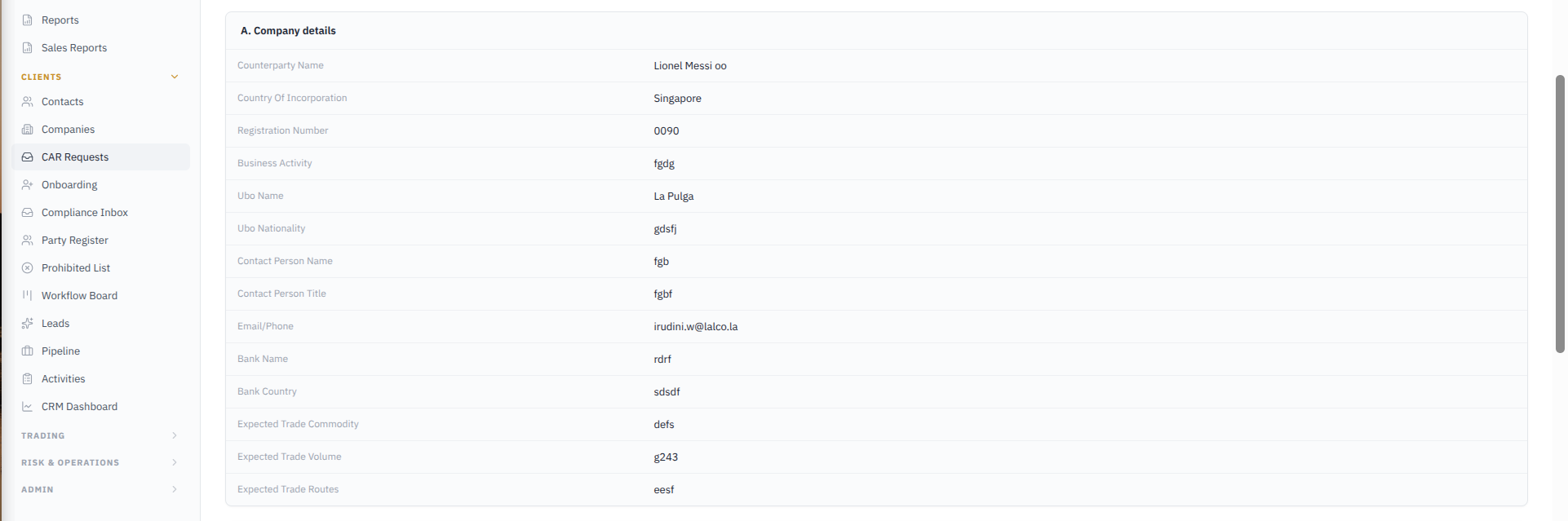
**A. Company details**
[](http://wiki.lalco.la/uploads/images/gallery/2026-09/7bKimage.png)
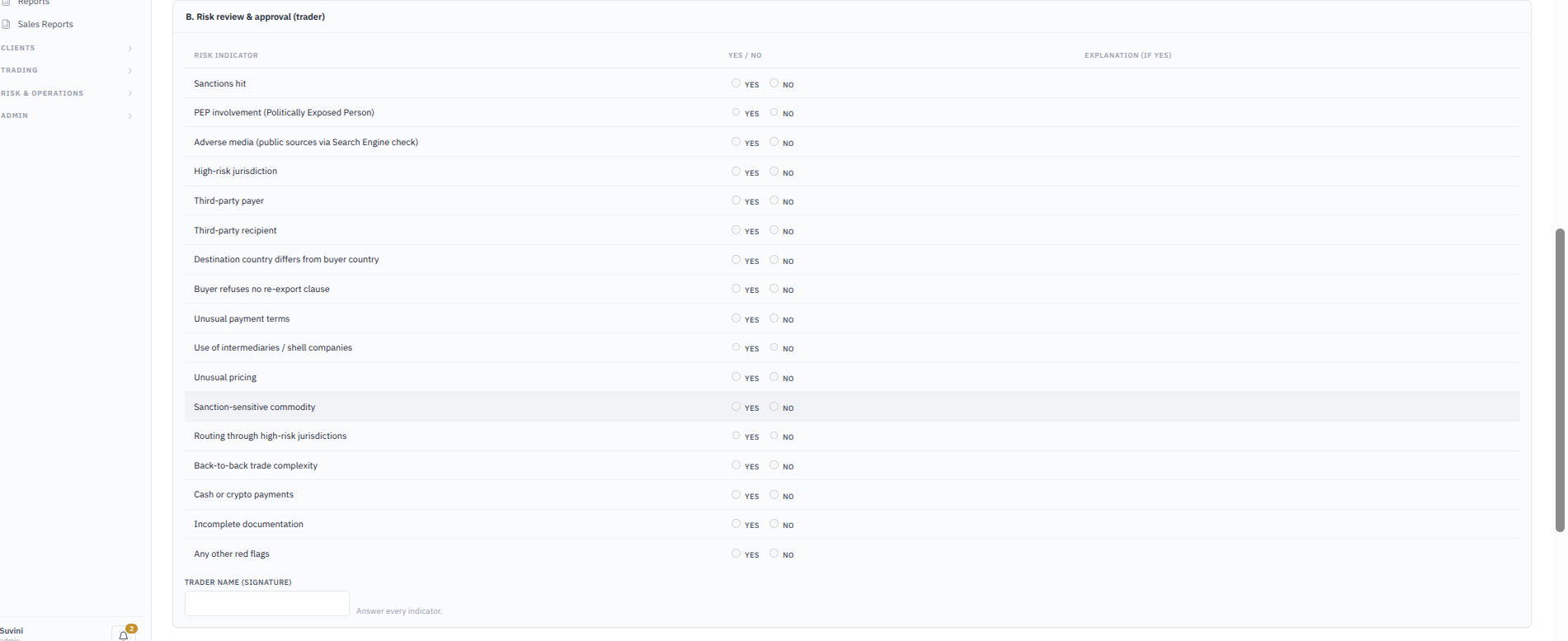
**B. Risk Indicators**
The reviewer evaluates each compliance risk by selecting Yes or No and provides an explanation where a risk is identified.
[](http://wiki.lalco.la/uploads/images/gallery/2026-09/MgAimage.png)
**B.Risk Reviews & approval** Used to assess potential compliance and transaction risks.
[](http://wiki.lalco.la/uploads/images/gallery/2026-09/SPPimage.png)
*Where a risk indicator is identified, an explanation may be required. After all indicators have been reviewed, the trader enters their name/signature and selects Sign and submit risk review.*
**Internal submission form** [](http://wiki.lalco.la/uploads/images/gallery/2026-09/8whimage.png)
Used to review and record internal company information such as legal entity name, country of incorporation, registration number, business activity, UBO details, bank details, expected commodity, expected volume, and expected routes.
[](http://wiki.lalco.la/uploads/images/gallery/2026-09/0Isimage.png)
- **Copy from counterparty form** – Copies the submitted counterparty information into the internal form.
- **Save internal form** – Saves the internal review information.
**Proposed Commodities** The **Proposed Commodities** section shows the commodities the company is expected to trade.
[](http://wiki.lalco.la/uploads/images/gallery/2026-09/42uimage.png)
For each proposed commodity, Compliance can: **Approve** and **Reject** the commodity.
**Compliance Decision** After reviewing the KYC information, documents, risk indicators, internal form, and proposed commodities, Compliance can take one of the following actions:
- **Approve & Onboard -** Approves the KYC and completes the onboarding process.
- **Return for changes -** Sends the submission back so corrections can be made.
- **Request More info -** Requests additional information before a final decision is made.
- **Require EDD -** Moves the case to Enhanced Due Diligence for further review.
- **Reject -** Rejects the KYC/onboarding application.
- **Withdraw -** Stops the application from proceeding further
[](http://wiki.lalco.la/uploads/images/gallery/2026-09/xLBimage.png)
---
#### 2.6 Workflow Board
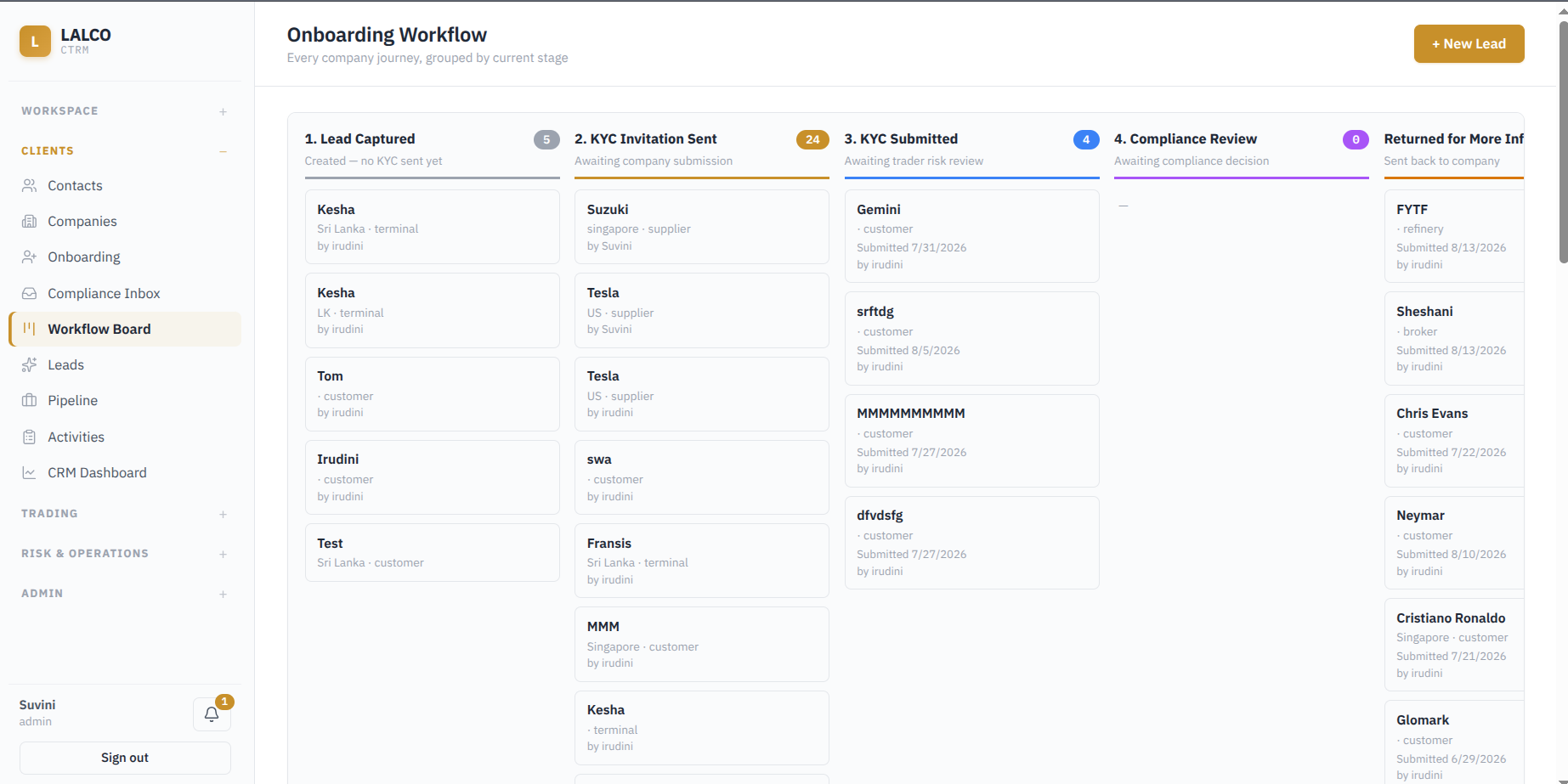
The **Workflow Board** gives a visual view of where each company currently stands in the onboarding process. Companies are grouped into columns based on their current stage
[](http://wiki.lalco.la/uploads/images/gallery/2026-08/6zVimage.png)
**Stages**
**1. Lead Captured** – The lead has been created, but the KYC invitation has not yet been sent.
**2. KYC Invitation Sent** – The KYC request has been sent and the company is expected to complete and submit it.
**3. KYC Submitted** – The company has submitted the KYC information and it is waiting for further review.
**4. Compliance Review** – The submitted KYC information is being reviewed by the Compliance team.
**Returned for More Information** – The submission has been sent back to the company because additional information or corrections are required.
---
#### 2.7 Leads
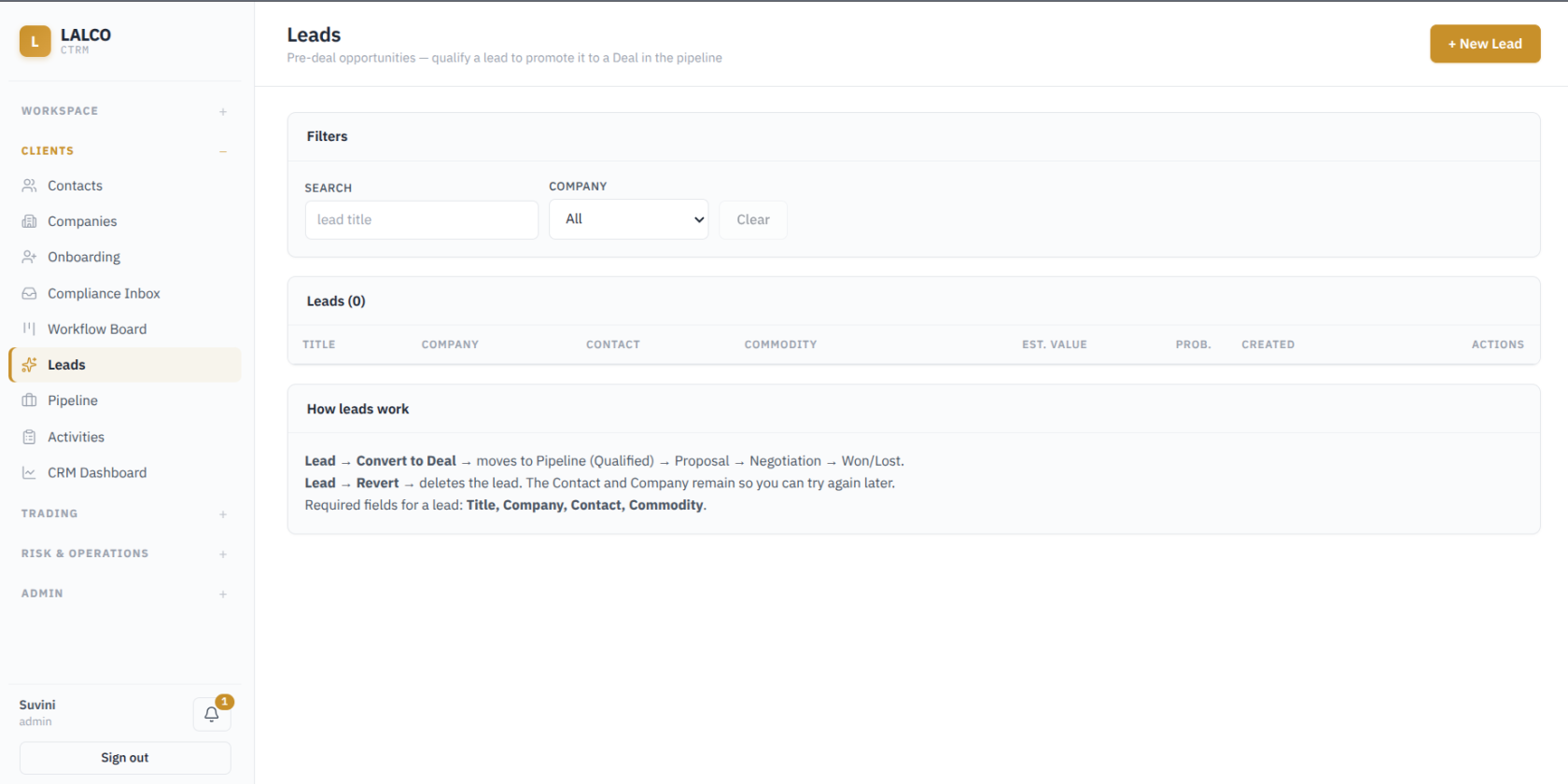
Used to manage potential trading opportunities before they become actual deals. A lead represents an opportunity linked to a company, contact, and commodity.
[](http://wiki.lalco.la/uploads/images/gallery/2026-08/R9Rimage.png)
**Filters**
- Search a lead using the lead title
- Company
**Lead information **
- Title
- Company
- Contact
- Commodity
- Estimated value *(expected value of the opportunity)*
- Probability *(chance of the opportunity progressing)*
- Created
**Convert Lead To Deal**
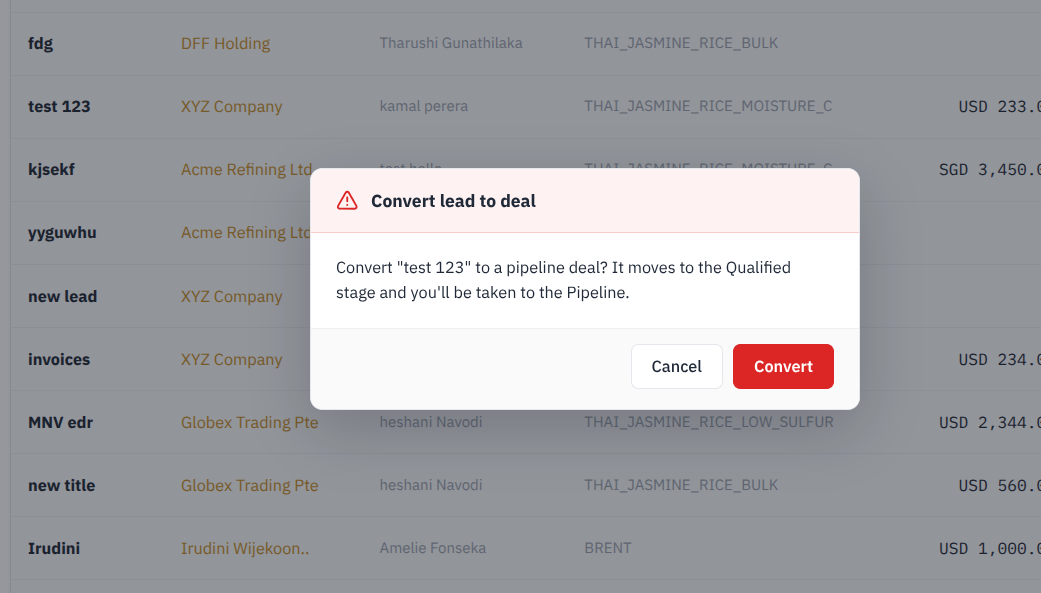
When a lead becomes a qualified business opportunity, the user can select **Convert to Deal**.
- The system asks for confirmation before converting the lead.
- Once confirmed, the lead is moved to the **Pipeline** as a deal.
- The new deal starts at the **Qualified** stage.
- After conversion, the user is redirected to the Pipeline to continue managing the deal.
[](http://wiki.lalco.la/uploads/images/gallery/2026-08/6Hnimage.png)
**How Leads Work**
*Possible trading opportunity→Lead → Convert to Deal → Qualified → Proposal → Negotiation → Won/Lost*
Lead → Revert :* Deletes the lead. The Contact and Company remain so you can try again later.*
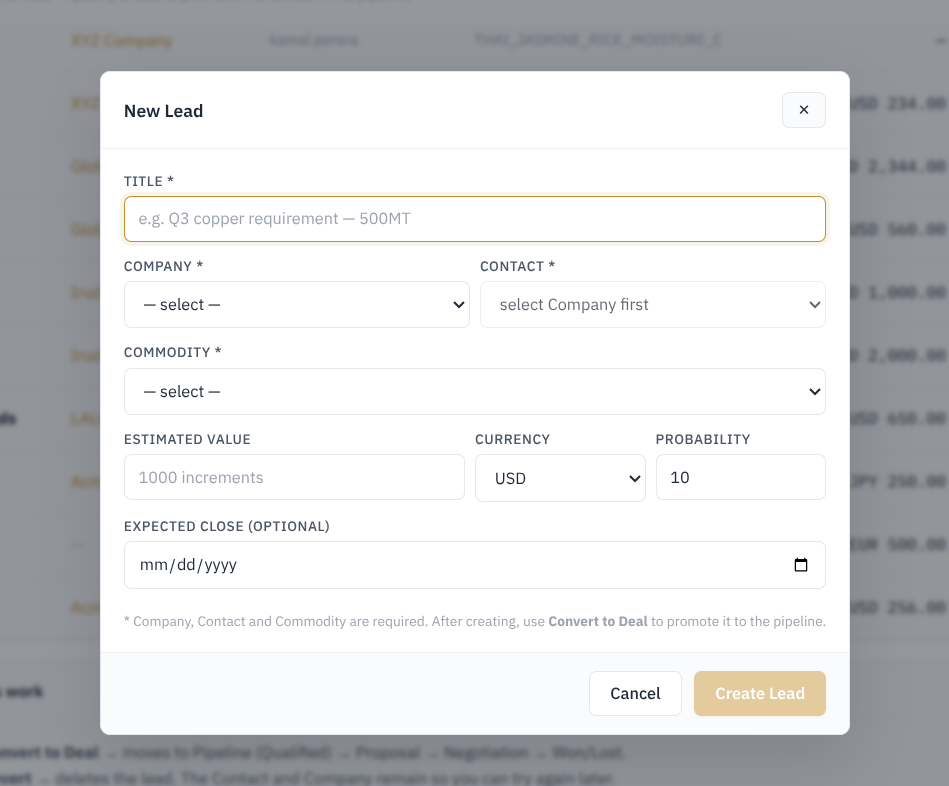
**Create a new lead** The **New Lead** form is used to record a potential trading opportunity before it becomes a deal.
[](http://wiki.lalco.la/uploads/images/gallery/2026-08/ZPnimage.png)
- **Title**\* – Short description of the opportunity, for example, *Q3 Copper Requirement – 500MT*. (Required)
- **Company**\* – Select the company related to the opportunity. *(Required)*
- **Contact**\* – Select the relevant contact person from the chosen company. *(Required)*
- **Commodity**\* – Select the commodity involved in the opportunity. *(Required)*
- **Estimated Value** – Enter the expected value of the opportunity.
- **Currency** – Select the currency used for the estimated value.
- **Probability** – Enter the estimated chance of the opportunity becoming a deal.
- **Expected Close** – Optional date indicating when the opportunity is expected to be completed.
*The Leads page may also display deals that were created directly in the Pipeline with the **Lead** stage. These records are already deals and therefore cannot be converted again. Only pre-deal leads can use the **Convert to Deal** function.*
---
#### 2.8 Pipeline
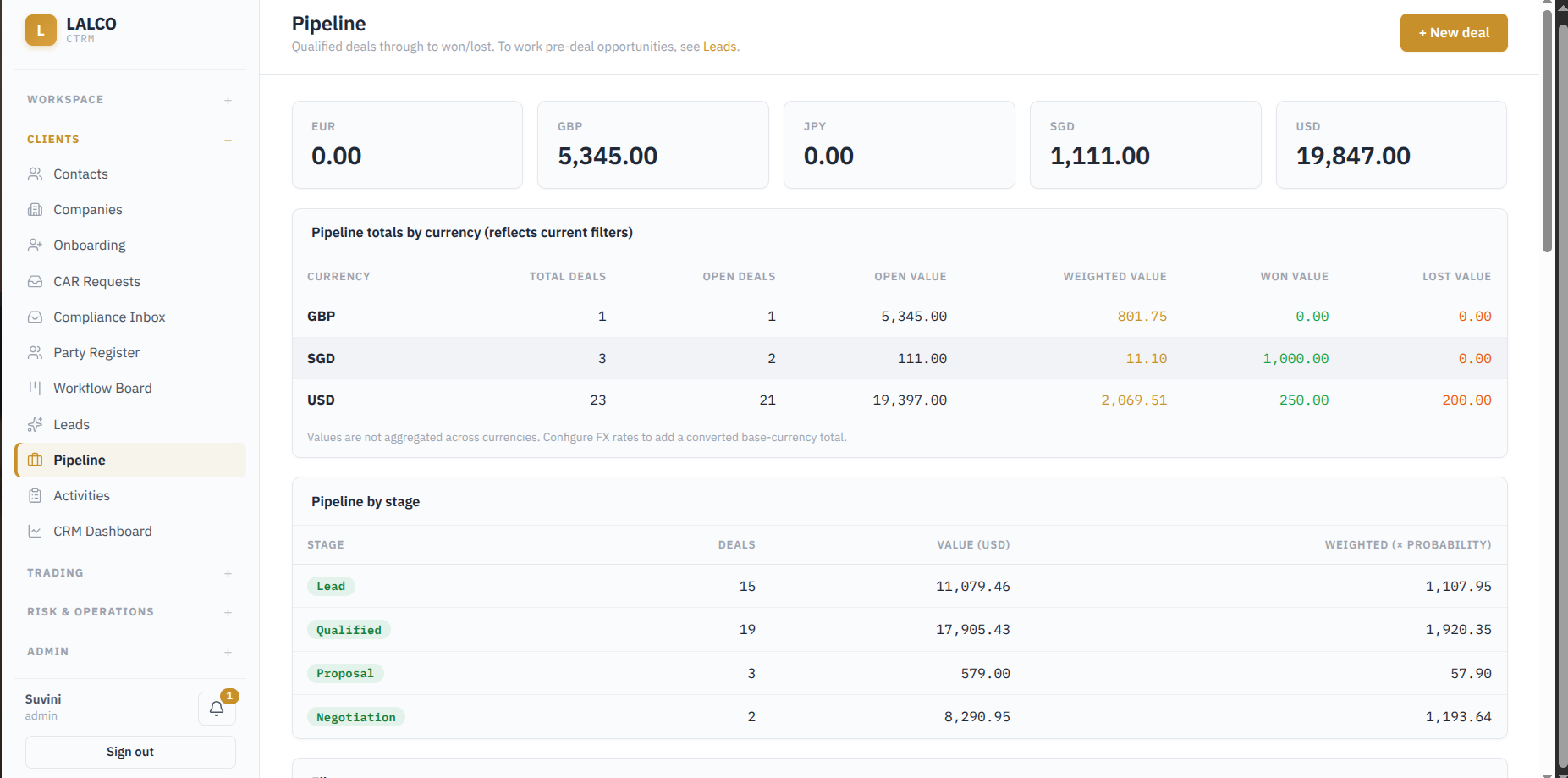
Used to track trading opportunities after they have been converted into deals. It shows how deals progress through different sales stages until they are either **won or lost**.
[](http://wiki.lalco.la/uploads/images/gallery/2026-08/wHuimage.png)
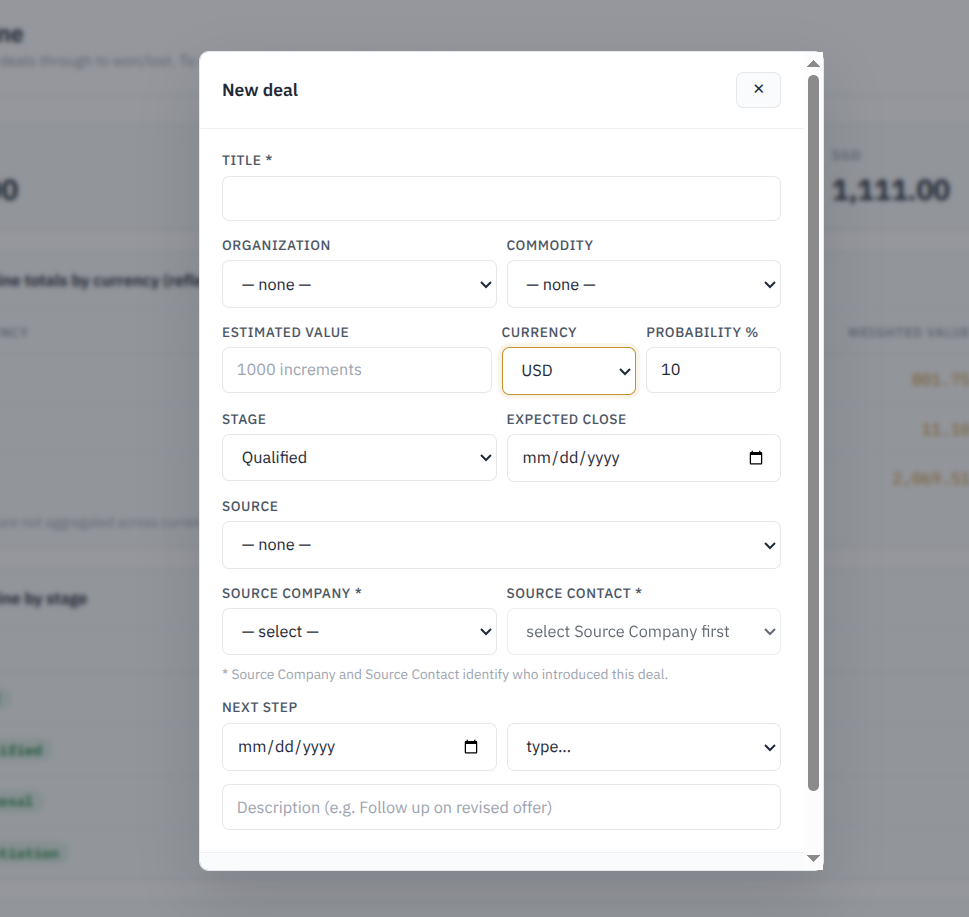
**Create a new deal** Allows a deal to be created directly in the Pipeline without first creating it as a Lead.
Pipeline deals can be added by :
1. Lead → Convert to Deal → Pipeline
2. New Deal → Create directly in Pipeline.
[](http://wiki.lalco.la/uploads/images/gallery/2026-08/IvGimage.png)
**Deal Details**
- Title\* – Name or short description of the deal. *(Required)*
- Organization – Company or counterparty related to the deal.
- Commodity – Commodity involved in the deal.
- Estimated Value – Expected monetary value of the deal.
- Currency – Currency used for the estimated value.
- Probability % – Estimated chance of successfully winning the deal.
- Stage – Current stage of the deal
- Expected Close – Expected date for the deal to be completed.
Source Information :
- Source – Indicates how the deal originated.
- Source Company\* – Company that introduced or referred the deal. *(Required)*
- Source Contact\* – Contact person from the source company who introduced the deal. *(Required)*
*The Source Company and Source Contact therefore help identify where the business opportunity came from.*
Next Step :
The user can also record the next planned action for the deal:
- Date – When the next action should take place.
- Type – Type of follow-up/action.
- Description – Additional details, such as *“Follow up on revised offer.”*
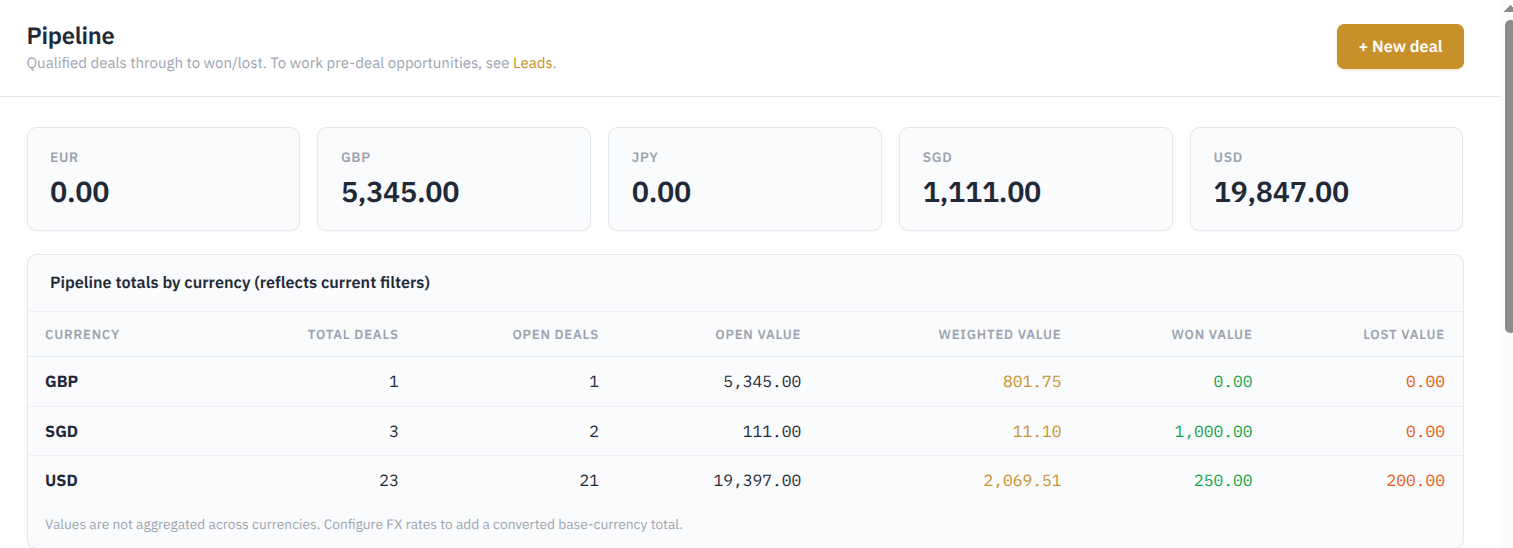
**Pipeline view (Pipeline Summary)**
[](http://wiki.lalco.la/uploads/images/gallery/2026-08/QLfimage.png)
**1.Pipeline value by currency :**
- EUR
- GBP
- JPY
- SGD
- USD
*(Each currency shows its own* pipeline *value so that amounts from different currencies are not mixed together.)*
**2.Pipeline Totals by Currency
**For each currency, the system displays: **
**
- Total Deals – Total number of deals recorded in that currency.
- Open Deals – Number of deals that are still in progress.
- Open Value – Total value of all open deals.
- Weighted Value – Expected value of open deals after considering their probability of success.
- Won Value – Total value of deals marked as Won.
- Lost Value – Total value of deals marked as Lost.
**Calculations**
1. Open value : * calculated by adding all values of the deals that are still open*
Open Value = Sum of all Open Deal Values
2. Weighted Value : Considers both the value and its probability of success
Weighted Value = Deal Value × Probability %
3\. Won Value :
Won Value = Sum of all deals marked as Won
4. Lost Value :
Lost Value = Sum of all deals marked as Lost
5.Total pipeline value by currency : Each currency includes the open, won, lost deal values
Total Pipeline Value = Open Value + Won Value + Lost Value
6. Total deals
Total Deals = Deals by pipeline stage + Leads
**3.Pipeline Stages** The Pipeline groups deals according to their current stage:
**Lead → Qualified → Proposal → Negotiation → Won / Lost**
- **Lead** – Early stage of the deal.
- **Qualified** – The opportunity has been identified as a valid deal.
- **Proposal** – An offer or proposal is being prepared or presented.
- **Negotiation** – Deal terms are being discussed and finalized.
- **Won** – The deal has been successfully secured.
- **Lost** – The deal was unsuccessful.
*For each active stage the system displays **Deals, Values, Weighted Value***
**4. Pipeline Deal Information** For each deal, the system shows:
[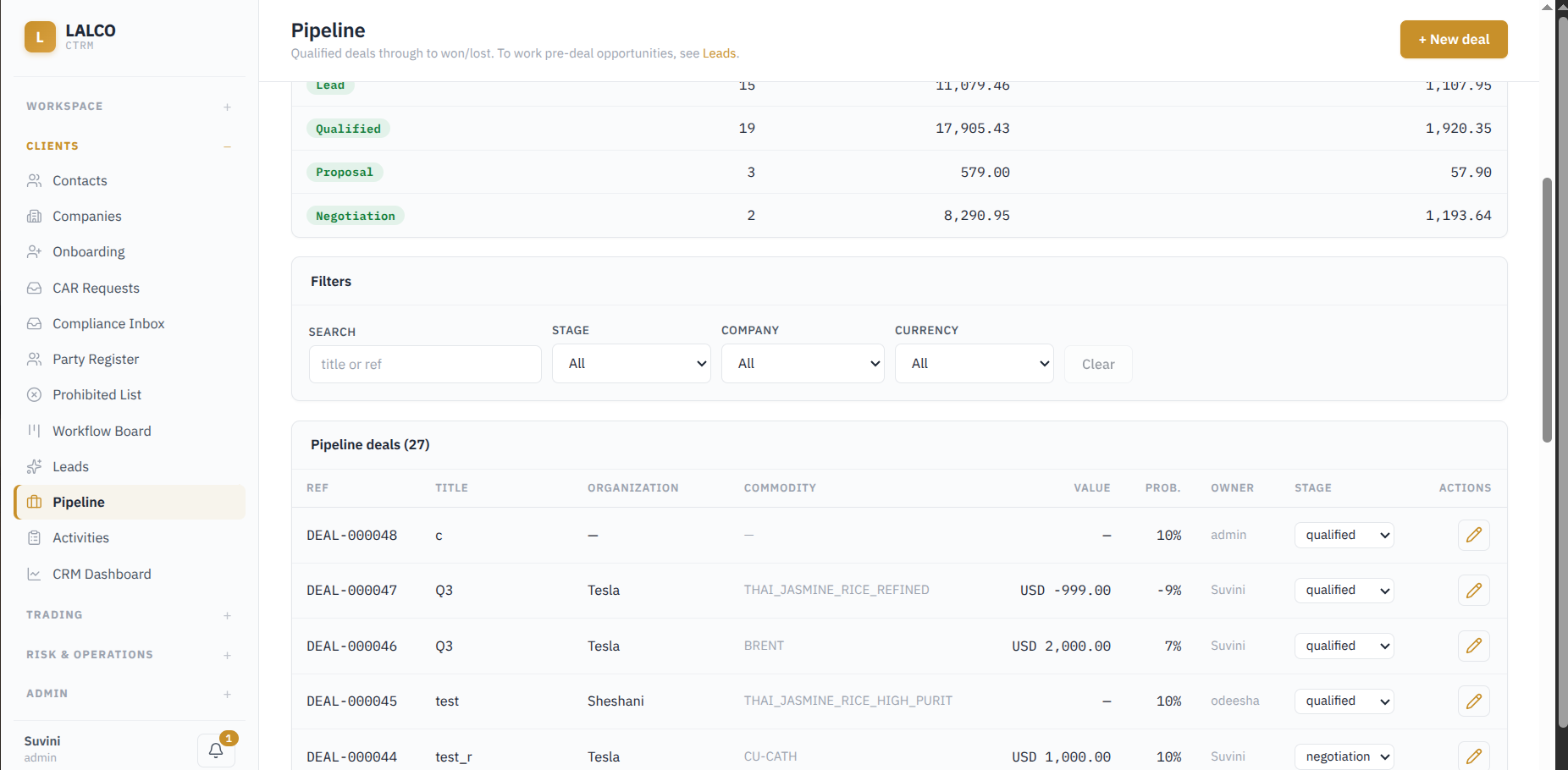](http://wiki.lalco.la/uploads/images/gallery/2026-08/Niaimage.png)
- **Ref** – Unique reference number assigned to the deal.
- **Title** – Name or short description of the deal.
- **Organization** – Company associated with the deal.
- **Commodity** – Commodity involved.
- **Value** – Estimated deal value together with its currency.
- **Prob.** – Probability of successfully winning the deal.
- **Owner** – User responsible for the deal.
- **Stage** – Current stage of the deal.
- **Actions** – Allows the deal to be edited.
**Filters**
- Search by title and ref
- Stage
- Company
- Currency
---
#### 2.9 Activities
The **Activities** module is used to manage follow-up activities such as **tasks, calls, meetings, messages, emails, and reminders**. It helps users keep track of what needs to be done, when it is due, and who is responsible
[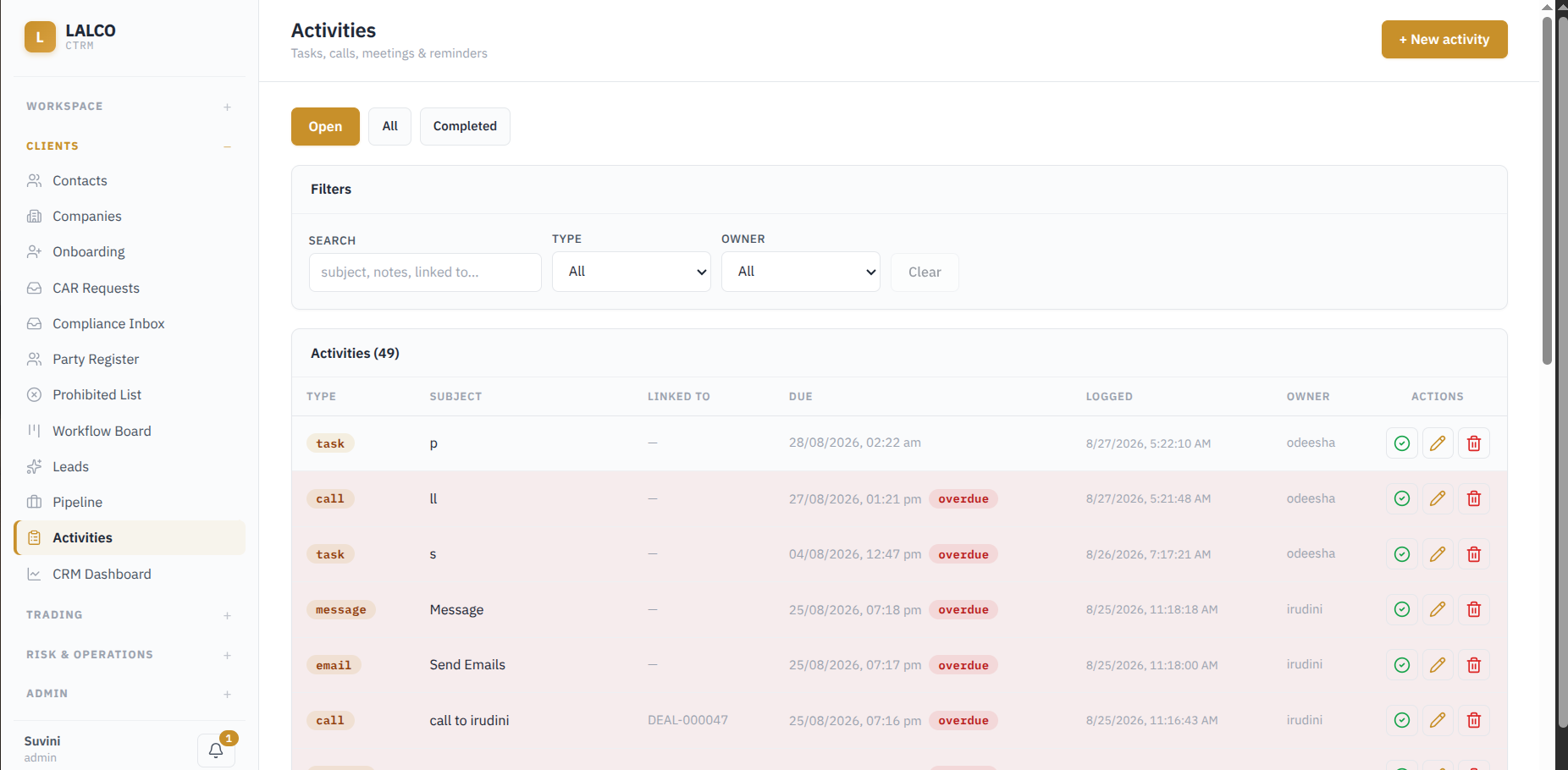](http://wiki.lalco.la/uploads/images/gallery/2026-08/6ZTimage.png)
**Activity Views**
- **Open** – Shows activities that are still pending.
- **All** – Shows both open and completed activities.
- **Completed** – Shows activities that have already been completed.
**Filters**
- **Search** – Searches activities using the subject, notes, or linked record.
- **Type** – Filters activities by activity type.
- **Owner** – Filters activities according to the user responsible for them.
**Activity Information**
- **Type** – Type of activity, such as task, call, message, or email.
- **Subject** – Short description of the activity.
- **Linked To** – Shows the related record, such as a deal, where applicable.
- **Due** – Date and time by which the activity should be completed.
- **Logged** – Date and time the activity was created or recorded.
- **Owner** – User responsible for the activity.
- **Actions** – Allows the activity to be completed, edited, or deleted.
**Overdue Activities** If an open activity passes its due date without being completed, the system marks it as **Overdue.**
**Create New Activity** Used to record a new task, call, meeting, message, email, or other follow-up activity.
[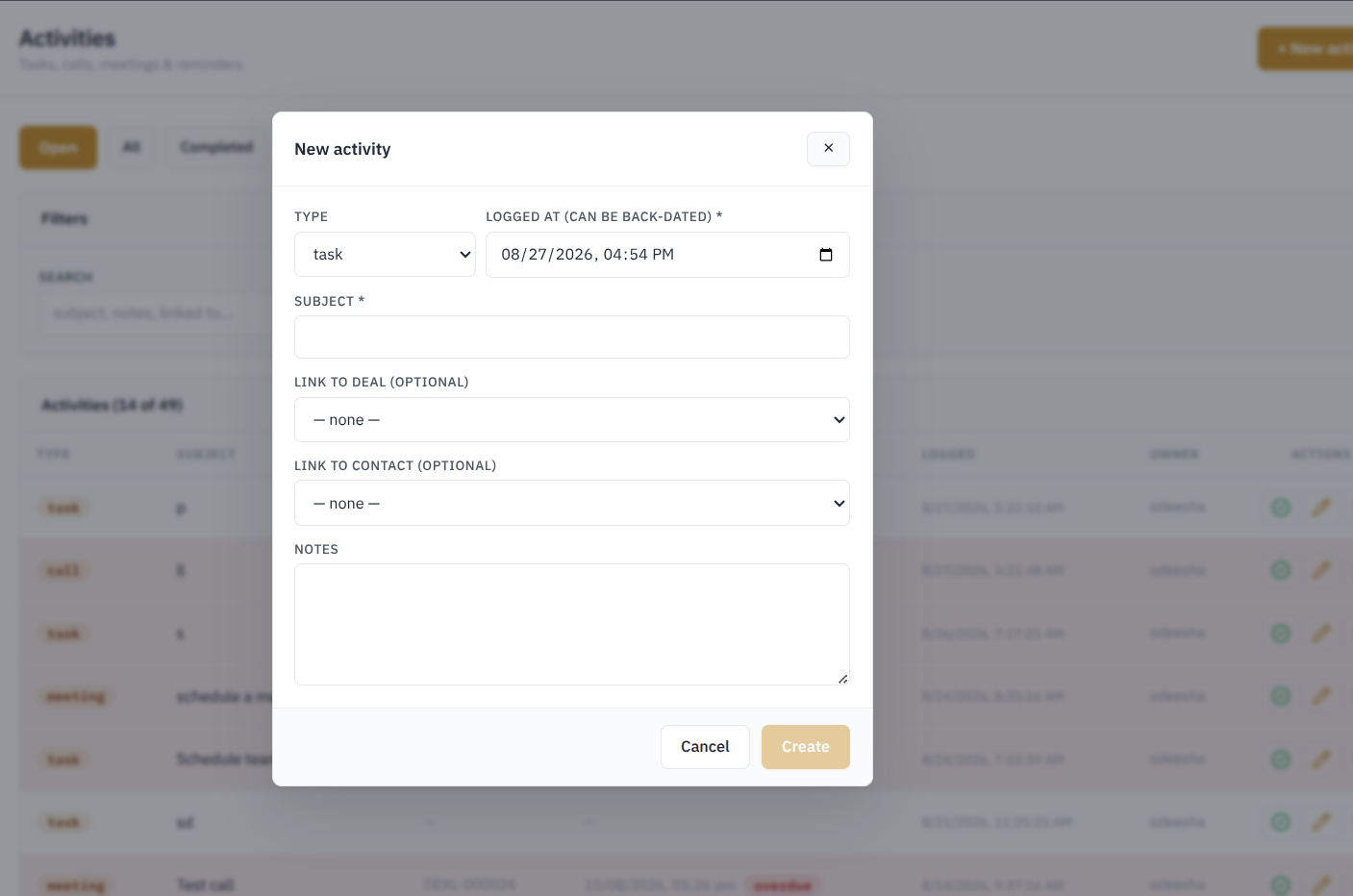](http://wiki.lalco.la/uploads/images/gallery/2026-08/rQtimage.png)
- **Type** – Select the type of activity.
- **Logged At** – Date and time the activity was recorded. This can also be back-dated if the activity happened earlier. *Required*
- **Subject** – Short description of the activity. *Required*
- **Link to Deal** – Connects the activity to a specific deal. *Optional*
- **Link to Contact** – Connects the activity to a specific contact. *Optional*
- **Notes** – Additional details about the activity.
**Key Characteristic** Activities can be linked directly to a **Deal** or **Contact**, which makes it easier to track follow-ups related to a specific business opportunity or person.
**Activity Notifications**
[](http://wiki.lalco.la/uploads/images/gallery/2026-08/uhwimage.png)
When an activity is created and linked to a contact, the system uses the **email address stored in the Contacts module** to send the relevant activity notification to that contact.
The system also provides **notifications/reminders for upcoming activities**, for users keep track of scheduled follow-ups and activities that are approaching their due date.
If an activity passes its due date without being completed, it is shown as **Overdue** in the system.
**Main Functions**
- Create a new activity.
- Mark an activity as completed. *(Which cannot be reverted back)*
- Edit an existing activity.
- Delete an activity.
- Link an activity to a related record such as a deal.
---
#### 2.10 CRM Dashboard
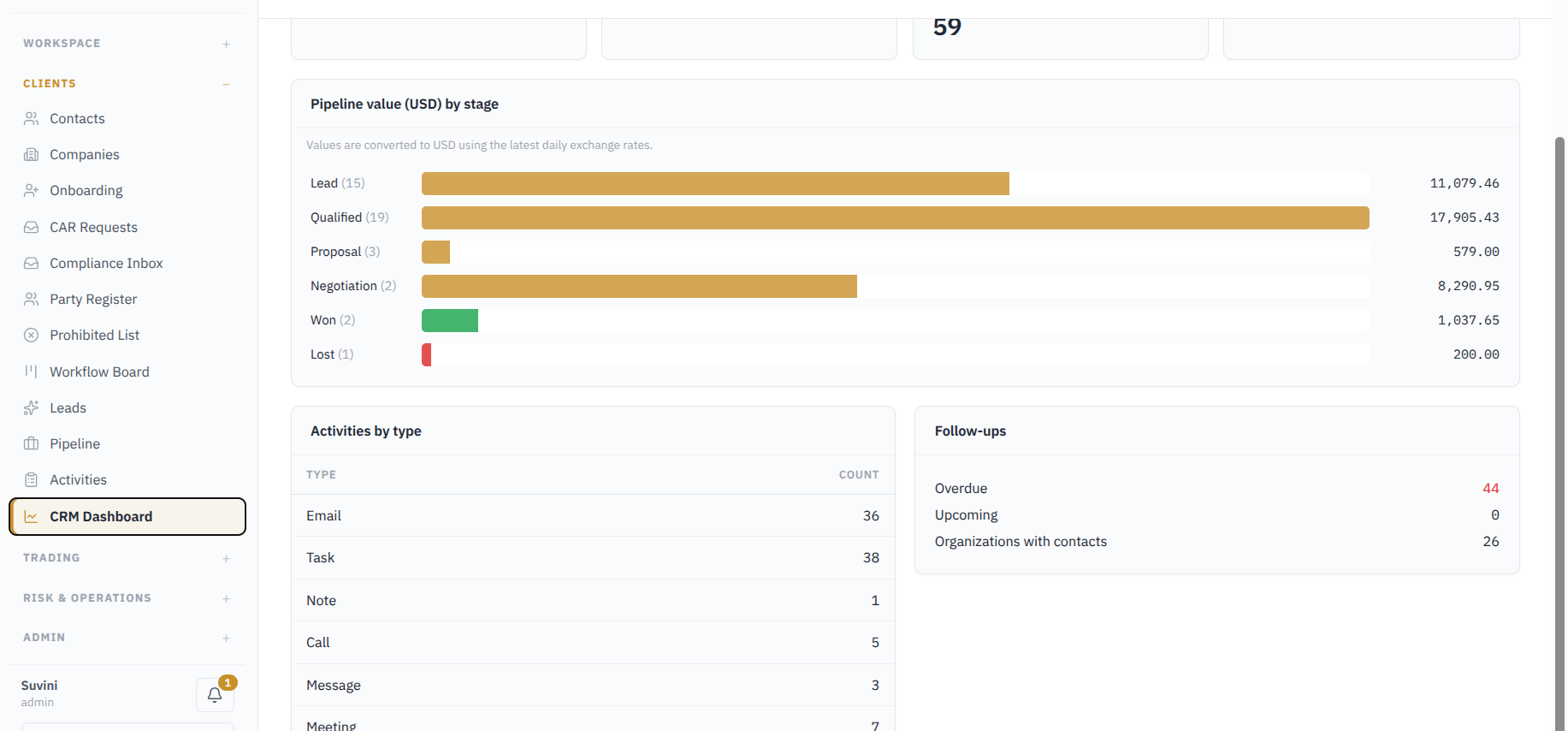
The **CRM Dashboard** provides an overall view of the sales pipeline, deal performance, and client-related activities in one place.
[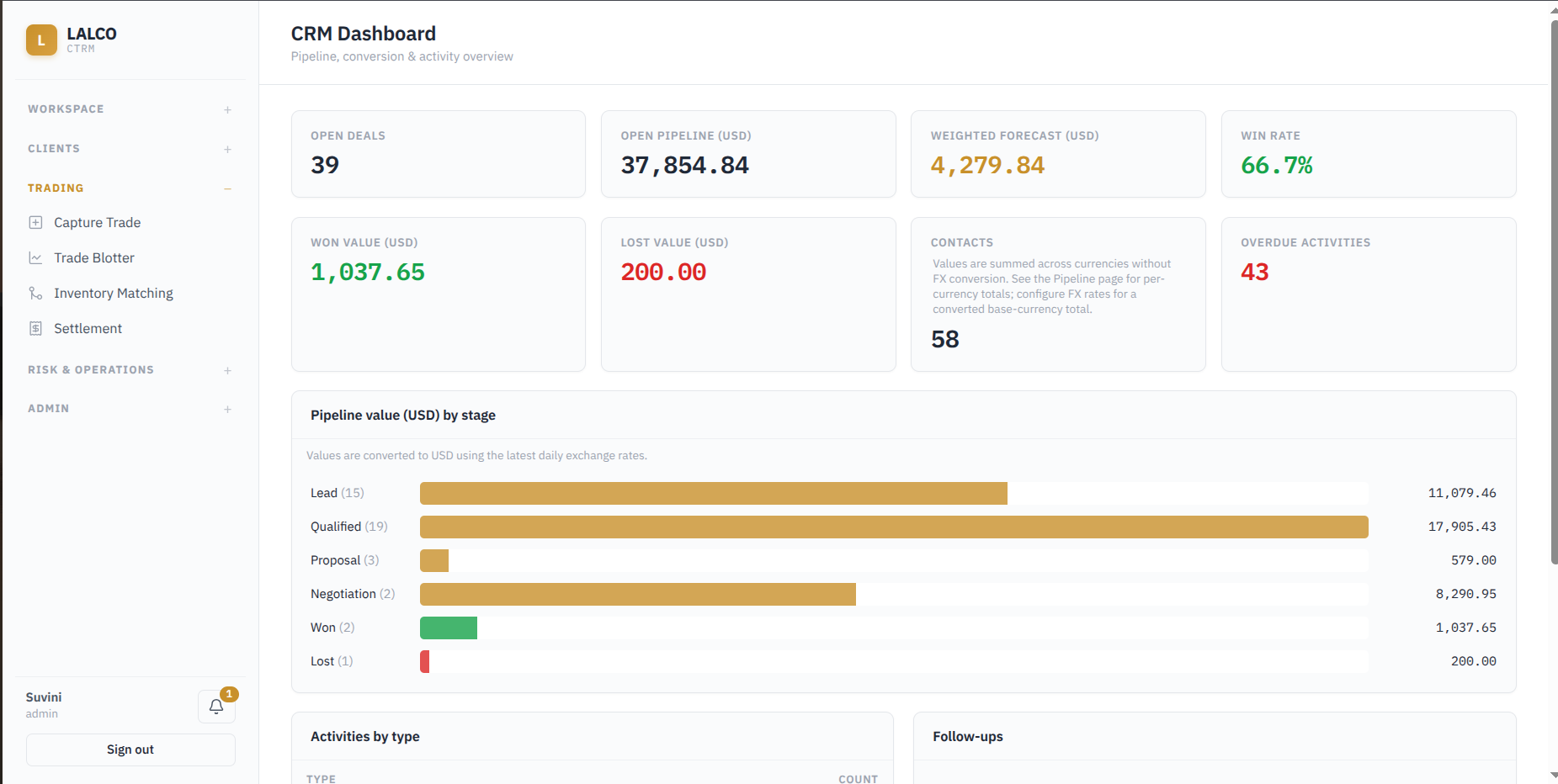](http://wiki.lalco.la/uploads/images/gallery/2026-08/YYMimage.png)
[](http://wiki.lalco.la/uploads/images/gallery/2026-08/Z71image.png)
**Information Displayed **
- **Open Deals** – Number of deals that are still in progress.
- **Open Pipeline (USD)** – Total value of all open deals after converting them to USD.
- **Weighted Forecast (USD)** – Expected value of the open pipeline after considering the probability of each deal.
- **Win Rate** – Percentage of completed deals that were won.
- **Won Value (USD)** – Total value of deals marked as Won.
- **Lost Value (USD)** – Total value of deals marked as Lost.
- **Contacts** – Total number of contacts recorded in the CRM.
- **Overdue Activities** – Number of open activities that have passed their due date.
- **Pipeline value by stage**
- **Activities by Type -** CRM activities recorded under each activity (Email, Task, Note, Call, Message)
- Follow-ups
The **Follow-ups** section gives a quick view of pending CRM actions and contact coverage.
- **Overdue** – Number of activities that have passed their due date and are still not completed.
- **Upcoming** – Number of activities that are scheduled for a future date.
- **Organizations with Contacts** – Number of organizations that currently have at least one contact linked to them.
**Calculations
**Win Rate = Won Deals ÷ (Won Deals + Lost Deals) × 100