3.Trading
The Trading section is used to record and manage commodity trades, review captured trades, match trades with inventory, and handle settlement activities.
3.1 Capture Trade
The Capture Trade module is used to enter a new Buy or Sell transaction into the CTRM system. Before the trade is recorded, the system performs the configured checks on the entered information.
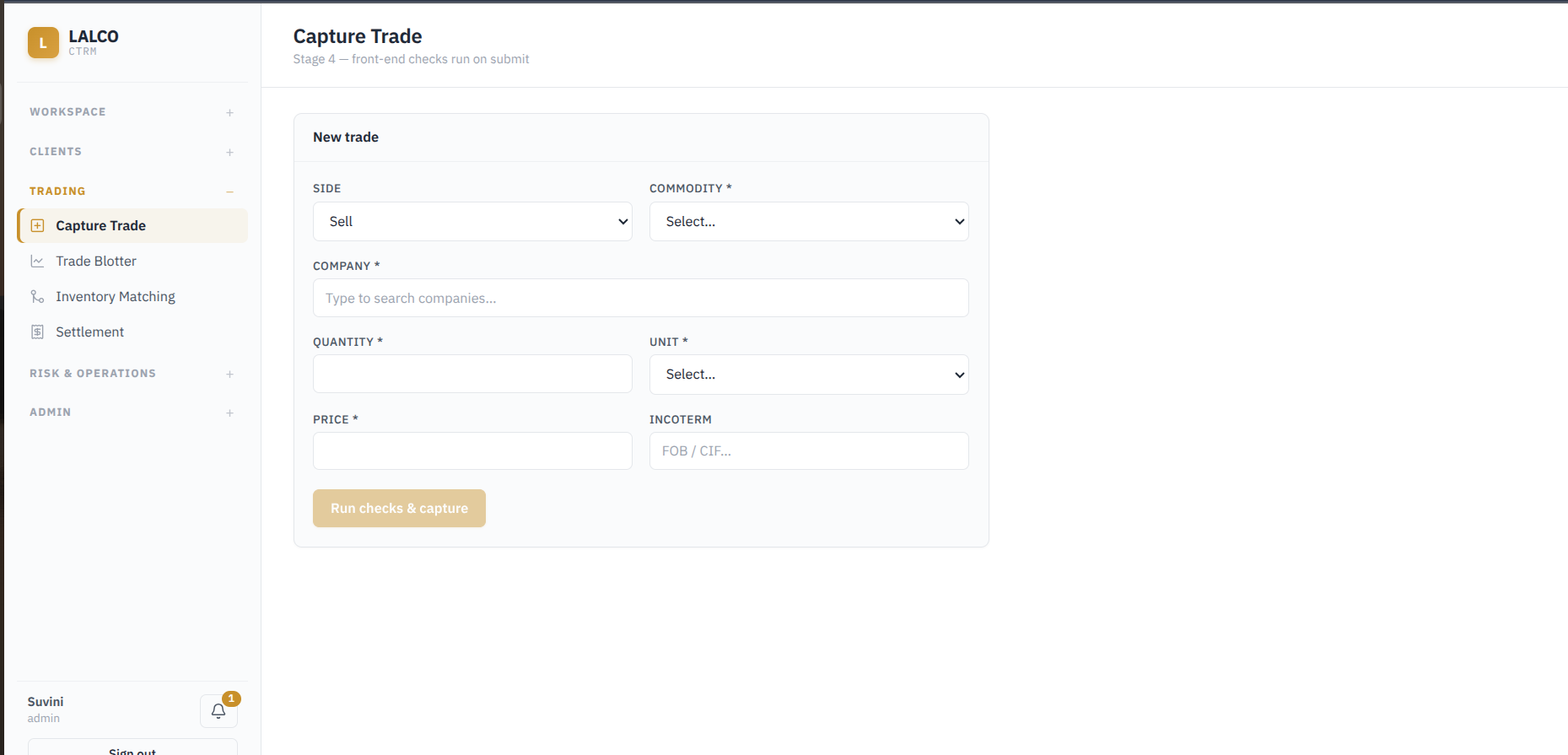
New Trade - Trade details
- Side – Indicates whether the trade is a Buy or Sell.
- Commodity – Commodity being bought or sold. Required
- Company – Counterparty involved in the trade. Required
- Quantity – Amount of the commodity being traded. Required
- Unit – Unit used to measure the quantity. Required
- Price – Agreed price of the commodity. Required
- Incoterm – Defines the agreed delivery responsibilities and terms between the buyer and seller, such as FOB or CIF.
Trade Capture Checks
Before a trade is captured, the system performs the following checks:
- Compliance Check – Verifies whether the selected counterparty meets the required compliance conditions. The trade can proceed only if the compliance check passes.
- Credit Check – Checks whether the new trade would cause the counterparty’s exposure to exceed its assigned credit limit. which is entered in the companies page.
- Position Check – Checks the trade against the applicable position controls/limits configured in the system.
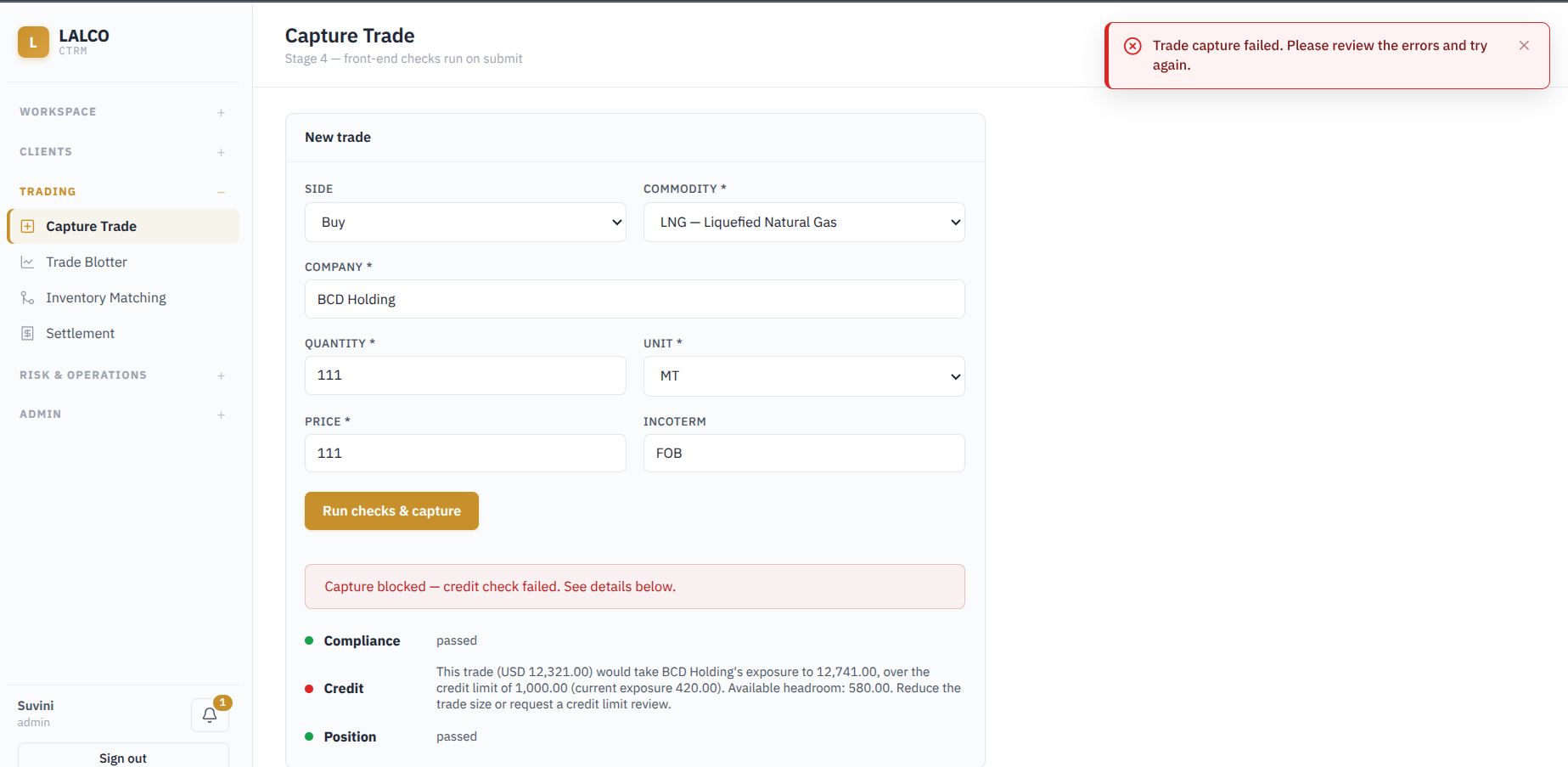
Credit Check Calculation
The Credit Check verifies whether the counterparty has enough available credit to support the new trade. The system compares the value of the new trade with the counterparty’s current exposure and credit limit.
1. Calculate the value of the new trade
Trade Value = Quantity × Price
Example: 111 MT × USD 111 = USD 12,321
This is the value that the new trade would add to the counterparty’s exposure.
2. Check the counterparty’s current exposure
Current Exposure is the value already being used by the counterparty from previous/open transactions.
Current Exposure = USD 420
3. Calculate the new exposure
New Exposure = Current Exposure + Trade Value
USD 420 + USD 12,321 = USD 12,741
This shows what the counterparty’s total exposure would become if the new trade were accepted.
4. Calculate the available credit
Available Headroom = Credit Limit − Current Exposure
USD 1,000 − USD 420 = USD 580
The Available Headroom is the amount of credit the counterparty still has available for new trades.
5. Credit decision
The new trade requires USD 12,321, but only USD 580 of credit is available. Therefore, the new exposure would exceed the company’s credit limit.
Result: Credit Check Failed → Trade Capture Blocked
3.2 Trade Bottler
The Trade Blotter provides a centralized list of all captured trades in the system. It allows users to review the main trade details, filter the list, and perform actions based on the current trade status.
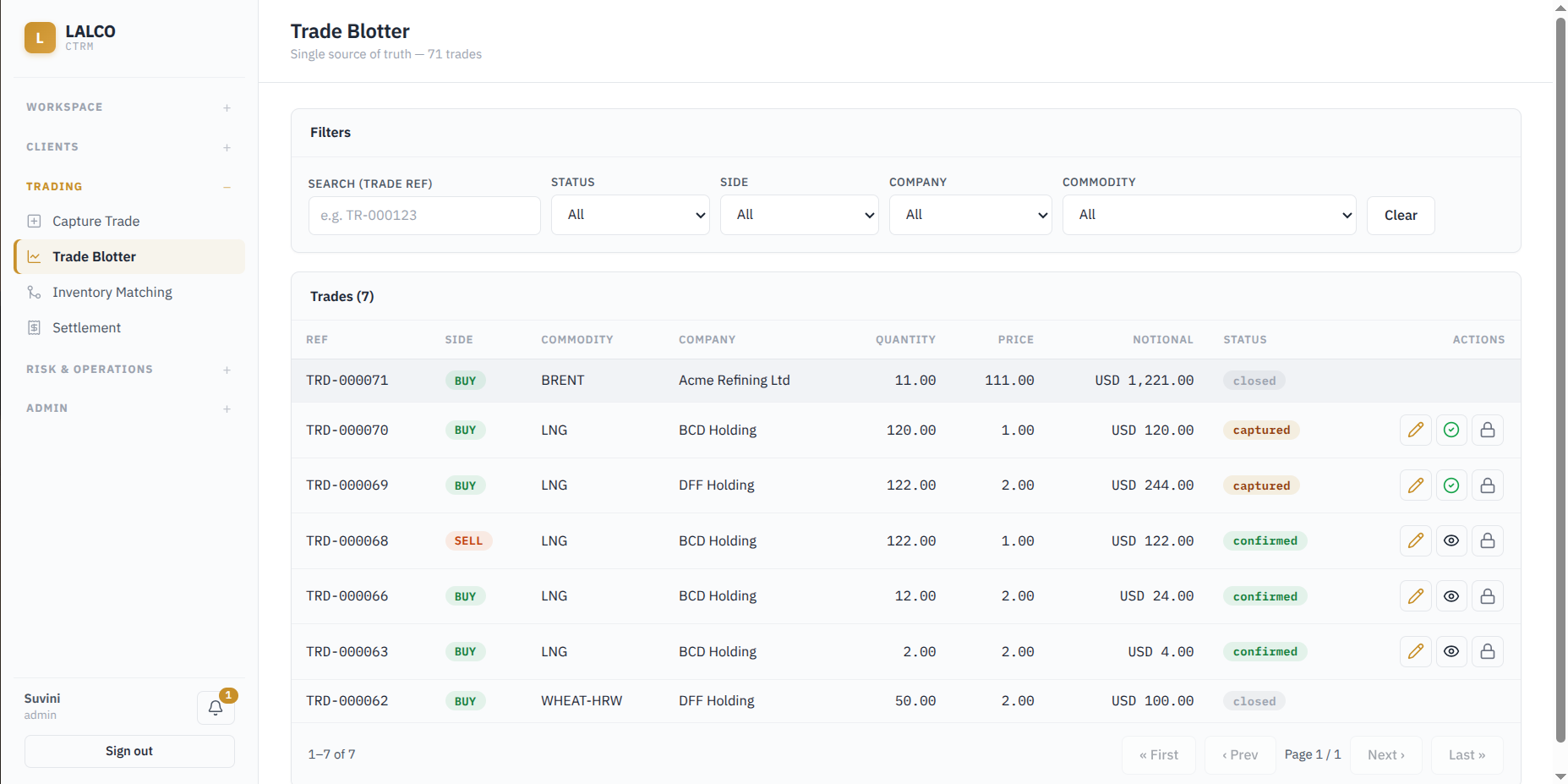
Filters
- Search (Trade Ref) – Finds a trade using its reference number.
- Status – Filters trades according to their current status. (captured, Confirmed, Closed)
- Side – Filters trades by Buy or Sell.
- Company – Filters trades by the selected counterparty/company.
- Commodity – Filters trades by commodity.
View Trade information
- Ref – Unique trade reference number.
- Side – Indicates whether the trade is a Buy or Sell.
- Commodity – Commodity involved in the trade.
- Company – Counterparty associated with the trade.
- Quantity – Quantity traded.
- Price – Agreed price per unit.
- Notional – Total trade value. (Total Trade value = Quantity * Price)
- Status – Current stage of the trade.
- Actions – Available actions for managing the trade.
Trade statuses shown
- Captured – Trade has been created and recorded in the system.
- Confirmed – Trade has been confirmed and moved to the next stage.
- Closed – Trade has completed its lifecycle and is no longer active.
Amend Trade
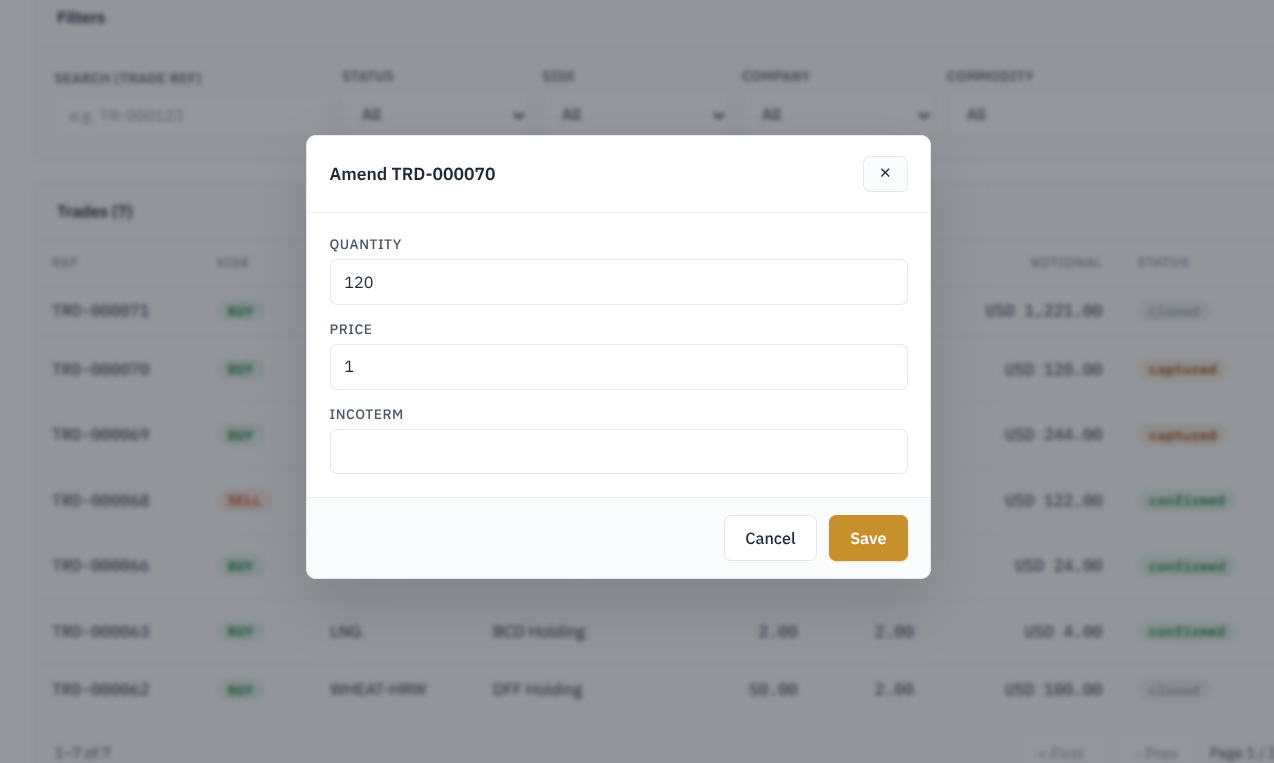
Editable amends
- Quantity – Updates the quantity of the trade.
- Price – Updates the agreed price.
- Incoterm – Updates the delivery term, such as FOB or CIF.
**The amendment option does not allow the user to change core trade details such as the trade reference, Buy/Sell side, commodity, or company from this form.**
Confirm Trade
The Confirm Trade action is used to move a captured trade into the active trading book.
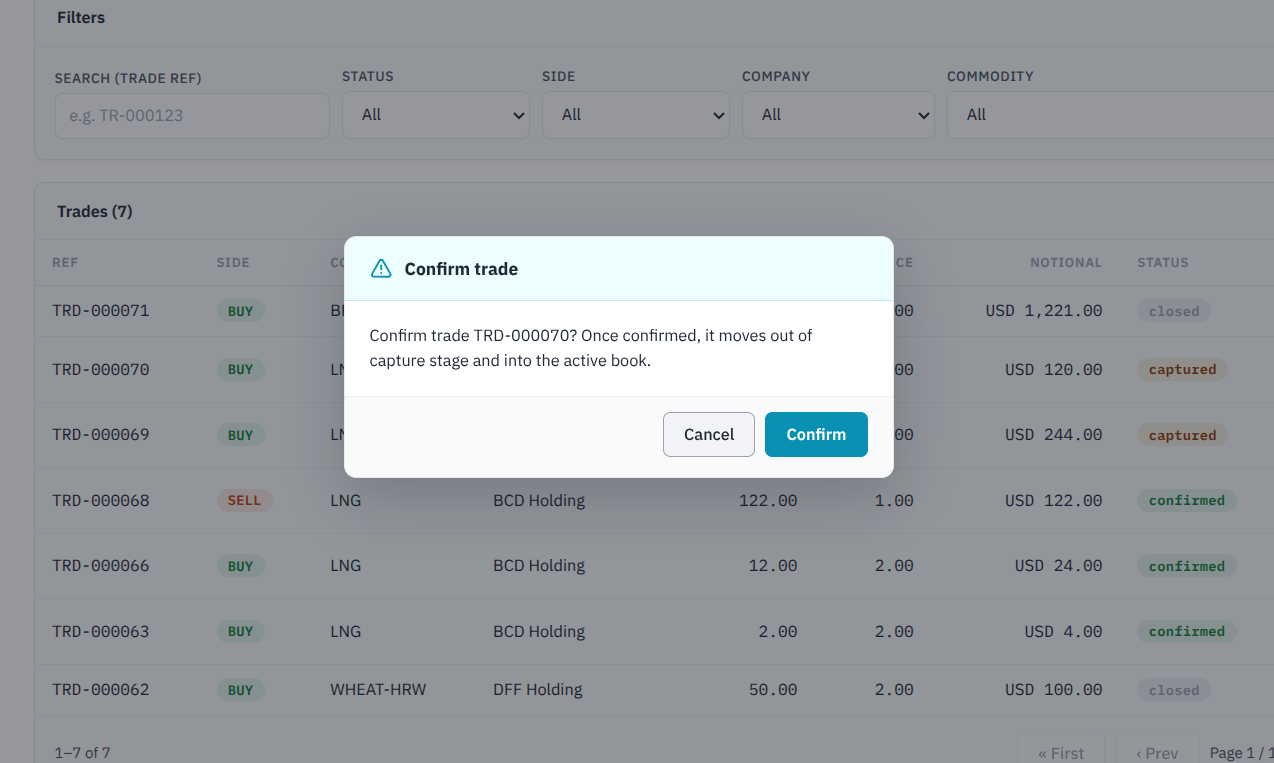
- Confirm – Changes the trade status from Captured to Confirmed.
- Cancel – Closes the message without making any changes.
Once confirmed, the trade moves out of the capture stage and becomes part of the active book, meaning it is now treated as an active confirmed trade within the CTRM system.
Flow = Captured → Confirmed → Active Book
Close Trade
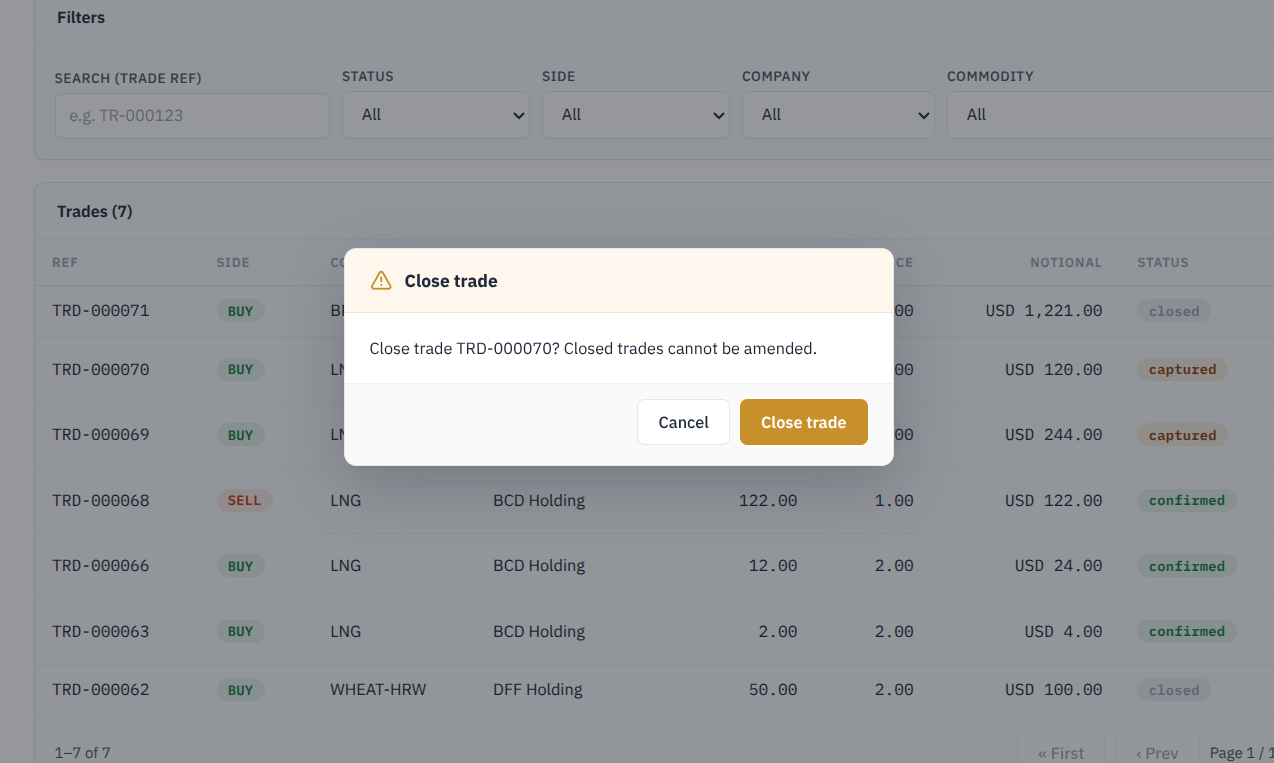
The Close Trade action is used to move a trade to its final Closed status.
Once a trade is closed, it cannot be amended.
3.3 Inventory Matching
The Inventory Matching module is used to allocate available inventory from Buy trades against Sell trades. It helps users identify how much inventory has already been assigned and how much is still available for allocation.
Filters
- Search by Trade Ref or commodity
- Status - Filters inventory lots according to their current status (Open, Fully Allocated)
- Commodity – Filters inventory lots by commodity.
View Inventory Lot of Information
- Buy Ref – Reference number of the Buy trade that created the inventory.
- Commodity – Commodity available in the inventory lot.
- Company – Company/counterparty associated with the Buy trade.
- Total – Original quantity available from the Buy trade.
- Allocated – Quantity that has already been matched to Sell trades.
- Available – Quantity that is still available to be matched.
- Unit Cost – Cost per unit of the inventory.
- Status – Current status of the inventory lot.
- Actions – Allows the available inventory to be allocated to a Sell trade.
Allocate Inventory to Sell Trade
The Allocate option is used to match available inventory from a Buy trade to a selected Sell trade.
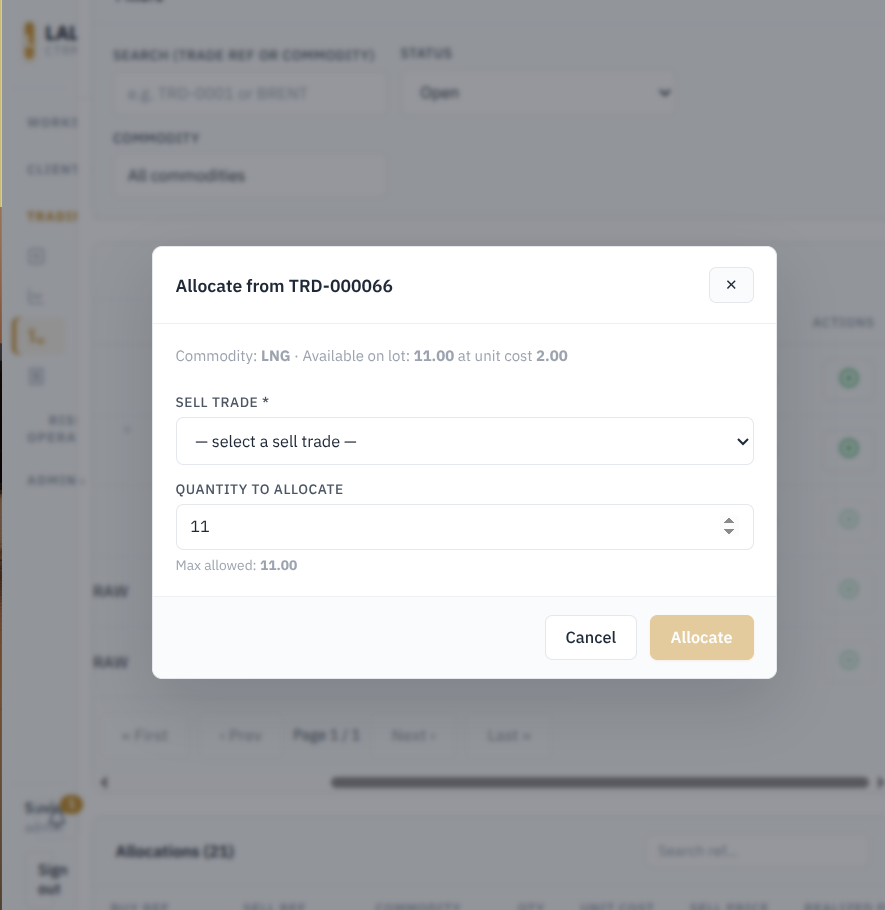
- Sell Trade: Select the sell trade that inventory should be allocated to
- Quantity to Allocate: Enter the quantity to be assigned to the seleted sell trade
- Max Allowed: Shows the maximum quantity that can be allocated based on the inventory currently available
The available quantity cannot be greater than available quantity
Allocations
The Allocations section shows the inventory quantities that have already been matched between Buy and Sell trades.
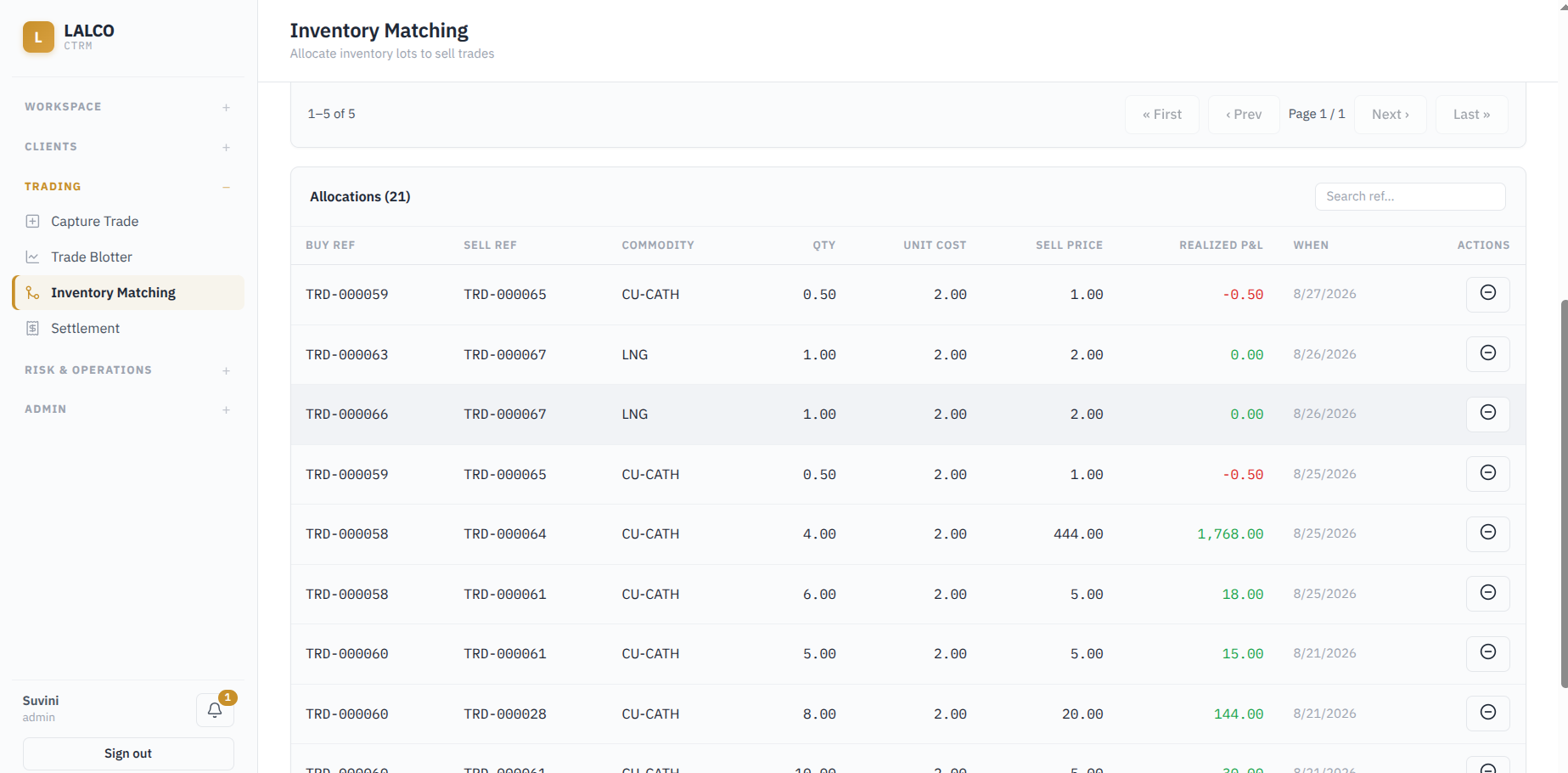
- Buy Ref – Reference of the Buy trade supplying the inventory.
- Sell Ref – Reference of the Sell trade receiving the inventory.
- Commodity – Commodity being matched.
- Qty – Quantity allocated from the Buy trade to the Sell trade.
- Unit Cost – Purchase cost per unit from the Buy trade.
- Sell Price – Selling price per unit from the Sell trade.
- Realized P&L – Actual profit or loss generated from the allocated quantity.
- When – Date the allocation was made.
- Actions – Provides an action for the allocation
Realized P&L Calculation
System calculates the profit or loss generated when inventory purchased at one price is allocated to a Sell trade at another price.
Realized P&L = (Sell Price − Unit Cost) × Allocated Quantity
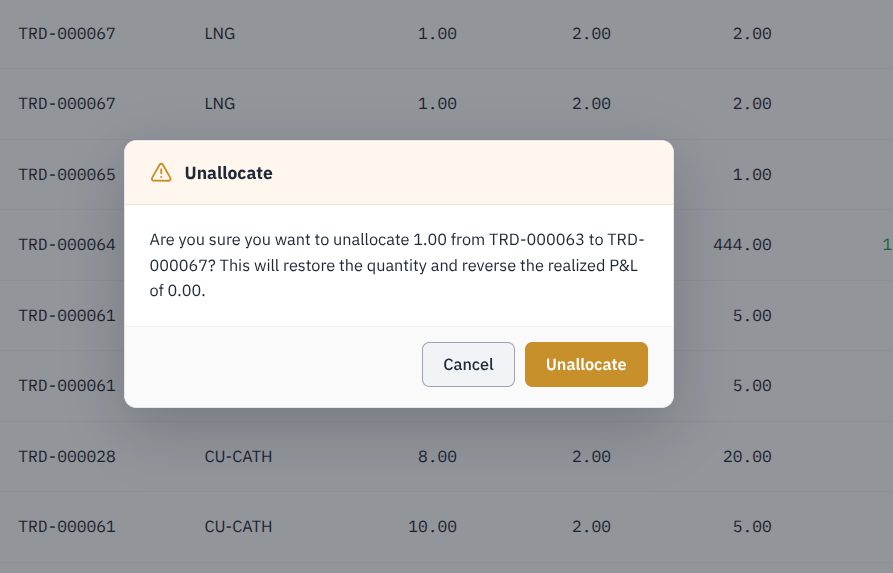
Unallocate Inventory
The Unallocate option is used to remove an existing match between a Buy trade and a Sell trade.
- The allocated quantity is returned to the original Buy inventory lot.
- The available inventory quantity is increased again.
- Any Realized P&L created by that allocation is reversed.
- Unallocate confirms and removes the allocation.
3.4 Settlement
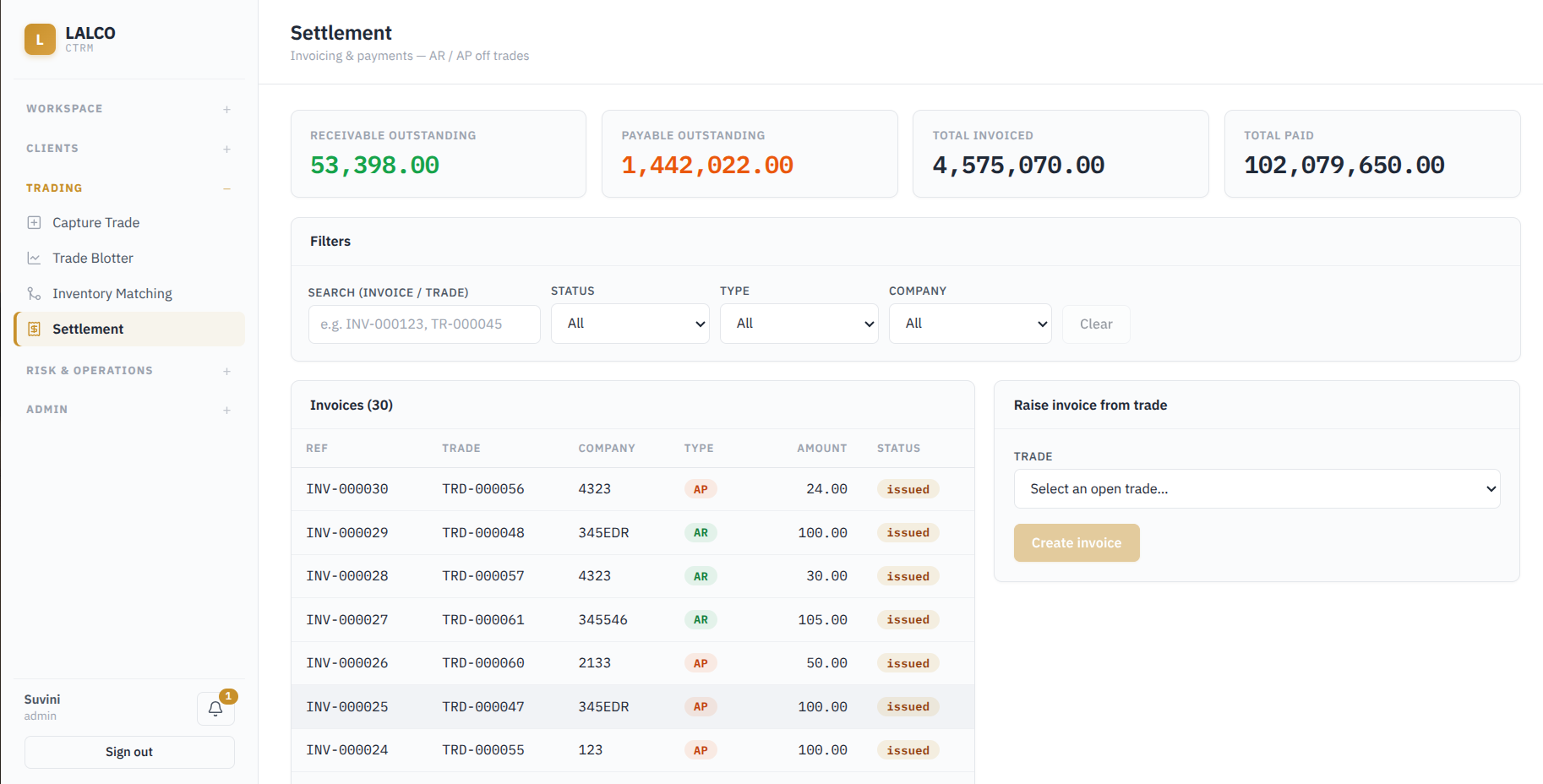
Used to manage invoices and payments related to trades. It provides a view of amounts that need to be received from counterparties and amounts that need to be paid.
View settlement
- Recievable outstanding
- Payable Oustanding
- Total Invoiced
- Total Paid
Filters
- Search : Find records using an invoice reference or trade reference
- Status : Filters invoices according to their current status
- Type : Filter invoices by AP, AR (Accounts Recievable , Accounts Payable)
- Company : Filters invoices by the related company
Invoice Information
- Ref
- Trade
- Company
- Type
- Amount
- Status
Raise Invoices from Trade
The Raise Invoice from Trade section allows a user to create an invoice from an existing open trade.
When creating an invoice from a trade, the system checks whether that trade already has an active invoice.
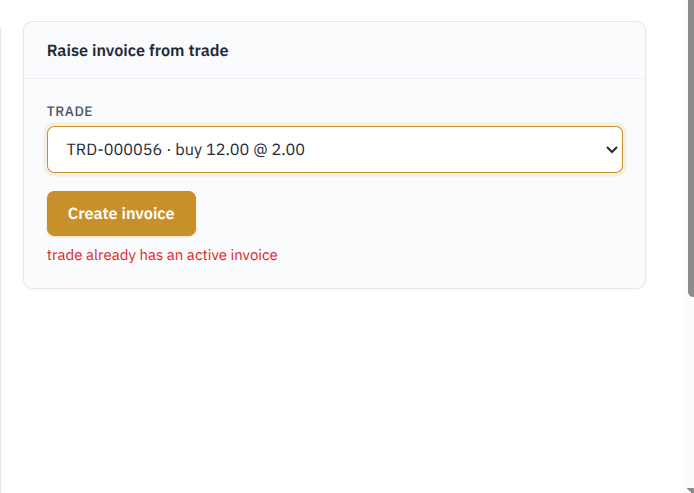
Flow = Open Trade → Create Invoice → AR or AP Invoice → Payment / Receipt → Settlement
Invoice & Payment Details
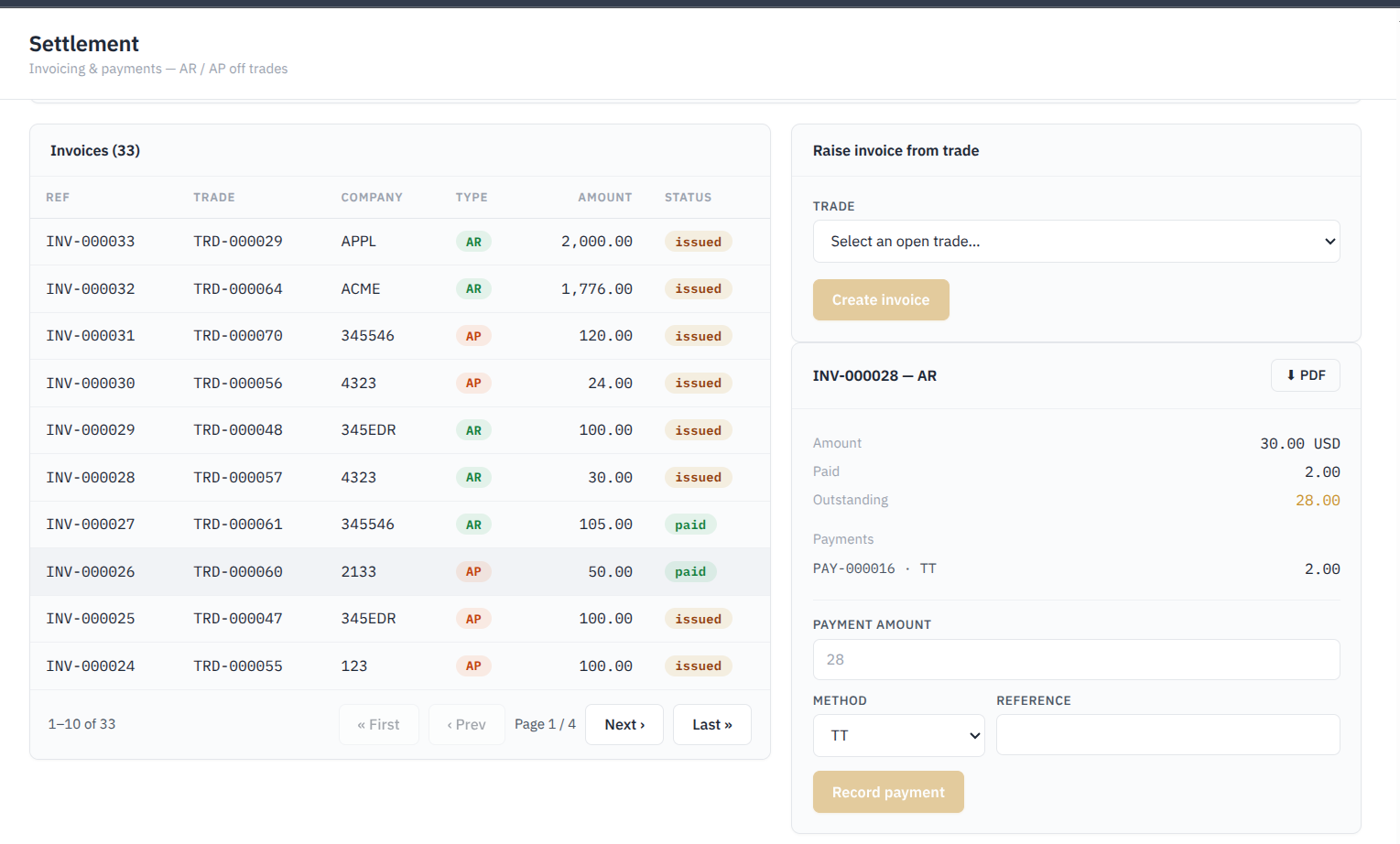
When an invoice is selected, the system displays its current settlement information:
- Amount – Total value of the invoice.
- Paid – Amount already paid or received against the invoice.
- Outstanding – Remaining amount that still needs to be settled.
- Payments – Shows any payments previously recorded against the invoice.
- PDF – Allows the invoice to be downloaded as a PDF.
Record Payment
The Record Payment section is used to record a payment made or received against the selected invoice.
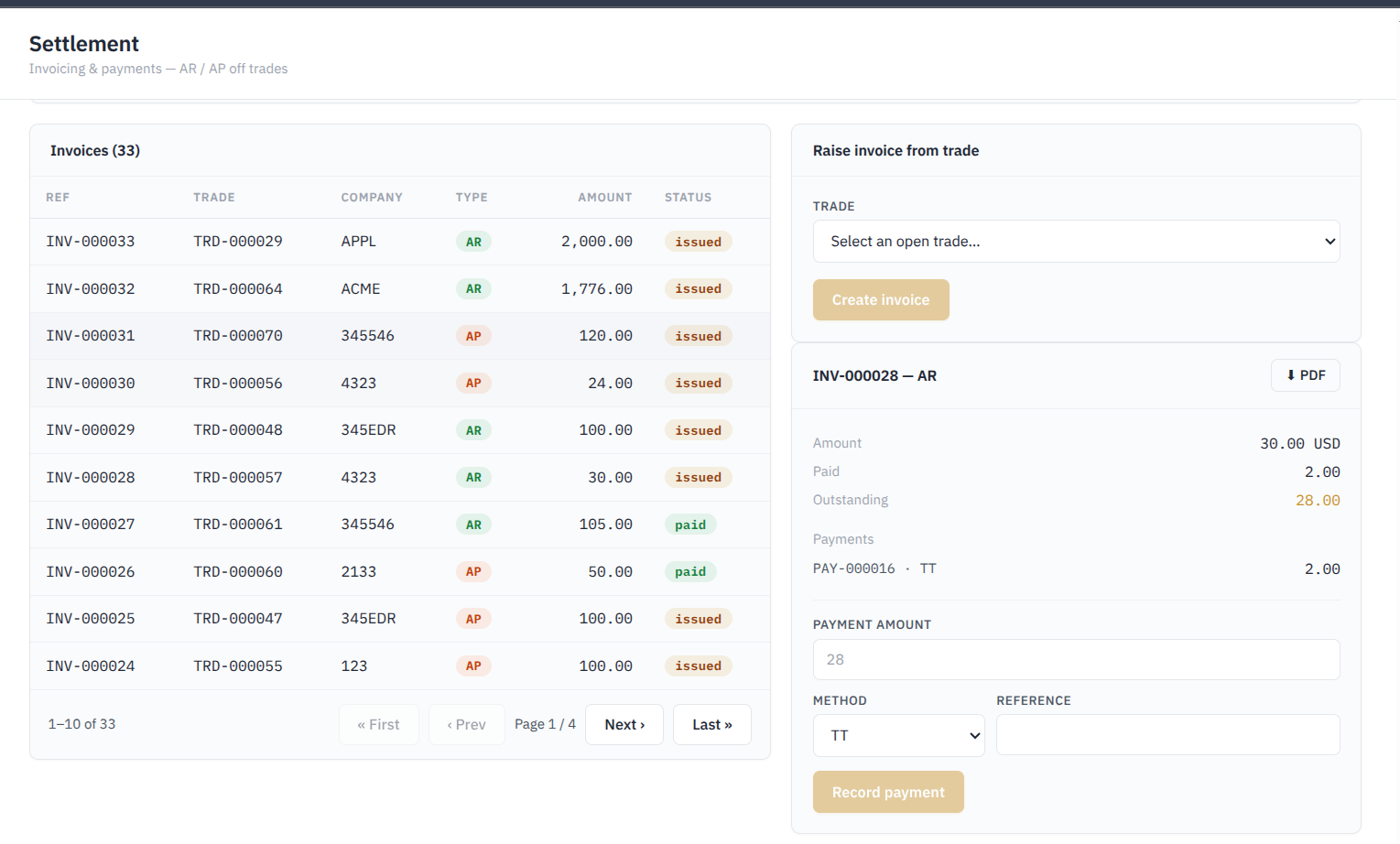
- Payment Amount – Amount being paid or received.
- Method – Payment method used, such as TT (Telegraphic Transfer / bank transfer).
- Reference – Reference number or other identifier related to the payment.
- Record Payment – Saves the payment against the invoice.
For an AR invoice, the payment represents money received from the counterparty. For an AP invoice, it represents money paid to the counterparty.