LALCO CONNECT Mobile App - User Guide
- What is LALCO Connect?
- First Time Users
- Login Process
- Sign In Process
- Home Dashboard
- My Loans
- Applying for new Loans
- Making Payments
- Payment Schedule
- My Profile
- EMI Calculator
- KYC UPDATE
- Promotions & Offers
- Support & Help
- Raise a Ticket
- Tips & Best Practices
- Troubleshooting
- Frequently Asked Questions (FAQs)
- What To Expect
What is LALCO Connect?
Brief overview of the app
LALCO Connect is a mobile application that helps you manage your account, make payments, and access services easily. It provides a convenient way to stay connected with LALCO anytime, anywhere from your smartphone.
Key features at a glance
- Easy account management
- Quick bill payments
- Service requests
- Transaction history
- Real-time notifications
- Secure login
Who should use this app
This app is for:
-
-
-
-
- LALCO account holders
- Customers who want to manage their services online
- Anyone looking for quick and easy payment options
- Users who prefer digital transactions over in-person visits
-
-
-
System requirements
-
-
-
-
- Android 6.0 or higher / iOS 12.0 or higher
- Active internet connection
- Valid phone number
- At least 50MB free storage space
-
-
-
First Time Users
How to download the app

 Go to Google Play Store (Android) or App Store (iOS) Search for "LALCO Connect"

 Tap "Install" or "Download" Open the app after installation
Registration process
-
-
-
- Open LALCO Connect app
- Tap "Create Account"
- Enter your personal information
- Add your address details
- Set up your password
- Agree to Terms & Privacy Policy
- Tap "Continue" to complete registration
-
-
Login Process
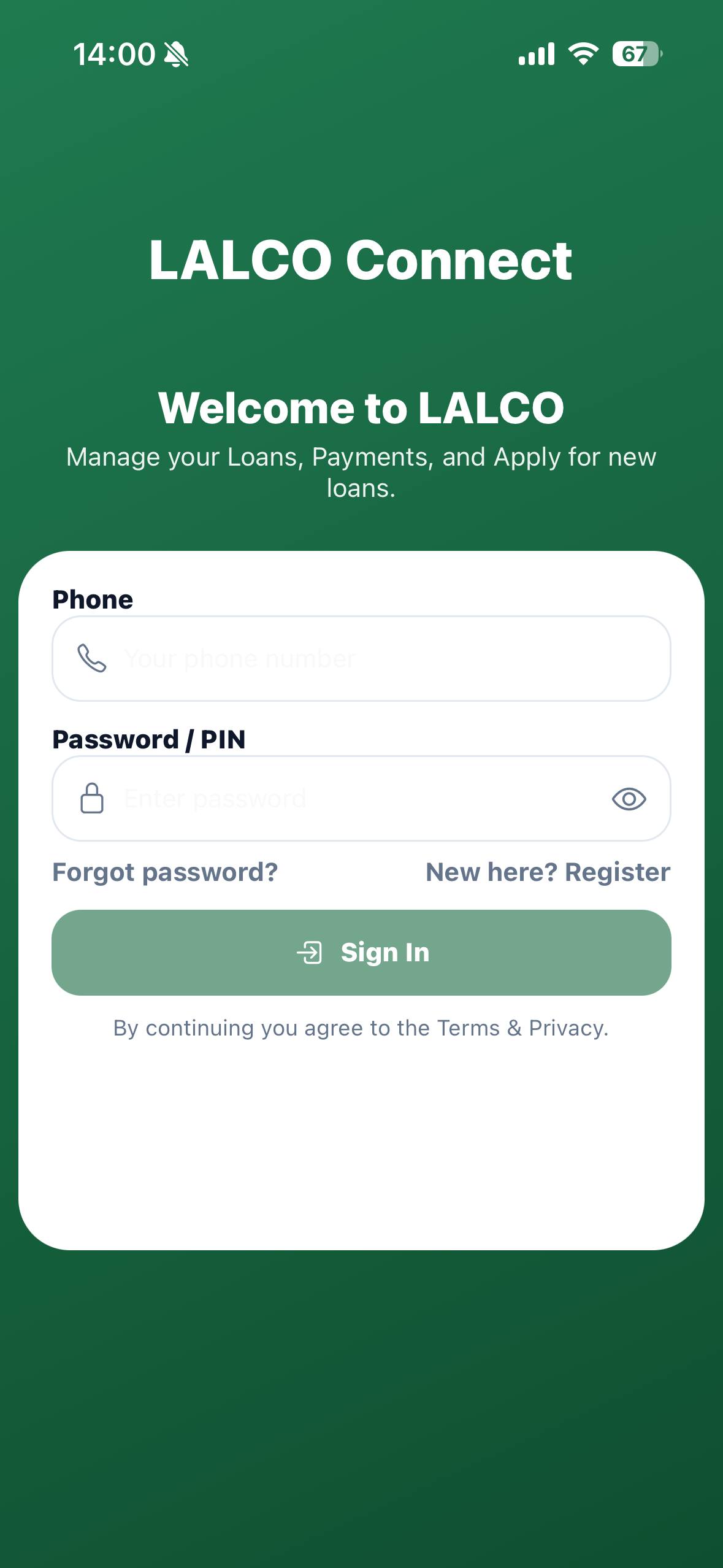
Steps for login :
- Enter phone number
- Enter password / PIN
- (Optional) Forgot pssword?
- Tap Login/ Access account
Wrong Credentials :
If the phone number or password/PIN is incorrect,
an error message will appear,
e.g.: “Incorrect phone number or password. Please try again.”
Actions for the user:
 Check phone number – Ensure it’s correct and includes the country code if required.
Check password/PIN – Re-enter carefully (watch for caps lock or extra spaces).
Use “Forgot password?” :
- Tap it to reset your password if you can’t remember it.
- Try again – After correcting details, tap Login again
Tip for guide users:
Always make sure your internet connection is active. If repeated failures occur, contact support/helpdesk.
Sign In Process
Step 1: Personal Information
- Enter your phone number
- Include country code if required
Step 2: Address Details
- Provide your address information
- Fill in required location feilds
Step 3: Password Setup
- Create a strong password
- Confirm your password (Re enter your pssword)
- Tick to agree terms & privacy policy
- Tap "create account" to create your account
Home Dashboard
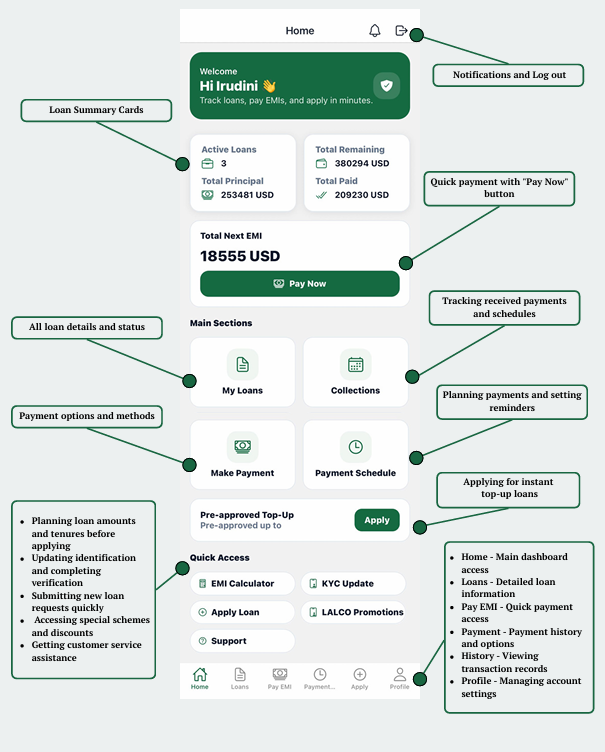
My Loans
My Loans is your central hub to view and manage all existing loan accounts. This section displays your loan information but does not allow new loan applications.
What You Can Do :
- View all your loan accounts in one place
- Filter loans by status (Active, Pending, Refinance, Closed)
- Search for specific loans by ID or product type
- Check loan details (principal, balance, interest rate, EMI progress)
- Monitor payment due dates and amounts
- Download loan statements and reports
Important Note:
This is a view-only section. To apply for new loans, use the "Apply" button from the bottom navigation or Home page
Applying for new Loans
Step 1: Basic Information
- Select loan type (SME Car, New Business Loan, Trade Finance, etc)
- Choose currency (USD, THB,LAK)
- Enter desired loan amount
- Select loan duration
- Note: You can change this later during review
- Tap "Continue" to proceed
Step 2: Employment Details
- Select employment status :
-
-
- Salaried
- Self Employed
-
-
- Enter employer name or business name
- Provide your monthly income amount
- Tap "Continue" to proceed
- Or tap "Back" to edit previous information
Step 3: KYC (Know Your Customer)
- Select document type:
- NIC
- Passport
- Driving License
- Enter your identification number
- Tap "Continue" to proceed
- Or tap" back" to edit previews information
Step 4: Review Application
- Check all entered information
- Read terms and conditions
- By submitting you agree to terms and authorise lalco to verify your information
- Tap submit application to complete
- or tap back to edit any information
Making Payments
Step 1: Access Payment Screen
1. Tap "Pay EMI" from bottom navigation
2. Or tap "Pay Now" button from anywhere in the app
Step 2: Attach Payment Evidence
1. Tap "Attach Evidence" button
2. Choose evidence type:
a. Image - Upload receipt photo
b. PDF - Upload document
3. Select file from your device
4. Evidence can be: receipt, bank slip, or transfer confirmation
Step 3: Extract Information (Auto-fill)
1. After uploading receipt, tap "Extract Image" button
2. System automatically reads and fills:  Contract No
Payment amount
Currency
Transaction date
Reference number
Step 5: Review and Submit
1. Double-check all information:
2. Payment amount
3. Contact number
4. Reference details
5. Attached evidence
6. Verify everything is correct
7. Tap "Submit Evidence" button to complete
IMPORTANT:
-
-
-
- Always check auto-filled values
- Review payment amount is correct
- Verify transaction date matches receipt
- Check reference number is accurate
-
-
Confirm all details match your payment If information is incorrect:
-
-
-
-
-
- Manually edit any incorrect fields
- Update amounts or reference numbers
- Ensure all details are accurate
-
-
-
-
Payment Schedule
Payment Schedule is a display-only section that shows your complete EMI payment timeline. This is not a function to perform actions - it's for viewing your payment plan and history.
Payment Timeline
Complete list of all EMI installments
Payment dates for each installment
Amount due for each payment
Payment status (Paid/Pending/Upcom ing)
Filter Options
- Summery - overview of total payments
- Daily/ monthly/quarterly - view payments by time period
- Overue - see any missed payments
Loan Information
- Loan ID and product type
- Disbursement details
- Total loan amount
- Interest rate
Payment Breakdown Each installment row shows:
EMI date
Principal amount
Interest amount
Total EMI
Outstanding balance
Payment status
Summary Cards
Total Principal Total Interest Total Amount Grand Total
My Profile
Step1 : Open your profile
- Tap "Profile" icon from bottom navigation bar
- Or tap profile icon in top right corner of any screen
Your profile displays:
Personal details :
- Full name - your registered name
- Mobile number - your contact number
- Email address- your registered email
Changing Your Password
Step 1: Access Password Change Form
1. Scroll down in Profile section
2. Find "Change Password" section
Step 2: Enter Current Password
1. Tap on "Current Password" field
2. Type your existing password
3. Tap eye icon to show/hide password for verification
Step 3: Enter New Password
1. Tap on "New Password" field
2. Type your new password
3. Tap eye icon to show/hide password
Step 4: Confirm New Password
1. Tap on "Confirm New Password" field
2. Re-type your new password exactly
3. Tap eye icon to show/hide password
Make sure it matches your new password
Step 5: Submit Changes
1. Review all three fields
2. Ensure new passwords match
3. Tap green "Update Password" button
4. Wait for confirmation message
5. Step 6: Confirmation
6. Success message will appear
7. You'll remain logged in
8. Use new password for next login
Password Security Guidelines
Creating a Strong Password:
1. Use at least 8 characters
2. Include uppercase and lowercase letters
3. Add numbers (0-9)
4. Include special characters (@, #, $, %, etc.)
5. Avoid common words or patterns
Password Safety Tips:
Never reuse old passwords
Don't share your password with anyone
Change your password regularly (every 3-6 months) Don't write it down in unsecure places
Don't use easily guessable information (birthdate, name, etc.)
If You Forget Your Password:
Use "Forgot Password?" option on login screen Follow password reset instructions
Check your registered email or phone for reset link
Additional Profile Features
Settings Access:
App preferences
Notification settings Language selection
Security options
Help & Support:
Contact customer service FAQs
App version information
Logout:
Tap logout button to sign out securely
You'll need to login again to access your account
EMI Calculator
Step 1: Access Calculator
- Tap EMI calculator from home page quick accsess
- or find it in the main menu
Step 2: Choose loan type
- Select calculation method :
- Normal: Stndard calculation
- Bullet: Interest only payments
Step 3: Select currency
- Choose your currency: LAK - Lao Kip , USD - US Dollar
Step 4: Enter loan details
- Type the amount you want to borrow
- Enter the interest rate
- Enter loan duraton in months
Step 5: View result
The calculator instantly shows:
Estimated EMI:
- Monthly payment amount (e.g., LAK 4,277,777)
Total Interest:
- Total interest you'll pay (e.g., LAK 54,000,000) Total Payable:
- Total amount to repay (e.g., LAK 156,000,000)
Step 6: View Detailed Breakdown (Optional)
- Tap "View Amortization" button
- See month-by-month payment schedule
- Check how much goes to principal vs interest each month
KYC UPDATE
What is KYC?
KYC (Know Your Customer) is a verification process to confirm your identity and address.
Why it's required:
Legal compliance with financial regulations
Protect your account security
Prevent fraud and identity theft
Required for loan approvals
When to update:
First time registration
When documents expire
When personal information changes
When requested by LALCO
KYC Update Process Overview
Quick 4-step verification:
Selfie - Upload your photo
ID Card - Upload identification document Document - Proof of address
Face Verify - Live face scan verification Progress tracker shows which step you're on.
Step 1: Upload Selfie
-
-
-
-
- Tap "KYC Update" from Home page Quick Access
- You'll see Step 1: Selfie screen
- Tap green "Camera" button
- Take a clear selfie photo
- File status changes from "No file selected" to uploaded
- Tap "Continue" to proceed
-
-
-
Step 2: Upload ID Card
1. Select your ID type by tapping checkbox:
a. National ID
b. Passport
c. Family Book
2. Upload Front Side:
a. Tap "Camera" button under "Front Side"
b. Take photo of front of your ID
c. Ensure entire card is visible
3. Upload Back Side:
a. Tap "Camera" button under "Back Side"
b. Take photo of back of your ID
c. Ensure entire card is visible
Tap "Continue" to proceed
Selfie Requirements:
 Face clearly visible and centered
Good lighting (no shadows)
No sunglasses, hats, or masks
Look directly at camera
Plain background preferred
ID Card Photo Tips:
All details must be clearly visible
No glare, shadows, or reflections
Entire card must fit within frame
Photo should be clear and focused
Lay card on flat, dark surface
Document Requirements:
Must be recent (within 3 months) Your name must match ID
Full address clearly visible
Not handwritten (printed documents only)
Step 3: Upload Proof of Address
1. You'll see "Step 3: Proof of Address" screen
2. Upload Document:
a. Tap "Camera" button to take photo, OR
b. Tap "File" button to upload PDF/JPG from device
3. Confirm accuracy:
a. Tick the checkbox: "I confirm the information is accurate"
b. Tap "Continue to Face Verification"
Document Requirements:
Must be recent (within 3 months) Your name must match ID
Full address clearly visible
Not handwritten (printed documents only)
Step 4: Live Face Verification
1. You'll see "Live Face Verification" screen with instructions
2. Read scanning instructions:
a. Position your face in the circle
b. Slowly move your head in a circular motion
c. Keep your face visible during the 3-second scan
3. Review preview:
a. Check selfie and ID document thumbnails at bottom
b. Tap "Reset" if you need to start over
c. Start verification:
d. Tap green "Start Live Face Verification" button
e. Camera will open automatically
4. During scanning:
a. Center your face in the circle on screen
b. Slowly rotate your head in circular motion
c. Follow on-screen prompts
d. Keep still when instructed
e. Wait for scan to complete (3 seconds)
5. Submit:
a. After successful scan, tap "Submit Verification" button
b. Wait for confirmation message
Face Verification Tips:
Find good lighting (face camera toward light)
Remove glasses if possible
Remove hat or head covering
Ensure face is clearly visible
Follow instructions carefully
Stay still during scan
After KYC Submission
Processing Time:
Verification typically takes 1-3 business days You'll receive notification when approved
Check Verification Status:
Go to Profile section
Look for KYC status indicator
If Verification is Rejected:
You'll receive notification explaining reason
Common reasons: blurry photos, incorrect documents, information mismatch
Resubmit with correct documents Follow instructions carefully
When to Update Again:
When documents expire If address changes
If requested by LALCO
At least every 2 years for compliance
Important Notes:
All 4 steps must be completed
Documents must be valid and current
Information must match across all documents Cannot skip any steps
Keep documents ready before starting
Promotions & Offers
 Browse current deals and special offers on LALCO loan products.
View-only section for available promotions.
Access
1. Tap "LALCO Promotions" from Home page
2. Or access from main menu
Filter Options
1. By Product: All, SME Car, Trade Finance, New Business Loan
2. By Time: Latest, Ending Soon
What You See
Promotion title and benefits
Discount rates or special terms Validity dates
Terms and conditions
Apply/Learn More buttons
No Promotions?
"No promotions found" message appears. Check back for new offers. Note: All promotions subject to terms and conditions.
Support & Help
 Get help and contact LALCO customer support through multiple channels.
Quick Contact :
Call Support button - Direct call
Open WhatsApp button - Chat support
-WhatsApp Support Chat
Self-Service Options
Raise Ticket - Submit support requests
Track Requests - Check inquiry status
FAQs - Common questions and answers
Branch Locator - Find nearest branch
Popular FAQs Quick answers to:
1. How do I pay my EMI?
2. How do I update KYC?
3. I missed an EMI. What now?
4. Tap any FAQ to view the answer.
Raise a Ticket
Raise a Ticket
1. Describe Your Issue - Enter your problem in the text field (max 300 characters)
2. Submit - Tap the green "Submit Ticket" button
3. Done - Your ticket is sent to support
Track Requests
- View Status - See all your submitted tickets here
- Check Updates - Monitor responses from the support team
- Empty State - "No requests found" appears when you have no
Tips & Best Practices
Loan Management
Pay EMIs before due date
Check payment schedule regularly Save all payment receipts
Keep KYC information updated Review balance monthly
Security
Use strong password (letters, numbers, symbols) Never share login details
Change password every 3-6 months Always logout after use
Keep app updated
Making Payments
Verify loan number and amount before paying Upload clear receipt photos
Include bank reference numbers
Allow 1-2 days for payment processing
Applying for Loans
Provide accurate information Submit clear documents
Use EMI calculator first
Review application before submitting
Troubleshooting
Login Issues
Cannot Login:
Check phone number is correct Verify password (case-sensitive) Use "Forgot password?" to reset Check internet connection
Clear app cache or reinstall
Forgot Password:
Tap "Forgot password?" on login Follow reset instructions
Check phone/email for reset code Create new password
Payment Issues
Payment Not Showing:
Wait 1-2 business days for processing Check payment schedule for updates
Verify bank transaction was successful Upload clear payment receipt
Contact support with reference number
Upload Failed:
Check internet connection File size max 5MB
Use JPG, PNG, or PDF format Take clear photos
Retry later
Account Issues
Account Locked:
Wait 30 minutes after failed login attempts Use "Forgot password?" to reset
Contact support for help
 Cannot Update Information:
Fill all required fields
Check correct format (phone, email) Check internet connection
Contact support if continues Application Issues
 Application Stuck:
Check status in "Pending" tab Wait 2-3 business days
Check for document requests Contact support for update
Cannot Submit Application: Complete all required fields Verify KYC status
Check documents uploaded Check internet connection Review error messages
Save draft and retry
General Tips
 Check internet connection first Update app to latest version
Contact support: +91 80-10-60
Have loan/reference number ready
Frequently Asked Questions (FAQs)
General Questions
Q: What is LALCO Connect?
A: LALCO Connect is a mobile application that allows you to manage your loans, make payments, and apply for new loans conveniently from your phone.
Q: Is LALCO Connect free to use?
A: Yes, the app is free to download and use.
Q: Which devices are supported?
A: LALCO Connect works on Android (version 8.0+) and iOS (version 12.0+) devices.
Q: Is my information secure?
A: Yes, we use bank-level encryption and security measures to protect your data.
Account & Login
Q: How do I create an account?
A: Tap "New here? Register" on the login screen and follow the registration process.
Q: I forgot my password. What should I do?
A: Tap "Forgot password?" on the login screen and follow the reset instructions.
Q: Can I change my phone number?
A: Contact LALCO support to update your registered phone number.
Q: How do I change my password?
A: Go to Profile → Change Password, enter current password and new password.
Loans
Q: How do I check my loan balance?
A: Go to Home dashboard to see all loan summaries, or tap "Loans" for detailed information.
Q: What does "Total Remaining" mean?
A: This is the total outstanding balance across all your active loans.
Q: Where can I see my full payment schedule and next due date?
A: Open Home → Payment Schedule. Tap any Contract to see details and status.
Q: What are the different loan statuses? A: Active: Currently ongoing loans Pending: Applications awaiting approval Refinance: Restructured loans
Closed: Fully paid loans
Q: Can I have multiple loans at the same time?
A: Yes, subject to eligibility and approval by LALCO.
Payments
Q: How do I pay my EMI? A:
Tap "Pay EMI" from bottom navigation Select contract number
Upload payment receipt Fill in payment details Submit evidence
Q: What payment methods are accepted? A: Bank transfer, cash deposit at branches, mobile banking. Upload proof of payment in the app.
Q: How long does it take for payment to reflect? A: Payments typically reflect within 1-2 business days after submission of evidence.
Q: Can I pay early or pay more than the minimum? A: Yes! You can make early payments or pay more than the minimum EMI. Check for early payment discounts.
Q: I missed an EMI. What now?
A: Pay as soon as possible to avoid additional penalties. Check your payment schedule for updated penalty amounts.
Q: What if payment succeeded but the app still shows "Due"?
A: Wait 1-2 business days for processing. If still not updated, contact support with your payment reference number.
Q: What currencies can I use for payment?
A: USD, LAK, and THB (depending on your loan agreement).
Q: How do early payment discounts work?
A: Check Notifications and Promotions for current discount offers. Discounts are applied when you pay early or in full.
EMI Calculator
Q: What is the EMI Calculator? A: A tool to estimate your monthly payment amount based on loan amount, interest rate, and tenure.
Q: What's the difference between Normal and Bullet loans? A: Normal (reducing): Standard EMI with principal + interest Bullet (interest-only): Pay interest monthly, principal at end
Q: Can I apply for the loan after calculating?
A: Yes, use the calculator to estimate, then proceed to "Apply Loan" to submit application.
19.6 KYC (Know Your Customer)
Q: What is KYC? A: Know Your Customer verification - a legal requirement to confirm your identity.
Q: When do I need to update KYC?
A:
When first registering When documents expire
What To Expect
What We Expect From You
What We Expect From You
Timely Payments Pay your EMIs before the due date to avoid penalties. Accurate Information Provide correct details and update when things change.
Documents Submit valid, readable documents when requested. Stay Connected Keep your phone number active and check notifications regularly. Follow Terms Use the loan as agreed and follow loan conditions.
What You Can Expect From Us
Quick Service Fast application processing and timely approval updates. Clear Information Transparent loan terms with no hidden charges.
Safe & Secure Protected transactions and private data handling. Helpful Support Available support through phone, WhatsApp, and app. Easy to Use Simple app design and straightforward payment process.
Fair Treatment Professional service and flexible solutions when needed.
Contact & Support
Need Help?
Phone: Monday - Friday, 8:00 AM - 5:00 PM WhatsApp: Quick chat support
In-App: Tap "Support" for tickets, FAQs, and branch locator
Quick Tips
Enable notifications for reminders Keep app updated
Save payment receipts Update KYC when needed
Thank you for choosing LALCO Connect! Simple. Secure. Convenient.
Version 1.0 | © 2026 LALCO