# LALCO STAFF APP

# Introduction

### What is LALCO Staff App?

**Brief overview of the app**

**LALCO Staff App** is a mobile application designed for LALCO employees to manage their daily work activities efficiently. It allows staff to access important information, manage assigned tasks, and update work-related data directly from their smartphones. The app helps employees stay connected with company systems anytime and anywhere, improving productivity and communication.

---

### Key features at a glance

- Task management and tracking
- View and update contract details
- Customer information access
- Sales activity updates
- Real-time notifications and alerts
- Secure staff login

---

### Who should use this app

This app is for:

- LALCO sales staff
- Field officers and operational staff
- Company employees who manage customer contracts
- Staff who need to access company systems remotely

# Login Screen

[![Screenshot_20260316_110608_Expo Go.jpg (1).jpeg](http://wiki.lalco.la/uploads/images/gallery/2026-03/scaled-1680-/screenshot-20260316-110608-expo-go-jpg-1.jpeg)](http://wiki.lalco.la/uploads/images/gallery/2026-03/screenshot-20260316-110608-expo-go-jpg-1.jpeg)

The **Login Screen** allows authorized staff members to access the **LALCO Staff application**. From here, employees can log in to manage customers, track collections, and process loan applications.

---

### Screen Fields

#### Email Address

Users must enter their **registered company email address**.

Example:

<div class="relative w-full mt-4 mb-1" id="bkmrk-staff%40lalco.la"><div class=""><div class="relative"><div class="h-full min-h-0 min-w-0"><div class="h-full min-h-0 min-w-0"><div class="border border-token-border-light border-radius-3xl corner-superellipse/1.1 rounded-3xl"><div class="h-full w-full border-radius-3xl bg-token-bg-elevated-secondary corner-superellipse/1.1 overflow-clip rounded-3xl lxnfua_clipPathFallback"><div class="pe-11 pt-3"><div class="relative z-0 flex max-w-full"><div class="q9tKkq_viewer cm-editor z-10 light:cm-light dark:cm-light flex h-full w-full flex-col items-stretch ͼk ͼy" dir="ltr" id="bkmrk-staff%40lalco.la-1"><div class="cm-scroller"><div class="cm-content q9tKkq_readonly">staff@lalco.la</div></div></div></div></div></div></div></div></div><div class=""><div class="">  
</div></div></div></div></div>This email must be provided by the **system administrator**.

---

#### Password / PIN

Users must enter their **secure password** associated with their account.

Security features:

- Password is hidden by default.
- The **eye icon** can be used to show or hide the password.

---

#### Sign In Button

After entering valid credentials, press **Sign In** to access the system.

If login is successful, the system will open the **dashboard**.

---

### Terms &amp; Privacy

At the bottom of the screen, users will see the message:

<div class="relative w-full mt-4 mb-1" id="bkmrk-by-continuing-you-ag"><div class=""><div class="relative"><div class="h-full min-h-0 min-w-0"><div class="h-full min-h-0 min-w-0"><div class="border border-token-border-light border-radius-3xl corner-superellipse/1.1 rounded-3xl"><div class="h-full w-full border-radius-3xl bg-token-bg-elevated-secondary corner-superellipse/1.1 overflow-clip rounded-3xl lxnfua_clipPathFallback"><div class="pe-11 pt-3"><div class="relative z-0 flex max-w-full"><div class="q9tKkq_viewer cm-editor z-10 light:cm-light dark:cm-light flex h-full w-full flex-col items-stretch ͼk ͼy" dir="ltr" id="bkmrk-by-continuing-you-ag-1"><div class="cm-scroller"><div class="cm-content q9tKkq_readonly">By continuing you agree to the Terms &amp; Privacy</div></div></div></div></div></div></div></div></div><div class=""><div class="">  
</div></div></div></div></div>This indicates that by logging in, the user agrees to the company's usage policies.

---


#  

# How to Log In

1. Open the **LALCO Staff** application.
2. Enter your **email address**.
3. Enter your **password**.
4. Tap **Sign In**.
5. You will be redirected to the **main dashboard**.

[![Screenshot_20260316_113327_Expo Go.jpg.jpeg](http://wiki.lalco.la/uploads/images/gallery/2026-03/scaled-1680-/screenshot-20260316-113327-expo-go-jpg.jpeg)](http://wiki.lalco.la/uploads/images/gallery/2026-03/screenshot-20260316-113327-expo-go-jpg.jpeg)

---

# Common Login Issues[![screenshot-20260316-112434-expo-go-jpg.jpg](http://wiki.lalco.la/uploads/images/gallery/2026-03/scaled-1680-/8Oxscreenshot-20260316-112434-expo-go-jpg.jpg)](http://wiki.lalco.la/uploads/images/gallery/2026-03/8Oxscreenshot-20260316-112434-expo-go-jpg.jpg)

### Incorrect Password

If the password is incorrect:

- Check if **Caps Lock** is enabled.
- Re-enter the password carefully.

### Invalid Email

Make sure you are using your **official company email**.

Example:

<div class="relative w-full mt-4 mb-1" id="bkmrk-username%40lalco.lk"><div class=""><div class="relative"><div class="h-full min-h-0 min-w-0"><div class="h-full min-h-0 min-w-0"><div class="border border-token-border-light border-radius-3xl corner-superellipse/1.1 rounded-3xl"><div class="h-full w-full border-radius-3xl bg-token-bg-elevated-secondary corner-superellipse/1.1 overflow-clip rounded-3xl lxnfua_clipPathFallback"><div class="pe-11 pt-3"><div class="relative z-0 flex max-w-full"><div class="q9tKkq_viewer cm-editor z-10 light:cm-light dark:cm-light flex h-full w-full flex-col items-stretch ͼk ͼy" dir="ltr" id="bkmrk-username%40lalco.lk-1"><div class="cm-scroller"><div class="cm-content q9tKkq_readonly">username@lalco.la</div></div></div></div></div></div></div></div></div><div class=""><div class="">  
</div></div></div></div></div>---

# Security Guidelines

- Do **not share your login credentials**.
- Always **log out when using a shared device**.

Change your password regularly.

# Home Screen

[<span style="background-color: rgb(241, 196, 15);">![screenshot-20260316-115418-expo-go-jpg.jpg](http://wiki.lalco.la/uploads/images/gallery/2026-03/scaled-1680-/screenshot-20260316-115418-expo-go-jpg.jpg)</span>](http://wiki.lalco.la/uploads/images/gallery/2026-03/screenshot-20260316-115418-expo-go-jpg.jpg)

The **Home Screen** is the main screen of the **LALCO Staff** application. It provides agents with a quick overview of their daily tasks, collections, and customer activities.

From this screen, staff members can quickly access important features such as logging calls, scheduling follow-ups, offering loans, and managing tasks.

---

# Header Section

### 1.Company Logo

The **LALCO logo** at the top represents the company and confirms that the user is logged into the official staff application.

[![logo.png](http://wiki.lalco.la/uploads/images/gallery/2026-03/scaled-1680-/logo.png)](http://wiki.lalco.la/uploads/images/gallery/2026-03/logo.png)

---

### 2.Notification Icon 🔔

The **bell icon** shows notifications such as:

- New assigned tasks
- Follow-up reminders
- Customer updates
- System alerts

[![notification.jpeg](http://wiki.lalco.la/uploads/images/gallery/2026-03/scaled-1680-/notification.jpeg)](http://wiki.lalco.la/uploads/images/gallery/2026-03/notification.jpeg)

---

### 3.Menu Icon ☰

[![sideBar.png](http://wiki.lalco.la/uploads/images/gallery/2026-03/scaled-1680-/sidebar.png)](http://wiki.lalco.la/uploads/images/gallery/2026-03/sidebar.png)

###   


The **Menu icon** (☰), located at the top-right corner of the screen, opens the **side navigation panel**. This panel provides quick access to additional features and system functions.

When tapped, a sidebar appears with the following options:

---

#### Menu Options

- **GPS Offline**  
    Indicates the current GPS status. This helps agents know whether location tracking is active or not.
- **Log Call**  
    Quickly navigate to the call logging screen to record customer interactions.
- **Offer Loan**  
    Access the loan offering feature to create or manage loan proposals.
- **Locations**  
    View or manage location-related data (useful for field agents).
- **User**  
    Access user profile information and settings.
- **Capture**  
    Open the camera or capture feature to upload images or documents.
- **Add Note**  
    Create and save notes related to customers or tasks.
- **Customers**  
    Navigate to the customer management section.
- **Staff**  
    View or manage staff-related information.
- **Logout**  
    Securely log out of the application.

---

# Agent Overview Panel

[![badge.jpeg](http://wiki.lalco.la/uploads/images/gallery/2026-03/scaled-1680-/badge.jpeg)](http://wiki.lalco.la/uploads/images/gallery/2026-03/badge.jpeg)

This section shows a quick summary of the agent's daily activity.

### 4.FieldOps Badge

Indicates the user is operating in **Field Operations mode**.

---

### 5.Welcome Message

Displays the logged-in staff member’s role or name.

Example:

<div class="relative w-full mt-4 mb-1" id="bkmrk-welcome-back-agent"><div class=""><div class="relative"><div class="h-full min-h-0 min-w-0"><div class="h-full min-h-0 min-w-0"><div class="border border-token-border-light border-radius-3xl corner-superellipse/1.1 rounded-3xl"><div class="h-full w-full border-radius-3xl bg-token-bg-elevated-secondary corner-superellipse/1.1 overflow-clip rounded-3xl lxnfua_clipPathFallback"><div class="pe-11 pt-3"><div class="relative z-0 flex max-w-full"><div class="q9tKkq_viewer cm-editor z-10 light:cm-light dark:cm-light flex h-full w-full flex-col items-stretch ͼk ͼy" dir="ltr" id="bkmrk-welcome-back-agent-1"><div class="cm-scroller"><div class="cm-content q9tKkq_readonly">Welcome back Agent</div></div></div></div></div></div></div></div></div><div class=""><div class="">  
</div></div></div></div></div>---

### 6.Current Date

Shows the **current working date** for reference.

Example:

<div class="relative w-full mt-4 mb-1" id="bkmrk-mon%2C-mar-16"><div class=""><div class="relative"><div class="h-full min-h-0 min-w-0"><div class="h-full min-h-0 min-w-0"><div class="border border-token-border-light border-radius-3xl corner-superellipse/1.1 rounded-3xl"><div class="h-full w-full border-radius-3xl bg-token-bg-elevated-secondary corner-superellipse/1.1 overflow-clip rounded-3xl lxnfua_clipPathFallback"><div class="pe-11 pt-3"><div class="relative z-0 flex max-w-full"><div class="q9tKkq_viewer cm-editor z-10 light:cm-light dark:cm-light flex h-full w-full flex-col items-stretch ͼk ͼy" dir="ltr" id="bkmrk-mon%2C-mar-16-1"><div class="cm-scroller"><div class="cm-content q9tKkq_readonly">Mon, Mar 16</div></div></div></div></div></div></div></div></div><div class=""><div class="">  
</div></div></div></div></div><div class="relative w-full mt-4 mb-1" id="bkmrk--14"><div class=""><div class="relative"><div class=""><div class=""></div></div></div></div></div>---

# Activity Summary Cards

[![card.jpeg](http://wiki.lalco.la/uploads/images/gallery/2026-03/scaled-1680-/card.jpeg)](http://wiki.lalco.la/uploads/images/gallery/2026-03/card.jpeg)

These cards show important performance indicators for the day.

### 7.Overdue

Displays the number of **customers with overdue payments**.

Example:

<div class="relative w-full mt-4 mb-1" id="bkmrk-4-overdue"><div class=""><div class="relative"><div class="h-full min-h-0 min-w-0"><div class="h-full min-h-0 min-w-0"><div class="border border-token-border-light border-radius-3xl corner-superellipse/1.1 rounded-3xl"><div class="h-full w-full border-radius-3xl bg-token-bg-elevated-secondary corner-superellipse/1.1 overflow-clip rounded-3xl lxnfua_clipPathFallback"><div class="pe-11 pt-3"><div class="relative z-0 flex max-w-full"><div class="q9tKkq_viewer cm-editor z-10 light:cm-light dark:cm-light flex h-full w-full flex-col items-stretch ͼk ͼy" dir="ltr" id="bkmrk-4-overdue-1"><div class="cm-scroller"><div class="cm-content q9tKkq_readonly">4 Overdue</div></div></div></div></div></div></div></div></div><div class=""><div class="">  
</div></div></div></div></div>This helps agents prioritize collections.

---

### 8.Due Today

Shows the **total amount that needs to be collected today**.

Example:

<div class="relative w-full mt-4 mb-1" id="bkmrk-%2435584.00"><div class=""><div class="relative"><div class="h-full min-h-0 min-w-0"><div class="h-full min-h-0 min-w-0"><div class="border border-token-border-light border-radius-3xl corner-superellipse/1.1 rounded-3xl"><div class="h-full w-full border-radius-3xl bg-token-bg-elevated-secondary corner-superellipse/1.1 overflow-clip rounded-3xl lxnfua_clipPathFallback"><div class="pe-11 pt-3"><div class="relative z-0 flex max-w-full"><div class="q9tKkq_viewer cm-editor z-10 light:cm-light dark:cm-light flex h-full w-full flex-col items-stretch ͼk ͼy" dir="ltr" id="bkmrk-%2435584.00-1"><div class="cm-scroller"><div class="cm-content q9tKkq_readonly">$35584.00</div></div></div></div></div></div></div></div></div><div class=""><div class="">  
</div></div></div></div></div>---

### 9.Completed

Displays the number of **completed tasks or collections for the day**.

Example:

<div class="relative w-full mt-4 mb-1" id="bkmrk-10-completed"><div class=""><div class="relative"><div class="h-full min-h-0 min-w-0"><div class="h-full min-h-0 min-w-0"><div class="border border-token-border-light border-radius-3xl corner-superellipse/1.1 rounded-3xl"><div class="h-full w-full border-radius-3xl bg-token-bg-elevated-secondary corner-superellipse/1.1 overflow-clip rounded-3xl lxnfua_clipPathFallback"><div class="pe-11 pt-3"><div class="relative z-0 flex max-w-full"><div class="q9tKkq_viewer cm-editor z-10 light:cm-light dark:cm-light flex h-full w-full flex-col items-stretch ͼk ͼy" dir="ltr" id="bkmrk-10-completed-1"><div class="cm-scroller"><div class="cm-content q9tKkq_readonly">0 Completed</div></div></div></div></div></div></div></div></div><div class=""><div class="">  
</div></div></div></div></div>---

### 10.Collected Today

Shows the **total amount successfully collected today**.

Example:

<div class="relative w-full mt-4 mb-1" id="bkmrk-%245358.00"><div class=""><div class="relative"><div class="h-full min-h-0 min-w-0"><div class="h-full min-h-0 min-w-0"><div class="border border-token-border-light border-radius-3xl corner-superellipse/1.1 rounded-3xl"><div class="h-full w-full border-radius-3xl bg-token-bg-elevated-secondary corner-superellipse/1.1 overflow-clip rounded-3xl lxnfua_clipPathFallback"><div class="pe-11 pt-3"><div class="relative z-0 flex max-w-full"><div class="q9tKkq_viewer cm-editor z-10 light:cm-light dark:cm-light flex h-full w-full flex-col items-stretch ͼk ͼy" dir="ltr" id="bkmrk-%245358.00-1"><div class="cm-scroller"><div class="cm-content q9tKkq_readonly">$5358.00</div></div></div></div></div></div></div></div></div><div class=""><div class="">  
</div></div></div></div></div>---

# Quick Access Section

[![QA.jpeg](http://wiki.lalco.la/uploads/images/gallery/2026-03/scaled-1680-/qa.jpeg)](http://wiki.lalco.la/uploads/images/gallery/2026-03/qa.jpeg)

The **Quick Access** panel provides shortcuts to frequently used actions.

---

### 11.Log Call

Allows agents to record details after contacting a customer.

Information that can be logged:

- Call result
- Customer response
- Payment commitment

---

### 12.Follow-up

Used to schedule a **future reminder to contact a customer again**.

Agents can set:

- Follow-up date
- Follow-up notes

---

### 13.Offer Loan

Allows staff to create or propose **new loan offers to customers**.

This is typically used when:

- A customer requests a loan
- A new sales opportunity is identified

---

### 14.Reassign Tasks

Allows agents or supervisors to **transfer tasks to another staff member**.

Used when:

- The assigned agent is unavailable
- Tasks need redistribution

---

### 15.Add Note

Agents can record **internal notes about customers or cases**.

Notes may include:

- Customer discussions
- Payment promises
- Special instructions

---

# Bottom Navigation Menu

[![bnav.jpeg](http://wiki.lalco.la/uploads/images/gallery/2026-03/scaled-1680-/bnav.jpeg)](http://wiki.lalco.la/uploads/images/gallery/2026-03/bnav.jpeg)

The bottom navigation bar allows users to move between main sections of the application.

### 16.Home

Returns to the **Dashboard screen**.

---

### 17.Tasks

Shows all assigned **tasks and pending activities**.

---

### 18.Sales

Used to manage **loan sales and offers**.

---

### 19.Legal

Displays cases that require **legal action or documentation**.

---

### 20.Team

Shows team members and allows **team coordination**.

---

### 21.Customers

Provides access to the **customer database**.

Agents can:

- Search customers
- View loan details
- Update records

# Sales Screen

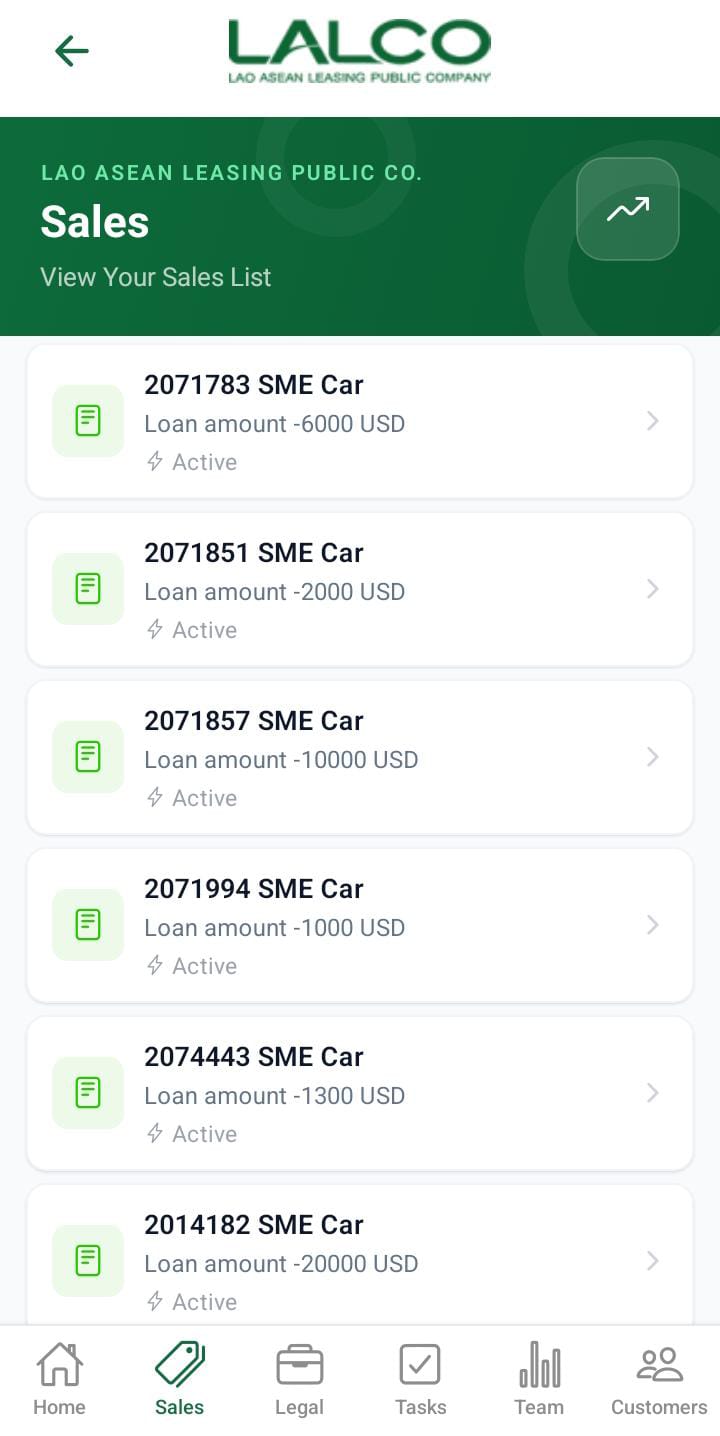
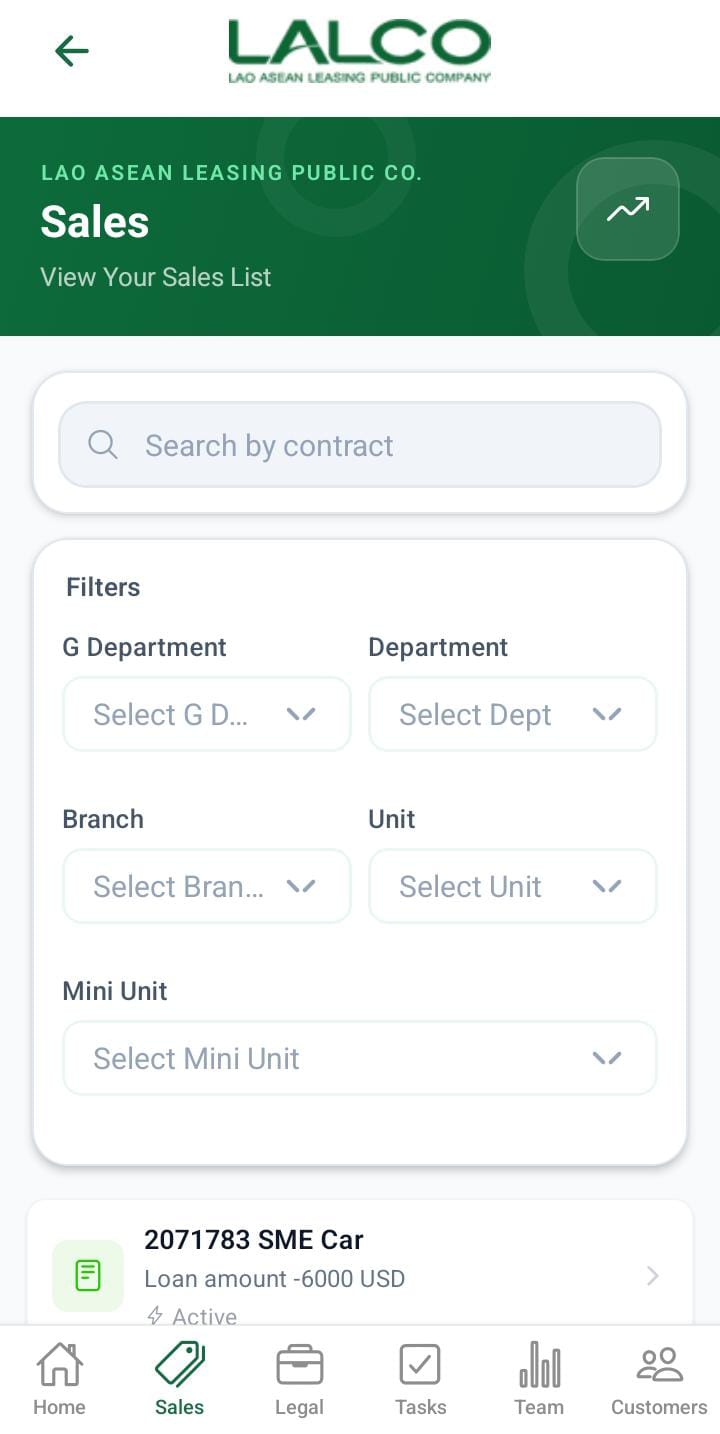
<div class="relative basis-auto flex-col -mb-(--composer-overlap-px) [--composer-overlap-px:28px] grow flex" id="bkmrk-the-sales-screen-all"><div class="flex flex-col text-sm pb-25"><article class="text-token-text-primary w-full focus:outline-none [--shadow-height:45px] has-data-writing-block:pointer-events-none has-data-writing-block:-mt-(--shadow-height) has-data-writing-block:pt-(--shadow-height) [&:has([data-writing-block])>*]:pointer-events-auto scroll-mt-[calc(var(--header-height)+min(200px,max(70px,20svh)))]" data-scroll-anchor="true" data-testid="conversation-turn-16" data-turn="assistant" data-turn-id="3893cdd3-96d9-483b-b907-aa1d4d72ad76" dir="auto" tabindex="-1">[![cbd5037b-4934-4de4-bda6-27b4e6d580b1.jpg](http://wiki.lalco.la/uploads/images/gallery/2026-03/scaled-1680-/cbd5037b-4934-4de4-bda6-27b4e6d580b1.jpg)](http://wiki.lalco.la/uploads/images/gallery/2026-03/cbd5037b-4934-4de4-bda6-27b4e6d580b1.jpg)

The **Sales Screen** allows staff to view and manage all loan sales within the system. It provides a searchable and filterable list of sales records, helping agents track loan statuses and customer applications efficiently.

<div class="text-base my-auto mx-auto pb-10 [--thread-content-margin:var(--thread-content-margin-xs,calc(var(--spacing)*4))] @w-sm/main:[--thread-content-margin:var(--thread-content-margin-sm,calc(var(--spacing)*6))] @w-lg/main:[--thread-content-margin:var(--thread-content-margin-lg,calc(var(--spacing)*16))] px-(--thread-content-margin)"><div class="[--thread-content-max-width:40rem] @w-lg/main:[--thread-content-max-width:48rem] mx-auto max-w-(--thread-content-max-width) flex-1 group/turn-messages focus-visible:outline-hidden relative flex w-full min-w-0 flex-col agent-turn" tabindex="-1"><div class="flex max-w-full flex-col gap-4 grow"><div class="min-h-8 text-message relative flex w-full flex-col items-end gap-2 text-start break-words whitespace-normal [.text-message+&]:mt-1" data-message-author-role="assistant" data-message-id="3893cdd3-96d9-483b-b907-aa1d4d72ad76" data-message-model-slug="gpt-5-3" dir="auto"><div class="flex w-full flex-col gap-1 empty:hidden"><div class="markdown prose dark:prose-invert w-full wrap-break-word dark markdown-new-styling">---

</div></div></div></div></div></div># Header Section

### Page Title

**Sales**

Indicates that the user is viewing the list of all sales records.

<div class="text-base my-auto mx-auto pb-10 [--thread-content-margin:var(--thread-content-margin-xs,calc(var(--spacing)*4))] @w-sm/main:[--thread-content-margin:var(--thread-content-margin-sm,calc(var(--spacing)*6))] @w-lg/main:[--thread-content-margin:var(--thread-content-margin-lg,calc(var(--spacing)*16))] px-(--thread-content-margin)"><div class="[--thread-content-max-width:40rem] @w-lg/main:[--thread-content-max-width:48rem] mx-auto max-w-(--thread-content-max-width) flex-1 group/turn-messages focus-visible:outline-hidden relative flex w-full min-w-0 flex-col agent-turn" tabindex="-1"><div class="flex max-w-full flex-col gap-4 grow"><div class="min-h-8 text-message relative flex w-full flex-col items-end gap-2 text-start break-words whitespace-normal [.text-message+&]:mt-1" data-message-author-role="assistant" data-message-id="3893cdd3-96d9-483b-b907-aa1d4d72ad76" data-message-model-slug="gpt-5-3" dir="auto"><div class="flex w-full flex-col gap-1 empty:hidden"><div class="markdown prose dark:prose-invert w-full wrap-break-word dark markdown-new-styling">---

</div></div></div></div></div></div>### Description

<div class="text-base my-auto mx-auto pb-10 [--thread-content-margin:var(--thread-content-margin-xs,calc(var(--spacing)*4))] @w-sm/main:[--thread-content-margin:var(--thread-content-margin-sm,calc(var(--spacing)*6))] @w-lg/main:[--thread-content-margin:var(--thread-content-margin-lg,calc(var(--spacing)*16))] px-(--thread-content-margin)"><div class="[--thread-content-max-width:40rem] @w-lg/main:[--thread-content-max-width:48rem] mx-auto max-w-(--thread-content-max-width) flex-1 group/turn-messages focus-visible:outline-hidden relative flex w-full min-w-0 flex-col agent-turn" tabindex="-1"><div class="flex max-w-full flex-col gap-4 grow"><div class="min-h-8 text-message relative flex w-full flex-col items-end gap-2 text-start break-words whitespace-normal [.text-message+&]:mt-1" data-message-author-role="assistant" data-message-id="3893cdd3-96d9-483b-b907-aa1d4d72ad76" data-message-model-slug="gpt-5-3" dir="auto"><div class="flex w-full flex-col gap-1 empty:hidden"><div class="markdown prose dark:prose-invert w-full wrap-break-word dark markdown-new-styling"><div class="relative w-full mt-4 mb-1"><div class=""><div class="relative"><div class="h-full min-h-0 min-w-0"><div class="h-full min-h-0 min-w-0"><div class="border border-token-border-light border-radius-3xl corner-superellipse/1.1 rounded-3xl"><div class="h-full w-full border-radius-3xl bg-token-bg-elevated-secondary corner-superellipse/1.1 overflow-clip rounded-3xl lxnfua_clipPathFallback"><div class="pe-11 pt-3"><div class="relative z-0 flex max-w-full"><div class="q9tKkq_viewer cm-editor z-10 light:cm-light dark:cm-light flex h-full w-full flex-col items-stretch ͼk ͼy" dir="ltr" id="bkmrk-view-your-sales-list"><div class="cm-scroller"><div class="cm-content q9tKkq_readonly">View Your Sales List</div></div></div></div></div></div></div></div></div><div class=""><div class="">  
</div></div></div></div></div></div></div></div></div></div></div>Provides a quick explanation of the screen’s purpose.

<div class="text-base my-auto mx-auto pb-10 [--thread-content-margin:var(--thread-content-margin-xs,calc(var(--spacing)*4))] @w-sm/main:[--thread-content-margin:var(--thread-content-margin-sm,calc(var(--spacing)*6))] @w-lg/main:[--thread-content-margin:var(--thread-content-margin-lg,calc(var(--spacing)*16))] px-(--thread-content-margin)"><div class="[--thread-content-max-width:40rem] @w-lg/main:[--thread-content-max-width:48rem] mx-auto max-w-(--thread-content-max-width) flex-1 group/turn-messages focus-visible:outline-hidden relative flex w-full min-w-0 flex-col agent-turn" tabindex="-1"><div class="flex max-w-full flex-col gap-4 grow"><div class="min-h-8 text-message relative flex w-full flex-col items-end gap-2 text-start break-words whitespace-normal [.text-message+&]:mt-1" data-message-author-role="assistant" data-message-id="3893cdd3-96d9-483b-b907-aa1d4d72ad76" data-message-model-slug="gpt-5-3" dir="auto"><div class="flex w-full flex-col gap-1 empty:hidden"><div class="markdown prose dark:prose-invert w-full wrap-break-word dark markdown-new-styling">---

</div></div></div></div></div></div>### Action Icon 📈

The icon on the right may be used to:

<div class="text-base my-auto mx-auto pb-10 [--thread-content-margin:var(--thread-content-margin-xs,calc(var(--spacing)*4))] @w-sm/main:[--thread-content-margin:var(--thread-content-margin-sm,calc(var(--spacing)*6))] @w-lg/main:[--thread-content-margin:var(--thread-content-margin-lg,calc(var(--spacing)*16))] px-(--thread-content-margin)"><div class="[--thread-content-max-width:40rem] @w-lg/main:[--thread-content-max-width:48rem] mx-auto max-w-(--thread-content-max-width) flex-1 group/turn-messages focus-visible:outline-hidden relative flex w-full min-w-0 flex-col agent-turn" tabindex="-1"><div class="flex max-w-full flex-col gap-4 grow"><div class="min-h-8 text-message relative flex w-full flex-col items-end gap-2 text-start break-words whitespace-normal [.text-message+&]:mt-1" data-message-author-role="assistant" data-message-id="3893cdd3-96d9-483b-b907-aa1d4d72ad76" data-message-model-slug="gpt-5-3" dir="auto"><div class="flex w-full flex-col gap-1 empty:hidden"><div class="markdown prose dark:prose-invert w-full wrap-break-word dark markdown-new-styling">- View **sales analytics**
- Access **reports or performance insights**

---

</div></div></div></div></div></div># Search Function

### Search Bar

<div class="text-base my-auto mx-auto pb-10 [--thread-content-margin:var(--thread-content-margin-xs,calc(var(--spacing)*4))] @w-sm/main:[--thread-content-margin:var(--thread-content-margin-sm,calc(var(--spacing)*6))] @w-lg/main:[--thread-content-margin:var(--thread-content-margin-lg,calc(var(--spacing)*16))] px-(--thread-content-margin)"><div class="[--thread-content-max-width:40rem] @w-lg/main:[--thread-content-max-width:48rem] mx-auto max-w-(--thread-content-max-width) flex-1 group/turn-messages focus-visible:outline-hidden relative flex w-full min-w-0 flex-col agent-turn" tabindex="-1"><div class="flex max-w-full flex-col gap-4 grow"><div class="min-h-8 text-message relative flex w-full flex-col items-end gap-2 text-start break-words whitespace-normal [.text-message+&]:mt-1" data-message-author-role="assistant" data-message-id="3893cdd3-96d9-483b-b907-aa1d4d72ad76" data-message-model-slug="gpt-5-3" dir="auto"><div class="flex w-full flex-col gap-1 empty:hidden"><div class="markdown prose dark:prose-invert w-full wrap-break-word dark markdown-new-styling"><div class="relative w-full mt-4 mb-1"><div class=""><div class="relative"><div class="h-full min-h-0 min-w-0"><div class="h-full min-h-0 min-w-0"><div class="border border-token-border-light border-radius-3xl corner-superellipse/1.1 rounded-3xl"><div class="h-full w-full border-radius-3xl bg-token-bg-elevated-secondary corner-superellipse/1.1 overflow-clip rounded-3xl lxnfua_clipPathFallback"><div class="pe-11 pt-3"><div class="relative z-0 flex max-w-full"><div class="q9tKkq_viewer cm-editor z-10 light:cm-light dark:cm-light flex h-full w-full flex-col items-stretch ͼk ͼy" dir="ltr" id="bkmrk-search-by-sale"><div class="cm-scroller"><div class="cm-content q9tKkq_readonly">Search by sale</div></div></div></div></div></div></div></div></div><div class=""><div class="">  
</div></div></div></div></div></div></div></div></div></div></div>Allows users to search sales by:

<div class="text-base my-auto mx-auto pb-10 [--thread-content-margin:var(--thread-content-margin-xs,calc(var(--spacing)*4))] @w-sm/main:[--thread-content-margin:var(--thread-content-margin-sm,calc(var(--spacing)*6))] @w-lg/main:[--thread-content-margin:var(--thread-content-margin-lg,calc(var(--spacing)*16))] px-(--thread-content-margin)"><div class="[--thread-content-max-width:40rem] @w-lg/main:[--thread-content-max-width:48rem] mx-auto max-w-(--thread-content-max-width) flex-1 group/turn-messages focus-visible:outline-hidden relative flex w-full min-w-0 flex-col agent-turn" tabindex="-1"><div class="flex max-w-full flex-col gap-4 grow"><div class="min-h-8 text-message relative flex w-full flex-col items-end gap-2 text-start break-words whitespace-normal [.text-message+&]:mt-1" data-message-author-role="assistant" data-message-id="3893cdd3-96d9-483b-b907-aa1d4d72ad76" data-message-model-slug="gpt-5-3" dir="auto"><div class="flex w-full flex-col gap-1 empty:hidden"><div class="markdown prose dark:prose-invert w-full wrap-break-word dark markdown-new-styling">- Sale ID
- Product type (e.g., SME Car, Real Estate)
- Customer-related data

---

</div></div></div></div></div></div># Filter Options

Users can filter sales based on their status:

<div class="text-base my-auto mx-auto pb-10 [--thread-content-margin:var(--thread-content-margin-xs,calc(var(--spacing)*4))] @w-sm/main:[--thread-content-margin:var(--thread-content-margin-sm,calc(var(--spacing)*6))] @w-lg/main:[--thread-content-margin:var(--thread-content-margin-lg,calc(var(--spacing)*16))] px-(--thread-content-margin)"><div class="[--thread-content-max-width:40rem] @w-lg/main:[--thread-content-max-width:48rem] mx-auto max-w-(--thread-content-max-width) flex-1 group/turn-messages focus-visible:outline-hidden relative flex w-full min-w-0 flex-col agent-turn" tabindex="-1"><div class="flex max-w-full flex-col gap-4 grow"><div class="min-h-8 text-message relative flex w-full flex-col items-end gap-2 text-start break-words whitespace-normal [.text-message+&]:mt-1" data-message-author-role="assistant" data-message-id="3893cdd3-96d9-483b-b907-aa1d4d72ad76" data-message-model-slug="gpt-5-3" dir="auto"><div class="flex w-full flex-col gap-1 empty:hidden"><div class="markdown prose dark:prose-invert w-full wrap-break-word dark markdown-new-styling">- **All** → Shows all sales records
- **Pending** → Sales that are not yet processed
- **Pending Approval** → Awaiting approval from management
- **Pending Disbursement** (if available) → Approved but not yet released
- **Disbursement **Approval**** → Loan is approved and waiting for final disbursement authorization before funds are released
- **Active** → Loan is currently active
- **Cancelled** → Loan has been cancelled and is no longer valid
- **Refinance** → Loan has been refinanced or restructured
- **Closed** → Loan has been fully completed and closed
- **Active Pending** → Loan is active but has pending actions
- **Checking To Close** → Loan is under review for closure
- **Active / Refinanced / Closed** → Used to group multiple statuses for filtering

</div></div></div></div></div></div>💡 Helps users quickly find specific types of sales.

<div class="text-base my-auto mx-auto pb-10 [--thread-content-margin:var(--thread-content-margin-xs,calc(var(--spacing)*4))] @w-sm/main:[--thread-content-margin:var(--thread-content-margin-sm,calc(var(--spacing)*6))] @w-lg/main:[--thread-content-margin:var(--thread-content-margin-lg,calc(var(--spacing)*16))] px-(--thread-content-margin)"><div class="[--thread-content-max-width:40rem] @w-lg/main:[--thread-content-max-width:48rem] mx-auto max-w-(--thread-content-max-width) flex-1 group/turn-messages focus-visible:outline-hidden relative flex w-full min-w-0 flex-col agent-turn" tabindex="-1"><div class="flex max-w-full flex-col gap-4 grow"><div class="min-h-8 text-message relative flex w-full flex-col items-end gap-2 text-start break-words whitespace-normal [.text-message+&]:mt-1" data-message-author-role="assistant" data-message-id="3893cdd3-96d9-483b-b907-aa1d4d72ad76" data-message-model-slug="gpt-5-3" dir="auto"><div class="flex w-full flex-col gap-1 empty:hidden"><div class="markdown prose dark:prose-invert w-full wrap-break-word dark markdown-new-styling">---

</div></div></div></div></div></div># Sales List

Each item in the list represents a **sale record**.

### Example:

<div class="text-base my-auto mx-auto pb-10 [--thread-content-margin:var(--thread-content-margin-xs,calc(var(--spacing)*4))] @w-sm/main:[--thread-content-margin:var(--thread-content-margin-sm,calc(var(--spacing)*6))] @w-lg/main:[--thread-content-margin:var(--thread-content-margin-lg,calc(var(--spacing)*16))] px-(--thread-content-margin)"><div class="[--thread-content-max-width:40rem] @w-lg/main:[--thread-content-max-width:48rem] mx-auto max-w-(--thread-content-max-width) flex-1 group/turn-messages focus-visible:outline-hidden relative flex w-full min-w-0 flex-col agent-turn" tabindex="-1"><div class="flex max-w-full flex-col gap-4 grow"><div class="min-h-8 text-message relative flex w-full flex-col items-end gap-2 text-start break-words whitespace-normal [.text-message+&]:mt-1" data-message-author-role="assistant" data-message-id="3893cdd3-96d9-483b-b907-aa1d4d72ad76" data-message-model-slug="gpt-5-3" dir="auto"><div class="flex w-full flex-col gap-1 empty:hidden"><div class="markdown prose dark:prose-invert w-full wrap-break-word dark markdown-new-styling"><div class="relative w-full mt-4 mb-1"><div class=""><div class="relative"><div class="h-full min-h-0 min-w-0"><div class="h-full min-h-0 min-w-0"><div class="border border-token-border-light border-radius-3xl corner-superellipse/1.1 rounded-3xl"><div class="h-full w-full border-radius-3xl bg-token-bg-elevated-secondary corner-superellipse/1.1 overflow-clip rounded-3xl lxnfua_clipPathFallback"><div class="pe-11 pt-3"><div class="relative z-0 flex max-w-full"><div class="q9tKkq_viewer cm-editor z-10 light:cm-light dark:cm-light flex h-full w-full flex-col items-stretch ͼk ͼy" dir="ltr" id="bkmrk-2000010---sme-car289"><div class="cm-scroller"><div class="cm-content q9tKkq_readonly">2000010 - SME Car  
28990 USD - Refinance</div></div></div></div></div></div></div></div></div><div class=""><div class="">  
</div></div></div></div></div>---

</div></div></div></div></div></div>### Information Displayed

Each sales item shows:

<div class="text-base my-auto mx-auto pb-10 [--thread-content-margin:var(--thread-content-margin-xs,calc(var(--spacing)*4))] @w-sm/main:[--thread-content-margin:var(--thread-content-margin-sm,calc(var(--spacing)*6))] @w-lg/main:[--thread-content-margin:var(--thread-content-margin-lg,calc(var(--spacing)*16))] px-(--thread-content-margin)"><div class="[--thread-content-max-width:40rem] @w-lg/main:[--thread-content-max-width:48rem] mx-auto max-w-(--thread-content-max-width) flex-1 group/turn-messages focus-visible:outline-hidden relative flex w-full min-w-0 flex-col agent-turn" tabindex="-1"><div class="flex max-w-full flex-col gap-4 grow"><div class="min-h-8 text-message relative flex w-full flex-col items-end gap-2 text-start break-words whitespace-normal [.text-message+&]:mt-1" data-message-author-role="assistant" data-message-id="3893cdd3-96d9-483b-b907-aa1d4d72ad76" data-message-model-slug="gpt-5-3" dir="auto"><div class="flex w-full flex-col gap-1 empty:hidden"><div class="markdown prose dark:prose-invert w-full wrap-break-word dark markdown-new-styling">- **Sale ID** (e.g., 2000010)
- **Loan/Product Type** (e.g., SME Car, Real Estate)
- **Loan Amount** (e.g., 28990 USD)
- **Status** (e.g., Active, Refinance)

---

</div></div></div></div></div></div># Status Types

Common statuses include:

<div class="text-base my-auto mx-auto pb-10 [--thread-content-margin:var(--thread-content-margin-xs,calc(var(--spacing)*4))] @w-sm/main:[--thread-content-margin:var(--thread-content-margin-sm,calc(var(--spacing)*6))] @w-lg/main:[--thread-content-margin:var(--thread-content-margin-lg,calc(var(--spacing)*16))] px-(--thread-content-margin)"><div class="[--thread-content-max-width:40rem] @w-lg/main:[--thread-content-max-width:48rem] mx-auto max-w-(--thread-content-max-width) flex-1 group/turn-messages focus-visible:outline-hidden relative flex w-full min-w-0 flex-col agent-turn" tabindex="-1"><div class="flex max-w-full flex-col gap-4 grow"><div class="min-h-8 text-message relative flex w-full flex-col items-end gap-2 text-start break-words whitespace-normal [.text-message+&]:mt-1" data-message-author-role="assistant" data-message-id="3893cdd3-96d9-483b-b907-aa1d4d72ad76" data-message-model-slug="gpt-5-3" dir="auto"><div class="flex w-full flex-col gap-1 empty:hidden"><div class="markdown prose dark:prose-invert w-full wrap-break-word dark markdown-new-styling">- **Active** → Loan is currently active
- **Refinance** → Loan has been refinanced
- **Pending** → Waiting for processing
- **Pending Approval** → Waiting for approval

---

</div></div></div></div></div></div># How to Use

### View a Sale

<div class="text-base my-auto mx-auto pb-10 [--thread-content-margin:var(--thread-content-margin-xs,calc(var(--spacing)*4))] @w-sm/main:[--thread-content-margin:var(--thread-content-margin-sm,calc(var(--spacing)*6))] @w-lg/main:[--thread-content-margin:var(--thread-content-margin-lg,calc(var(--spacing)*16))] px-(--thread-content-margin)"><div class="[--thread-content-max-width:40rem] @w-lg/main:[--thread-content-max-width:48rem] mx-auto max-w-(--thread-content-max-width) flex-1 group/turn-messages focus-visible:outline-hidden relative flex w-full min-w-0 flex-col agent-turn" tabindex="-1"><div class="flex max-w-full flex-col gap-4 grow"><div class="min-h-8 text-message relative flex w-full flex-col items-end gap-2 text-start break-words whitespace-normal [.text-message+&]:mt-1" data-message-author-role="assistant" data-message-id="3893cdd3-96d9-483b-b907-aa1d4d72ad76" data-message-model-slug="gpt-5-3" dir="auto"><div class="flex w-full flex-col gap-1 empty:hidden"><div class="markdown prose dark:prose-invert w-full wrap-break-word dark markdown-new-styling">1. Open the **Sales** tab.
2. Browse or search for a sale.
3. Tap on a record to view full details.

---

</div></div></div></div></div></div>### Search for a Sale

<div class="text-base my-auto mx-auto pb-10 [--thread-content-margin:var(--thread-content-margin-xs,calc(var(--spacing)*4))] @w-sm/main:[--thread-content-margin:var(--thread-content-margin-sm,calc(var(--spacing)*6))] @w-lg/main:[--thread-content-margin:var(--thread-content-margin-lg,calc(var(--spacing)*16))] px-(--thread-content-margin)"><div class="[--thread-content-max-width:40rem] @w-lg/main:[--thread-content-max-width:48rem] mx-auto max-w-(--thread-content-max-width) flex-1 group/turn-messages focus-visible:outline-hidden relative flex w-full min-w-0 flex-col agent-turn" tabindex="-1"><div class="flex max-w-full flex-col gap-4 grow"><div class="min-h-8 text-message relative flex w-full flex-col items-end gap-2 text-start break-words whitespace-normal [.text-message+&]:mt-1" data-message-author-role="assistant" data-message-id="3893cdd3-96d9-483b-b907-aa1d4d72ad76" data-message-model-slug="gpt-5-3" dir="auto"><div class="flex w-full flex-col gap-1 empty:hidden"><div class="markdown prose dark:prose-invert w-full wrap-break-word dark markdown-new-styling">1. Tap on the search bar.
2. Enter Sale ID or keyword.
3. Results will filter automatically.

---

</div></div></div></div></div></div>### Filter Sales

<div class="text-base my-auto mx-auto pb-10 [--thread-content-margin:var(--thread-content-margin-xs,calc(var(--spacing)*4))] @w-sm/main:[--thread-content-margin:var(--thread-content-margin-sm,calc(var(--spacing)*6))] @w-lg/main:[--thread-content-margin:var(--thread-content-margin-lg,calc(var(--spacing)*16))] px-(--thread-content-margin)"><div class="[--thread-content-max-width:40rem] @w-lg/main:[--thread-content-max-width:48rem] mx-auto max-w-(--thread-content-max-width) flex-1 group/turn-messages focus-visible:outline-hidden relative flex w-full min-w-0 flex-col agent-turn" tabindex="-1"><div class="flex max-w-full flex-col gap-4 grow"><div class="min-h-8 text-message relative flex w-full flex-col items-end gap-2 text-start break-words whitespace-normal [.text-message+&]:mt-1" data-message-author-role="assistant" data-message-id="3893cdd3-96d9-483b-b907-aa1d4d72ad76" data-message-model-slug="gpt-5-3" dir="auto"><div class="flex w-full flex-col gap-1 empty:hidden"><div class="markdown prose dark:prose-invert w-full wrap-break-word dark markdown-new-styling">1. Tap on a filter (e.g., *Pending*).
2. The list updates based on selection.

  
</div></div></div></div></div></div><div class="text-base my-auto mx-auto pb-10 [--thread-content-margin:var(--thread-content-margin-xs,calc(var(--spacing)*4))] @w-sm/main:[--thread-content-margin:var(--thread-content-margin-sm,calc(var(--spacing)*6))] @w-lg/main:[--thread-content-margin:var(--thread-content-margin-lg,calc(var(--spacing)*16))] px-(--thread-content-margin)"><div class="[--thread-content-max-width:40rem] @w-lg/main:[--thread-content-max-width:48rem] mx-auto max-w-(--thread-content-max-width) flex-1 group/turn-messages focus-visible:outline-hidden relative flex w-full min-w-0 flex-col agent-turn" tabindex="-1"><div class="flex max-w-full flex-col gap-4 grow"><div class="min-h-8 text-message relative flex w-full flex-col items-end gap-2 text-start break-words whitespace-normal [.text-message+&]:mt-1" data-message-author-role="assistant" data-message-id="3893cdd3-96d9-483b-b907-aa1d4d72ad76" data-message-model-slug="gpt-5-3" dir="auto"><div class="flex w-full flex-col gap-1 empty:hidden"><div class="markdown prose dark:prose-invert w-full wrap-break-word dark markdown-new-styling">---

</div></div></div></div></div></div>💡 **Tip:**  
Use filters + search together to quickly find specific sales records.

<div class="text-base my-auto mx-auto pb-10 [--thread-content-margin:var(--thread-content-margin-xs,calc(var(--spacing)*4))] @w-sm/main:[--thread-content-margin:var(--thread-content-margin-sm,calc(var(--spacing)*6))] @w-lg/main:[--thread-content-margin:var(--thread-content-margin-lg,calc(var(--spacing)*16))] px-(--thread-content-margin)"><div class="[--thread-content-max-width:40rem] @w-lg/main:[--thread-content-max-width:48rem] mx-auto max-w-(--thread-content-max-width) flex-1 group/turn-messages focus-visible:outline-hidden relative flex w-full min-w-0 flex-col agent-turn" tabindex="-1"><div class="flex max-w-full flex-col gap-4 grow"><div class="min-h-8 text-message relative flex w-full flex-col items-end gap-2 text-start break-words whitespace-normal [.text-message+&]:mt-1" data-message-author-role="assistant" data-message-id="3893cdd3-96d9-483b-b907-aa1d4d72ad76" data-message-model-slug="gpt-5-3" dir="auto"><div class="flex w-full flex-col gap-1 empty:hidden">---

</div></div></div></div></div># Sales Details Screen

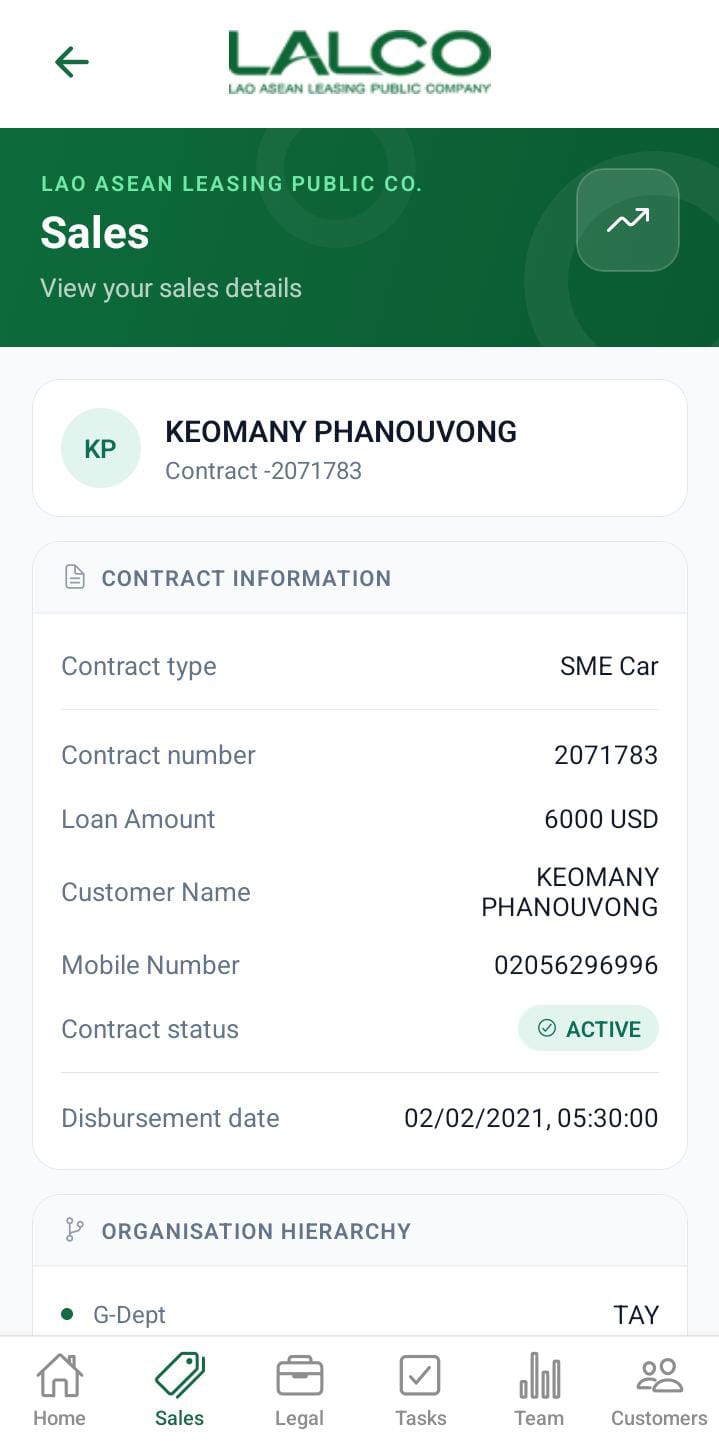
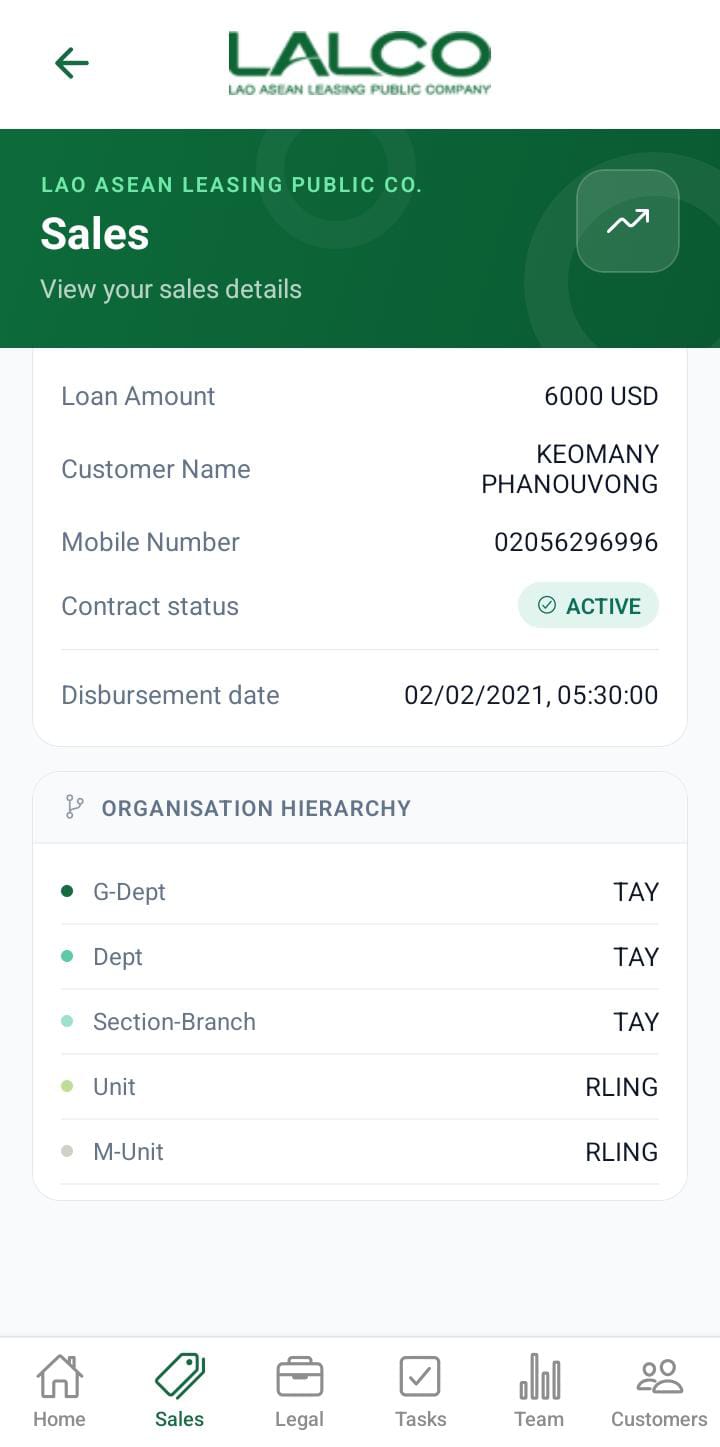
[![WhatsApp Image 2026-03-19 at 09.28.00.jpeg](http://wiki.lalco.la/uploads/images/gallery/2026-03/scaled-1680-/whatsapp-image-2026-03-19-at-09-28-00.jpeg)](http://wiki.lalco.la/uploads/images/gallery/2026-03/whatsapp-image-2026-03-19-at-09-28-00.jpeg)

The **Sales Details Screen** provides detailed information about a selected sale or loan contract. It allows staff to review contract details and take actions such as progressing the sale or logging customer interactions.

---

# Header Section

### Page Title

**Sales**

Indicates the user is viewing detailed information of a specific sale.

---

### Description

<div class="relative w-full mt-4 mb-1"><div class=""><div class="relative"><div class="h-full min-h-0 min-w-0"><div class="h-full min-h-0 min-w-0"><div class="border border-token-border-light border-radius-3xl corner-superellipse/1.1 rounded-3xl"><div class="h-full w-full border-radius-3xl bg-token-bg-elevated-secondary corner-superellipse/1.1 overflow-clip rounded-3xl lxnfua_clipPathFallback"><div class="pe-11 pt-3"><div class="relative z-0 flex max-w-full"><div class="q9tKkq_viewer cm-editor z-10 light:cm-light dark:cm-light flex h-full w-full flex-col items-stretch ͼk ͼy" dir="ltr" id="bkmrk-view-your-sales-deta"><div class="cm-scroller"><div class="cm-content q9tKkq_readonly">View Your Sales Details</div></div></div></div></div></div></div></div></div><div class=""><div class="">  
</div></div></div></div></div>Explains the purpose of this screen.

---

### Back Button ←

Allows users to return to the **Sales List Screen**.

---

### Action Icon 📈

May be used to view:

- Sales performance
- Reports or analytics related to the selected contract

---

# Contact Information Section

This section displays key details of the selected sale/contract.

---

### Contract Type

Example:

<div class="relative w-full mt-4 mb-1"><div class=""><div class="relative"><div class="h-full min-h-0 min-w-0"><div class="h-full min-h-0 min-w-0"><div class="border border-token-border-light border-radius-3xl corner-superellipse/1.1 rounded-3xl"><div class="h-full w-full border-radius-3xl bg-token-bg-elevated-secondary corner-superellipse/1.1 overflow-clip rounded-3xl lxnfua_clipPathFallback"><div class="pe-11 pt-3"><div class="relative z-0 flex max-w-full"><div class="q9tKkq_viewer cm-editor z-10 light:cm-light dark:cm-light flex h-full w-full flex-col items-stretch ͼk ͼy" dir="ltr" id="bkmrk-sme-car"><div class="cm-scroller"><div class="cm-content q9tKkq_readonly">SME Car</div></div></div></div></div></div></div></div></div><div class=""><div class="">  
</div></div></div></div></div>Indicates the type of loan or product.

---

### Contract Number

Example:

<div class="relative w-full mt-4 mb-1"><div class=""><div class="relative"><div class="h-full min-h-0 min-w-0"><div class="h-full min-h-0 min-w-0"><div class="border border-token-border-light border-radius-3xl corner-superellipse/1.1 rounded-3xl"><div class="h-full w-full border-radius-3xl bg-token-bg-elevated-secondary corner-superellipse/1.1 overflow-clip rounded-3xl lxnfua_clipPathFallback"><div class="pe-11 pt-3"><div class="relative z-0 flex max-w-full"><div class="q9tKkq_viewer cm-editor z-10 light:cm-light dark:cm-light flex h-full w-full flex-col items-stretch ͼk ͼy" dir="ltr" id="bkmrk-2000010"><div class="cm-scroller"><div class="cm-content q9tKkq_readonly">2000010</div></div></div></div></div></div></div></div></div><div class=""><div class="">  
</div></div></div></div></div>A unique identifier for the sale.

---

### Loan Amount

Example:

<div class="relative w-full mt-4 mb-1"><div class=""><div class="relative"><div class="h-full min-h-0 min-w-0"><div class="h-full min-h-0 min-w-0"><div class="border border-token-border-light border-radius-3xl corner-superellipse/1.1 rounded-3xl"><div class="h-full w-full border-radius-3xl bg-token-bg-elevated-secondary corner-superellipse/1.1 overflow-clip rounded-3xl lxnfua_clipPathFallback"><div class="pe-11 pt-3"><div class="relative z-0 flex max-w-full"><div class="q9tKkq_viewer cm-editor z-10 light:cm-light dark:cm-light flex h-full w-full flex-col items-stretch ͼk ͼy" dir="ltr" id="bkmrk-28990-usd"><div class="cm-scroller"><div class="cm-content q9tKkq_readonly">28990 USD</div></div></div></div></div></div></div></div></div><div class=""><div class="">  
</div></div></div></div></div>Displays the total loan value.

---

### Contract Status

Example:

<div class="relative w-full mt-4 mb-1"><div class=""><div class="relative"><div class="h-full min-h-0 min-w-0"><div class="h-full min-h-0 min-w-0"><div class="border border-token-border-light border-radius-3xl corner-superellipse/1.1 rounded-3xl"><div class="h-full w-full border-radius-3xl bg-token-bg-elevated-secondary corner-superellipse/1.1 overflow-clip rounded-3xl lxnfua_clipPathFallback"><div class="pe-11 pt-3"><div class="relative z-0 flex max-w-full"><div class="q9tKkq_viewer cm-editor z-10 light:cm-light dark:cm-light flex h-full w-full flex-col items-stretch ͼk ͼy" dir="ltr" id="bkmrk-refinance"><div class="cm-scroller"><div class="cm-content q9tKkq_readonly">REFINANCE</div></div></div></div></div></div></div></div></div><div class=""><div class="">  
</div></div></div></div></div>Shows the current state of the contract.

Common statuses:

- Active
- Refinance
- Pending
- Closed

---

### Disbursement Date

Example:

<div class="relative w-full mt-4 mb-1"><div class=""><div class="relative"><div class="h-full min-h-0 min-w-0"><div class="h-full min-h-0 min-w-0"><div class="border border-token-border-light border-radius-3xl corner-superellipse/1.1 rounded-3xl"><div class="h-full w-full border-radius-3xl bg-token-bg-elevated-secondary corner-superellipse/1.1 overflow-clip rounded-3xl lxnfua_clipPathFallback"><div class="pe-11 pt-3"><div class="relative z-0 flex max-w-full"><div class="q9tKkq_viewer cm-editor z-10 light:cm-light dark:cm-light flex h-full w-full flex-col items-stretch ͼk ͼy" dir="ltr" id="bkmrk-26%2F12%2F2016%2C-05%3A30%3A00"><div class="cm-scroller"><div class="cm-content q9tKkq_readonly">26/12/2016, 05:30:00</div></div></div></div></div></div></div></div></div><div class=""><div class="">  
</div></div></div></div></div>Indicates when the loan amount was released.

---

# Action Buttons

### Advance Stage

Allows staff to move the sale to the **next stage in the workflow**.

Used when:

- Processing the loan forward
- Updating the contract status

---

### Log Call

Opens the **call logging feature** to record communication with the customer.

Useful for:

- Tracking follow-ups
- Recording customer discussions
- Logging payment commitments

---

# How to Use

### View Sale Details

1. Open the **Sales** tab.
2. Select a sale from the list.
3. Review all contract details.

---

### Advance a Sale

1. Tap **Advance Stage**.
2. Confirm or update the next stage.
3. Save changes.

---

### Log a Call

1. Tap **Log Call**.
2. Enter call details.
3. Save the record.

---

# Bottom Navigation

The **Sales tab** remains highlighted, indicating the current section.

Other tabs:

- Home
- Tasks
- Legal
- Team
- Customers

---

💡 **Tip:**  
Always review contract details before advancing stages to avoid errors.

</article></div></div><div class="relative basis-auto flex-col -mb-(--composer-overlap-px) [--composer-overlap-px:28px] grow flex" id="bkmrk-%C2%A0-the-sales-screen-a"><div class="flex flex-col text-sm pb-25"><article class="text-token-text-primary w-full focus:outline-none [--shadow-height:45px] has-data-writing-block:pointer-events-none has-data-writing-block:-mt-(--shadow-height) has-data-writing-block:pt-(--shadow-height) [&:has([data-writing-block])>*]:pointer-events-auto scroll-mt-[calc(var(--header-height)+min(200px,max(70px,20svh)))]" data-scroll-anchor="true" data-testid="conversation-turn-16" data-turn="assistant" data-turn-id="3893cdd3-96d9-483b-b907-aa1d4d72ad76" dir="auto" tabindex="-1"><div class="text-base my-auto mx-auto pb-10 [--thread-content-margin:var(--thread-content-margin-xs,calc(var(--spacing)*4))] @w-sm/main:[--thread-content-margin:var(--thread-content-margin-sm,calc(var(--spacing)*6))] @w-lg/main:[--thread-content-margin:var(--thread-content-margin-lg,calc(var(--spacing)*16))] px-(--thread-content-margin)"><div class="[--thread-content-max-width:40rem] @w-lg/main:[--thread-content-max-width:48rem] mx-auto max-w-(--thread-content-max-width) flex-1 group/turn-messages focus-visible:outline-hidden relative flex w-full min-w-0 flex-col agent-turn" tabindex="-1"><div class="flex max-w-full flex-col gap-4 grow"><div class="min-h-8 text-message relative flex w-full flex-col items-end gap-2 text-start break-words whitespace-normal [.text-message+&]:mt-1" data-message-author-role="assistant" data-message-id="3893cdd3-96d9-483b-b907-aa1d4d72ad76" data-message-model-slug="gpt-5-3" dir="auto"><div class="flex w-full flex-col gap-1 empty:hidden"><div class="markdown prose dark:prose-invert w-full wrap-break-word dark markdown-new-styling">  
</div></div></div></div></div></div></article></div></div><div class="sticky bottom-0 group/thread-bottom-container relative isolate z-10 w-full basis-auto has-data-has-thread-error:pt-2 has-data-has-thread-error:[box-shadow:var(--sharp-edge-bottom-shadow)] md:border-transparent md:pt-0 dark:border-white/20 md:dark:border-transparent print:hidden content-fade single-line flex flex-col" id="bkmrk-"><div class="relative h-0"><div><button class="cursor-pointer absolute z-30 rounded-full bg-clip-padding border text-token-text-secondary border-token-border-default end-1/2 translate-x-1/2 bg-token-main-surface-primary w-8 h-8 flex items-center justify-center print:hidden bottom-[calc(100%+6*var(--spacing)+var(--thread-scroll-to-bottom-banner-offset,0px))]"><svg aria-hidden="true" class="icon text-token-text-primary" height="20" width="20" xmlns="http://www.w3.org/2000/svg"></svg></button></div></div><div id="bkmrk--1"><div><div class="text-base mx-auto [--thread-content-margin:var(--thread-content-margin-xs,calc(var(--spacing)*4))] @w-sm/main:[--thread-content-margin:var(--thread-content-margin-sm,calc(var(--spacing)*6))] @w-lg/main:[--thread-content-margin:var(--thread-content-margin-lg,calc(var(--spacing)*16))] px-(--thread-content-margin)"><div class="[--thread-content-max-width:40rem] @w-lg/main:[--thread-content-max-width:48rem] mx-auto max-w-(--thread-content-max-width) flex-1 mb-[var(--thread-component-gap,1rem)]"><div class="flex justify-center empty:hidden">  
</div></div></div></div></div></div>

# Legal Screen

[![bd6ebeb0-e6ff-46f4-a234-3a9e10a07ccc.jpg](http://wiki.lalco.la/uploads/images/gallery/2026-03/scaled-1680-/bd6ebeb0-e6ff-46f4-a234-3a9e10a07ccc.jpg)](http://wiki.lalco.la/uploads/images/gallery/2026-03/bd6ebeb0-e6ff-46f4-a234-3a9e10a07ccc.jpg)

The **Legal Screen** allows staff to view and manage all legal cases related to customers and contracts. It provides a searchable and filterable list of legal records.

---

# Header Section

### Page Title

**Legal**

---

### Description

<div class="relative w-full mt-4 mb-1" id="bkmrk-view-your-legal-list"><div class=""><div class="relative"><div class="h-full min-h-0 min-w-0"><div class="h-full min-h-0 min-w-0"><div class="border border-token-border-light border-radius-3xl corner-superellipse/1.1 rounded-3xl"><div class="h-full w-full border-radius-3xl bg-token-bg-elevated-secondary corner-superellipse/1.1 overflow-clip rounded-3xl lxnfua_clipPathFallback"><div class="pe-11 pt-3"><div class="relative z-0 flex max-w-full"><div class="q9tKkq_viewer cm-editor z-10 light:cm-light dark:cm-light flex h-full w-full flex-col items-stretch ͼk ͼy" dir="ltr" id="bkmrk-view-your-legal-list-1"><div class="cm-scroller"><div class="cm-content q9tKkq_readonly">View Your Legal List</div></div></div></div></div></div></div></div></div><div class=""></div></div></div></div>---

# Search Function

### Search Bar

<div class="relative w-full mt-4 mb-1" id="bkmrk-search-by-legal"><div class=""><div class="relative"><div class="h-full min-h-0 min-w-0"><div class="h-full min-h-0 min-w-0"><div class="border border-token-border-light border-radius-3xl corner-superellipse/1.1 rounded-3xl"><div class="h-full w-full border-radius-3xl bg-token-bg-elevated-secondary corner-superellipse/1.1 overflow-clip rounded-3xl lxnfua_clipPathFallback"><div class="pe-11 pt-3"><div class="relative z-0 flex max-w-full"><div class="q9tKkq_viewer cm-editor z-10 light:cm-light dark:cm-light flex h-full w-full flex-col items-stretch ͼk ͼy" dir="ltr" id="bkmrk-search-by-legal-1"><div class="cm-scroller"><div class="cm-content q9tKkq_readonly">Search by legal</div></div></div></div></div></div></div></div></div><div class=""><div class="">  
</div></div></div></div></div>Allows users to search by:

- Contract number
- Customer name

---

# Filter Options

Users can filter legal cases by stage:

- **All** → Shows all cases
- **Pre-legal** → Before legal action starts
- **Filed** → Case has been filed
- **Hearing** → Under court hearing
- **Judgment** → Final decision stage
- **Closed** → Finished cases

---

# Legal List

Each item represents a legal case.

### Example:

<div class="relative w-full mt-4 mb-1" id="bkmrk-k-10063-%E2%80%93-khampheng-"><div class=""><div class="relative"><div class="h-full min-h-0 min-w-0"><div class="h-full min-h-0 min-w-0"><div class="border border-token-border-light border-radius-3xl corner-superellipse/1.1 rounded-3xl"><div class="h-full w-full border-radius-3xl bg-token-bg-elevated-secondary corner-superellipse/1.1 overflow-clip rounded-3xl lxnfua_clipPathFallback"><div class="pe-11 pt-3"><div class="relative z-0 flex max-w-full"><div class="q9tKkq_viewer cm-editor z-10 light:cm-light dark:cm-light flex h-full w-full flex-col items-stretch ͼk ͼy" dir="ltr" id="bkmrk-k-10063-%E2%80%93-khampheng--1"><div class="cm-scroller"><div class="cm-content q9tKkq_readonly">K-10063 – Khampheng Seng   
Closed · Deadline 29/01/2026</div></div></div></div></div></div></div></div></div><div class=""><div class="">  
</div></div></div></div></div>---

### Information Displayed

Each record shows:

- **Contract Number**
- **Customer Name**
- **Stage**
- **Deadline**

---

# How to Use

### View a Case

1. Open the **Legal tab**
2. Browse or search cases
3. Tap a case to view details

---

---

# LALCO Staff App – Legal Details Screen

[![bd6ebeb0-e6ff-46f4-a234-3a9e10a07ccc.jpg](http://wiki.lalco.la/uploads/images/gallery/2026-03/scaled-1680-/GbVbd6ebeb0-e6ff-46f4-a234-3a9e10a07ccc.jpg)](http://wiki.lalco.la/uploads/images/gallery/2026-03/GbVbd6ebeb0-e6ff-46f4-a234-3a9e10a07ccc.jpg)

The **Legal Details Screen** shows detailed information about a selected legal case and allows staff to take actions.

---

# Legal Details Section

Displays key information:

- **Name** → Customer name
- **Contract Number** → Unique ID
- **Stage** → Current legal status
- **Deadline** → Important due date

---

# Actions

### Start Visit

Used to begin a field visit related to the case.

Used for:

- Customer visits
- Legal follow-ups
- Field verification

---

# How to Use

### View Details

1. Select a case from the list
2. Review all details

---

### Start Visit

1. Tap **Start Visit**
2. Proceed with visit
3. Update status if needed

---

# Navigation

<div class="relative w-full mt-4 mb-1" id="bkmrk-legal-screen-%E2%86%92-selec"><div class=""><div class="relative"><div class="h-full min-h-0 min-w-0"><div class="h-full min-h-0 min-w-0"><div class="border border-token-border-light border-radius-3xl corner-superellipse/1.1 rounded-3xl"><div class="h-full w-full border-radius-3xl bg-token-bg-elevated-secondary corner-superellipse/1.1 overflow-clip rounded-3xl lxnfua_clipPathFallback"><div class="pe-11 pt-3"><div class="relative z-0 flex max-w-full"><div class="q9tKkq_viewer cm-editor z-10 light:cm-light dark:cm-light flex h-full w-full flex-col items-stretch ͼk ͼy" dir="ltr" id="bkmrk-legal-screen-%E2%86%92-selec-1"><div class="cm-scroller"><div class="cm-content q9tKkq_readonly">Legal Screen → Select Case → Legal Details Screen</div></div></div></div></div></div></div></div></div></div></div></div>

# Customers Screen

[![6d000b0e-90ff-4b99-b938-44c904363f4e.jpg](http://wiki.lalco.la/uploads/images/gallery/2026-03/scaled-1680-/b9x6d000b0e-90ff-4b99-b938-44c904363f4e.jpg)](http://wiki.lalco.la/uploads/images/gallery/2026-03/b9x6d000b0e-90ff-4b99-b938-44c904363f4e.jpg)

The Customers Screen allows staff to view and manage all customers in the system. It provides a searchable list, filter options, and quick access to customer details.

---

## Header Section

**Page Title**  
Customers

**Description**  
View your customer list and manage customer records.

**Action Icon** ☰  
May be used to:

- Access settings
- Open additional options

---

## Search Function

**Search Bar**  
Search by customer

Allows users to search by:

- Customer Name
- Phone Number
- Contract Number

---

## Filter Options

Users can filter customers by status:

- All → Shows all customers
- Active → Currently active customers
- Pending → New or pending approval
- Closed → Completed or closed accounts

---

## Customer List

Each item represents a customer.

**Example:**

- user – 02056087740 · Closed

**Information Displayed**  
Each record shows:

- Customer Name
- Phone Number
- Status

---

## How to Use

**View a Customer**

1. Open the Customers tab
2. Browse or search the list
3. Tap a customer to view details

**Add a Customer**

1. Tap **+ Add Customer**
2. Fill in required fields: Name, Phone, Address, Province → City → Village, NIC/Family Book, Birth Date
3. Tap **Save**

---

#  Customer Details Screen

[![5bbead10-46ae-40e7-93ec-8cdf5a234340.jpg](http://wiki.lalco.la/uploads/images/gallery/2026-03/scaled-1680-/5bbead10-46ae-40e7-93ec-8cdf5a234340.jpg)](http://wiki.lalco.la/uploads/images/gallery/2026-03/5bbead10-46ae-40e7-93ec-8cdf5a234340.jpg)

The Customer Details Screen shows detailed information about a selected customer and allows staff to start visits or update records.

---

## Customer Details Section

Displays key information:

- **Name** → Customer Name
- **Phone Number** → Contact number
- **Address** → Unit, Village, City, Province
- **Contract Numbers** → Linked contracts

---

## Actions

**Start Visit**  
Used to begin a field visit related to the customer.

Used for:

- Customer visits
- Payment follow-ups
- Field verification

---

## How to Use

**View Details**

1. Select a customer from the list
2. Review all details

**Start Visit**

1. Tap **Start Visit**
2. Proceed with visit
3. Update visit remarks, GPS location, payment status if needed

---

## Navigation

Customers Screen → Select Customer → Customer Details Screen → Start Visit

---

# Add Visit Result Screen

[![96430c1a-f0b2-4384-810f-727234591a04.jpg](http://wiki.lalco.la/uploads/images/gallery/2026-03/scaled-1680-/96430c1a-f0b2-4384-810f-727234591a04.jpg)](http://wiki.lalco.la/uploads/images/gallery/2026-03/96430c1a-f0b2-4384-810f-727234591a04.jpg)

The Visit Result Screen allows staff to record the outcome of a customer visit, including visit details, GPS location, remarks, and status updates.

---

## Visit Details Section

**Visited To**

- Select where the visit occurred (e.g., Customer Home)

**Visit Result**

- Choose the result of the visit (e.g., Met Customer, Not Available)

**Who Did You Meet**

- Auto-filled or manually selected

---

## Location Section

**Visited Location**

- Enter address manually OR
- Tap GPS icon to auto-fill current location

**Tip:** Always use GPS if possible for accurate tracking

---

## Remarks Section

**Visit Remark**

- Free text notes about the visit  
    (Example: “Customer promised to pay next week”)

---

## Visit Reason Section

Select at least one reason for the visit:

- This Month
- Last Month
- 2 Month Delay
- OA / SOA
- Real Estate
- GPS Repair

---

## Special Cases Section (Optional)

Select only if applicable:

- Third Party
- Car Broken
- Customer Arrested / Passed Away
- Seized by Police
- GPS Offline

---

## Additional Options

- **Seize the Car** → Toggle ON if the vehicle was seized
- **Additional Asset Investigation** → Toggle ON if required

---

## Payment &amp; GPS Status

- **Paid** → Select payment status
- **GPS Repaired** → Yes / No

---

## How to Use

**Record Visit**

1. Tap **Start Visit** from Customer Details Screen
2. Fill all required fields
3. Add GPS location and remarks
4. Select reasons for visit
5. Update special cases and additional options if needed
6. Tap **Save**

---

## Navigation

Customer Details Screen → Start Visit → Visit Result Screen → Save

---

# Add New Customer Screen

[![82dab961-8091-4bb3-9c57-985d73a2de28.jpg](http://wiki.lalco.la/uploads/images/gallery/2026-03/scaled-1680-/82dab961-8091-4bb3-9c57-985d73a2de28.jpg)](http://wiki.lalco.la/uploads/images/gallery/2026-03/82dab961-8091-4bb3-9c57-985d73a2de28.jpg)

The **Add New Customer Screen** allows staff to create and register a new customer in the system. This information is used for managing customer records, loans, and follow-up activities.

---

## Header Section

### Page Title

**Add New Customer**

---

### Description

<div class="relative w-full mt-4 mb-1" id="bkmrk-create-a-new-custome"><div class=""><div class="relative"><div class="h-full min-h-0 min-w-0"><div class="h-full min-h-0 min-w-0"><div class="border border-token-border-light border-radius-3xl corner-superellipse/1.1 rounded-3xl"><div class="h-full w-full border-radius-3xl bg-token-bg-elevated-secondary corner-superellipse/1.1 overflow-clip rounded-3xl lxnfua_clipPathFallback"><div class="pe-11 pt-3"><div class="relative z-0 flex max-w-full"><div class="q9tKkq_viewer cm-editor z-10 light:cm-light dark:cm-light flex h-full w-full flex-col items-stretch ͼk ͼy" dir="ltr" id="bkmrk-create-a-new-custome-1"><div class="cm-scroller"><div class="cm-content q9tKkq_readonly">Create a new customer</div></div></div></div></div></div></div></div></div></div></div></div>---

<span style="color: rgb(34, 34, 34); font-family: -apple-system, BlinkMacSystemFont, 'Segoe UI', Oxygen, Ubuntu, Roboto, Cantarell, 'Fira Sans', 'Droid Sans', 'Helvetica Neue', sans-serif; font-size: 3.425em; font-weight: 400;">Customer Information Form</span>

Users must fill in the following details:

---

### Name

Enter the customer’s full name.

Example:

<div class="relative w-full mt-4 mb-1" id="bkmrk-john-silva"><div class=""><div class="relative"><div class="h-full min-h-0 min-w-0"><div class="h-full min-h-0 min-w-0"><div class="border border-token-border-light border-radius-3xl corner-superellipse/1.1 rounded-3xl"><div class="h-full w-full border-radius-3xl bg-token-bg-elevated-secondary corner-superellipse/1.1 overflow-clip rounded-3xl lxnfua_clipPathFallback"><div class="pe-11 pt-3"><div class="relative z-0 flex max-w-full"><div class="q9tKkq_viewer cm-editor z-10 light:cm-light dark:cm-light flex h-full w-full flex-col items-stretch ͼk ͼy" dir="ltr" id="bkmrk-john-silva-1"><div class="cm-scroller"><div class="cm-content q9tKkq_readonly">John Silva</div></div></div></div></div></div></div></div></div><div class=""><div class="">  
</div></div></div></div></div>---

### Phone

Enter the customer’s contact number.

Example:

<div class="relative w-full mt-4 mb-1" id="bkmrk-0771234567"><div class=""><div class="relative"><div class="h-full min-h-0 min-w-0"><div class="h-full min-h-0 min-w-0"><div class="border border-token-border-light border-radius-3xl corner-superellipse/1.1 rounded-3xl"><div class="h-full w-full border-radius-3xl bg-token-bg-elevated-secondary corner-superellipse/1.1 overflow-clip rounded-3xl lxnfua_clipPathFallback"><div class="pe-11 pt-3"><div class="relative z-0 flex max-w-full"><div class="q9tKkq_viewer cm-editor z-10 light:cm-light dark:cm-light flex h-full w-full flex-col items-stretch ͼk ͼy" dir="ltr" id="bkmrk-0771234567-1"><div class="cm-scroller"><div class="cm-content q9tKkq_readonly">0771234567</div></div></div></div></div></div></div></div></div><div class=""><div class="">  
</div></div></div></div></div>---

### Email

Enter the customer’s email address (optional if not available).

Example:

<div class="relative w-full mt-4 mb-1" id="bkmrk-john%40email.com"><div class=""><div class="relative"><div class="h-full min-h-0 min-w-0"><div class="h-full min-h-0 min-w-0"><div class="border border-token-border-light border-radius-3xl corner-superellipse/1.1 rounded-3xl"><div class="h-full w-full border-radius-3xl bg-token-bg-elevated-secondary corner-superellipse/1.1 overflow-clip rounded-3xl lxnfua_clipPathFallback"><div class="pe-11 pt-3"><div class="relative z-0 flex max-w-full"><div class="q9tKkq_viewer cm-editor z-10 light:cm-light dark:cm-light flex h-full w-full flex-col items-stretch ͼk ͼy" dir="ltr" id="bkmrk-john%40email.com-1"><div class="cm-scroller"><div class="cm-content q9tKkq_readonly">john@email.com</div></div></div></div></div></div></div></div></div><div class=""><div class="">  
</div></div></div></div></div>---

### Address Unit

Enter the customer’s address or house/unit details.

---

### Province

Select the province from the dropdown list.

---

### City

Select the city based on the chosen province.

---

### Village

Select the village or local area.

---

### Family Book / NIC

Enter the customer’s identification number.

Example:

<div class="relative w-full mt-4 mb-1" id="bkmrk-199812345678"><div class=""><div class="relative"><div class="h-full min-h-0 min-w-0"><div class="h-full min-h-0 min-w-0"><div class="border border-token-border-light border-radius-3xl corner-superellipse/1.1 rounded-3xl"><div class="h-full w-full border-radius-3xl bg-token-bg-elevated-secondary corner-superellipse/1.1 overflow-clip rounded-3xl lxnfua_clipPathFallback"><div class="pe-11 pt-3"><div class="relative z-0 flex max-w-full"><div class="q9tKkq_viewer cm-editor z-10 light:cm-light dark:cm-light flex h-full w-full flex-col items-stretch ͼk ͼy" dir="ltr" id="bkmrk-199812345678-1"><div class="cm-scroller"><div class="cm-content q9tKkq_readonly">199812345678</div></div></div></div></div></div></div></div></div><div class=""><div class="">  
</div></div></div></div></div>---

### Birth Date

Select the customer’s date of birth using the date picker.

Example:

<div class="relative w-full mt-4 mb-1" id="bkmrk-mar-19%2C-2026"><div class=""><div class="relative"><div class="h-full min-h-0 min-w-0"><div class="h-full min-h-0 min-w-0"><div class="border border-token-border-light border-radius-3xl corner-superellipse/1.1 rounded-3xl"><div class="h-full w-full border-radius-3xl bg-token-bg-elevated-secondary corner-superellipse/1.1 overflow-clip rounded-3xl lxnfua_clipPathFallback"><div class="pe-11 pt-3"><div class="relative z-0 flex max-w-full"><div class="q9tKkq_viewer cm-editor z-10 light:cm-light dark:cm-light flex h-full w-full flex-col items-stretch ͼk ͼy" dir="ltr" id="bkmrk-mar-19%2C-2026-1"><div class="cm-scroller"><div class="cm-content q9tKkq_readonly">Mar 19, 2026</div></div></div></div></div></div></div></div></div><div class=""><div class="">  
</div></div></div></div></div>---

# Action Button

### Save

Tap **Save** to create the new customer.

- If all required fields are filled correctly, the customer will be added successfully.
- If there are missing or invalid details, the system may show an error.

---

# How to Use

### Add a New Customer

1. Open the **Customers tab**
2. Tap **Add New Customer**
3. Fill in all required details
4. Tap **Save**
5. Customer will be added to the system

---

# Navigation

<div class="relative w-full mt-4 mb-1" id="bkmrk-customers-%E2%86%92-add-new-"><div class=""><div class="relative"><div class="h-full min-h-0 min-w-0"><div class="h-full min-h-0 min-w-0"><div class="border border-token-border-light border-radius-3xl corner-superellipse/1.1 rounded-3xl"><div class="h-full w-full border-radius-3xl bg-token-bg-elevated-secondary corner-superellipse/1.1 overflow-clip rounded-3xl lxnfua_clipPathFallback"><div class="pe-11 pt-3"><div class="relative z-0 flex max-w-full"><div class="q9tKkq_viewer cm-editor z-10 light:cm-light dark:cm-light flex h-full w-full flex-col items-stretch ͼk ͼy" dir="ltr" id="bkmrk-customers-%E2%86%92-add-new--1"><div class="cm-scroller"><div class="cm-content q9tKkq_readonly">Customers → Add New Customer → Save</div></div></div></div></div></div></div></div></div><div class=""><div class="">  
</div></div></div></div></div>---

# Team Dashboard Screen

[![ce5b7113-7c70-496a-a5be-ee6714d3254b.jpg](http://wiki.lalco.la/uploads/images/gallery/2026-03/scaled-1680-/ce5b7113-7c70-496a-a5be-ee6714d3254b.jpg)](http://wiki.lalco.la/uploads/images/gallery/2026-03/ce5b7113-7c70-496a-a5be-ee6714d3254b.jpg)

The **Team Dashboard Screen** provides a quick overview of team performance, task distribution, and case analytics. It helps staff monitor daily progress, track workloads, and identify top performers.

---

# Header Section

### Date Indicator

Displays the current working day.

Example:

<div class="relative w-full mt-4 mb-1" id="bkmrk-today-%2F-thu%2C-mar-19"><div class=""><div class="relative"><div class="h-full min-h-0 min-w-0"><div class="h-full min-h-0 min-w-0"><div class="border border-token-border-light border-radius-3xl corner-superellipse/1.1 rounded-3xl"><div class="h-full w-full border-radius-3xl bg-token-bg-elevated-secondary corner-superellipse/1.1 overflow-clip rounded-3xl lxnfua_clipPathFallback"><div class="pe-11 pt-3"><div class="relative z-0 flex max-w-full"><div class="q9tKkq_viewer cm-editor z-10 light:cm-light dark:cm-light flex h-full w-full flex-col items-stretch ͼk ͼy" dir="ltr" id="bkmrk-today-%2F-thu%2C-mar-19-1"><div class="cm-scroller"><div class="cm-content q9tKkq_readonly">Today / Thu, Mar 19</div></div></div></div></div></div></div></div></div><div class=""><div class="">  
</div></div></div></div></div>---

### Page Title

**Team Pulse**

Shows that this section focuses on **team activity and performance**.

---

# Team Summary Cards

This section provides a quick snapshot of team activity:

- **Open Tasks** → Total number of tasks not yet completed
- **Done Today** → Tasks completed on the current day
- **Overdue** → Tasks that have passed their deadline
- **Active Cases** → Total ongoing cases handled by the team

---

# Department Tasks

### Tabs

Users can switch between departments:

- **Collections**
- **Sales**
- **Legal**

This allows viewing performance data for each department separately.

---

# Analytics Section

### Department Task Share

Displays a visual chart showing task distribution.

Example:

<div class="relative w-full mt-4 mb-1" id="bkmrk-67%25-collections-sele"><div class=""><div class="relative"><div class="h-full min-h-0 min-w-0"><div class="h-full min-h-0 min-w-0"><div class="border border-token-border-light border-radius-3xl corner-superellipse/1.1 rounded-3xl"><div class="h-full w-full border-radius-3xl bg-token-bg-elevated-secondary corner-superellipse/1.1 overflow-clip rounded-3xl lxnfua_clipPathFallback"><div class="pe-11 pt-3"><div class="relative z-0 flex max-w-full"><div class="q9tKkq_viewer cm-editor z-10 light:cm-light dark:cm-light flex h-full w-full flex-col items-stretch ͼk ͼy" dir="ltr" id="bkmrk-67%25-collections-sele-1"><div class="cm-scroller"><div class="cm-content q9tKkq_readonly">67% Collections Selected</div></div></div></div></div></div></div></div></div><div class=""><div class="">  
</div></div></div></div></div>---

### Task Breakdown

- **Done** → Completed tasks
- **Remaining** → Pending tasks

Each includes:

- Task count
- Percentage progress

---

### Total Tracked

Shows the total number of tasks being monitored.

Example:

<div class="relative w-full mt-4 mb-1" id="bkmrk-total-tracked%3A-9"><div class=""><div class="relative"><div class="h-full min-h-0 min-w-0"><div class="h-full min-h-0 min-w-0"><div class="border border-token-border-light border-radius-3xl corner-superellipse/1.1 rounded-3xl"><div class="h-full w-full border-radius-3xl bg-token-bg-elevated-secondary corner-superellipse/1.1 overflow-clip rounded-3xl lxnfua_clipPathFallback"><div class="pe-11 pt-3"><div class="relative z-0 flex max-w-full"><div class="q9tKkq_viewer cm-editor z-10 light:cm-light dark:cm-light flex h-full w-full flex-col items-stretch ͼk ͼy" dir="ltr" id="bkmrk-total-tracked%3A-9-1"><div class="cm-scroller"><div class="cm-content q9tKkq_readonly">Total Tracked: 9</div></div></div></div></div></div></div></div></div><div class=""><div class="">  
</div></div></div></div></div>---

# Department Summary

Displays task details for the selected department.

Example (Collections):

- **Open** → 6
- **Done** → 3
- **Total** → 9

---

# View More Option

### View More Button

[![9625d44e-d4fe-439b-b478-1ee302467325.jpg](http://wiki.lalco.la/uploads/images/gallery/2026-03/scaled-1680-/9625d44e-d4fe-439b-b478-1ee302467325.jpg)](http://wiki.lalco.la/uploads/images/gallery/2026-03/9625d44e-d4fe-439b-b478-1ee302467325.jpg)

Expands the dashboard to show additional analytics and detailed data.

---

# Top Performers Section

### Top Performers (Today)

Displays staff members with the highest task completion.

Example:

- Alex Rivera → 5 tasks
- Priya Nair → 4 tasks
- Chen Wei → 3 tasks

---

# Additional Analytics (Expanded View)

When expanded, the dashboard shows deeper insights:

---

### Case Statistics

- **Total Cases** → Overall number of cases
- **Paid** → Successfully completed/paid cases
- **Not Paid** → Pending or unpaid cases

---

### Monthly Cases

Displays a visual breakdown of case categories.

Includes:

- **This Month**
- **Last Month**
- **2 Month Delayed**
- **OA Cases**
- **SOA Cases**

Each shows:

- Number of cases
- Percentage contribution

---

### Total Tracked (Analytics)

Shows total number of tracked segments.

Example:

<div class="relative w-full mt-4 mb-1" id="bkmrk-total-tracked%3A-67"><div class=""><div class="relative"><div class="h-full min-h-0 min-w-0"><div class="h-full min-h-0 min-w-0"><div class="border border-token-border-light border-radius-3xl corner-superellipse/1.1 rounded-3xl"><div class="h-full w-full border-radius-3xl bg-token-bg-elevated-secondary corner-superellipse/1.1 overflow-clip rounded-3xl lxnfua_clipPathFallback"><div class="pe-11 pt-3"><div class="relative z-0 flex max-w-full"><div class="q9tKkq_viewer cm-editor z-10 light:cm-light dark:cm-light flex h-full w-full flex-col items-stretch ͼk ͼy" dir="ltr" id="bkmrk-total-tracked%3A-67-1"><div class="cm-scroller"><div class="cm-content q9tKkq_readonly">Total Tracked: 67</div></div></div></div></div></div></div></div></div><div class=""><div class="">  
</div></div></div></div></div>---

### Case Types &amp; Tracking

Displays system-related tracking information.

Example:

- **GPS Offline** → Indicates location tracking issues

---

# How to Use

### View Team Performance

1. Open the **Team tab**
2. Review summary cards
3. Analyze department performance

---

### Switch Department

1. Tap **Collections / Sales / Legal**
2. View updated analytics

---

### Expand Analytics

1. Tap **View More**
2. Review detailed reports

---

💡 **Tip:**  
Use this screen daily to monitor **team productivity, overdue tasks, and performance trends**.

# GPS Offline Screen

[![f6597024-d2c7-454d-b95c-0de78794f487.jpg](http://wiki.lalco.la/uploads/images/gallery/2026-03/scaled-1680-/f6597024-d2c7-454d-b95c-0de78794f487.jpg)](http://wiki.lalco.la/uploads/images/gallery/2026-03/f6597024-d2c7-454d-b95c-0de78794f487.jpg)

The **GPS Offline Screen** allows staff to view and manage contracts where GPS tracking is unavailable. It helps agents identify and review affected vehicles and customer details.

---

# Access Path

<div class="relative w-full mt-4 mb-1" id="bkmrk-menu-%E2%86%92-gps-offline"><div class=""><div class="relative"><div class="h-full min-h-0 min-w-0"><div class="h-full min-h-0 min-w-0"><div class="border border-token-border-light border-radius-3xl corner-superellipse/1.1 rounded-3xl"><div class="h-full w-full border-radius-3xl bg-token-bg-elevated-secondary corner-superellipse/1.1 overflow-clip rounded-3xl lxnfua_clipPathFallback"><div class="pe-11 pt-3"><div class="relative z-0 flex max-w-full"><div class="q9tKkq_viewer cm-editor z-10 light:cm-light dark:cm-light flex h-full w-full flex-col items-stretch ͼ1c ͼ1q" dir="ltr" id="bkmrk-menu-%E2%86%92-gps-offline-1"><div class="cm-scroller"><div class="cm-content q9tKkq_readonly">Menu → GPS Offline</div></div></div></div></div></div></div></div></div><div class=""><div class="">  
</div></div></div></div></div>[![18fea54e-74e2-4782-9532-57acb8c380c6.jpg](http://wiki.lalco.la/uploads/images/gallery/2026-03/scaled-1680-/18fea54e-74e2-4782-9532-57acb8c380c6.jpg)](http://wiki.lalco.la/uploads/images/gallery/2026-03/18fea54e-74e2-4782-9532-57acb8c380c6.jpg)

<div class="relative w-full mt-4 mb-1" id="bkmrk--3"><div class=""><div class="relative"><div class=""><div class="">  
</div></div></div></div></div>---

### Location Icon 📍

May be used to:

- View GPS-related information
- Access location tracking features

---

# Search Function

### Search Bar

<div class="relative w-full mt-4 mb-1" id="bkmrk-search-by-phone-or-c"><div class=""><div class="relative"><div class="h-full min-h-0 min-w-0"><div class="h-full min-h-0 min-w-0"><div class="border border-token-border-light border-radius-3xl corner-superellipse/1.1 rounded-3xl"><div class="h-full w-full border-radius-3xl bg-token-bg-elevated-secondary corner-superellipse/1.1 overflow-clip rounded-3xl lxnfua_clipPathFallback"><div class="pe-11 pt-3"><div class="relative z-0 flex max-w-full"><div class="q9tKkq_viewer cm-editor z-10 light:cm-light dark:cm-light flex h-full w-full flex-col items-stretch ͼ1c ͼ1q" dir="ltr" id="bkmrk-search-by-phone-or-c-1"><div class="cm-scroller"><div class="cm-content q9tKkq_readonly">Search by phone or contract number</div></div></div></div></div></div></div></div></div><div class=""><div class="">  
</div></div></div></div></div>Allows users to search using:

- Phone number
- Contract number

---

# Contract List

Each item represents a GPS offline contract.

### Example

<div class="relative w-full mt-4 mb-1" id="bkmrk-cn-100245-engine-num"><div class=""><div class="relative"><div class="h-full min-h-0 min-w-0"><div class="h-full min-h-0 min-w-0"><div class="border border-token-border-light border-radius-3xl corner-superellipse/1.1 rounded-3xl"><div class="h-full w-full border-radius-3xl bg-token-bg-elevated-secondary corner-superellipse/1.1 overflow-clip rounded-3xl lxnfua_clipPathFallback"><div class="pe-11 pt-3"><div class="relative z-0 flex max-w-full"><div class="q9tKkq_viewer cm-editor z-10 light:cm-light dark:cm-light flex h-full w-full flex-col items-stretch ͼ1c ͼ1q" dir="ltr" id="bkmrk-cn-100245-engine-num-1"><div class="cm-scroller"><div class="cm-content q9tKkq_readonly">CN-100245   
Engine Number – ENG-982374</div></div></div></div></div></div></div></div></div><div class=""><div class="">  
</div></div></div></div></div>---

### Information Displayed

- **Contract Number**
- **Engine Number**

---

# How to Use

### View Contracts

1. Open **GPS Offline** from menu
2. Browse the list
3. Use search if needed

---

### Open Contract Details

1. Tap on a contract
2. View full information

---

---

# GPS Offline Details Screen

[![1758afe3-41b1-4e26-a0d8-70d560a0203b.jpg](http://wiki.lalco.la/uploads/images/gallery/2026-03/scaled-1680-/1758afe3-41b1-4e26-a0d8-70d560a0203b.jpg)](http://wiki.lalco.la/uploads/images/gallery/2026-03/1758afe3-41b1-4e26-a0d8-70d560a0203b.jpg)

Displays detailed information about a selected GPS offline contract.

---

# Header Section

### Page Title

**GPS offline contract Details**

---

### Description

<div class="relative w-full mt-4 mb-1" id="bkmrk-view-your-contract-d"><div class=""><div class="relative"><div class="h-full min-h-0 min-w-0"><div class="h-full min-h-0 min-w-0"><div class="border border-token-border-light border-radius-3xl corner-superellipse/1.1 rounded-3xl"><div class="h-full w-full border-radius-3xl bg-token-bg-elevated-secondary corner-superellipse/1.1 overflow-clip rounded-3xl lxnfua_clipPathFallback"><div class="pe-11 pt-3"><div class="relative z-0 flex max-w-full"><div class="q9tKkq_viewer cm-editor z-10 light:cm-light dark:cm-light flex h-full w-full flex-col items-stretch ͼ1c ͼ1q" dir="ltr" id="bkmrk-view-your-contract-d-1"><div class="cm-scroller"><div class="cm-content q9tKkq_readonly">View Your contract Details</div></div></div></div></div></div></div></div></div><div class=""><div class="">  
</div></div></div></div></div>---

# Contract Information

Displays complete details of the selected contract:

- **Customer Name** → Name of the customer
- **Phone Number** → Contact number
- **Contract Number** → Unique ID
- **Car Information** → Vehicle model and details
- **Car Engine Number** → Engine ID
- **GPS EMI Number** → GPS installment/availability status
- **Vin Code** → Vehicle identification number
- **Asset Valuation ID** → Internal tracking ID

---

### Example

<div class="relative w-full mt-4 mb-1" id="bkmrk-customer-name%3A-kamal"><div class=""><div class="relative"><div class="h-full min-h-0 min-w-0"><div class="h-full min-h-0 min-w-0"><div class="border border-token-border-light border-radius-3xl corner-superellipse/1.1 rounded-3xl"><div class="h-full w-full border-radius-3xl bg-token-bg-elevated-secondary corner-superellipse/1.1 overflow-clip rounded-3xl lxnfua_clipPathFallback"><div class="pe-11 pt-3"><div class="relative z-0 flex max-w-full"><div class="q9tKkq_viewer cm-editor z-10 light:cm-light dark:cm-light flex h-full w-full flex-col items-stretch ͼ1c ͼ1q" dir="ltr" id="bkmrk-customer-name%3A-kamal-1"><div class="cm-scroller"><div class="cm-content q9tKkq_readonly">Customer Name: Kamal Perera   
Contract Number: CN-100245   
Car: Toyota Corolla 2018</div></div></div></div></div></div></div></div></div><div class=""><div class="">  
</div></div></div></div></div>---

# How to Use

### View Details

1. Select a contract from the list
2. Review all customer and vehicle details

---

💡 **Tip:**  
Use this screen to quickly identify vehicles with **GPS issues** and take necessary follow-up actions.

# Call History Screen

[![af0437cd-9162-4cd4-a31f-3fb8584bef42.jpg](http://wiki.lalco.la/uploads/images/gallery/2026-03/scaled-1680-/af0437cd-9162-4cd4-a31f-3fb8584bef42.jpg)](http://wiki.lalco.la/uploads/images/gallery/2026-03/af0437cd-9162-4cd4-a31f-3fb8584bef42.jpg)

The **Call History Screen** allows staff to view and track all logged customer calls, including call duration and date. This helps monitor communication history and follow-ups.

---

# Access Path

<div class="relative w-full mt-4 mb-1" id="bkmrk-home-%E2%86%92-call-history"><div class=""><div class="relative"><div class="h-full min-h-0 min-w-0"><div class="h-full min-h-0 min-w-0"><div class="border border-token-border-light border-radius-3xl corner-superellipse/1.1 rounded-3xl"><div class="h-full w-full border-radius-3xl bg-token-bg-elevated-secondary corner-superellipse/1.1 overflow-clip rounded-3xl lxnfua_clipPathFallback"><div class="pe-11 pt-3"><div class="relative z-0 flex max-w-full"><div class="q9tKkq_viewer cm-editor z-10 light:cm-light dark:cm-light flex h-full w-full flex-col items-stretch ͼk ͼy" dir="ltr" id="bkmrk-home-%E2%86%92-call-history-1"><div class="cm-scroller"><div class="cm-content q9tKkq_readonly">Home → Call History</div></div></div></div></div></div></div></div></div><div class=""><div class="">  
</div></div></div></div></div>---

# Call History List Screen

## Overview

Displays a list of all recorded calls made by the user.

---

# Header Section

### Page Title

**Call History**

---

### Description

<div class="relative w-full mt-4 mb-1" id="bkmrk-view-your-logged-cal"><div class=""><div class="relative"><div class="h-full min-h-0 min-w-0"><div class="h-full min-h-0 min-w-0"><div class="border border-token-border-light border-radius-3xl corner-superellipse/1.1 rounded-3xl"><div class="h-full w-full border-radius-3xl bg-token-bg-elevated-secondary corner-superellipse/1.1 overflow-clip rounded-3xl lxnfua_clipPathFallback"><div class="pe-11 pt-3"><div class="relative z-0 flex max-w-full"><div class="q9tKkq_viewer cm-editor z-10 light:cm-light dark:cm-light flex h-full w-full flex-col items-stretch ͼk ͼy" dir="ltr" id="bkmrk-view-your-logged-cal-1"><div class="cm-scroller"><div class="cm-content q9tKkq_readonly">View your logged calls</div></div></div></div></div></div></div></div></div><div class=""><div class="">  
</div></div></div></div></div>---

### Call Icon 📞

- Used to initiate or access calling features

---

# Call List

Each card represents a logged call.

---

### Information Displayed

- **Customer Name**
- **Phone Number**
- **Call Date**
- **Call Duration**

---

### Example

<div class="relative w-full mt-4 mb-1" id="bkmrk-liam-chen-%2B1-555-010"><div class=""><div class="relative"><div class="h-full min-h-0 min-w-0"><div class="h-full min-h-0 min-w-0"><div class="border border-token-border-light border-radius-3xl corner-superellipse/1.1 rounded-3xl"><div class="h-full w-full border-radius-3xl bg-token-bg-elevated-secondary corner-superellipse/1.1 overflow-clip rounded-3xl lxnfua_clipPathFallback"><div class="pe-11 pt-3"><div class="relative z-0 flex max-w-full"><div class="q9tKkq_viewer cm-editor z-10 light:cm-light dark:cm-light flex h-full w-full flex-col items-stretch ͼk ͼy" dir="ltr" id="bkmrk-liam-chen-%2B1-555-010-1"><div class="cm-scroller"><div class="cm-content q9tKkq_readonly">Liam Chen   
+1-555-0106   
Date: 2026-02-03   
Duration: 6 min</div></div></div></div></div></div></div></div></div><div class=""><div class="">  
</div></div></div></div></div>---

# Pagination

Located at the bottom of the screen.

### Controls

- **Prev Button** → Go to previous page
- **Next Button** → Go to next page
- **Page Indicator** → Shows current page

---

### Example

<div class="relative w-full mt-4 mb-1" id="bkmrk-page-1-of-2"><div class=""><div class="relative"><div class="h-full min-h-0 min-w-0"><div class="h-full min-h-0 min-w-0"><div class="border border-token-border-light border-radius-3xl corner-superellipse/1.1 rounded-3xl"><div class="h-full w-full border-radius-3xl bg-token-bg-elevated-secondary corner-superellipse/1.1 overflow-clip rounded-3xl lxnfua_clipPathFallback"><div class="pe-11 pt-3"><div class="relative z-0 flex max-w-full"><div class="q9tKkq_viewer cm-editor z-10 light:cm-light dark:cm-light flex h-full w-full flex-col items-stretch ͼk ͼy" dir="ltr" id="bkmrk-page-1-of-2-1"><div class="cm-scroller"><div class="cm-content q9tKkq_readonly">Page 1 of 2</div></div></div></div></div></div></div></div></div><div class=""><div class="">  
</div></div></div></div></div>---

# How to Use

### View Call History

1. Open **Call History** from menu
2. Scroll through the list
3. Use pagination to navigate

---

### Analyze Calls

- Check call duration
- Review recent interactions
- Identify follow-up needs

---

# Bottom Navigation Bar

Provides quick access to main modules:

- **Home**
- **Tasks**
- **Sales**
- **Legal**
- **Team**
- **Customers**

---

# Empty State (Optional)

<div class="relative w-full mt-4 mb-1" id="bkmrk-no-call-records-avai"><div class=""><div class="relative"><div class="h-full min-h-0 min-w-0"><div class="h-full min-h-0 min-w-0"><div class="border border-token-border-light border-radius-3xl corner-superellipse/1.1 rounded-3xl"><div class="h-full w-full border-radius-3xl bg-token-bg-elevated-secondary corner-superellipse/1.1 overflow-clip rounded-3xl lxnfua_clipPathFallback"><div class="pe-11 pt-3"><div class="relative z-0 flex max-w-full"><div class="q9tKkq_viewer cm-editor z-10 light:cm-light dark:cm-light flex h-full w-full flex-col items-stretch ͼk ͼy" dir="ltr" id="bkmrk-no-call-records-avai-1"><div class="cm-scroller"><div class="cm-content q9tKkq_readonly">No call records available</div></div></div></div></div></div></div></div></div><div class=""><div class="">  
</div></div></div></div></div>---

# Notes

- Calls are listed in **descending order (latest first)**
- Data helps track staff communication performance

---

💡 **Tip:**  
Use this screen daily to ensure **no customer follow-up is missed**.

# Note Details Screen

[![4f005548-c4a3-414a-8dcc-07c0924ca8aa.jpg](http://wiki.lalco.la/uploads/images/gallery/2026-03/scaled-1680-/4f005548-c4a3-414a-8dcc-07c0924ca8aa.jpg)](http://wiki.lalco.la/uploads/images/gallery/2026-03/4f005548-c4a3-414a-8dcc-07c0924ca8aa.jpg)

## Overview

The **Note Details Screen** allows staff to create and save notes related to customers, contracts, and follow-ups. It helps track important interactions and maintain proper records.

---

# Access Path

<div class="relative w-full mt-4 mb-1" id="bkmrk-home%E2%86%92-add-note"><div class=""><div class="relative"><div class="h-full min-h-0 min-w-0"><div class="h-full min-h-0 min-w-0"><div class="border border-token-border-light border-radius-3xl corner-superellipse/1.1 rounded-3xl"><div class="h-full w-full border-radius-3xl bg-token-bg-elevated-secondary corner-superellipse/1.1 overflow-clip rounded-3xl lxnfua_clipPathFallback"><div class="pe-11 pt-3"><div class="relative z-0 flex max-w-full"><div class="q9tKkq_viewer cm-editor z-10 light:cm-light dark:cm-light flex h-full w-full flex-col items-stretch ͼ1c ͼ1q" dir="ltr" id="bkmrk-home%E2%86%92-add-note-1"><div class="cm-scroller"><div class="cm-content q9tKkq_readonly">Home→ Add Note</div></div></div></div></div></div></div></div></div><div class=""><div class="">  
</div></div></div></div></div>---

# Note Details Form

## Overview

Provides input fields to create a new note linked to a customer and contract.

---

# Header Section

### Page Title

**Note Details**

---

### Description

<div class="relative w-full mt-4 mb-1" id="bkmrk-add-your-note-detail"><div class=""><div class="relative"><div class="h-full min-h-0 min-w-0"><div class="h-full min-h-0 min-w-0"><div class="border border-token-border-light border-radius-3xl corner-superellipse/1.1 rounded-3xl"><div class="h-full w-full border-radius-3xl bg-token-bg-elevated-secondary corner-superellipse/1.1 overflow-clip rounded-3xl lxnfua_clipPathFallback"><div class="pe-11 pt-3"><div class="relative z-0 flex max-w-full"><div class="q9tKkq_viewer cm-editor z-10 light:cm-light dark:cm-light flex h-full w-full flex-col items-stretch ͼ1c ͼ1q" dir="ltr" id="bkmrk-add-your-note-detail-1"><div class="cm-scroller"><div class="cm-content q9tKkq_readonly">Add your note details</div></div></div></div></div></div></div></div></div><div class=""><div class="">  
</div></div></div></div></div>---

### Book Icon 📖

- Represents note/document management

---

# Input Fields

### 1. Customer Name

<div class="relative w-full mt-4 mb-1" id="bkmrk-search-by-name%2C-phon"><div class=""><div class="relative"><div class="h-full min-h-0 min-w-0"><div class="h-full min-h-0 min-w-0"><div class="border border-token-border-light border-radius-3xl corner-superellipse/1.1 rounded-3xl"><div class="h-full w-full border-radius-3xl bg-token-bg-elevated-secondary corner-superellipse/1.1 overflow-clip rounded-3xl lxnfua_clipPathFallback"><div class="pe-11 pt-3"><div class="relative z-0 flex max-w-full"><div class="q9tKkq_viewer cm-editor z-10 light:cm-light dark:cm-light flex h-full w-full flex-col items-stretch ͼ1c ͼ1q" dir="ltr" id="bkmrk-search-by-name%2C-phon-1"><div class="cm-scroller"><div class="cm-content q9tKkq_readonly">Search by name, phone, or loan ID</div></div></div></div></div></div></div></div></div><div class=""><div class="">  
</div></div></div></div></div>- Search and select a customer
- Supports:
    
    
    - Customer name
    - Phone number
    - Loan ID

---

### 2. Contract Number

<div class="relative w-full mt-4 mb-1" id="bkmrk-search-contract-numb"><div class=""><div class="relative"><div class="h-full min-h-0 min-w-0"><div class="h-full min-h-0 min-w-0"><div class="border border-token-border-light border-radius-3xl corner-superellipse/1.1 rounded-3xl"><div class="h-full w-full border-radius-3xl bg-token-bg-elevated-secondary corner-superellipse/1.1 overflow-clip rounded-3xl lxnfua_clipPathFallback"><div class="pe-11 pt-3"><div class="relative z-0 flex max-w-full"><div class="q9tKkq_viewer cm-editor z-10 light:cm-light dark:cm-light flex h-full w-full flex-col items-stretch ͼ1c ͼ1q" dir="ltr" id="bkmrk-search-contract-numb-1"><div class="cm-scroller"><div class="cm-content q9tKkq_readonly">Search contract number</div></div></div></div></div></div></div></div></div><div class=""><div class="">  
</div></div></div></div></div>- Dropdown or searchable field
- Links note to a specific contract

---

### 3. Subject

<div class="relative w-full mt-4 mb-1" id="bkmrk-note-subject-or-titl"><div class=""><div class="relative"><div class="h-full min-h-0 min-w-0"><div class="h-full min-h-0 min-w-0"><div class="border border-token-border-light border-radius-3xl corner-superellipse/1.1 rounded-3xl"><div class="h-full w-full border-radius-3xl bg-token-bg-elevated-secondary corner-superellipse/1.1 overflow-clip rounded-3xl lxnfua_clipPathFallback"><div class="pe-11 pt-3"><div class="relative z-0 flex max-w-full"><div class="q9tKkq_viewer cm-editor z-10 light:cm-light dark:cm-light flex h-full w-full flex-col items-stretch ͼ1c ͼ1q" dir="ltr" id="bkmrk-note-subject-or-titl-1"><div class="cm-scroller"><div class="cm-content q9tKkq_readonly">Note subject or title</div></div></div></div></div></div></div></div></div><div class=""><div class="">  
</div></div></div></div></div>- Short title describing the note

---

### 4. Date

<div class="relative w-full mt-4 mb-1" id="bkmrk-mar-19%2C-2026"><div class=""><div class="relative"><div class="h-full min-h-0 min-w-0"><div class="h-full min-h-0 min-w-0"><div class="border border-token-border-light border-radius-3xl corner-superellipse/1.1 rounded-3xl"><div class="h-full w-full border-radius-3xl bg-token-bg-elevated-secondary corner-superellipse/1.1 overflow-clip rounded-3xl lxnfua_clipPathFallback"><div class="pe-11 pt-3"><div class="relative z-0 flex max-w-full"><div class="q9tKkq_viewer cm-editor z-10 light:cm-light dark:cm-light flex h-full w-full flex-col items-stretch ͼ1c ͼ1q" dir="ltr" id="bkmrk-mar-19%2C-2026-1"><div class="cm-scroller"><div class="cm-content q9tKkq_readonly">Mar 19, 2026</div></div></div></div></div></div></div></div></div><div class=""><div class="">  
</div></div></div></div></div>- Default is current date
- May be editable

---

### 5. Note Details

<div class="relative w-full mt-4 mb-1" id="bkmrk-enter-your-note-here"><div class=""><div class="relative"><div class="h-full min-h-0 min-w-0"><div class="h-full min-h-0 min-w-0"><div class="border border-token-border-light border-radius-3xl corner-superellipse/1.1 rounded-3xl"><div class="h-full w-full border-radius-3xl bg-token-bg-elevated-secondary corner-superellipse/1.1 overflow-clip rounded-3xl lxnfua_clipPathFallback"><div class="pe-11 pt-3"><div class="relative z-0 flex max-w-full"><div class="q9tKkq_viewer cm-editor z-10 light:cm-light dark:cm-light flex h-full w-full flex-col items-stretch ͼ1c ͼ1q" dir="ltr" id="bkmrk-enter-your-note-here-1"><div class="cm-scroller"><div class="cm-content q9tKkq_readonly">Enter your note here...</div></div></div></div></div></div></div></div></div><div class=""><div class="">  
</div></div></div></div></div>- Main content of the note
- Used for:
    
    
    - Call summaries
    - Customer updates
    - Follow-up actions

---

# Action Button

### Save Button

- Label: **Save**
- Function:
    
    
    - Stores the note
    - Links it to selected customer and contract

---

# How to Use

### Create a Note

1. Open **Note Details**
2. Search and select a **Customer**
3. Select **Contract Number**
4. Enter a **Subject**
5. Verify or update the **Date**
6. Enter detailed information in **Note Details**
7. Tap **Save**

---

# Validation Rules (Recommended)

- Customer selection is **required**
- Contract number is **required**
- Subject should not be empty
- Note details must contain meaningful content

---

# Success State

<div class="relative w-full mt-4 mb-1" id="bkmrk-note-saved-successfu"><div class=""><div class="relative"><div class="h-full min-h-0 min-w-0"><div class="h-full min-h-0 min-w-0"><div class="border border-token-border-light border-radius-3xl corner-superellipse/1.1 rounded-3xl"><div class="h-full w-full border-radius-3xl bg-token-bg-elevated-secondary corner-superellipse/1.1 overflow-clip rounded-3xl lxnfua_clipPathFallback"><div class="pe-11 pt-3"><div class="relative z-0 flex max-w-full"><div class="q9tKkq_viewer cm-editor z-10 light:cm-light dark:cm-light flex h-full w-full flex-col items-stretch ͼ1c ͼ1q" dir="ltr" id="bkmrk-note-saved-successfu-1"><div class="cm-scroller"><div class="cm-content q9tKkq_readonly">Note saved successfully</div></div></div></div></div></div></div></div></div><div class=""><div class="">  
</div></div></div></div></div>---

# Error States

<div class="relative w-full mt-4 mb-1" id="bkmrk-please-fill-all-requ"><div class=""><div class="relative"><div class="h-full min-h-0 min-w-0"><div class="h-full min-h-0 min-w-0"><div class="border border-token-border-light border-radius-3xl corner-superellipse/1.1 rounded-3xl"><div class="h-full w-full border-radius-3xl bg-token-bg-elevated-secondary corner-superellipse/1.1 overflow-clip rounded-3xl lxnfua_clipPathFallback"><div class="pe-11 pt-3"><div class="relative z-0 flex max-w-full"><div class="q9tKkq_viewer cm-editor z-10 light:cm-light dark:cm-light flex h-full w-full flex-col items-stretch ͼ1c ͼ1q" dir="ltr" id="bkmrk-please-fill-all-requ-1"><div class="cm-scroller"><div class="cm-content q9tKkq_readonly">Please fill all required fields</div></div></div></div></div></div></div></div></div><div class=""><div class="">  
</div></div></div></div></div><div class="relative w-full mt-4 mb-1" id="bkmrk-failed-to-save-note."><div class=""><div class="relative"><div class="h-full min-h-0 min-w-0"><div class="h-full min-h-0 min-w-0"><div class="border border-token-border-light border-radius-3xl corner-superellipse/1.1 rounded-3xl"><div class="h-full w-full border-radius-3xl bg-token-bg-elevated-secondary corner-superellipse/1.1 overflow-clip rounded-3xl lxnfua_clipPathFallback"><div class="pe-11 pt-3"><div class="relative z-0 flex max-w-full"><div class="q9tKkq_viewer cm-editor z-10 light:cm-light dark:cm-light flex h-full w-full flex-col items-stretch ͼ1c ͼ1q" dir="ltr" id="bkmrk-failed-to-save-note.-1"><div class="cm-scroller"><div class="cm-content q9tKkq_readonly">Failed to save note. Try again</div></div></div></div></div></div></div></div></div><div class=""><div class="">  
</div></div></div></div></div>---

💡 **Tip:**  
Use notes immediately after calls or customer visits to ensure **accurate tracking and better follow-up management**.

# Staff Screen

[![8b937470-3d83-4c3c-bea6-fcdfba56cb19.jpg](http://wiki.lalco.la/uploads/images/gallery/2026-03/scaled-1680-/8b937470-3d83-4c3c-bea6-fcdfba56cb19.jpg)](http://wiki.lalco.la/uploads/images/gallery/2026-03/8b937470-3d83-4c3c-bea6-fcdfba56cb19.jpg)

The **Staff Screen** allows users to view and manage all staff members in the system. It provides a searchable list of staff and an option to add new users.

---

# Header Section

### Page Title

**Staff**

---

### Description

<div class="relative w-full mt-4 mb-1" id="bkmrk-view-your-staff-list"><div class=""><div class="relative"><div class="h-full min-h-0 min-w-0"><div class="h-full min-h-0 min-w-0"><div class="border border-token-border-light border-radius-3xl corner-superellipse/1.1 rounded-3xl"><div class="h-full w-full border-radius-3xl bg-token-bg-elevated-secondary corner-superellipse/1.1 overflow-clip rounded-3xl lxnfua_clipPathFallback"><div class="pe-11 pt-3"><div class="relative z-0 flex max-w-full"><div class="q9tKkq_viewer cm-editor z-10 light:cm-light dark:cm-light flex h-full w-full flex-col items-stretch ͼ1c ͼ1q" dir="ltr" id="bkmrk-view-your-staff-list-1"><div class="cm-scroller"><div class="cm-content q9tKkq_readonly">View Your Staff List</div></div></div></div></div></div></div></div></div><div class="">  
</div></div></div></div>---

# Search Function

### Search Bar

<div class="relative w-full mt-4 mb-1" id="bkmrk-search-by-phone-or-n"><div class=""><div class="relative"><div class="h-full min-h-0 min-w-0"><div class="h-full min-h-0 min-w-0"><div class="border border-token-border-light border-radius-3xl corner-superellipse/1.1 rounded-3xl"><div class="h-full w-full border-radius-3xl bg-token-bg-elevated-secondary corner-superellipse/1.1 overflow-clip rounded-3xl lxnfua_clipPathFallback"><div class="pe-11 pt-3"><div class="relative z-0 flex max-w-full"><div class="q9tKkq_viewer cm-editor z-10 light:cm-light dark:cm-light flex h-full w-full flex-col items-stretch ͼ1c ͼ1q" dir="ltr" id="bkmrk-search-by-phone-or-n-1"><div class="cm-scroller"><div class="cm-content q9tKkq_readonly">Search by phone or name</div></div></div></div></div></div></div></div></div><div class=""><div class="">  
</div></div></div></div></div>Allows users to search staff by:

- Name
- Phone number

---

# Add Staff

### Add Staff Button

<div class="relative w-full mt-4 mb-1" id="bkmrk-%2B-add-staff"><div class=""><div class="relative"><div class="h-full min-h-0 min-w-0"><div class="h-full min-h-0 min-w-0"><div class="border border-token-border-light border-radius-3xl corner-superellipse/1.1 rounded-3xl"><div class="h-full w-full border-radius-3xl bg-token-bg-elevated-secondary corner-superellipse/1.1 overflow-clip rounded-3xl lxnfua_clipPathFallback"><div class="pe-11 pt-3"><div class="relative z-0 flex max-w-full"><div class="q9tKkq_viewer cm-editor z-10 light:cm-light dark:cm-light flex h-full w-full flex-col items-stretch ͼ1c ͼ1q" dir="ltr" id="bkmrk-%2B-add-staff-1"><div class="cm-scroller"><div class="cm-content q9tKkq_readonly">+ Add Staff</div></div></div></div></div></div></div></div></div><div class=""><div class="">  
</div></div></div></div></div>Allows users to create a new staff account.

---

# Staff List

Each item represents a staff member.

### Example:

<div class="relative w-full mt-4 mb-1" id="bkmrk-harshana-eranda-0771"><div class=""><div class="relative"><div class="h-full min-h-0 min-w-0"><div class="h-full min-h-0 min-w-0"><div class="border border-token-border-light border-radius-3xl corner-superellipse/1.1 rounded-3xl"><div class="h-full w-full border-radius-3xl bg-token-bg-elevated-secondary corner-superellipse/1.1 overflow-clip rounded-3xl lxnfua_clipPathFallback"><div class="pe-11 pt-3"><div class="relative z-0 flex max-w-full"><div class="q9tKkq_viewer cm-editor z-10 light:cm-light dark:cm-light flex h-full w-full flex-col items-stretch ͼ1c ͼ1q" dir="ltr" id="bkmrk-harshana-eranda-0771-1"><div class="cm-scroller"><div class="cm-content q9tKkq_readonly">Harshana Eranda   
0771234567</div></div></div></div></div></div></div></div></div><div class=""><div class="">  
</div></div></div></div></div>---

### Information Displayed

Each record shows:

- **Staff Name**
- **Phone Number**

---

# How to Use

### View Staff

1. Open the **Staff section**
2. Browse or search staff members

---

### Add New Staff

1. Tap **Add Staff**
2. Fill in required details
3. Tap **Save User**

---

---

# Add New User Screen

[![7c684029-c1cc-4081-85b5-30914a976ee6.jpg](http://wiki.lalco.la/uploads/images/gallery/2026-03/scaled-1680-/7c684029-c1cc-4081-85b5-30914a976ee6.jpg)](http://wiki.lalco.la/uploads/images/gallery/2026-03/7c684029-c1cc-4081-85b5-30914a976ee6.jpg)The **Add New User Screen** allows administrators to create new staff accounts by entering personal, role, and address details.

---

# Personal Information

- **Name** → Full name of staff
- **Phone** → Contact number
- **Email** → Optional email address
- **Family Book** → Additional identification
- **Birth Date** → Date of birth

---

# Role &amp; Department

- **Role** → Select user role
- **Department** → Select department

---

# Address

- **Address Unit** → Street or unit
- **Province** → Select province
- **City** → Select city
- **Village** → Select village

---

# Security

- **Password** → Minimum 8 characters (with uppercase &amp; number)
- **Confirm Password** → Re-enter password

---

# Actions

### Save User

Creates the new staff account after validation.

---

# Navigation

<div class="relative w-full mt-4 mb-1" id="bkmrk-menu-%E2%86%92-staff-%E2%86%92-add-s"><div class=""><div class="relative"><div class="h-full min-h-0 min-w-0"><div class="h-full min-h-0 min-w-0"><div class="border border-token-border-light border-radius-3xl corner-superellipse/1.1 rounded-3xl"><div class="h-full w-full border-radius-3xl bg-token-bg-elevated-secondary corner-superellipse/1.1 overflow-clip rounded-3xl lxnfua_clipPathFallback"><div class="pe-11 pt-3"><div class="relative z-0 flex max-w-full"><div class="q9tKkq_viewer cm-editor z-10 light:cm-light dark:cm-light flex h-full w-full flex-col items-stretch ͼ1c ͼ1q" dir="ltr"><div class="cm-scroller"><div class="cm-content q9tKkq_readonly">Menu → Staff → Add Staff → Save User</div></div></div></div></div></div></div></div></div></div></div></div>---

# Staff Details Screen

[![9f32500a-1101-4415-9ccc-99c43df4049a.jpg](http://wiki.lalco.la/uploads/images/gallery/2026-03/scaled-1680-/9f32500a-1101-4415-9ccc-99c43df4049a.jpg)](http://wiki.lalco.la/uploads/images/gallery/2026-03/9f32500a-1101-4415-9ccc-99c43df4049a.jpg)

---

# Header Section

### Page Title

**Staff**

---

### Description

```
View Staff Details

```

---

# Basic Information

Displays personal details of the staff member:

- **Name** → Full name of the staff member
- **Gender** → Male or Female
- **Date of Birth** → Staff member’s birth date
- **Family Book** → Official identification/reference number

---

# Contact Information

- **Phone** → Contact number
- **Email** → Email address

---

# Roles

Shows the role assigned to the staff member.

Example:

- Manager

---

# Departments

Displays the department the staff belongs to.

Example:

- Legal

---

# Address

- **House No** → House number
- **Village** → Village name
- **City** → City name
- **Province** → Province

---

# Actions

### Edit Staff

Allows users to update or modify staff information.

---

# How to Use

### View Staff Details

1. Open the **Staff section**
2. Select a staff member
3. View all details

---

### Edit Staff

1. Tap **Edit Staff**
2. Update required fields
3. Save changes

---

---

# Edit User Screen

[![243d2d49-7940-4247-8eb3-e3b0ae788a2e.jpg](http://wiki.lalco.la/uploads/images/gallery/2026-03/scaled-1680-/243d2d49-7940-4247-8eb3-e3b0ae788a2e.jpg)](http://wiki.lalco.la/uploads/images/gallery/2026-03/243d2d49-7940-4247-8eb3-e3b0ae788a2e.jpg)

##   


The Edit **New User Screen** allows administrators to create a new staff account by entering personal, role, and address details.

---


# Personal Information

- **Name** → Staff full name
- **Phone** → Contact number
- **Email** → Email address
- **Family Book** → Identification number
- **Birth Date** → Date of birth

---

# Role &amp; Department

- **Role** → Select staff role (e.g., Manager)
- **Department** → Select department (e.g., Legal)

---

# Address

- **Address Unit** → House or unit number
- **Province** → Select province
- **City** → Select city
- **Village** → Select village

---

# Actions

### Save User

Creates the new staff account after entering all required details.

---

# Security

### Reset Password

Option to reset or assign a password for the user.

---

# How to Use

### Add New User

1. Open **Edit Staff**
2. Enter all required information
3. Select role and department
4. Fill address details
5. Tap **Save User**

# Reassigned Tasks Screen

# Reassigned Tasks Screen

## [![966f5dc9-997f-4fcc-bfdc-3f6870aea7ea.jpg](http://wiki.lalco.la/uploads/images/gallery/2026-03/scaled-1680-/966f5dc9-997f-4fcc-bfdc-3f6870aea7ea.jpg)](http://wiki.lalco.la/uploads/images/gallery/2026-03/966f5dc9-997f-4fcc-bfdc-3f6870aea7ea.jpg)

The **Reassigned Tasks Screen** allows users to view tasks that have been reassigned between sales staff. It shows both previous and current sales persons for each contract.

---

# Task List

Each item represents a reassigned task.

### Example:

<div class="relative w-full mt-4 mb-1" id="bkmrk-contract%3A-cn100245-p"><div class=""><div class="relative"><div class="h-full min-h-0 min-w-0"><div class="h-full min-h-0 min-w-0"><div class="border border-token-border-light border-radius-3xl corner-superellipse/1.1 rounded-3xl"><div class="h-full w-full border-radius-3xl bg-token-bg-elevated-secondary corner-superellipse/1.1 overflow-clip rounded-3xl lxnfua_clipPathFallback"><div class="pe-11 pt-3"><div class="relative z-0 flex max-w-full"><div class="q9tKkq_viewer cm-editor z-10 light:cm-light dark:cm-light flex h-full w-full flex-col items-stretch ͼk ͼy" dir="ltr" id="bkmrk-contract%3A-cn100245-p-1"><div class="cm-scroller"><div class="cm-content q9tKkq_readonly">Contract: CN100245   
Previous Sales: Kamal Perera   
Current Sales: Nimal Silva</div></div></div></div></div></div></div></div></div><div class=""><div class="">  
</div></div></div></div></div>---

### Information Displayed

Each record shows:

- **Contract Number**
- **Previous Sales Person**
- **Current Sales Person**

---

# How to Use

### View Reassigned Tasks

1. Open the **Reassigned Tasks section**
2. Browse the list of tasks
3. Tap a task to view more details

---

---

# Reassign Task Details Screen

[![25d52260-6c40-477b-9097-0ebcce600367.jpg](http://wiki.lalco.la/uploads/images/gallery/2026-03/scaled-1680-/25d52260-6c40-477b-9097-0ebcce600367.jpg)](http://wiki.lalco.la/uploads/images/gallery/2026-03/25d52260-6c40-477b-9097-0ebcce600367.jpg)

The **Reassign Task Details Screen** shows detailed information about a specific reassigned task, including the reason for reassignment.

---

# Task Details Section

Displays key information:

- **Task ID** → Unique task identifier
- **Contract Number** → Related contract
- **Previous Sales Person**
- **Current Sales Person**
- **Reason** → Explanation for reassignment

---

### Example:

<div class="relative w-full mt-4 mb-1" id="bkmrk-task-id%3A-1-contract-"><div class=""><div class="relative"><div class="h-full min-h-0 min-w-0"><div class="h-full min-h-0 min-w-0"><div class="border border-token-border-light border-radius-3xl corner-superellipse/1.1 rounded-3xl"><div class="h-full w-full border-radius-3xl bg-token-bg-elevated-secondary corner-superellipse/1.1 overflow-clip rounded-3xl lxnfua_clipPathFallback"><div class="pe-11 pt-3"><div class="relative z-0 flex max-w-full"><div class="q9tKkq_viewer cm-editor z-10 light:cm-light dark:cm-light flex h-full w-full flex-col items-stretch ͼk ͼy" dir="ltr" id="bkmrk-task-id%3A-1-contract--1"><div class="cm-scroller"><div class="cm-content q9tKkq_readonly">Task ID: 1   
Contract Number: CN100245   
Previous Sales Person: Kamal Perera   
Current Sales Person: Nimal Silva   
Reason: Customer requested change</div></div></div></div></div></div></div></div></div><div class=""><div class="">  
</div></div></div></div></div>---

# How to Use

### View Task Details

1. Select a task from the list
2. Review all reassignment details

---

# Navigation

<div class="relative w-full mt-4 mb-1" id="bkmrk-reassigned-tasks-%E2%86%92-s"><div class=""><div class="relative"><div class="h-full min-h-0 min-w-0"><div class="h-full min-h-0 min-w-0"><div class="border border-token-border-light border-radius-3xl corner-superellipse/1.1 rounded-3xl"><div class="h-full w-full border-radius-3xl bg-token-bg-elevated-secondary corner-superellipse/1.1 overflow-clip rounded-3xl lxnfua_clipPathFallback"><div class="pe-11 pt-3"><div class="relative z-0 flex max-w-full"><div class="q9tKkq_viewer cm-editor z-10 light:cm-light dark:cm-light flex h-full w-full flex-col items-stretch ͼk ͼy" dir="ltr" id="bkmrk-reassigned-tasks-%E2%86%92-s-1"><div class="cm-scroller"><div class="cm-content q9tKkq_readonly">Reassigned Tasks → Select Task → View Details</div></div></div></div></div></div></div></div></div></div></div></div><div class="relative w-full mt-4 mb-1" id="bkmrk--14"><div class=""><div class="relative"><div class=""><div class="">  
</div></div></div></div></div>

# Offer Loan Screen

[![b16a62b6-e021-427b-99f5-762594e3a8f3.jpg](http://wiki.lalco.la/uploads/images/gallery/2026-03/scaled-1680-/b16a62b6-e021-427b-99f5-762594e3a8f3.jpg)](http://wiki.lalco.la/uploads/images/gallery/2026-03/b16a62b6-e021-427b-99f5-762594e3a8f3.jpg)

The **Offer Loan Screen** allows staff to view existing loan offers and create new loan applications for customers.

---

# Search Function

### Search Bar

<div class="relative w-full mt-4 mb-1" id="bkmrk-search-by-contract-n"><div class=""><div class="relative"><div class="h-full min-h-0 min-w-0"><div class="h-full min-h-0 min-w-0"><div class="border border-token-border-light border-radius-3xl corner-superellipse/1.1 rounded-3xl"><div class="h-full w-full border-radius-3xl bg-token-bg-elevated-secondary corner-superellipse/1.1 overflow-clip rounded-3xl lxnfua_clipPathFallback"><div class="pe-11 pt-3"><div class="relative z-0 flex max-w-full"><div class="q9tKkq_viewer cm-editor z-10 light:cm-light dark:cm-light flex h-full w-full flex-col items-stretch ͼ5 ͼj" dir="ltr" id="bkmrk-search-by-contract-n-1"><div class="cm-scroller"><div class="cm-content q9tKkq_readonly">Search by contract number</div></div></div></div></div></div></div></div></div><div class=""><div class="">  
</div></div></div></div></div>Allows users to search by:

- Contract number
- Loan ID

---

# Main Action

### Offer New Loan

Button used to create a new loan offer.

---

# Loan List

Each item represents a loan offer.

### Example:

<div class="relative w-full mt-4 mb-1" id="bkmrk-ln-2026-001-khamla-v"><div class=""><div class="relative"><div class="h-full min-h-0 min-w-0"><div class="h-full min-h-0 min-w-0"><div class="border border-token-border-light border-radius-3xl corner-superellipse/1.1 rounded-3xl"><div class="h-full w-full border-radius-3xl bg-token-bg-elevated-secondary corner-superellipse/1.1 overflow-clip rounded-3xl lxnfua_clipPathFallback"><div class="pe-11 pt-3"><div class="relative z-0 flex max-w-full"><div class="q9tKkq_viewer cm-editor z-10 light:cm-light dark:cm-light flex h-full w-full flex-col items-stretch ͼ5 ͼj" dir="ltr" id="bkmrk-ln-2026-001-khamla-v-1"><div class="cm-scroller"><div class="cm-content q9tKkq_readonly">LN-2026-001   
Khamla Vong   
SME Car   
12000 USD   
Active</div></div></div></div></div></div></div></div></div><div class=""><div class="">  
</div></div></div></div></div>---

### Information Displayed

Each record shows:

- **Loan Number**
- **Customer Name**
- **Loan Type**
- **Loan Amount**
- **Status**

---

# Status Types

Common statuses include:

- **Active** → Loan is currently active
- **Pending Approval** → Waiting for approval
- **Pending Disbursement** → Approved but funds not released
- **Pending** → Still in process
- **Not Pending** → No pending actions

---

# How to Use

### View Loan

1. Open the **Offer Loan tab**
2. Browse or search records
3. Tap a loan to view details

---

---

# Offer Loan Screen

[![ec8a6f6f-753e-442c-8ec0-db6ebd8cd77e.jpg](http://wiki.lalco.la/uploads/images/gallery/2026-03/scaled-1680-/ec8a6f6f-753e-442c-8ec0-db6ebd8cd77e.jpg)](http://wiki.lalco.la/uploads/images/gallery/2026-03/ec8a6f6f-753e-442c-8ec0-db6ebd8cd77e.jpg)

The **Create Offer Loan Screen** allows staff to create a new loan offer by entering customer and financial details.

---

# Form Fields

### Customer

Search customer by name or phone number

---

### Customer Monthly Income

Enter total monthly income

---

### Customer Monthly Expenditure

Enter monthly expenses

---

### Customer Monthly Profit

Automatically calculated

---

### Contract Type

Select loan type (e.g., SME Car)

---

### Loan Amount

Enter loan value

---

### Currency

Select currency:

- USD
- THB
- LAK

---

### Contract Date

Select the loan start date

---

# Action

### Save Offer

Saves the new loan application

---

# How to Use

### Create Loan Offer

1. Tap **Offer New Loan**
2. Fill in all required fields
3. Tap **Save Offer**
4. Loan will be added to the list

---

---

# Offer Loan Details Screen

[![a842bf7f-6aed-4cce-9ce2-8b0de2174ba3.jpg](http://wiki.lalco.la/uploads/images/gallery/2026-03/scaled-1680-/a842bf7f-6aed-4cce-9ce2-8b0de2174ba3.jpg)](http://wiki.lalco.la/uploads/images/gallery/2026-03/a842bf7f-6aed-4cce-9ce2-8b0de2174ba3.jpg)

The **Offer Loan Details Screen** shows full information about a selected loan and allows staff to take actions.

---

# Loan Details

Displays:

- **Loan Number**
- **Contract Type**
- **Status**
- **Created Date**
- **Contract Date**

---

# Customer Information

- **Customer Name**
- **Customer ID**

---

# Financial Information

- **Loan Amount**

---

# Actions

### Advance Stage

Moves the loan to the next stage

---

### Log Call

Records customer communication

---

# How to Use

### View Details

1. Select a loan from the list
2. Review all information

---

### Update Loan

1. Tap **Advance Stage**
2. Update progress
3. Save changes

---

### Log Call

1. Tap **Log Call**
2. Enter details
3. Save

---

# Navigation

<div class="relative w-full mt-4 mb-1" id="bkmrk-offer-loan-%E2%86%92-select-"><div class=""><div class="relative"><div class="h-full min-h-0 min-w-0"><div class="h-full min-h-0 min-w-0"><div class="border border-token-border-light border-radius-3xl corner-superellipse/1.1 rounded-3xl"><div class="h-full w-full border-radius-3xl bg-token-bg-elevated-secondary corner-superellipse/1.1 overflow-clip rounded-3xl lxnfua_clipPathFallback"><div class="pe-11 pt-3"><div class="relative z-0 flex max-w-full"><div class="q9tKkq_viewer cm-editor z-10 light:cm-light dark:cm-light flex h-full w-full flex-col items-stretch ͼ5 ͼj" dir="ltr" id="bkmrk-offer-loan-%E2%86%92-select--1"><div class="cm-scroller"><div class="cm-content q9tKkq_readonly">Offer Loan → Select Loan → View Details / Create Loan</div></div></div></div></div></div></div></div></div></div></div></div>

# Location Screen

#   


[![7ea08014-d50b-42ba-9599-4fd9f2308a73.jpg](http://wiki.lalco.la/uploads/images/gallery/2026-03/scaled-1680-/7ea08014-d50b-42ba-9599-4fd9f2308a73.jpg)](http://wiki.lalco.la/uploads/images/gallery/2026-03/7ea08014-d50b-42ba-9599-4fd9f2308a73.jpg)

The **Location Screen** allows staff to view and manage collection locations linked to contracts. Users can search, add, and update location details.

---

# Search Function

### Search Bar

<div class="relative w-full mt-4 mb-1" id="bkmrk-search-by-contract-n"><div class=""><div class="relative"><div class="h-full min-h-0 min-w-0"><div class="h-full min-h-0 min-w-0"><div class="border border-token-border-light border-radius-3xl corner-superellipse/1.1 rounded-3xl"><div class="h-full w-full border-radius-3xl bg-token-bg-elevated-secondary corner-superellipse/1.1 overflow-clip rounded-3xl lxnfua_clipPathFallback"><div class="pe-11 pt-3"><div class="relative z-0 flex max-w-full"><div class="q9tKkq_viewer cm-editor z-10 light:cm-light dark:cm-light flex h-full w-full flex-col items-stretch ͼ5 ͼj" dir="ltr" id="bkmrk-search-by-contract-n-1"><div class="cm-scroller"><div class="cm-content q9tKkq_readonly">Search by contract number or address...</div></div></div></div></div></div></div></div></div><div class=""><div class="">  
</div></div></div></div></div>Allows users to search by:

- Contract number
- Address

---

# Main Action

### Add Location

Button used to create a new collection location.

---

# Location List

Each item represents a saved location.

### Example:

<div class="relative w-full mt-4 mb-1" id="bkmrk-cn-10001-123-main-st"><div class=""><div class="relative"><div class="h-full min-h-0 min-w-0"><div class="h-full min-h-0 min-w-0"><div class="border border-token-border-light border-radius-3xl corner-superellipse/1.1 rounded-3xl"><div class="h-full w-full border-radius-3xl bg-token-bg-elevated-secondary corner-superellipse/1.1 overflow-clip rounded-3xl lxnfua_clipPathFallback"><div class="pe-11 pt-3"><div class="relative z-0 flex max-w-full"><div class="q9tKkq_viewer cm-editor z-10 light:cm-light dark:cm-light flex h-full w-full flex-col items-stretch ͼ5 ͼj" dir="ltr" id="bkmrk-cn-10001-123-main-st-1"><div class="cm-scroller"><div class="cm-content q9tKkq_readonly">CN-10001   
123 Main Street, Vientiane, Laos</div></div></div></div></div></div></div></div></div><div class=""><div class="">  
</div></div></div></div></div>---

### Information Displayed

Each record shows:

- **Contract Number**
- **Address**

---

# How to Use

### View Locations

1. Open the **Location screen**
2. Browse or search locations
3. Tap edit icon to modify

---

---

# Add Location Screen

[![cf10034e-f3a9-4c1c-a697-0ba5330c80f8.jpg](http://wiki.lalco.la/uploads/images/gallery/2026-03/scaled-1680-/cf10034e-f3a9-4c1c-a697-0ba5330c80f8.jpg)](http://wiki.lalco.la/uploads/images/gallery/2026-03/cf10034e-f3a9-4c1c-a697-0ba5330c80f8.jpg)

The **Add Location Screen** allows staff to create or update a collection location for a contract.

---

# Form Fields

### Contract Number

Enter or select the contract number

Example:

<div class="relative w-full mt-4 mb-1" id="bkmrk-cn-10001"><div class=""><div class="relative"><div class="h-full min-h-0 min-w-0"><div class="h-full min-h-0 min-w-0"><div class="border border-token-border-light border-radius-3xl corner-superellipse/1.1 rounded-3xl"><div class="h-full w-full border-radius-3xl bg-token-bg-elevated-secondary corner-superellipse/1.1 overflow-clip rounded-3xl lxnfua_clipPathFallback"><div class="pe-11 pt-3"><div class="relative z-0 flex max-w-full"><div class="q9tKkq_viewer cm-editor z-10 light:cm-light dark:cm-light flex h-full w-full flex-col items-stretch ͼ5 ͼj" dir="ltr" id="bkmrk-cn-10001-1"><div class="cm-scroller"><div class="cm-content q9tKkq_readonly">CN-10001</div></div></div></div></div></div></div></div></div><div class=""><div class="">  
</div></div></div></div></div>---

### Address

Enter the full collection address

Example:

<div class="relative w-full mt-4 mb-1" id="bkmrk-123-main-street%2C-vie"><div class=""><div class="relative"><div class="h-full min-h-0 min-w-0"><div class="h-full min-h-0 min-w-0"><div class="border border-token-border-light border-radius-3xl corner-superellipse/1.1 rounded-3xl"><div class="h-full w-full border-radius-3xl bg-token-bg-elevated-secondary corner-superellipse/1.1 overflow-clip rounded-3xl lxnfua_clipPathFallback"><div class="pe-11 pt-3"><div class="relative z-0 flex max-w-full"><div class="q9tKkq_viewer cm-editor z-10 light:cm-light dark:cm-light flex h-full w-full flex-col items-stretch ͼ5 ͼj" dir="ltr" id="bkmrk-123-main-street%2C-vie-1"><div class="cm-scroller"><div class="cm-content q9tKkq_readonly">123 Main Street, Vientiane, Laos</div></div></div></div></div></div></div></div></div><div class=""><div class="">  
</div></div></div></div></div>---

# Action

### Save Location

Saves the location details to the system

---

# How to Use

### Add Location

1. Tap **Add Location**
2. Enter contract number
3. Enter address
4. Tap **Save Location**

---

### Edit Location

[![3491d9fe-e61f-441e-8f41-059b50eeb283.jpg](http://wiki.lalco.la/uploads/images/gallery/2026-03/scaled-1680-/3491d9fe-e61f-441e-8f41-059b50eeb283.jpg)](http://wiki.lalco.la/uploads/images/gallery/2026-03/3491d9fe-e61f-441e-8f41-059b50eeb283.jpg)

1. Tap edit icon from list
2. Update details
3. Tap **Save Location**

---

# Navigation

<div class="relative w-full mt-4 mb-1" id="bkmrk-location-list-%E2%86%92-add-"><div class=""><div class="relative"><div class="h-full min-h-0 min-w-0"><div class="h-full min-h-0 min-w-0"><div class="border border-token-border-light border-radius-3xl corner-superellipse/1.1 rounded-3xl"><div class="h-full w-full border-radius-3xl bg-token-bg-elevated-secondary corner-superellipse/1.1 overflow-clip rounded-3xl lxnfua_clipPathFallback"><div class="pe-11 pt-3"><div class="relative z-0 flex max-w-full"><div class="q9tKkq_viewer cm-editor z-10 light:cm-light dark:cm-light flex h-full w-full flex-col items-stretch ͼ5 ͼj" dir="ltr" id="bkmrk-location-list-%E2%86%92-add--1"><div class="cm-scroller"><div class="cm-content q9tKkq_readonly">Location List → Add Location / Edit Location</div></div></div></div></div></div></div></div></div></div></div></div>

# Profile Screen

[![8e31ba99-588b-4979-aae6-58b15699219c.jpg](http://wiki.lalco.la/uploads/images/gallery/2026-03/scaled-1680-/8e31ba99-588b-4979-aae6-58b15699219c.jpg)](http://wiki.lalco.la/uploads/images/gallery/2026-03/8e31ba99-588b-4979-aae6-58b15699219c.jpg)

The **Profile Screen** allows users to view their personal account details and manage their login credentials, including updating their password.

---

# Profile Information

Displays user account details:

- **Full Name** → User’s registered name
- **Role** → User role in the system (e.g., Sales)
- **Mobile Number** → Registered phone number
- **Email Address** → User’s email

---

# Change Password Section

Allows users to update their account password.

---

## Form Fields

### Current Password

Enter your existing password

---

### New Password

Enter a new password

---

### Confirm New Password

Re-enter the new password for confirmation

---

### Visibility Icon 

Allows users to:

- Show password
- Hide password

---

# Action

### Update Password

Saves and updates the new password

---

# How to Use

### View Profile

1. Open the **Profile screen**
2. Review your account details

---

### Change Password

1. Enter **Current Password**
2. Enter **New Password**
3. Confirm the new password
4. Tap **Update Password**

---

# Security Tips

- Use a **strong password**
- Do not share your credentials
- Change your password regularly

---

# Navigation

<div class="relative w-full mt-4 mb-1" id="bkmrk-menu-%E2%86%92-profile-%E2%86%92-vie"><div class=""><div class="relative"><div class="h-full min-h-0 min-w-0"><div class="h-full min-h-0 min-w-0"><div class="border border-token-border-light border-radius-3xl corner-superellipse/1.1 rounded-3xl"><div class="h-full w-full border-radius-3xl bg-token-bg-elevated-secondary corner-superellipse/1.1 overflow-clip rounded-3xl lxnfua_clipPathFallback"><div class="pe-11 pt-3"><div class="relative z-0 flex max-w-full"><div class="q9tKkq_viewer cm-editor z-10 light:cm-light dark:cm-light flex h-full w-full flex-col items-stretch ͼ5 ͼj" dir="ltr" id="bkmrk-menu-%E2%86%92-profile-%E2%86%92-vie-1"><div class="cm-scroller"><div class="cm-content q9tKkq_readonly">Menu → User → View / Update Password</div></div></div></div></div></div></div></div></div></div></div></div>

# Capture Screen

[![96524963-6790-4bfd-bea5-e33482b83e52.jpg](http://wiki.lalco.la/uploads/images/gallery/2026-03/scaled-1680-/96524963-6790-4bfd-bea5-e33482b83e52.jpg)](http://wiki.lalco.la/uploads/images/gallery/2026-03/96524963-6790-4bfd-bea5-e33482b83e52.jpg)

The **Record Collection (Capture) Screen** allows staff to record payment collections by capturing proof (image/file) and entering transaction details such as contract number, amount, and payment date.

---

# Image Upload Section

### Choose Image

Users can attach proof of collection using:

- **Camera** → Capture image directly
- **File** → Upload from device

---

### File Status

<div class="relative w-full mt-4 mb-1" id="bkmrk-no-file-selected"><div class=""><div class="relative"><div class="h-full min-h-0 min-w-0"><div class="h-full min-h-0 min-w-0"><div class="border border-token-border-light border-radius-3xl corner-superellipse/1.1 rounded-3xl"><div class="h-full w-full border-radius-3xl bg-token-bg-elevated-secondary corner-superellipse/1.1 overflow-clip rounded-3xl lxnfua_clipPathFallback"><div class="pe-11 pt-3"><div class="relative z-0 flex max-w-full"><div class="q9tKkq_viewer cm-editor z-10 light:cm-light dark:cm-light flex h-full w-full flex-col items-stretch ͼ5 ͼj" dir="ltr" id="bkmrk-no-file-selected-1"><div class="cm-scroller"><div class="cm-content q9tKkq_readonly">No file selected</div></div></div></div></div></div></div></div></div><div class=""><div class="">  
</div></div></div></div></div>Displays whether a file has been attached.

---

# Form Fields

### Contract Number

Enter the contract number related to the payment

---

### Select Currency Type

Choose one:

- **USD**
- **THB**
- **LAK**

---

### Amount

Enter the collected amount

---

### Paid Date (ISO)

Select the payment date

Example:

<div class="relative w-full mt-4 mb-1" id="bkmrk-mar-23%2C-2026"><div class=""><div class="relative"><div class="h-full min-h-0 min-w-0"><div class="h-full min-h-0 min-w-0"><div class="border border-token-border-light border-radius-3xl corner-superellipse/1.1 rounded-3xl"><div class="h-full w-full border-radius-3xl bg-token-bg-elevated-secondary corner-superellipse/1.1 overflow-clip rounded-3xl lxnfua_clipPathFallback"><div class="pe-11 pt-3"><div class="relative z-0 flex max-w-full"><div class="q9tKkq_viewer cm-editor z-10 light:cm-light dark:cm-light flex h-full w-full flex-col items-stretch ͼ5 ͼj" dir="ltr" id="bkmrk-mar-23%2C-2026-1"><div class="cm-scroller"><div class="cm-content q9tKkq_readonly">Mar 23, 2026</div></div></div></div></div></div></div></div></div><div class=""><div class="">  
</div></div></div></div></div>---

# Action

### Save

Saves the collection record to the system

---

# How to Use

### Record Collection

1. Upload image using **Camera** or **File**
2. Enter **Contract Number**
3. Select **Currency Type**
4. Enter **Amount**
5. Select **Paid Date**
6. Tap **Save**

---

# Notes

- Always attach **proof of payment**
- Ensure contract number is correct
- Verify amount before saving

---

# Navigation

<div class="relative w-full mt-4 mb-1" id="bkmrk-menue-%E2%86%92-capture"><div class=""><div class="relative"><div class="h-full min-h-0 min-w-0"><div class="h-full min-h-0 min-w-0"><div class="border border-token-border-light border-radius-3xl corner-superellipse/1.1 rounded-3xl"><div class="h-full w-full border-radius-3xl bg-token-bg-elevated-secondary corner-superellipse/1.1 overflow-clip rounded-3xl lxnfua_clipPathFallback"><div class="pe-11 pt-3"><div class="relative z-0 flex max-w-full"><div class="q9tKkq_viewer cm-editor z-10 light:cm-light dark:cm-light flex h-full w-full flex-col items-stretch ͼ5 ͼj" dir="ltr" id="bkmrk-menue-%E2%86%92-capture-1"><div class="cm-scroller"><div class="cm-content q9tKkq_readonly">Menue → Capture</div></div></div></div></div></div></div></div></div></div></div></div>

# Task Screen

[![8e397571-a06b-4e0f-8a45-4942ac4b5b76.jpg](http://wiki.lalco.la/uploads/images/gallery/2026-03/scaled-1680-/8e397571-a06b-4e0f-8a45-4942ac4b5b76.jpg)](http://wiki.lalco.la/uploads/images/gallery/2026-03/8e397571-a06b-4e0f-8a45-4942ac4b5b76.jpg)

The **Task Screen** allows staff to view, filter, and manage assigned customer tasks related to payments and follow-ups.

---

# Search Function

### Search Bar

<div class="relative w-full mt-4 mb-1" id="bkmrk-search-by-task"><div class=""><div class="relative"><div class="h-full min-h-0 min-w-0"><div class="h-full min-h-0 min-w-0"><div class="border border-token-border-light border-radius-3xl corner-superellipse/1.1 rounded-3xl"><div class="h-full w-full border-radius-3xl bg-token-bg-elevated-secondary corner-superellipse/1.1 overflow-clip rounded-3xl lxnfua_clipPathFallback"><div class="pe-11 pt-3"><div class="relative z-0 flex max-w-full"><div class="q9tKkq_viewer cm-editor z-10 light:cm-light dark:cm-light flex h-full w-full flex-col items-stretch ͼ5 ͼj" dir="ltr" id="bkmrk-search-by-task-1"><div class="cm-scroller"><div class="cm-content q9tKkq_readonly">Search by task</div></div></div></div></div></div></div></div></div><div class=""><div class="">  
</div></div></div></div></div>Allows users to search tasks by:

- Customer name
- Task-related details

---

# Filters

### Time Filters

- **Delay This Month** → Tasks delayed in current month
- **Delay Last Month** → Tasks delayed in previous month
- **OA Contract** → Tasks related to OA contracts

---

### Payment Filters

- **All** → Show all tasks
- **Paid** → Completed payments
- **Not Paid** → Pending payments

---

# Task List

Each item represents a customer task.

### Example:

<div class="relative w-full mt-4 mb-1" id="bkmrk-emasha-perera-mobile"><div class=""><div class="relative"><div class="h-full min-h-0 min-w-0"><div class="h-full min-h-0 min-w-0"><div class="border border-token-border-light border-radius-3xl corner-superellipse/1.1 rounded-3xl"><div class="h-full w-full border-radius-3xl bg-token-bg-elevated-secondary corner-superellipse/1.1 overflow-clip rounded-3xl lxnfua_clipPathFallback"><div class="pe-11 pt-3"><div class="relative z-0 flex max-w-full"><div class="q9tKkq_viewer cm-editor z-10 light:cm-light dark:cm-light flex h-full w-full flex-col items-stretch ͼ5 ͼj" dir="ltr" id="bkmrk-emasha-perera-mobile-1"><div class="cm-scroller"><div class="cm-content q9tKkq_readonly">Emasha Perera   
Mobile Number: 02023848344</div></div></div></div></div></div></div></div></div><div class=""><div class="">  
</div></div></div></div></div>---

### Information Displayed

Each record shows:

- **Customer Name**
- **Mobile Number**

---

# Pagination

- **Prev** → Go to previous page
- **Next** → Go to next page
- Displays current page (e.g., Page 1 of 3)

---

# How to Use

### View Tasks

1. Open the **Task screen**
2. Use filters to narrow results
3. Search if needed
4. Select a task to view details

---

---

# Task Details Screen

[![6b013d28-7f2a-43a8-8f33-72c04fc9589d.jpg](http://wiki.lalco.la/uploads/images/gallery/2026-03/scaled-1680-/6b013d28-7f2a-43a8-8f33-72c04fc9589d.jpg)](http://wiki.lalco.la/uploads/images/gallery/2026-03/6b013d28-7f2a-43a8-8f33-72c04fc9589d.jpg)

The **Task Details Screen** provides complete information about a selected task and allows staff to take follow-up actions.

---

# Task Information

Displays:

- **Customer Name**
- **Mobile Number**
- **Contract Type**
- **Contract Number**
- **Fully Paid Installment Date**
- **Next Due Date**

---

# Actions

### Call Screen Customer

Initiates customer follow-up or call process

---

### Promise Dates

Set or update customer promised payment dates

---

### Reassign Task

Assign task to another staff member

---

# How to Use

### Manage Task

1. Select a task from the list
2. Review task information
3. Choose an action: 
    - Call customer
    - Set promise date
    - Reassign task

---

# Navigation

<div class="relative w-full mt-4 mb-1" id="bkmrk-task-list-%E2%86%92-select-t"><div class=""><div class="relative"><div class="h-full min-h-0 min-w-0"><div class="h-full min-h-0 min-w-0"><div class="border border-token-border-light border-radius-3xl corner-superellipse/1.1 rounded-3xl"><div class="h-full w-full border-radius-3xl bg-token-bg-elevated-secondary corner-superellipse/1.1 overflow-clip rounded-3xl lxnfua_clipPathFallback"><div class="pe-11 pt-3"><div class="relative z-0 flex max-w-full"><div class="q9tKkq_viewer cm-editor z-10 light:cm-light dark:cm-light flex h-full w-full flex-col items-stretch ͼ5 ͼj" dir="ltr" id="bkmrk-task-list-%E2%86%92-select-t-1"><div class="cm-scroller"><div class="cm-content q9tKkq_readonly">Task List → Select Task → View Details → Take Action</div></div></div></div></div></div></div></div></div><div class=""><div class="">  
</div></div></div></div></div>