# Collateral Screen

[![WhatsApp Image 2026-06-30 at 8.58.30 AM(1).jpeg](http://wiki.lalco.la/uploads/images/gallery/2026-06/scaled-1680-/whatsapp-image-2026-06-30-at-8-58-30-am1.jpeg)](http://wiki.lalco.la/uploads/images/gallery/2026-06/whatsapp-image-2026-06-30-at-8-58-30-am1.jpeg)

The **Collateral Screen** allows staff to view and manage contracts, where GPS tracking and view details of the collateral of each contract

---

# Access Path

<div class="relative w-full mt-4 mb-1" id="bkmrk-menu-%E2%86%92-gps-offline"><div class=""><div class="relative"><div class="h-full min-h-0 min-w-0"><div class="h-full min-h-0 min-w-0"><div class="border border-token-border-light border-radius-3xl corner-superellipse/1.1 rounded-3xl"><div class="h-full w-full border-radius-3xl bg-token-bg-elevated-secondary corner-superellipse/1.1 overflow-clip rounded-3xl lxnfua_clipPathFallback"><div class="pe-11 pt-3"><div class="relative z-0 flex max-w-full"><div class="q9tKkq_viewer cm-editor z-10 light:cm-light dark:cm-light flex h-full w-full flex-col items-stretch ͼ1c ͼ1q" dir="ltr" id="bkmrk-menu-%E2%86%92-gps-offline-1"><div class="cm-scroller"><div class="cm-content q9tKkq_readonly">Menu → Collaterals</div></div></div></div></div></div></div></div></div><div class=""><div class="">  
</div></div></div></div></div>[![WhatsApp Image 2026-06-30 at 9.01.36 AM.jpeg](http://wiki.lalco.la/uploads/images/gallery/2026-06/scaled-1680-/whatsapp-image-2026-06-30-at-9-01-36-am.jpeg)](http://wiki.lalco.la/uploads/images/gallery/2026-06/whatsapp-image-2026-06-30-at-9-01-36-am.jpeg)

<div class="relative w-full mt-4 mb-1" id="bkmrk--3"><div class=""><div class="relative"><div class=""></div></div></div></div># Search Function

### Search Bar

<div class="relative w-full mt-4 mb-1" id="bkmrk-search-by-phone-or-c"><div class=""><div class="relative"><div class="h-full min-h-0 min-w-0"><div class="h-full min-h-0 min-w-0"><div class="border border-token-border-light border-radius-3xl corner-superellipse/1.1 rounded-3xl"><div class="h-full w-full border-radius-3xl bg-token-bg-elevated-secondary corner-superellipse/1.1 overflow-clip rounded-3xl lxnfua_clipPathFallback"><div class="pe-11 pt-3"><div class="relative z-0 flex max-w-full"><div class="q9tKkq_viewer cm-editor z-10 light:cm-light dark:cm-light flex h-full w-full flex-col items-stretch ͼ1c ͼ1q" dir="ltr" id="bkmrk-search-by-phone-or-c-1"><div class="cm-scroller"><div class="cm-content q9tKkq_readonly">Search by contract number</div></div></div></div></div></div></div></div></div></div></div></div>Allows users to search using:

- Contract number

### Filers 

The user can filter GPS offline and GPS online collaterals separately.

---

# Collateral List

Each item represents the collateral details of the contracts

---

### Information Displayed

- **Contract Number**
- **Engine Number**
- **Customer name**

---

# How to Use

### View Contracts

1. Open **side**  menu
2. Browse the list
3. Click the collateral

---

---

# Collateral Details Screen

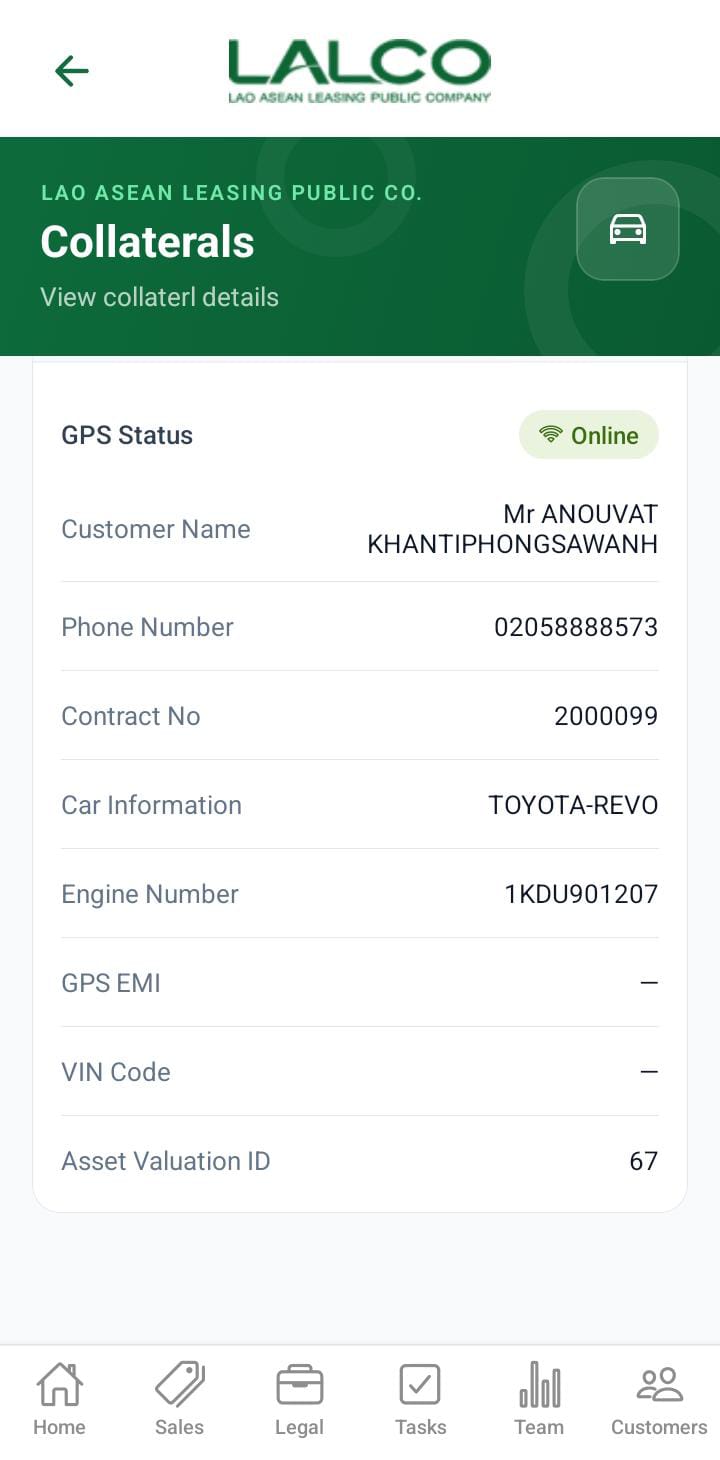
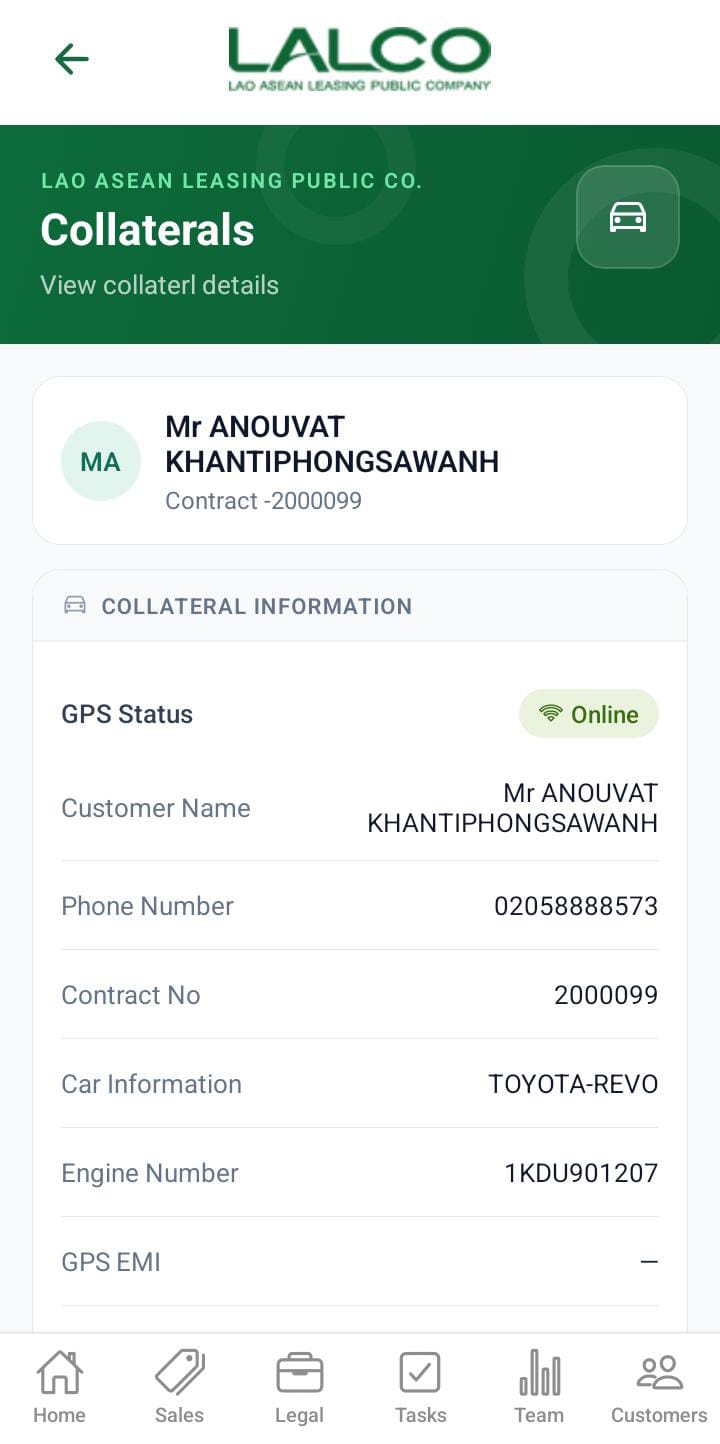
<table border="1" id="bkmrk--4" style="border-collapse: collapse; width: 100%;"><colgroup><col style="width: 50%;"></col><col style="width: 50%;"></col></colgroup><tbody><tr><td>[![WhatsApp Image 2026-06-30 at 9.09.22 AM.jpeg](http://wiki.lalco.la/uploads/images/gallery/2026-06/scaled-1680-/whatsapp-image-2026-06-30-at-9-09-22-am.jpeg)](http://wiki.lalco.la/uploads/images/gallery/2026-06/whatsapp-image-2026-06-30-at-9-09-22-am.jpeg)</td><td>[![WhatsApp Image 2026-06-30 at 9.09.22 AM(1).jpeg](http://wiki.lalco.la/uploads/images/gallery/2026-06/scaled-1680-/whatsapp-image-2026-06-30-at-9-09-22-am1.jpeg)](http://wiki.lalco.la/uploads/images/gallery/2026-06/whatsapp-image-2026-06-30-at-9-09-22-am1.jpeg)</td></tr></tbody></table>

Displays detailed information about a selected GPS offline contract.

---

# Header Section

### Page Title

**Collaterals**

---

### Description

<div class="relative w-full mt-4 mb-1" id="bkmrk-view-your-contract-d"><div class=""><div class="relative"><div class="h-full min-h-0 min-w-0"><div class="h-full min-h-0 min-w-0"><div class="border border-token-border-light border-radius-3xl corner-superellipse/1.1 rounded-3xl"><div class="h-full w-full border-radius-3xl bg-token-bg-elevated-secondary corner-superellipse/1.1 overflow-clip rounded-3xl lxnfua_clipPathFallback"><div class="pe-11 pt-3"><div class="relative z-0 flex max-w-full"><div class="q9tKkq_viewer cm-editor z-10 light:cm-light dark:cm-light flex h-full w-full flex-col items-stretch ͼ1c ͼ1q" dir="ltr" id="bkmrk-view-your-contract-d-1"><div class="cm-scroller"><div class="cm-content q9tKkq_readonly">View Your Collateral Details</div></div></div></div></div></div></div></div></div><div class=""><div class="">  
</div></div></div></div></div>---

# Contract Information

Displays complete details of the selected contract:

- **Customer Name** → Name of the customer
- **Phone Number** → Contact number
- **Contract Number** → Unique ID
- **Car Information** → Vehicle model and details
- **Car Engine Number** → Engine ID
- **GPS EMI Number** → GPS installment/availability status
- **Vin Code** → Vehicle identification number
- **Asset Valuation ID** → Internal tracking ID

<div class="relative w-full mt-4 mb-1" id="bkmrk-customer-name%3A-kamal"><div class=""><div class="relative"></div></div></div>---

# How to Use

### View Details

1. Select an item from the list
2. Review all customer and vehicle details

---

💡 **Tip:**  
Use this screen to quickly identify vehicles with **GPS issues** and take necessary follow-up actions.