# Customers Screen

[![6d000b0e-90ff-4b99-b938-44c904363f4e.jpg](http://wiki.lalco.la/uploads/images/gallery/2026-03/scaled-1680-/b9x6d000b0e-90ff-4b99-b938-44c904363f4e.jpg)](http://wiki.lalco.la/uploads/images/gallery/2026-03/b9x6d000b0e-90ff-4b99-b938-44c904363f4e.jpg)

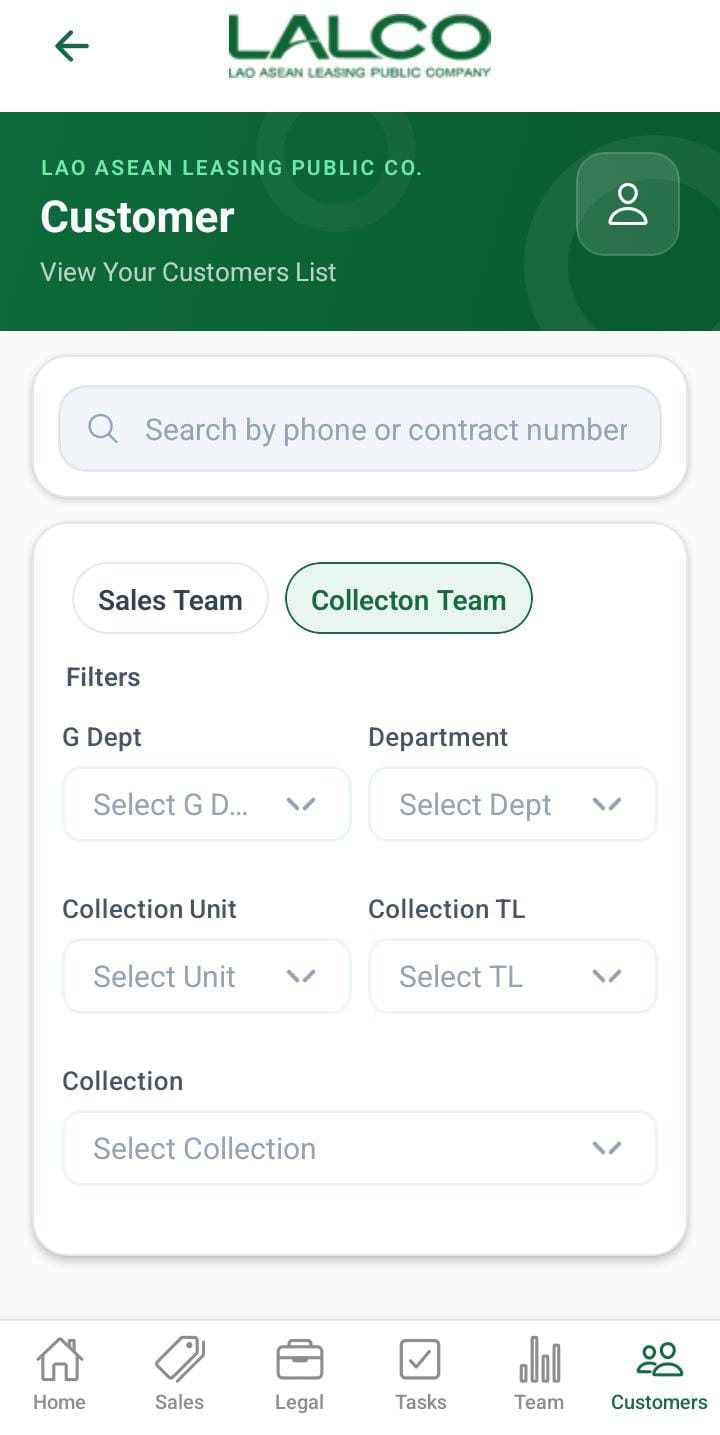
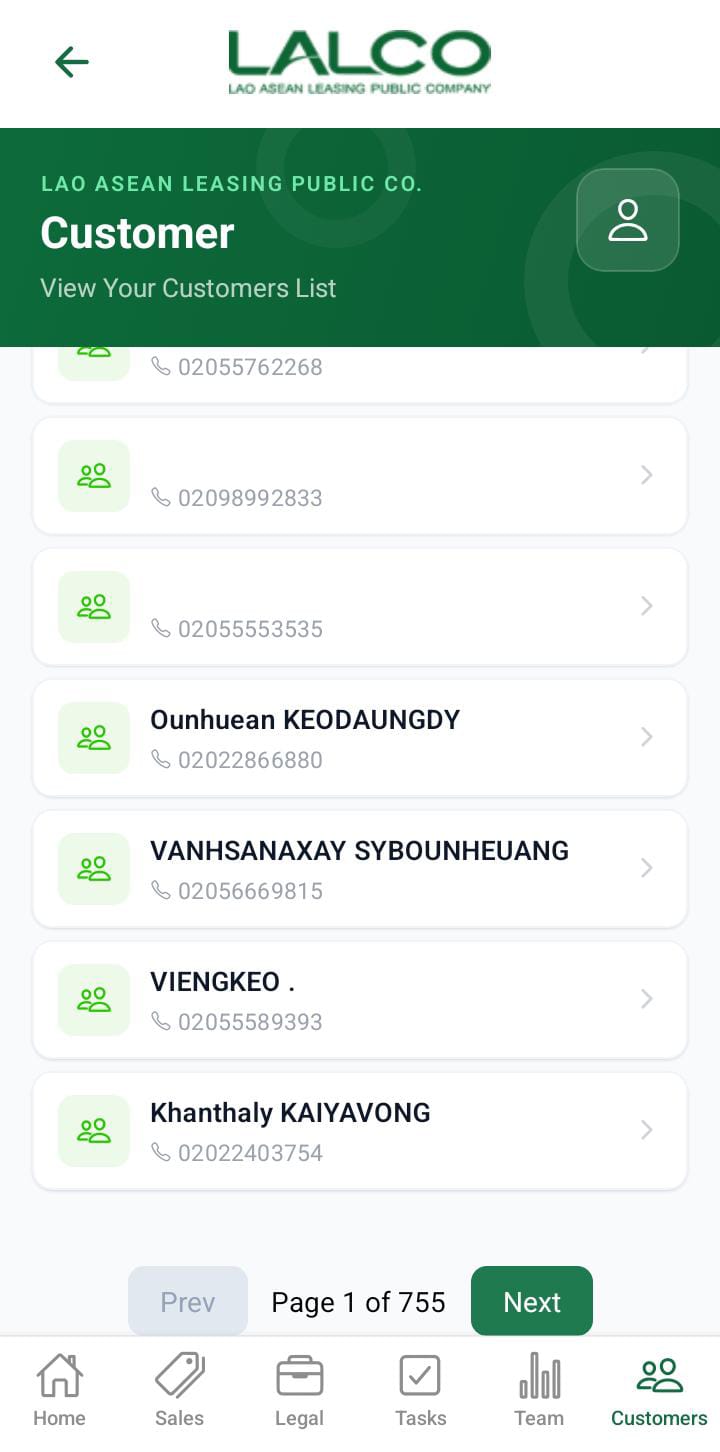
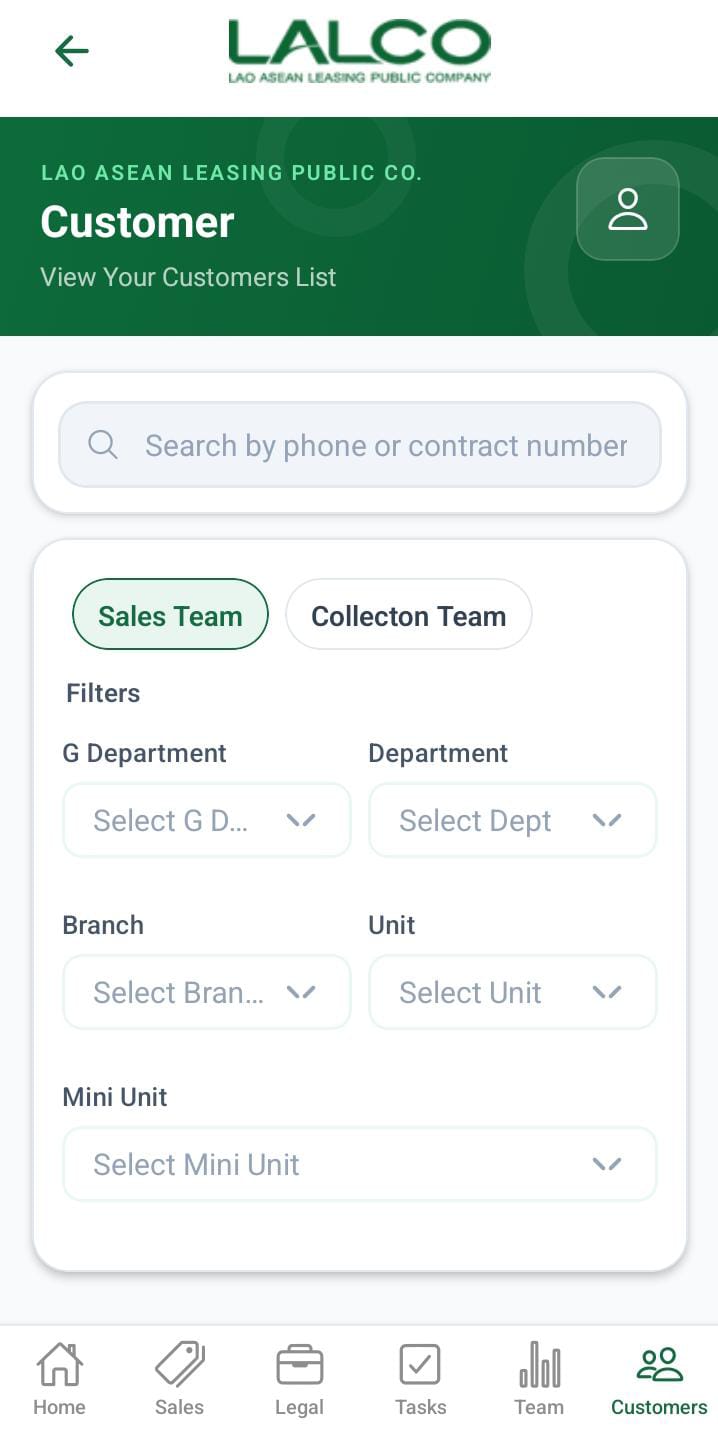
The Customers Screen allows staff to view and manage all customers in the system. It provides a searchable list, filter options, and quick access to customer details.

---

## Header Section

**Page Title**  
Customers

**Description**  
View your customer list and manage customer records.

**Action Icon** ☰  
May be used to:

- Access settings
- Open additional options

---

## Search Function

**Search Bar**  
Search by customer

Allows users to search by:

- Customer Name
- Phone Number
- Contract Number

---

## Filter Options

Users can filter customers by status:

- All → Shows all customers
- Active → Currently active customers
- Pending → New or pending approval
- Closed → Completed or closed accounts

---

## Customer List

Each item represents a customer.

**Example:**

- user – 02056087740 · Closed

**Information Displayed**  
Each record shows:

- Customer Name
- Phone Number
- Status

---

## How to Use

**View a Customer**

1. Open the Customers tab
2. Browse or search the list
3. Tap a customer to view details

**Add a Customer**

1. Tap **+ Add Customer**
2. Fill in required fields: Name, Phone, Address, Province → City → Village, NIC/Family Book, Birth Date
3. Tap **Save**

---

#  Customer Details Screen

[![5bbead10-46ae-40e7-93ec-8cdf5a234340.jpg](http://wiki.lalco.la/uploads/images/gallery/2026-03/scaled-1680-/5bbead10-46ae-40e7-93ec-8cdf5a234340.jpg)](http://wiki.lalco.la/uploads/images/gallery/2026-03/5bbead10-46ae-40e7-93ec-8cdf5a234340.jpg)

The Customer Details Screen shows detailed information about a selected customer and allows staff to start visits or update records.

---

## Customer Details Section

Displays key information:

- **Name** → Customer Name
- **Phone Number** → Contact number
- **Address** → Unit, Village, City, Province
- **Contract Numbers** → Linked contracts

---

## Actions

**Start Visit**  
Used to begin a field visit related to the customer.

Used for:

- Customer visits
- Payment follow-ups
- Field verification

---

## How to Use

**View Details**

1. Select a customer from the list
2. Review all details

**Start Visit**

1. Tap **Start Visit**
2. Proceed with visit
3. Update visit remarks, GPS location, payment status if needed

---

## Navigation

Customers Screen → Select Customer → Customer Details Screen → Start Visit

---

# Add Visit Result Screen

[![96430c1a-f0b2-4384-810f-727234591a04.jpg](http://wiki.lalco.la/uploads/images/gallery/2026-03/scaled-1680-/96430c1a-f0b2-4384-810f-727234591a04.jpg)](http://wiki.lalco.la/uploads/images/gallery/2026-03/96430c1a-f0b2-4384-810f-727234591a04.jpg)

The Visit Result Screen allows staff to record the outcome of a customer visit, including visit details, GPS location, remarks, and status updates.

---

## Visit Details Section

**Visited To**

- Select where the visit occurred (e.g., Customer Home)

**Visit Result**

- Choose the result of the visit (e.g., Met Customer, Not Available)

**Who Did You Meet**

- Auto-filled or manually selected

---

## Location Section

**Visited Location**

- Enter address manually OR
- Tap GPS icon to auto-fill current location

**Tip:** Always use GPS if possible for accurate tracking

---

## Remarks Section

**Visit Remark**

- Free text notes about the visit  
    (Example: “Customer promised to pay next week”)

---

## Visit Reason Section

Select at least one reason for the visit:

- This Month
- Last Month
- 2 Month Delay
- OA / SOA
- Real Estate
- GPS Repair

---

## Special Cases Section (Optional)

Select only if applicable:

- Third Party
- Car Broken
- Customer Arrested / Passed Away
- Seized by Police
- GPS Offline

---

## Additional Options

- **Seize the Car** → Toggle ON if the vehicle was seized
- **Additional Asset Investigation** → Toggle ON if required

---

## Payment &amp; GPS Status

- **Paid** → Select payment status
- **GPS Repaired** → Yes / No

---

## How to Use

**Record Visit**

1. Tap **Start Visit** from Customer Details Screen
2. Fill all required fields
3. Add GPS location and remarks
4. Select reasons for visit
5. Update special cases and additional options if needed
6. Tap **Save**

---

## Navigation

Customer Details Screen → Start Visit → Visit Result Screen → Save

---

# Add New Customer Screen

[![82dab961-8091-4bb3-9c57-985d73a2de28.jpg](http://wiki.lalco.la/uploads/images/gallery/2026-03/scaled-1680-/82dab961-8091-4bb3-9c57-985d73a2de28.jpg)](http://wiki.lalco.la/uploads/images/gallery/2026-03/82dab961-8091-4bb3-9c57-985d73a2de28.jpg)

The **Add New Customer Screen** allows staff to create and register a new customer in the system. This information is used for managing customer records, loans, and follow-up activities.

---

## Header Section

### Page Title

**Add New Customer**

---

### Description

<div class="relative w-full mt-4 mb-1" id="bkmrk-create-a-new-custome"><div class=""><div class="relative"><div class="h-full min-h-0 min-w-0"><div class="h-full min-h-0 min-w-0"><div class="border border-token-border-light border-radius-3xl corner-superellipse/1.1 rounded-3xl"><div class="h-full w-full border-radius-3xl bg-token-bg-elevated-secondary corner-superellipse/1.1 overflow-clip rounded-3xl lxnfua_clipPathFallback"><div class="pe-11 pt-3"><div class="relative z-0 flex max-w-full"><div class="q9tKkq_viewer cm-editor z-10 light:cm-light dark:cm-light flex h-full w-full flex-col items-stretch ͼk ͼy" dir="ltr" id="bkmrk-create-a-new-custome-1"><div class="cm-scroller"><div class="cm-content q9tKkq_readonly">Create a new customer</div></div></div></div></div></div></div></div></div></div></div></div>---

<span style="color: rgb(34, 34, 34); font-family: -apple-system, BlinkMacSystemFont, 'Segoe UI', Oxygen, Ubuntu, Roboto, Cantarell, 'Fira Sans', 'Droid Sans', 'Helvetica Neue', sans-serif; font-size: 3.425em; font-weight: 400;">Customer Information Form</span>

Users must fill in the following details:

---

### Name

Enter the customer’s full name.

Example:

<div class="relative w-full mt-4 mb-1" id="bkmrk-john-silva"><div class=""><div class="relative"><div class="h-full min-h-0 min-w-0"><div class="h-full min-h-0 min-w-0"><div class="border border-token-border-light border-radius-3xl corner-superellipse/1.1 rounded-3xl"><div class="h-full w-full border-radius-3xl bg-token-bg-elevated-secondary corner-superellipse/1.1 overflow-clip rounded-3xl lxnfua_clipPathFallback"><div class="pe-11 pt-3"><div class="relative z-0 flex max-w-full"><div class="q9tKkq_viewer cm-editor z-10 light:cm-light dark:cm-light flex h-full w-full flex-col items-stretch ͼk ͼy" dir="ltr" id="bkmrk-john-silva-1"><div class="cm-scroller"><div class="cm-content q9tKkq_readonly">John Silva</div></div></div></div></div></div></div></div></div><div class=""><div class="">  
</div></div></div></div></div>---

### Phone

Enter the customer’s contact number.

Example:

<div class="relative w-full mt-4 mb-1" id="bkmrk-0771234567"><div class=""><div class="relative"><div class="h-full min-h-0 min-w-0"><div class="h-full min-h-0 min-w-0"><div class="border border-token-border-light border-radius-3xl corner-superellipse/1.1 rounded-3xl"><div class="h-full w-full border-radius-3xl bg-token-bg-elevated-secondary corner-superellipse/1.1 overflow-clip rounded-3xl lxnfua_clipPathFallback"><div class="pe-11 pt-3"><div class="relative z-0 flex max-w-full"><div class="q9tKkq_viewer cm-editor z-10 light:cm-light dark:cm-light flex h-full w-full flex-col items-stretch ͼk ͼy" dir="ltr" id="bkmrk-0771234567-1"><div class="cm-scroller"><div class="cm-content q9tKkq_readonly">0771234567</div></div></div></div></div></div></div></div></div><div class=""><div class="">  
</div></div></div></div></div>---

### Email

Enter the customer’s email address (optional if not available).

Example:

<div class="relative w-full mt-4 mb-1" id="bkmrk-john%40email.com"><div class=""><div class="relative"><div class="h-full min-h-0 min-w-0"><div class="h-full min-h-0 min-w-0"><div class="border border-token-border-light border-radius-3xl corner-superellipse/1.1 rounded-3xl"><div class="h-full w-full border-radius-3xl bg-token-bg-elevated-secondary corner-superellipse/1.1 overflow-clip rounded-3xl lxnfua_clipPathFallback"><div class="pe-11 pt-3"><div class="relative z-0 flex max-w-full"><div class="q9tKkq_viewer cm-editor z-10 light:cm-light dark:cm-light flex h-full w-full flex-col items-stretch ͼk ͼy" dir="ltr" id="bkmrk-john%40email.com-1"><div class="cm-scroller"><div class="cm-content q9tKkq_readonly">john@email.com</div></div></div></div></div></div></div></div></div><div class=""><div class="">  
</div></div></div></div></div>---

### Address Unit

Enter the customer’s address or house/unit details.

---

### Province

Select the province from the dropdown list.

---

### City

Select the city based on the chosen province.

---

### Village

Select the village or local area.

---

### Family Book / NIC

Enter the customer’s identification number.

Example:

<div class="relative w-full mt-4 mb-1" id="bkmrk-199812345678"><div class=""><div class="relative"><div class="h-full min-h-0 min-w-0"><div class="h-full min-h-0 min-w-0"><div class="border border-token-border-light border-radius-3xl corner-superellipse/1.1 rounded-3xl"><div class="h-full w-full border-radius-3xl bg-token-bg-elevated-secondary corner-superellipse/1.1 overflow-clip rounded-3xl lxnfua_clipPathFallback"><div class="pe-11 pt-3"><div class="relative z-0 flex max-w-full"><div class="q9tKkq_viewer cm-editor z-10 light:cm-light dark:cm-light flex h-full w-full flex-col items-stretch ͼk ͼy" dir="ltr" id="bkmrk-199812345678-1"><div class="cm-scroller"><div class="cm-content q9tKkq_readonly">199812345678</div></div></div></div></div></div></div></div></div><div class=""><div class="">  
</div></div></div></div></div>---

### Birth Date

Select the customer’s date of birth using the date picker.

Example:

<div class="relative w-full mt-4 mb-1" id="bkmrk-mar-19%2C-2026"><div class=""><div class="relative"><div class="h-full min-h-0 min-w-0"><div class="h-full min-h-0 min-w-0"><div class="border border-token-border-light border-radius-3xl corner-superellipse/1.1 rounded-3xl"><div class="h-full w-full border-radius-3xl bg-token-bg-elevated-secondary corner-superellipse/1.1 overflow-clip rounded-3xl lxnfua_clipPathFallback"><div class="pe-11 pt-3"><div class="relative z-0 flex max-w-full"><div class="q9tKkq_viewer cm-editor z-10 light:cm-light dark:cm-light flex h-full w-full flex-col items-stretch ͼk ͼy" dir="ltr" id="bkmrk-mar-19%2C-2026-1"><div class="cm-scroller"><div class="cm-content q9tKkq_readonly">Mar 19, 2026</div></div></div></div></div></div></div></div></div><div class=""><div class="">  
</div></div></div></div></div>---

# Action Button

### Save

Tap **Save** to create the new customer.

- If all required fields are filled correctly, the customer will be added successfully.
- If there are missing or invalid details, the system may show an error.

---

# How to Use

### Add a New Customer

1. Open the **Customers tab**
2. Tap **Add New Customer**
3. Fill in all required details
4. Tap **Save**
5. Customer will be added to the system

---

# Navigation

<div class="relative w-full mt-4 mb-1" id="bkmrk-customers-%E2%86%92-add-new-"><div class=""><div class="relative"><div class="h-full min-h-0 min-w-0"><div class="h-full min-h-0 min-w-0"><div class="border border-token-border-light border-radius-3xl corner-superellipse/1.1 rounded-3xl"><div class="h-full w-full border-radius-3xl bg-token-bg-elevated-secondary corner-superellipse/1.1 overflow-clip rounded-3xl lxnfua_clipPathFallback"><div class="pe-11 pt-3"><div class="relative z-0 flex max-w-full"><div class="q9tKkq_viewer cm-editor z-10 light:cm-light dark:cm-light flex h-full w-full flex-col items-stretch ͼk ͼy" dir="ltr" id="bkmrk-customers-%E2%86%92-add-new--1"><div class="cm-scroller"><div class="cm-content q9tKkq_readonly">Customers → Add New Customer → Save</div></div></div></div></div></div></div></div></div><div class=""><div class="">  
</div></div></div></div></div>---