Guarantor Screen
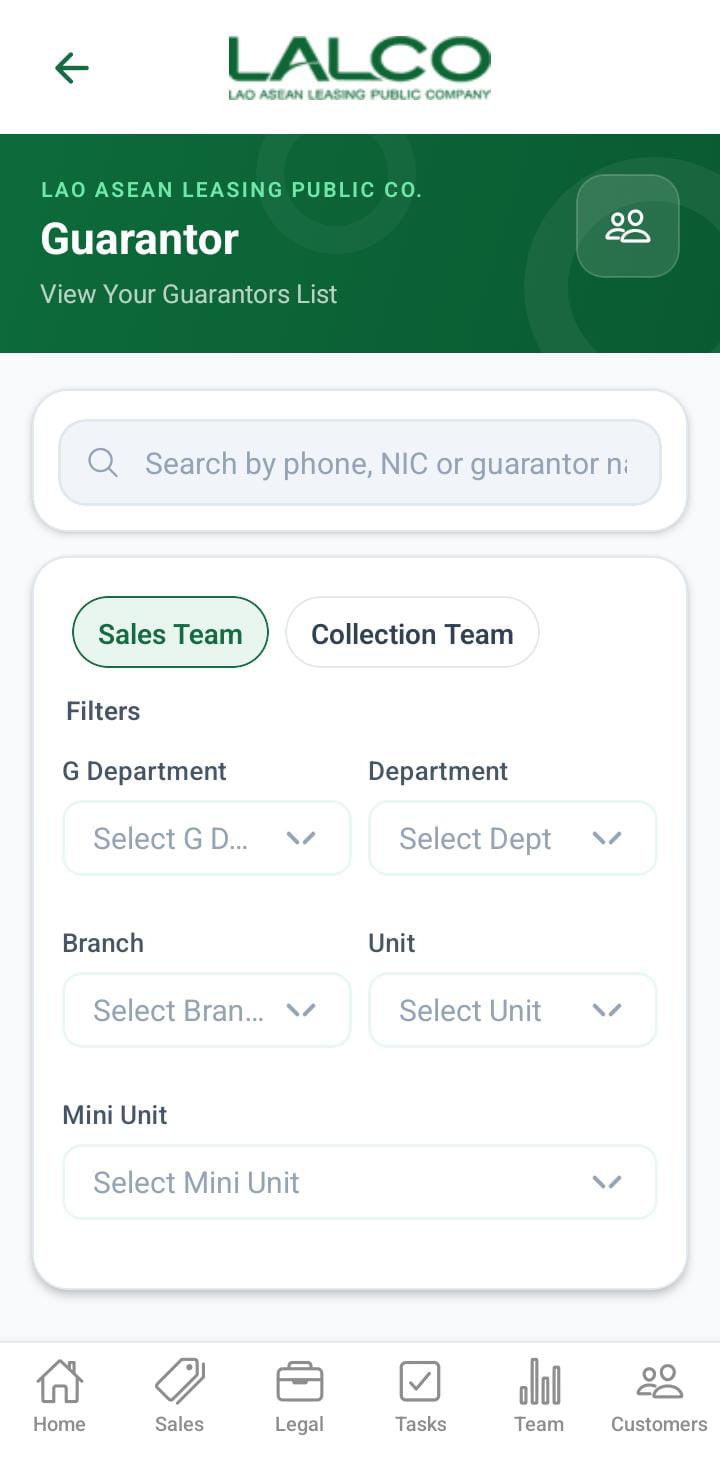 |
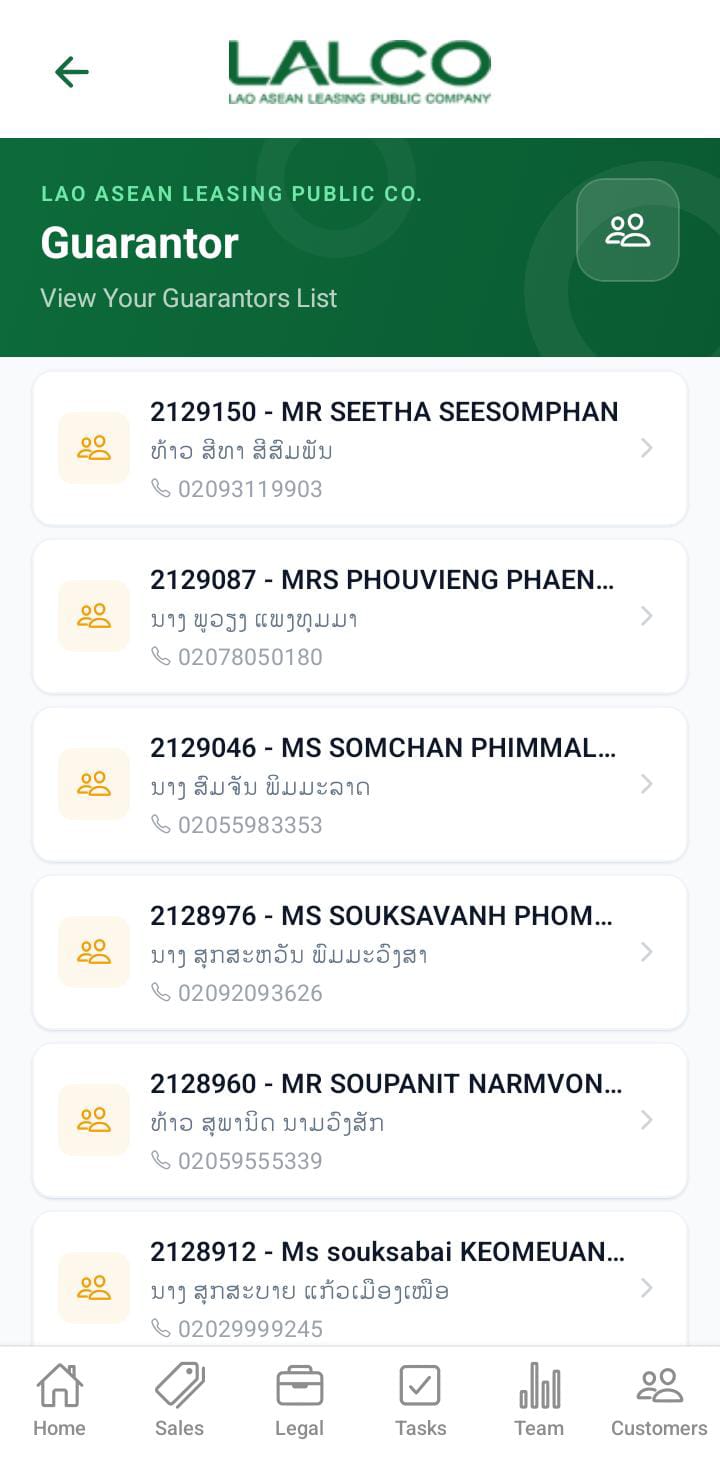 |
This screen allows the user to view the guarantor details for each contract
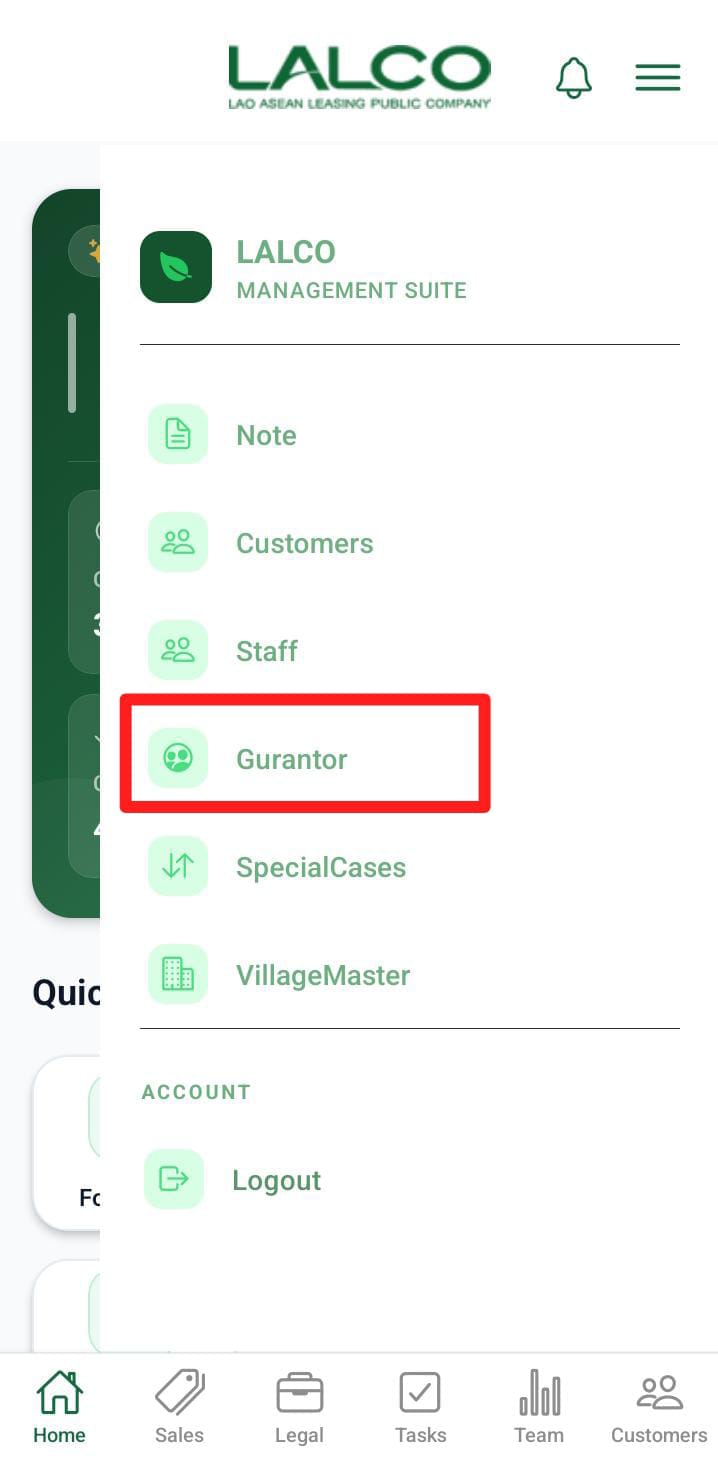
Access Path
Guarantor List
Each item represents a guarantor.
Filter Options
Users can filter guarantors by the following options:
In the filter options, there are two main sections.
- Sales Team
- Collection Team
When the filter is Sales Team below filters can apply,
- G department
- Department
- Branch
- Unit
- Mini Unit
When the filter is Collection Team below filters can apply,
- G department
- Department
- Collection Unit
- collection tl
- collection
The above filters will display like this.
When the user role is admin
- The admin has both sales and collections and can apply all the filters mentioned above.
When the user role is gdept
- The gdept has both sales and collections and can apply all the filters mentioned above except G department.
When the user role is dept
- The dept has both sales and collections and can apply all the filters mentioned above except G department and department
When the user role is branch.
- Display only the sales team.
- Display the unit and Munit filters
When the user role is unit.
- Display only the sales team.
- Display the Munit.
When the user role is MUnit.
- Only the search bar filter can be applied.
When the user role is collection unit.
- Display only the collection team.
- Display the collection tl and collection filters
When the user role is Collection tl.
- Display only the collection team.
- Display the collection.
When the user role is Collection.
- Only the search bar filter can be applied.
Information Displayed
Each record shows:
- Contract Number
- Customer name
- Phone numebr
How to Use
View Guarantor Details
- Open the side menu
- Select guarantor
Guarantor Details Screen
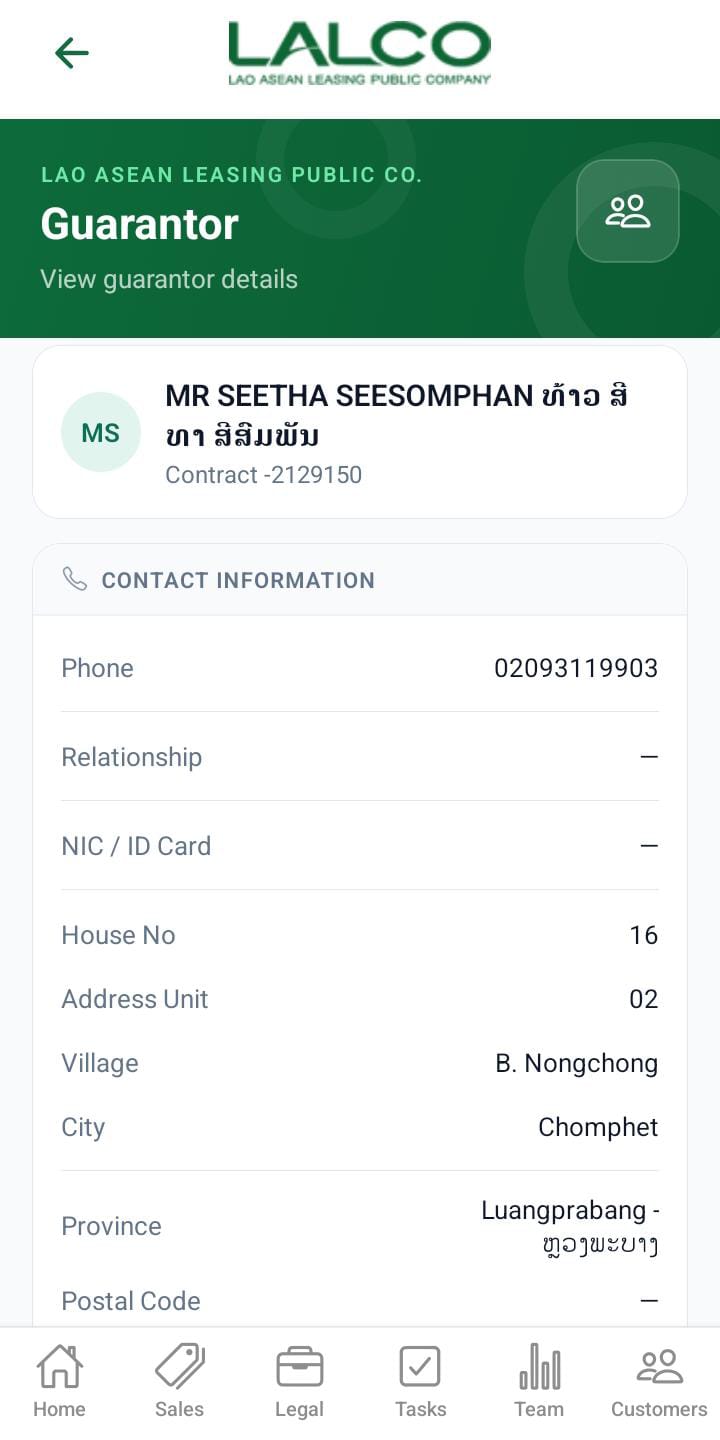 |
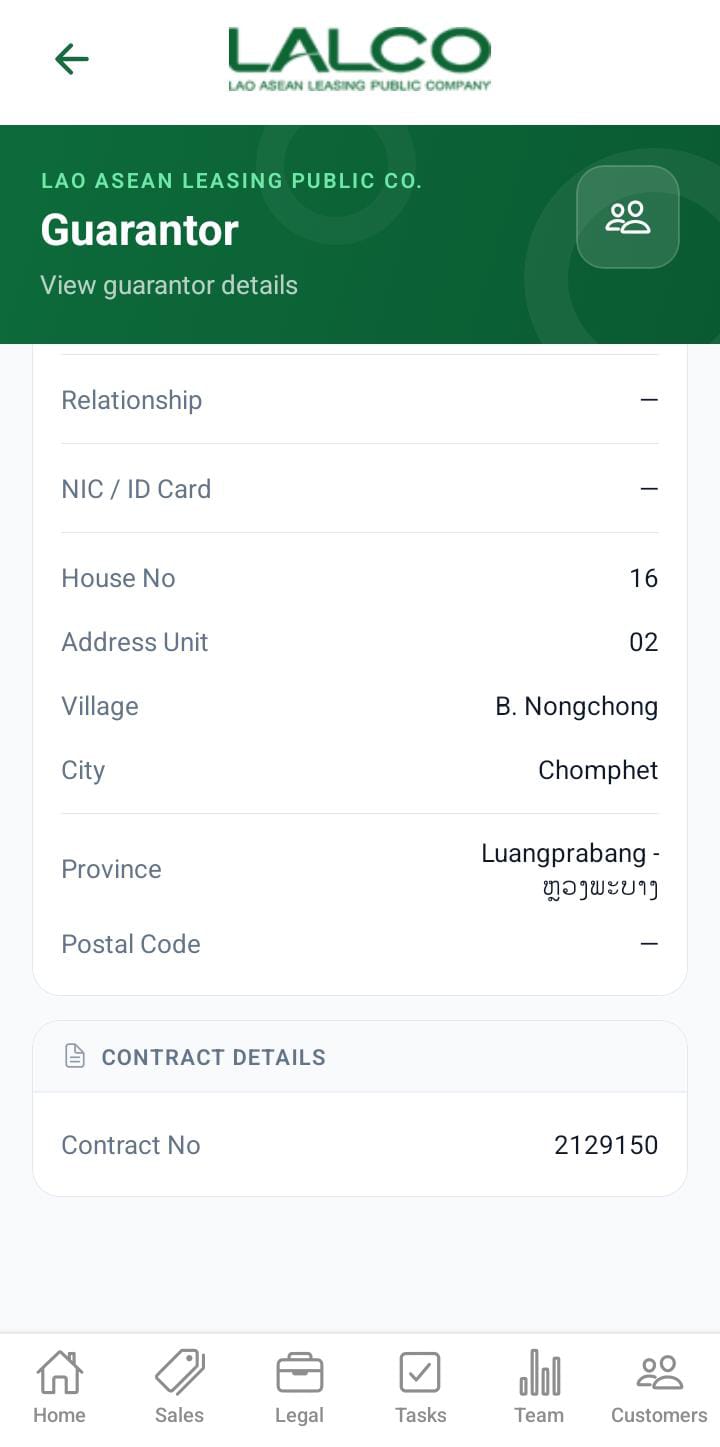 |
This screen displays the guarantor details of the contract,
- Guarantor name
- phone number
- Nic/ID
- House number
- address unit
- village
- city
- province
- Contract number
How to Use
View Guarantor Details
- Select a guarantor from the list
- Review all guarantor details