# Guarantor  Screen

#   


<table border="1" id="bkmrk-" style="border-collapse: collapse; width: 100%;"><colgroup><col style="width: 50%;"></col><col style="width: 50%;"></col></colgroup><tbody><tr><td class="align-center">[![WhatsApp Image 2026-06-30 at 9.15.45 AM.jpeg](http://wiki.lalco.la/uploads/images/gallery/2026-06/scaled-1680-/whatsapp-image-2026-06-30-at-9-15-45-am.jpeg)](http://wiki.lalco.la/uploads/images/gallery/2026-06/whatsapp-image-2026-06-30-at-9-15-45-am.jpeg)</td><td class="align-center">[![WhatsApp Image 2026-06-30 at 9.15.45 AM(1).jpeg](http://wiki.lalco.la/uploads/images/gallery/2026-06/scaled-1680-/whatsapp-image-2026-06-30-at-9-15-45-am1.jpeg)](http://wiki.lalco.la/uploads/images/gallery/2026-06/whatsapp-image-2026-06-30-at-9-15-45-am1.jpeg)</td></tr></tbody></table>

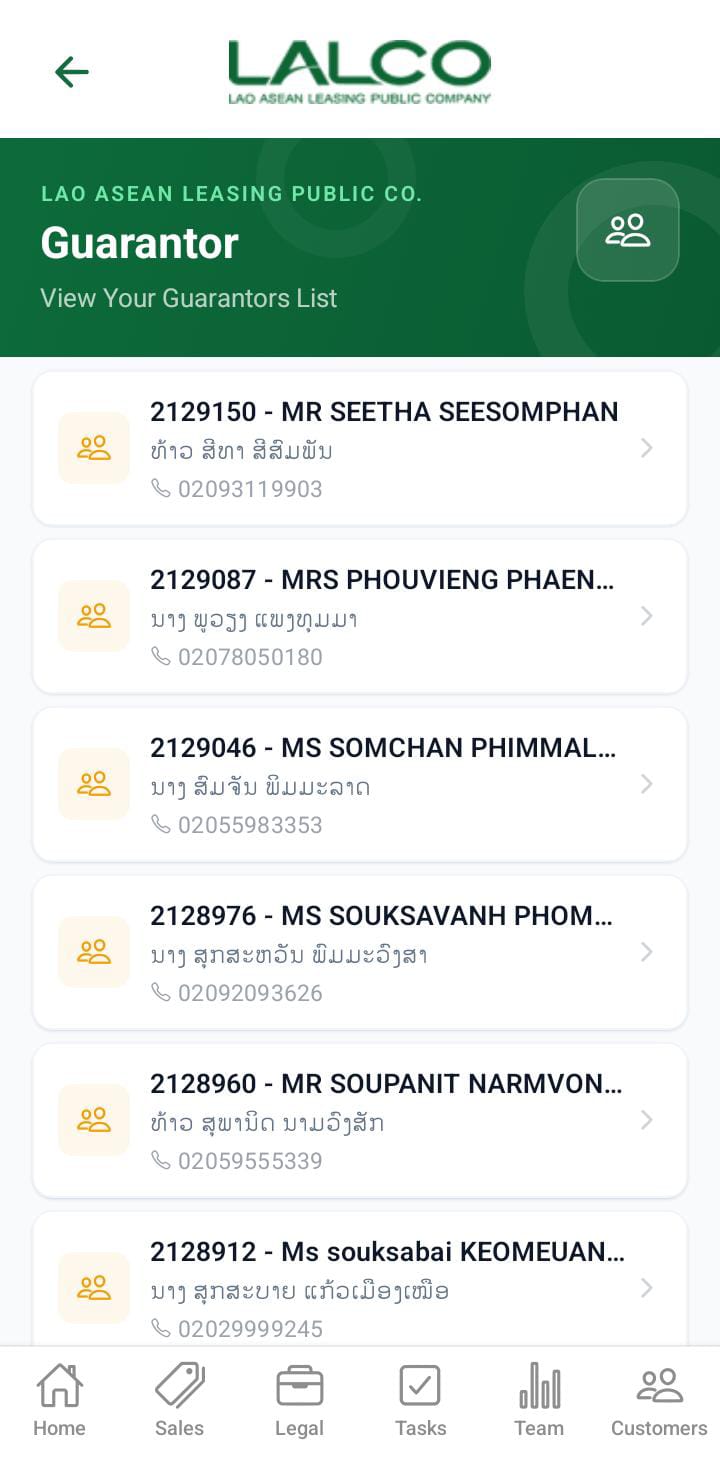
This screen allows the user to view the guarantor details for each contract

---

## Access Path

Side menu -&gt; Guarantor

[![WhatsApp Image 2026-06-30 at 9.25.53 AM(1).jpeg](http://wiki.lalco.la/uploads/images/gallery/2026-06/scaled-1680-/whatsapp-image-2026-06-30-at-9-25-53-am1.jpeg)](http://wiki.lalco.la/uploads/images/gallery/2026-06/whatsapp-image-2026-06-30-at-9-25-53-am1.jpeg)

# Guarantor List

Each item represents a guarantor.

### Filter Options

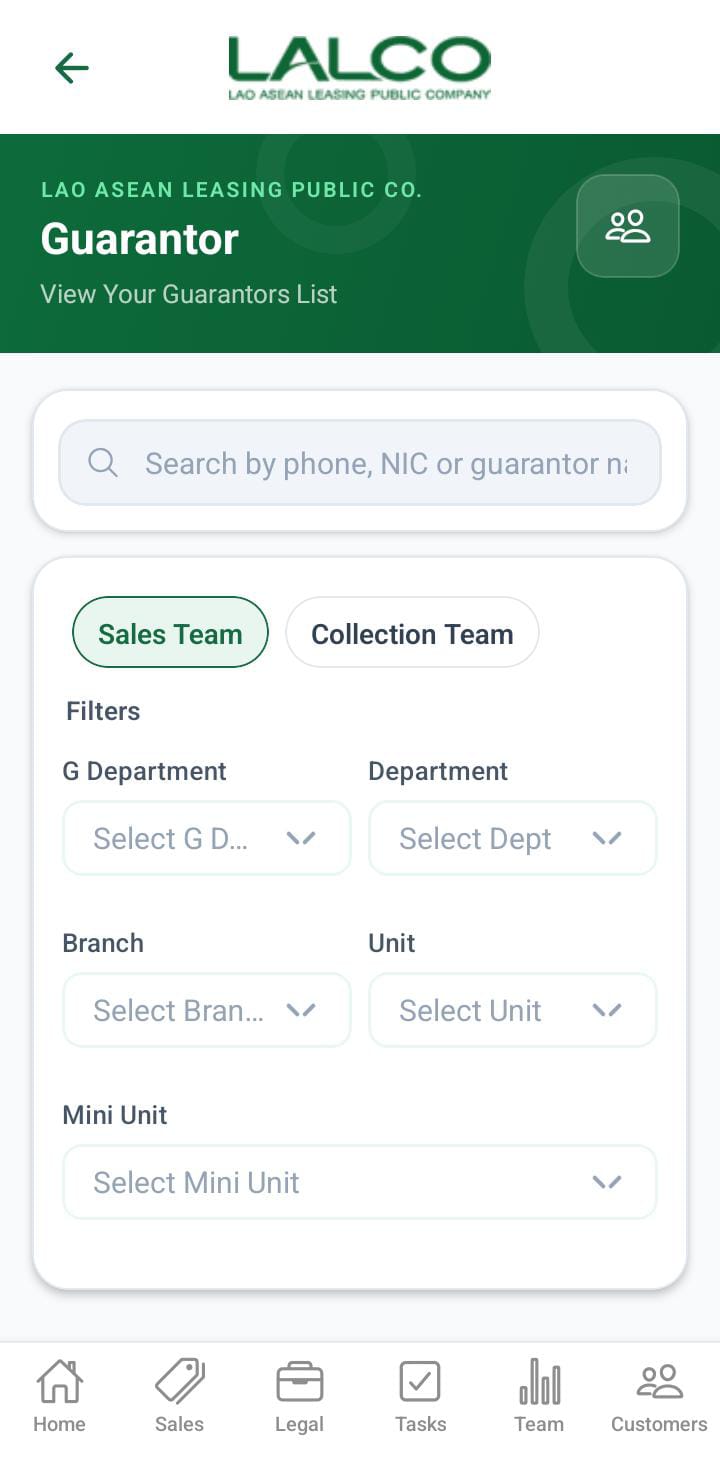
Users can filter guarantors by the following options:

In the filter options, there are two main sections.

- Sales Team
- Collection Team

**When the filter is Sales Team below filters can apply,**

- G department
- Department
- Branch
- Unit
- Mini Unit

**When the filter is Collection Team below filters can apply,**

- G department
- Department
- Collection Unit
- collection tl
- collection

The above filters will display like this.

**When the user role is admin**

- The admin has both sales and collections and can apply all the filters mentioned above.

**When the user role is gdept**

- The gdept has both sales and collections and can apply all the filters mentioned above except G department.

**When the user role is dept**

- The dept has both sales and collections and can apply all the filters mentioned above except G department and department

**When the user role is branch.**

- Display only the sales team.
- Display the unit and Munit filters

**When the user role is unit.**

- Display only the sales team.
- Display the Munit.

**When the user role is MUnit.**

- Only the search bar filter can be applied.

**When the user role is collection unit.**

- Display only the collection team.
- Display the collection tl and collection filters

**When the user role is Collection tl.**

- Display only the collection team.
- Display the collection.

**When the user role is Collection.**

- Only the search bar filter can be applied.

---

### Information Displayed

Each record shows:

- **Contract Number**
- **Customer name**
- **Phone numebr**

---

# How to Use

### View Guarantor Details

1. Open the **side menu**
2. Select guarantor

---

---

# Guarantor Details Screen

<table border="1" id="bkmrk--2" style="border-collapse: collapse; width: 100%;"><colgroup><col style="width: 50%;"></col><col style="width: 50%;"></col></colgroup><tbody><tr><td class="align-center">[![WhatsApp Image 2026-06-30 at 9.31.31 AM.jpeg](http://wiki.lalco.la/uploads/images/gallery/2026-06/scaled-1680-/whatsapp-image-2026-06-30-at-9-31-31-am.jpeg)](http://wiki.lalco.la/uploads/images/gallery/2026-06/whatsapp-image-2026-06-30-at-9-31-31-am.jpeg)</td><td class="align-center">[![WhatsApp Image 2026-06-30 at 9.31.32 AM.jpeg](http://wiki.lalco.la/uploads/images/gallery/2026-06/scaled-1680-/whatsapp-image-2026-06-30-at-9-31-32-am.jpeg)](http://wiki.lalco.la/uploads/images/gallery/2026-06/whatsapp-image-2026-06-30-at-9-31-32-am.jpeg)</td></tr></tbody></table>

This screen displays the guarantor details of the contract,

- Guarantor name
- phone number
- Nic/ID
- House number
- address unit
- village
- city
- province
- Contract number

---

<div class="relative w-full mt-4 mb-1" id="bkmrk-task-id%3A-1-contract-"><div class=""><div class="relative"><div class=""><div class="">  
</div></div></div></div></div># How to Use

### View Guarantor Details

1. Select a guarantor from the list
2. Review all guarantor details

<div class="relative w-full mt-4 mb-1" id="bkmrk--14"><div class=""><div class="relative"><div class=""><div class="">  
</div></div></div></div></div>