Location Screen
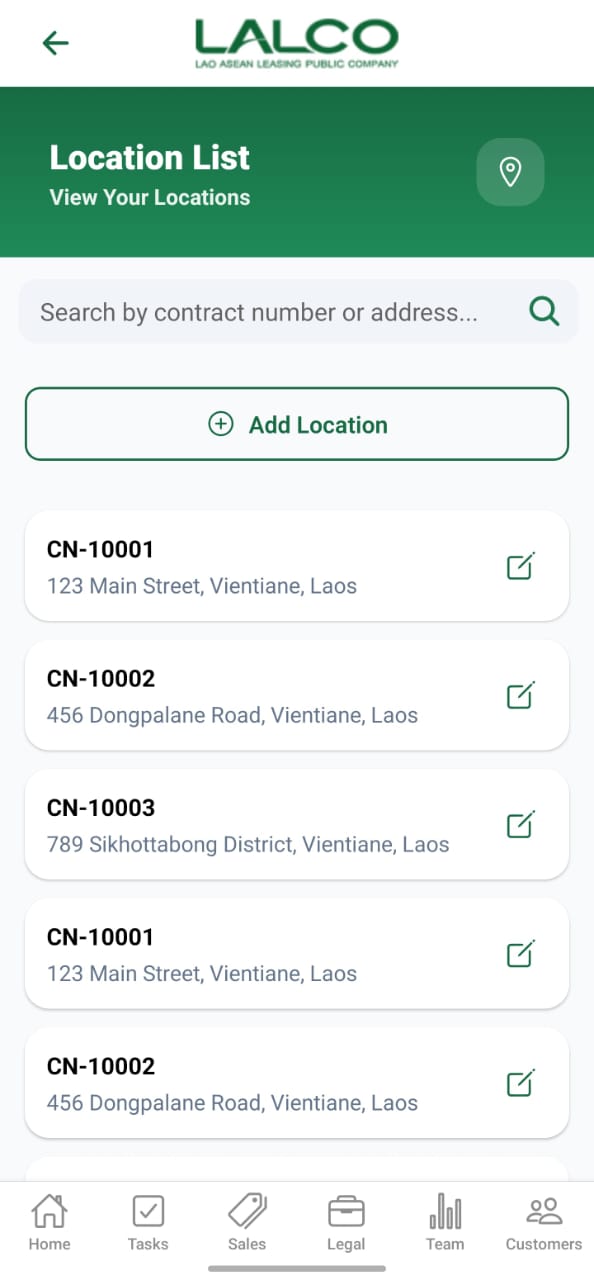
The Location Screen allows staff to view and manage collection locations linked to contracts. Users can search, add, and update location details.
Search Function
Search Bar
Search by contract number or address...
Allows users to search by:
- Contract number
- Address
Main Action
Add Location
Location List
Each item represents a saved location.
Example:
CN-10001
123 Main Street, Vientiane, Laos
123 Main Street, Vientiane, Laos
Information Displayed
Each record shows:
- Contract Number
- Address
How to Use
View Locations
- Open the Location screen
- Browse or search locations
- Tap edit icon to modify
Add Location Screen
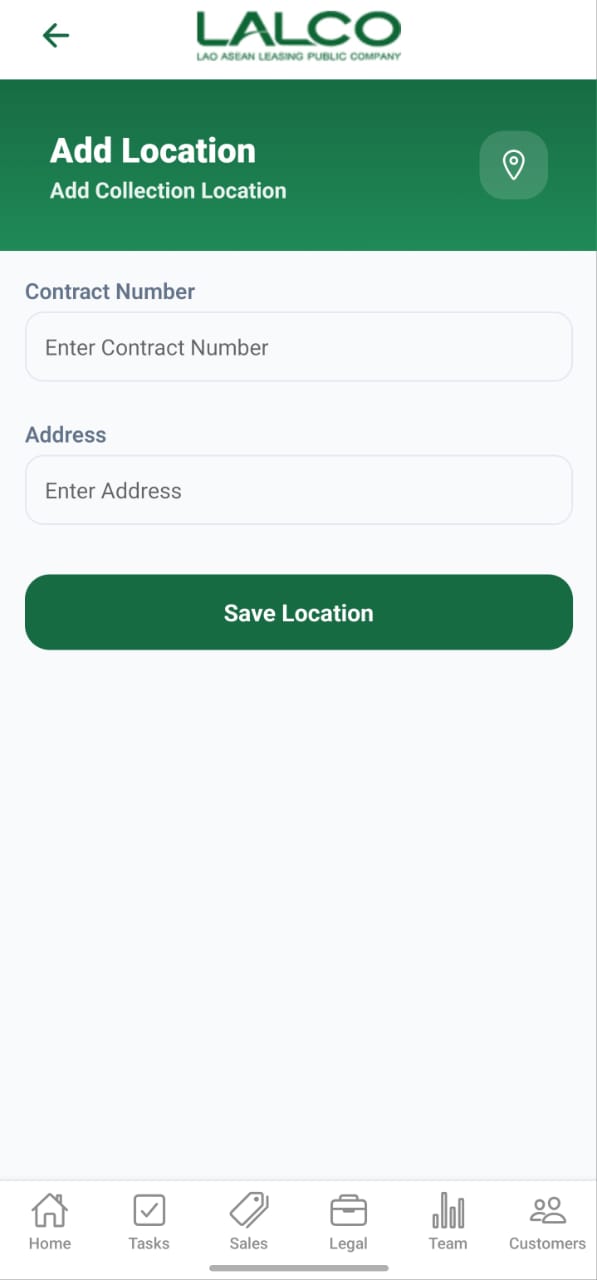
The Add Location Screen allows staff to create or update a collection location for a contract.
Form Fields
Contract Number
Enter or select the contract number
Example:
CN-10001
Address
Enter the full collection address
Example:
123 Main Street, Vientiane, Laos
Action
Save Location
Saves the location details to the system
How to Use
Add Location
- Tap Add Location
- Enter contract number
- Enter address
- Tap Save Location
Edit Location
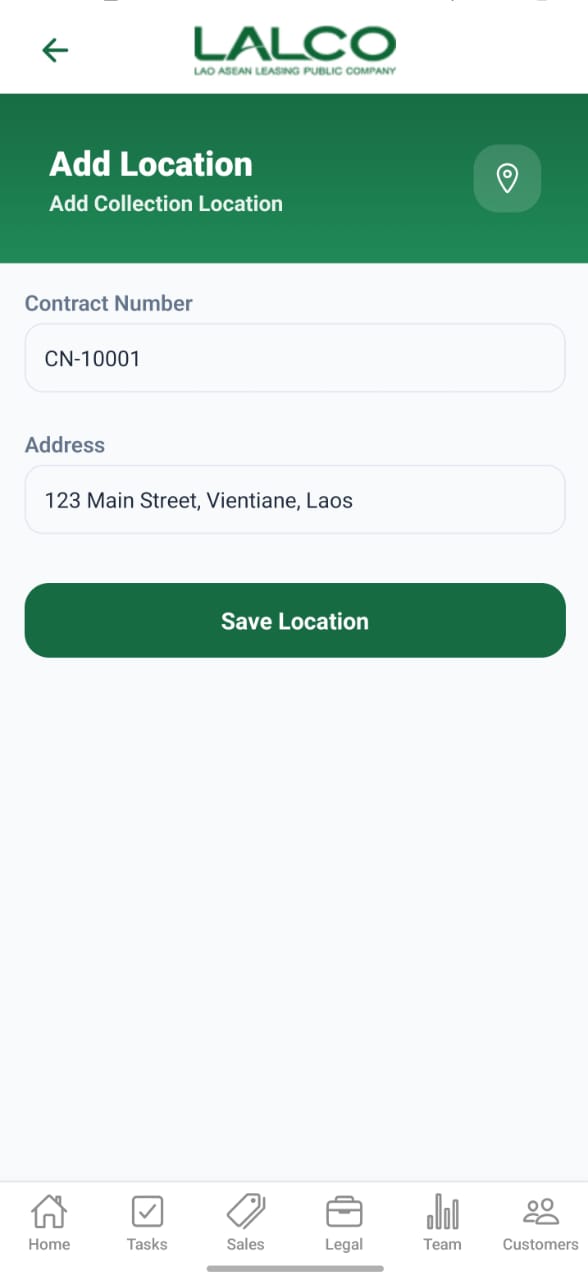
- Tap edit icon from list
- Update details
- Tap Save Location
Navigation
Location List → Add Location / Edit Location