# Staff Screen

[![8b937470-3d83-4c3c-bea6-fcdfba56cb19.jpg](http://wiki.lalco.la/uploads/images/gallery/2026-03/scaled-1680-/8b937470-3d83-4c3c-bea6-fcdfba56cb19.jpg)](http://wiki.lalco.la/uploads/images/gallery/2026-03/8b937470-3d83-4c3c-bea6-fcdfba56cb19.jpg)

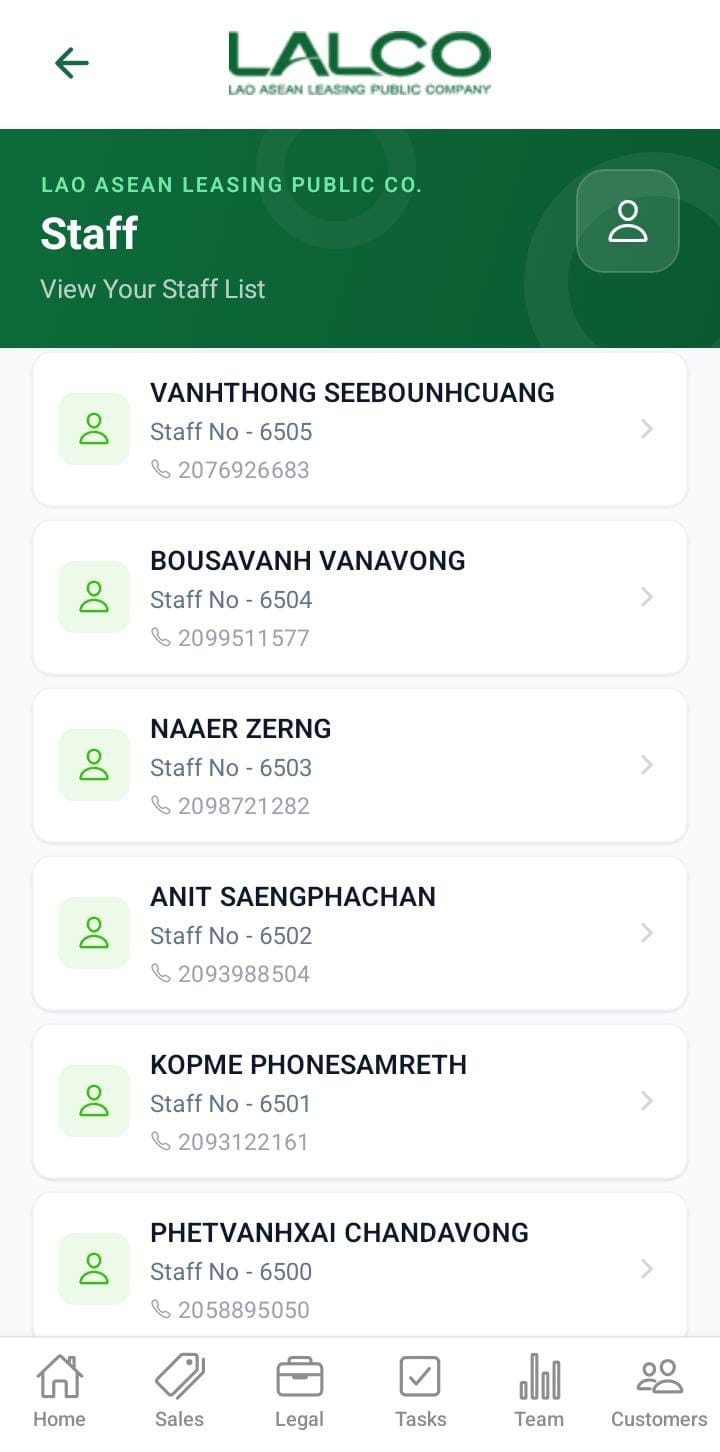
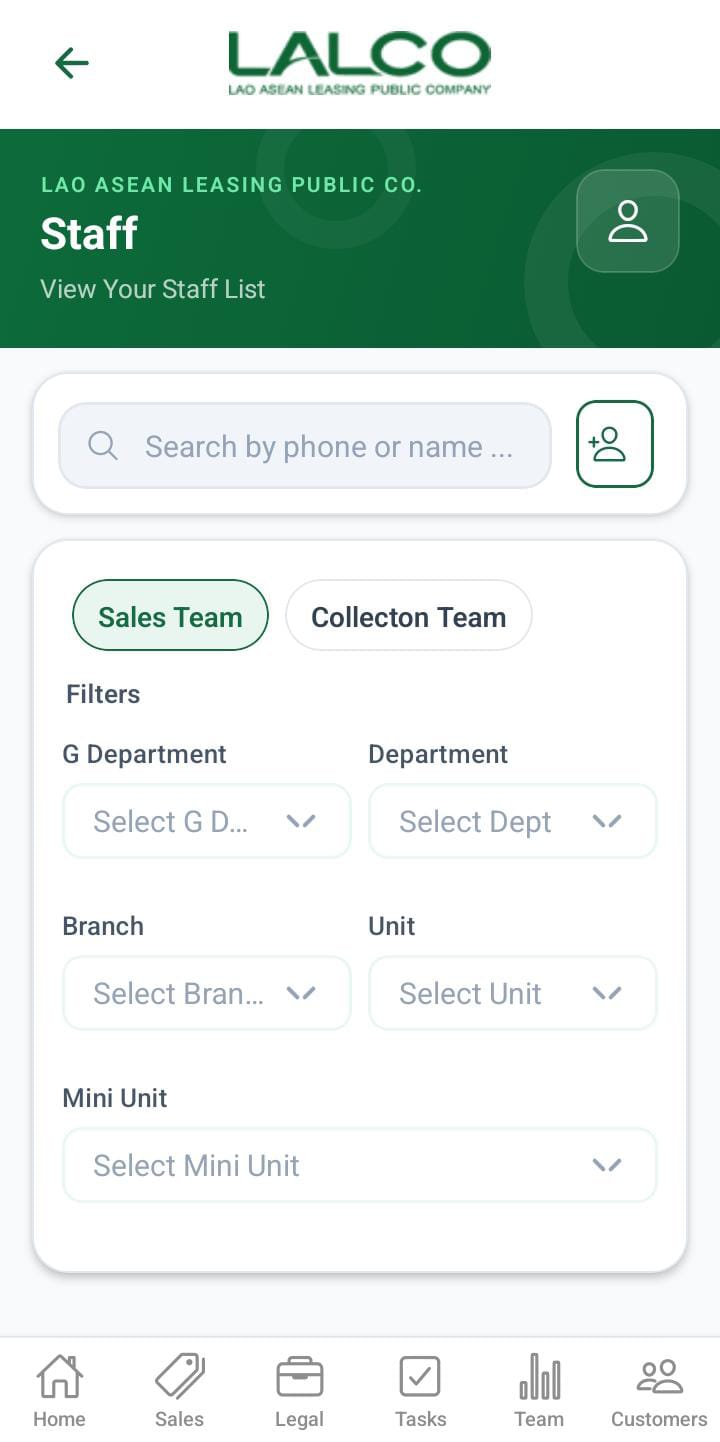
The **Staff Screen** allows users to view and manage all staff members in the system. It provides a searchable list of staff and an option to add new users.

---

# Header Section

### Page Title

**Staff**

---

### Description

<div class="relative w-full mt-4 mb-1" id="bkmrk-view-your-staff-list"><div class=""><div class="relative"><div class="h-full min-h-0 min-w-0"><div class="h-full min-h-0 min-w-0"><div class="border border-token-border-light border-radius-3xl corner-superellipse/1.1 rounded-3xl"><div class="h-full w-full border-radius-3xl bg-token-bg-elevated-secondary corner-superellipse/1.1 overflow-clip rounded-3xl lxnfua_clipPathFallback"><div class="pe-11 pt-3"><div class="relative z-0 flex max-w-full"><div class="q9tKkq_viewer cm-editor z-10 light:cm-light dark:cm-light flex h-full w-full flex-col items-stretch ͼ1c ͼ1q" dir="ltr" id="bkmrk-view-your-staff-list-1"><div class="cm-scroller"><div class="cm-content q9tKkq_readonly">View Your Staff List</div></div></div></div></div></div></div></div></div><div class="">  
</div></div></div></div>---

# Search Function

### Search Bar

<div class="relative w-full mt-4 mb-1" id="bkmrk-search-by-phone-or-n"><div class=""><div class="relative"><div class="h-full min-h-0 min-w-0"><div class="h-full min-h-0 min-w-0"><div class="border border-token-border-light border-radius-3xl corner-superellipse/1.1 rounded-3xl"><div class="h-full w-full border-radius-3xl bg-token-bg-elevated-secondary corner-superellipse/1.1 overflow-clip rounded-3xl lxnfua_clipPathFallback"><div class="pe-11 pt-3"><div class="relative z-0 flex max-w-full"><div class="q9tKkq_viewer cm-editor z-10 light:cm-light dark:cm-light flex h-full w-full flex-col items-stretch ͼ1c ͼ1q" dir="ltr" id="bkmrk-search-by-phone-or-n-1"><div class="cm-scroller"><div class="cm-content q9tKkq_readonly">Search by phone or name</div></div></div></div></div></div></div></div></div><div class=""><div class="">  
</div></div></div></div></div>Allows users to search staff by:

- Name
- Phone number

---

# Add Staff

### Add Staff Button

<div class="relative w-full mt-4 mb-1" id="bkmrk-%2B-add-staff"><div class=""><div class="relative"><div class="h-full min-h-0 min-w-0"><div class="h-full min-h-0 min-w-0"><div class="border border-token-border-light border-radius-3xl corner-superellipse/1.1 rounded-3xl"><div class="h-full w-full border-radius-3xl bg-token-bg-elevated-secondary corner-superellipse/1.1 overflow-clip rounded-3xl lxnfua_clipPathFallback"><div class="pe-11 pt-3"><div class="relative z-0 flex max-w-full"><div class="q9tKkq_viewer cm-editor z-10 light:cm-light dark:cm-light flex h-full w-full flex-col items-stretch ͼ1c ͼ1q" dir="ltr" id="bkmrk-%2B-add-staff-1"><div class="cm-scroller"><div class="cm-content q9tKkq_readonly">+ Add Staff</div></div></div></div></div></div></div></div></div><div class=""><div class="">  
</div></div></div></div></div>Allows users to create a new staff account.

---

# Staff List

Each item represents a staff member.

### Example:

<div class="relative w-full mt-4 mb-1" id="bkmrk-harshana-eranda-0771"><div class=""><div class="relative"><div class="h-full min-h-0 min-w-0"><div class="h-full min-h-0 min-w-0"><div class="border border-token-border-light border-radius-3xl corner-superellipse/1.1 rounded-3xl"><div class="h-full w-full border-radius-3xl bg-token-bg-elevated-secondary corner-superellipse/1.1 overflow-clip rounded-3xl lxnfua_clipPathFallback"><div class="pe-11 pt-3"><div class="relative z-0 flex max-w-full"><div class="q9tKkq_viewer cm-editor z-10 light:cm-light dark:cm-light flex h-full w-full flex-col items-stretch ͼ1c ͼ1q" dir="ltr" id="bkmrk-harshana-eranda-0771-1"><div class="cm-scroller"><div class="cm-content q9tKkq_readonly">Harshana Eranda   
0771234567</div></div></div></div></div></div></div></div></div><div class=""><div class="">  
</div></div></div></div></div>---

### Information Displayed

Each record shows:

- **Staff Name**
- **Phone Number**

---

# How to Use

### View Staff

1. Open the **Staff section**
2. Browse or search staff members

---

### Add New Staff

1. Tap **Add Staff**
2. Fill in required details
3. Tap **Save User**

---

---

# Add New User Screen

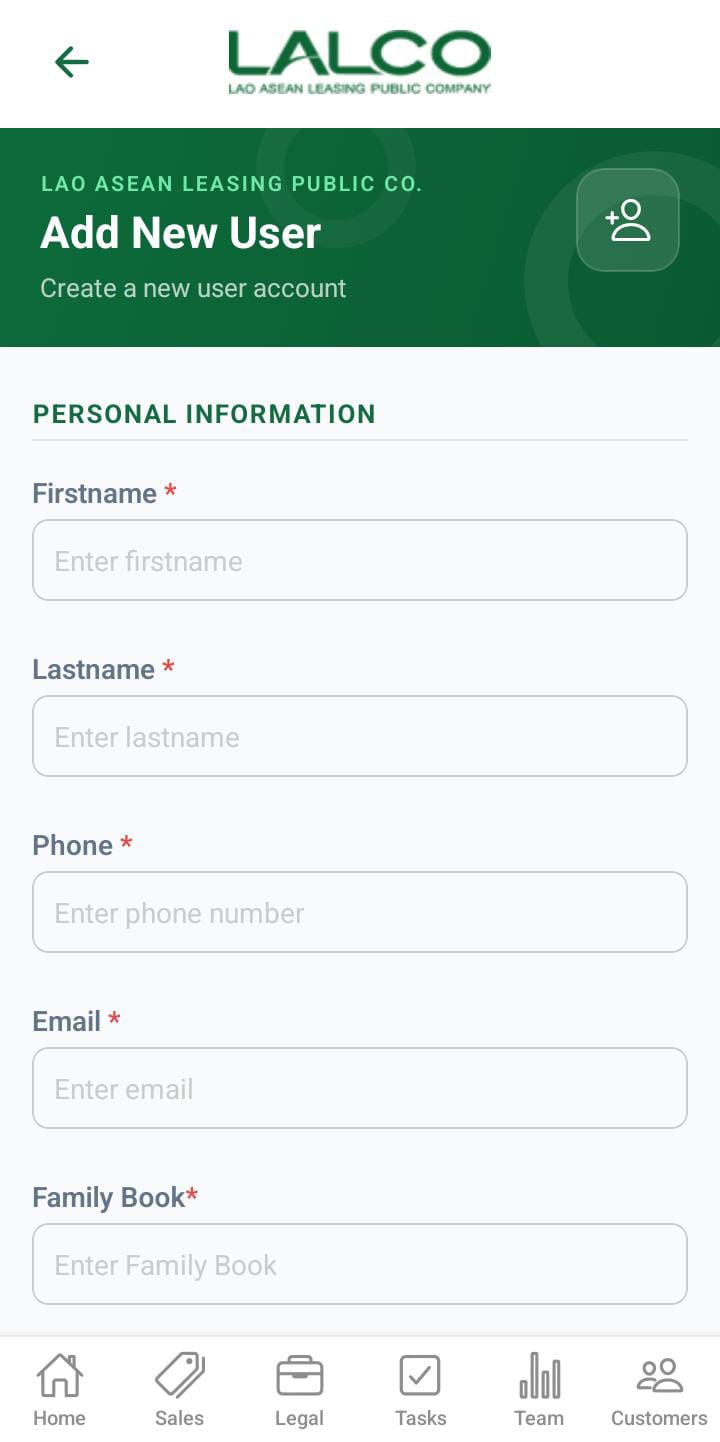
[![7c684029-c1cc-4081-85b5-30914a976ee6.jpg](http://wiki.lalco.la/uploads/images/gallery/2026-03/scaled-1680-/7c684029-c1cc-4081-85b5-30914a976ee6.jpg)](http://wiki.lalco.la/uploads/images/gallery/2026-03/7c684029-c1cc-4081-85b5-30914a976ee6.jpg)The **Add New User Screen** allows administrators to create new staff accounts by entering personal, role, and address details.

---

# Personal Information

- **Name** → Full name of staff
- **Phone** → Contact number
- **Email** → Optional email address
- **Family Book** → Additional identification
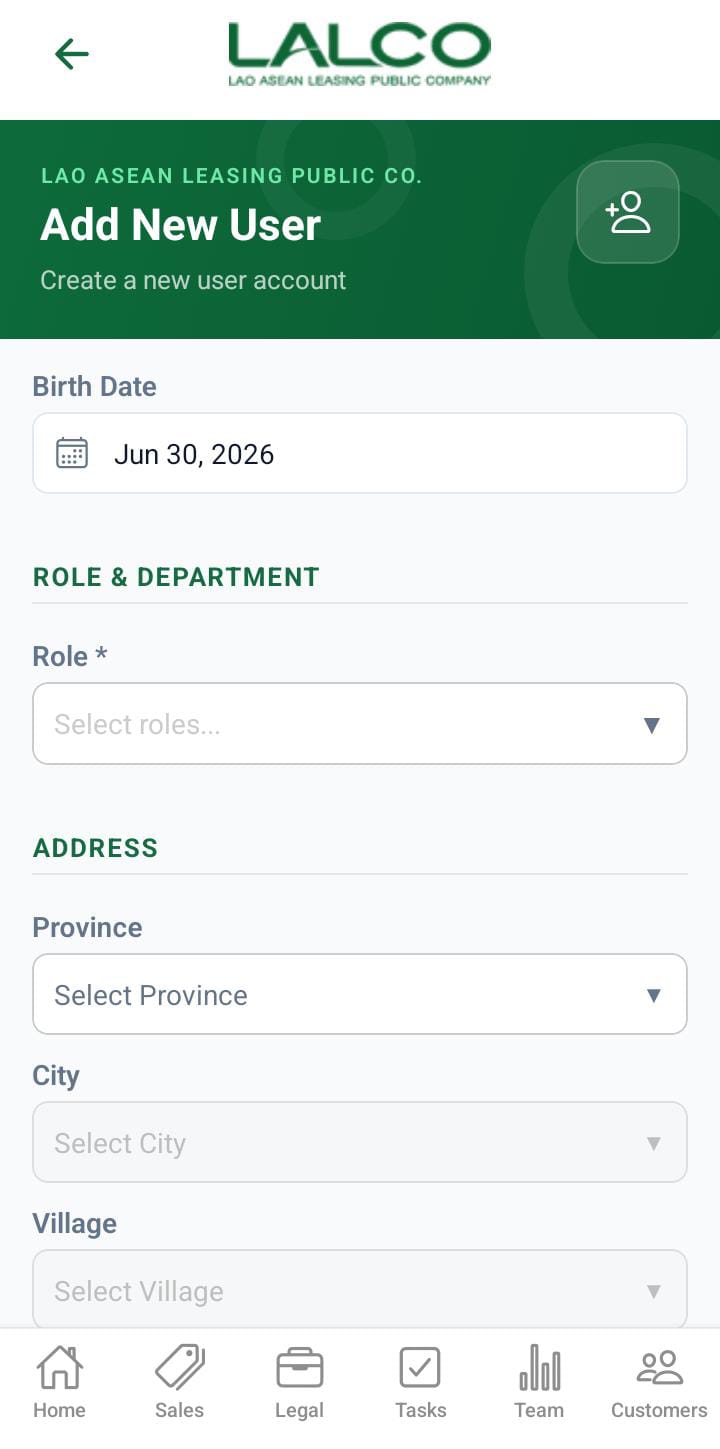
- **Birth Date** → Date of birth

---

# Role &amp; Department

- **Role** → Select user role
- **Department** → Select department

---

# Address

- **Address Unit** → Street or unit
- **Province** → Select province
- **City** → Select city
- **Village** → Select village

---

# Security

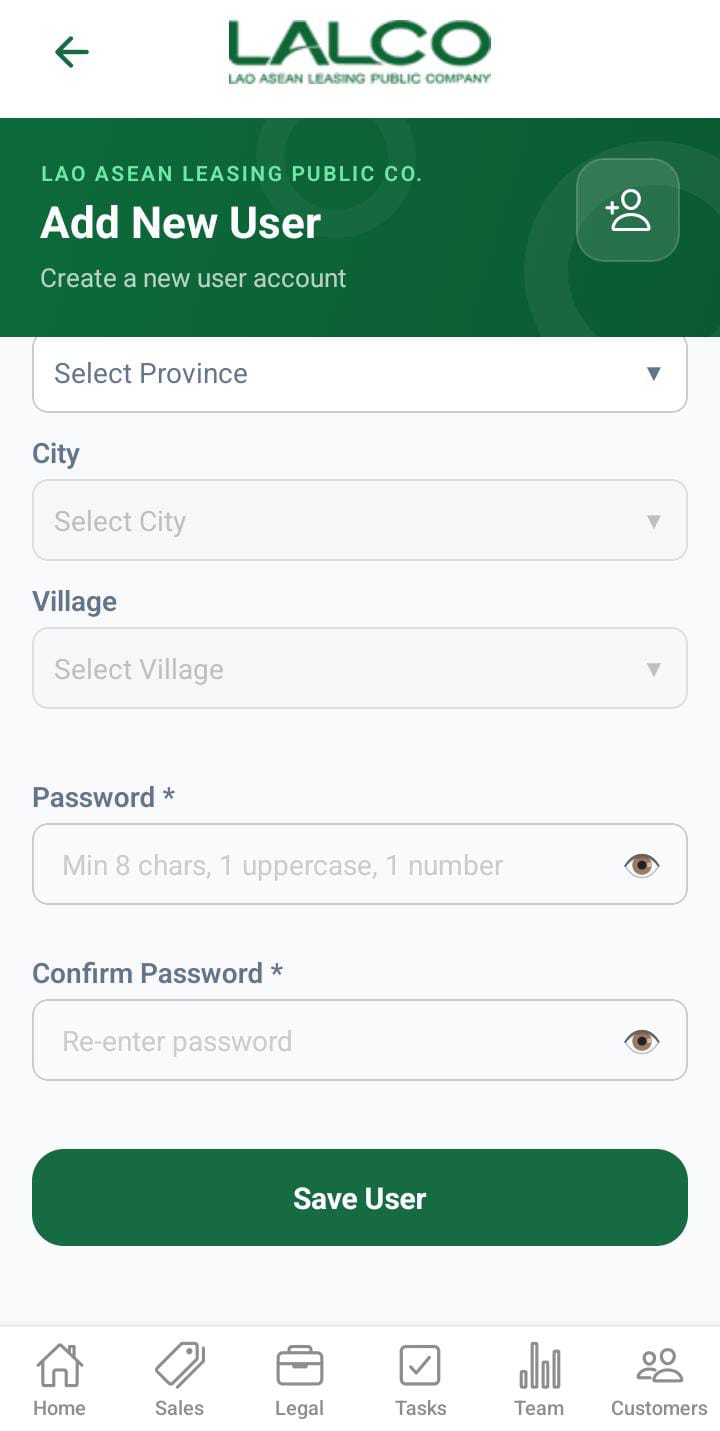
- **Password** → Minimum 8 characters (with uppercase &amp; number)
- **Confirm Password** → Re-enter password

---

# Actions

### Save User

Creates the new staff account after validation.

---

# Navigation

<div class="relative w-full mt-4 mb-1" id="bkmrk-menu-%E2%86%92-staff-%E2%86%92-add-s"><div class=""><div class="relative"><div class="h-full min-h-0 min-w-0"><div class="h-full min-h-0 min-w-0"><div class="border border-token-border-light border-radius-3xl corner-superellipse/1.1 rounded-3xl"><div class="h-full w-full border-radius-3xl bg-token-bg-elevated-secondary corner-superellipse/1.1 overflow-clip rounded-3xl lxnfua_clipPathFallback"><div class="pe-11 pt-3"><div class="relative z-0 flex max-w-full"><div class="q9tKkq_viewer cm-editor z-10 light:cm-light dark:cm-light flex h-full w-full flex-col items-stretch ͼ1c ͼ1q" dir="ltr"><div class="cm-scroller"><div class="cm-content q9tKkq_readonly">Menu → Staff → Add Staff → Save User</div></div></div></div></div></div></div></div></div></div></div></div>---

# Staff Details Screen

[![9f32500a-1101-4415-9ccc-99c43df4049a.jpg](http://wiki.lalco.la/uploads/images/gallery/2026-03/scaled-1680-/9f32500a-1101-4415-9ccc-99c43df4049a.jpg)](http://wiki.lalco.la/uploads/images/gallery/2026-03/9f32500a-1101-4415-9ccc-99c43df4049a.jpg)

---

# Header Section

### Page Title

**Staff**

---

### Description

```
View Staff Details

```

---

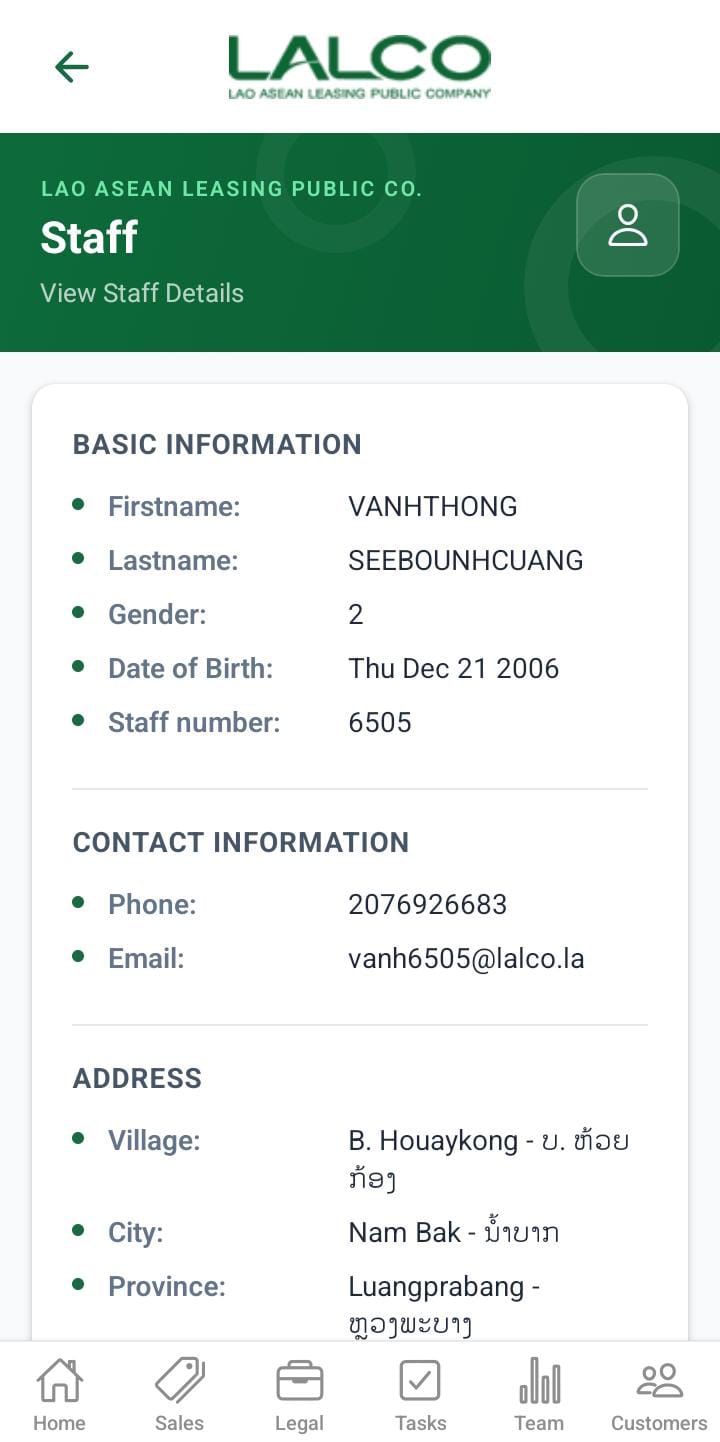
# Basic Information

Displays personal details of the staff member:

- **Name** → Full name of the staff member
- **Gender** → Male or Female
- **Date of Birth** → Staff member’s birth date
- **Family Book** → Official identification/reference number

---

# Contact Information

- **Phone** → Contact number
- **Email** → Email address

---

# Roles

Shows the role assigned to the staff member.

Example:

- Manager

---

# Departments

Displays the department the staff belongs to.

Example:

- Legal

---

# Address

- **House No** → House number
- **Village** → Village name
- **City** → City name
- **Province** → Province

---

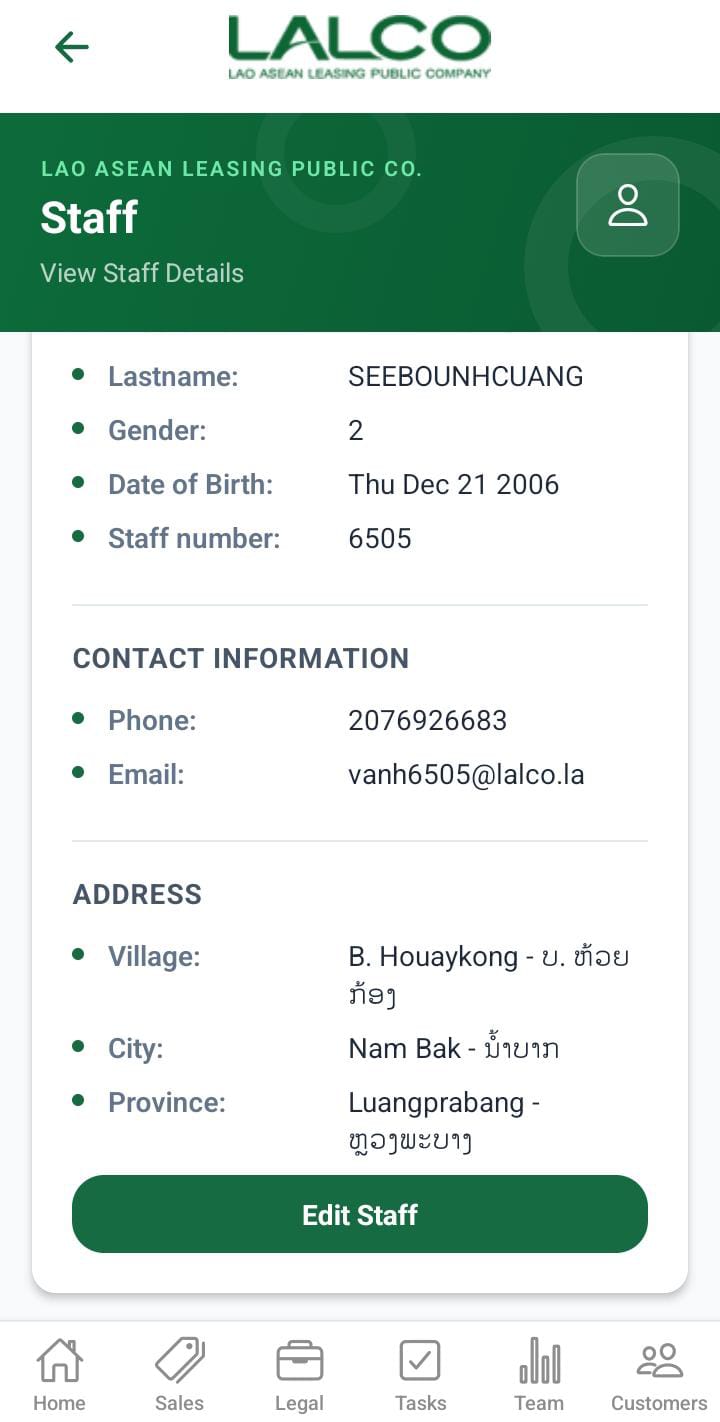
# Actions

### Edit Staff

Allows users to update or modify staff information.

---

# How to Use

### View Staff Details

1. Open the **Staff section**
2. Select a staff member
3. View all details

---

### Edit Staff

1. Tap **Edit Staff**
2. Update required fields
3. Save changes

---

---

# Edit User Screen

[![243d2d49-7940-4247-8eb3-e3b0ae788a2e.jpg](http://wiki.lalco.la/uploads/images/gallery/2026-03/scaled-1680-/243d2d49-7940-4247-8eb3-e3b0ae788a2e.jpg)](http://wiki.lalco.la/uploads/images/gallery/2026-03/243d2d49-7940-4247-8eb3-e3b0ae788a2e.jpg)

##   


The Edit **New User Screen** allows administrators to create a new staff account by entering personal, role, and address details.

---


# Personal Information

- **Name** → Staff full name
- **Phone** → Contact number
- **Email** → Email address
- **Family Book** → Identification number
- **Birth Date** → Date of birth

---

# Role &amp; Department

- **Role** → Select staff role (e.g., Manager)
- **Department** → Select department (e.g., Legal)

---

# Address

- **Address Unit** → House or unit number
- **Province** → Select province
- **City** → Select city
- **Village** → Select village

---

# Actions

### Save User

Creates the new staff account after entering all required details.

---

# Security

### Reset Password

Option to reset or assign a password for the user.

---

# How to Use

### Add New User

1. Open **Edit Staff**
2. Enter all required information
3. Select role and department
4. Fill address details
5. Tap **Save User**