# SRR - SME Sales Result Report
# SRR Uploads
**SRR Uploads
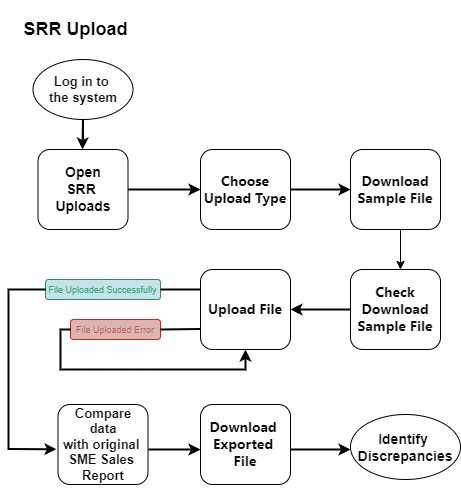
Overview** The SRR Uploads feature provides a centralized platform for managing various data uploads related to the Sales Report (SRR) module. This includes uploading rules, staff lists, and other relevant data.
[](http://wiki.lalco.la/uploads/images/gallery/2024-10/aKmsrr-uploads-drawio-1.png)
**SRR Upload**
[](http://wiki.lalco.la/uploads/images/gallery/2024-10/screenshot-2024-10-08-091318.png)
##### **Steps**
1. **Navigate to the Uploads Page**
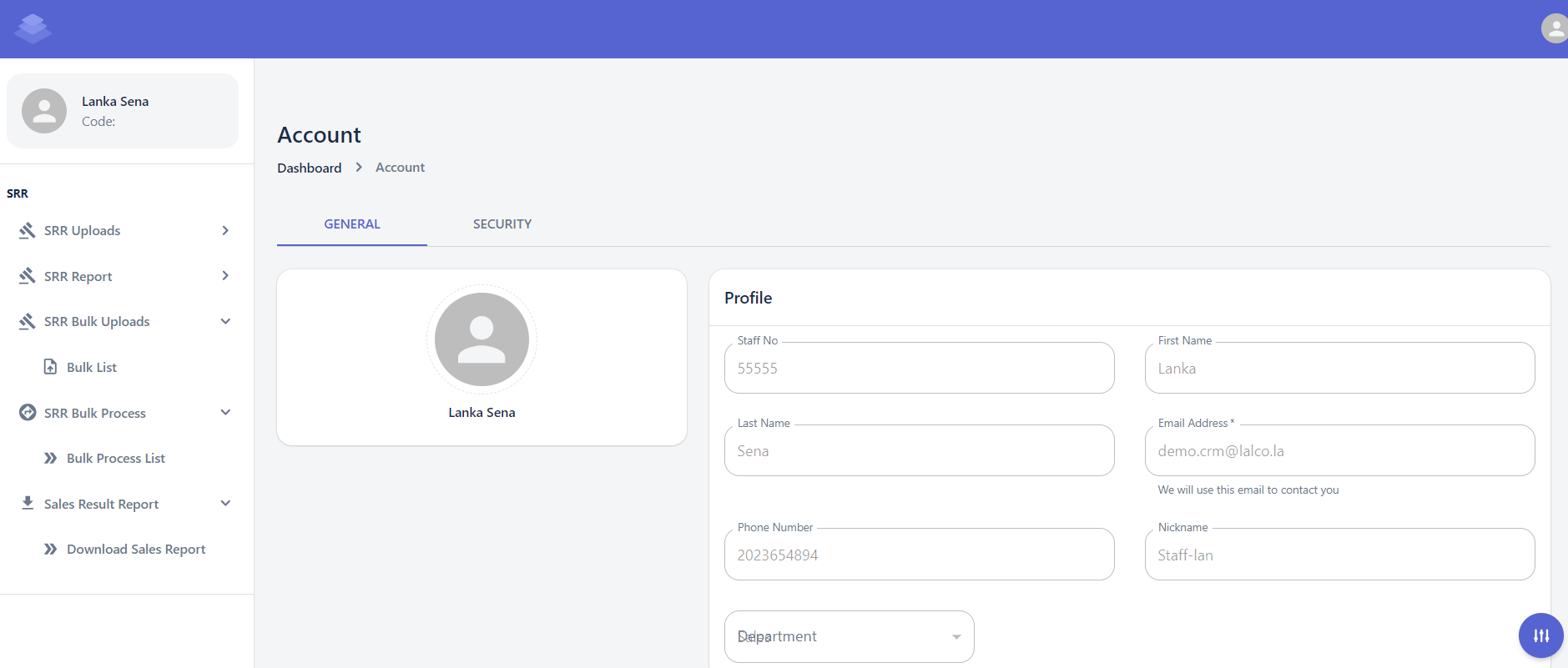
- Log in to the system and navigate to the "Dashboard" section.
- Click on the "SRR" tab.
- Select the "Upload" option.
2. **Choose Upload Type**
- Select the specific upload type you want to perform (e.g., Rule, Staff List, Bulk Data).
3. **Download Sample File (Optional)**
- If available, download a sample file to guide you in preparing your data.
4. **Check the Downloaded Sample File**
- Check the Downloaded Sample Data is in the correct format and structure, in the sample file Against the Original SME Sales Report to Identify Discrepancies or Errors
5. **Upload the File**
- Click the "Choose File" button and select the downloaded sample data file.
- Click the "Upload" button to initiate the upload process.[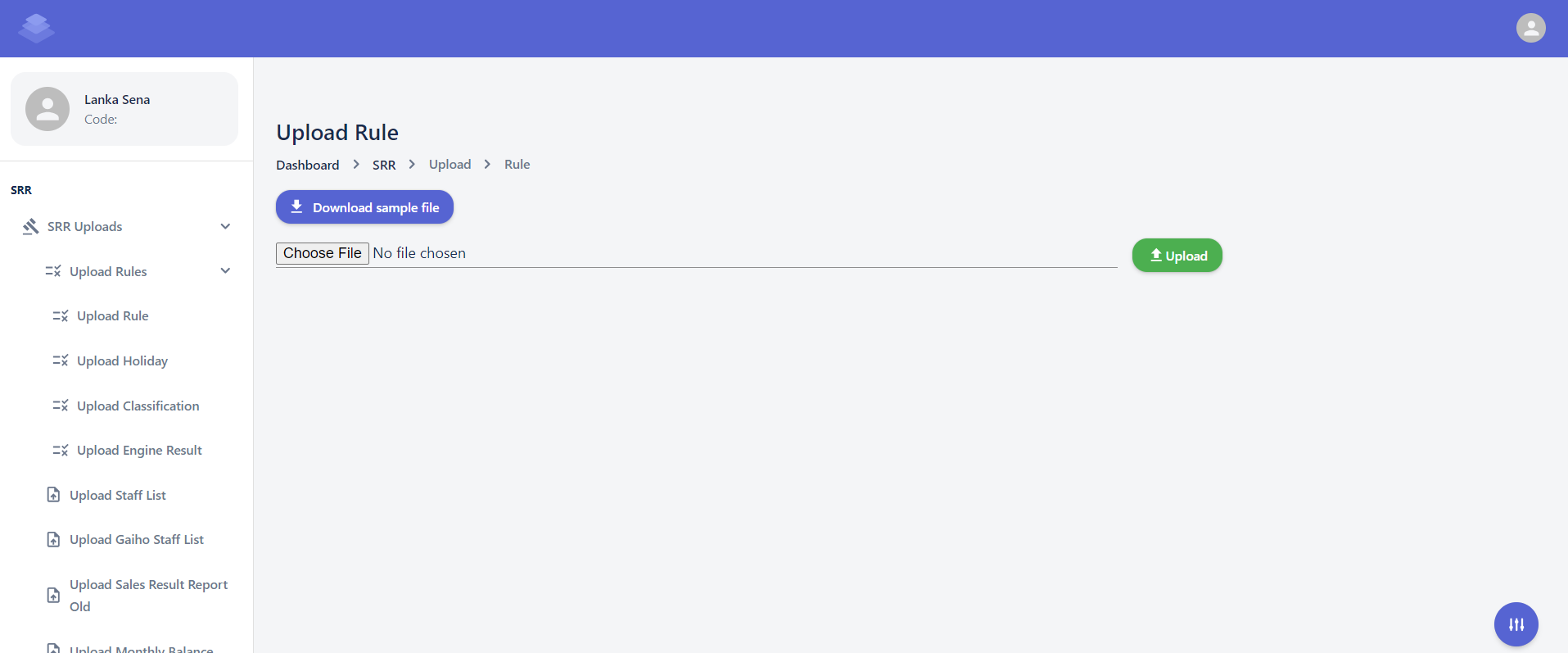](http://wiki.lalco.la/uploads/images/gallery/2024-10/screenshot-2024-10-08-100808.png)
6. **Verify and Process**
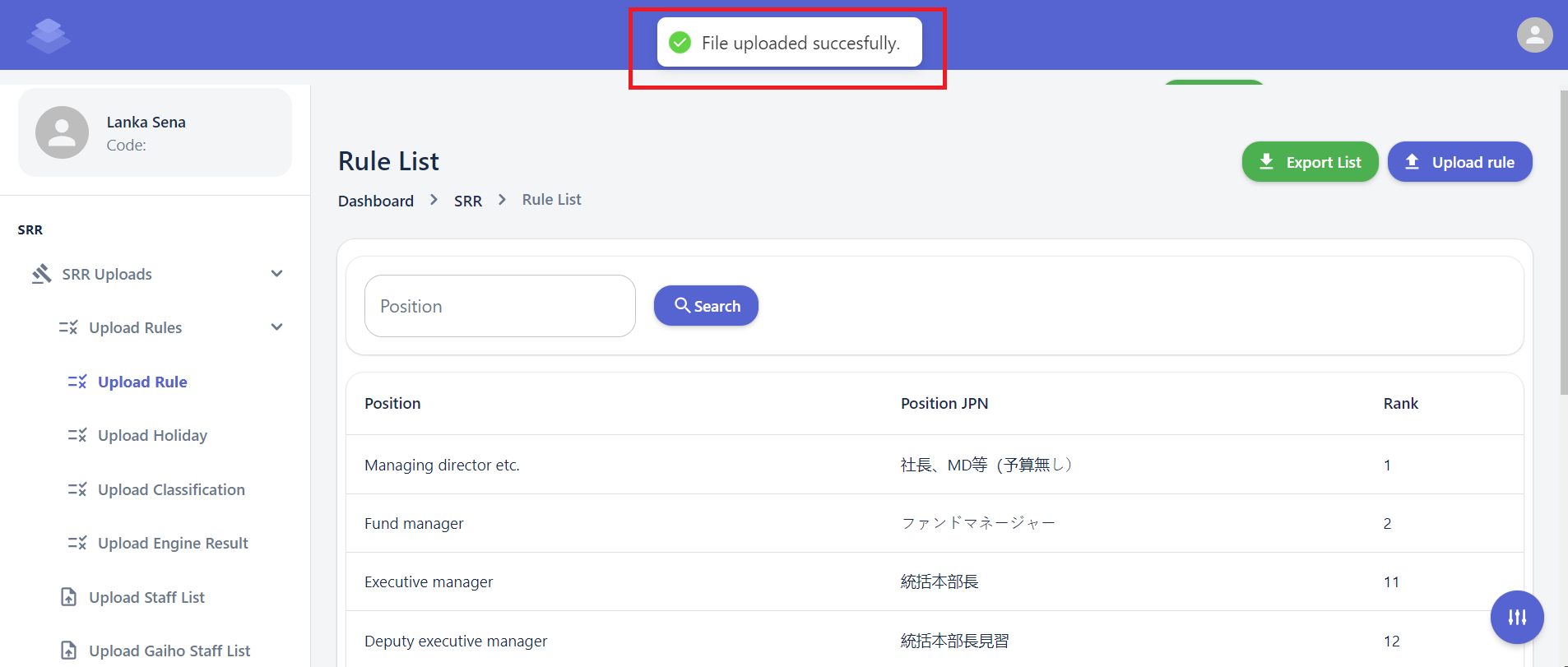
- The system will process the uploaded data and display a confirmation message.
"File Upload Successfully"
- Review the message for any errors or warnings.
- If there are no errors, the uploaded data will be successfully processed.
[](http://wiki.lalco.la/uploads/images/gallery/2024-10/screenshot-2024-10-08-111235.png)
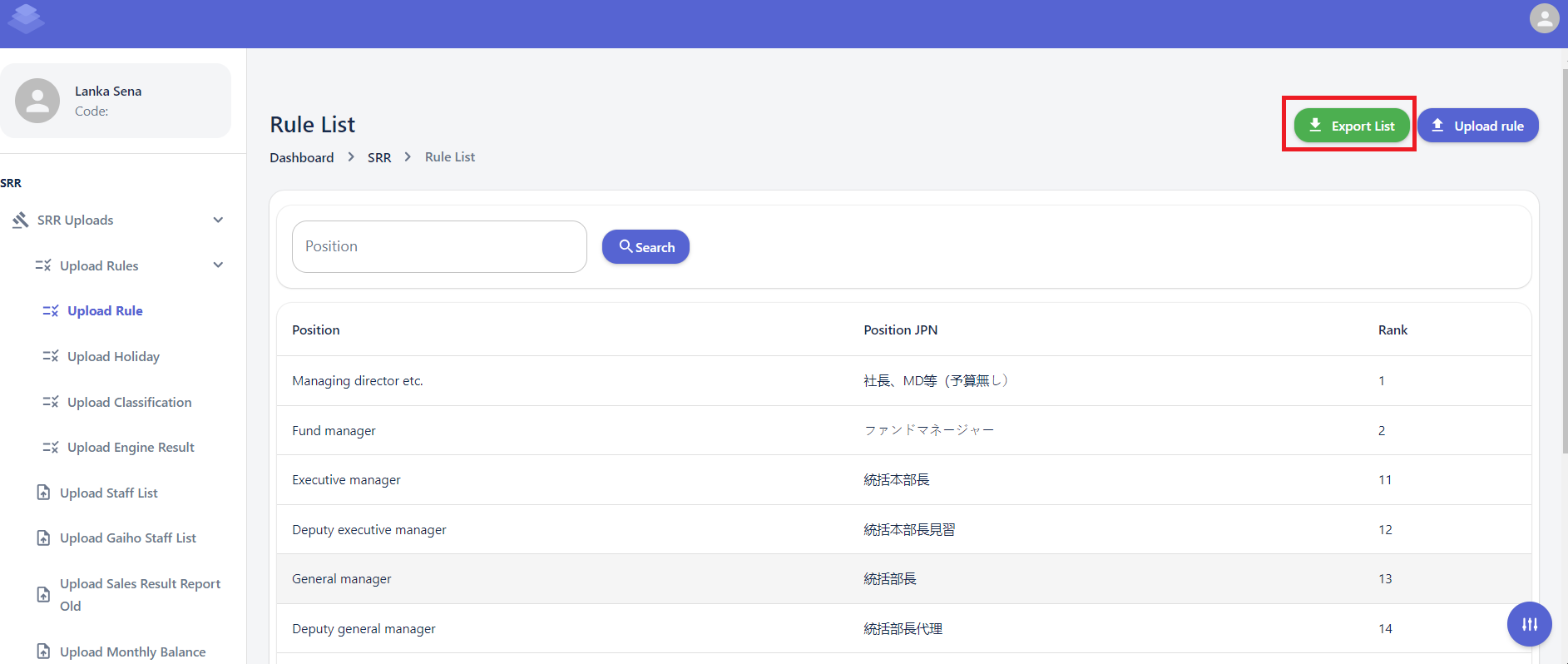
- **Locate the "Export List" Button:**
- Look for the "Export List" button at the top right corner of the Rule List page.
- **Click the "Export List" Button:**
- Click the "Export List" button to initiate the export process.
- **Download the Exported File:**
- The system will generate a downloadable file containing the list of rules.
- Choose a suitable location to save the file on your device.
[](http://wiki.lalco.la/uploads/images/gallery/2024-10/zyUimage.png)
- **Only the raw data from the uploaded sample sheet is included. When you export the data, the values in the formula columns will be automatically calculated.**
- **Check Export Sheets Against the Original SME Sales Report to Identify Discrepancies or Errors**
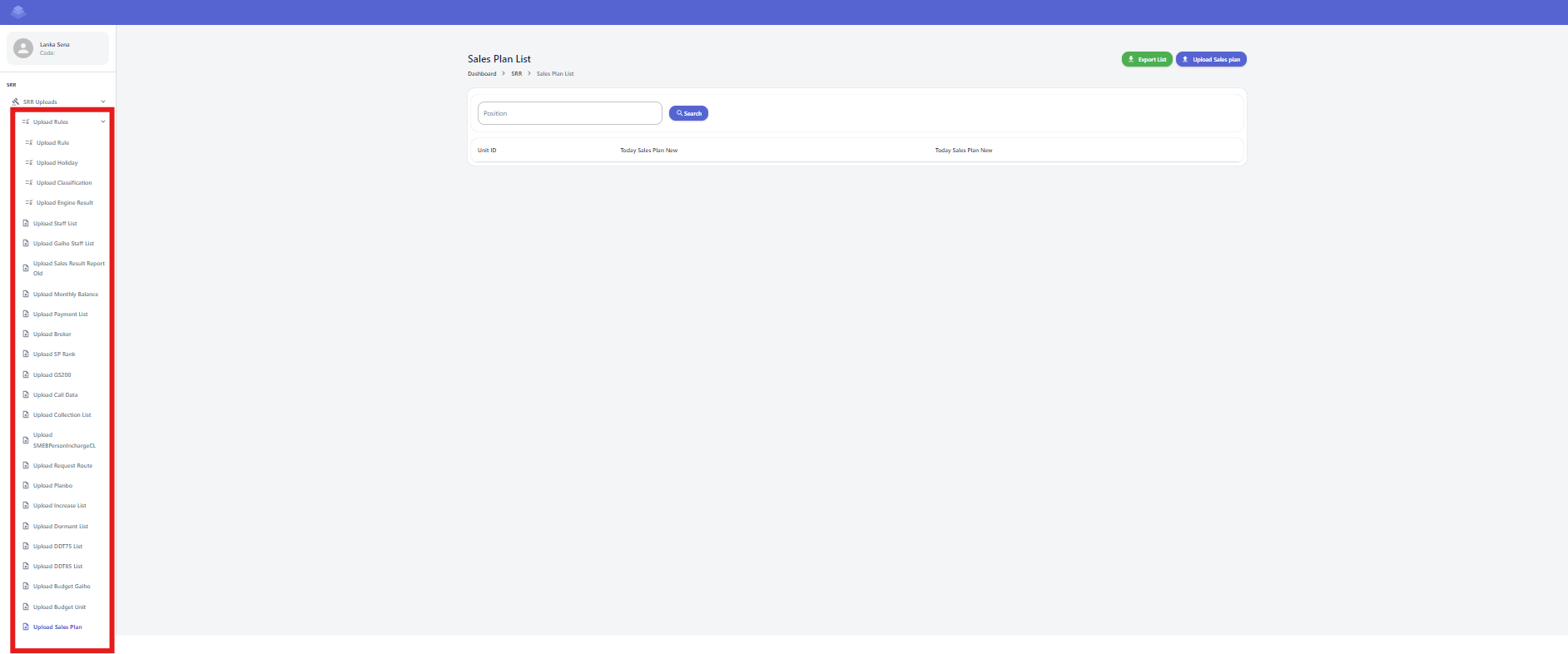
Check below all sheet according to the above steps
- Rule
- Staff
- Gaiho staff
- Sales result report old
- Monthly balance
- Payment List
- Broker
- SP Rank
- GS200
- Call Data
- Collection List
- SMEBPersonInCharge
- Request Route
- PlanBo
- Increase List
- Dormant List
- DDT75 List
- DDT85 List
- Budget Unit
- Budget Gaiho
[](http://wiki.lalco.la/uploads/images/gallery/2024-10/vOVimage.png)
# SRR Report
##### **Overview**
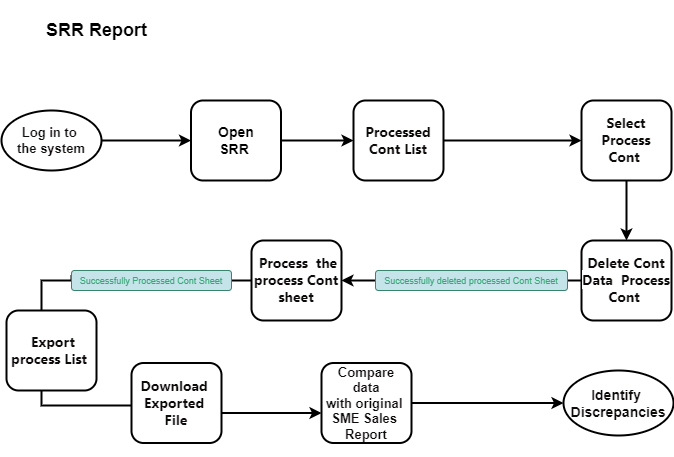
The SRR Processed Sheet is a Sales Report (SRR) module tool that allows you to manage processed contracts. View, search export, delete, and process contract data from this list.
[ ](http://wiki.lalco.la/uploads/images/gallery/2024-10/srr-report.png)
SRR Report
##### **[](http://wiki.lalco.la/uploads/images/gallery/2024-10/dLbscreenshot-2024-10-08-143606.png)
Steps**
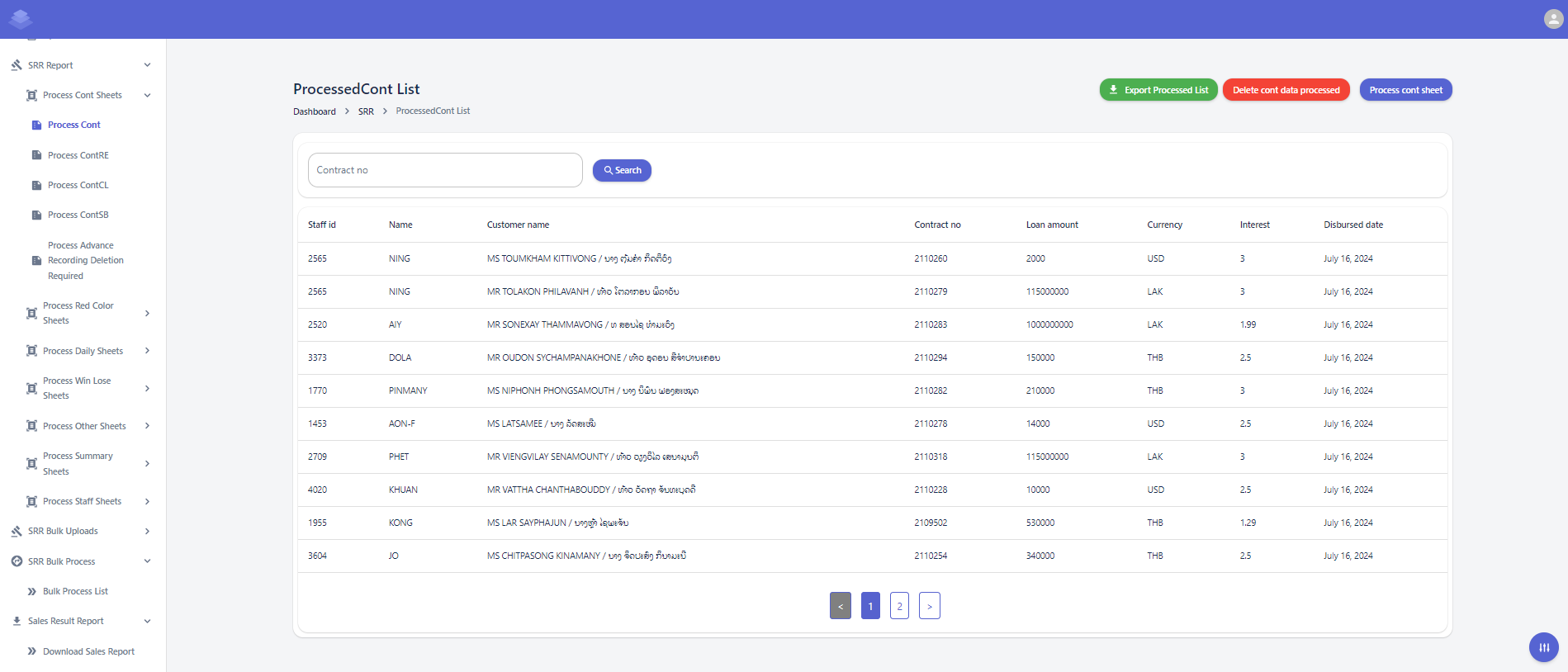
1. **Navigate to the Processed sheets**
- Log in to the system and navigate to the "Dashboard" section.
- Click on the "SRR Report" tab.
- Select the "Processed Cont List" option.
**Dashboard >SRR>SRR ProcessedCont List >Process Cont**
2. **Locate the Contract Sheet**
- Identify the contract sheet you want to process from the list.
3. **Select the Contract Sheet**
- Click on the checkbox next to the desired contract sheet.
4. **Click "Process Cont Sheet"**
- Click the "Process Cont Sheet" button at the top of the list.
5. **Confirm the Action**
- A confirmation message will appear asking if you are sure about processing the contract sheet.
- Click the "OK" button to proceed with the processing.
- Click the "Cancel" button to cancel the proceed
6. **Success message**
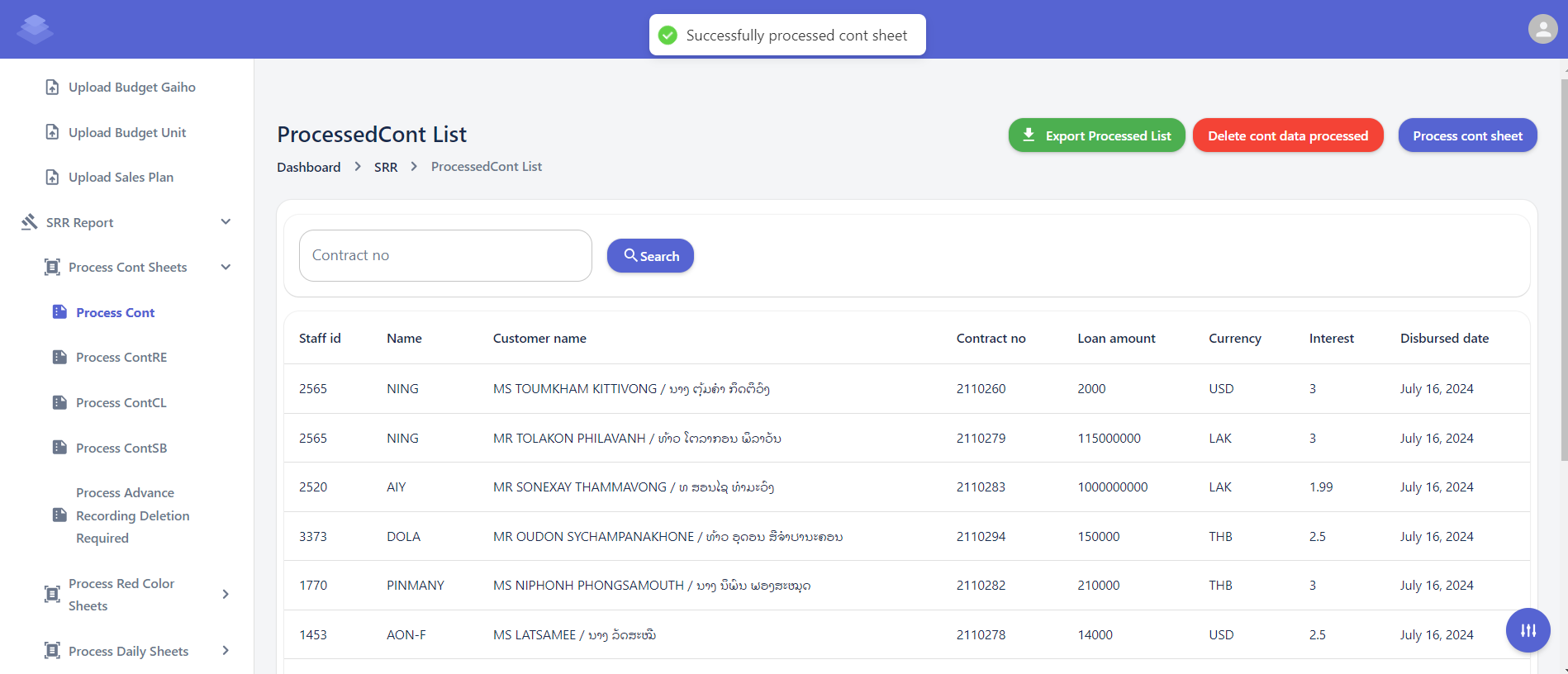
- success message indicating that the contract sheet has been processed successfully
"Successfully process cont sheet".
[](http://wiki.lalco.la/uploads/images/gallery/2024-10/screenshot-2024-10-08-151128.png)
- The list will display information such as contract number, staff ID, name, customer name, loan amount, currency, interest rate, and disbursed date.
- You can use the search bar to filter contracts based on specific criteria.
- **Delete Cont Data Processed**
- Select the contracts you want to delete and click the "Delete cont data processed" button.
- Confirm the deletion by clicking the "Delete" button in the confirmation dialog.
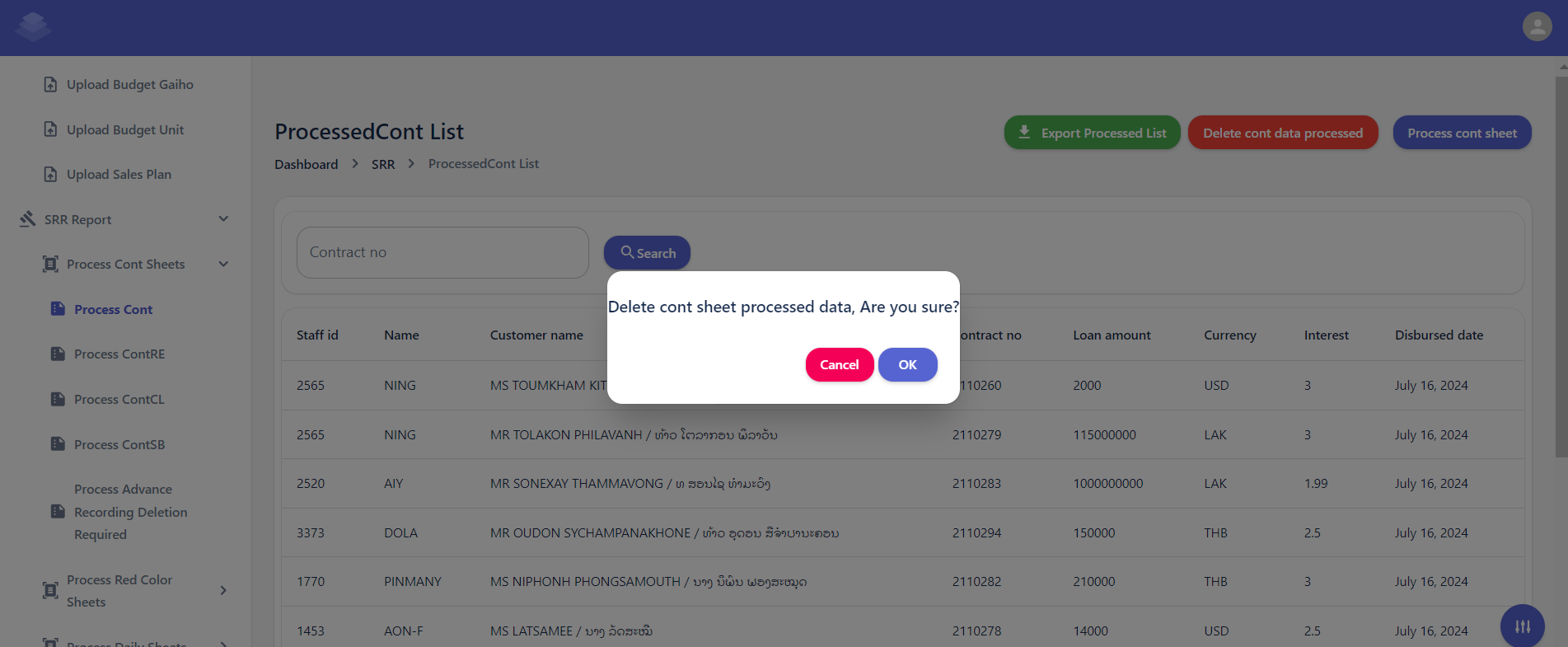
- A confirmation dialog box will appear asking if you are sure about deleting the selected contracts.
- Click the "OK" button to proceed with the deletion.
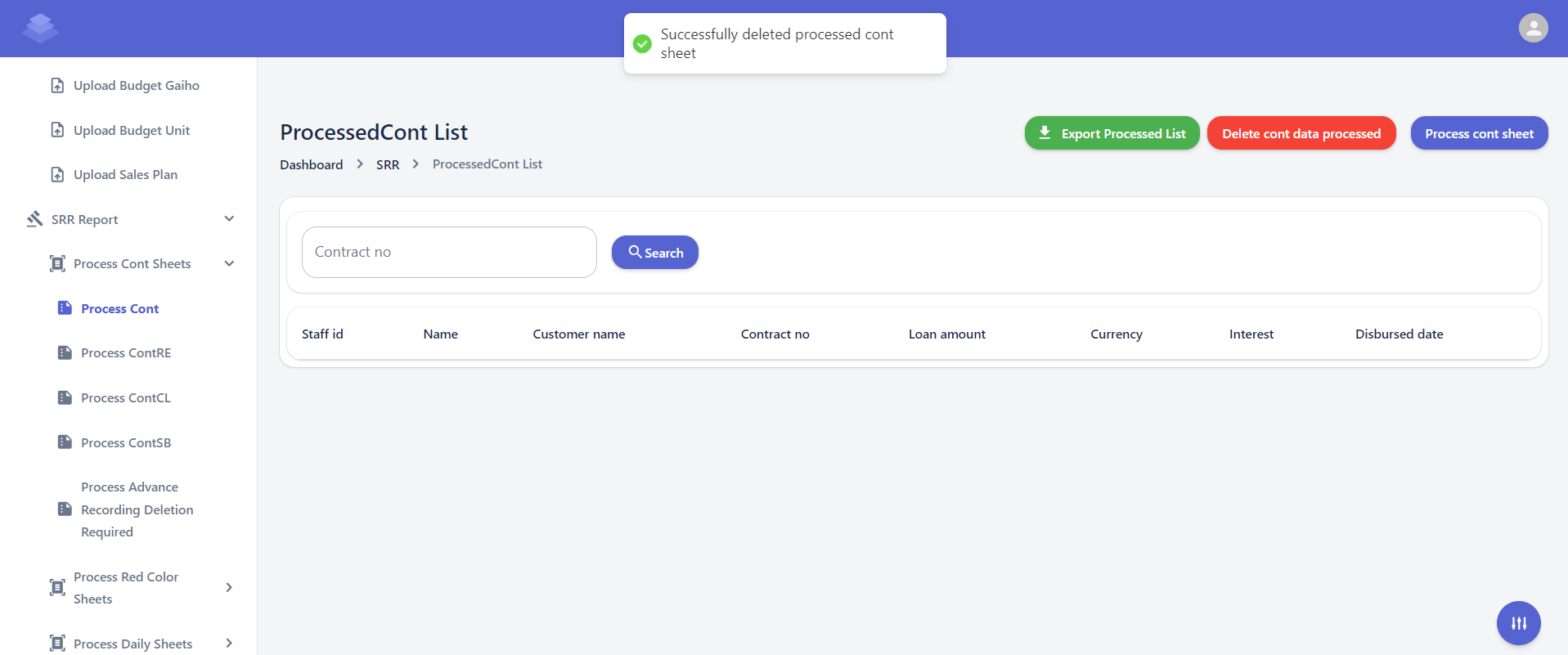
- After the deletion process is complete, you will see a message indicating that the selected contracts have been deleted & Check if all data has been removed"Successfully delete processed cont sheet"
[](http://wiki.lalco.la/uploads/images/gallery/2024-10/screenshot-2024-10-08-153400.png)
[](http://wiki.lalco.la/uploads/images/gallery/2024-10/screenshot-2024-10-08-153915.png)
- **Process Cont Sheet**
- If need to re-process a contract sheet, select the corresponding row and click the "Process cont sheet" button.
- Follow the on-screen instructions to complete the re-processing process.
- A confirmation dialog box will appear asking if you are sure about processing the contract sheet.
- Click the "OK" button to proceed with the re-processing.
- If the contract sheet is processed successfully, you will see a success message indicating that the "Successfully process cont sheet"
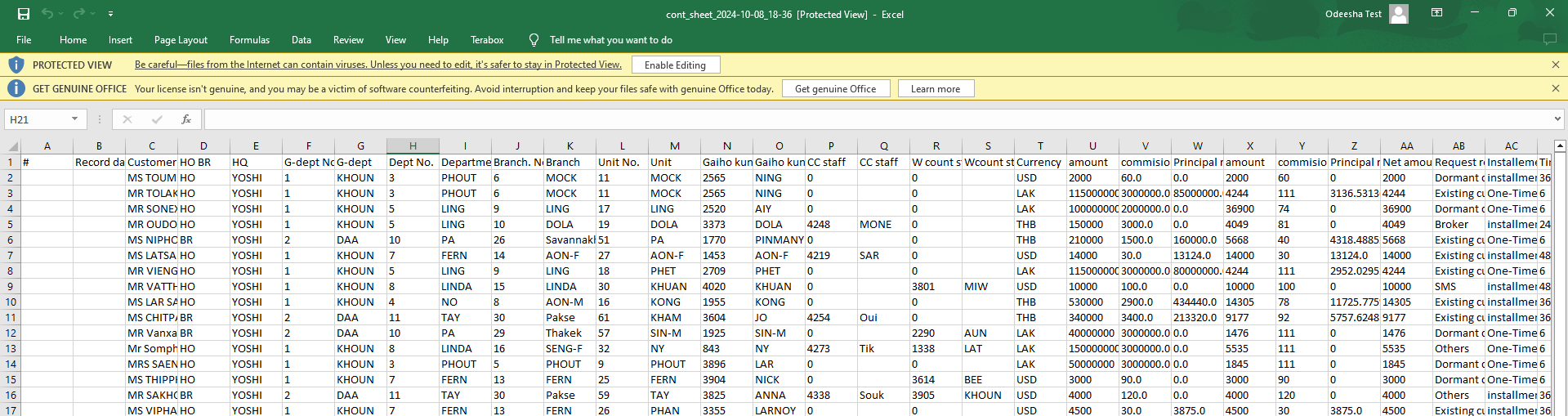
- Only the raw data from the uploaded sample sheet is included. When you export the data, the values in the formula columns will be automatically calculated.
- **Export Processed List**
- Click the "Export Processed List" button to download a list of processed contracts in a desired format (e.g., CSV, Excel).
- Check Export Sheets Against the Original SME Sales Report to Identify Discrepancies or Errors
[](http://wiki.lalco.la/uploads/images/gallery/2024-10/screenshot-2024-10-08-170746.png)
Export Sheets
[](http://wiki.lalco.la/uploads/images/gallery/2024-10/ky7image.png)
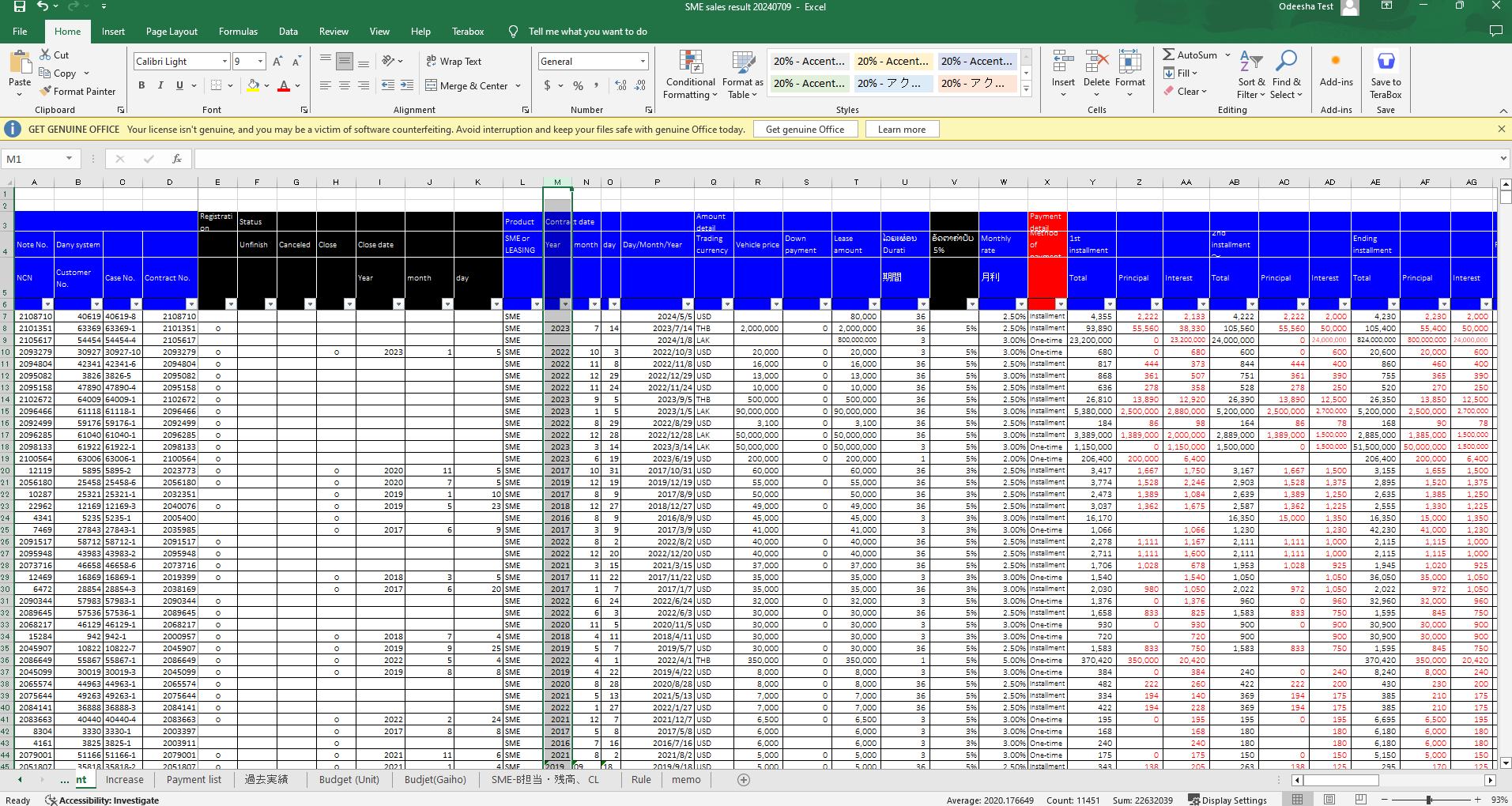
Original SME Sales Report
# SRR Bulk Uploads
##### **Overview**
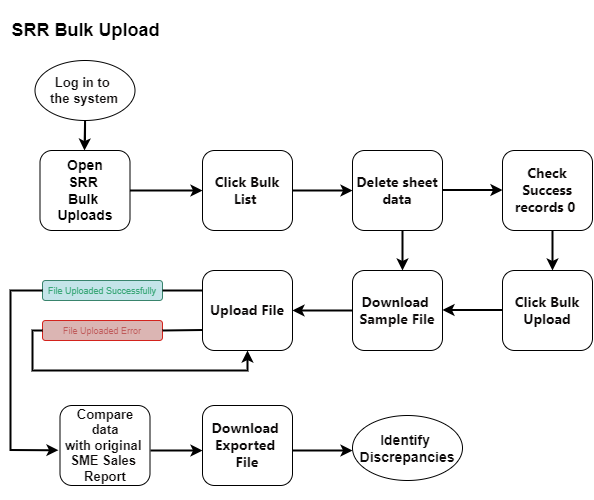
This Page provides a detailed explanation of the Bulk Upload List interface, which is part of the system. The interface allows users to view, manage, delete & upload data sheets.
[](http://wiki.lalco.la/uploads/images/gallery/2024-10/srr-bulk-list-drawio.png)
SRR Bulk Upload
##### **[](http://wiki.lalco.la/uploads/images/gallery/2024-10/screenshot-2024-10-09-092606.png)
Steps**
1. **Navigate to the SRR Bulk Uploads**
- Log in to the system and navigate to the "Dashboard" section.
- Click on the "SRR Report" tab.
- Select the "SRR Bulk Uploads" option.
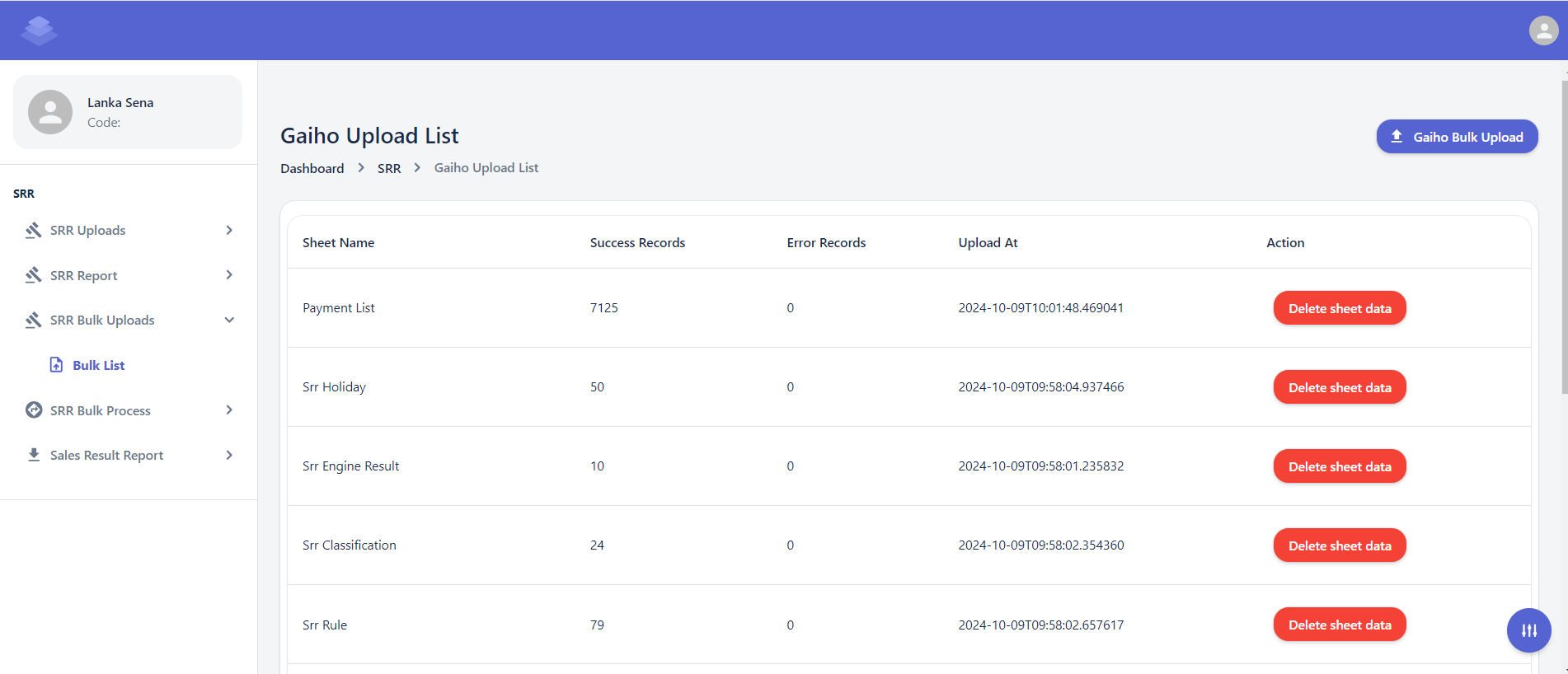
**Dashboard >SRR>SRR Bulk Uploads >Bulk List**
2. **View Uploaded Sheets**
- The list of uploaded sheets will be displayed in the table.
- The list will display information such as Sheet name, Success Records, Error Records, and Upload At.
3. **View Sheet Details**
- Click on a sheet name to view more information about it, including the number of successful and error records.
4. **Delete Sheet Data (Optional)**
- If necessary, click the "Delete sheet data" button to delete the data associated with a specific sheet.
5. **Upload New Sheets**
- Use the "Gaiho Bulk Upload" button to upload new data sheets.
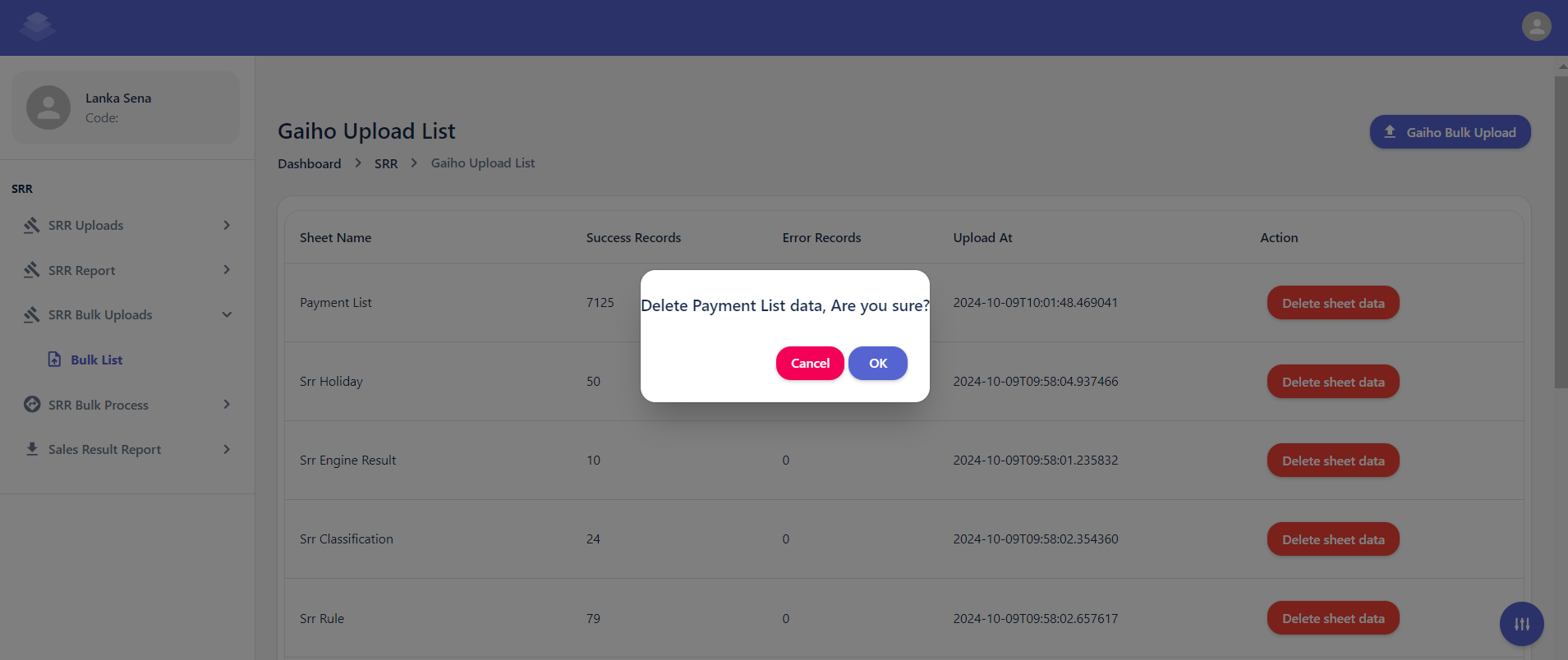
- **Delete Sheet Data**
- Select the contracts you want to delete and click the "Delete sheet data" button.
- Confirm the deletion by clicking the "Delete" button in the confirmation dialog.
- A confirmation dialog box will appear asking if you are sure about deleting the selected contracts.
- Click the "OK" button to proceed with the deletion.
- After the deletion process is complete, you will see a message indicating that the selected contracts have been deleted & Check if all data has been removed"Successfully Delete sheet data"
[](http://wiki.lalco.la/uploads/images/gallery/2024-10/screenshot-2024-10-09-095421.png)
- **Download Sample file**
- Click the "Gaiho Bulk Upload" button [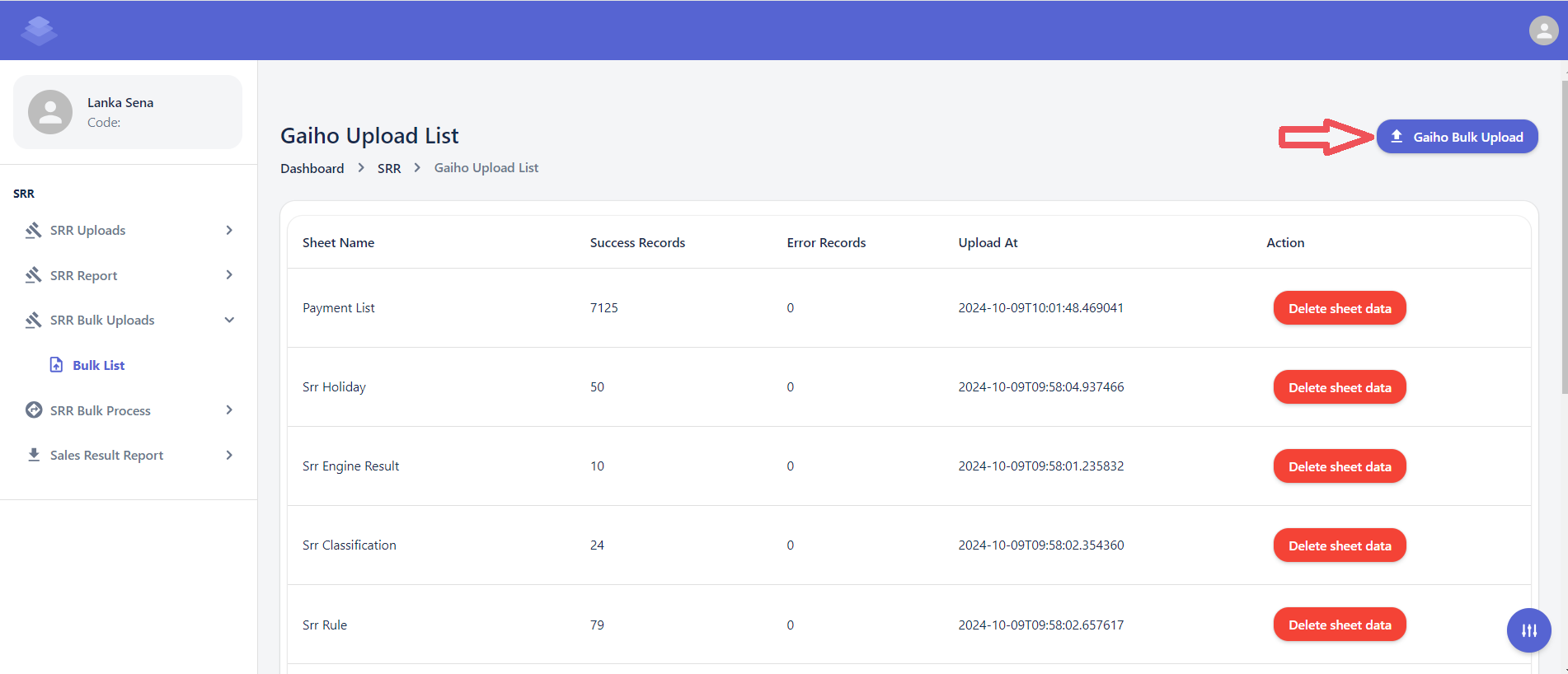](http://wiki.lalco.la/uploads/images/gallery/2024-10/lanimage.png)
- Click the "Download sample file" button
[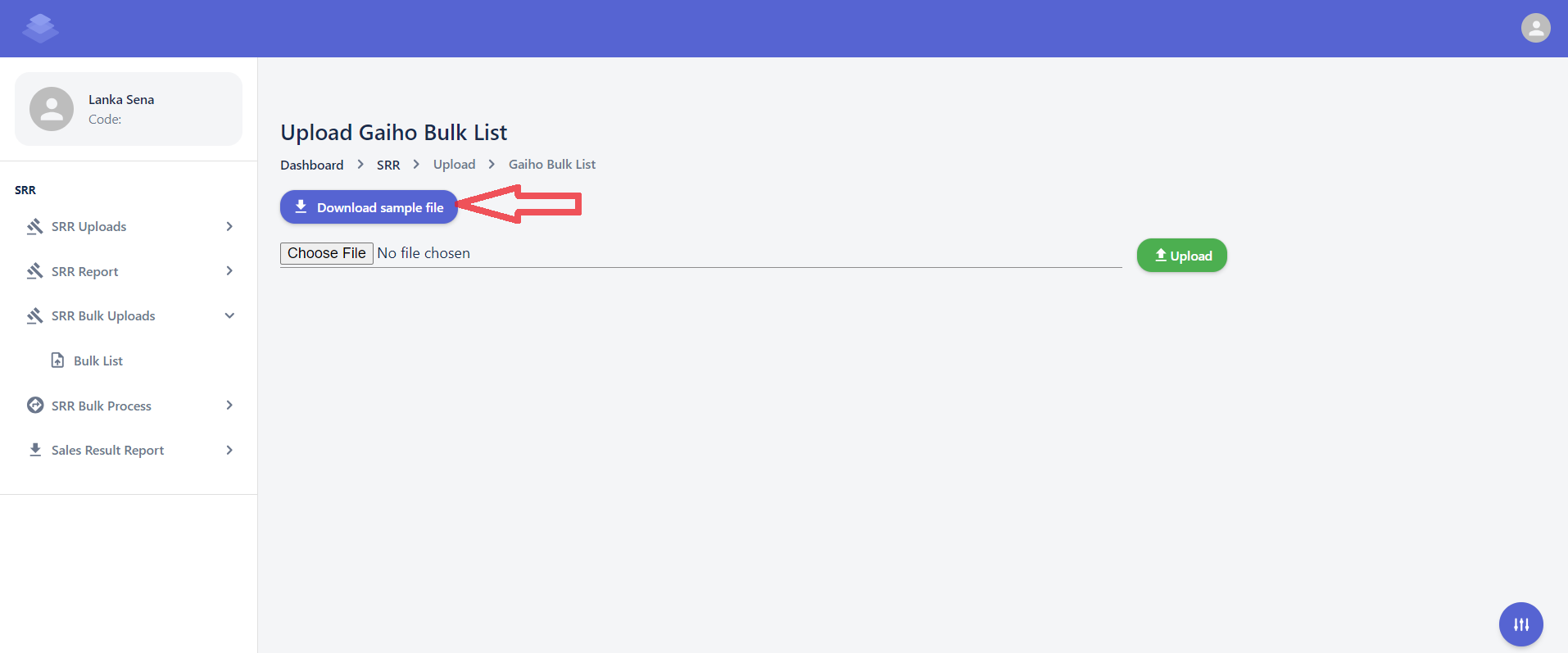](http://wiki.lalco.la/uploads/images/gallery/2024-10/QoVimage.png)
- Only the raw data from the uploaded sample sheet is included. When you export the data, the values in the formula columns will be automatically calculated
- Check Export Sheets Against the Original SME Sales Report to Identify Discrepancies or Errors
[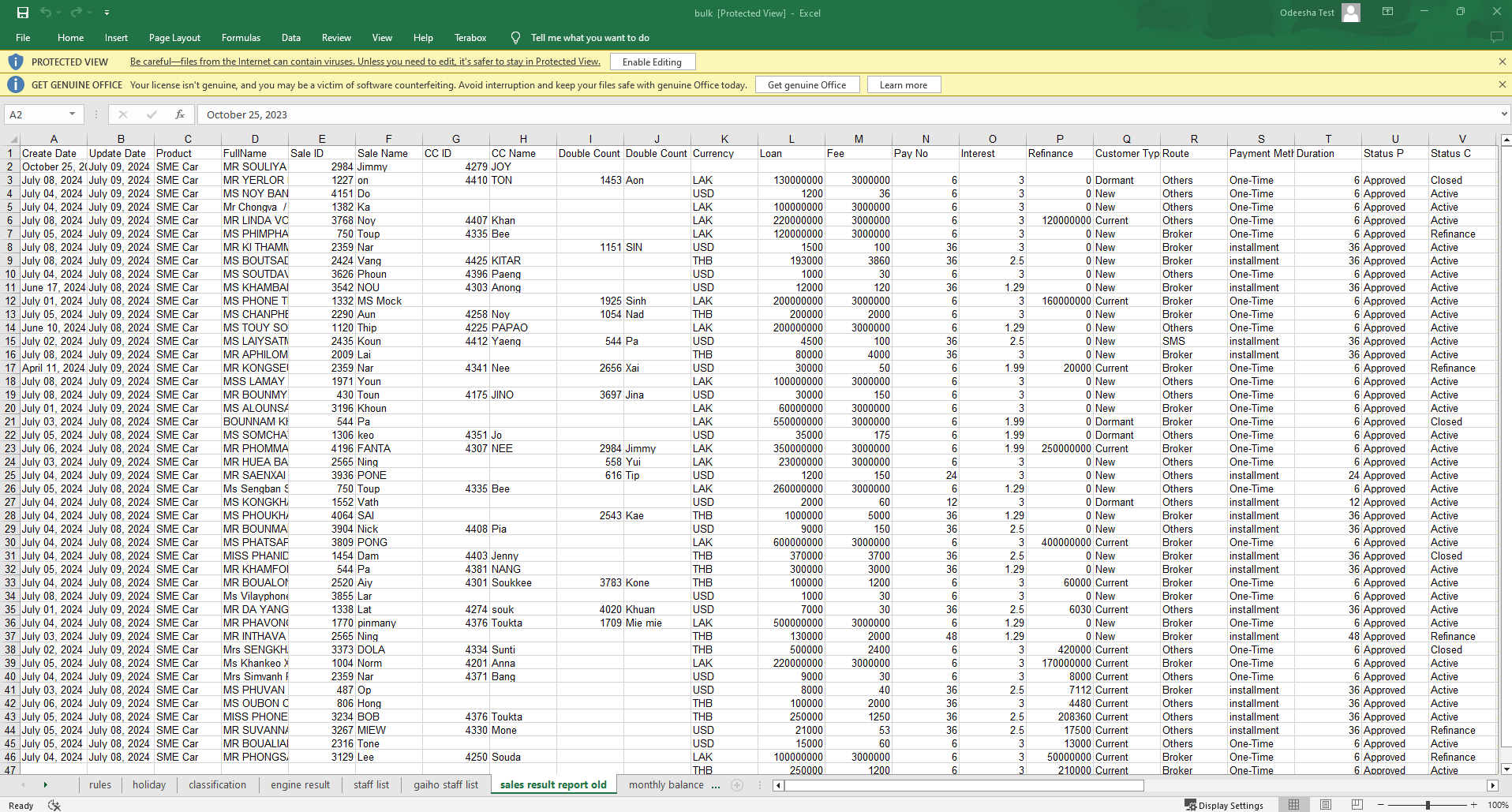](http://wiki.lalco.la/uploads/images/gallery/2024-10/LU9image.png)
Downloaded Sample File
[](http://wiki.lalco.la/uploads/images/gallery/2024-10/ky7image.png)
Original SME Sales Report
# SRR Bulk Process
##### **Overview**
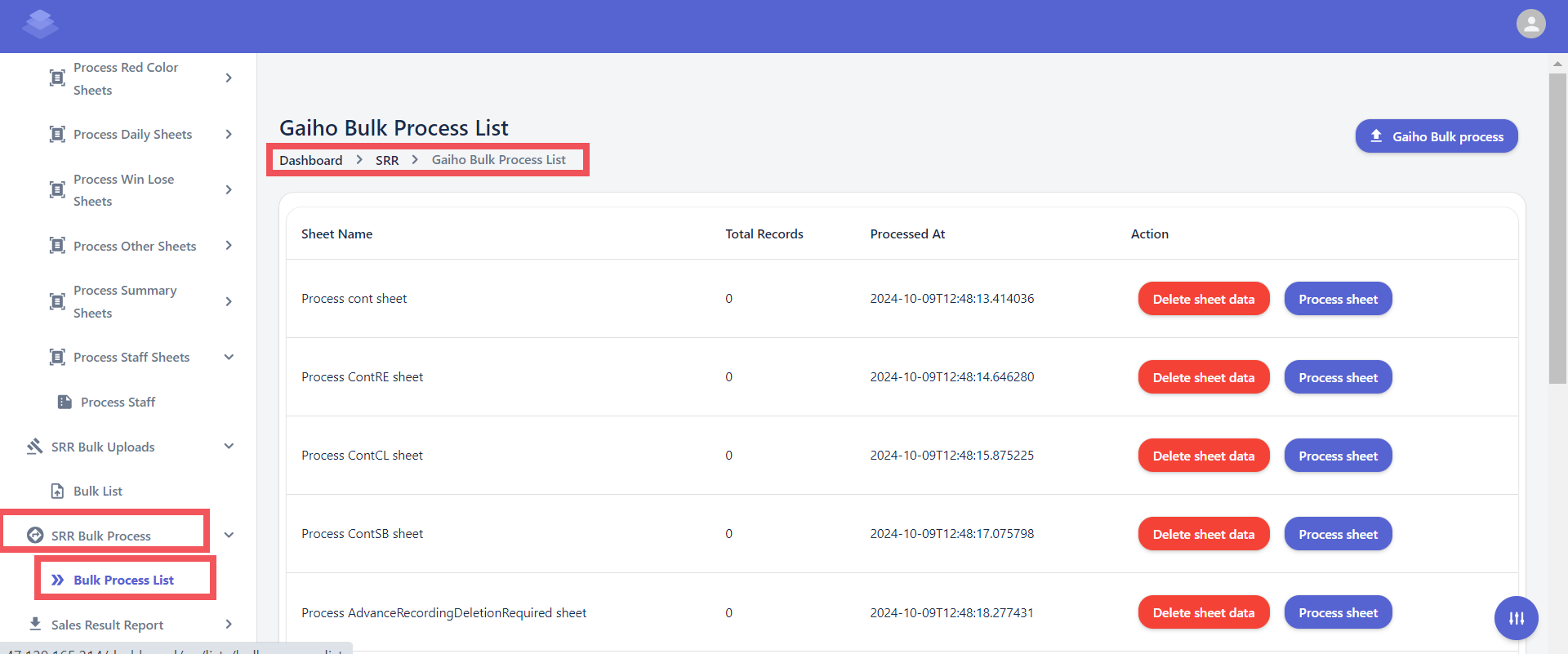
**SRR Bulk Process** refers to the automated or semi-automated processing of a large number of System Requirements Reviews (SRRs) in a batch or bulk manner. This approach can significantly improve efficiency and reduce manual effort compared to reviewing SRRs individually. This Page explains the Bulk Upload process interface, which is part of the system. The interface allows users to view, manage, delete, Process & upload data sheets.
[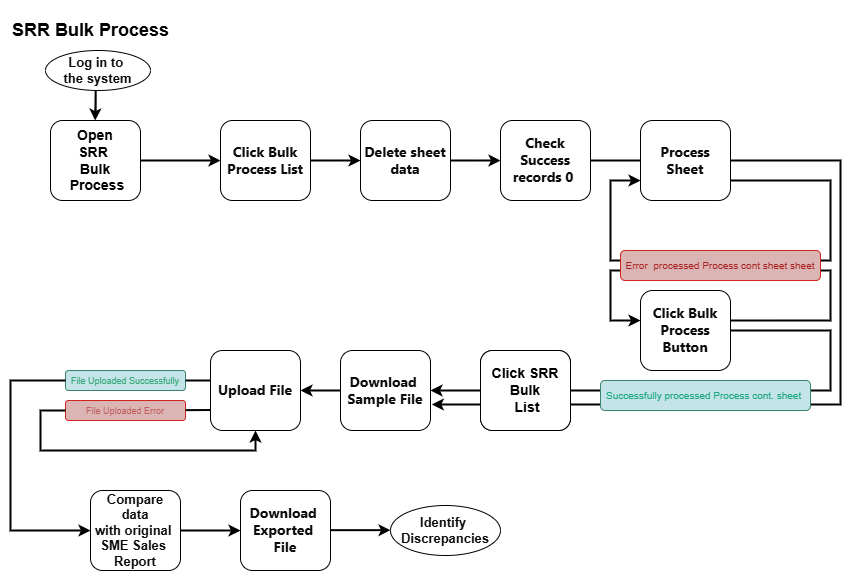](http://wiki.lalco.la/uploads/images/gallery/2024-10/srr-bulk-upload-drawio-3.png)
SRR Bulk Process
[](http://wiki.lalco.la/uploads/images/gallery/2024-10/n1Gscreenshot-2024-10-09-134712.png)
##### **Steps**
1. **Navigate to the Bulk Processed sheets**
- Log in to the system and navigate to the "Dashboard" section.
- Click on the "SRR Report" tab.
- Select the "Processed Cont List" option.
**Dashboard >SRR>SRR Bulk Process>Bulk Process List**
2. **Locate the Data Sheet**
- Identify the datasheet you want to process from the list.
3. **Select the Data Sheet**
- Click on the checkbox next to the desired Datasheet.
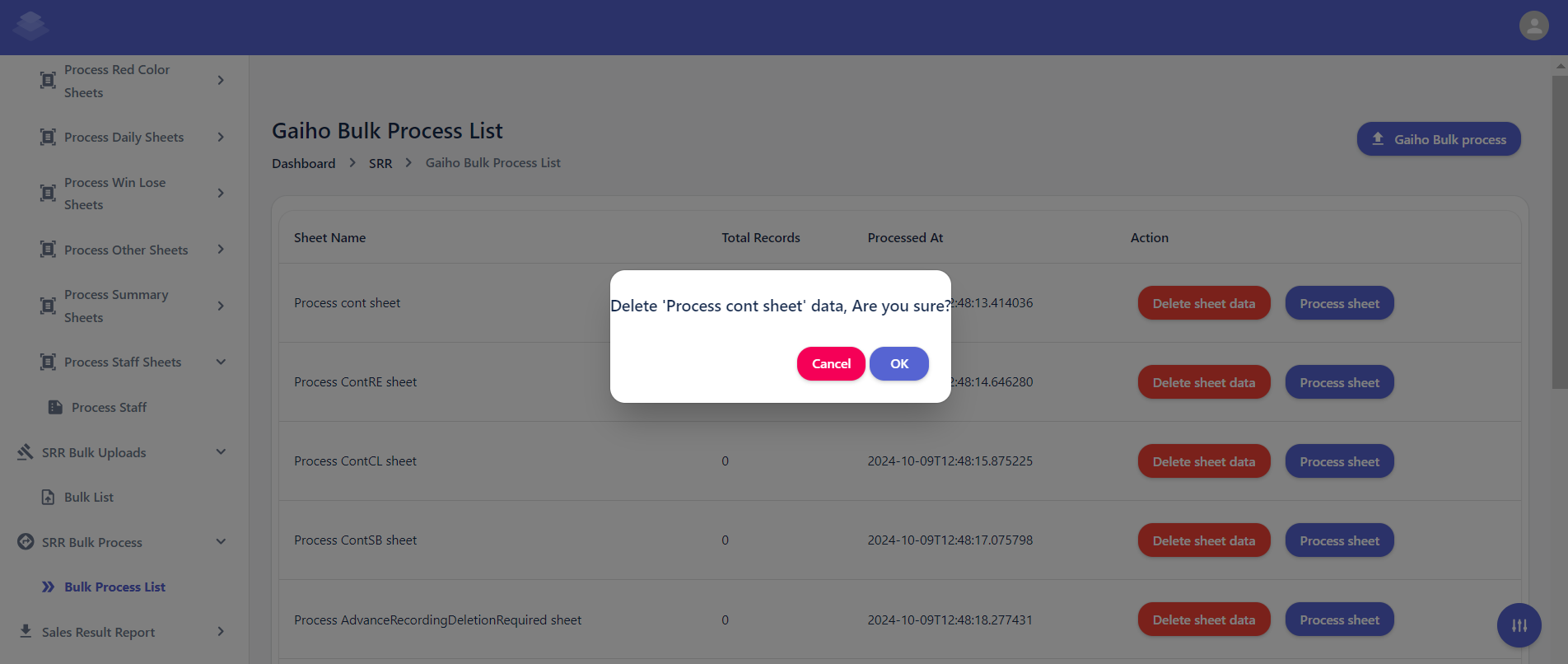
4. **Delete Data Processed**
- - Select the Datasheet you want to delete and click the "Delete sheet data" button.
- Confirm the deletion by clicking the "Delete" button in the confirmation dialog.
- A confirmation dialog box will appear asking if you are sure about deleting the selected sheet.
- Click the "OK" button to proceed with the deletion.
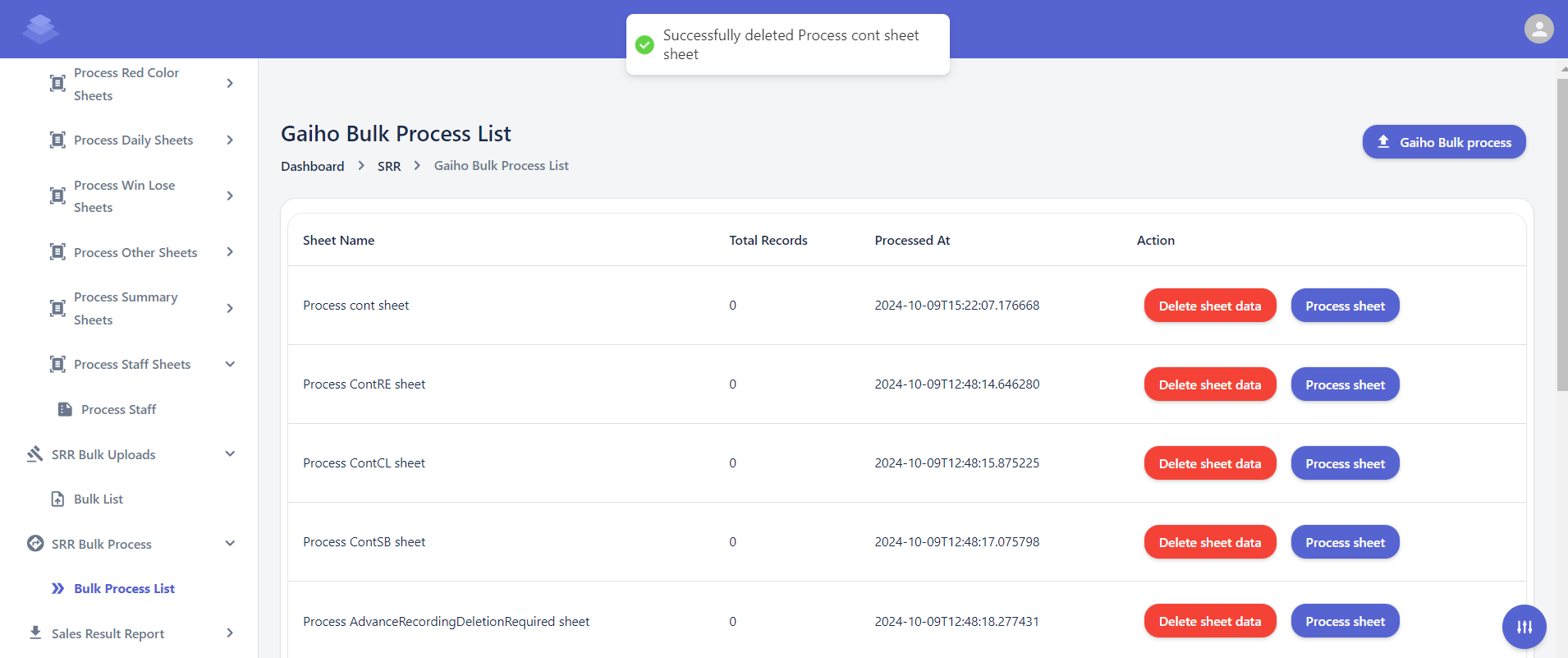
- After the deletion process is complete, you will see a message indicating that the selected Datasheet has been deleted & Check if all data has been removed"Successfully delete processed Data sheet"
- Delete all sheet data one by one
[](http://wiki.lalco.la/uploads/images/gallery/2024-10/screenshot-2024-10-09-134953.png)
[](http://wiki.lalco.la/uploads/images/gallery/2024-10/screenshot-2024-10-09-135214.png)
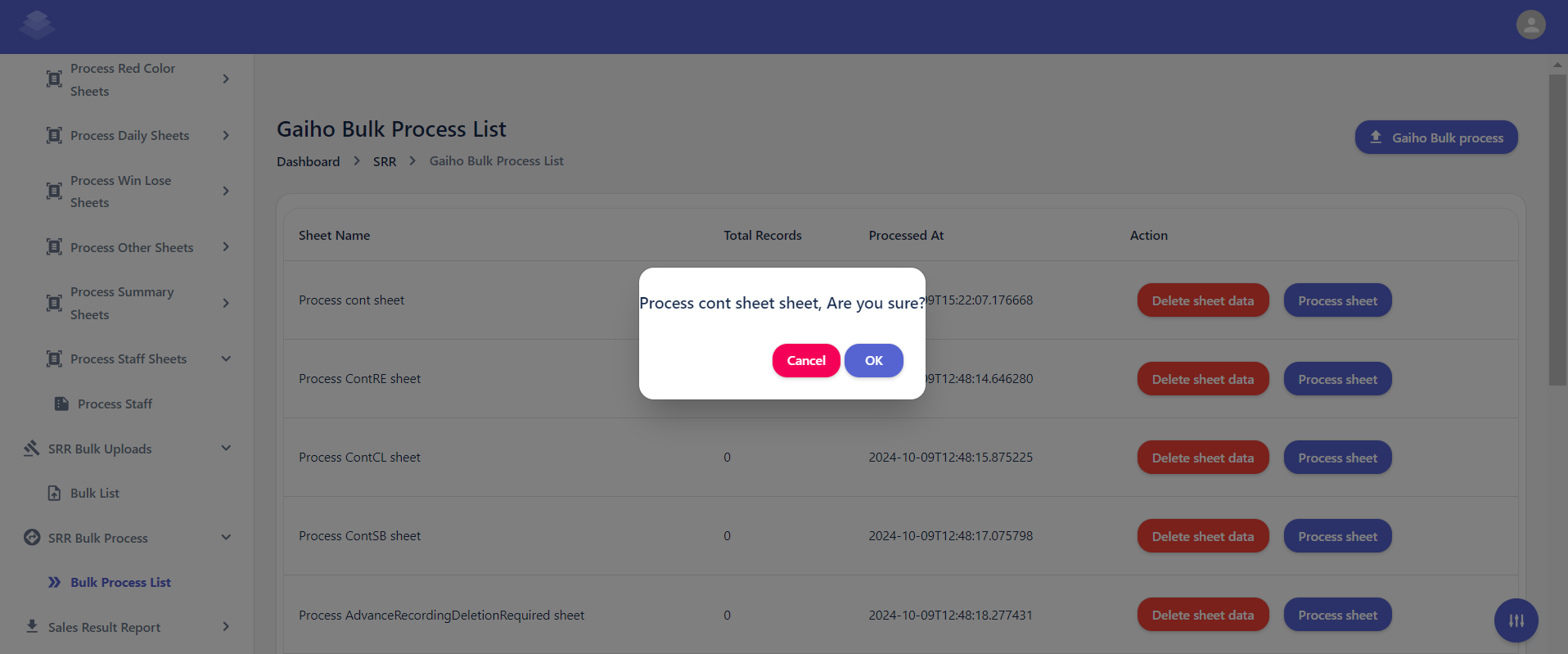
5. **Click "Process Sheet"**
- Click the "Process Sheet" button at the top of the list.
- If need to re-process a data sheet, select the corresponding row and click the "Process cont sheet" button.
- Follow the on-screen instructions to complete the re-processing process.
- A confirmation dialog box will appear asking if you are sure about processing the contract sheet.
- Click the "OK" button to proceed with the re-processing.
6. **Confirm the Action**
- A confirmation message will appear asking if you are sure about processing the contract sheet.
- Click the "OK" button to proceed with the processing.
- Click the "Cancel" button to cancel the proceed
- A confirmation dialog box will appear asking if you are sure about processing the contract sheet.
- Click the "OK" button to proceed with the re-processing.
[](http://wiki.lalco.la/uploads/images/gallery/2024-10/screenshot-2024-10-09-135338.png)
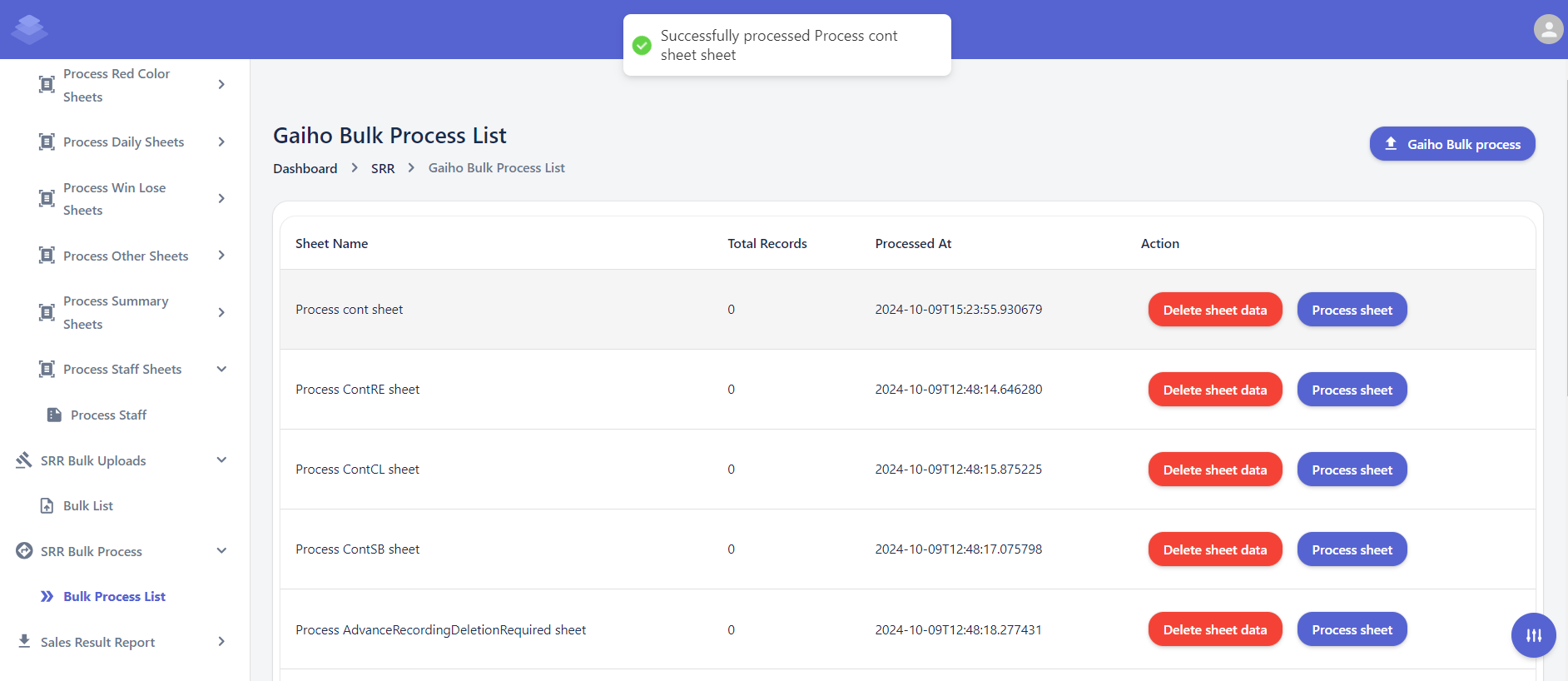
- If the all data-sheet is processed successfully, you will see a success message indicating that the "Successfully processed process cont sheet".
[](http://wiki.lalco.la/uploads/images/gallery/2024-10/screenshot-2024-10-09-135403.png)
- Checked Success message /error message for all below sheets.
Process Dept sheet
Process MUnit sheet
Process Team sheet
Process HQ sheet
Process GDept sheet
Process SecBr sheet
Process Unit sheet
Process CC sheet
Process DailyDept sheet
Process DailyUnit sheet
Process DailyTopTen sheet
Process Win Lose Credit sheet
Process Win Lose Dept sheet
Process Win Lose GDEpt sheet
Process Win Lose HQ sheet
Process Win Lose MBr sheet
Process Win Lose MUnit sheet
Process Win Lose Person sheet
Process Win Lose SecBr sheet
Process Win Lose Team sheet
Process Win Lose Unit sheet
- **Download sample File (Gaiho bulk report )**
- Click the "Gaiho bulk report" button to download a list of processed sheets in a desired format (e.g., CSV, Excel).
- Only the raw data from the uploaded sample sheet is included. When you export the data, the values in the formula columns will be automatically calculated
- Check downloaded bulk report sheets Against the Original SME Sales Report to Identify Discrepancies or Errors
Delete all sheet data one by one -->Process sheets -- > Gaiho bulk process
# Sales Result Report
##### **Overview**
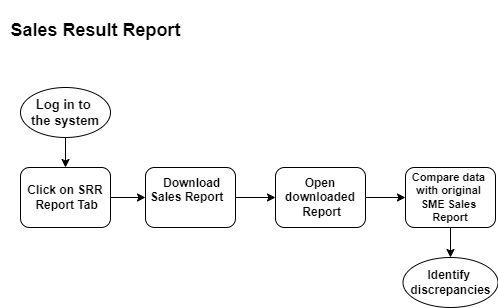
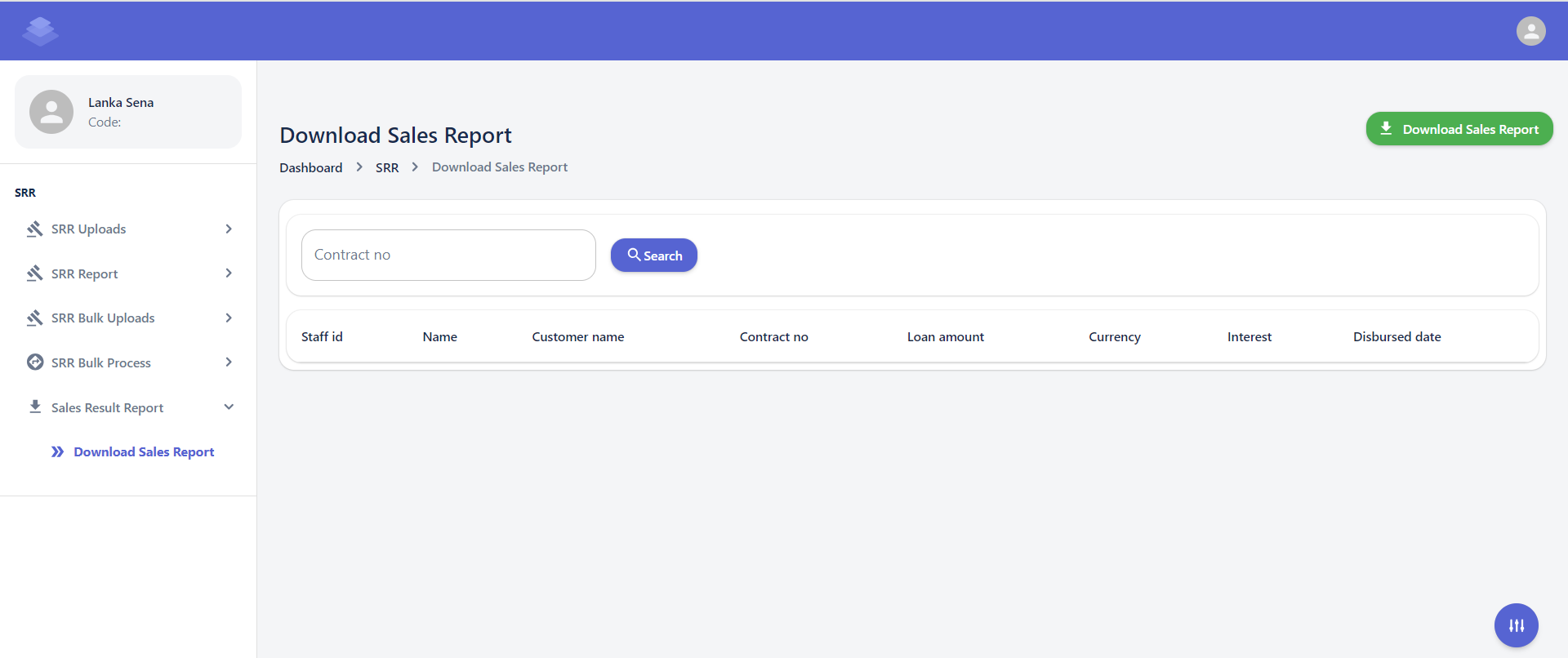
A Sales Result Report is a comprehensive document that analyzes a company's sales performance over a specific period. It typically includes various metrics and insights to help businesses evaluate their sales strategies, identify areas for improvement, and make data-driven decisions. This Page explains the Sales Result interface, which is part of the system. The interface allows users to view, search, and download data sheets.
[](http://wiki.lalco.la/uploads/images/gallery/2024-10/r6gsrr-drawio.png)
**Sales Result Report Diagram**
[](http://wiki.lalco.la/uploads/images/gallery/2024-10/cL3screenshot-2024-10-09-140427.png)
##### **Steps**
1. **Navigate to the Download Sales Report**
- Log in to the system and navigate to the "Dashboard" section.
- Click on the "SRR Report" tab.
- Select the "Download Sales Report" option.
**Dashboard >SRR>Download Sales Report**
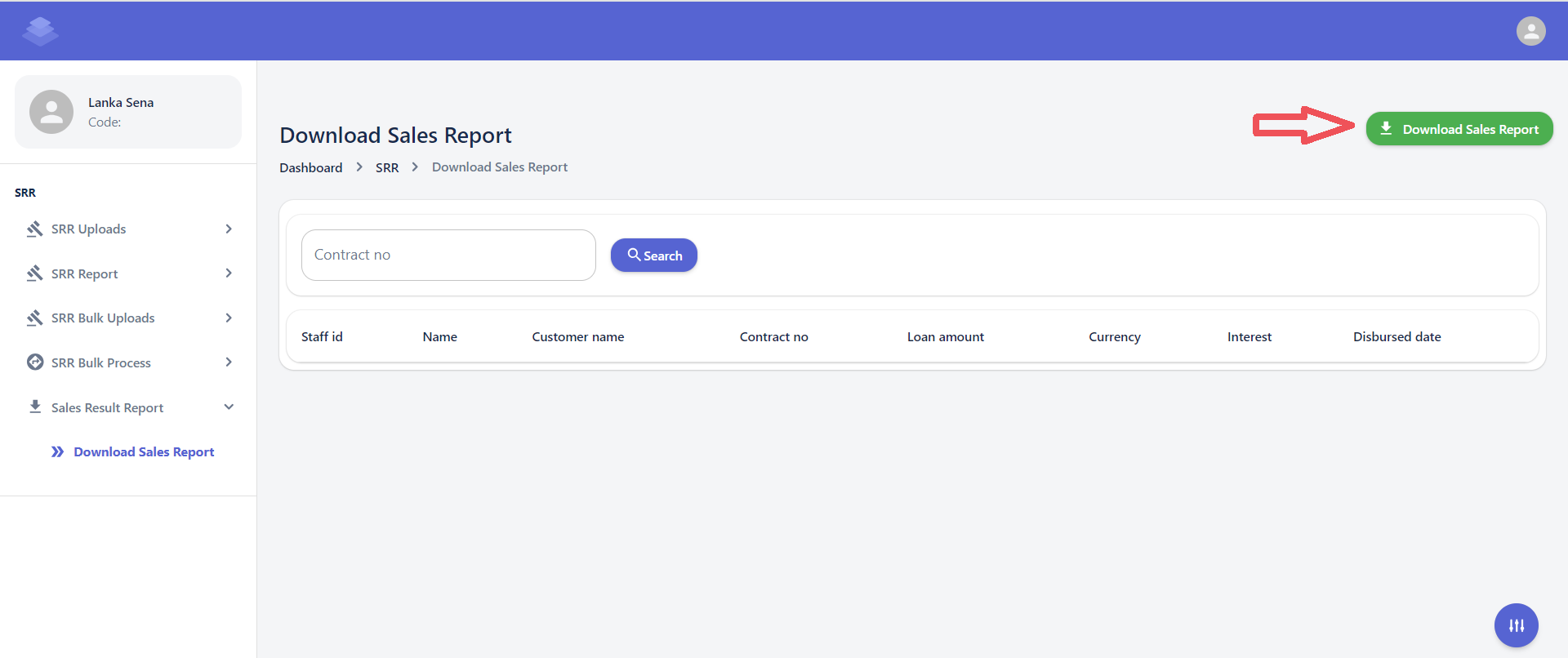
2. **Download the "Download Sales Report".** Click the "Download Sales Report" button to download a Sales Report in a desired format (e.g., CSV, Excel).
[](http://wiki.lalco.la/uploads/images/gallery/2024-10/ZQfimage.png)
3. **Check the "Download Sales Report".
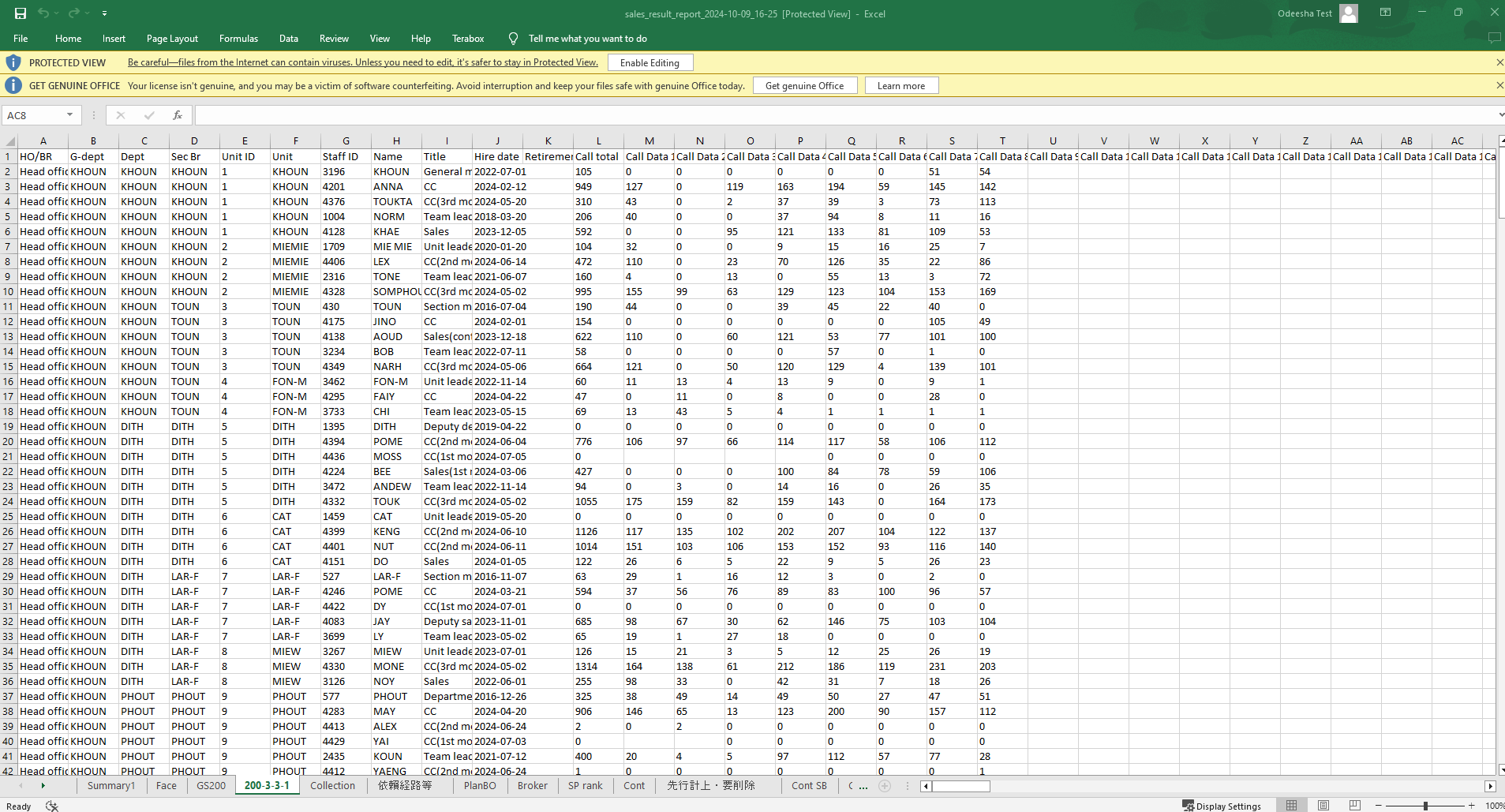
- Only the raw data from the uploaded sample sheet is included. When you export the data, the values in the formula columns will be automatically calculated
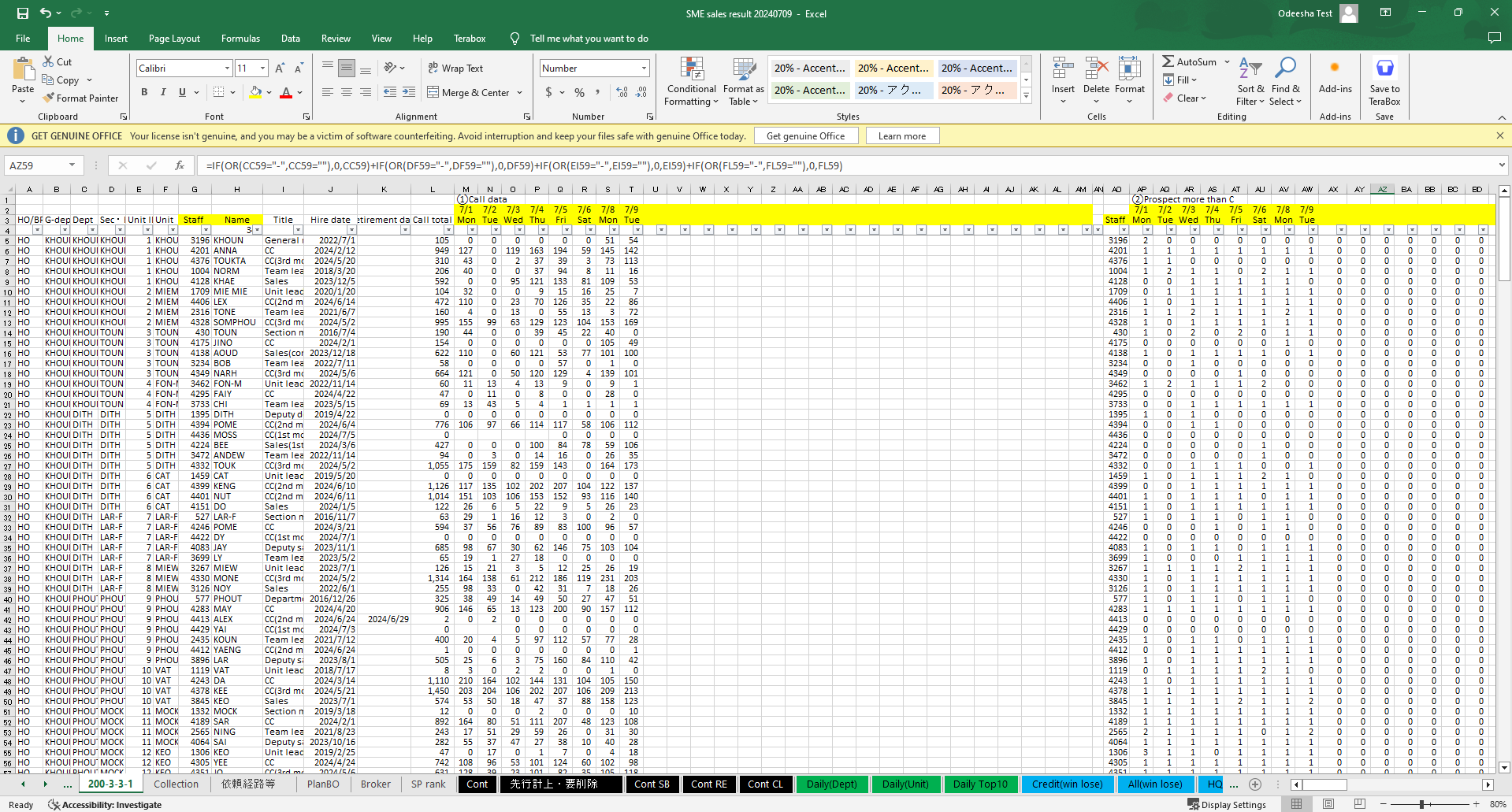
- Check downloaded Sales report sheets Against the Original SME Sales Report to Identify Discrepancies or Errors
[](http://wiki.lalco.la/uploads/images/gallery/2024-10/a0himage.png)
Downloaded Sales report
[](http://wiki.lalco.la/uploads/images/gallery/2024-10/Vmcimage.png)
Original SME Sales Report