# SRR Bulk Uploads
##### **Overview**
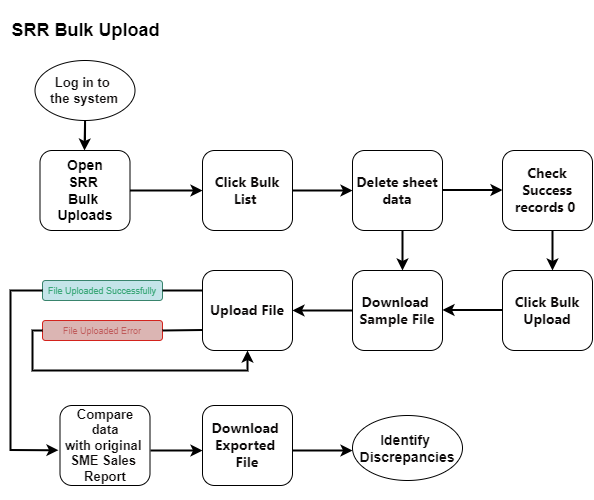
This Page provides a detailed explanation of the Bulk Upload List interface, which is part of the system. The interface allows users to view, manage, delete & upload data sheets.
[](http://wiki.lalco.la/uploads/images/gallery/2024-10/srr-bulk-list-drawio.png)
SRR Bulk Upload
##### **[](http://wiki.lalco.la/uploads/images/gallery/2024-10/screenshot-2024-10-09-092606.png)
Steps**
1. **Navigate to the SRR Bulk Uploads**
- Log in to the system and navigate to the "Dashboard" section.
- Click on the "SRR Report" tab.
- Select the "SRR Bulk Uploads" option.
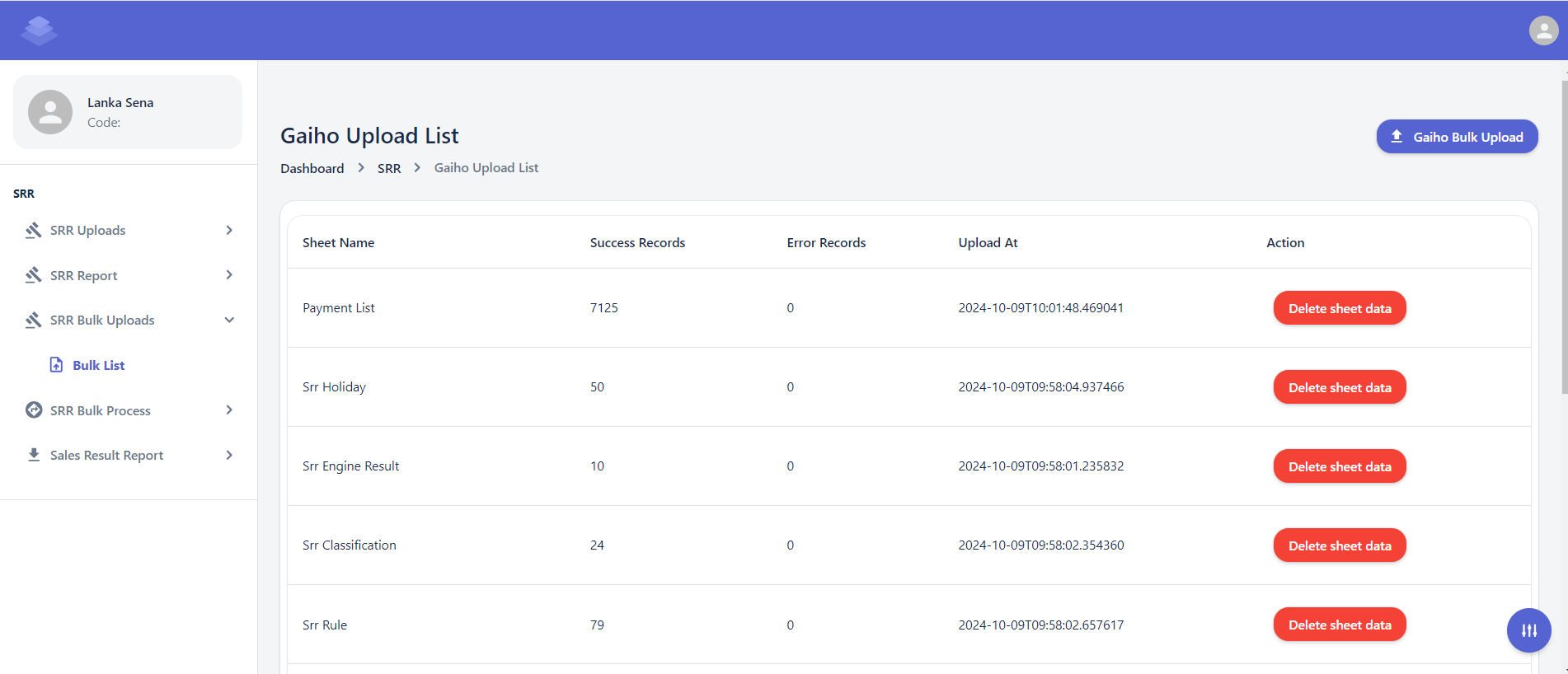
**Dashboard >SRR>SRR Bulk Uploads >Bulk List**
2. **View Uploaded Sheets**
- The list of uploaded sheets will be displayed in the table.
- The list will display information such as Sheet name, Success Records, Error Records, and Upload At.
3. **View Sheet Details**
- Click on a sheet name to view more information about it, including the number of successful and error records.
4. **Delete Sheet Data (Optional)**
- If necessary, click the "Delete sheet data" button to delete the data associated with a specific sheet.
5. **Upload New Sheets**
- Use the "Gaiho Bulk Upload" button to upload new data sheets.
- **Delete Sheet Data**
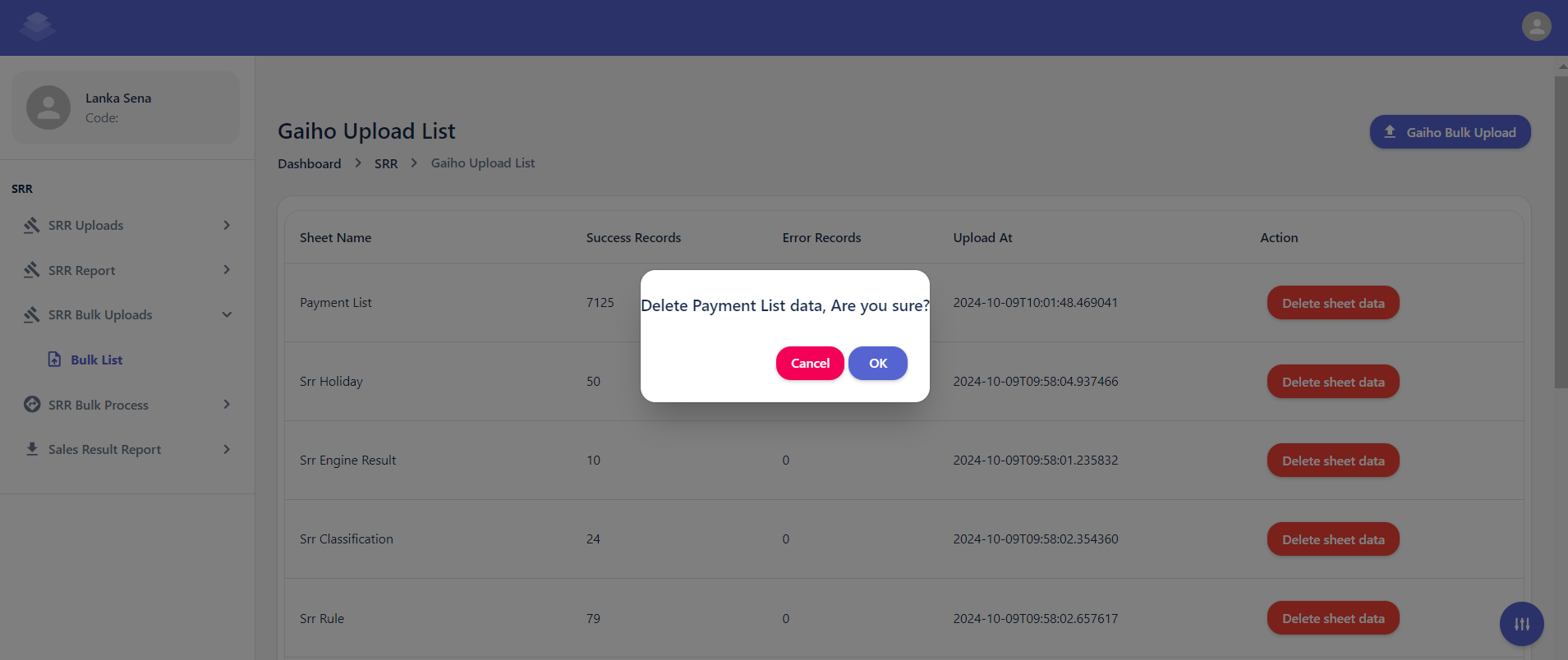
- Select the contracts you want to delete and click the "Delete sheet data" button.
- Confirm the deletion by clicking the "Delete" button in the confirmation dialog.
- A confirmation dialog box will appear asking if you are sure about deleting the selected contracts.
- Click the "OK" button to proceed with the deletion.
- After the deletion process is complete, you will see a message indicating that the selected contracts have been deleted & Check if all data has been removed"Successfully Delete sheet data"
[](http://wiki.lalco.la/uploads/images/gallery/2024-10/screenshot-2024-10-09-095421.png)
- **Download Sample file**
- Click the "Gaiho Bulk Upload" button [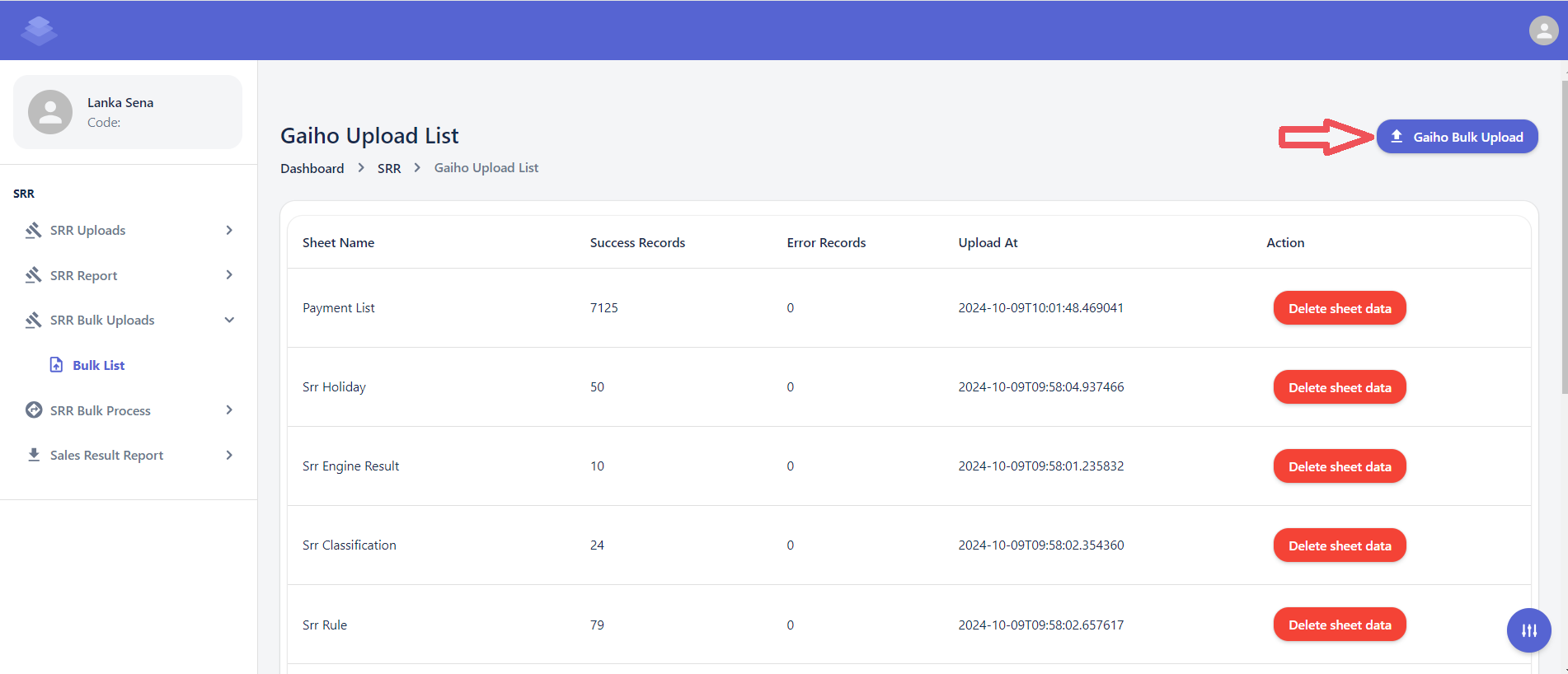](http://wiki.lalco.la/uploads/images/gallery/2024-10/lanimage.png)
- Click the "Download sample file" button
[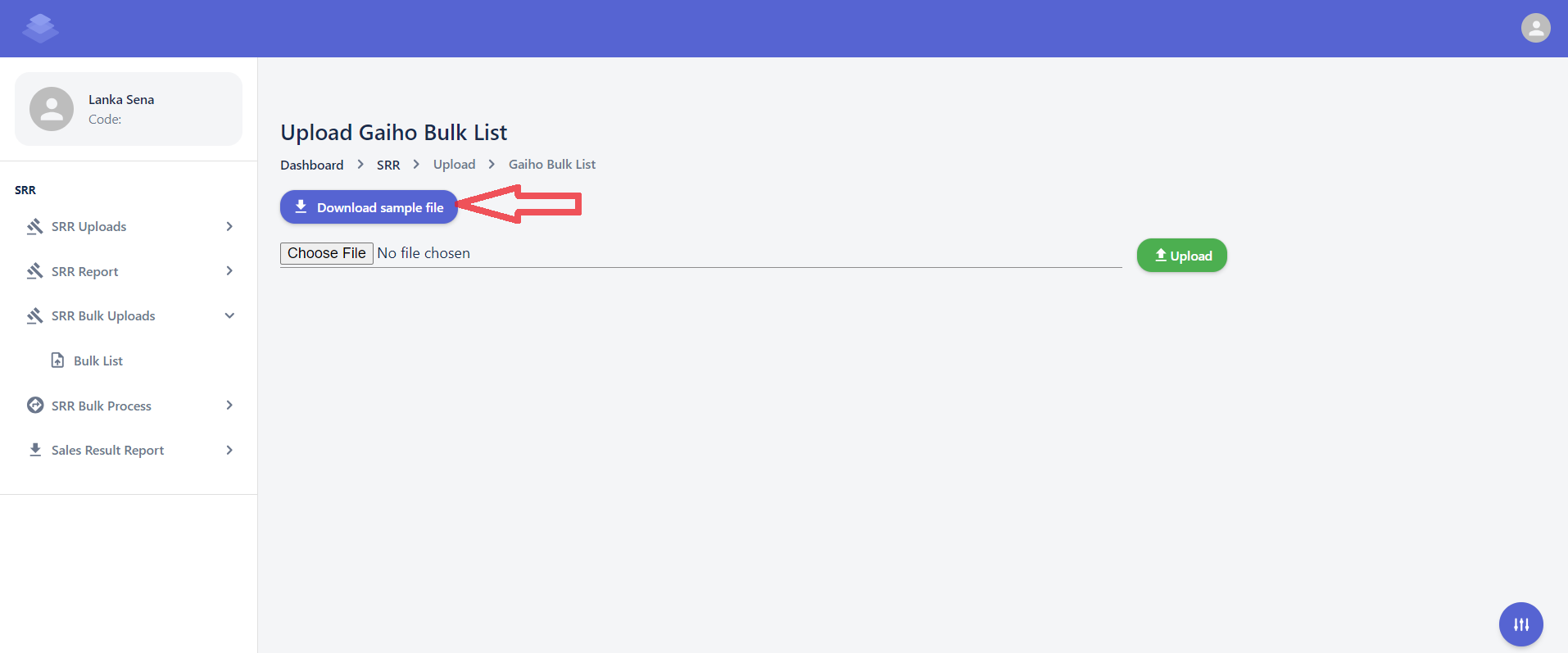](http://wiki.lalco.la/uploads/images/gallery/2024-10/QoVimage.png)
- Only the raw data from the uploaded sample sheet is included. When you export the data, the values in the formula columns will be automatically calculated
- Check Export Sheets Against the Original SME Sales Report to Identify Discrepancies or Errors
[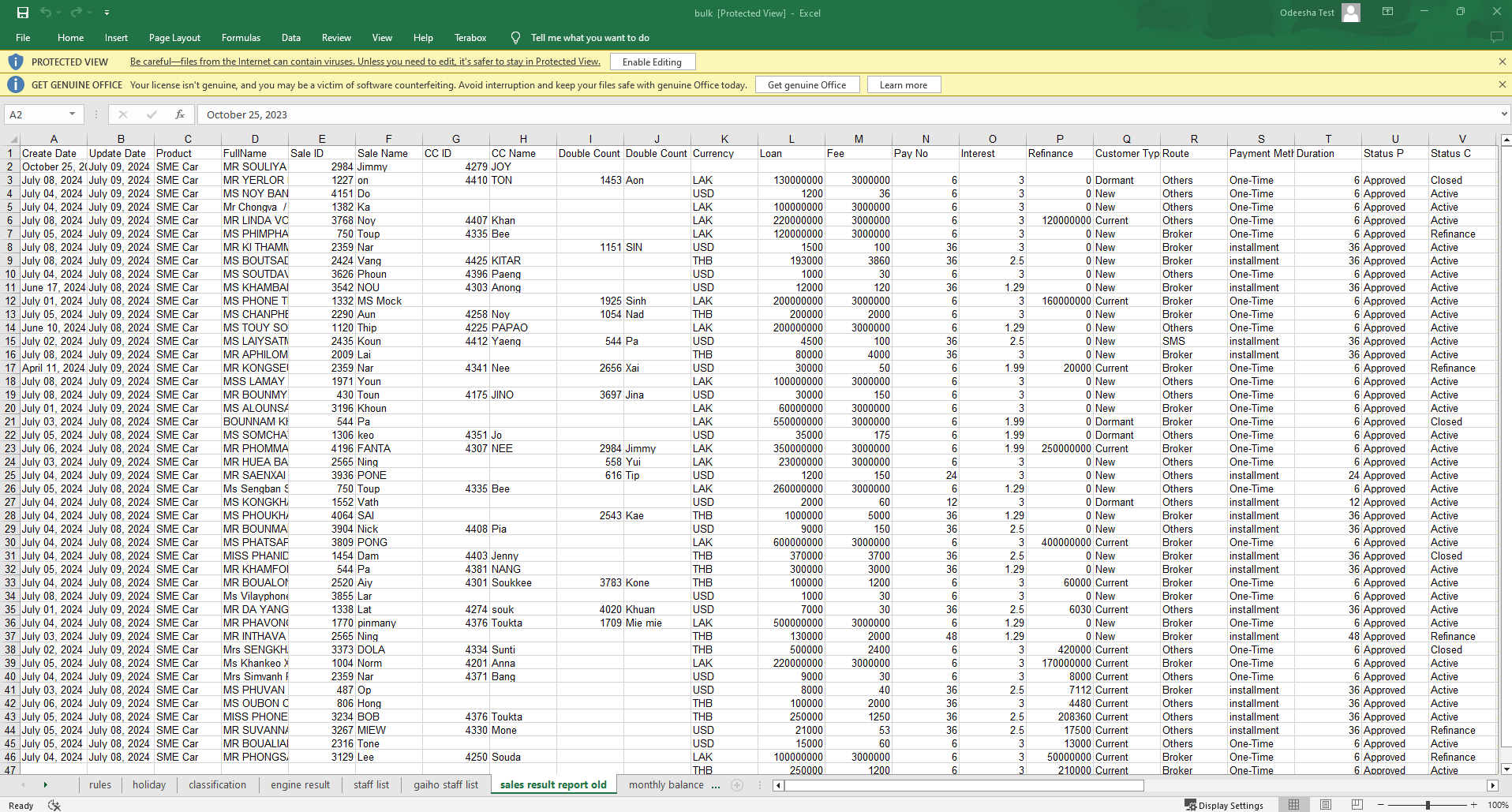](http://wiki.lalco.la/uploads/images/gallery/2024-10/LU9image.png)
Downloaded Sample File
[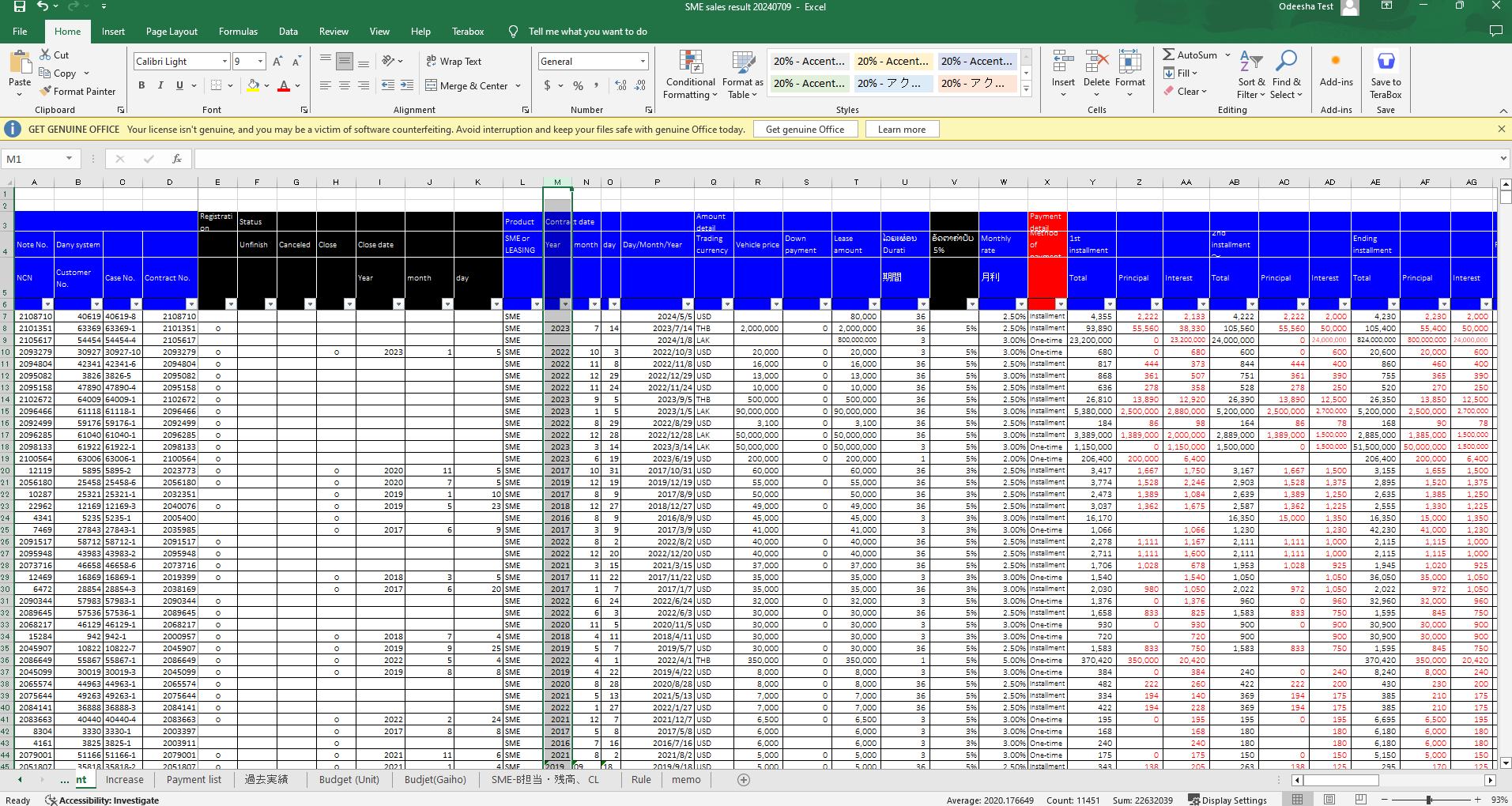](http://wiki.lalco.la/uploads/images/gallery/2024-10/ky7image.png)
Original SME Sales Report