# SRR Report
##### **Overview**
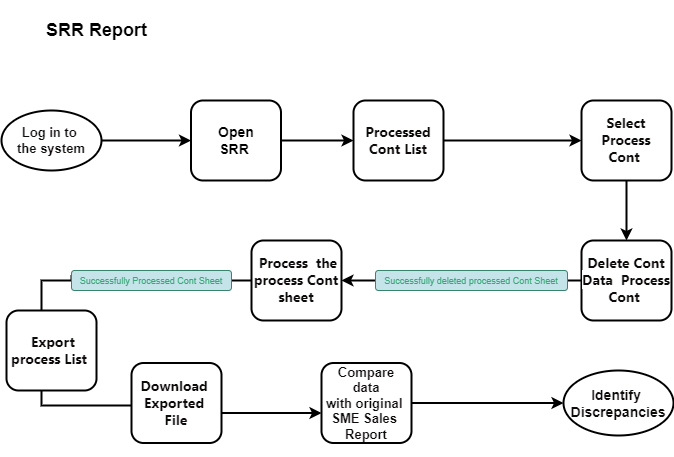
The SRR Processed Sheet is a Sales Report (SRR) module tool that allows you to manage processed contracts. View, search export, delete, and process contract data from this list.
[ ](http://wiki.lalco.la/uploads/images/gallery/2024-10/srr-report.png)
SRR Report
##### **[](http://wiki.lalco.la/uploads/images/gallery/2024-10/dLbscreenshot-2024-10-08-143606.png)
Steps**
1. **Navigate to the Processed sheets**
- Log in to the system and navigate to the "Dashboard" section.
- Click on the "SRR Report" tab.
- Select the "Processed Cont List" option.
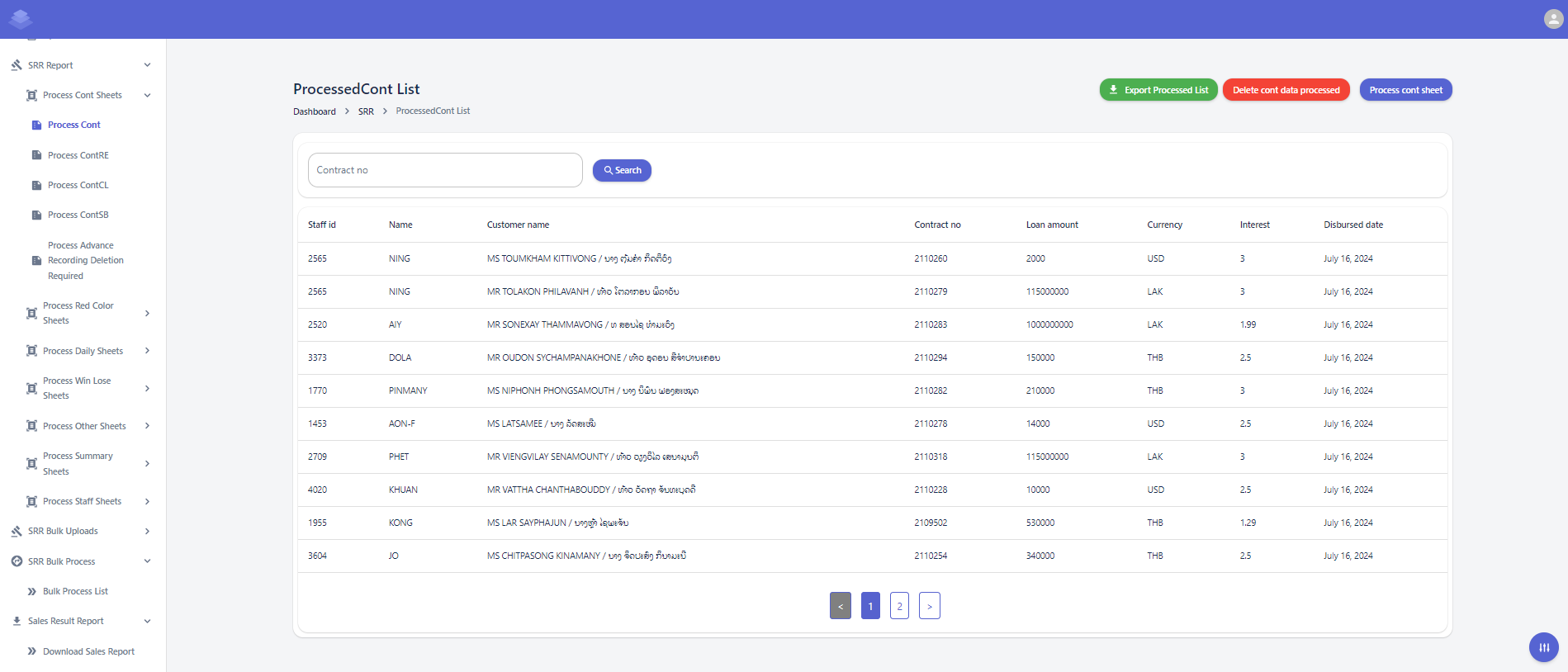
**Dashboard >SRR>SRR ProcessedCont List >Process Cont**
2. **Locate the Contract Sheet**
- Identify the contract sheet you want to process from the list.
3. **Select the Contract Sheet**
- Click on the checkbox next to the desired contract sheet.
4. **Click "Process Cont Sheet"**
- Click the "Process Cont Sheet" button at the top of the list.
5. **Confirm the Action**
- A confirmation message will appear asking if you are sure about processing the contract sheet.
- Click the "OK" button to proceed with the processing.
- Click the "Cancel" button to cancel the proceed
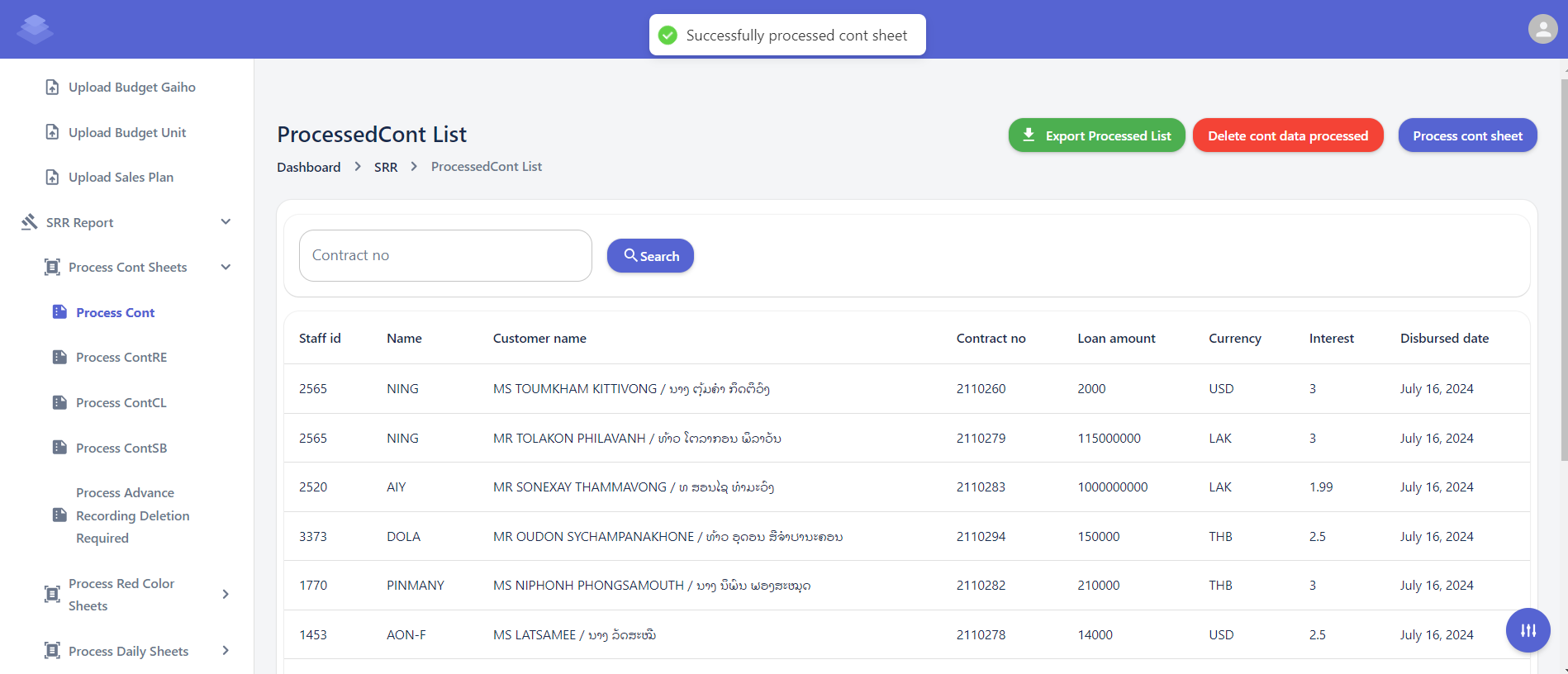
6. **Success message**
- success message indicating that the contract sheet has been processed successfully
"Successfully process cont sheet".
[](http://wiki.lalco.la/uploads/images/gallery/2024-10/screenshot-2024-10-08-151128.png)
- The list will display information such as contract number, staff ID, name, customer name, loan amount, currency, interest rate, and disbursed date.
- You can use the search bar to filter contracts based on specific criteria.
- **Delete Cont Data Processed**
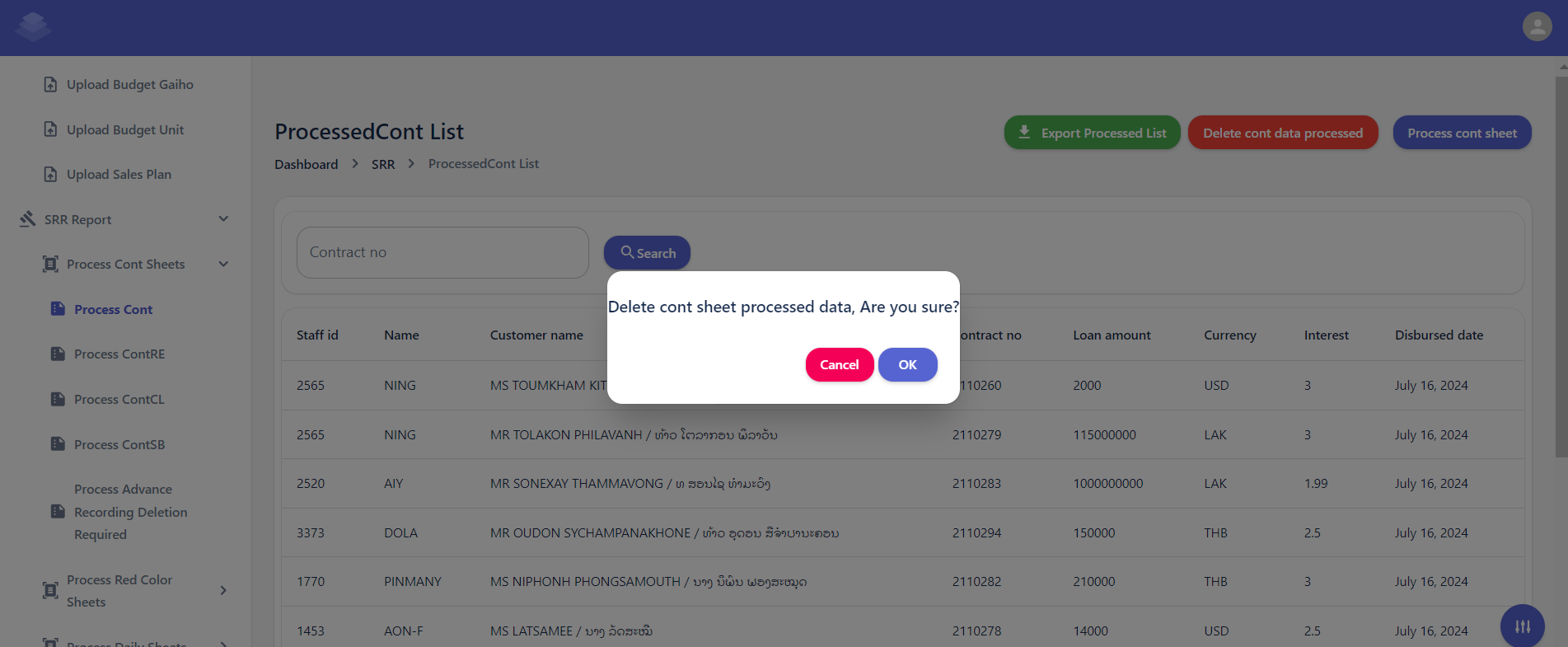
- Select the contracts you want to delete and click the "Delete cont data processed" button.
- Confirm the deletion by clicking the "Delete" button in the confirmation dialog.
- A confirmation dialog box will appear asking if you are sure about deleting the selected contracts.
- Click the "OK" button to proceed with the deletion.
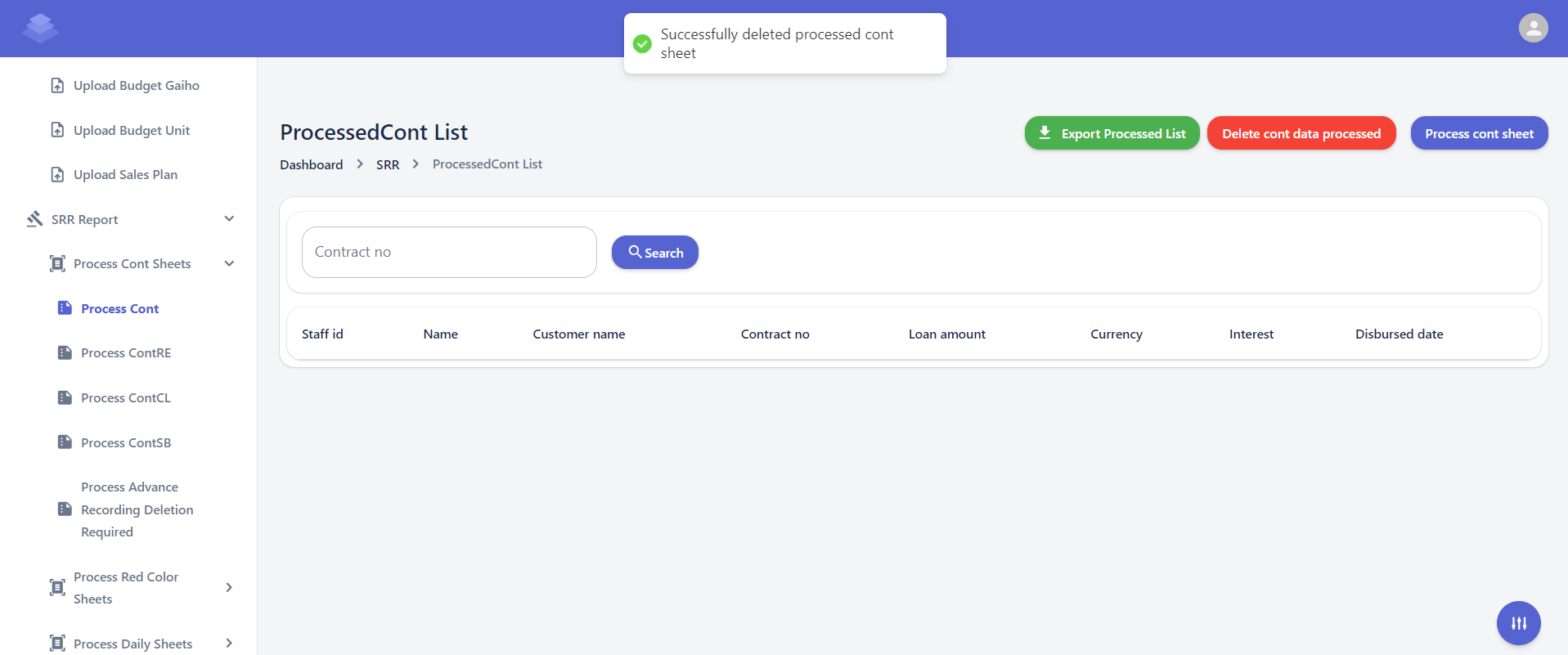
- After the deletion process is complete, you will see a message indicating that the selected contracts have been deleted & Check if all data has been removed"Successfully delete processed cont sheet"
[](http://wiki.lalco.la/uploads/images/gallery/2024-10/screenshot-2024-10-08-153400.png)
[](http://wiki.lalco.la/uploads/images/gallery/2024-10/screenshot-2024-10-08-153915.png)
- **Process Cont Sheet**
- If need to re-process a contract sheet, select the corresponding row and click the "Process cont sheet" button.
- Follow the on-screen instructions to complete the re-processing process.
- A confirmation dialog box will appear asking if you are sure about processing the contract sheet.
- Click the "OK" button to proceed with the re-processing.
- If the contract sheet is processed successfully, you will see a success message indicating that the "Successfully process cont sheet"
- Only the raw data from the uploaded sample sheet is included. When you export the data, the values in the formula columns will be automatically calculated.
- **Export Processed List**
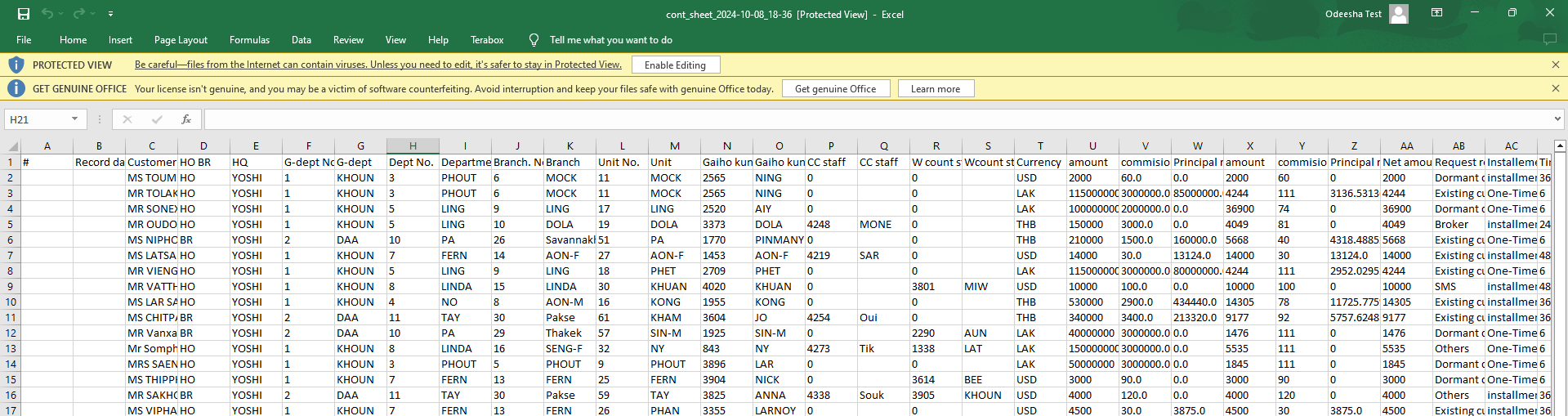
- Click the "Export Processed List" button to download a list of processed contracts in a desired format (e.g., CSV, Excel).
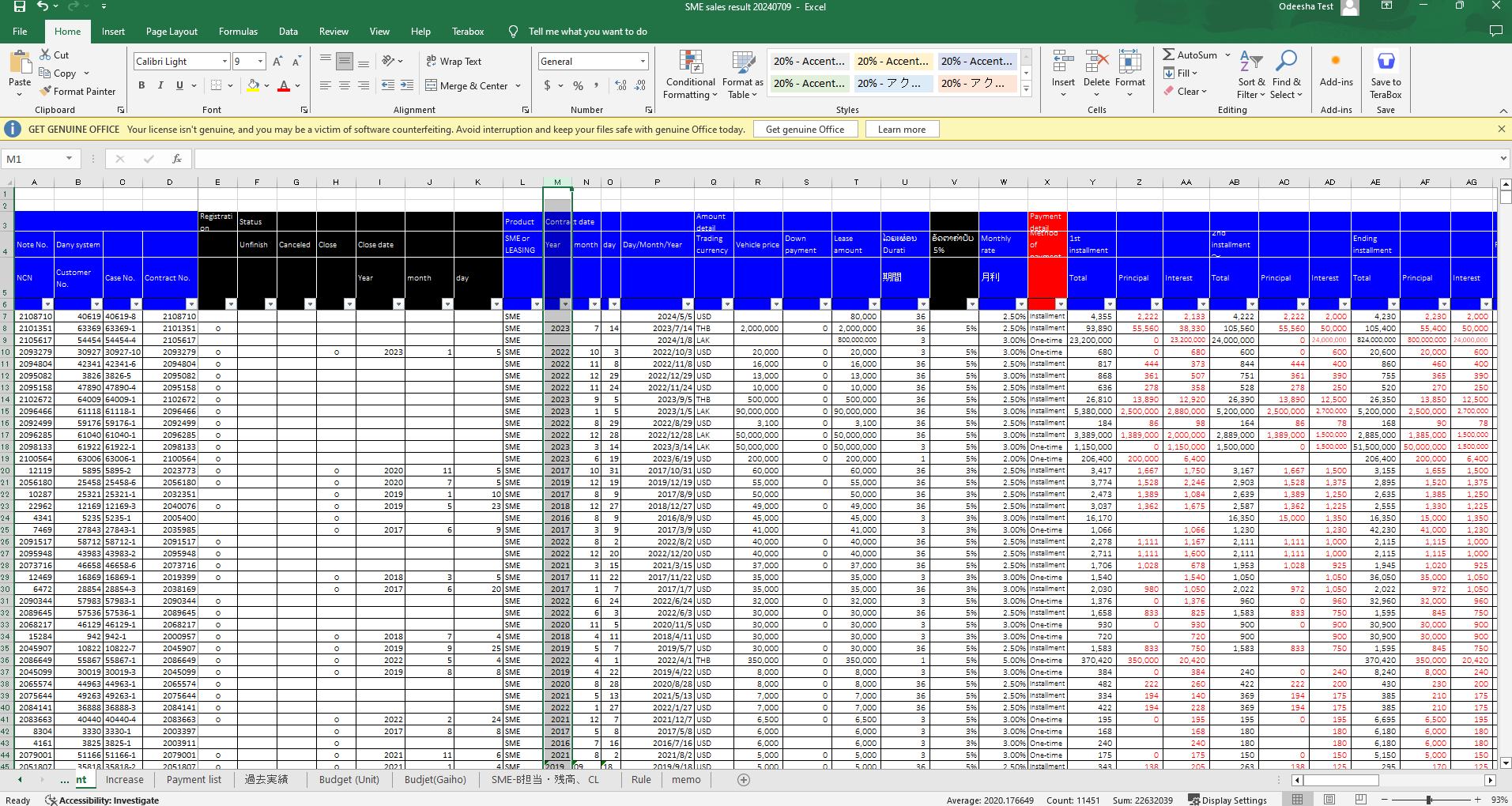
- Check Export Sheets Against the Original SME Sales Report to Identify Discrepancies or Errors
[](http://wiki.lalco.la/uploads/images/gallery/2024-10/screenshot-2024-10-08-170746.png)
Export Sheets
[](http://wiki.lalco.la/uploads/images/gallery/2024-10/ky7image.png)
Original SME Sales Report