BOL Report Module – User Manual
1. Introduction
The BOL Report module is designed to help users view, verify, and generate reports related to financial and member data required for BOL reporting. This module provides structured access to balances, contracts, deposits, member shares, and final report processing.
This user manual explains each menu item and guides users on how to use the BOL Report module effectively.
2. Accessing the BOL Report Module
-
Log in to the system using your authorized user credentials.
-
From the left-side navigation panel, click BOL Report.
-
The BOL Report submenu will expand and display the available report options.
3. Menu Options Overview
The BOL Report module contains the following options:
-
Trial Balance
-
Contracts List
-
MFI Details
-
Deposits Details
-
Member Shares Details
-
Report Info
-
Process BOL Report
Each option is explained in detail below.
3.1 Trial Balance
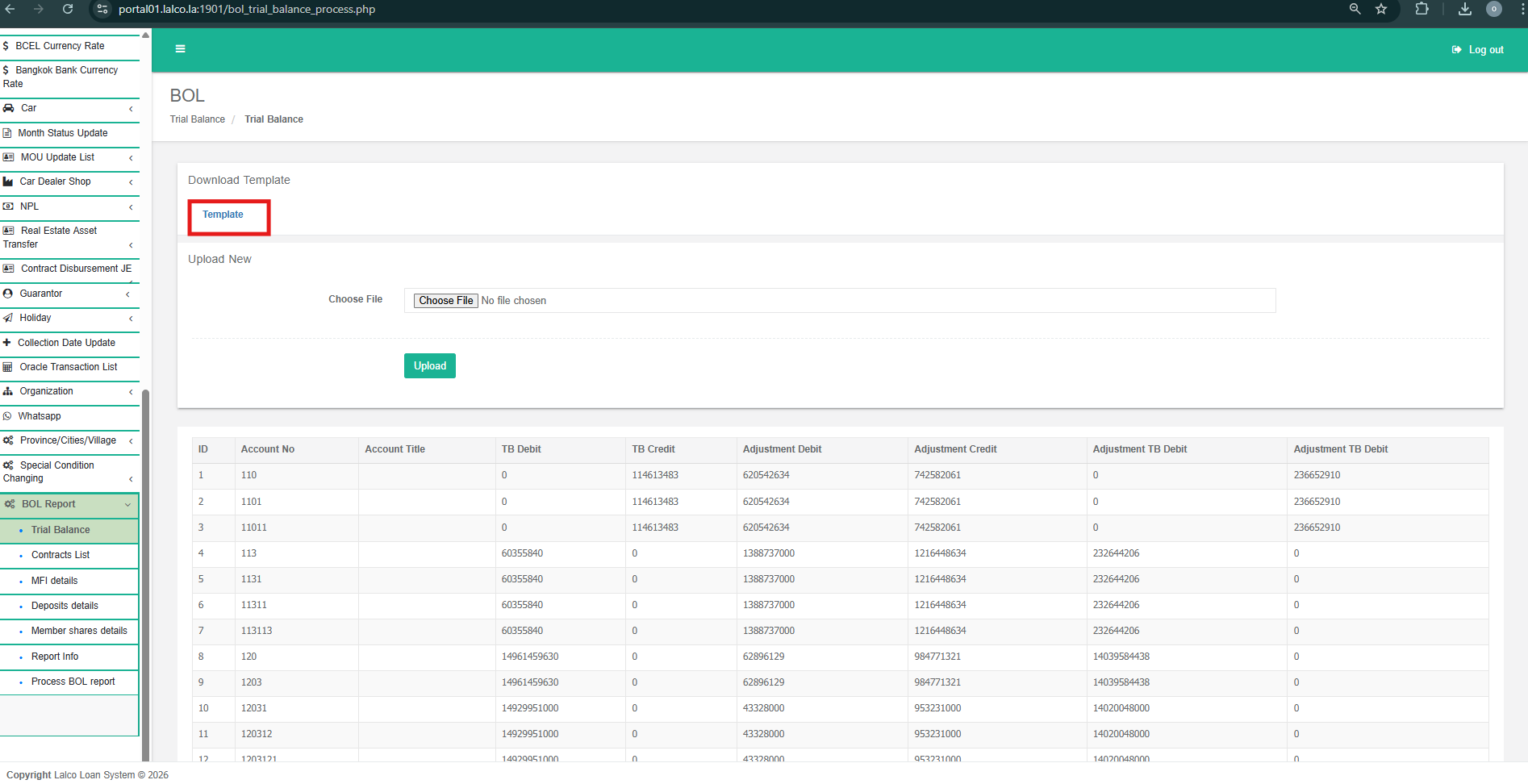
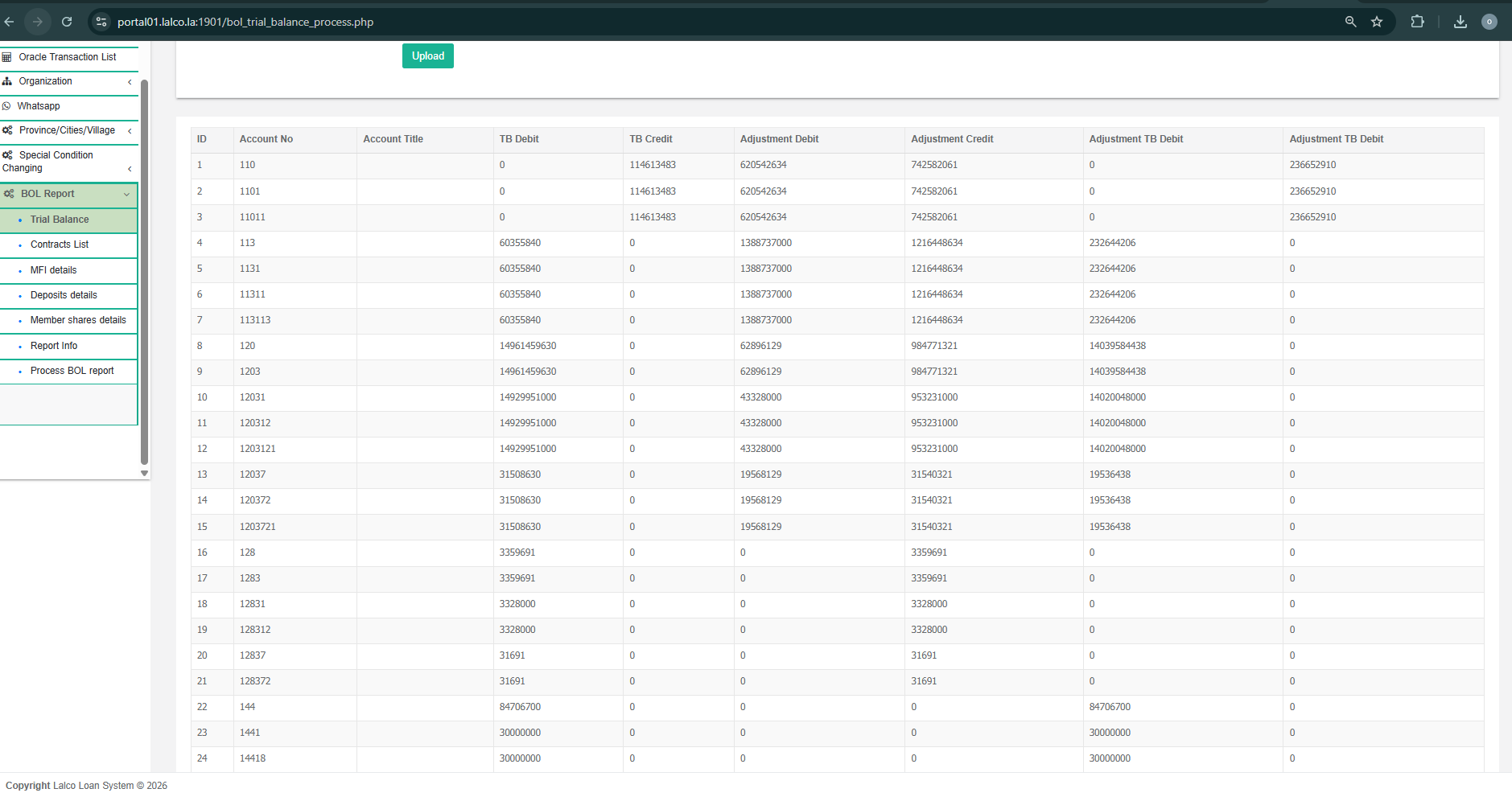
The Trial Balance page allows users to upload trial balance data using a predefined Excel template and review the uploaded data before it is used in the BOL reporting process. This ensures consistency, accuracy, and proper validation of financial data.
3.1.1 Download Trial Balance Template
-
Navigate to BOL Report → Trial Balance.
-
Locate the Download Template section at the top of the page.
-
Click on Template.
-
An Excel (.xlsx) file will be downloaded to your computer.
Note: The template contains predefined columns and formatting. Do not modify column names or structure.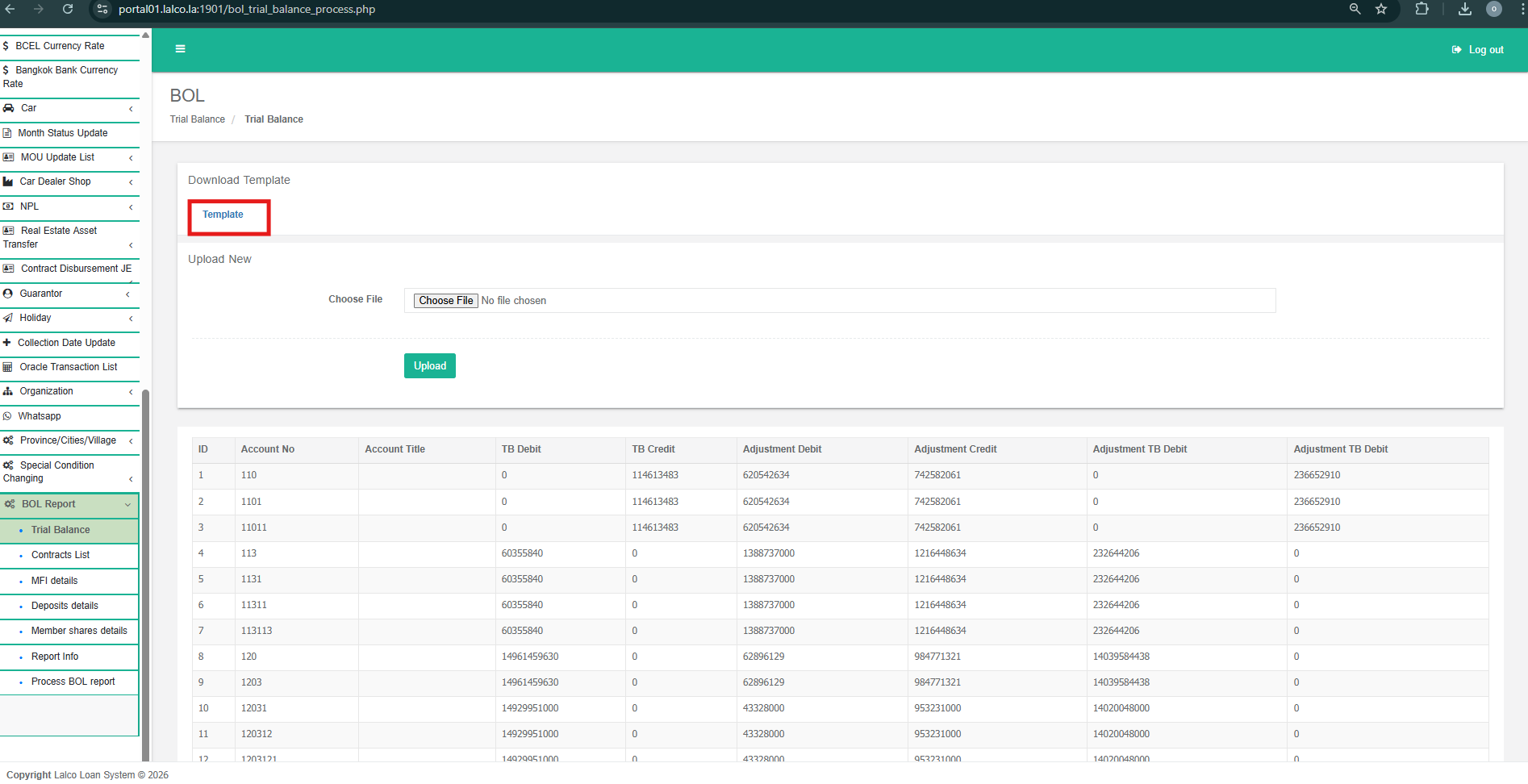
3.1.2. Fill in the Template
-
Open the downloaded Excel template.
-
Enter the trial balance details according to the given columns (e.g., Account No, Account Title, Debit, Credit, Adjustments).
-
Ensure all values are entered in the correct format.
-
Save the file after completing data entry.
3.2.3 Upload Trial Balance File
-
In the Upload New section, click Choose File.
-
Select the completed Excel (.xlsx) file from your computer.
-
Click the Upload button.
-
Wait for the system to process the file.
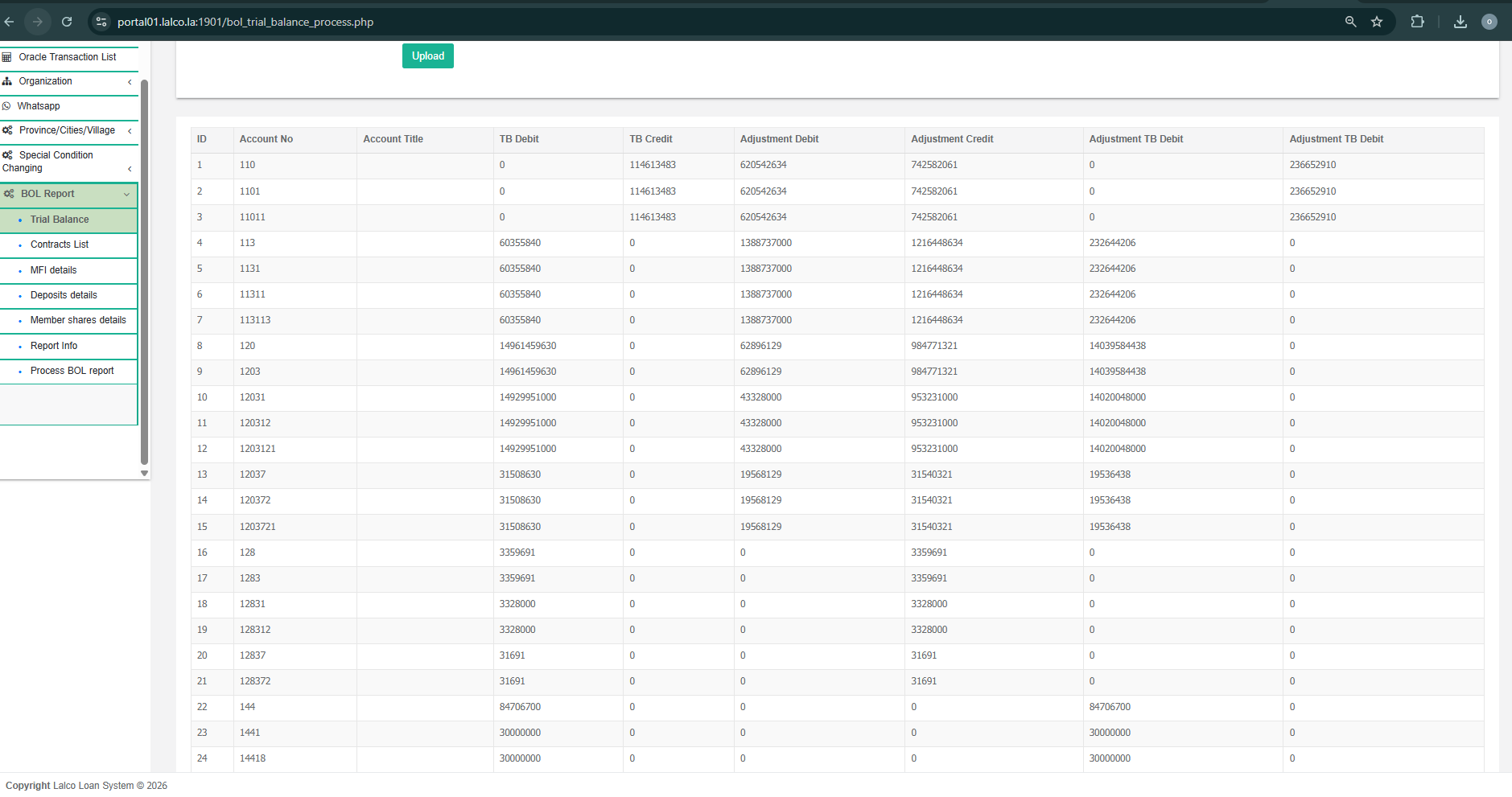
3.2.4. View Uploaded Trial Balance Data
-
After a successful upload, the uploaded data will be displayed in the table below.
-
Review the displayed records carefully.
3.2. Contract List
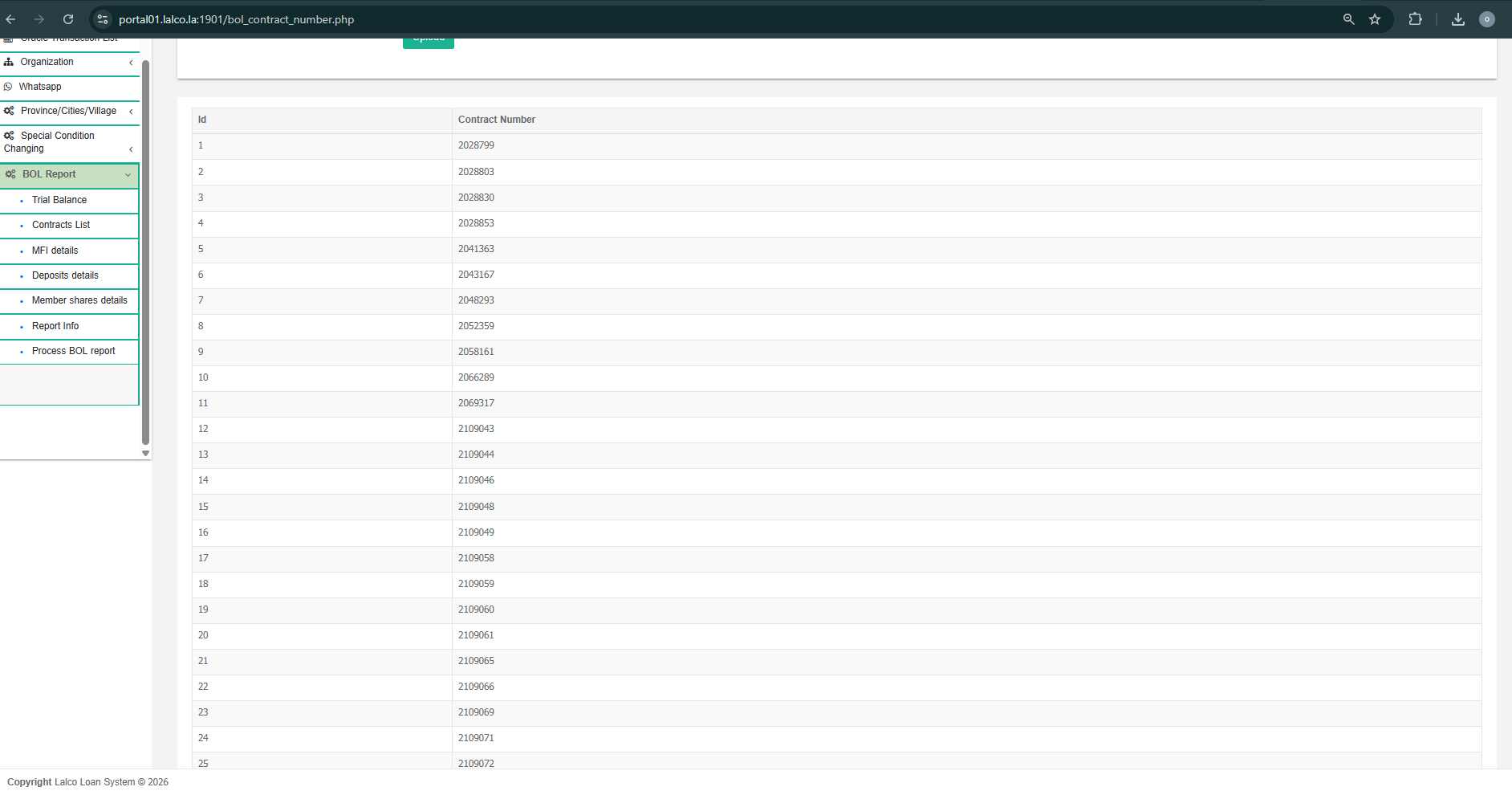
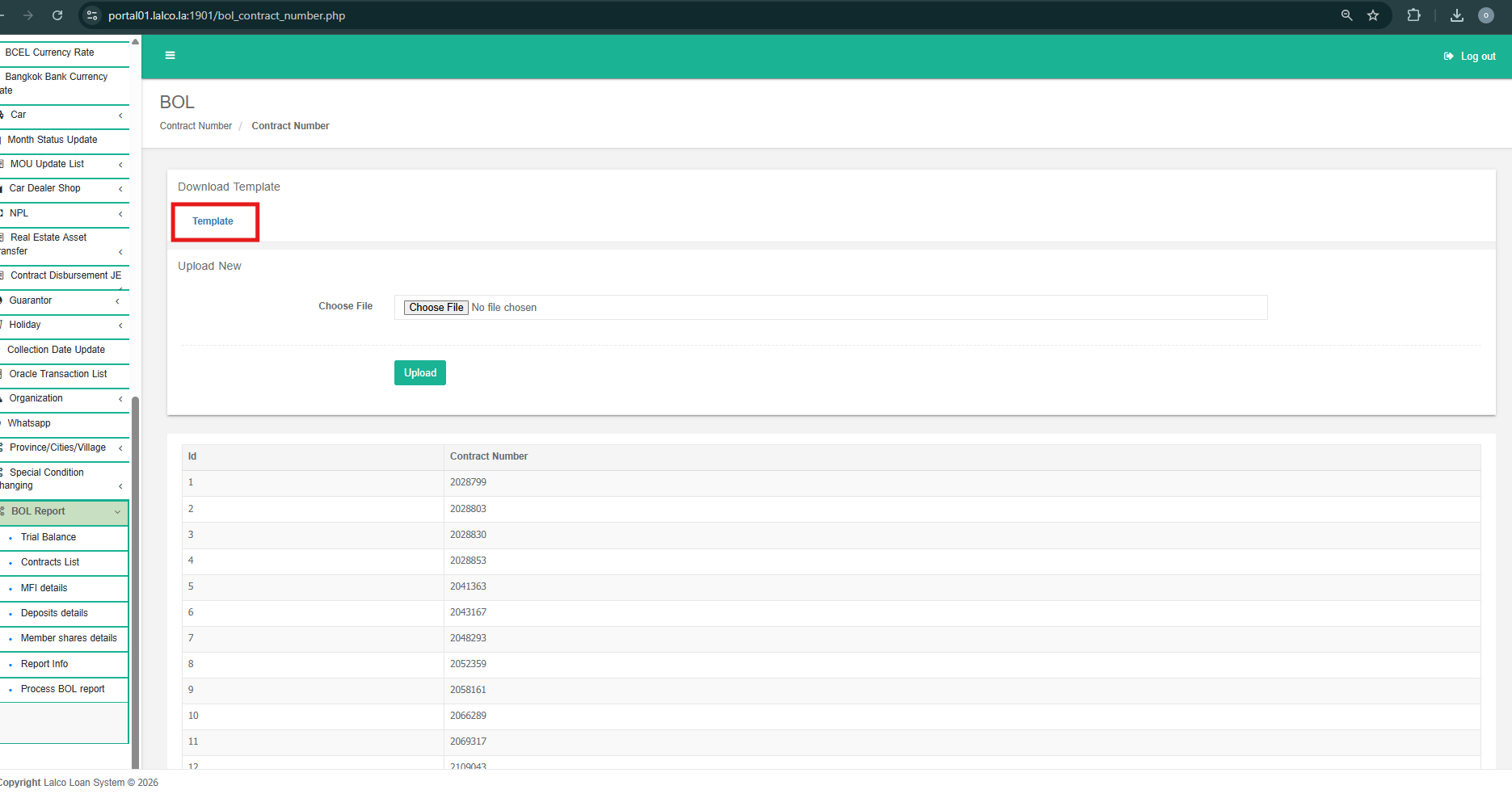
The Contracts List page allows you to bulk-upload contract numbers into the system using a standardized Excel template. Follow these steps to ensure your data is processed correctly.
3.2.1. Download the Template
- Before uploading any data, you must use the official format to prevent errors.
- Navigate to the BOL Report menu on the left sidebar and select Contracts List.
- Under the Download Template section, click the blue Template link.
- An .xlsx file will download to your computer.
3.2.2. Fill in the Template
- Open the downloaded Excel template.
- Enter your contract details into the designated columns (e.g., Contract Number).
- Note: Do not change the column headers or the file format, as this may cause the upload to fail.
- Save the file on your local drive.
3.2.3. Upload the Completed File
- Once your file is ready, you can import it into the system:
- Go to the Upload New section on the page.
- Click the Choose file button.
- Select the saved Excel file from your computer.
- Click the green Upload button to process the file.
3.2.4. View Uploaded Contract Data
-
After a successful upload, the uploaded data will be displayed in the table below.
-
Review the displayed records carefully.