
2.Client
Overview
The Clients section is used to manage client and counterparty-related information within the CTRM system. It supports the handling of contacts, companies, onboarding, compliance, leads, pipeline activities, and overall client relationship management.
2.1 Contacts
Used to store and manage individual people associated with counterparty organizations. Maintains key information : Name, Email, Phone number
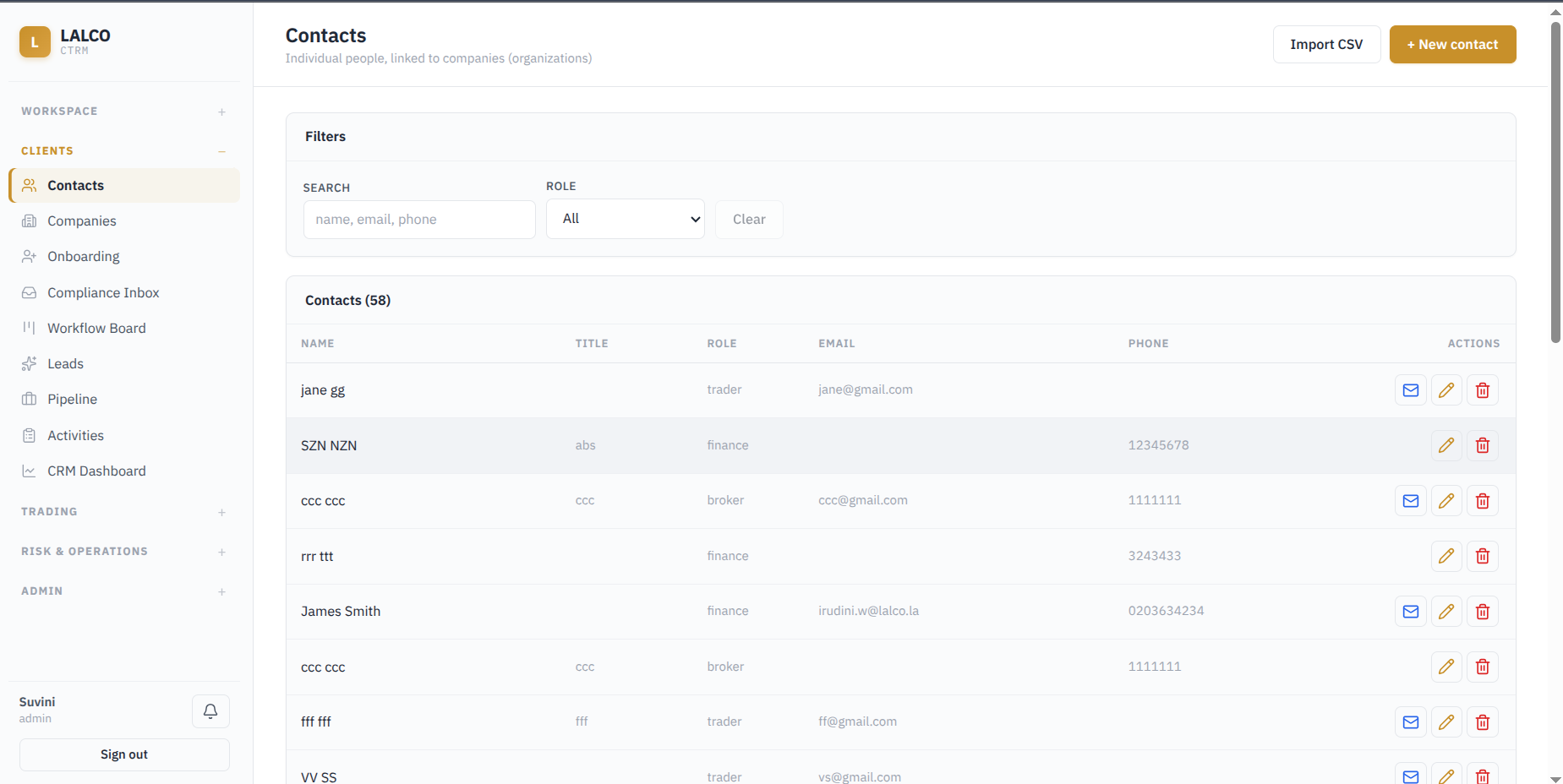
Filters
- Search: Find contacts using name, email, or phone number
- Role: Filters contacts according to their assigned roles
Main Functions
- Add a new contact
- Import contacts using a CSV file
- Edit or delete existing contacts
- Send an email directly when a email address is available
Methods to add a contact
1. Import Contacts from CSV
Allows multiple contacts to be added at once by uploading a CSV file up to 5 MB.
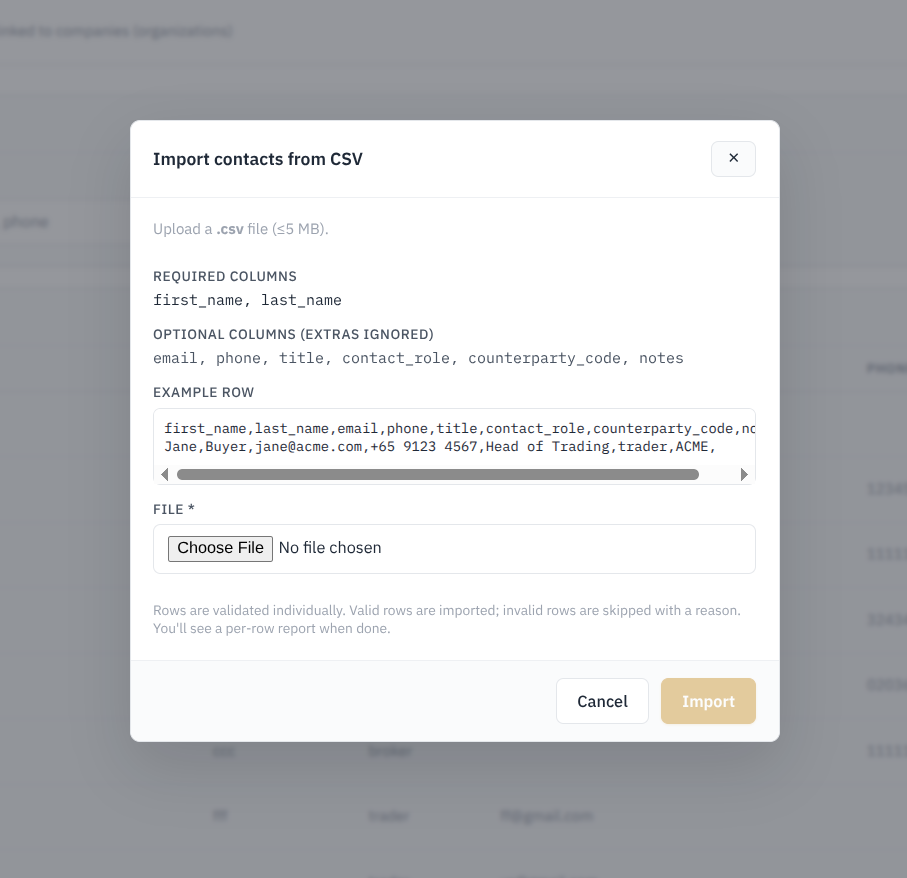
- Required Columns: first_name , last_name
- Optional columns: email, phone, title, contact_role, counterparty_code, notes
- Additional columns that are not required are ignored by the system
- Each row is validated indivually before being imported
- Valid rows are imported, while invalid rows are skipped with the reason provided
- A row-by-row import report is displayed after the process is completed.
Key Characterisitc
Counterparty Code – Identifies the counterparty organization that the contact belongs to. When contacts are imported through a CSV file, this code helps the system link each contact to the correct counterparty automatically.
2. Manual Entry of a company
Allows users to manually create an individual contact record within the system.
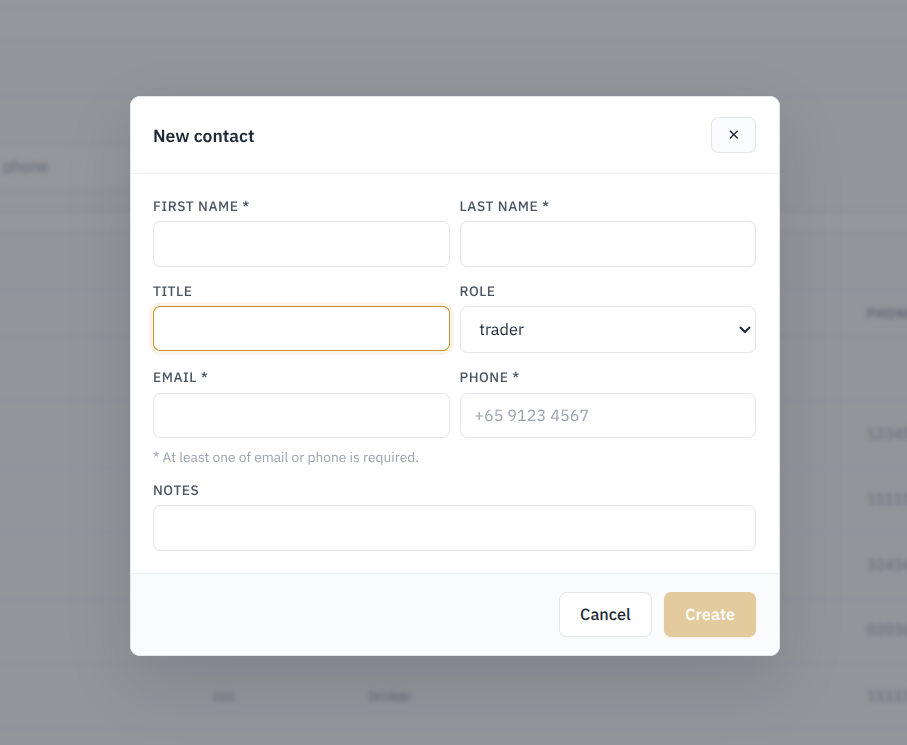
Fields:
- First name
- Last Name
- Title (Job title/position)
- Role (Business role)
- Phone
- Notes
Validations :
- First name and Last name are mandatory
- At least one contact method, either Email or Phone must be provided.
2.2 Companies
Used to manage the organizations that the business trades or works with. Each company is maintained as a counterparty record with its identifying details, type, country, limit, and current status.
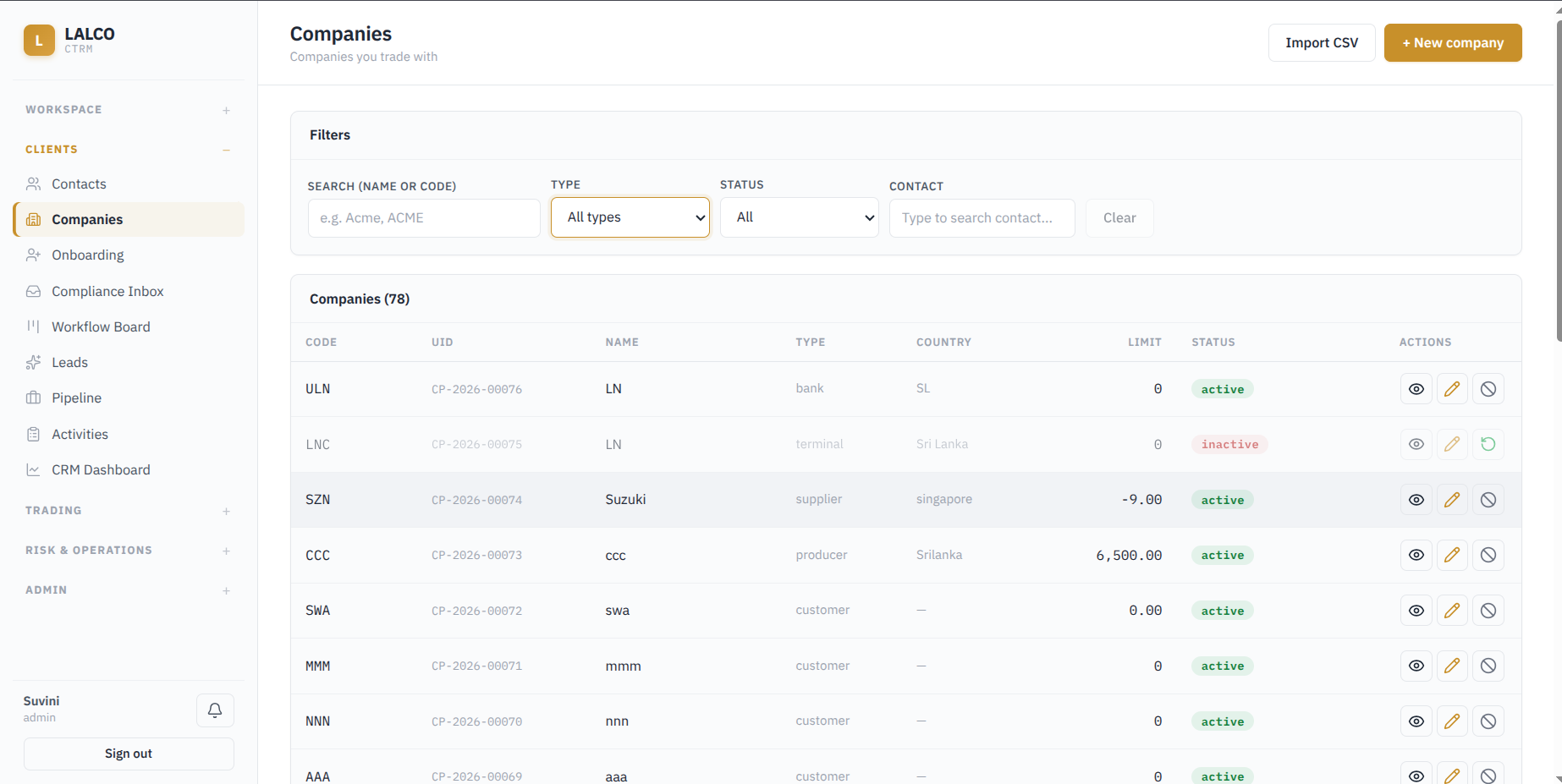
Filters
- Search by name or code - Find a company by company by it's name or company code.
- Type - Filter according to the company type (customer, supplier, producer etc)
- Status - Inactive or active
- Contact - Finds companies associated with a particular contact
Main Functions
- Add a new company.
- Import company records through CSV.
- View company details.
- Edit an existing company.
- Deactivate an active company or reactivate an inactive company.
Methods to add a companies
1. Import companies from csv
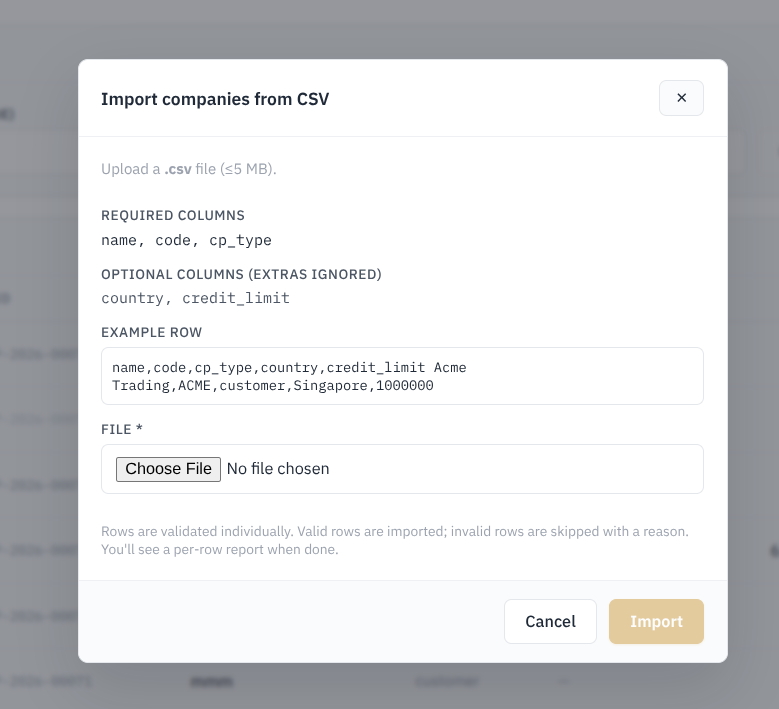
Required columns : Name , Code , CP Type (Counterparty type)
Optional columns: Country, Credit Limit
Validation
Each row in the CSV file is checked separately before import.
- Valid rows are imported successfully.
- Invalid rows are skipped.
- The system provides a reason for any rejected row.
- A row-by-row import report is shown after the import is completed.
2. Manual Entry of a company
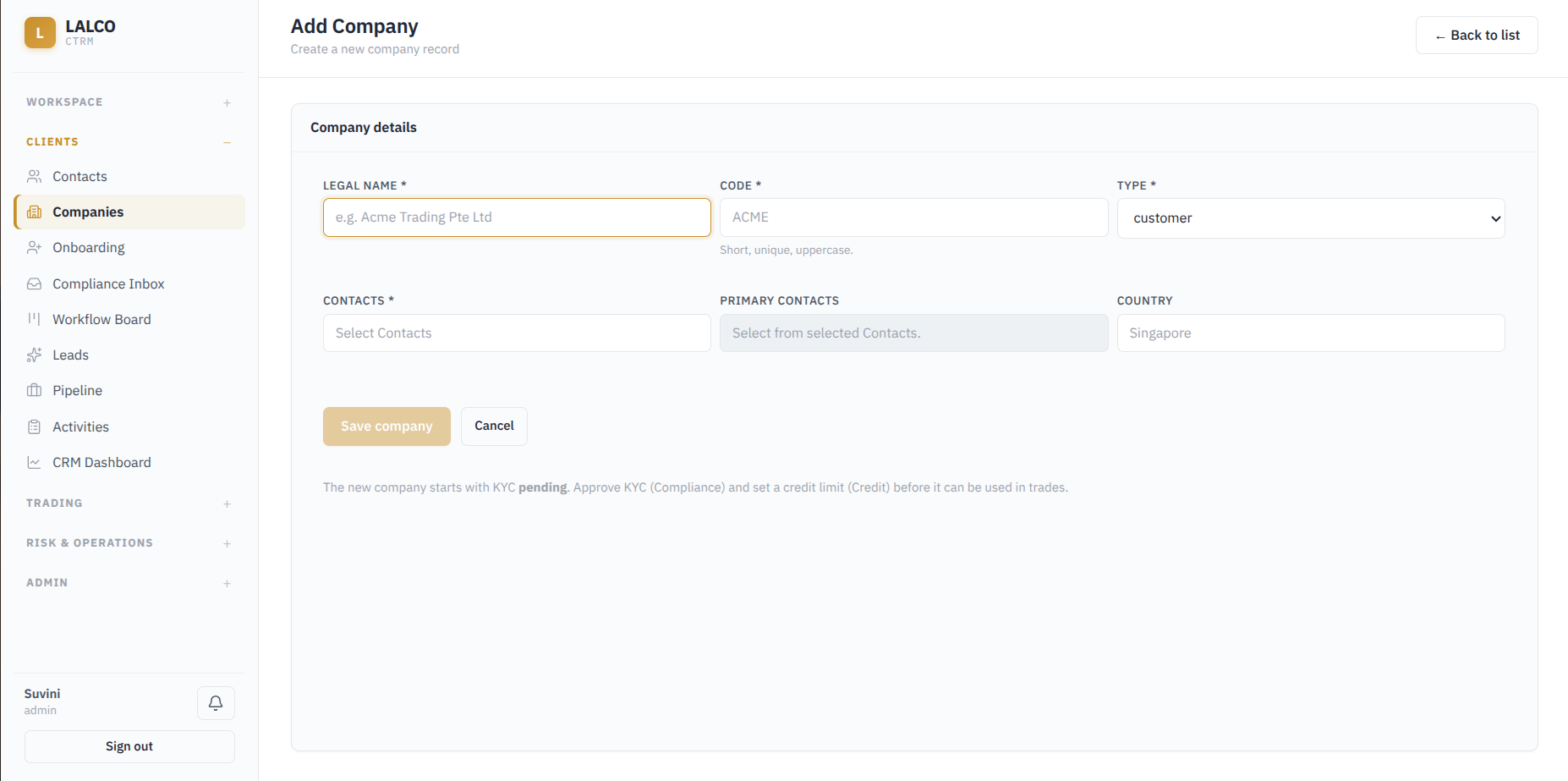
Fields to create a new company
- Legal Name – Official name of the company. Required.
- Code – Short, unique uppercase code used to identify the company. Required.
- Type – Defines the counterparty type, such as customer. Required.
- Contacts – Links existing contacts to the company. Required.
- Primary Contacts – Identifies the main contact person from the selected contacts.
- Country – Country associated with the company.
Key Requirement
A newly created company starts with KYC (Know Your Cusomter) Pending status. Before the company can be used in trades:
- KYC must be approved through the Compliance process.
- A credit limit must be assigned through the Credit process.