
Home Screen
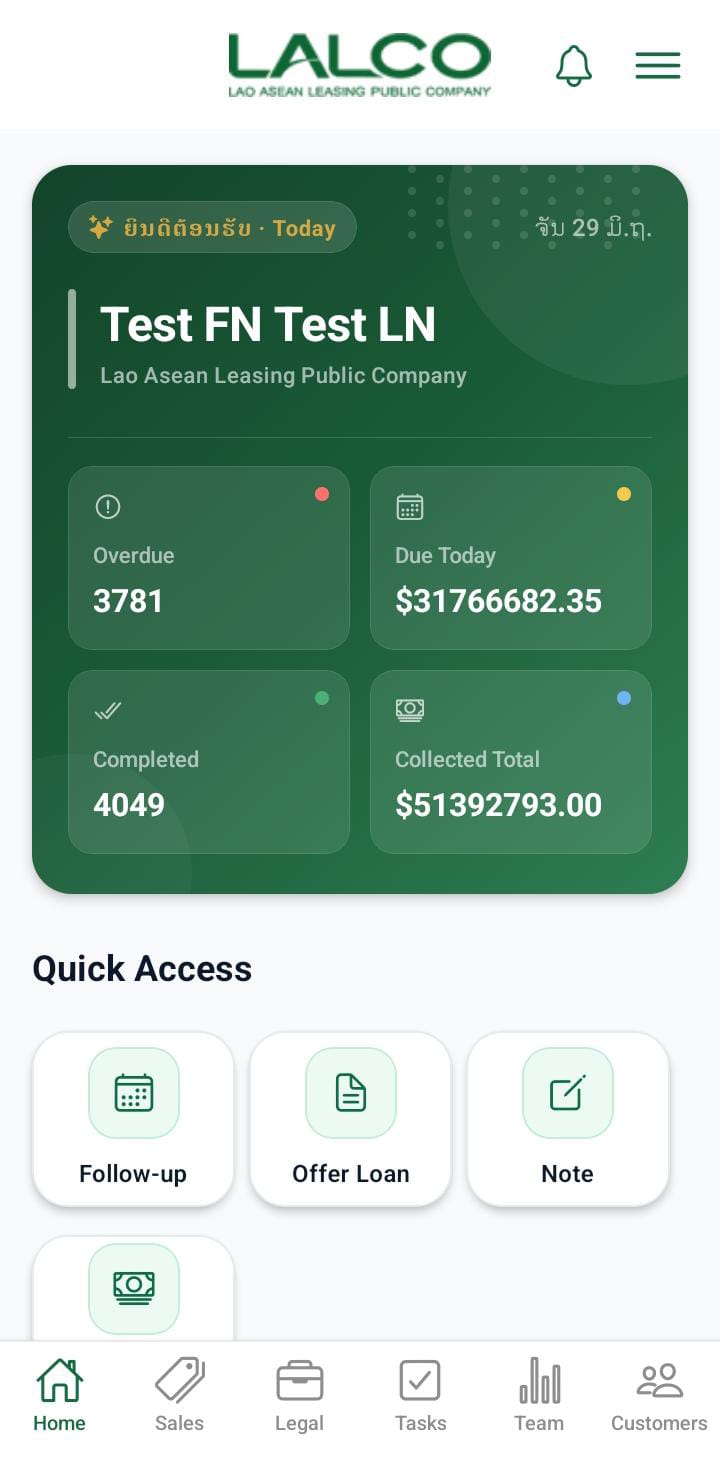
The Home Screen is the main screen of the LALCO Staff application. It provides agents with a quick overview of their daily tasks, collections, and customer activities.
From this screen, staff members can quickly access important features such as logging calls, scheduling follow-ups, offering loans, and managing tasks.
Header Section
1. Company Logo
The LALCO logo at the top represents the company and confirms that the user is logged into the official staff application.

2. Notification Icon 🔔
The bell icon shows notifications such as:
-
New assigned tasks
-
Follow-up reminders
-
Customer updates
-
System alerts
3. Menu Icon ☰
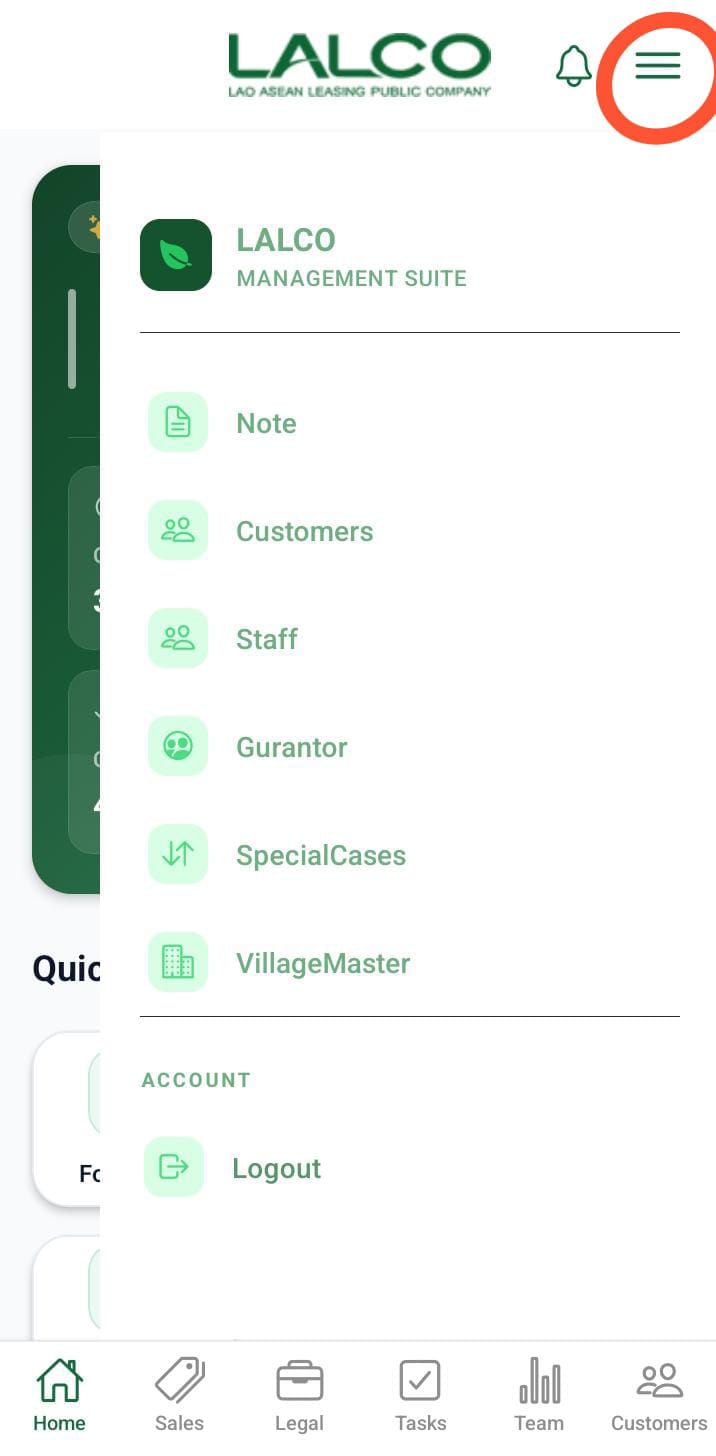
When tapped, a sidebar appears with the following options:
Menu Options
-
GPS Offline
Indicates the current GPS status. This helps agents know whether location tracking is active or not. -
Offer Loan
Access the loan offering feature to create or manage loan proposals. -
User
Access user profile information and settings. -
Payment Capture
Open the camera or capture feature to upload images or documents. -
Add Note
Create and save notes related to customers or tasks. -
Customers
Navigate to the customer management section. -
Staff
View or manage staff-related information. -
Logout
Securely log out of the application. - Gurantor
The guarantor details of each contract.
Overview Panel
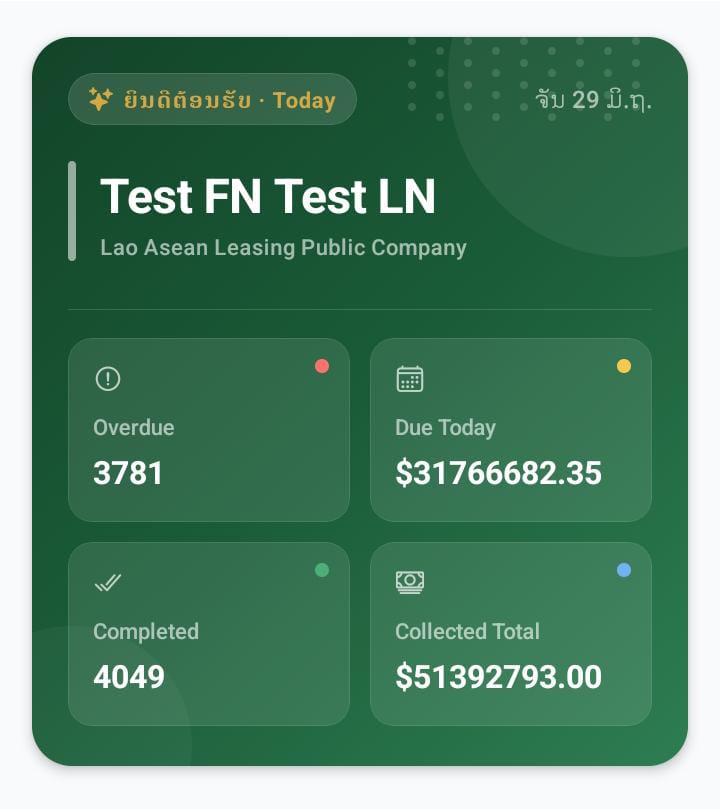
This section shows a quick summary of the daily activity.
4.FieldOps Badge
Indicates the user is operating in Field Operations mode.
5. Welcome Message
Displays the logged-in staff member’s name.
Example:
6. Current Date
Shows the current working date for reference.
Activity Summary Cards
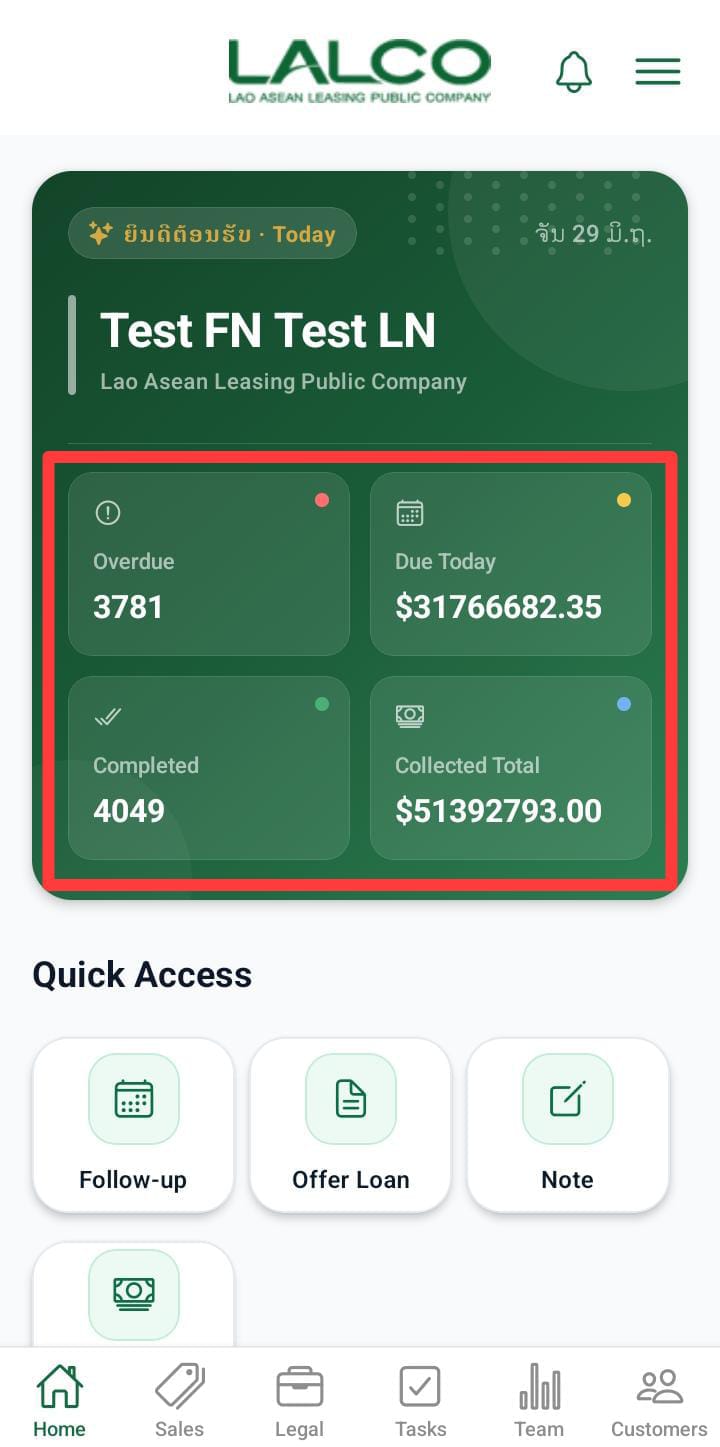
These cards show important performance indicators for the day.
7. Overdue
Displays the number of customers with overdue payments.
Example:
This helps agents prioritise collections.
8. Due Today
Shows the total amount that needs to be collected today.
Example:
9. Completed
Displays the number of collections completed tasks for the day.
Example:
10. Collected Today
Shows the total amount successfully collected today.
Example:
Quick Access Section
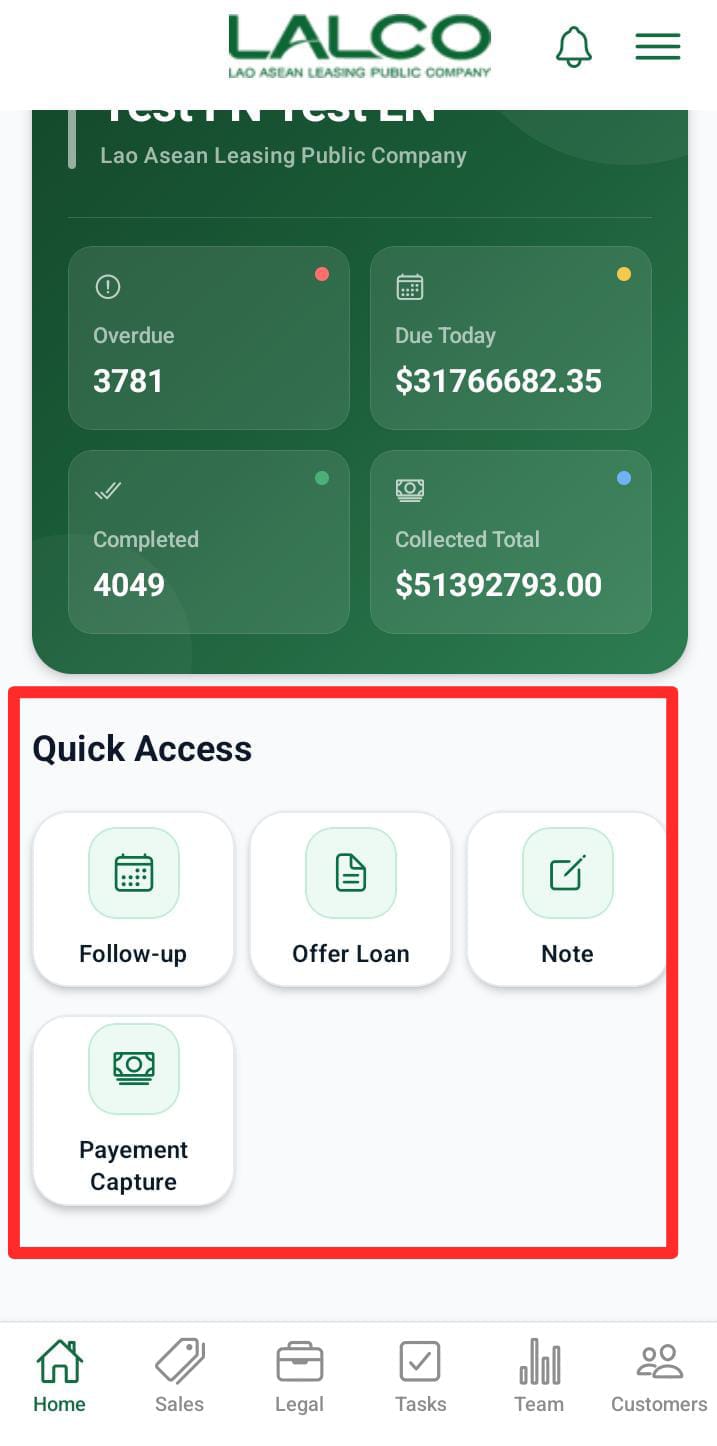
The Quick Access panel provides shortcuts to frequently used actions.
11. Follow-up
Used to schedule a future reminder to contact a customer again.
Agents can set:
-
Follow-up date
-
Follow-up notes
12. Offer Loan
Allows staff to create or propose new loan offers to customers.
This is typically used when:
-
A customer requests a loan
-
A new sales opportunity is identified
13. Payment Capture
This allows the user to add the payment collection receipt.
- The user can upload the collection receipt.
- And upload the receipt that will be reflected in the LMS, also
14. Add Note
Agents can record internal notes about customers or cases.
Notes may include:
-
Customer discussions
-
Payment promises
-
Special instructions
Bottom Navigation Menu
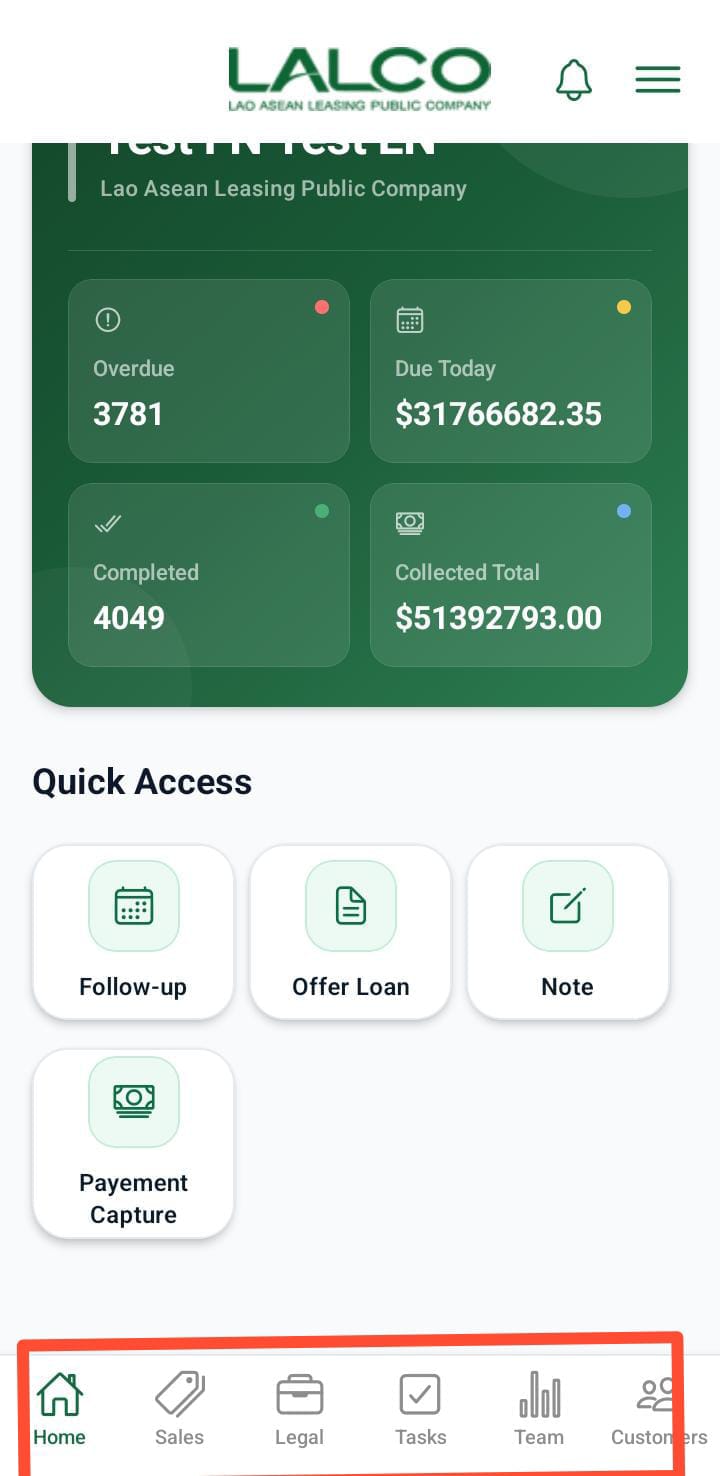
16. Home
Returns to the Dashboard screen.
17. Tasks
Shows all assigned tasks and pending activities.
18. Sales
Used to manage loan sales and offers.
19. Legal
Displays cases that require legal action or documentation.
20. Team
Shows team members and allows team coordination.
21. Customers
Provides access to the customer database.
Agents can:
-
Search customers
-
View loan details
-
Update records