
Legal Screen
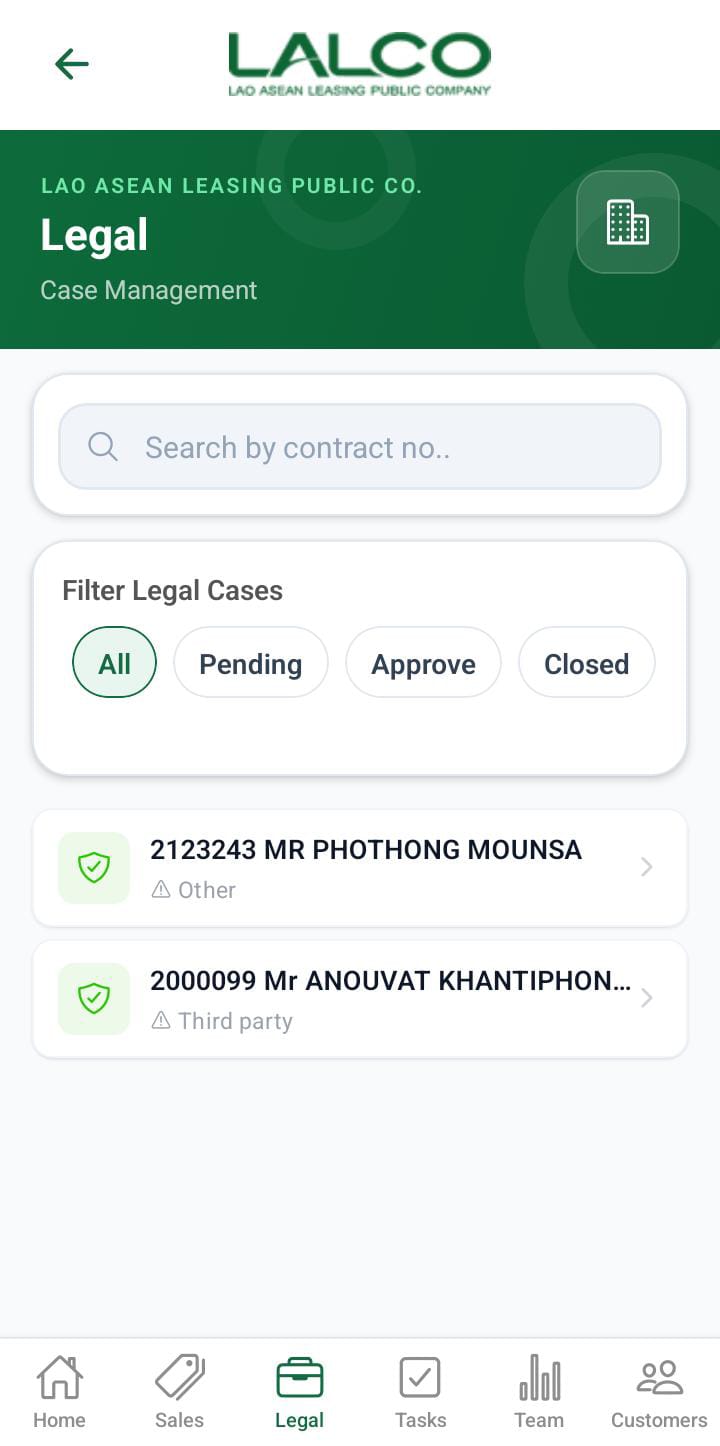
Description
legal
Headercases Section
are Pagecontracts Title
that Legal
the
Description
necessary Search Function
Search Bar
Allows users to search by:
-
Contract number
Customer name
Filter Options
UsersLegal cases can filterbe legal casesfiltered by stage:the following statuses:
-
AllPending→–ShowsWhenallthecasescollection team adds a contract that requires legal action in the Special Cases screen, it is initially listed with the Pending status. -
Pre-legalApproved→–BeforeAfter the legalactionteamstartsapproves the special case, it is listed under the Approved status. -
FiledClosed→–CaseAfterhasthebeenlegalfiledteam dismisses or closes the special case, it is listed under the Closed status. Hearing→ Under court hearingJudgment→ Final decision stageClosed→ Finished cases
Legal List
Each item represents a legal case.
Example:
Information Displayed
Each record shows:
Contract NumberCustomer NameStageDeadline
How to Use
View a Case
-
Open the Legal tab
-
Browse or search cases
-
Tap a case to view details
LALCO Staff App – Legal Details Screen
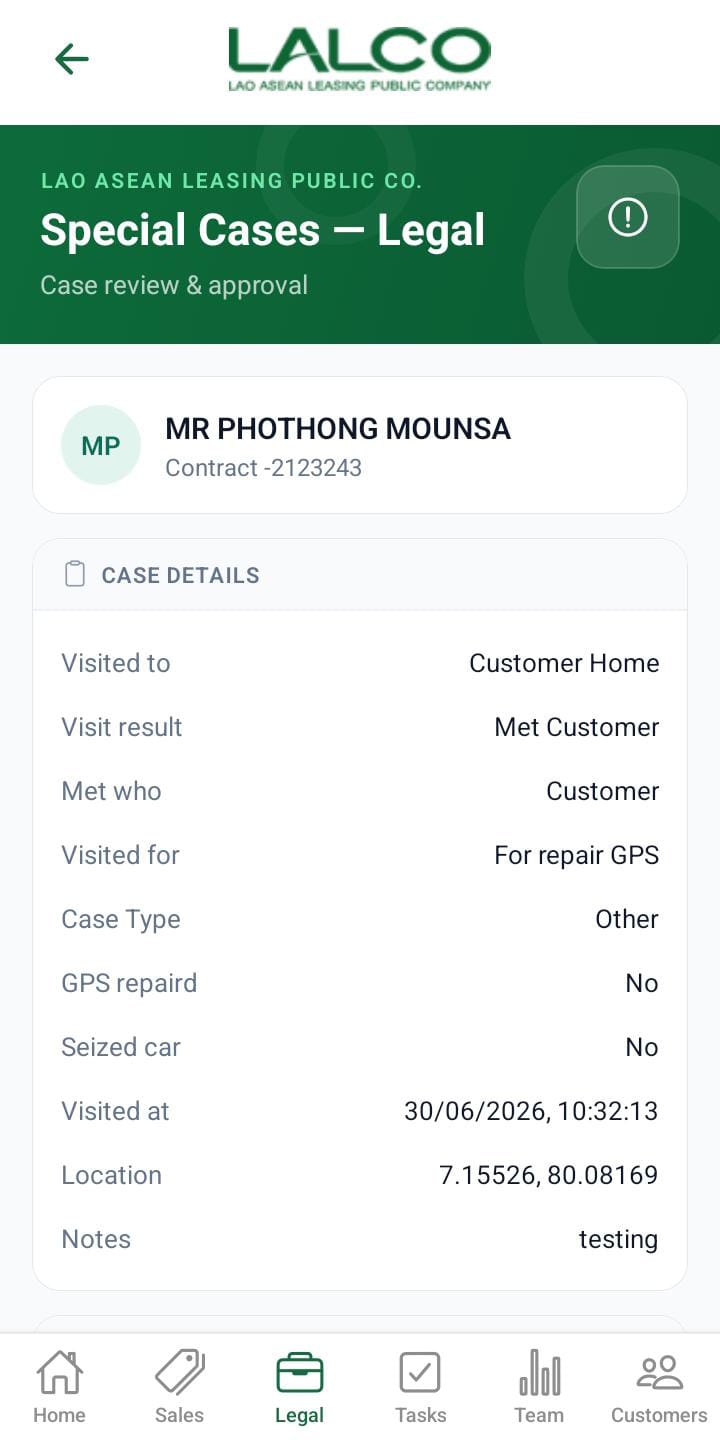
The Legal Details Screen shows detailed information about a selected legal case and allows staff to take actions.
Legal Details Section
Displays key information:
- about
Name→ Customer nameContract Number→ Unique IDStage→ Currentthe legalstatusscreen.Deadline→ Important due date
Actions
Start
 |
 |
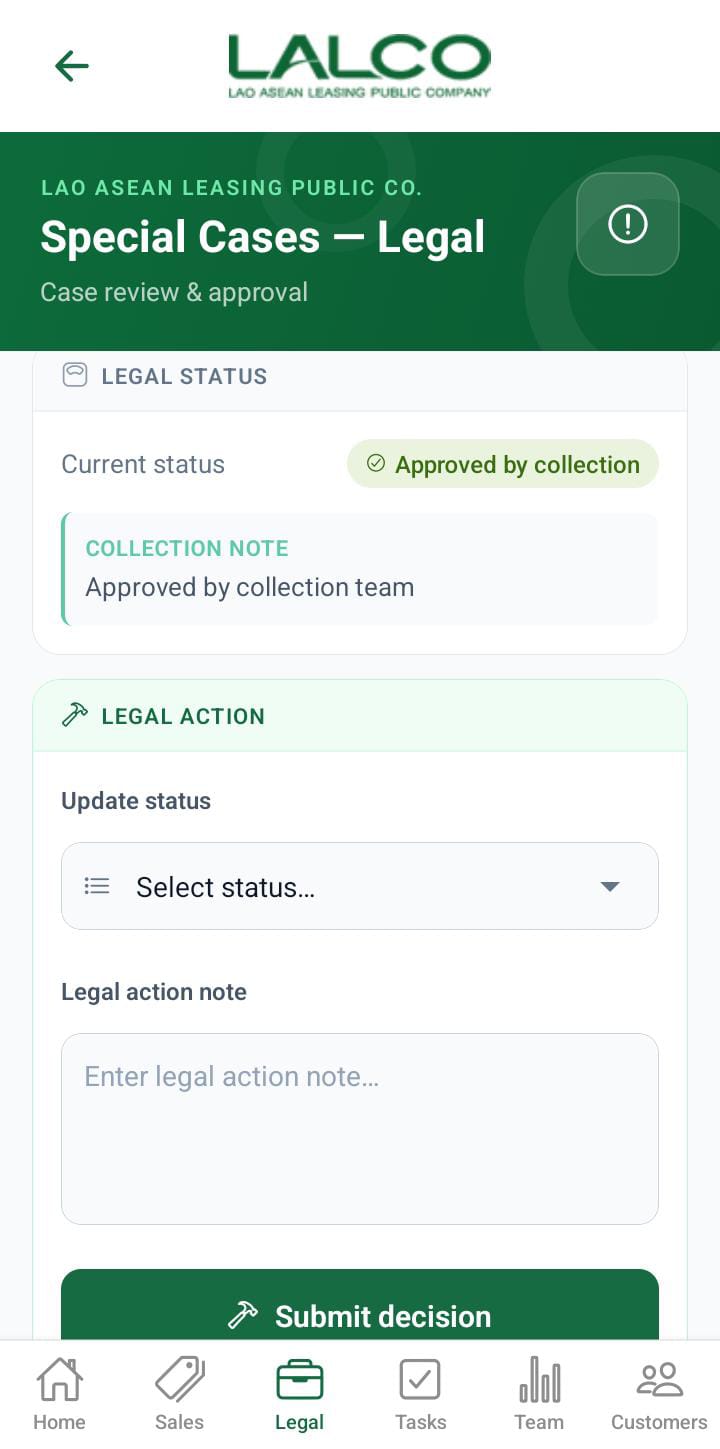
UsedBefore taking legal action, the legal team must confirm the contract that requires legal action.
For that need to beginsubmit athis fieldlegal visitaction related to the case.
Used for:form.
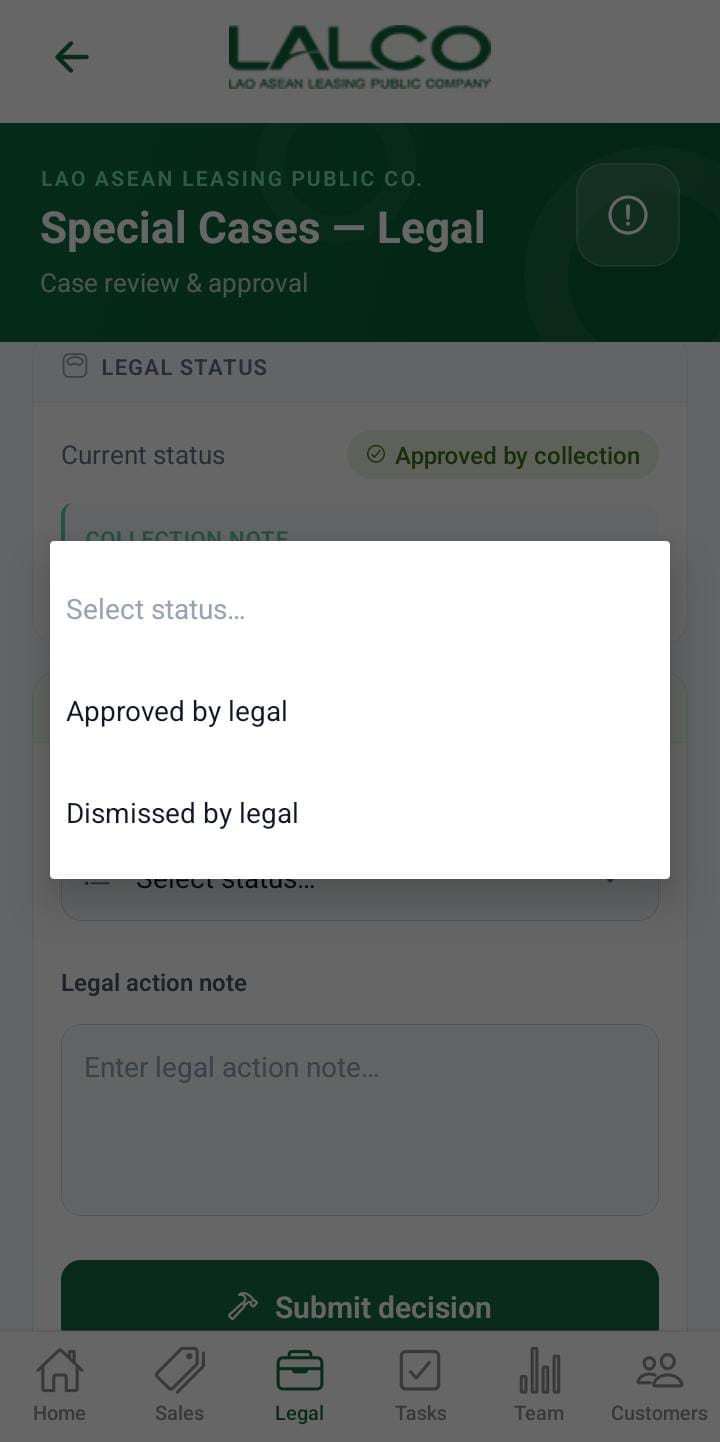
- If
legal status is Approved by Legal, the status will be changed to ApprovedCustomerthevisits - If
legalLegalthefollow-upsstatus - is
by Legal, the status will be changed to CloseFieldDismissedverification
How to Use
View Details
-
Select a case from the list
-
Review all details
Start Visit
TapStart VisitProceed with visitUpdate status if needed