
Reassigned Tasks Screen
Reassigned Tasks Screen
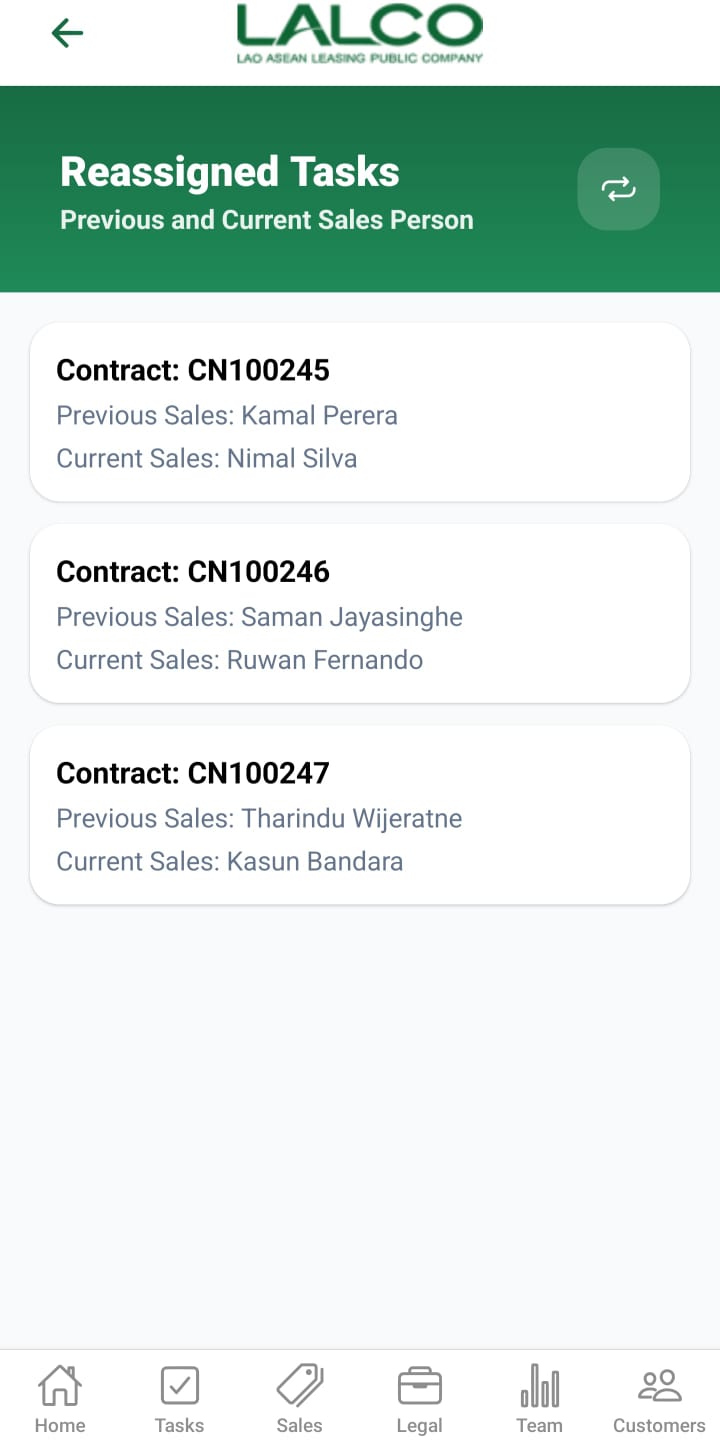
The Reassigned Tasks Screen allows users to view tasks that have been reassigned between sales staff. It shows both previous and current sales persons for each contract.
Task List
Each item represents a reassigned task.
Example:
Contract: CN100245
Previous Sales: Kamal Perera
Current Sales: Nimal Silva
Previous Sales: Kamal Perera
Current Sales: Nimal Silva
Information Displayed
Each record shows:
- Contract Number
- Previous Sales Person
- Current Sales Person
How to Use
View Reassigned Tasks
- Open the Reassigned Tasks section
- Browse the list of tasks
- Tap a task to view more details
Reassign Task Details Screen
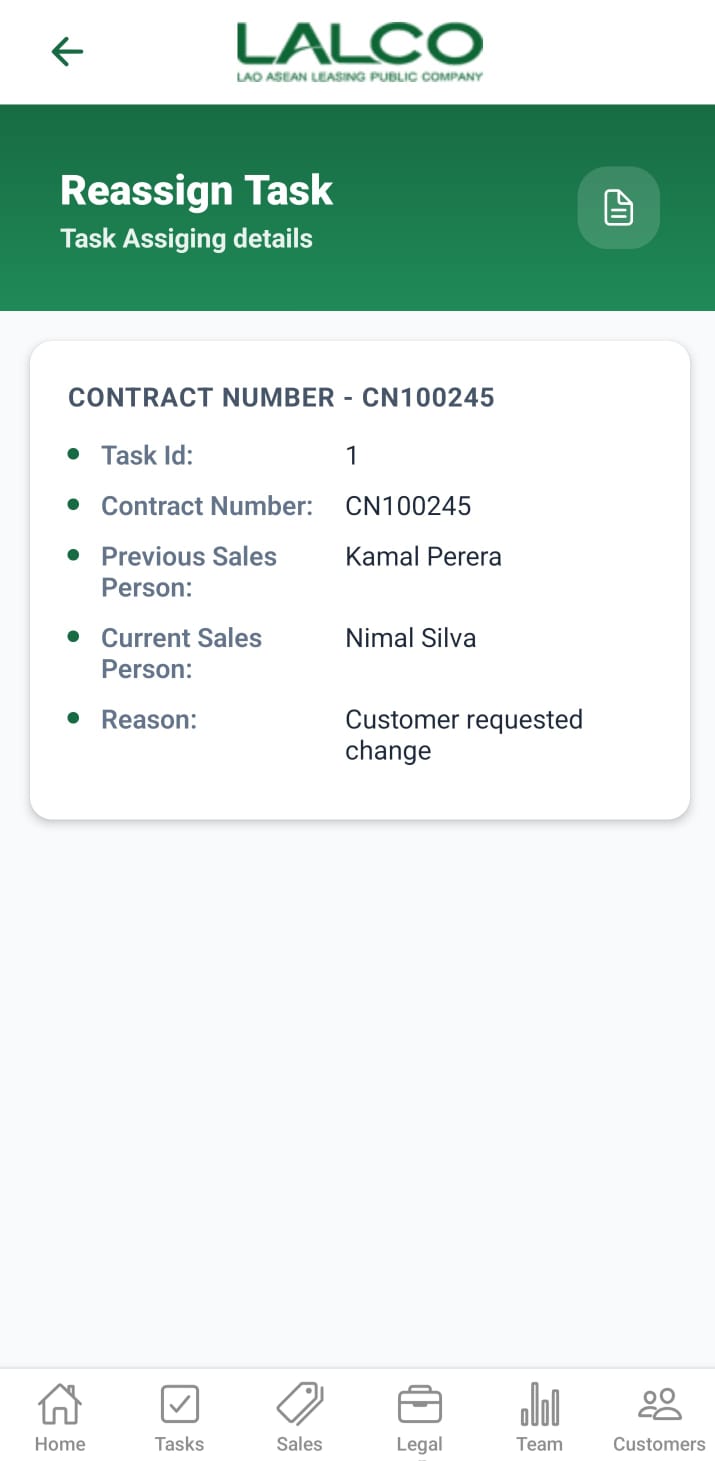
The Reassign Task Details Screen shows detailed information about a specific reassigned task, including the reason for reassignment.
Task Details Section
Displays key information:
- Task ID → Unique task identifier
- Contract Number → Related contract
- Previous Sales Person
- Current Sales Person
- Reason → Explanation for reassignment
Example:
Task ID: 1
Contract Number: CN100245
Previous Sales Person: Kamal Perera
Current Sales Person: Nimal Silva
Reason: Customer requested change
Contract Number: CN100245
Previous Sales Person: Kamal Perera
Current Sales Person: Nimal Silva
Reason: Customer requested change
How to Use
View Task Details
- Select a task from the list
- Review all reassignment details
Navigation
Reassigned Tasks → Select Task → View Details