
Staff Screen
Staff List
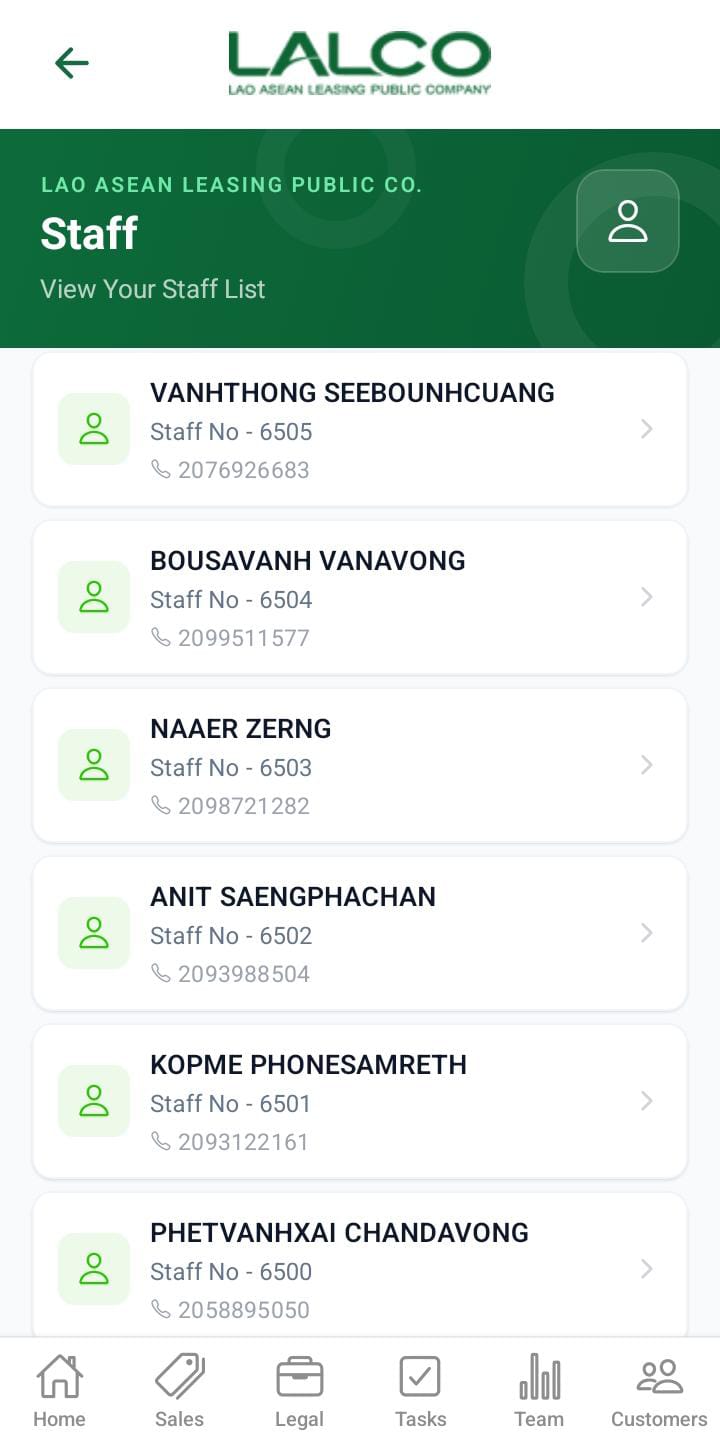
Each item represents a staff member.
 |
 |
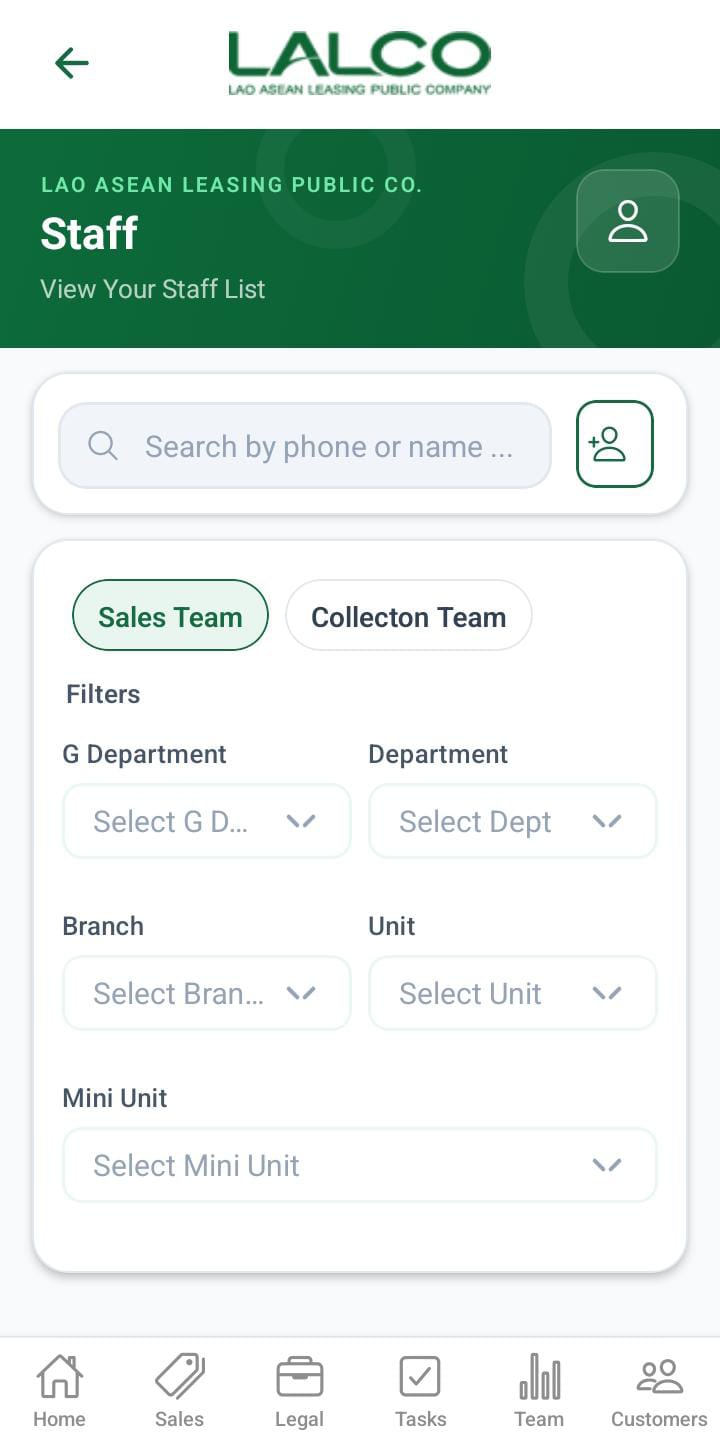
The Staff Screen allows users to view and manage all staff members in the system. It provides a searchable list of staff and an option to add new users.
Header Section
Page Title
Staff
Description
Search Function
Search Bar
Allows users to search staff by:
-
Name
-
Phone number
Filter Options
Users can filter customers by status:
In the filter options, there are two main sections.
- Sales Team
- Collection Team
When the filter is Sales Team below filters can apply,
- G department
- Department
- Branch
- Unit
- Mini Unit
When the filter is Collection Team below filters can apply,
- G department
- Department
- Collection Unit
- collection tl
- collection
The above filters will display like this.
When the user role is admin
- The admin has both sales and collections and can apply all the filters mentioned above.
When the user role is gdept
- The gdept has both sales and collections and can apply all the filters mentioned above except G department.
When the user role is dept
- The dept has both sales and collections and can apply all the filters mentioned above except G department and department
When the user role is branch.
- Display only the sales team.
- Display the unit and Munit filters
When the user role is unit.
- Display only the sales team.
- Display the Munit.
When the user role is MUnit.
- Only the search bar filter can be applied.
When the user role is collection unit.
- Display only the collection team.
- Display the collection tl and collection filters
When the user role is Collection tl.
- Display only the collection team.
- Display the collection.
When the user role is Collection.
- Only the search bar filter can be applied.
Add Staff
Add Staff Button
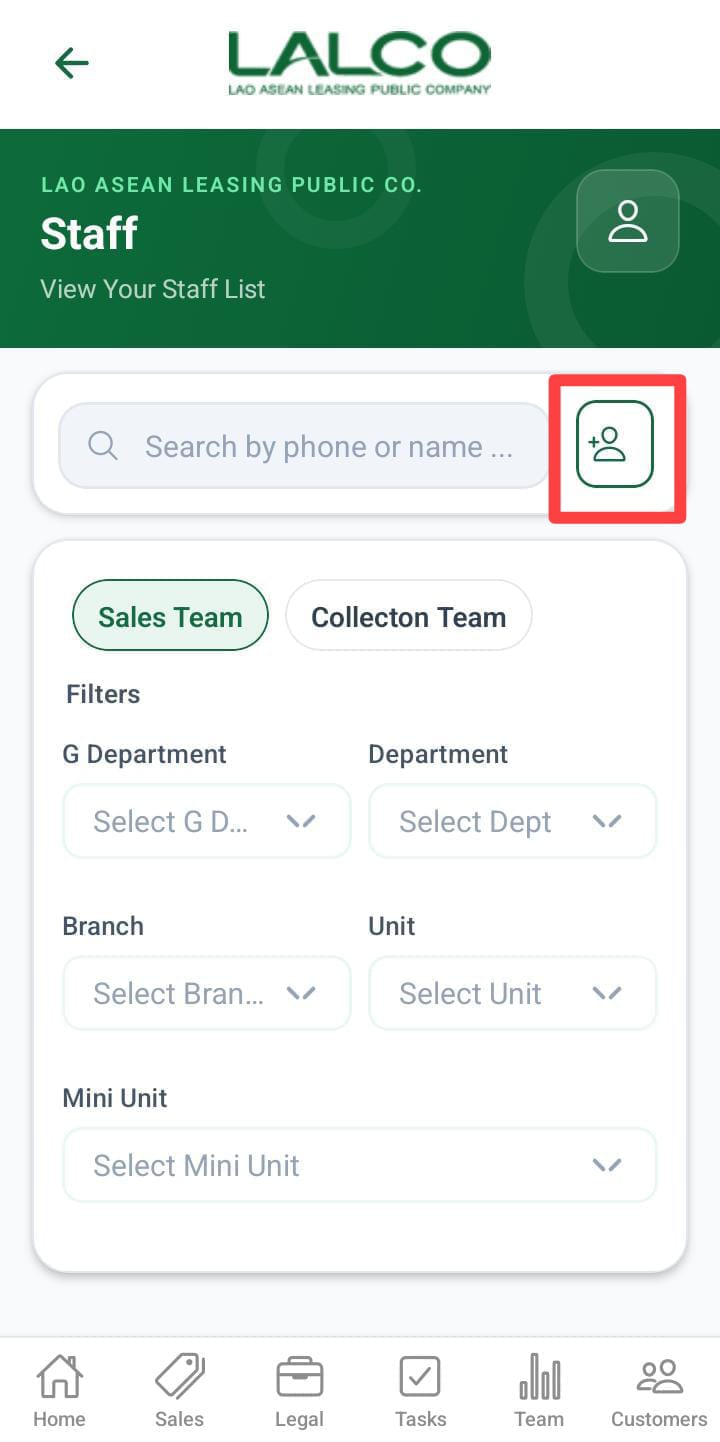
Allows users to create a new staff account. That account will reflectbe reflected in LMS
Example:
Information Displayed
Each record shows:
-
Staff Name
-
Phone Number
How to Use
View Staff
-
Open the Staff section
-
Browse or search staff members
Add New Staff
-
Tap Add Staff
-
Fill in required details
-
Tap Save User
Add New User Screen
 |
 |
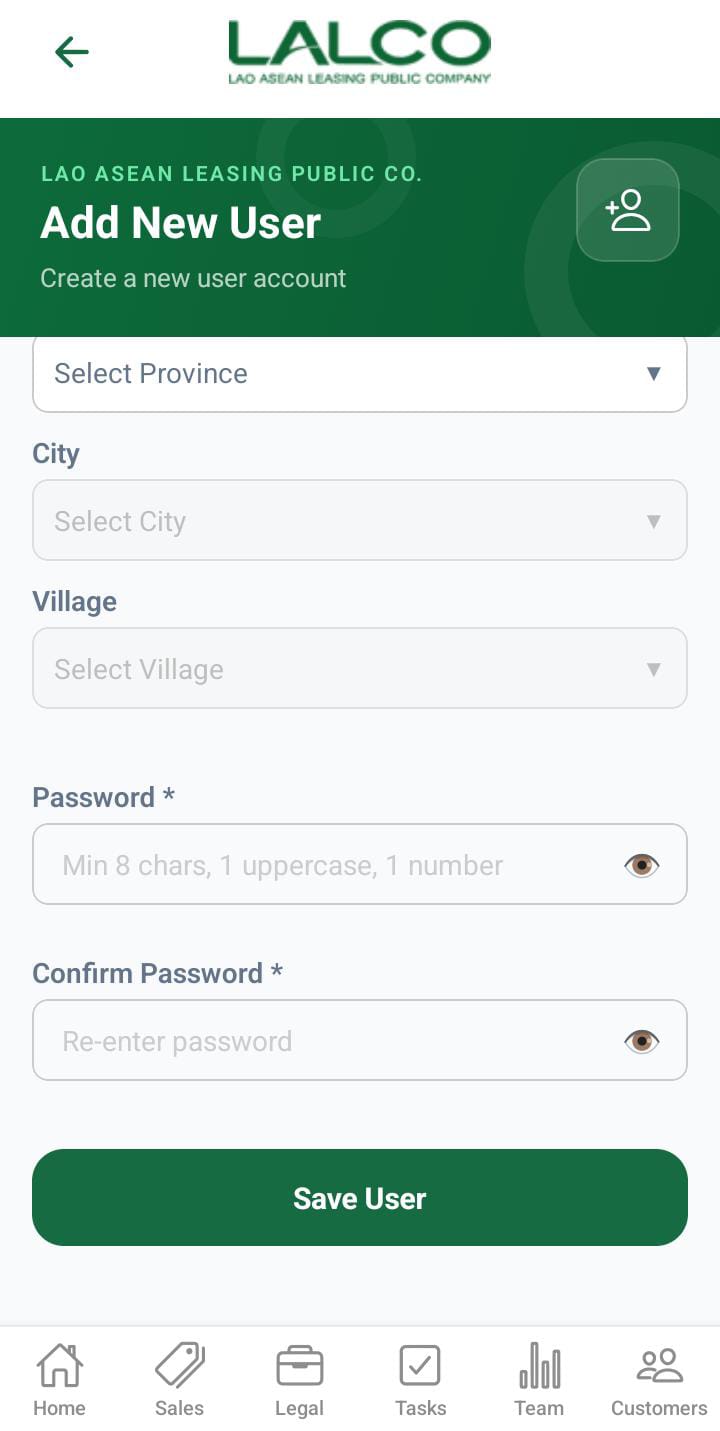 |
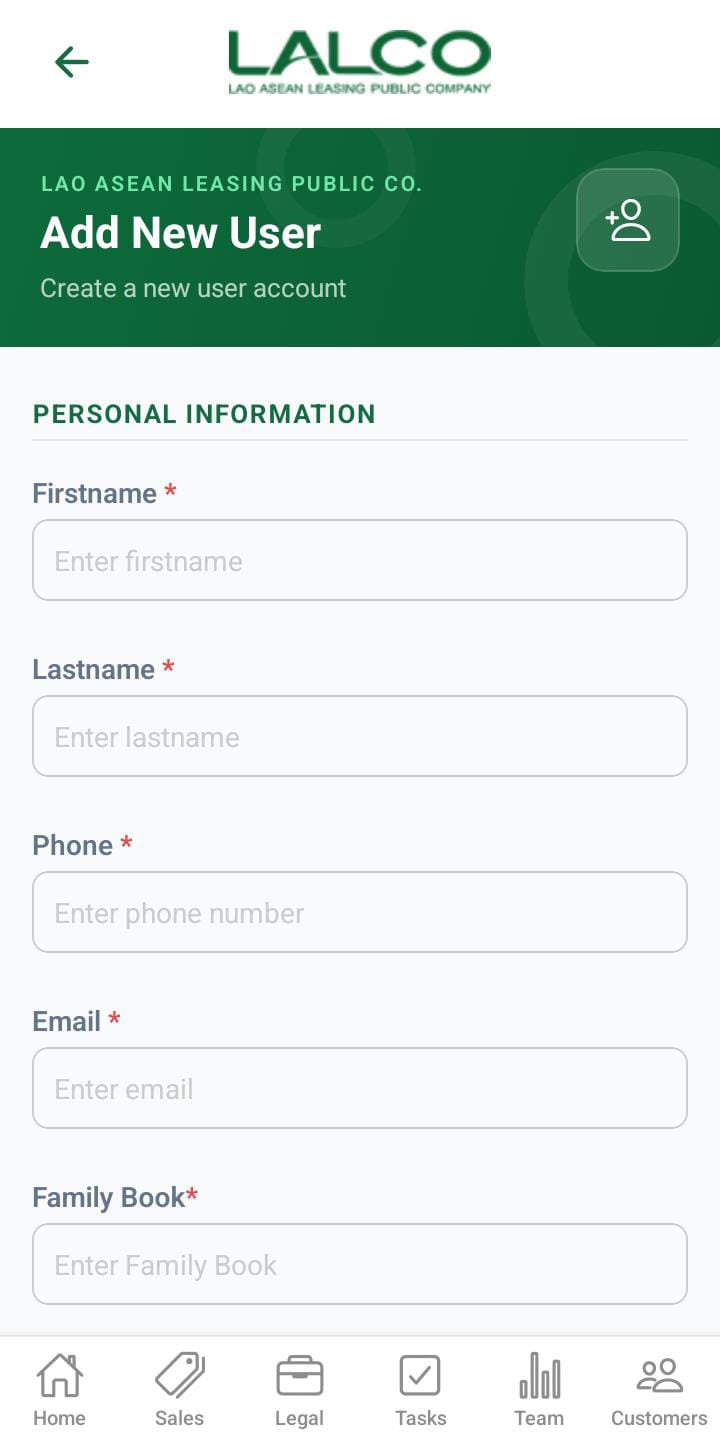
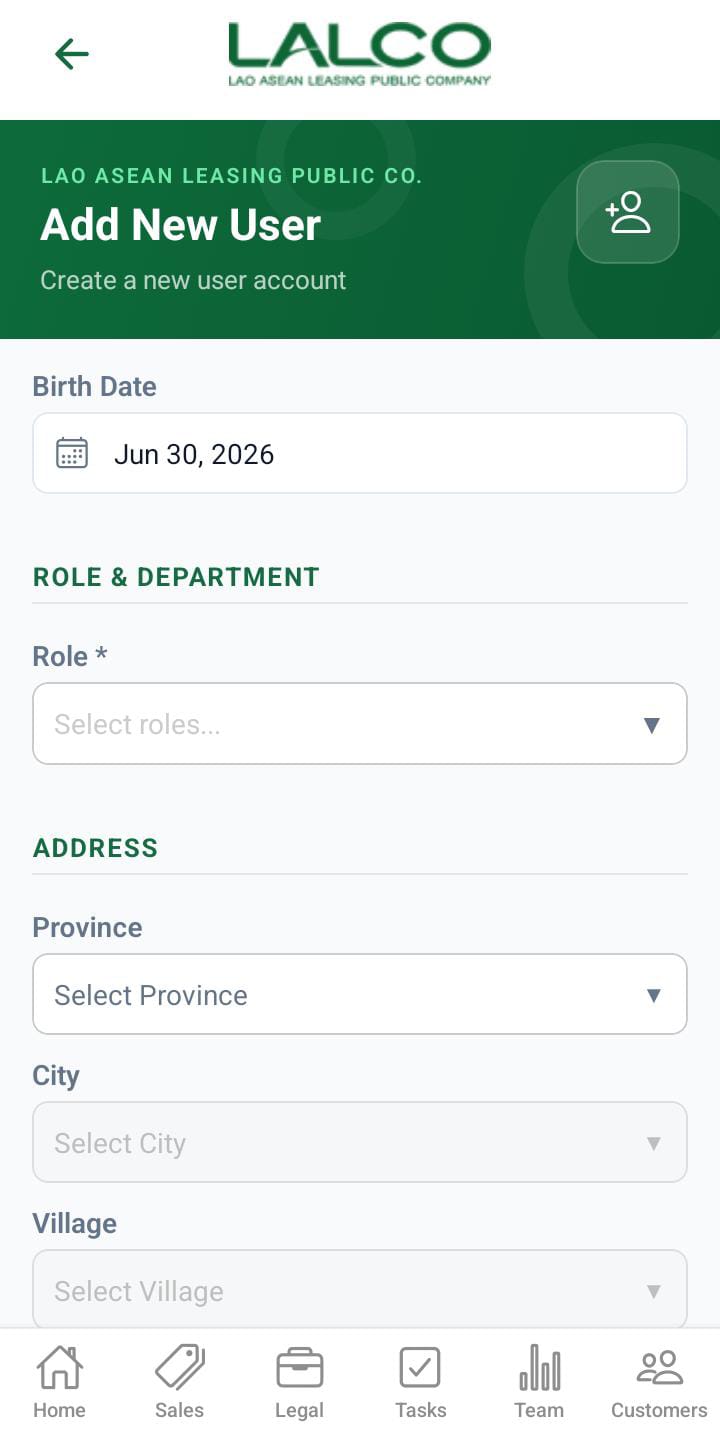
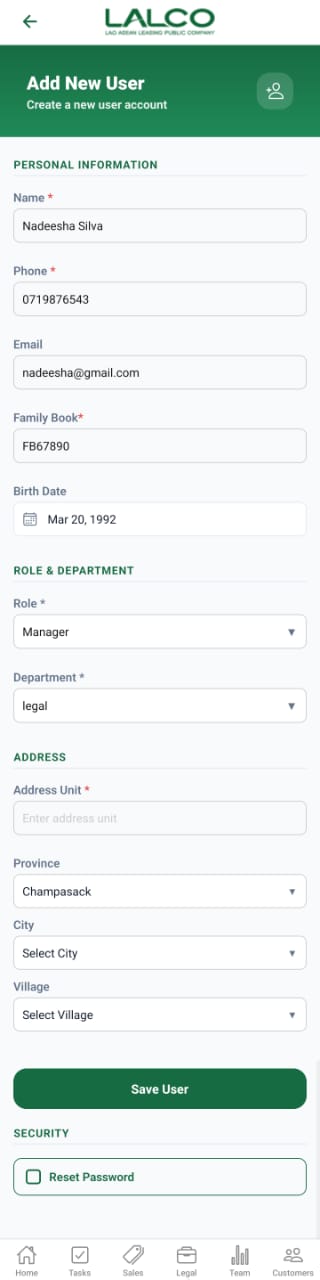
The Add New User Screen allows administrators to create new staff accounts by entering personal, role, and address details.
Personal Information
-
Name → Full name of staff
-
Phone → Contact number - mobile number need to start with 020XXXXXXXX
-
Email → Optional email address
-
Family Book → Additional identification
-
Birth Date → Date of birth
Role & Department
-
Role → Select user role
-
Department → Select department
Address
-
Address Unit → Street or unit
-
Province → Select province
-
City → Select city
-
Village → Select village
Security
-
Password → Minimum 8 characters (with uppercase & number)
-
Confirm Password → Re-enter password
Actions
Save User
Creates the new staff account after validation.
Navigation
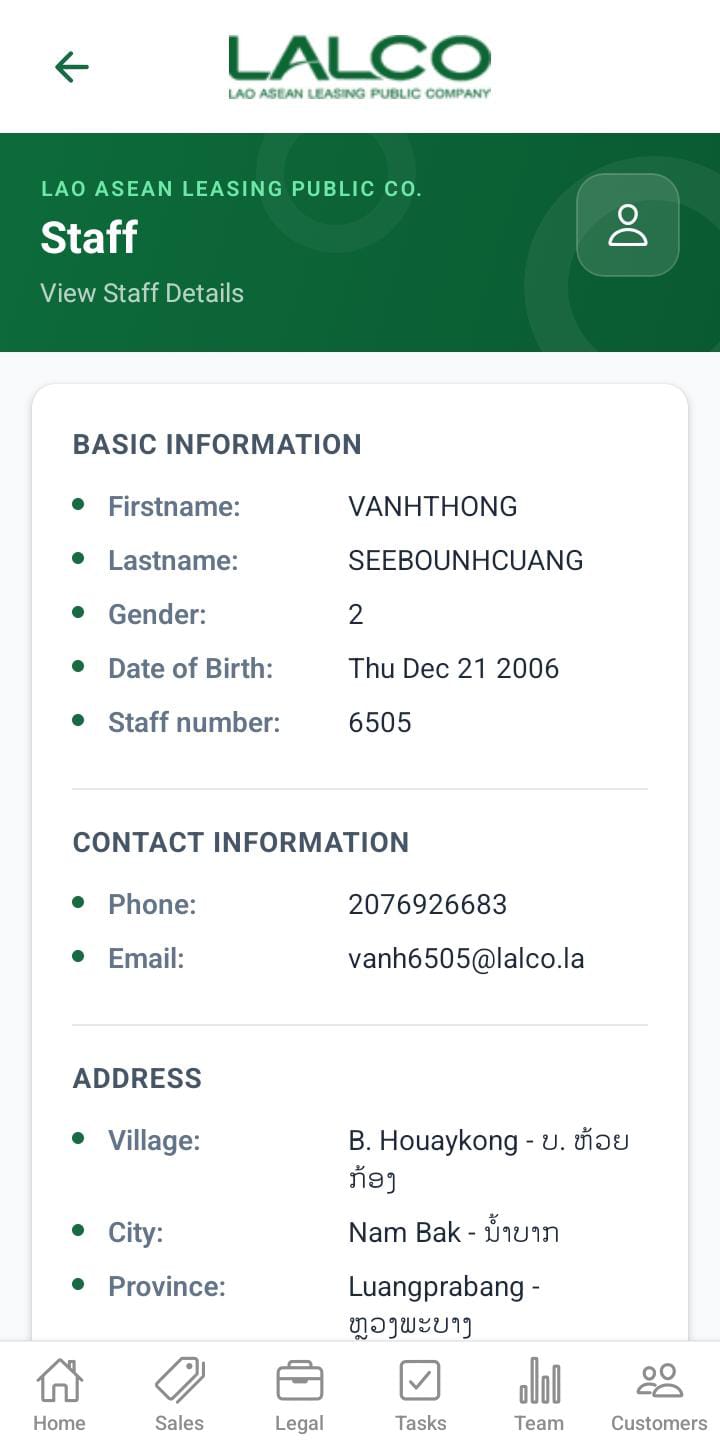
Staff Details Screen
 |
 |
Header Section
Page Title
Staff
Description
View Staff Details
Basic Information
Displays personal details of the staff member:
-
Name → Full name of the staff member
-
Gender → Male or Female
-
Date of Birth → Staff member’s birth date
-
Family Book → Official identification/reference number
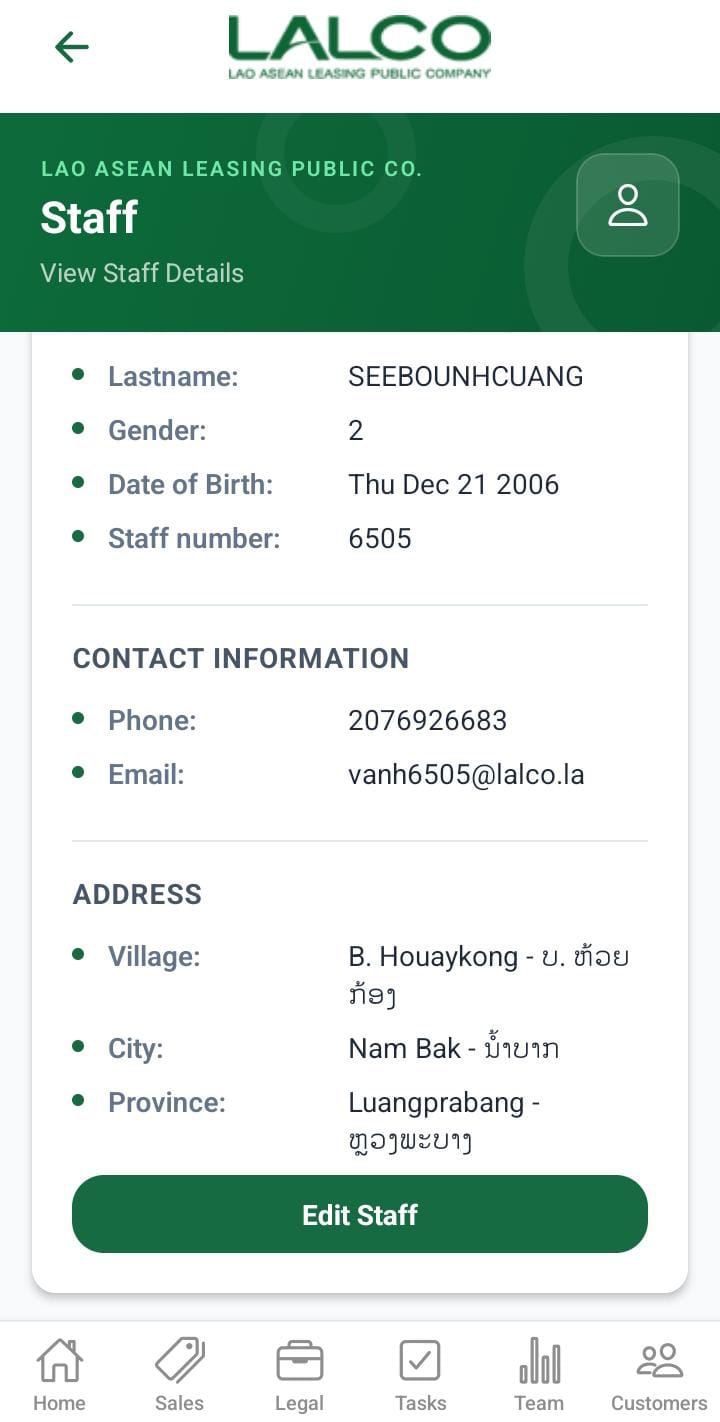
Contact Information
-
Phone → Contact number
-
Email → Email address
Roles
Shows the role assigned to the staff member.
Admin,gdept ,dept,
Departments
Displays the department the staff belongs to.
Example:
-
Legal
Address
-
Village → Village name
-
City → City name
-
Province → Province
Actions
Edit Staff
Allows users to update or modify staff information.
How to Use
View Staff Details
-
Open the Staff section
-
Select a staff member
-
View all details
Edit Staff
-
Tap Edit Staff
-
Update required fields
-
Save changes
Edit User Screen
The Edit New User Screen allows administrators to create a new staff account by entering personal, role, and address details.
Personal Information
-
Name → Staff full name
-
Phone → Contact number
-
Email → Email address
-
Family Book → Identification number
-
Birth Date → Date of birth
Role & Department
-
Role → Select staff role (e.g., Manager)
-
Department → Select department (e.g., Legal)
Address
-
Address Unit → House or unit number
-
Province → Select province
-
City → Select city
-
Village → Select village
Actions
Save User
Creates the new staff account after entering all required details.
Security
Reset Password
Option to reset or assign a password for the user.