
Team Dashboard Screen
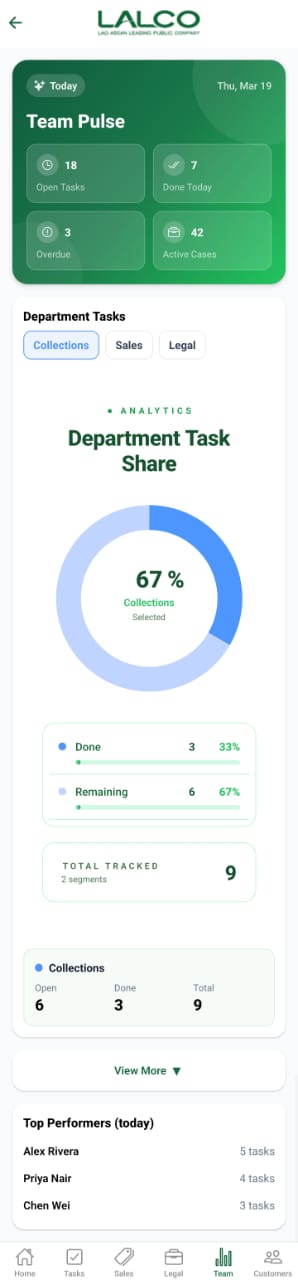
The Team Dashboard Screen provides a quick overview of team performance, task distribution, and case analytics. It helps staff monitor daily progress, track workloads, and identify top performers.
Header Section
Date Indicator
Displays the current working day.
Example:
Page Title
Team Pulse
Shows that this section focuses on team activity and performance.
Team Summary Cards
This section provides a quick snapshot of team activity:
-
Open Tasks → Total number of tasks not yet completed
-
Done Today → Tasks completed on the current day
-
Overdue → Tasks that have passed their deadline
-
Active Cases → Total ongoing cases handled by the team
Department Tasks
Tabs
Users can switch between departments:
-
Collections
-
Sales
-
Legal
This allows viewing performance data for each department separately.
Analytics Section
Department Task Share
Displays a visual chart showing task distribution.
Example:
Task Breakdown
-
Done → Completed tasks
-
Remaining → Pending tasks
Each includes:
-
Task count
-
Percentage progress
Total Tracked
Shows the total number of tasks being monitored.
Example:
Department Summary
Displays task details for the selected department.
Example (Collections):
-
Open → 6
-
Done → 3
-
Total → 9
View More Option
View More Button
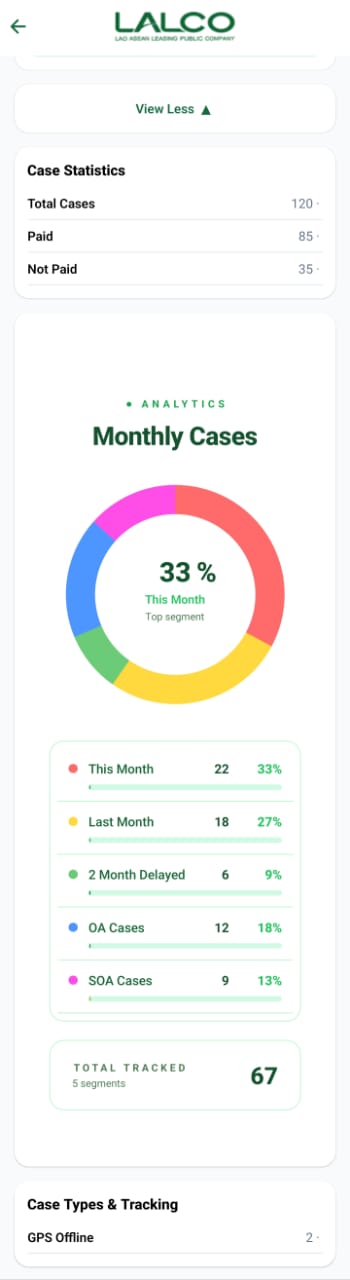
Expands the dashboard to show additional analytics and detailed data.
Top Performers Section
Top Performers (Today)
Displays staff members with the highest task completion.
Example:
-
Alex Rivera → 5 tasks
-
Priya Nair → 4 tasks
-
Chen Wei → 3 tasks
Additional Analytics (Expanded View)
When expanded, the dashboard shows deeper insights:
Case Statistics
-
Total Cases → Overall number of cases
-
Paid → Successfully completed/paid cases
-
Not Paid → Pending or unpaid cases
Monthly Cases
Displays a visual breakdown of case categories.
Includes:
-
This Month
-
Last Month
-
2 Month Delayed
-
OA Cases
-
SOA Cases
Each shows:
-
Number of cases
-
Percentage contribution
Total Tracked (Analytics)
Shows total number of tracked segments.
Example:
Case Types & Tracking
Displays system-related tracking information.
Example:
-
GPS Offline → Indicates location tracking issues
How to Use
View Team Performance
-
Open the Team tab
-
Review summary cards
-
Analyze department performance
Switch Department
-
Tap Collections / Sales / Legal
-
View updated analytics
Expand Analytics
-
Tap View More
-
Review detailed reports
💡 Tip:
Use this screen daily to monitor team productivity, overdue tasks, and performance trends.