
Sales Screen
 |
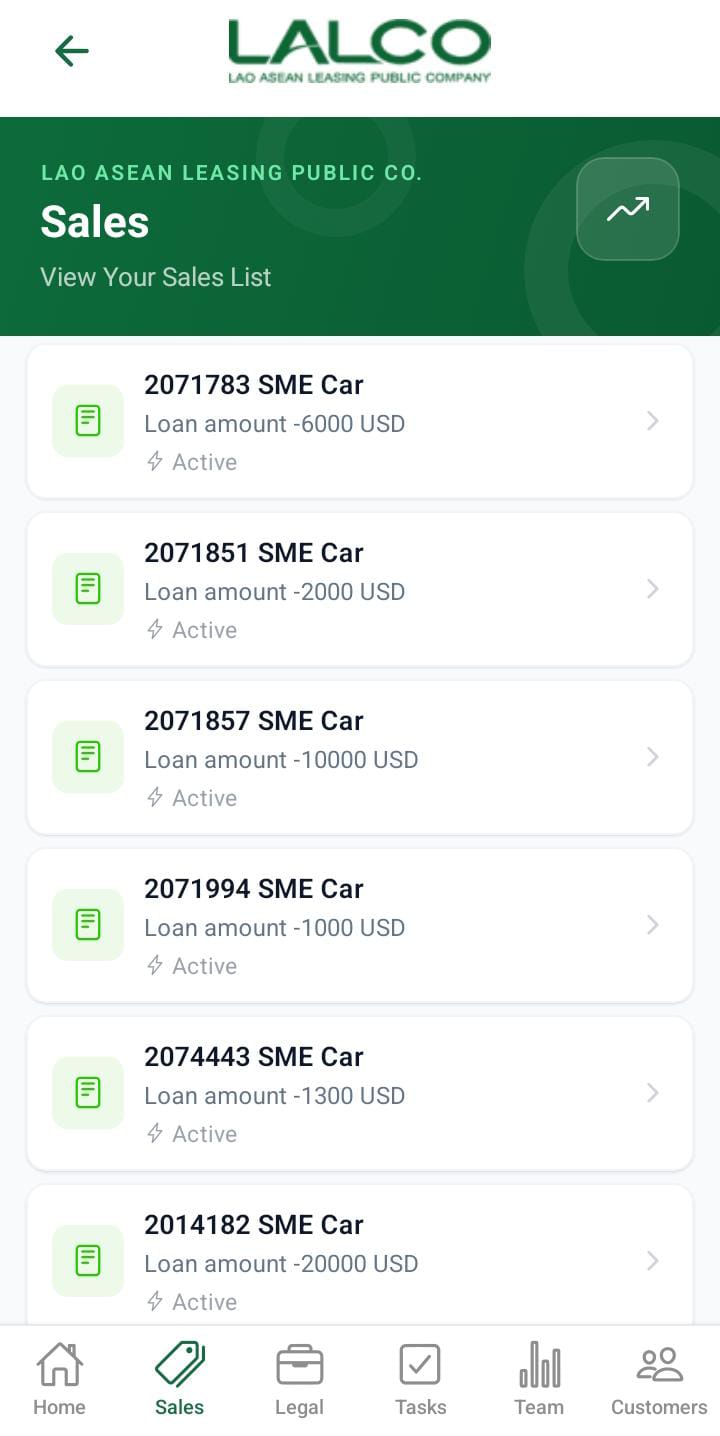 |
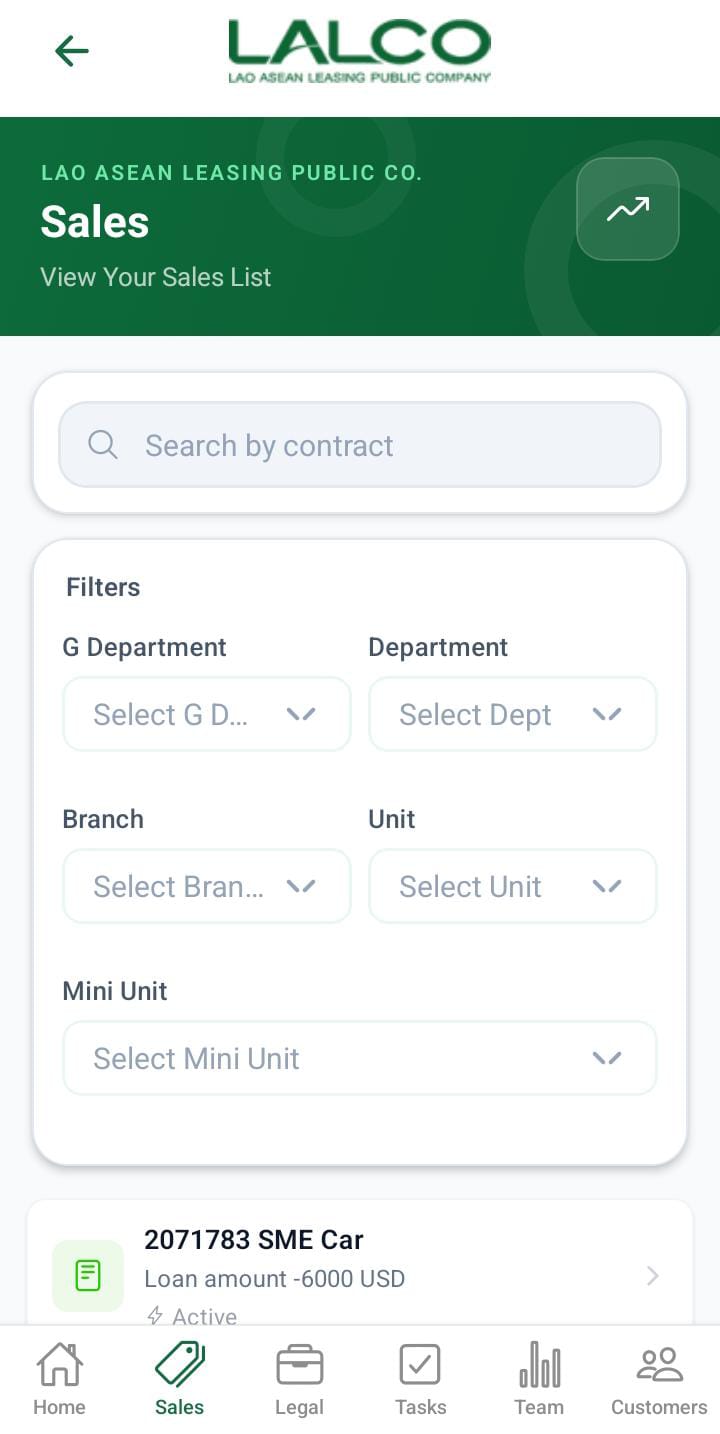
The Sales Screen allows staff to view and manage all loan sales within the system. It provides a searchable and filterable list of sales records, helping agents track loancontract statuses and customer applications efficiently.details.
Header Section
Page Title
Sales
Indicates that the user is viewing the list of all sales records.
Description
Provides a quick explanation of the screen’s purpose.
Action Icon 📈
The icon on the right may be used to:
Search Function
Search Bar
Allows users to search sales by:
Filter Options
Users can filter sales based on their status:status
💡The Helpsfilters usersabove quicklyare finddisplayed specificbased typeson ofthe sales.user's role.
When the role is,
- Admin can view all the filters.
- g_dept, can all filters except the g department
- dept, can branch, unit and ini unit filters
- sec_branch can view the unit and the mini unit
- unit, can view,munit
- munit can see the filters; they can only see the search filters,
Sales List
Each item in the list represents a sale record. All sales(contract recodes) are active cases in LMSV1
Example:
Information Displayed
Each sales item shows:
Status Types
Common statuses include:
How to Use
View a Sale
Search for a Sale
Filter Sales
💡 Tip:Use filters + search together to quickly find specific sales records.
Sales Details Screen
 |
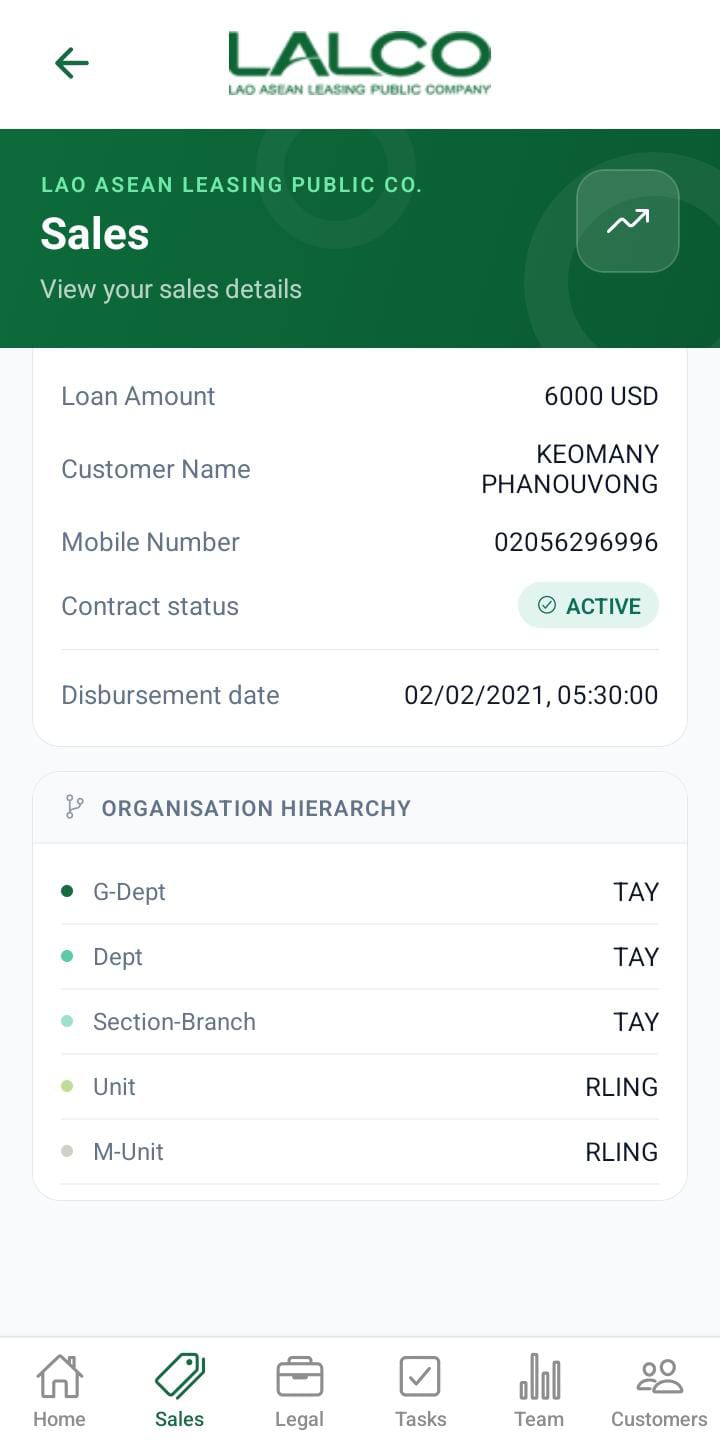 |
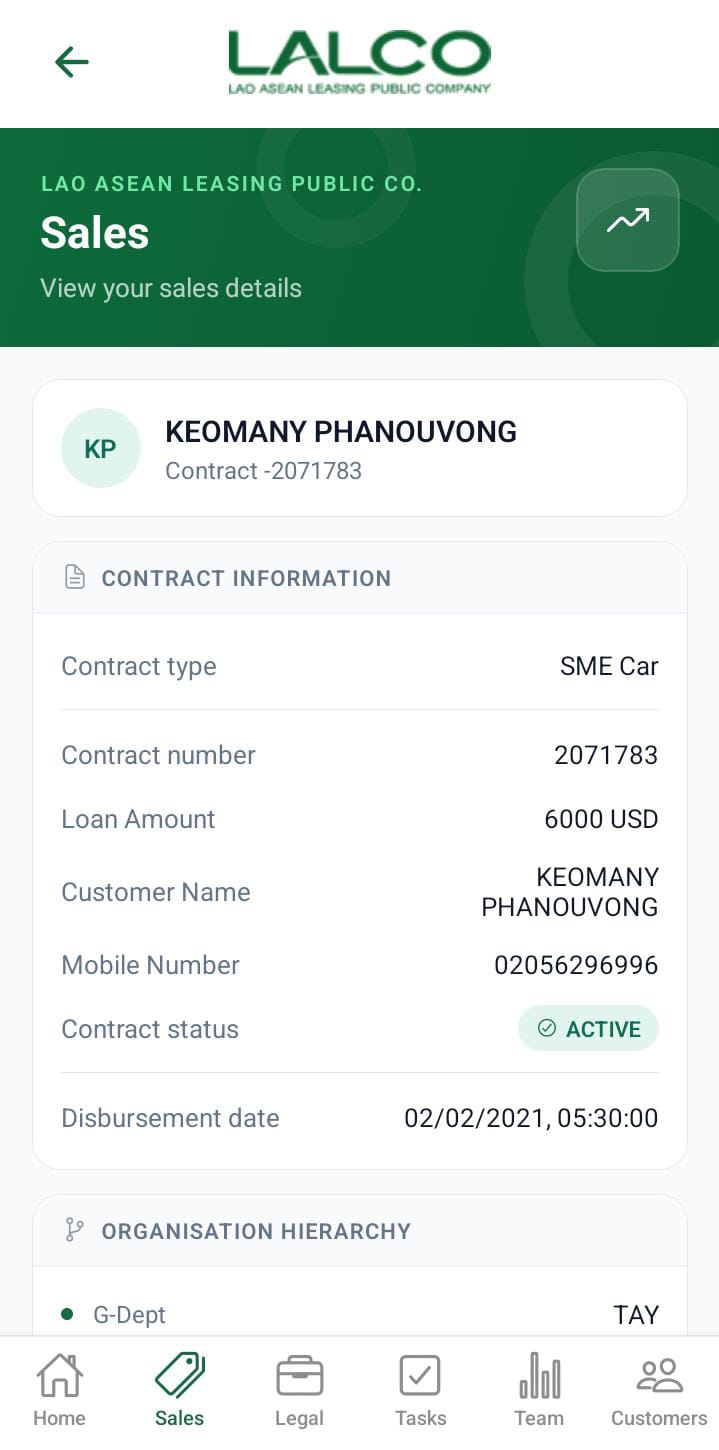
The Sales Details Screen provides detailed information about a selected sale or loan contract. It allows staff to review contract details and take actions such as progressing the sale or logging customer interactions.details.
Header Section
Page Title
Sales
Indicates the user is viewing detailed information of a specific sale.
Description
Explains the purpose of this screen.
Back Button ←
Allows users to return to the Sales List Screen.
Action Icon 📈
May be used to view:
-
Sales performance
-
Reports or analytics related to the selected contract
Contact Information Section
This section displays key details of the selected sale/contract.
Contract Type
Example:
Indicates the type of loan or product.
Contract Number
Example:
A unique identifier for the sale.
Loan Amount
Example:
Displays the total loan value.
Contract Status
Example:
Shows the current state of the contract.
Common statuses:
- contract
Active - contract
Refinance - loan
Pending - customer
nameClosed - mobile number
- contract status
- disbursement date
- Organisation Hierarchy.
Disbursement Date
Example:
Indicates when the loan amount was released.
Action Buttons
Advance Stage
Allows staff to move the sale to the next stage in the workflow.
Used when:
Processing the loan forwardUpdating the contract status
Log Call
Opens the call logging feature to record communication with the customer.
Useful for:
Tracking follow-upsRecording customer discussionsLogging payment commitments
How to Use
View Sale Details
Open theSalestab.Select a sale from the list.Review all contract details.
Advance a Sale
TapAdvance Stage.Confirm or update the next stage.Save changes.
Log a Call
TapLog Call.Enter call details.Save the record.
Bottom Navigation
The Sales tab remains highlighted, indicating the current section.
Other tabs:
HomeTasksLegalTeamCustomers
💡 Tip:Always review contract details before advancing stages to avoid errors.