Sales Screen


cbd5037b-4934-4de4-bda6-27b4e6d580b1.jpg

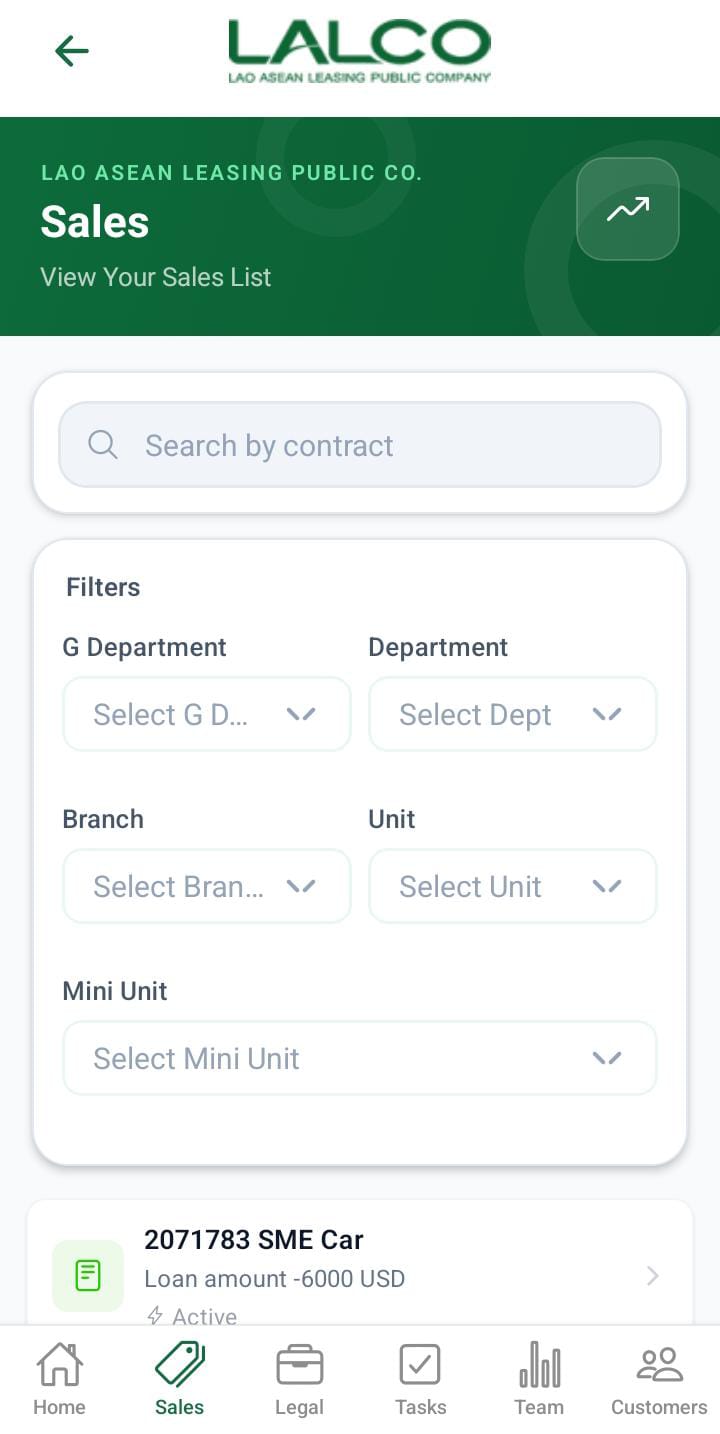
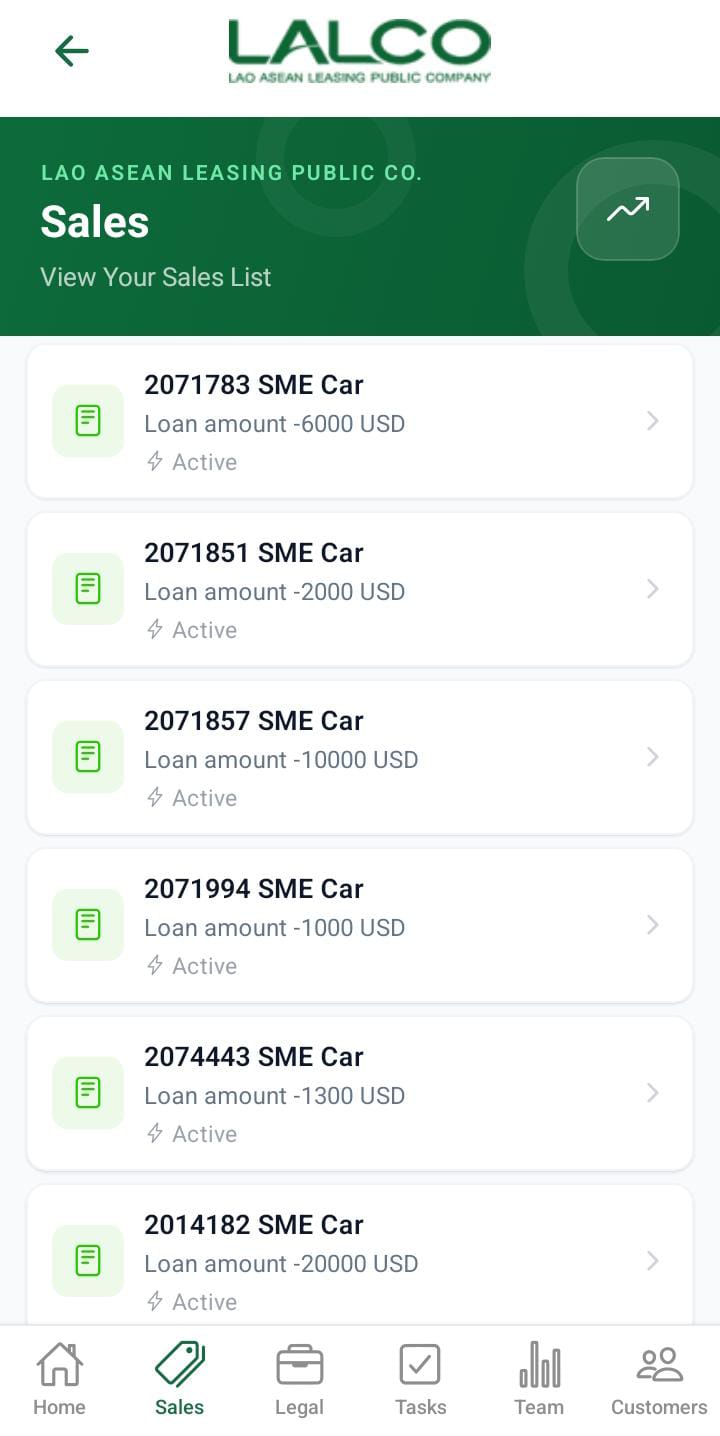
The Sales Screen allows staff to view and manage all loan sales within the system. It provides a searchable and filterable list of sales records, helping agents track loan statuses and customer applications efficiently.


Header Section

Page Title

Sales

Indicates that the user is viewing the list of all sales records.


Description

View Your Sales List

Provides a quick explanation of the screen’s purpose.


Action Icon 📈

The icon on the right may be used to:

  • View sales analytics

  • Access reports or performance insights


Search Function

Search by sale

Allows users to search sales by:

  • Sale ID

  • Product type (e.g., SME Car, Real Estate)

  • Customer-related data


Filter Options

Users can filter sales based on their status:

  • All → Shows all sales records

  • Pending → Sales that are not yet processed

  • Pending Approval → Awaiting approval from management

  • Pending Disbursement (if available) → Approved but not yet released

  • Disbursement Approval → Loan is approved and waiting for final disbursement authorization before funds are released
  • Active → Loan is currently active

  • Cancelled → Loan has been cancelled and is no longer valid

  • Refinance → Loan has been refinanced or restructured

  • Closed → Loan has been fully completed and closed

  • Active Pending → Loan is active but has pending actions

  • Checking To Close → Loan is under review for closure

  • Active / Refinanced / Closed → Used to group multiple statuses for filtering

💡 Helps users quickly find specific types of sales.


Sales List

Each item in the list represents a sale record.

Example:

2000010 - SME Car
28990 USD - Refinance


Information Displayed

Each sales item shows:

  • Sale ID (e.g., 2000010)

  • Loan/Product Type (e.g., SME Car, Real Estate)

  • Loan Amount (e.g., 28990 USD)

  • Status (e.g., Active, Refinance)


Status Types

Common statuses include:

  • Active → Loan is currently active

  • Refinance → Loan has been refinanced

  • Pending → Waiting for processing

  • Pending Approval → Waiting for approval


How to Use

View a Sale

  1. Open the Sales tab.

  2. Browse or search for a sale.

  3. Tap on a record to view full details.


Search for a Sale

  1. Tap on the search bar.

  2. Enter Sale ID or keyword.

  3. Results will filter automatically.


Filter Sales

  1. Tap on a filter (e.g., Pending).

  2. The list updates based on selection.


💡 Tip:
Use filters + search together to quickly find specific sales records.


Sales Details Screen

WhatsApp Image 2026-03-19 at 09.28.00.jpeg

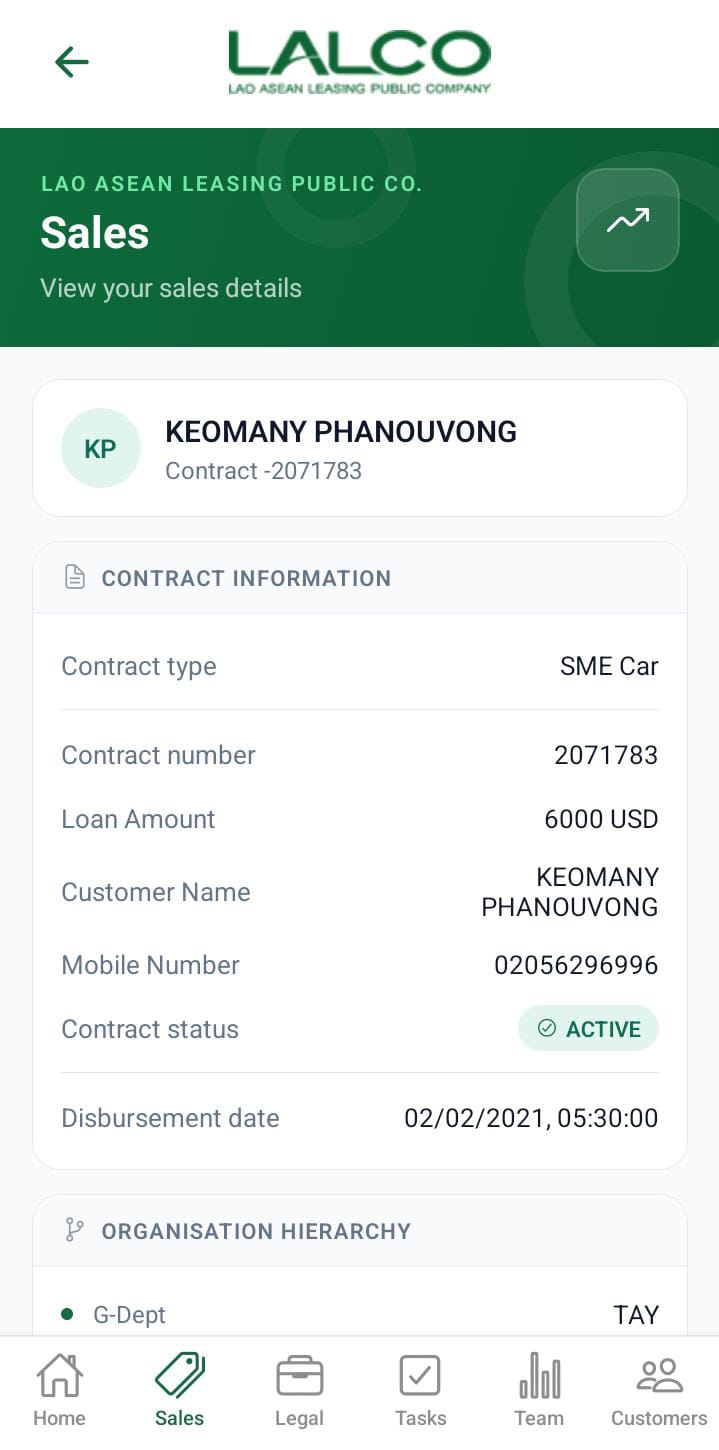
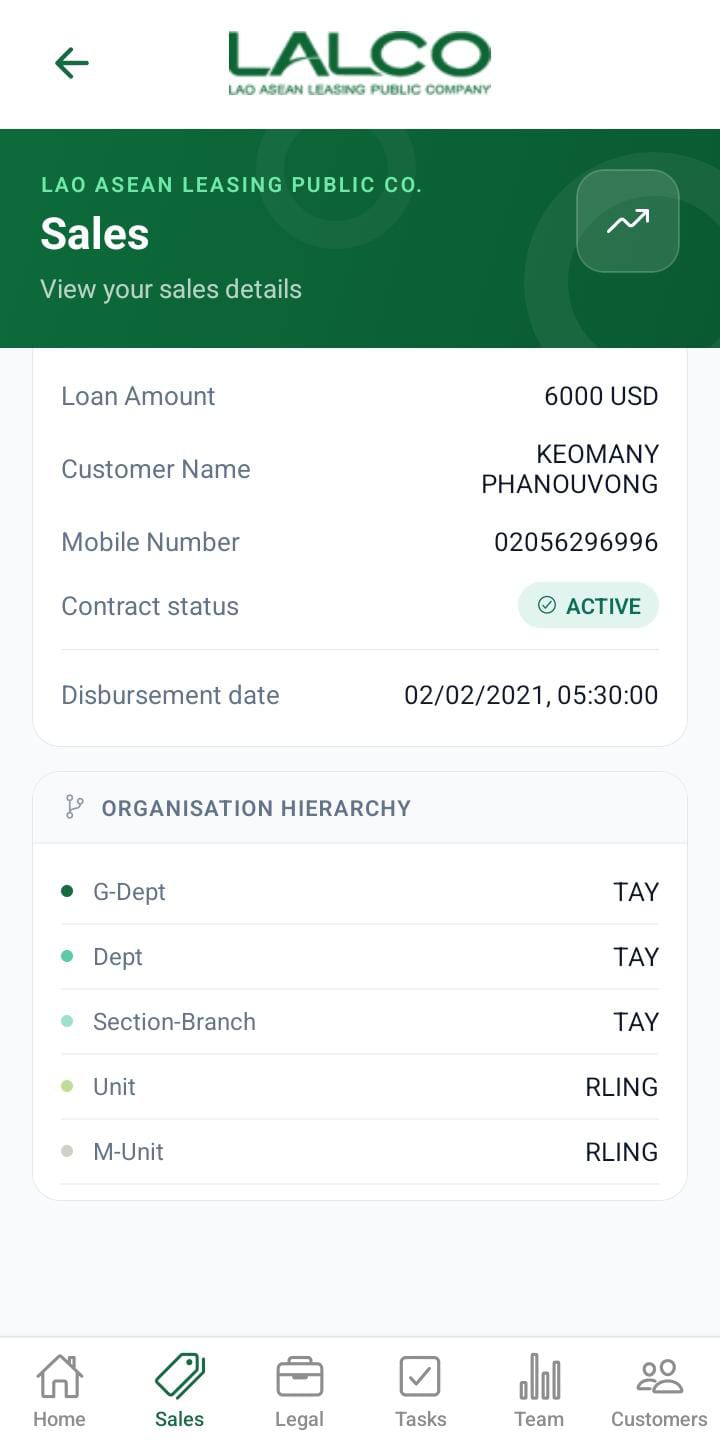
The Sales Details Screen provides detailed information about a selected sale or loan contract. It allows staff to review contract details and take actions such as progressing the sale or logging customer interactions.


Header Section

Page Title

Sales

Indicates the user is viewing detailed information of a specific sale.


Description

View Your Sales Details

Explains the purpose of this screen.


Back Button ←

Allows users to return to the Sales List Screen.


Action Icon 📈

May be used to view:

  • Sales performance

  • Reports or analytics related to the selected contract


Contact Information Section

This section displays key details of the selected sale/contract.


Contract Type

Example:

SME Car

Indicates the type of loan or product.


Contract Number

Example:

2000010

A unique identifier for the sale.


Loan Amount

Example:

28990 USD

Displays the total loan value.


Contract Status

Example:

REFINANCE

Shows the current state of the contract.

Common statuses:

  • Active

  • Refinance

  • Pending

  • Closed


Disbursement Date

Example:

26/12/2016, 05:30:00

Indicates when the loan amount was released.


Action Buttons

Advance Stage

Allows staff to move the sale to the next stage in the workflow.

Used when:

  • Processing the loan forward

  • Updating the contract status


Log Call

Opens the call logging feature to record communication with the customer.

Useful for:

  • Tracking follow-ups

  • Recording customer discussions

  • Logging payment commitments


How to Use

View Sale Details

  1. Open the Sales tab.

  2. Select a sale from the list.

  3. Review all contract details.


Advance a Sale

  1. Tap Advance Stage.

  2. Confirm or update the next stage.

  3. Save changes.


Log a Call

  1. Tap Log Call.

  2. Enter call details.

  3. Save the record.


Bottom Navigation

The Sales tab remains highlighted, indicating the current section.

Other tabs:

  • Home

  • Tasks

  • Legal

  • Team

  • Customers


💡 Tip:
Always review contract details before advancing stages to avoid errors.