
Customers Screen
 |
 |
 |
The Customers Screen allows staff to view and manage all customers in the system. It provides a searchable list, filter options, and quick access to customer details.
Header Section
Page Title
Customers
Description
View your customer list and manage customer records.
Search Function
Search Bar
Search by customer
Allows users to search by:
-
Customer Name
-
Phone Number
Filter Options
Users can filter customers by status:
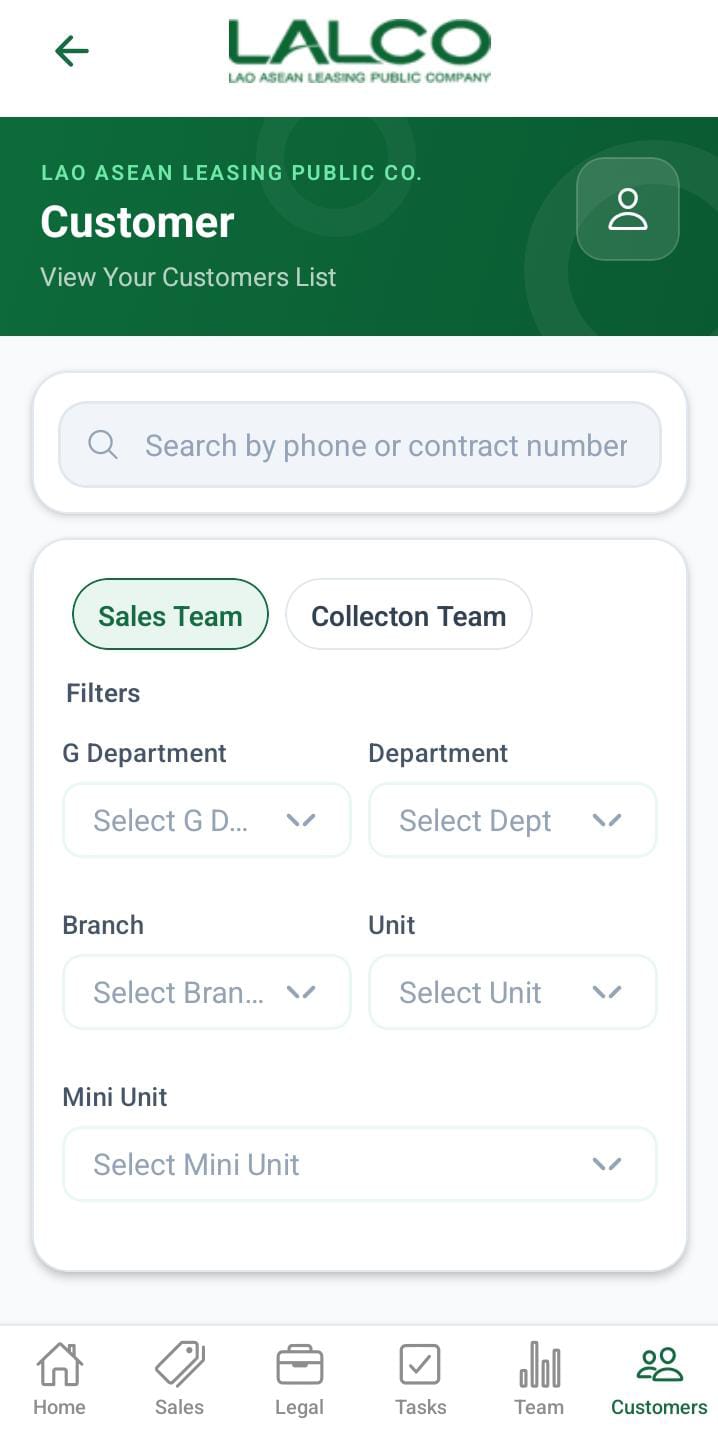
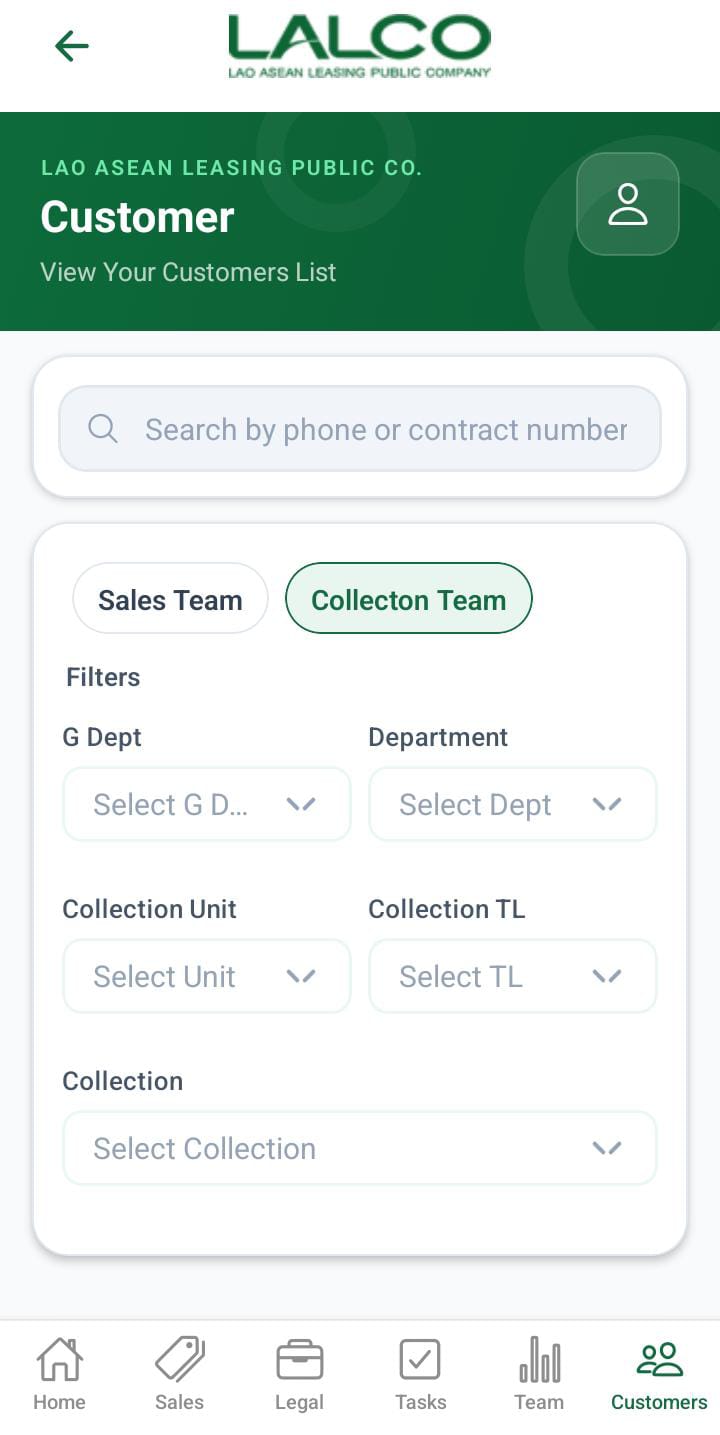
In the filter options, there are two main sections.
- Sales Team
- Collection Team
When the filter is Sales Team below filters can apply,
- G department
- Department
- Branch
- Unit
- Mini Unit
When the filter is Collection Team below filters can apply,
- G department
- Department
- Collection Unit
- collection tl
- collection
The above filters will display like this.
When the user role is admin
- The admin has both sales and collections and can apply all the filters mentioned above.
When the user role is gdept
- The gdept has both sales and collections and can apply all the filters mentioned above except G department.
When the user role is dept
- The dept has both sales and collections and can apply all the filters mentioned above except G department and department
When the user role is branch.
- Display only the sales team.
- Display the unit and Munit filters
When the user role is unit.
- Display only the sales team.
- Display the Munit.
When the user role is MUnit.
- Only the search bar filter can be applied.
When the user role is collection unit.
- Display only the collection team.
- Display the collection tl and collection filters
When the user role is Collection tl.
- Display only the collection team.
- Display the collection.
When the user role is Collection.
- Only the search bar filter can be applied.
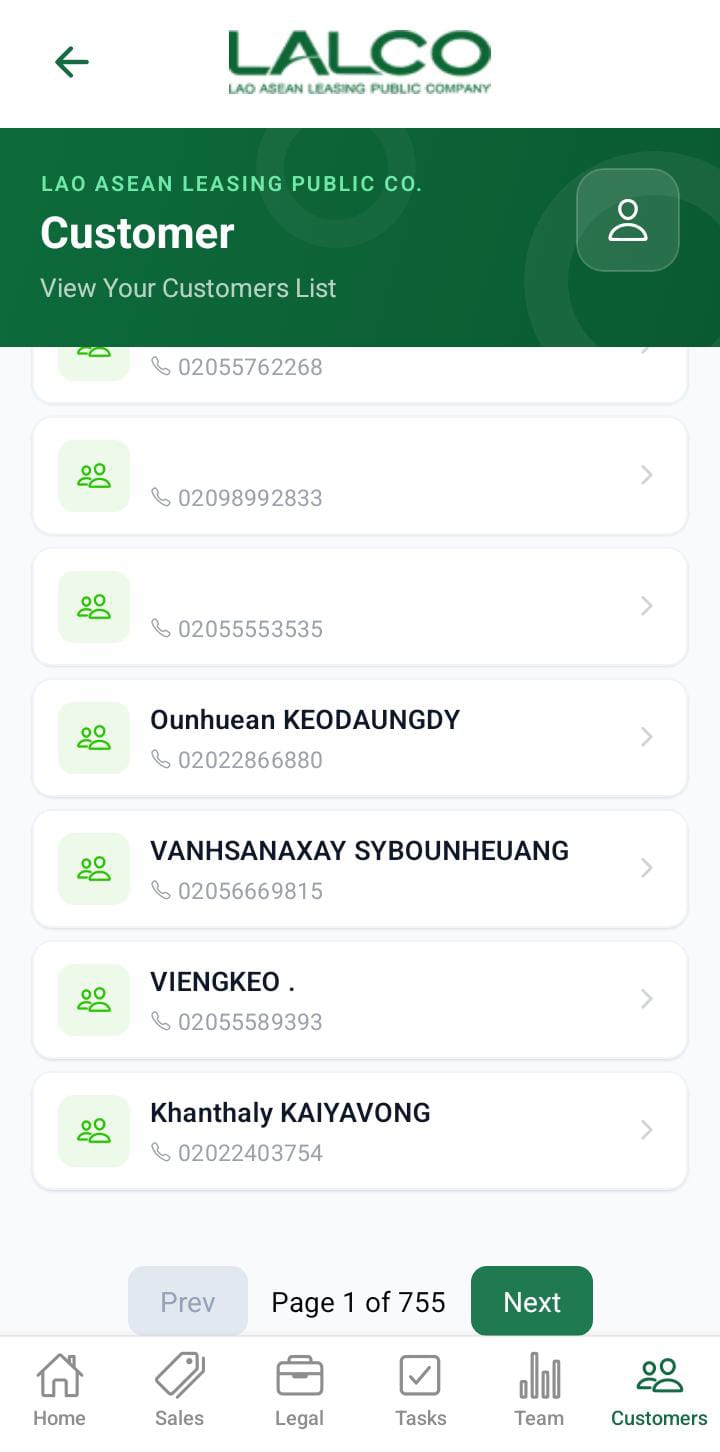
Customer List
Each item represents a customer.
Example:
-
user – 02056087740
Information Displayed
Each record shows:
-
Customer Name
-
Phone Number
How to Use
View a Customer
-
Open the Customers tab
-
Browse or search the list
-
Tap a customer to view details
Customer Details Screen
 |
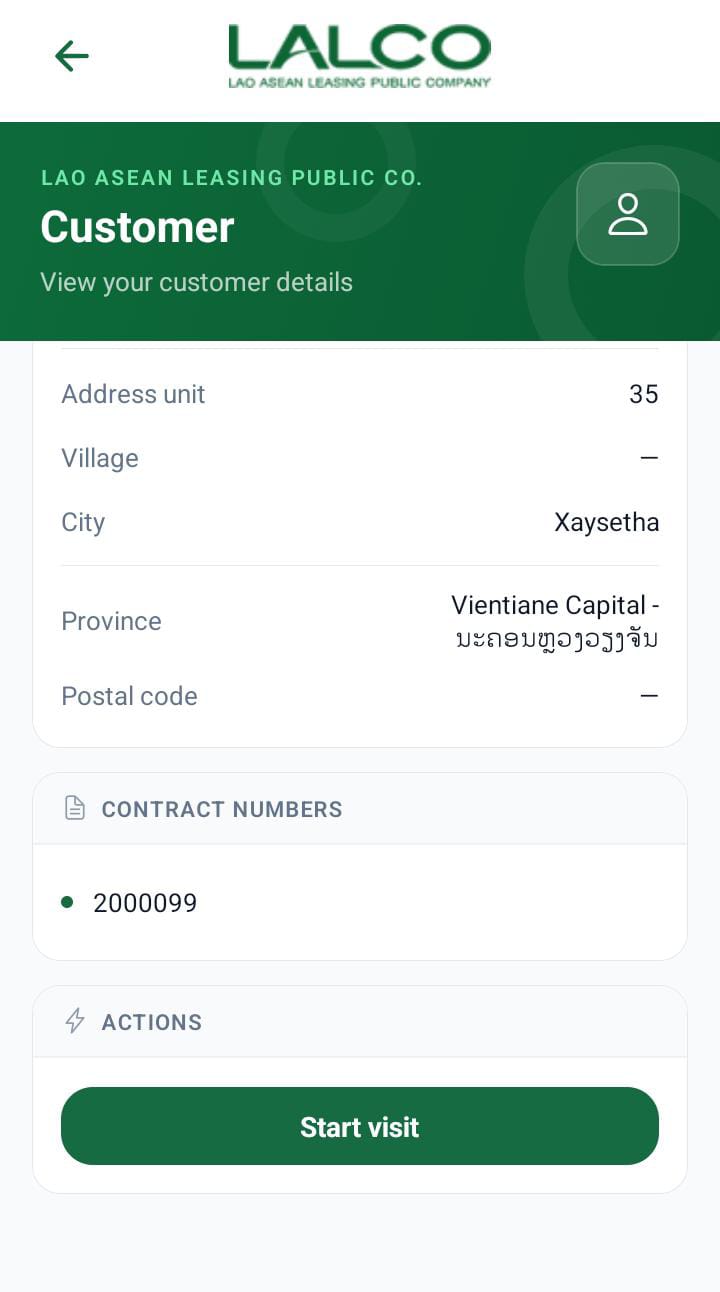 |
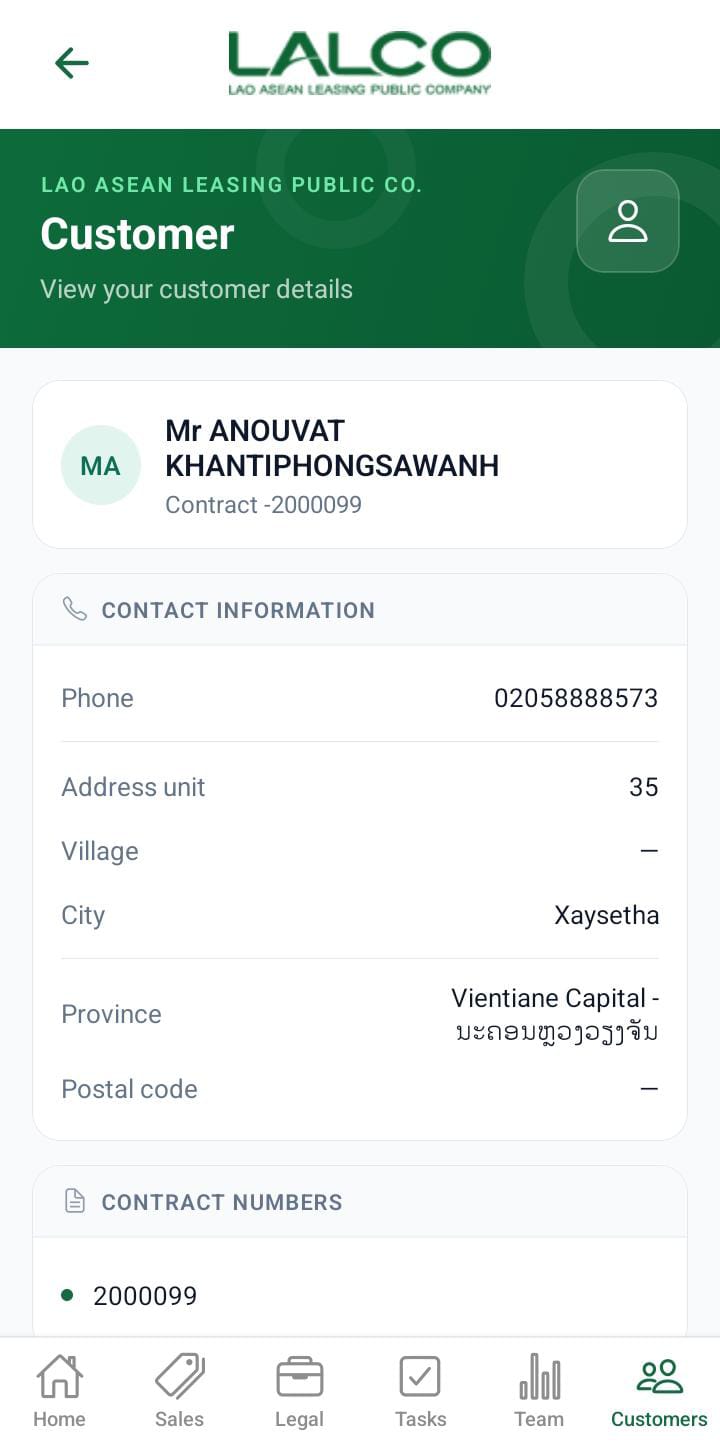
The Customer Details Screen shows detailed information about a selected customer and allows staff to start visits to cutomer.
Customer Details Section
Displays key information:
-
Name → Customer Name
-
Phone Number → Contact number
-
Address → Unit, Village, City, Province
-
Contract Numbers → Linked contracts
Actions
Start Visit
Used to begin a field visit related to the customer.
Used for:
-
Customer visits
How to Use
View Details
-
Select a customer from the list
-
Review all details
Start Visit
-
Tap Start Visit
-
Proceed with visit
-
Update visit remarks, GPS location, payment status if needed
Navigation
Customers Screen → Select Customer → Customer Details Screen → Start Visit
Add Visit Result Screen
This screen is explained in the task description. The navigation also redirects to the same screen described in the task (Customer Visit).
No Comments