
Task Screen
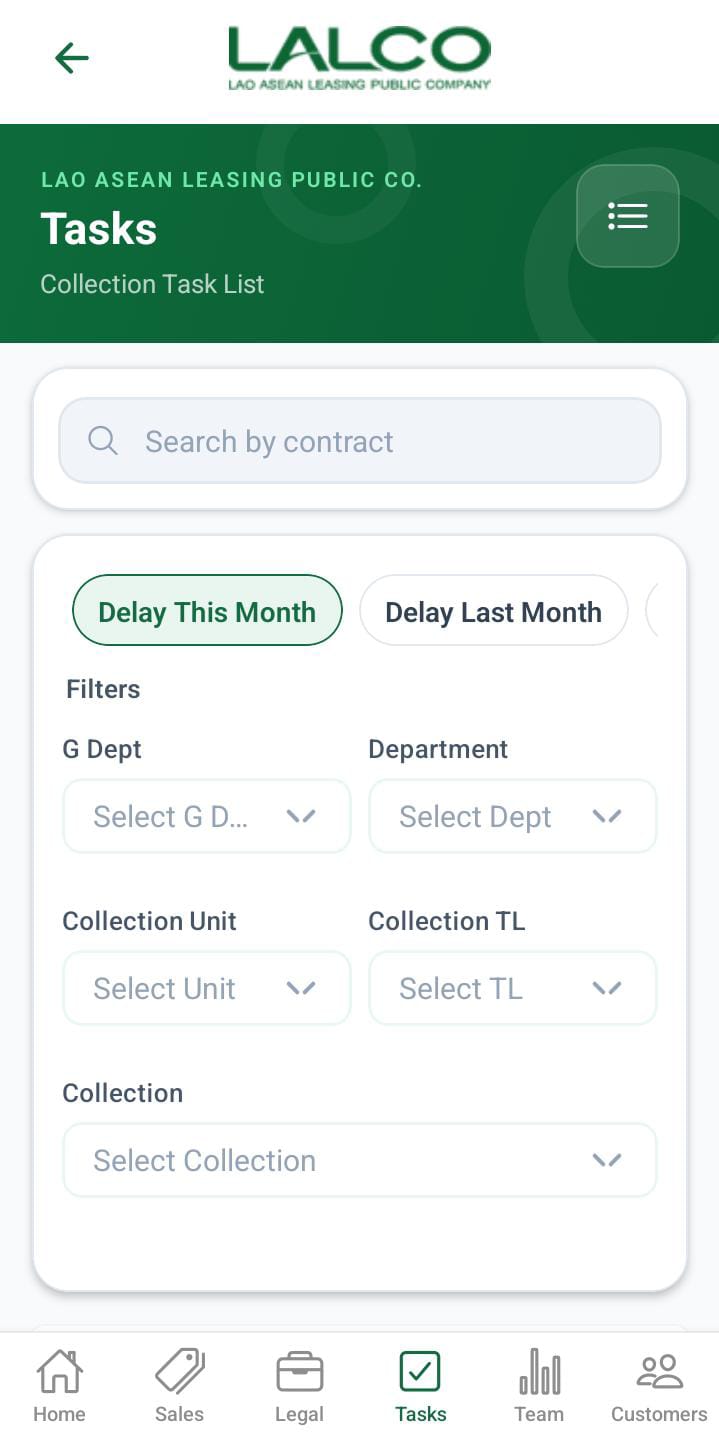
The Task Screen allows staff to view, filter, and manage assigned tasks related to payments and follow-ups.
Search Function
Search Bar
Allows users to search tasks by:
- Contract number
Filters
Users can filter tasks based on their role.
The filters above are displayed based on the user's role.
When the role is,
- Admin can view all the filters.
- g_dept, can all filters except the g department
- dept, can collection unit, collection tl and collection
- collection_unit can view the collection tl and collection
- Collection TL, can view the collectionThe
- collection can only see the search filters,
There are additional filters available in the filter section,
- Delay This Month: Next due date is 0–30 days overdue.
- Last Month Delay: Next due date is 30–60 days overdue.
- Two-Month Delay: Next due date is 60–90 days overdue.
- OA Contract: Next due date is more than 90 days overdue.
Task List
Each item represents a staff task.
Information Displayed
Each record shows:
- Customer Name
- Mobile Number
- contract number
- contract type
Pagination
- Prev → Go to previous page
- Next → Go to next page
- Displays current page (e.g., Page 1 of 3)
How to Use
View Tasks
- Open the Task screen
- Use filters to narrow results
- Search if needed
- Select a task to view details
Task Details Screen
 |
 |
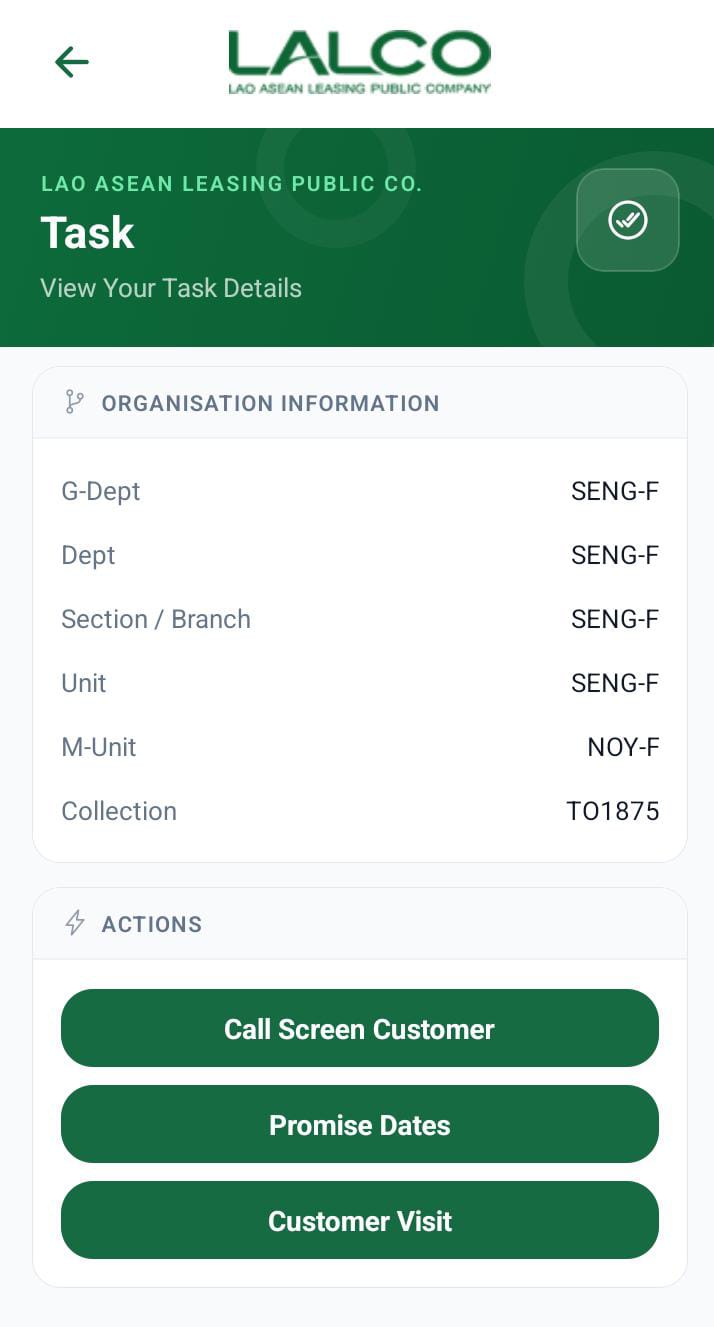 |
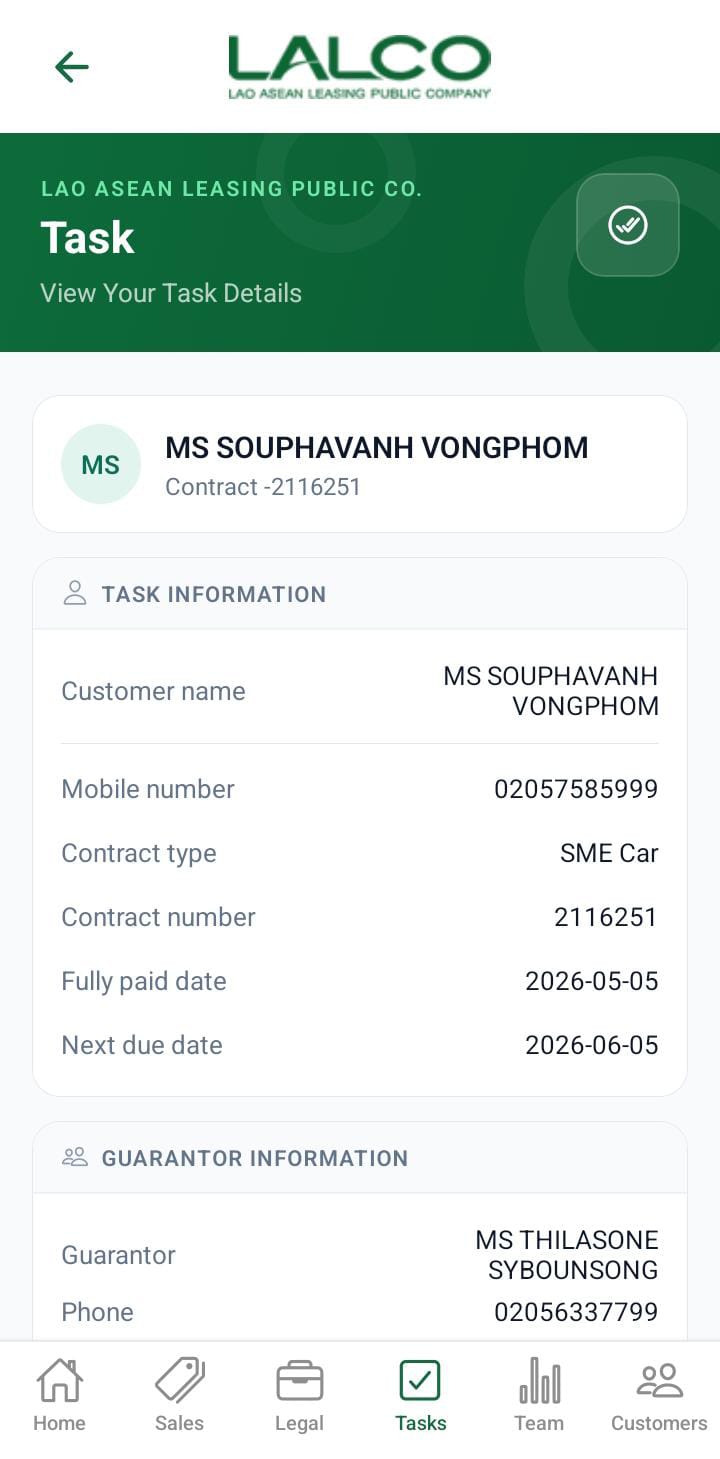
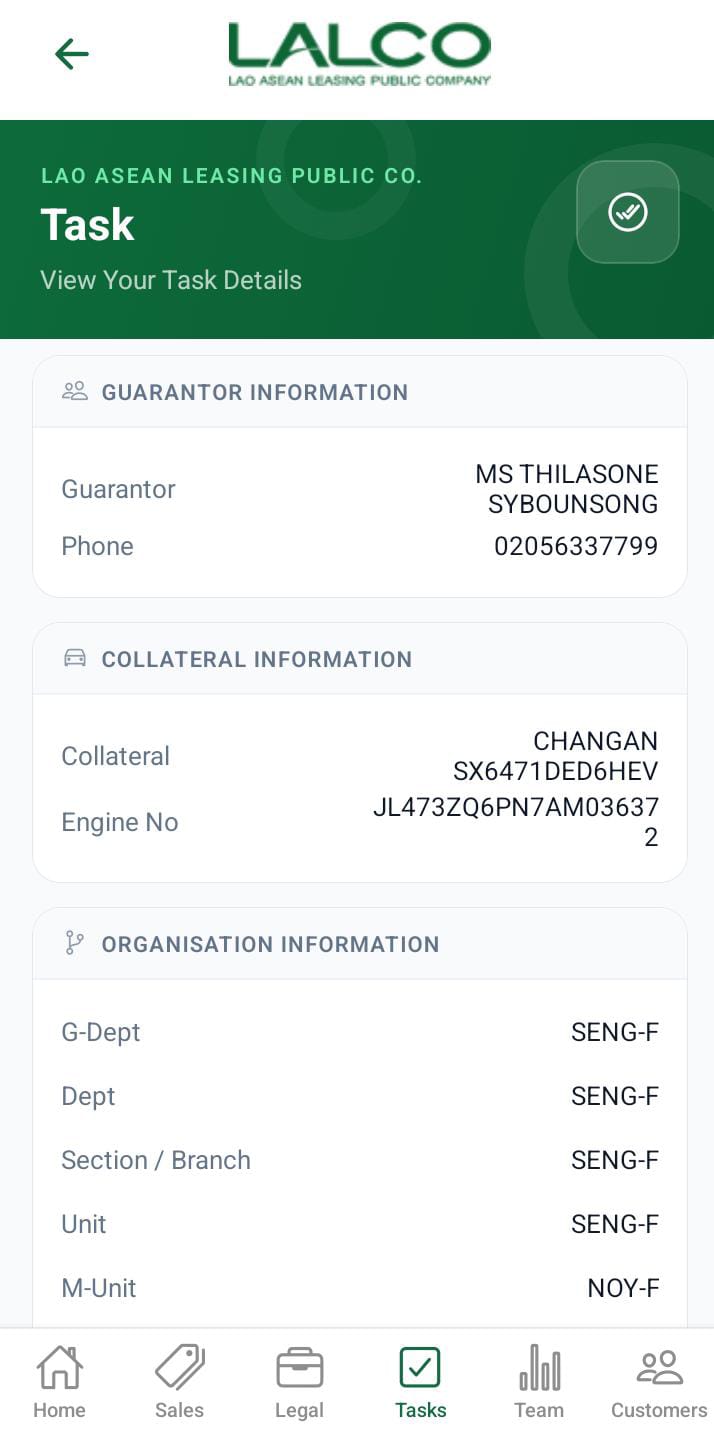
The Task Details Screen provides complete information about a selected task and allows staff to take follow-up actions.
Task Information
Displays:
- Customer Name
- Mobile Number
- Contract Type
- Contract Number
- Fully Paid Date
- Next Due Date
- Gurantor details
- Collateral details
Actions
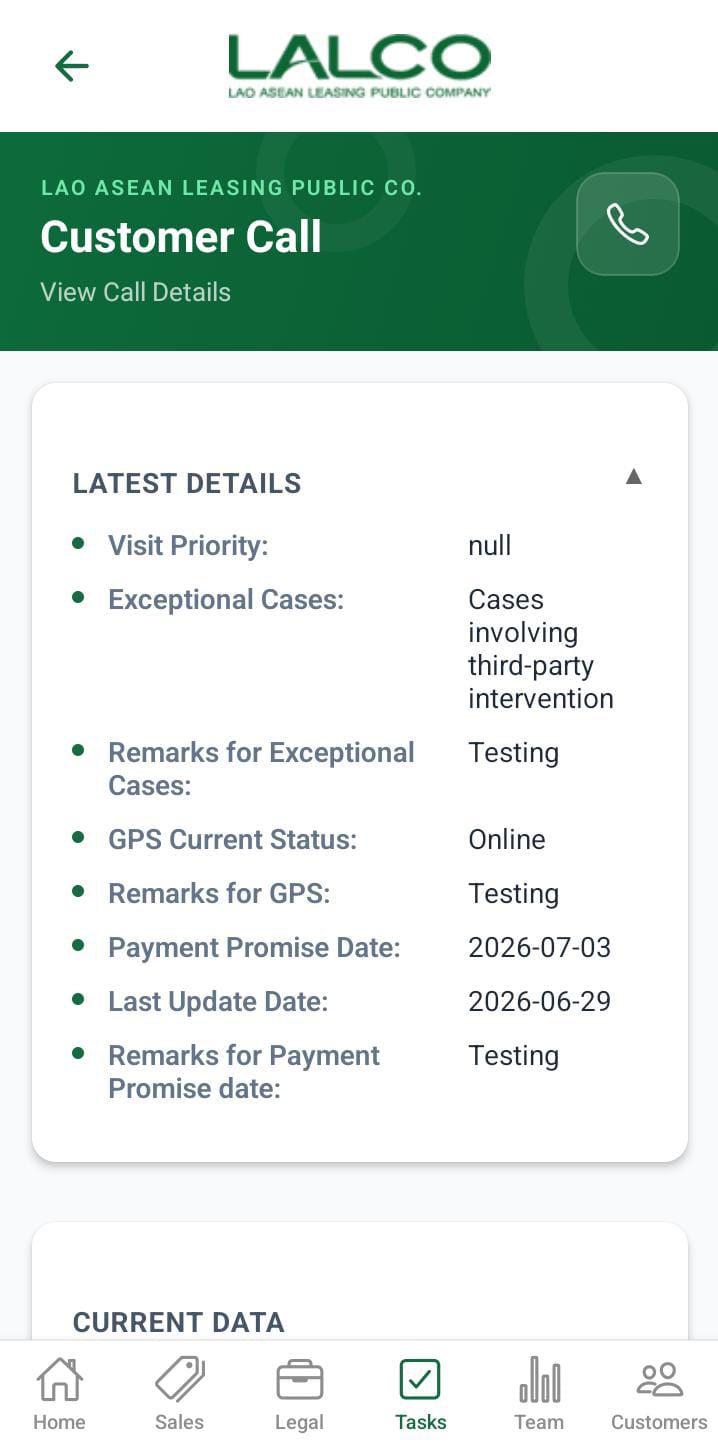
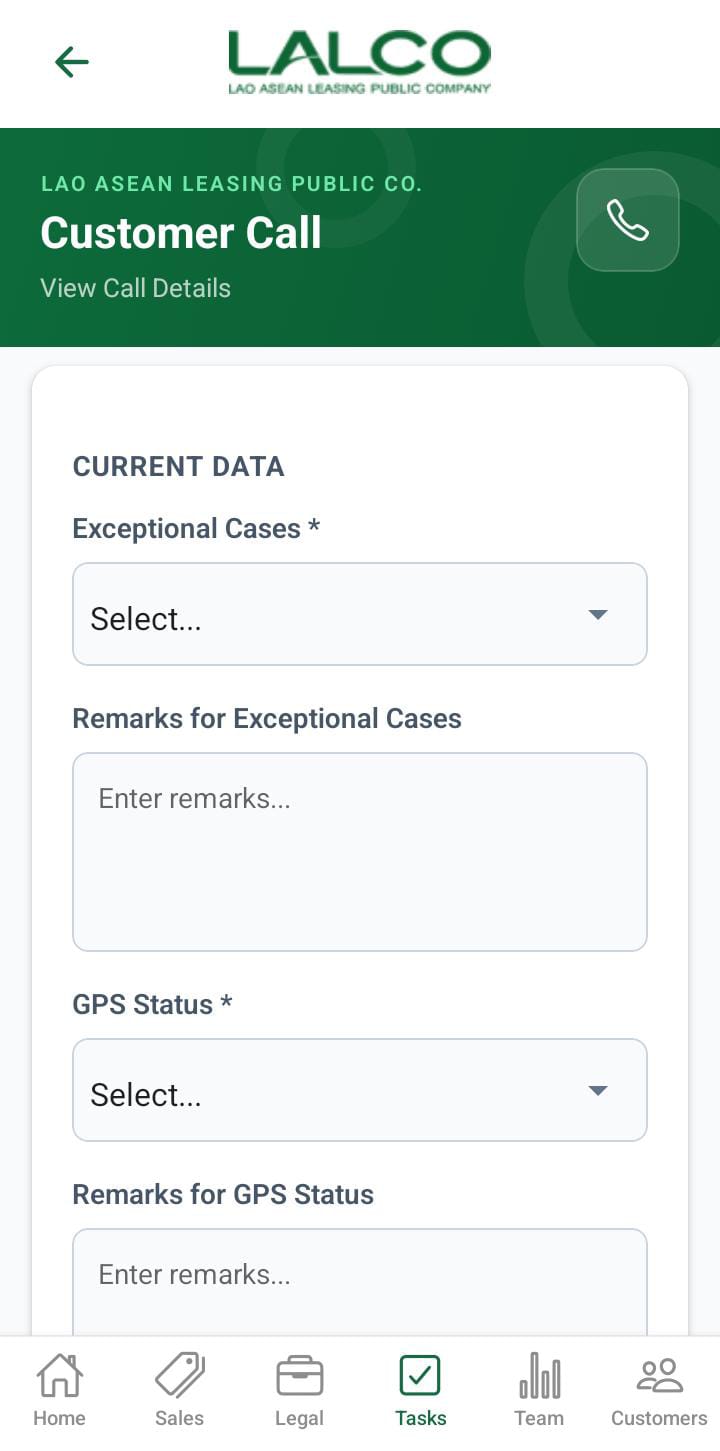
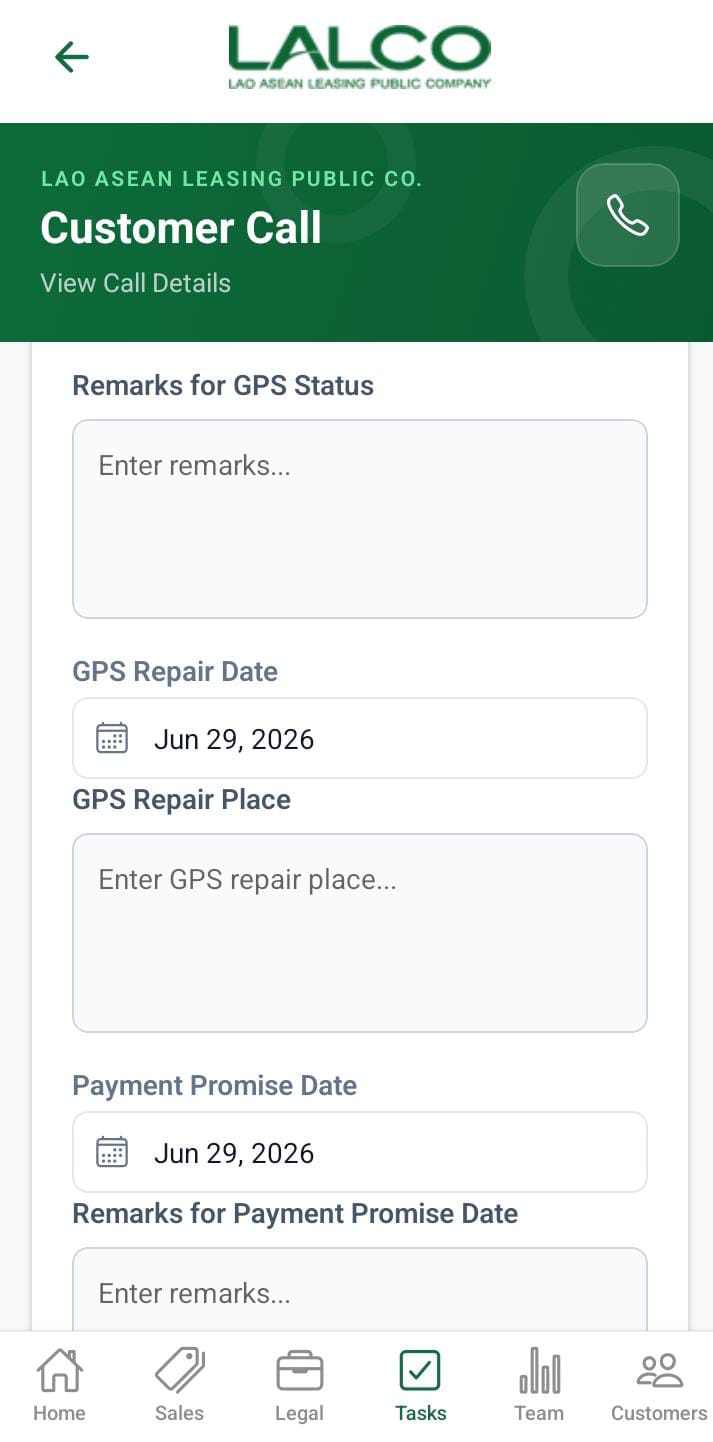
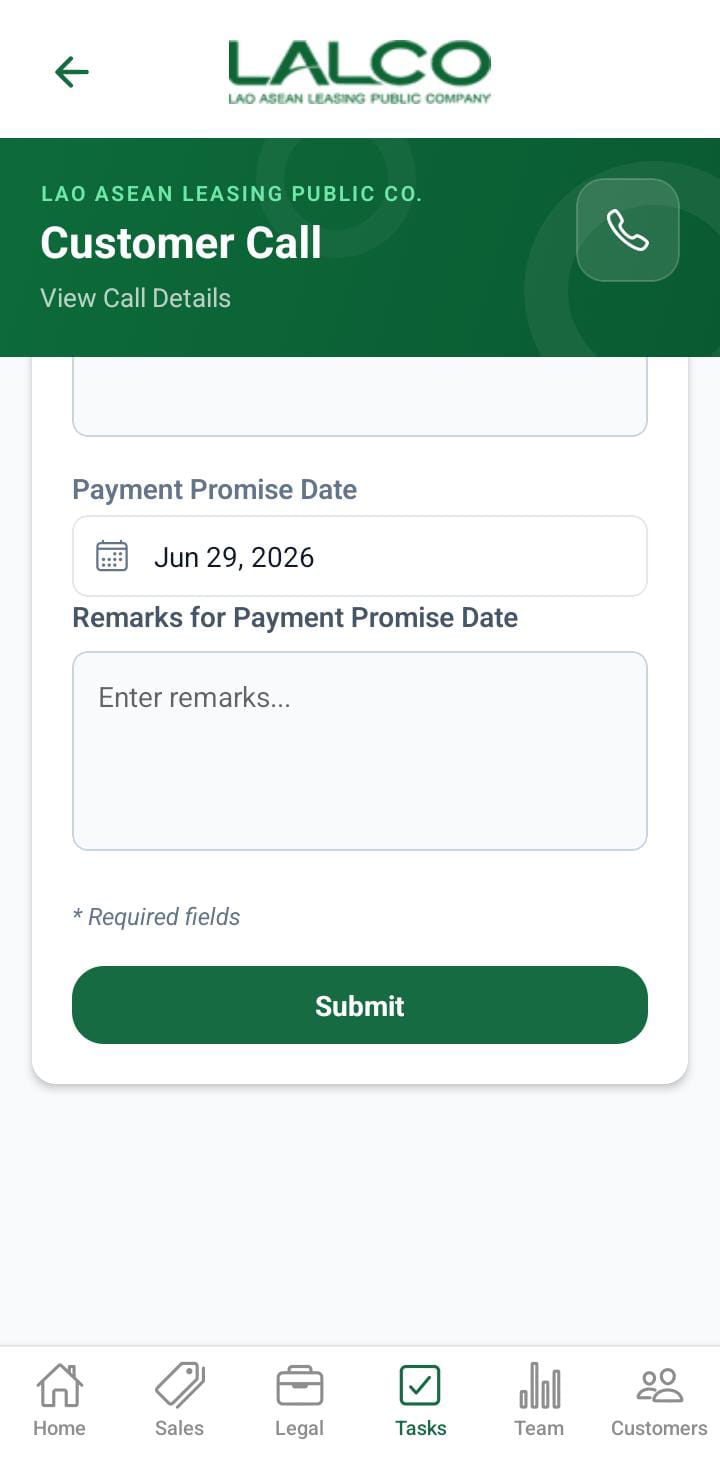
Call Screen Customer
 |
 |
 |
 |
The Latest Details
This section displays the last call details with the customer.
The form below is the current call data, adding screen. The form needs to be added below the details.
- Exceptional case
- Remark for the exceptional case
- Gps status
- Remark for the GPS status
- payment promise date
- remark for the payment promise date.
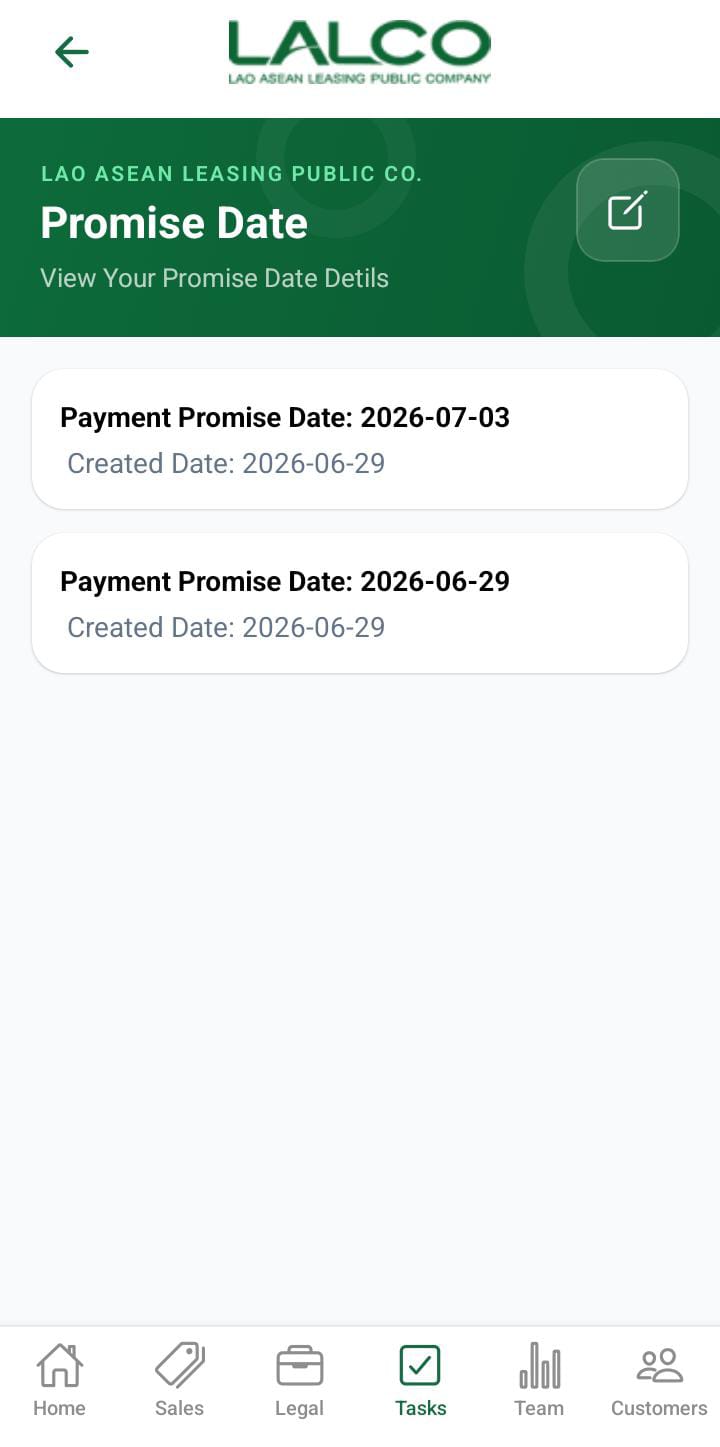
Promise Dates
Set or update customer promised payment dates
Customer Visit
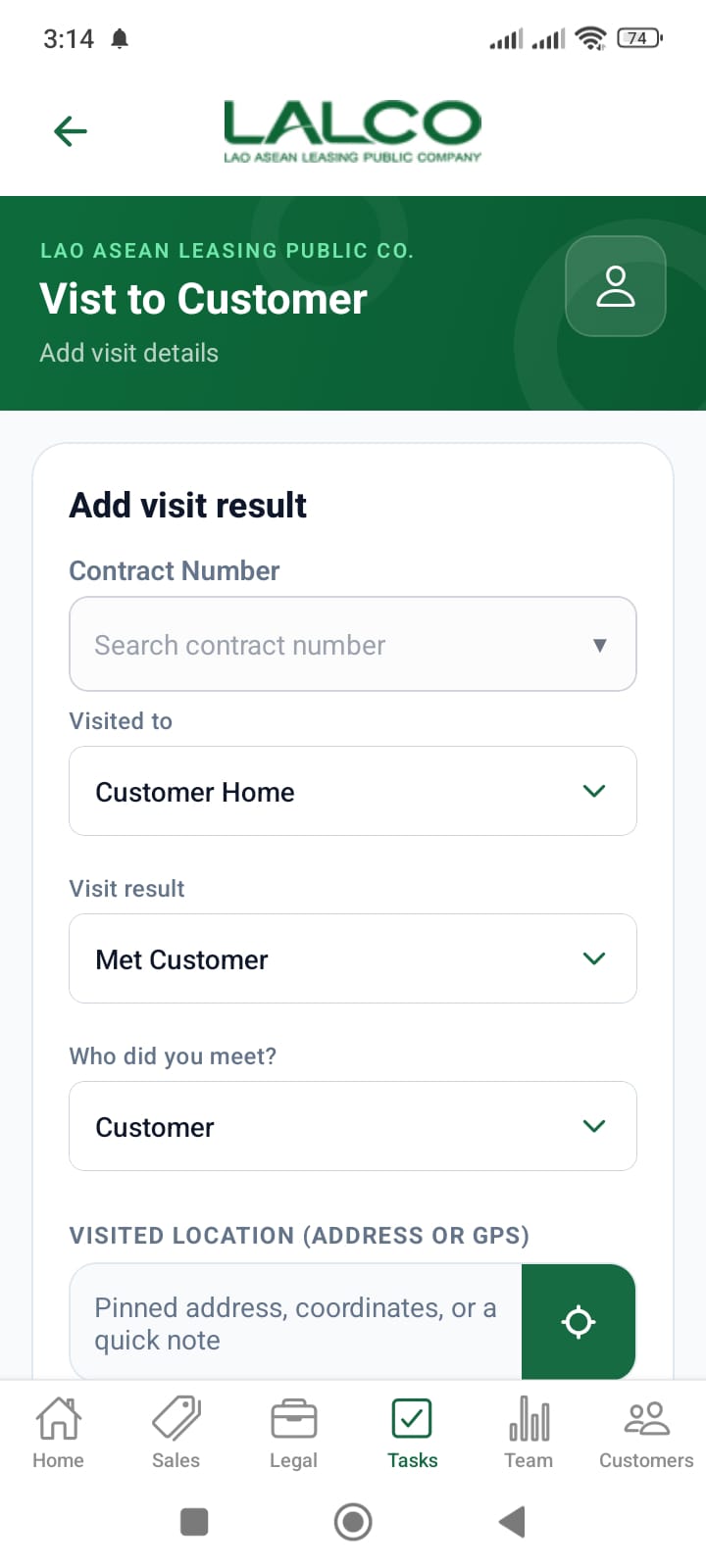
Visit the customer's home details adding
This data will be added to the special case details screen. After clicking the customer visit, the user will navigate to the customer visit screen.
 |
 |
 |
 |
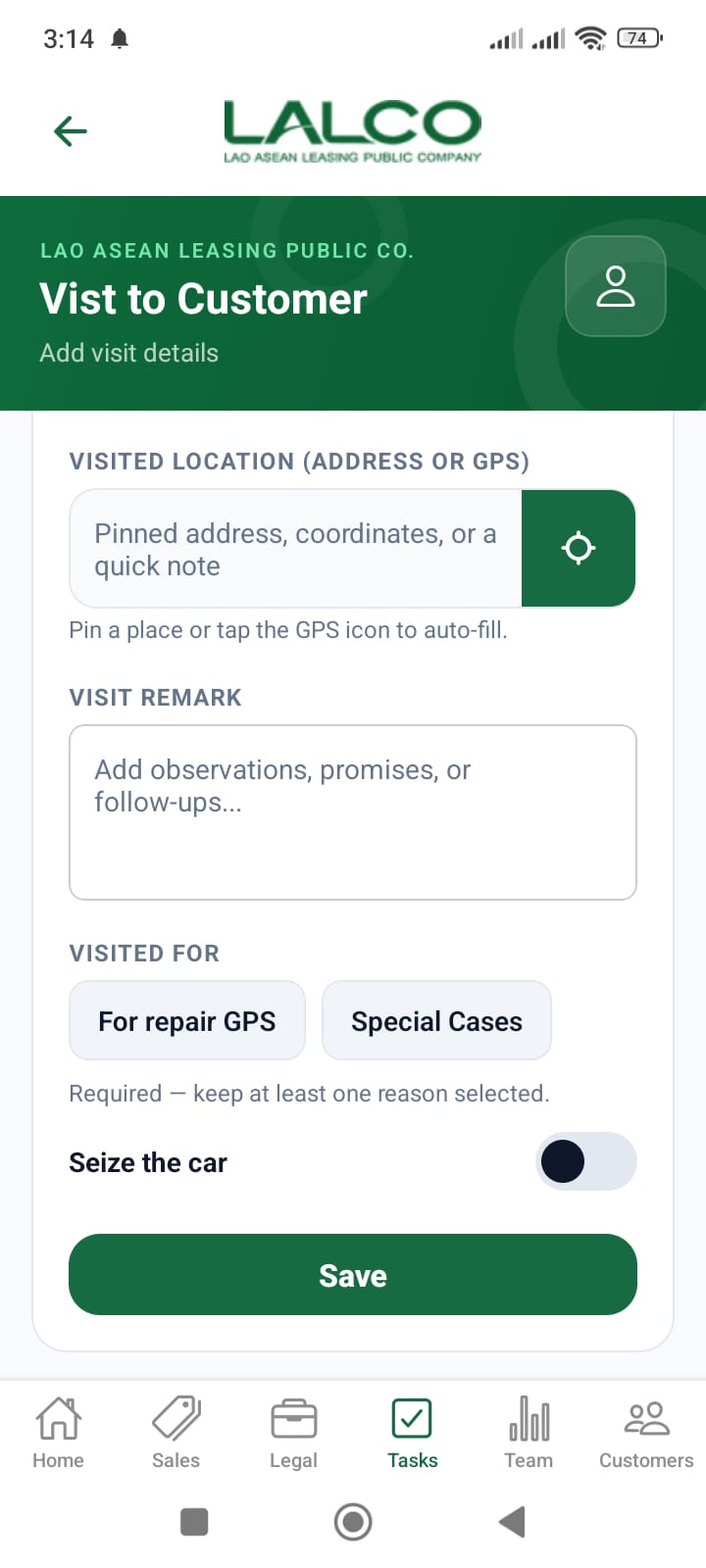
After a visit to the customer's home, the following details need to be submitted
- Contract number
- where to visit (Visited to)
- Visited result
- Who did you meet
- Visited location
- visited remark
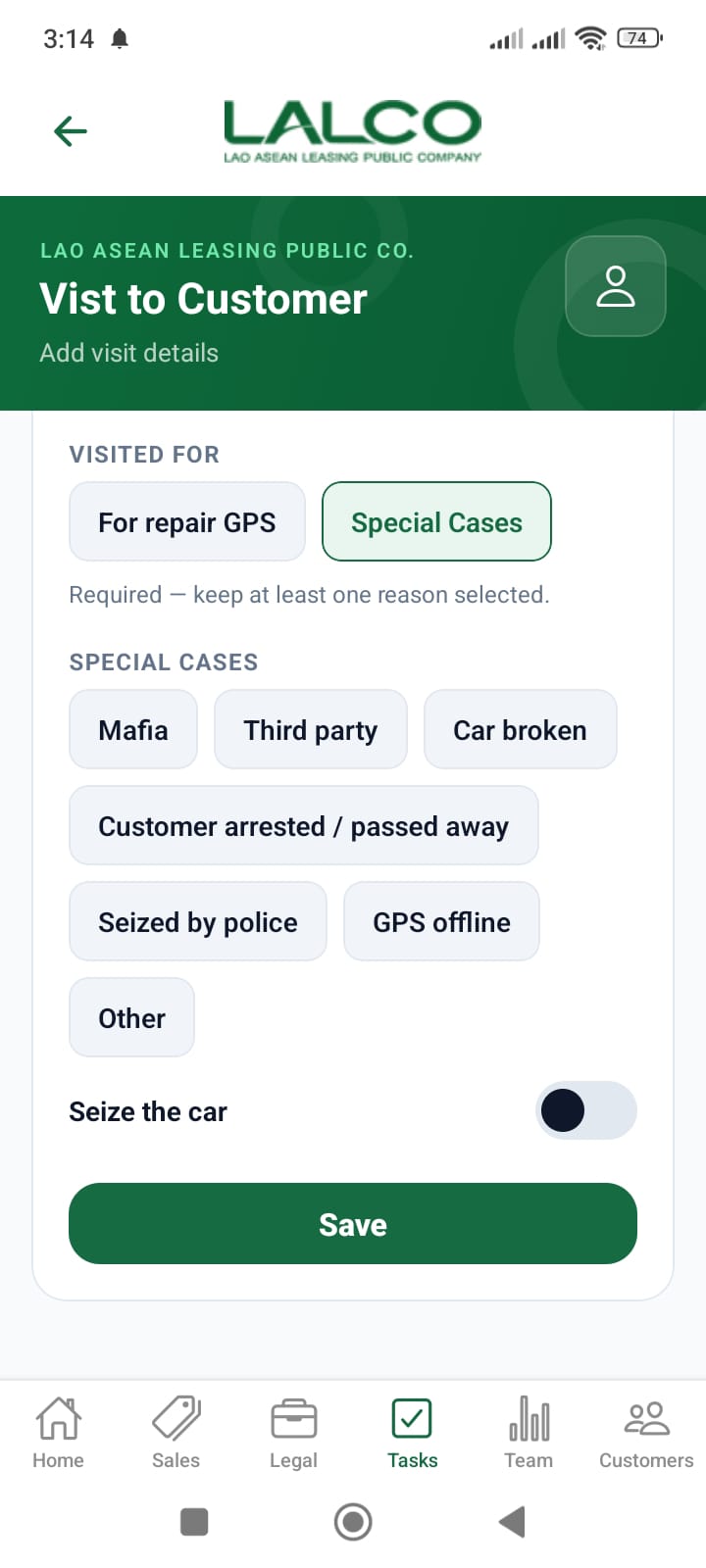
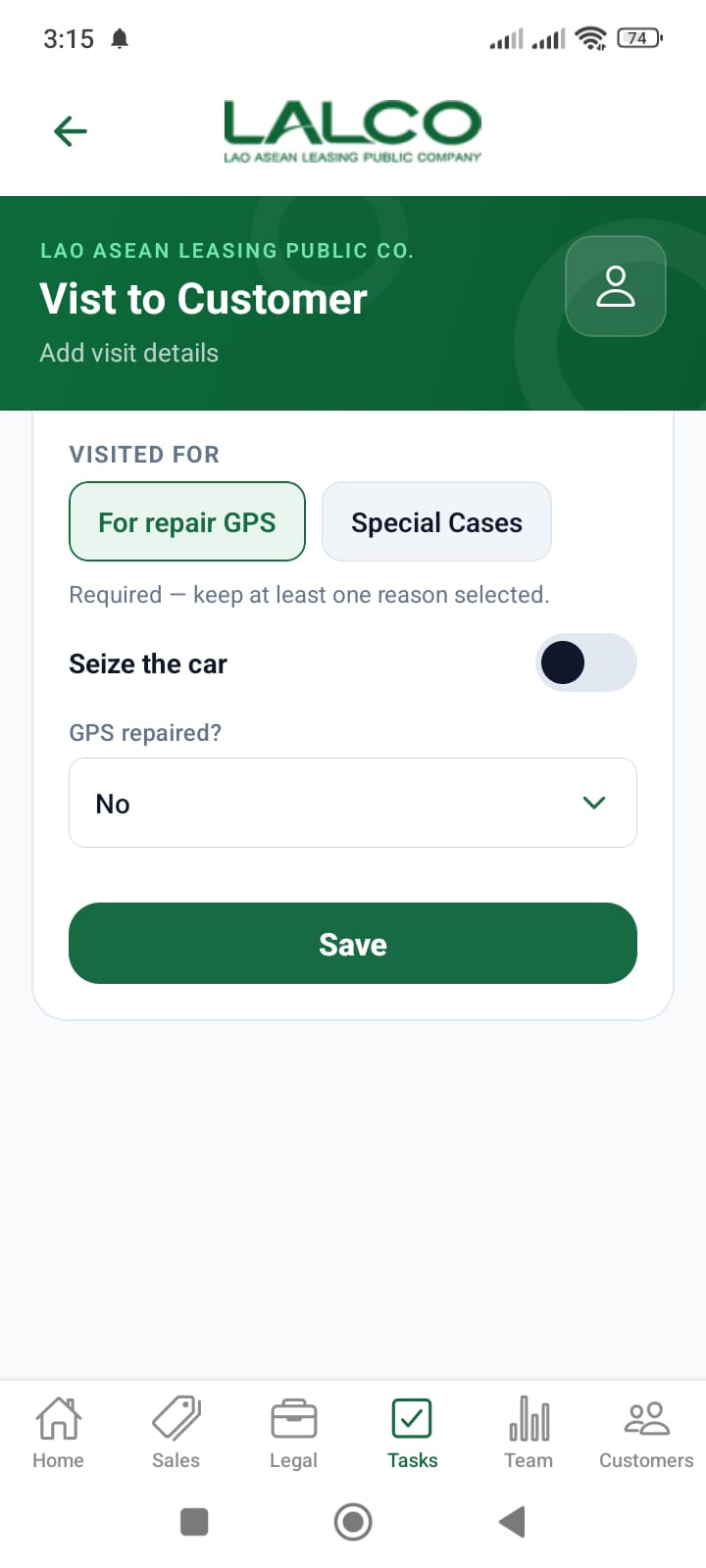
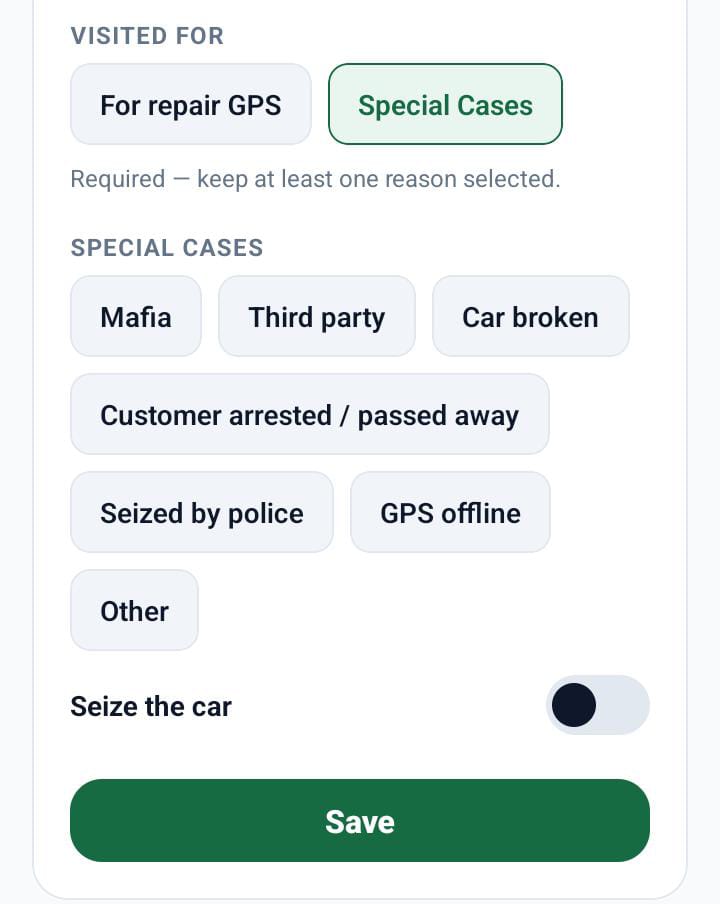
- The visited reason - this section has two options.
- For GPS repair
- Special Cases
 |
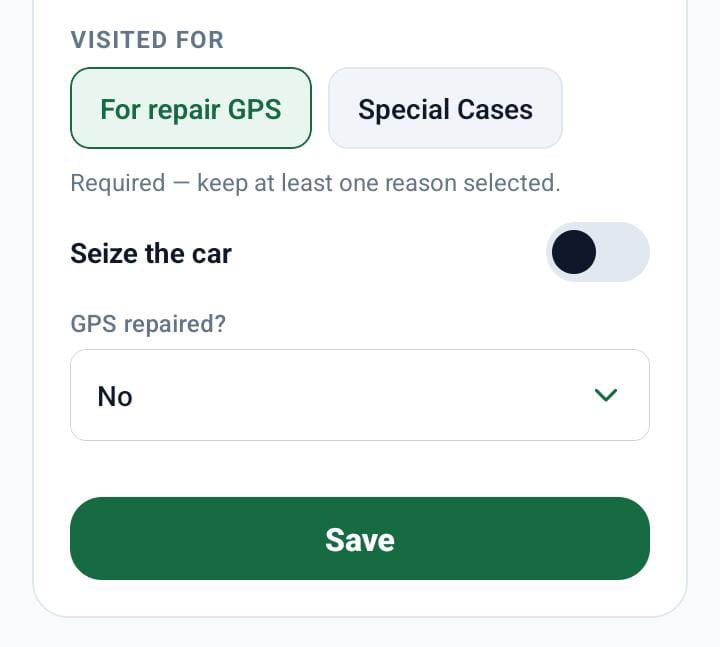 |
Select one of them and save. After saving these details, the user can view them in the special case screen.
How to Use
Manage Task
- Select a task from the list
- Review task information
- Choose an action
No Comments