
Offer Loan Screen
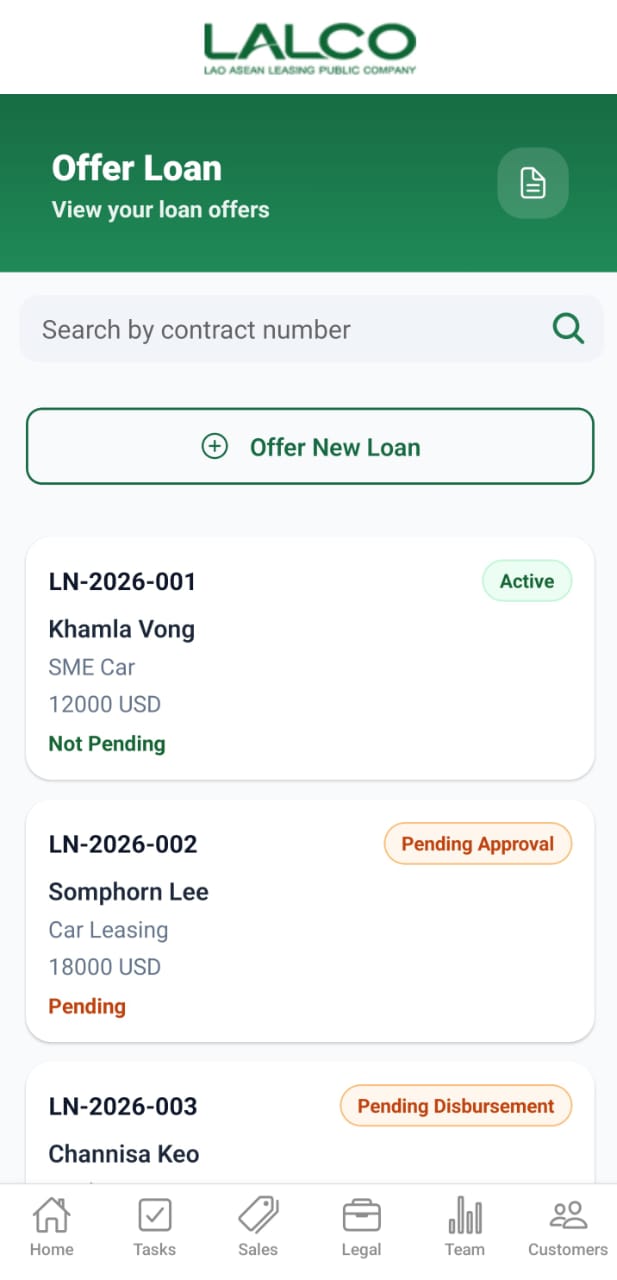
The Offer Loan Screen allows staff to view existing loan offers and create new loan applications for customers.
Search Function
Search Bar
Search by contract number
Allows users to search by:
- Contract number
- Loan ID
Main Action
Offer New Loan
Loan List
Each item represents a loan offer.
Example:
LN-2026-001
Khamla Vong
SME Car
12000 USD
Active
Khamla Vong
SME Car
12000 USD
Active
Information Displayed
Each record shows:
- Loan Number
- Customer Name
- Loan Type
- Loan Amount
- Status
Status Types
Common statuses include:
- Active → Loan is currently active
- Pending Approval → Waiting for approval
- Pending Disbursement → Approved but funds not released
- Pending → Still in process
- Not Pending → No pending actions
How to Use
View Loan
- Open the Offer Loan tab
- Browse or search records
- Tap a loan to view details
Offer Loan Screen
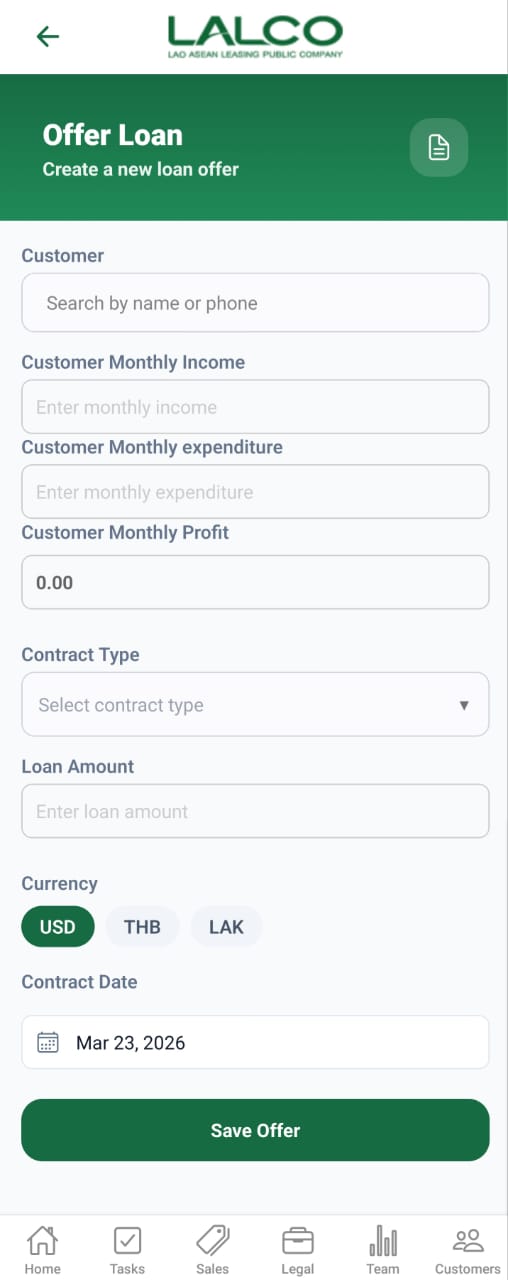
The Create Offer Loan Screen allows staff to create a new loan offer by entering customer and financial details.
Form Fields
Customer
Search customer by name or phone number
Customer Monthly Income
Enter total monthly income
Customer Monthly Expenditure
Enter monthly expenses
Customer Monthly Profit
Automatically calculated
Contract Type
Select loan type (e.g., SME Car)
Loan Amount
Enter loan value
Currency
Select currency:
- USD
- THB
- LAK
Contract Date
Select the loan start date
Action
Save Offer
Saves the new loan application
How to Use
Create Loan Offer
- Tap Offer New Loan
- Fill in all required fields
- Tap Save Offer
- Loan will be added to the list
Offer Loan Details Screen
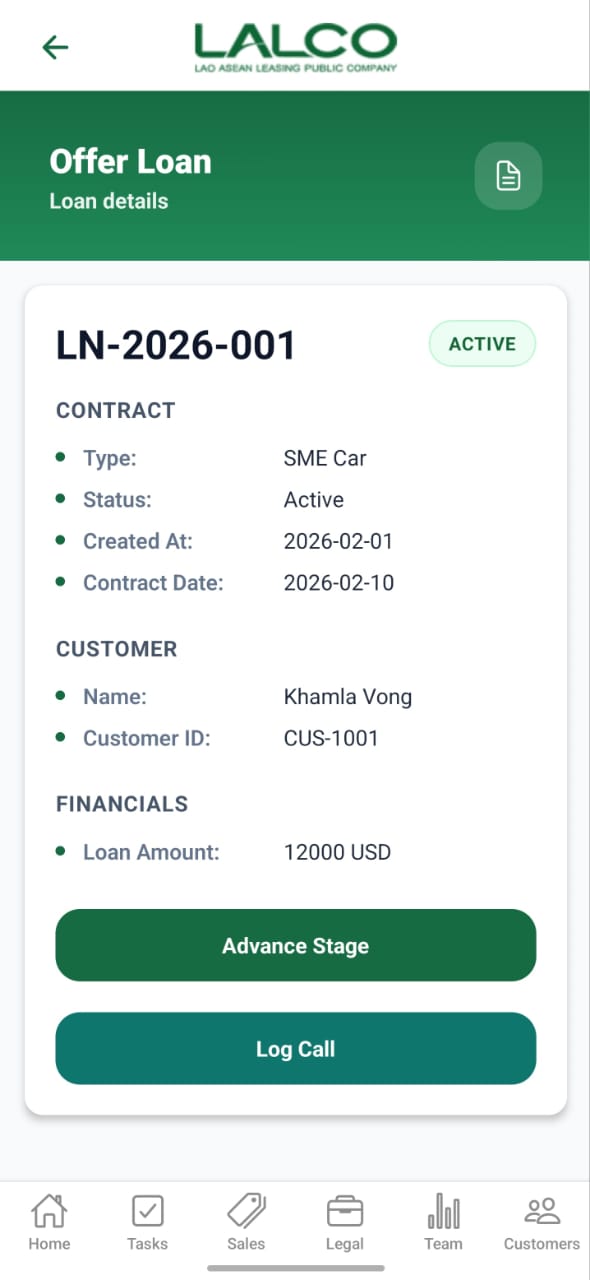
The Offer Loan Details Screen shows full information about a selected loan and allows staff to take actions.
Loan Details
Displays:
- Loan Number
- Contract Type
- Status
- Created Date
- Contract Date
Customer Information
- Customer Name
- Customer ID
Financial Information
- Loan Amount
Actions
Advance Stage
Moves the loan to the next stage
Log Call
Records customer communication
How to Use
View Details
- Select a loan from the list
- Review all information
Update Loan
- Tap Advance Stage
- Update progress
- Save changes
Log Call
- Tap Log Call
- Enter details
- Save
Navigation
Offer Loan → Select Loan → View Details / Create Loan
No Comments