
Collateral Screen
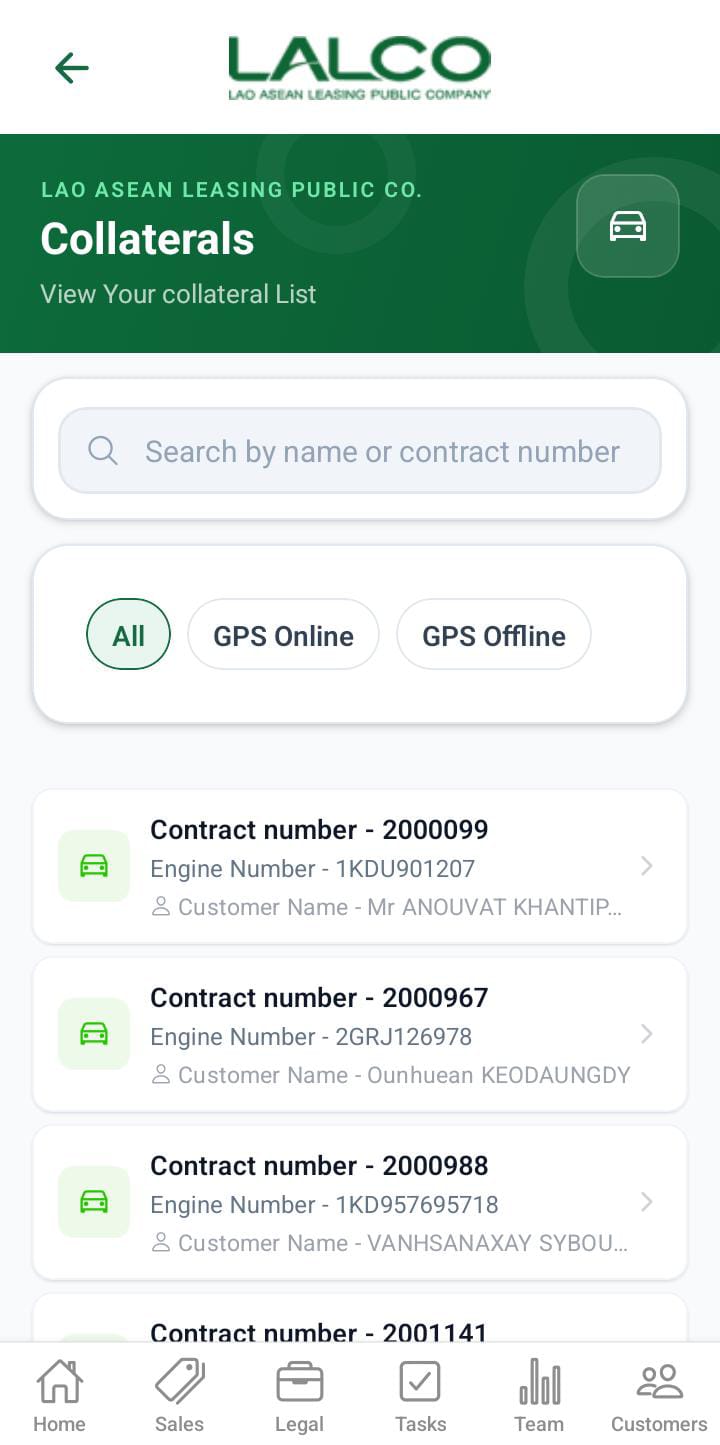
The Collateral Screen allows staff to view and manage contracts, where GPS tracking and view details of the collateral of each contract
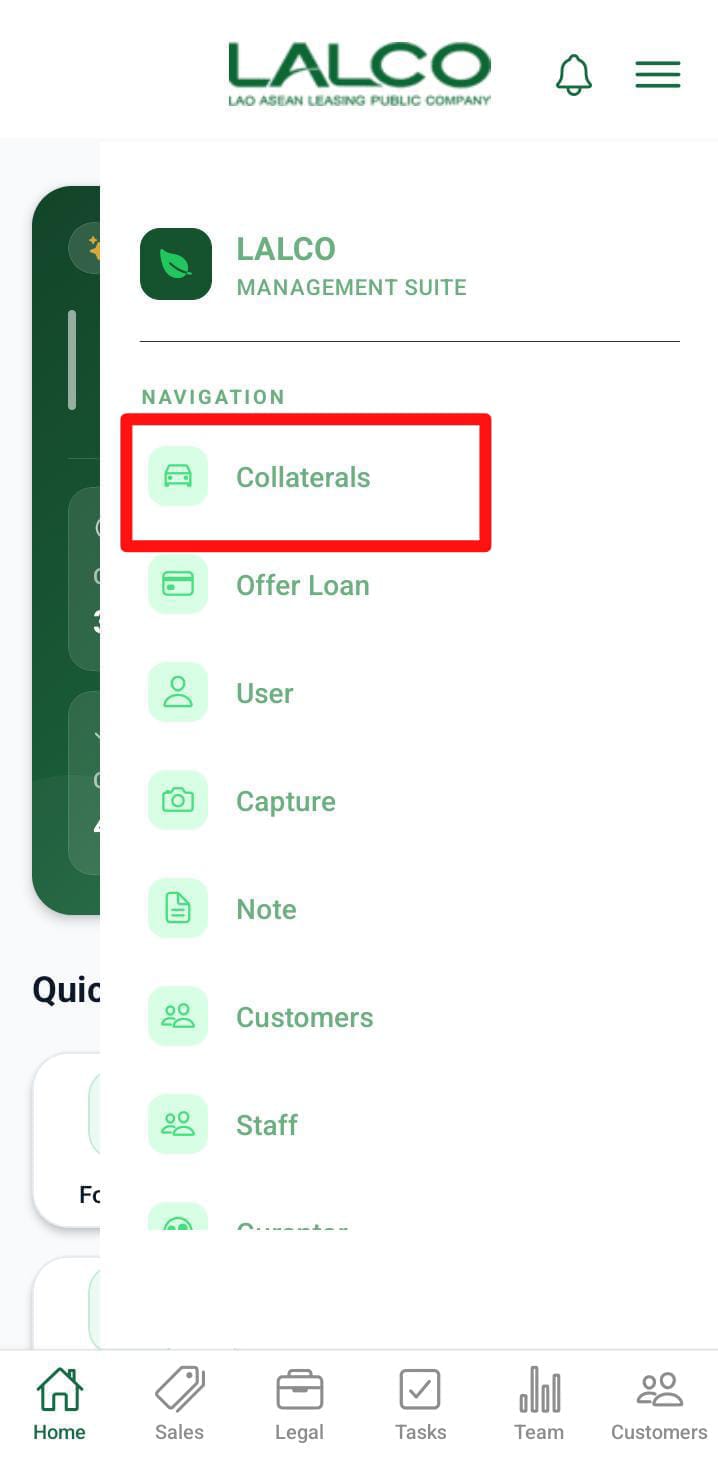
Access Path
Search Function
Search Bar
Allows users to search using:
-
Contract number
Filers
The user can filter GPS offline and GPS online collaterals separately.
Collateral List
Each item represents the collateral details of the contracts
Information Displayed
-
Contract Number
-
Engine Number
- Customer name
How to Use
View Contracts
-
Open side menu
-
Browse the list
- Click the collateral
Collateral Details Screen
 |
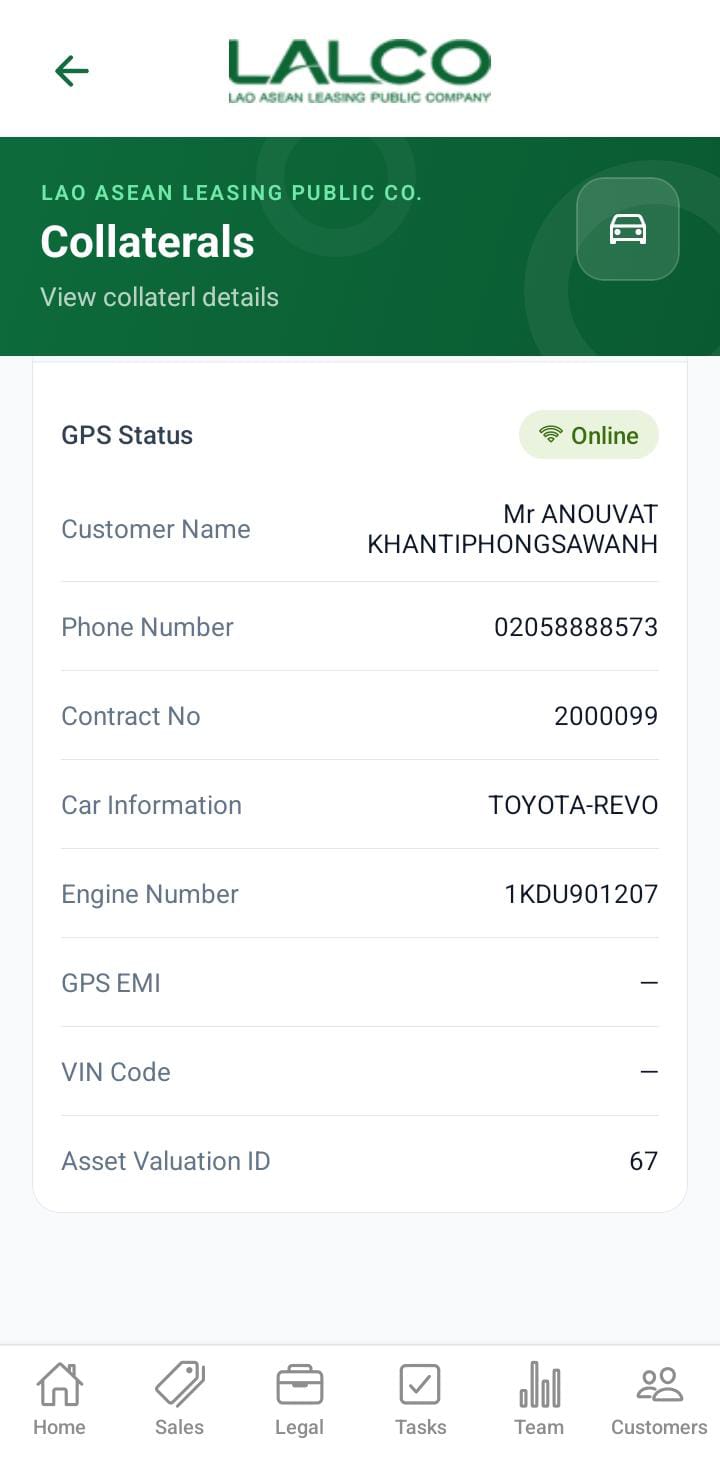 |
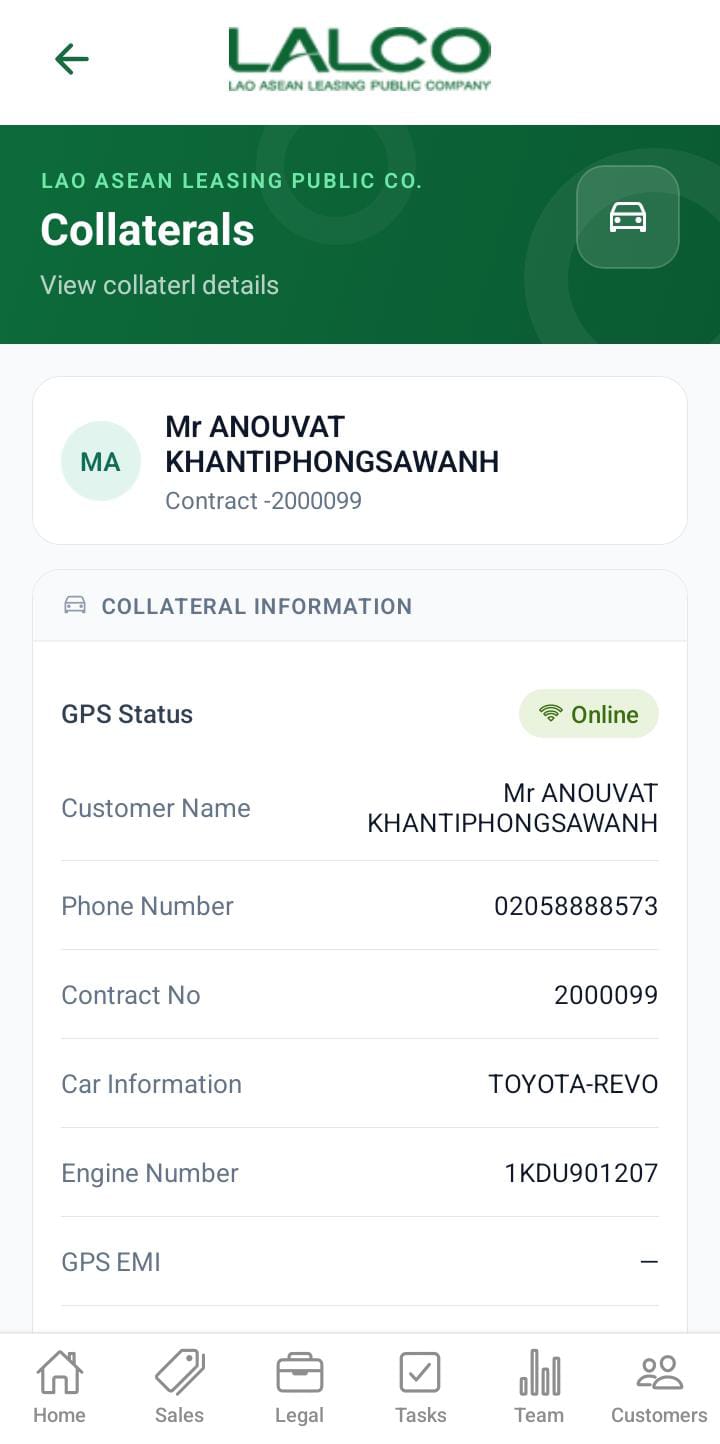
Displays detailed information about a selected GPS offline contract.
Header Section
Page Title
Collaterals
Description
Contract Information
Displays complete details of the selected contract:
-
Customer Name → Name of the customer
-
Phone Number → Contact number
-
Contract Number → Unique ID
-
Car Information → Vehicle model and details
-
Car Engine Number → Engine ID
-
GPS EMI Number → GPS installment/availability status
-
Vin Code → Vehicle identification number
-
Asset Valuation ID → Internal tracking ID
How to Use
View Details
-
Select an item from the list
-
Review all customer and vehicle details
💡 Tip:
Use this screen to quickly identify vehicles with GPS issues and take necessary follow-up actions.
No Comments