
Task Screen
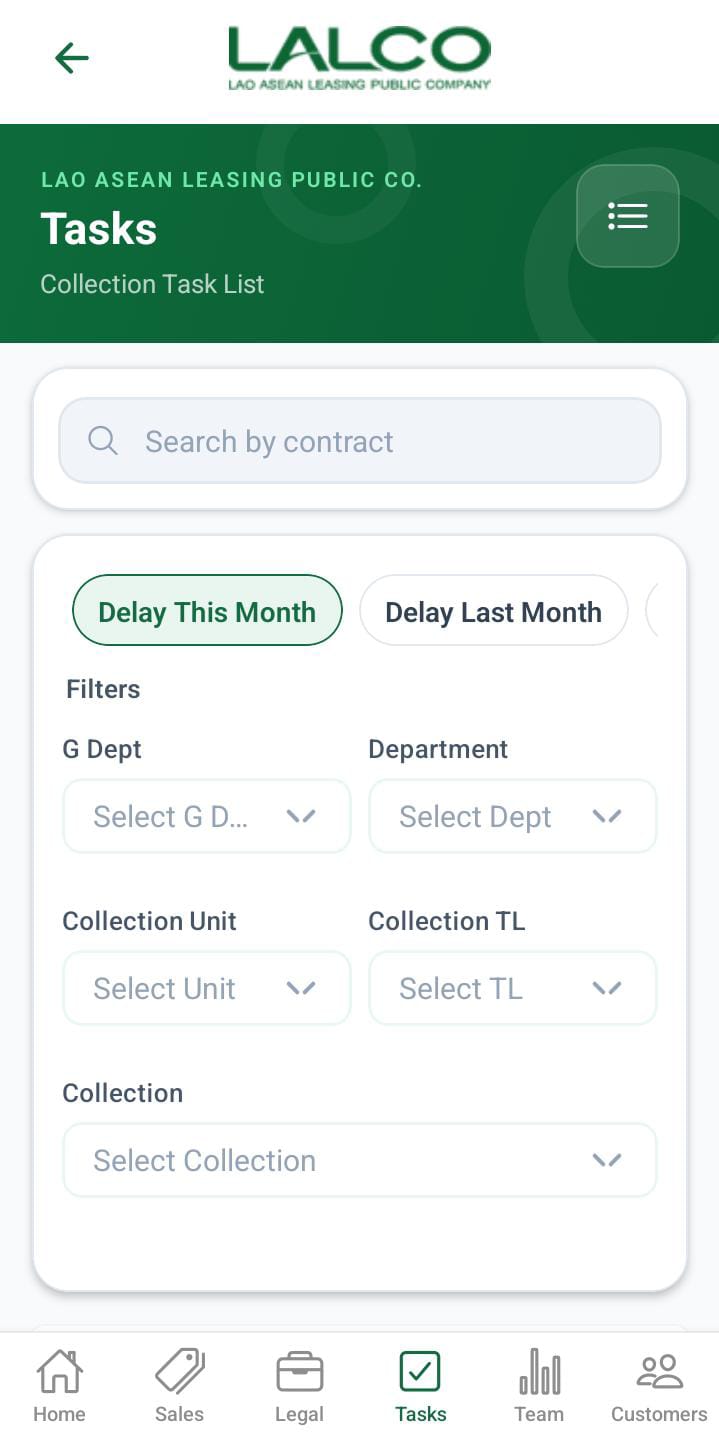
The Task Screen allows staff to view, filter, and manage assigned tasks related to payments and follow-ups.
Search Function
Search Bar
Search by task
Allows users to search tasks by:
- Contract number
Filters
Users can filter tasks based on their role.
The filters above are displayed based on the user's role.
When the role is,
- Admin can view all the filters.
- g_dept, can all filters except the g department
- dept, can collection unit, collection tl and collection
- collection_unit can view the collection tl and collection
- Collection TL, can view the collectionThe
- collection can only see the search filters,
There are additional filters available in the filter section,
- Delay This Month: Next due date is 0–30 days overdue.
- Last Month Delay: Next due date is 30–60 days overdue.
- Two-Month Delay: Next due date is 60–90 days overdue.
- OA Contract: Next due date is more than 90 days overdue.
Task List
Each item represents a staff task.
Information Displayed
Each record shows:
- Customer Name
- Mobile Number
- contract number
- contract type
Pagination
- Prev → Go to previous page
- Next → Go to next page
- Displays current page (e.g., Page 1 of 3)
How to Use
View Tasks
- Open the Task screen
- Use filters to narrow results
- Search if needed
- Select a task to view details
Task Details Screen
 |
 |
 |
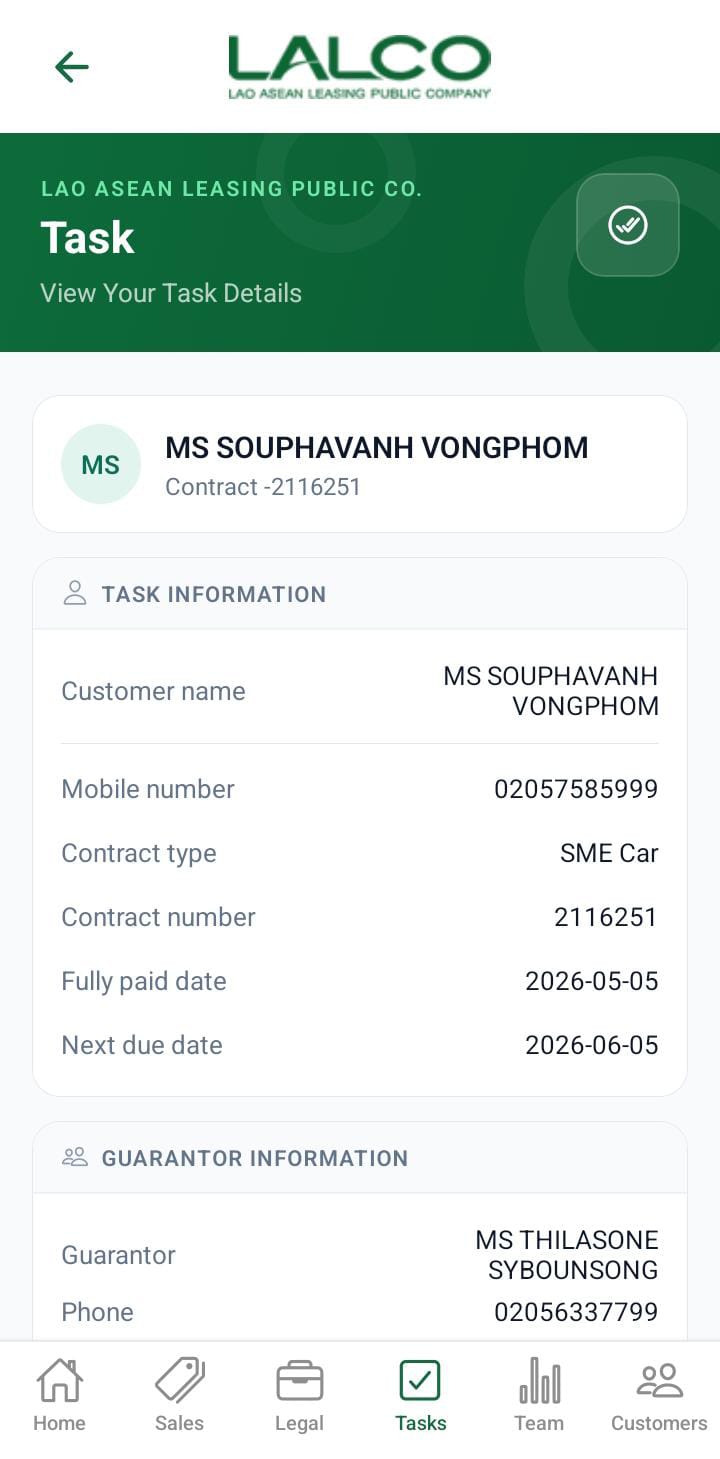
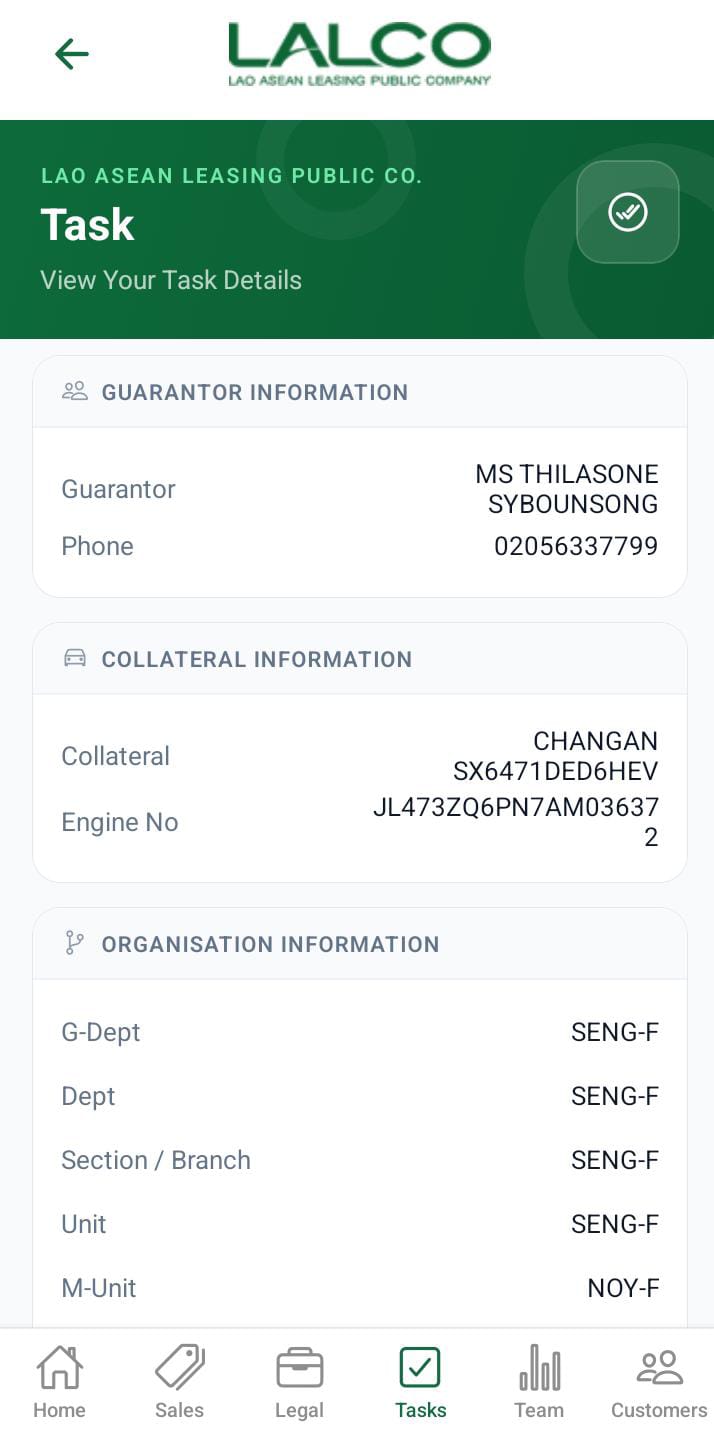
The Task Details Screen provides complete information about a selected task and allows staff to take follow-up actions.
Task Information
Displays:
- Customer Name
- Mobile Number
- Contract Type
- Contract Number
- Fully Paid Date
- Next Due Date
- Gurantor details
- Collateral details
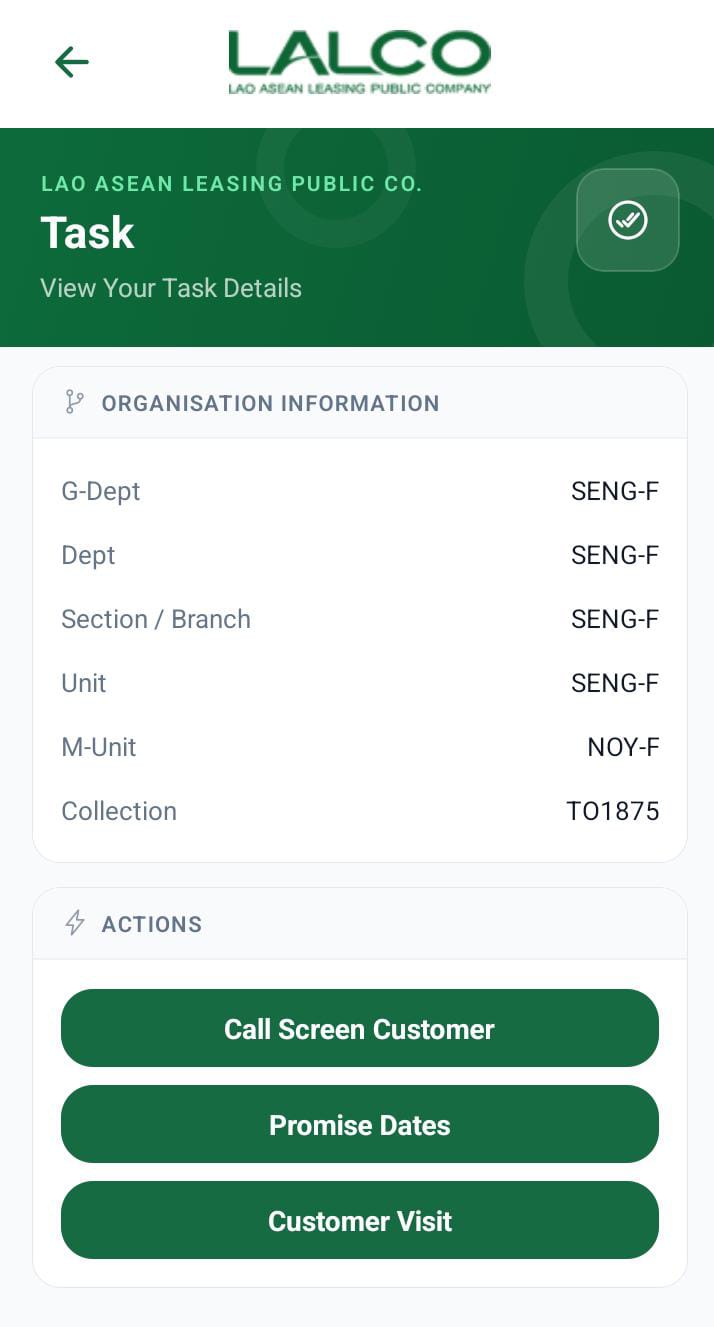
Actions
Call Screen Customer
Initiates customer follow-up or call process
Promise Dates
Set or update customer promised payment dates
Customer Visit
Visit the customer's home details adding
How to Use
Manage Task
- Select a task from the list
- Review task information
- Choose an action