
Collection Adjustment
The Collection Adjustment module is used to search for an existing contract, review its financial details, and manage collections, accruals, and rescheduling of payment schedules. This module helps users accurately track outstanding amounts and maintain proper collection records.
Accessing the Collection Adjustment Page
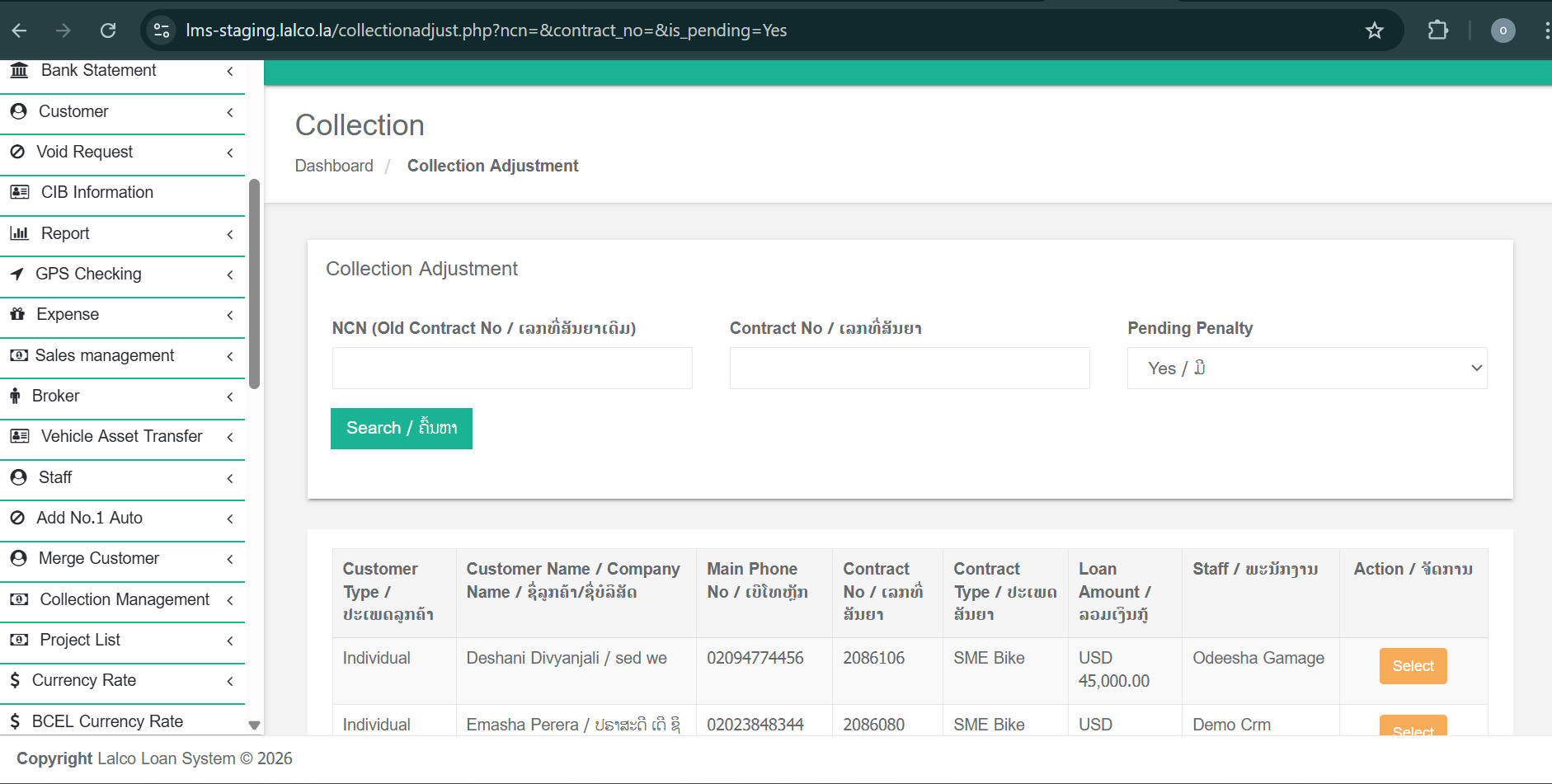
When the Collection Adjustment page is opened, the user must first search for a contract. Actions cannot be performed without selecting a contract.
Collection Adjustment page displays Active, Refinance, and Closed contracts.
Search Filters
The page provides three search filters to locate a contract:
-
NCN – Search using the NCN number
-
Contract Number – Search using the contract number
-
Pending Penalty – Filter contracts with pending penalties
After entering the required search criteria, click Search to view matching contracts.
Selecting a Contract
Once the contract list is displayed:
-
Select the required contract using the Select/Add button.
-
The system will navigate the user to the Collection Adjustment Details page for the selected contract.
Contract Summary Section
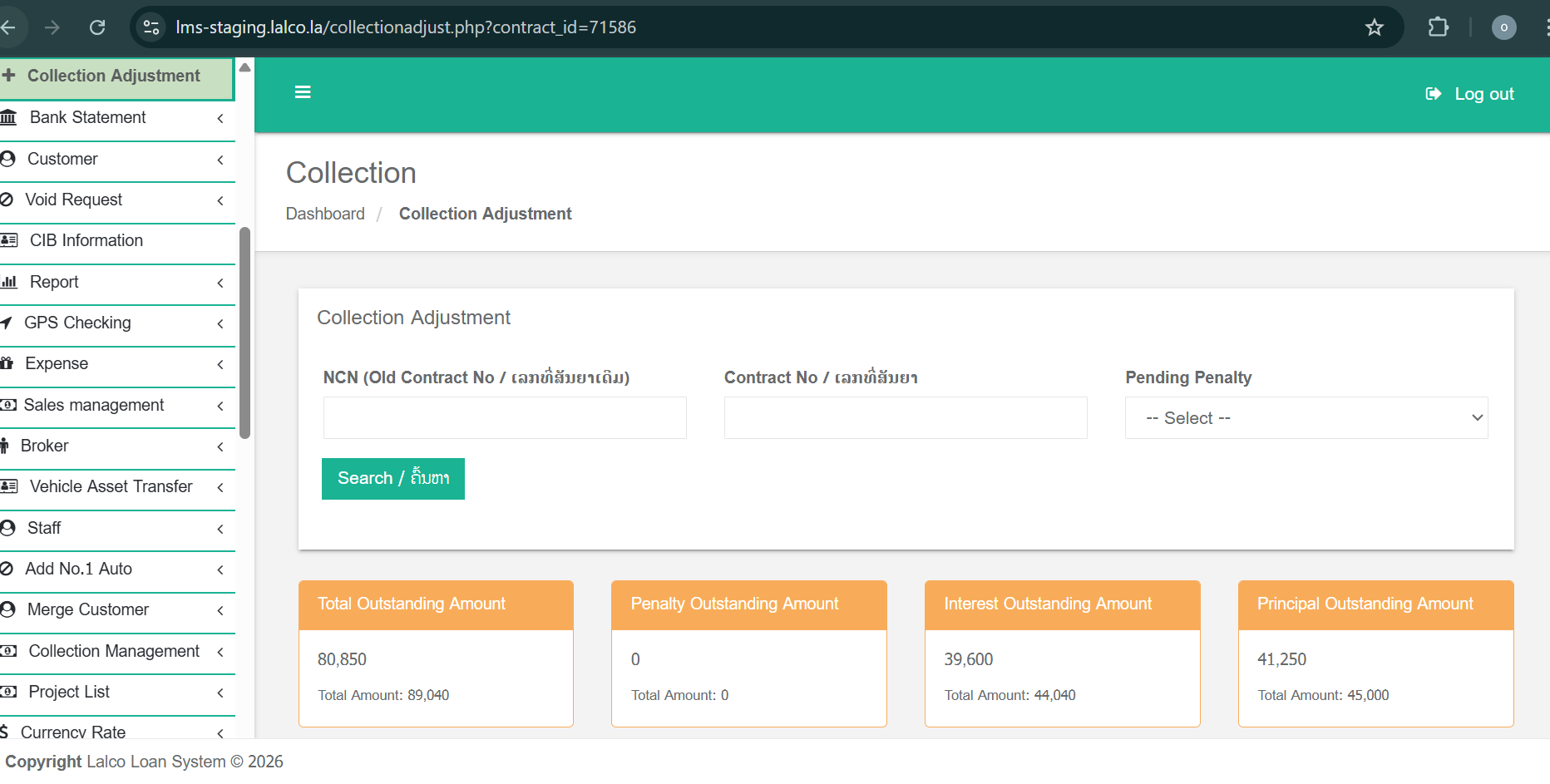
At the top of the details page, four summary boxes are displayed to provide a quick financial overview of the contract:
-
Total Outstanding Amount – Total amount currently outstanding
-
Penalty Outstanding Amount – Outstanding penalty amount
-
Interest Outstanding Amount – Outstanding interest amount
-
Principal Outstanding Amount – Outstanding principal amount
These values help users understand the current financial status before performing any actions.
Tabs in Collection Adjustment
1. Collection Record Tab
-
Displays all approved collection records in a table format.
-
Each record shows details of collections already made against the contract.
-
Newly created collections will also appear here once approved.
2. Payment Schedule Tab
-
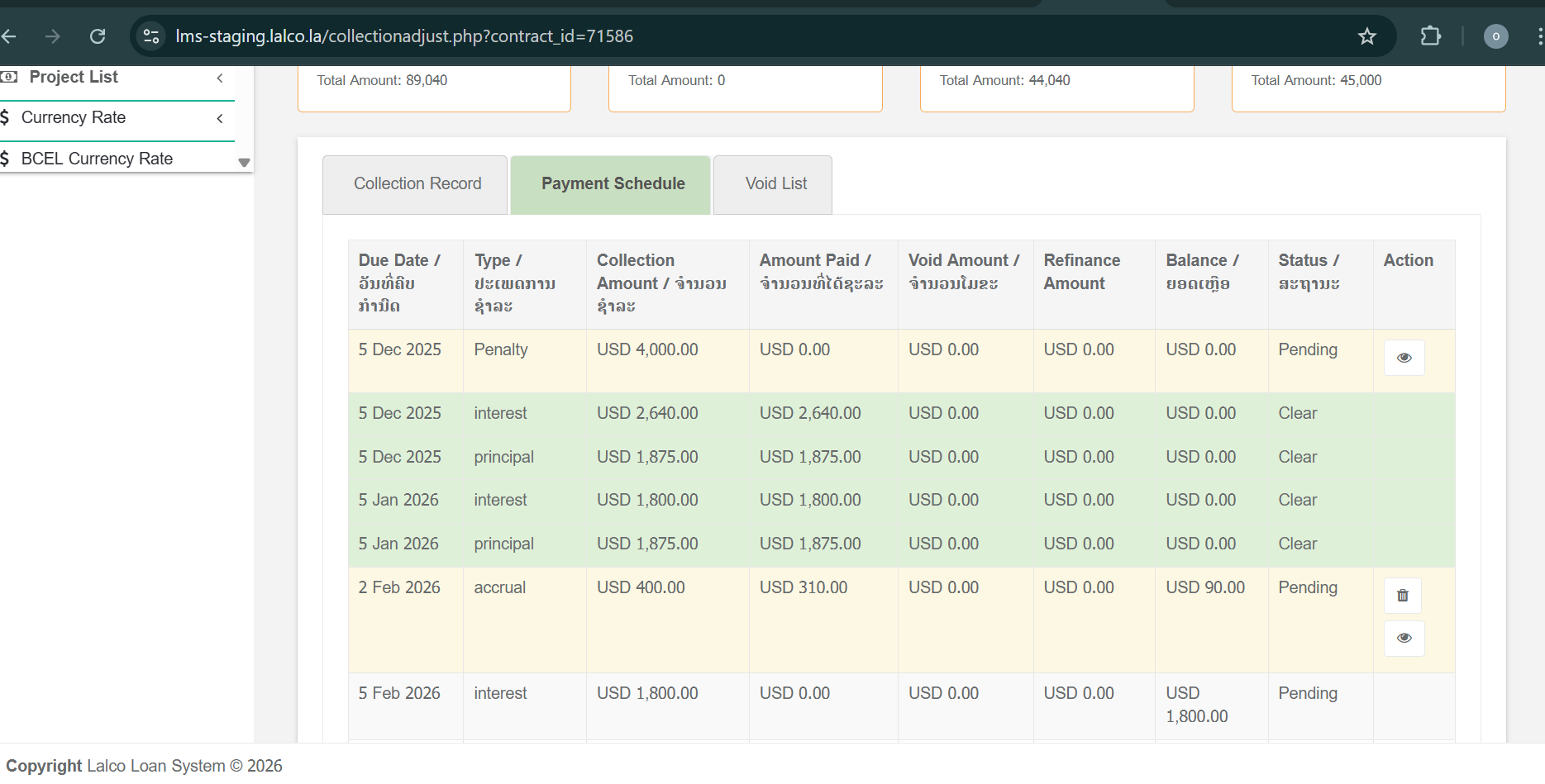
Displays the payment schedule for the contract.
-
Shows accrual, principal, and interest details for each installment.
-
Both paid and pending payments are clearly visible in the table.
-
Any newly created accruals or rescheduled payments will be reflected here.
3. Void List Tab
-
Displays a list of voided payments, if any exist.
-
Helps track reversed or cancelled collection records for auditing and reference purposes.
Available Actions (Buttons)
1. Create Accrual
-
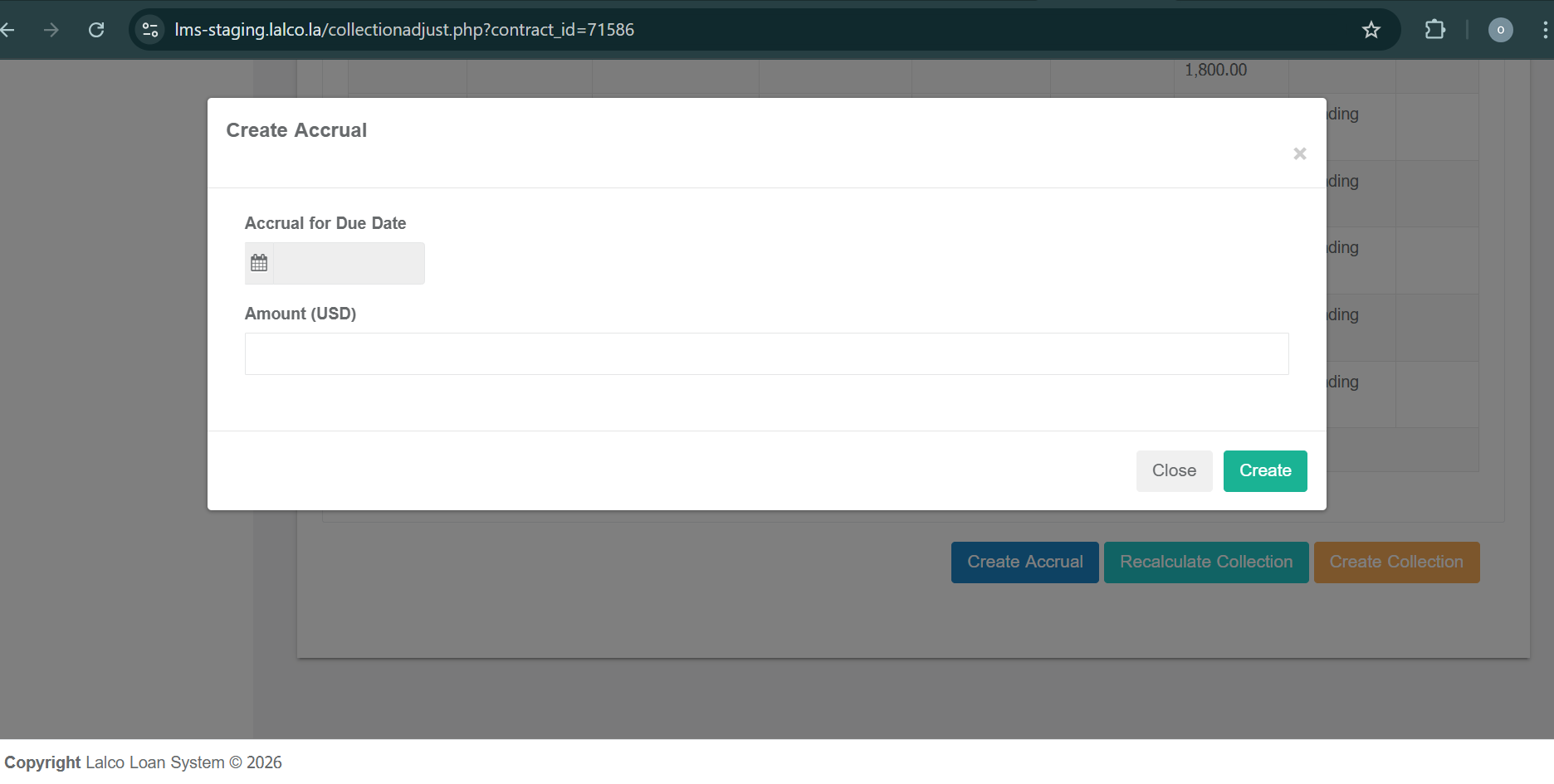
Clicking Create Accrual opens a popup window.
-
The user can enter accrual payment details.
-
Once the accrual is created:
-
It is automatically added to the Payment Schedule table.
-
The schedule is updated to reflect the new accrual amount.
-
2. Reschedule Collection
-
Clicking Reschedule Collection recalculates the payment schedule.
-
This action adjusts installment details based on updated outstanding amounts.
-
The revised schedule is displayed in the Payment Schedule tab.
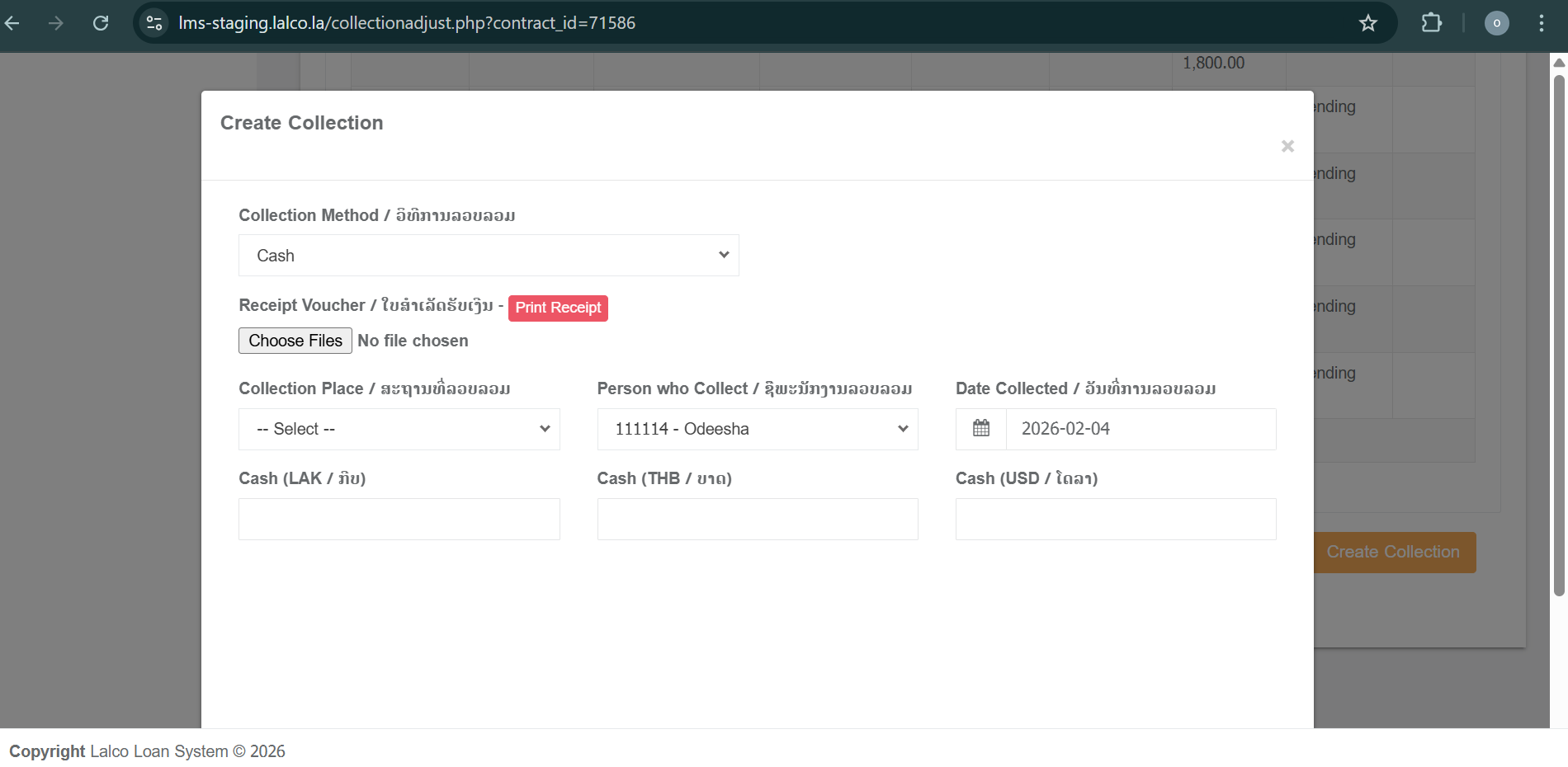
3. Create Collection
-
Used to record a new collection against the contract.
-
The user can select different collection types, such as:
-
Cash
-
Bank
-
Refinance of Collection
-
-
After saving:
-
The collection is recorded as an approved collection.
-
The new entry appears in the Collection Record tab.
-
Outstanding amounts are updated accordingly.
-
No Comments